

The Leads Screen
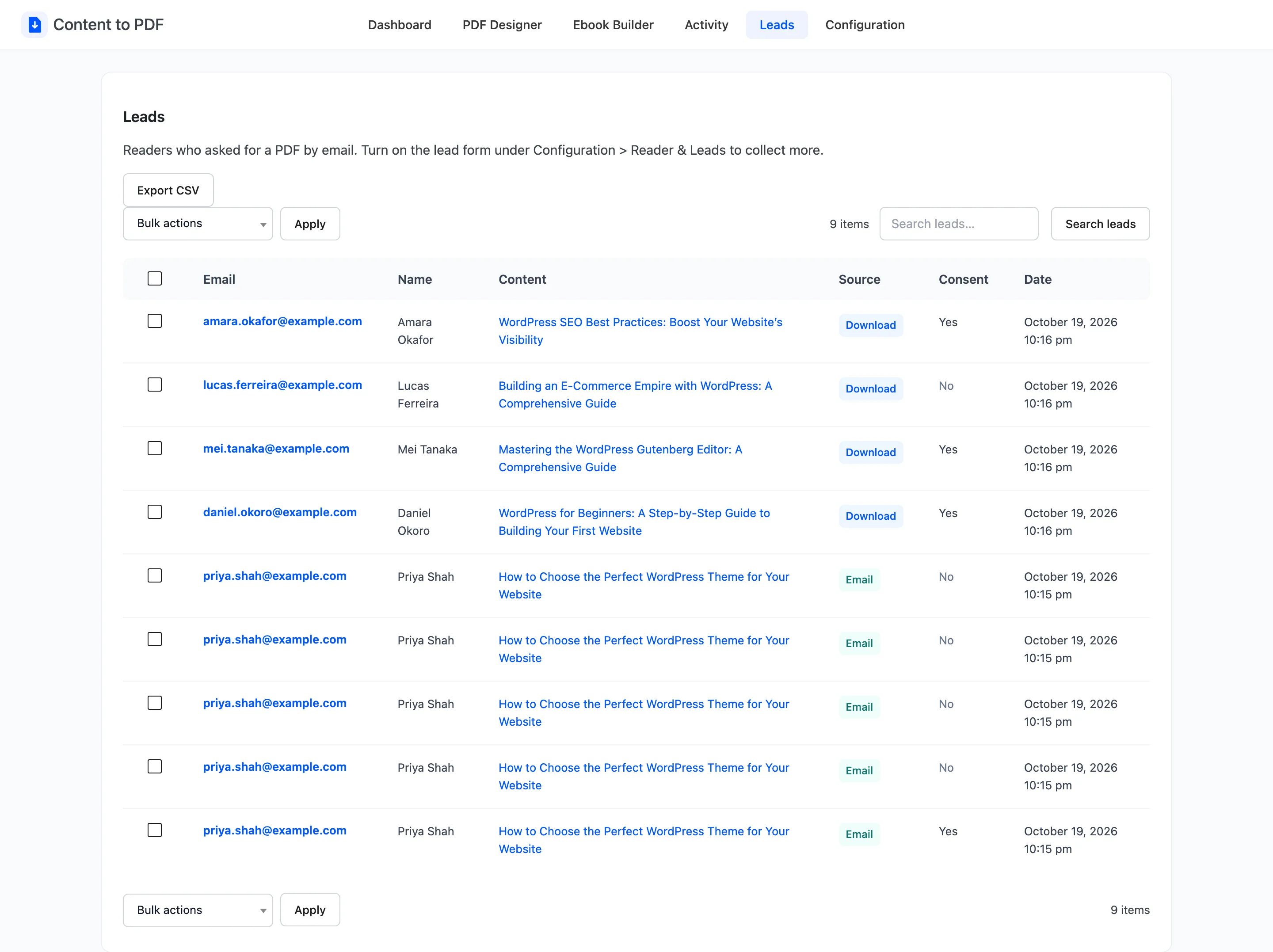
The Leads screen lists readers who gave their details to download a PDF or have it emailed. Open Content to PDF → Leads.
Columns
Section titled “Columns”- Email and Name.
- Content: The post they asked for.
- Source: Download for the lead form, Email for the email form.
- Consent: Yes if they ticked the consent checkbox.
- Date: When the lead arrived.
A reader who asks for several PDFs appears once per request.
Search
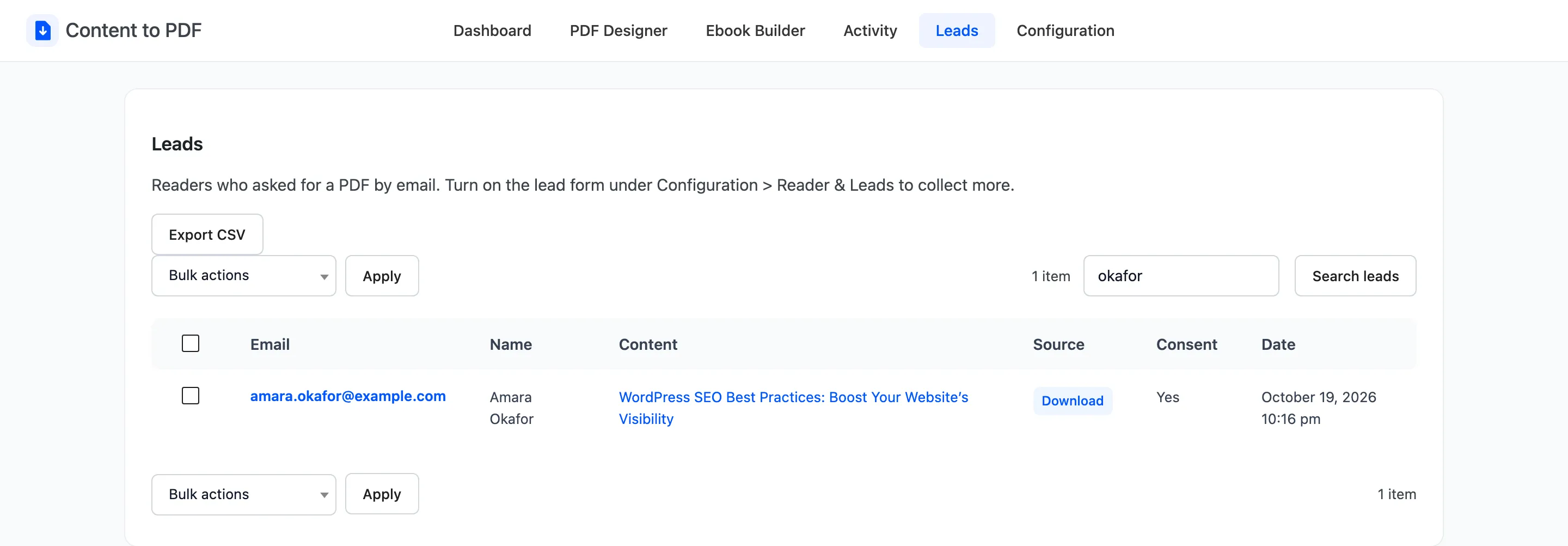
Section titled “Search”The search box finds a name or an email address.
Delete
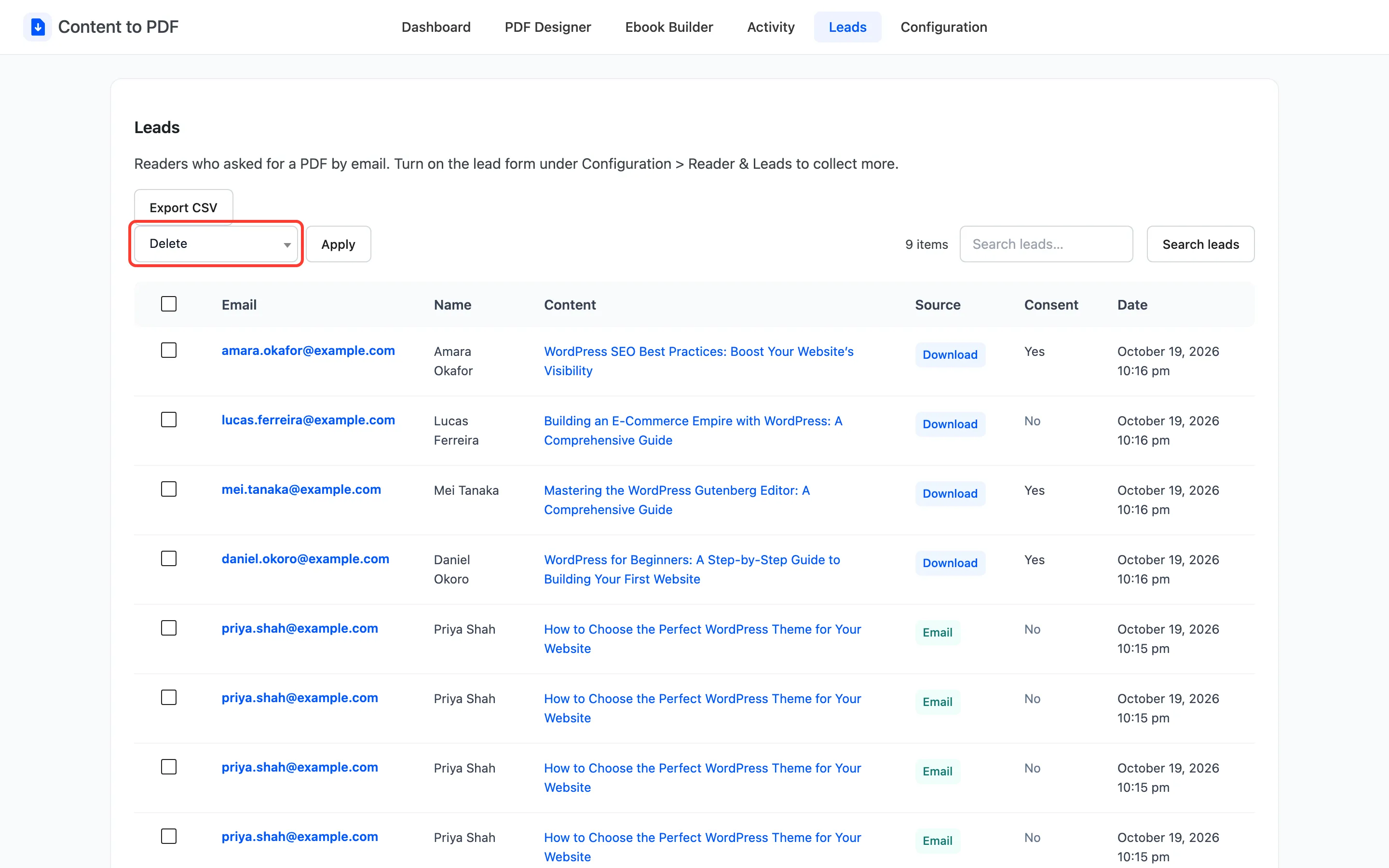
Section titled “Delete”Tick rows, choose Delete under Bulk actions and click Apply. “Leads deleted.” confirms it.
Export CSV
Section titled “Export CSV”Export CSV downloads every lead as content-to-pdf-leads-<date>.csv, with the columns Name, Email,
Content, Source, Consent and Date.
Only readers who ticked the consent checkbox agreed to marketing email. Filter on the Consent column before you import the file into a mailing list.
To send leads to a CRM as they arrive, use the ddcpdf_lead_captured action. See
How to Collect Leads with a PDF.