

How to Brand Your PDFs
A PDF travels without your website around it. Branding puts your name on every page, so a forwarded copy still leads back to you.
Step 1: Upload your logo
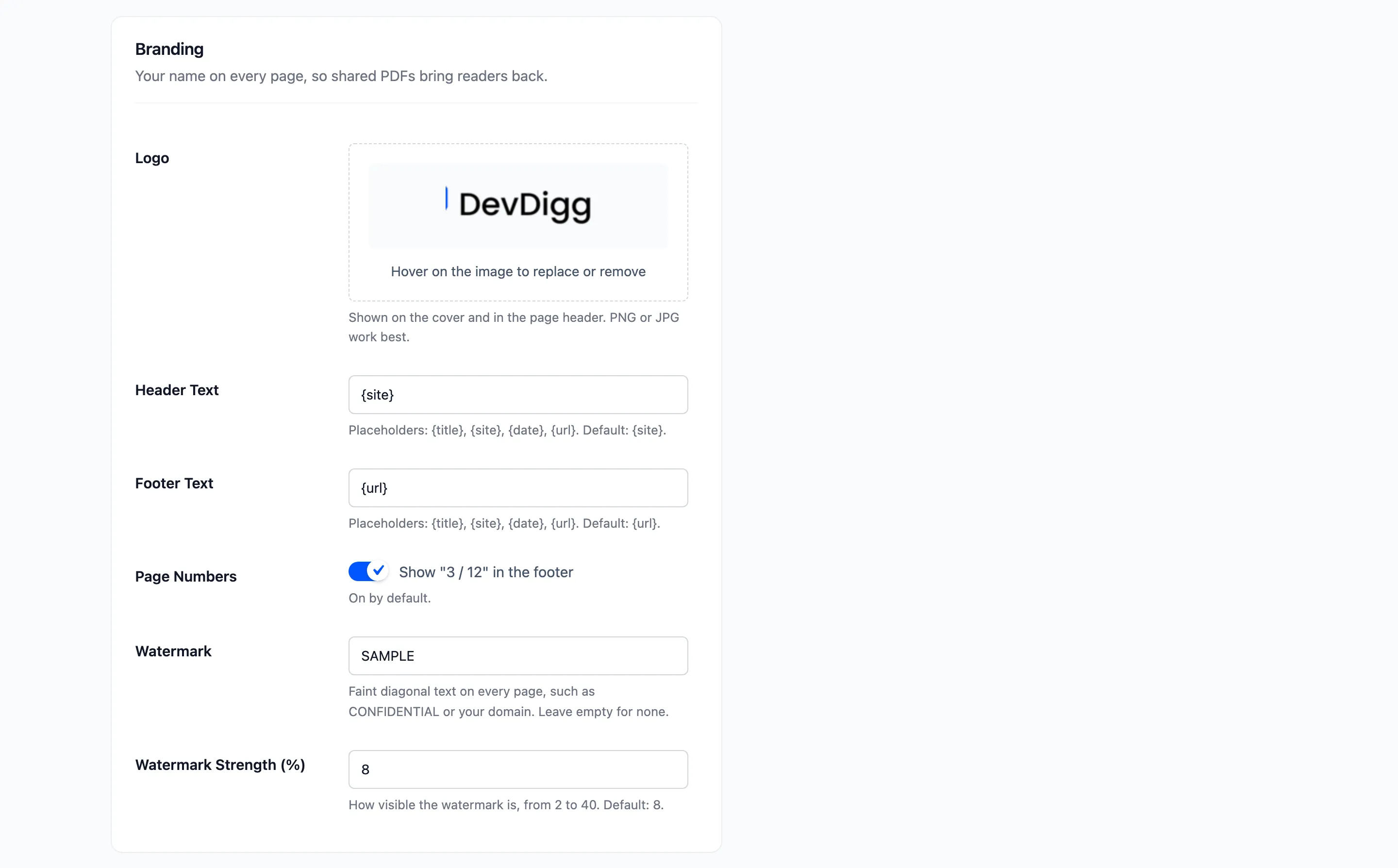
Section titled “Step 1: Upload your logo”Go to Content to PDF → PDF Designer and scroll to Branding. Under Logo, choose an image from the media library. A PNG or JPG with a transparent or white background works best.
Step 2: Set the header and footer text
Section titled “Step 2: Set the header and footer text”- Header Text: Default
{site}, your site name. It sits at the top right of each page. - Footer Text: Default
{url}, the page’s address. It sits at the bottom left.
Both take plain text and four placeholders: {title}, {site}, {date} and {url}. Clear a
field to leave that line empty.
Step 3: Keep page numbers on
Section titled “Step 3: Keep page numbers on”Page Numbers prints “3 / 12” at the bottom right of each page. It is on by default.
Step 4: Save and open a real PDF
Section titled “Step 4: Save and open a real PDF”Click Save Changes. The live preview shows the logo at once.
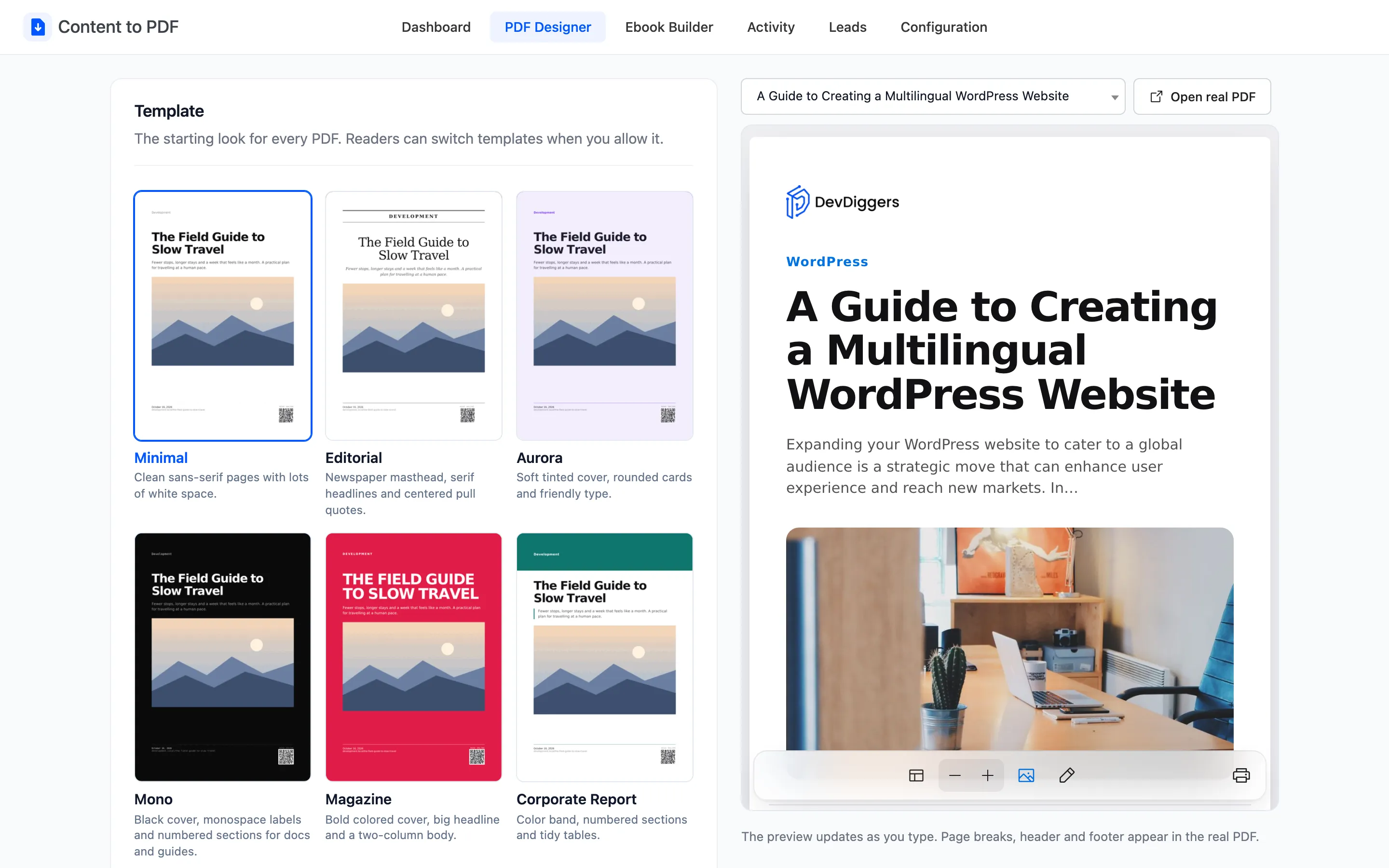
Click Open real PDF to see the header and footer, which only appear in the file itself. The logo sits on the cover and at the top left of every page.
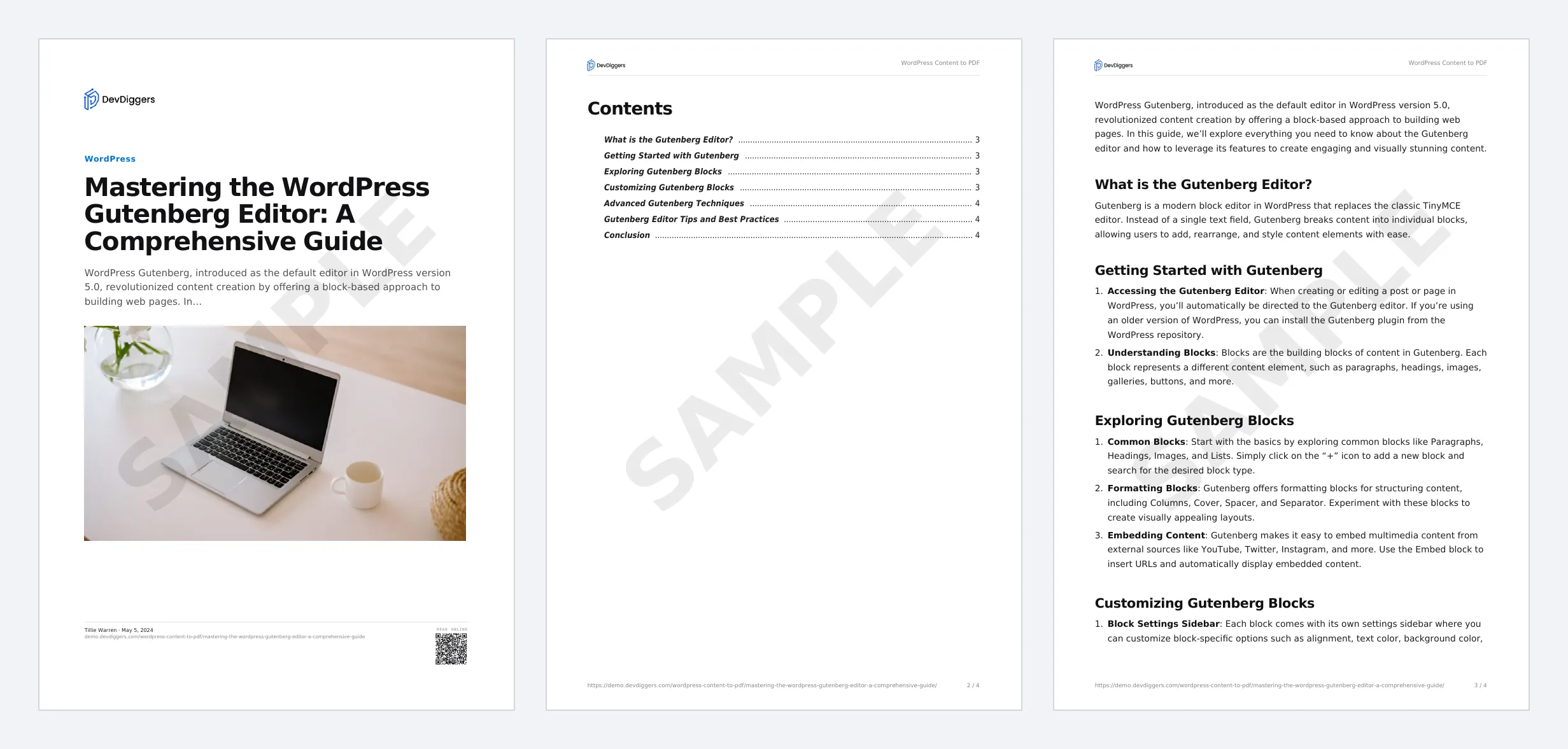
The PDF above also carries a watermark and a contents page. See How to Add a Watermark and How to Add a Table of Contents.
Things to know
Section titled “Things to know”- Accent Color in the Template section colors headings, links and painted covers.
- Ebooks from the Ebook Builder use the same branding.
- File Name under File and Protection names the download. It takes the same placeholders.