

The Ebook Builder
The Ebook Builder turns several posts into one PDF: a cover with your own title, a contents page, then each post as a chapter. Open Content to PDF → Ebook Builder.
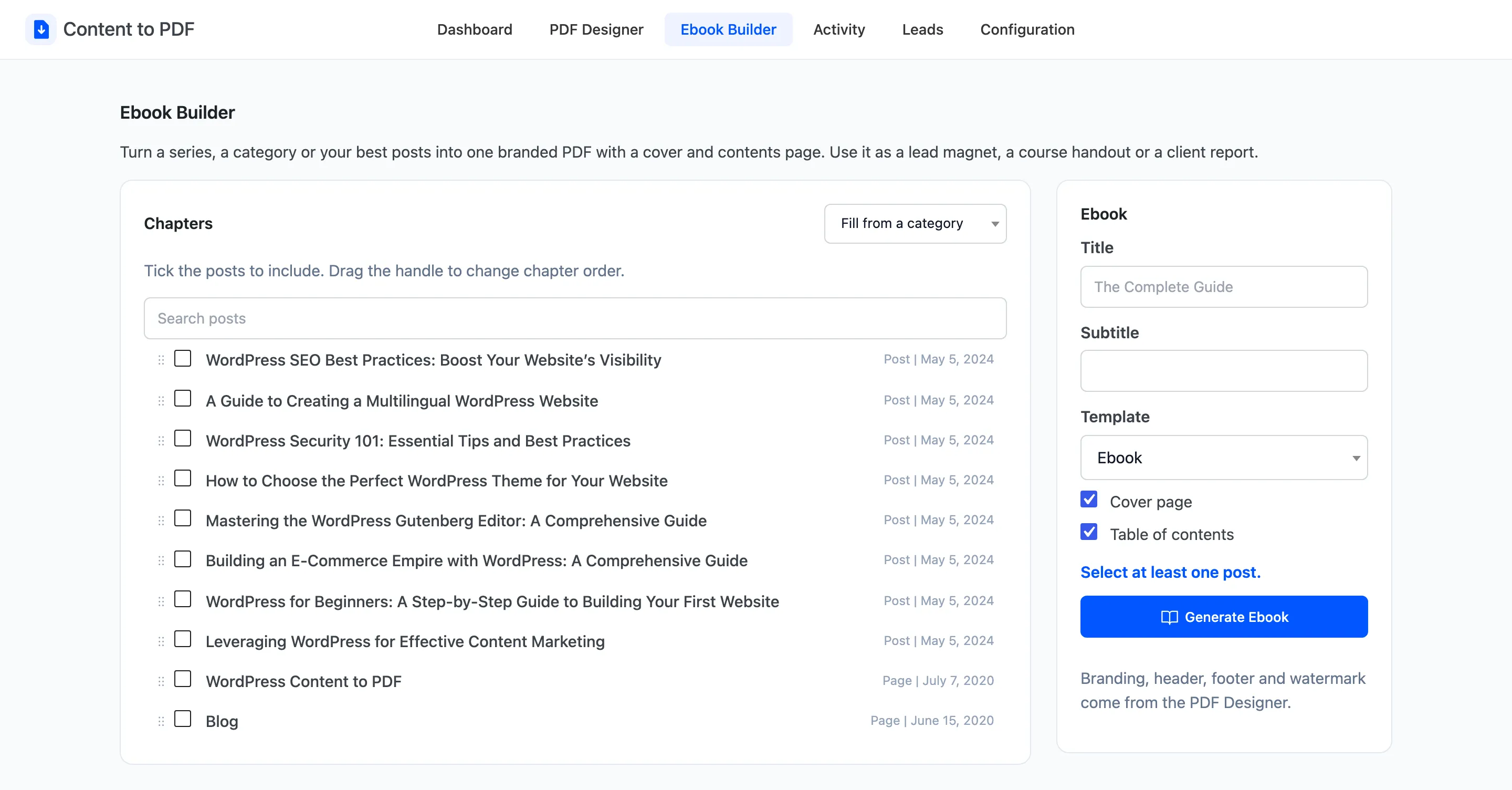
Chapters
Section titled “Chapters”The left card lists your published posts and pages, newest first, up to 300.
- Tick the posts to include. The count under the settings reads “4 chapters selected”.
- Drag the handle at the left of a row to change its place. Chapters follow the order of the list, not the order you ticked them in.
- Search posts narrows the list by title.
- Fill from a category ticks every post in a category, oldest first.
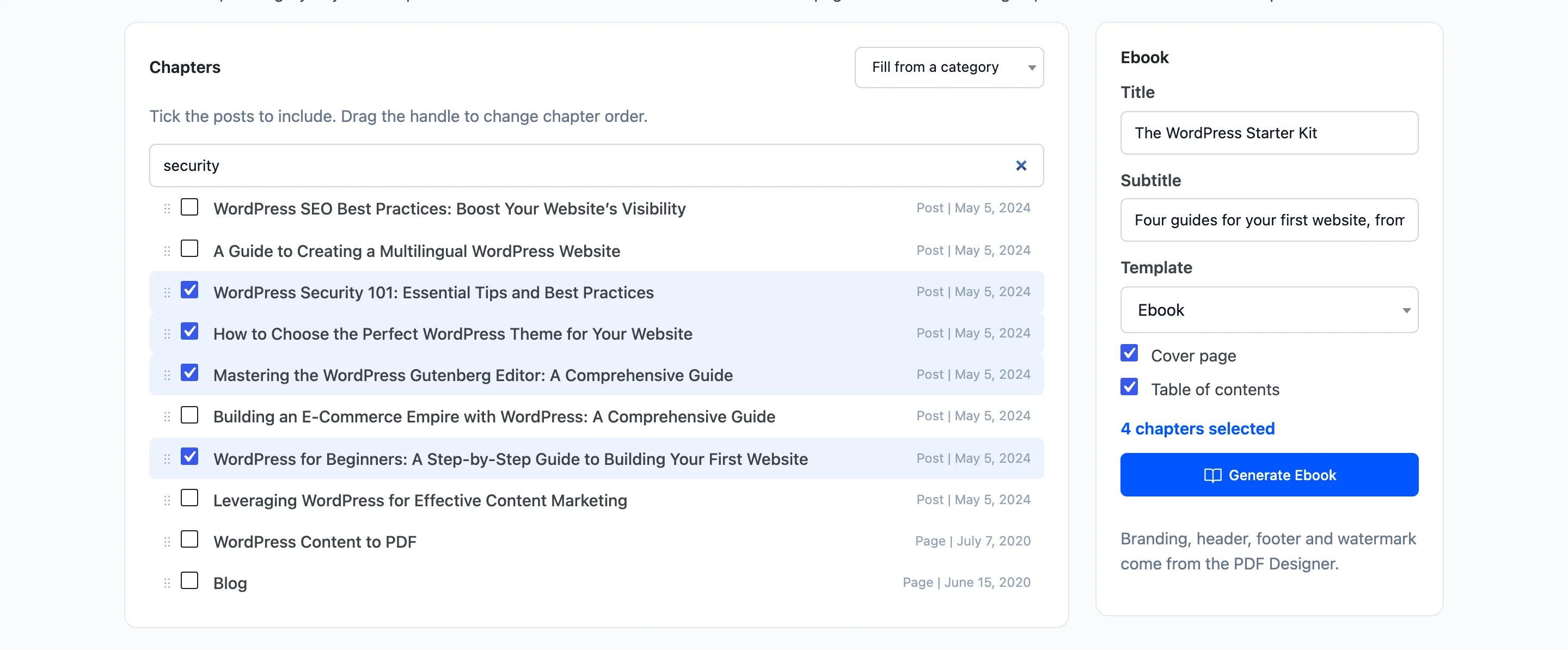
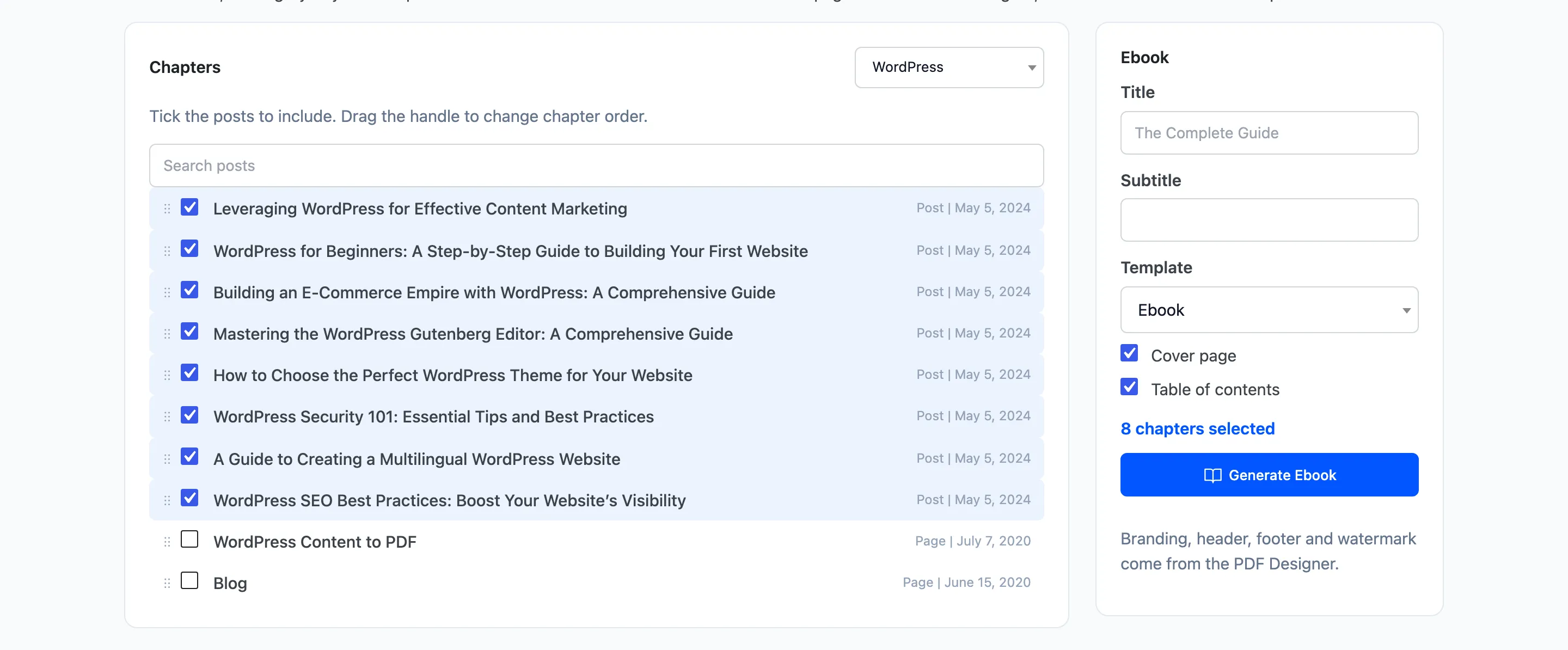
The list shows the content types in Allowed Post Types. Fill from a category works with post categories.
- Title: Printed on the cover and used as the file name. Required.
- Subtitle: A line under the title on the cover.
- Template: Any of the eight. Starts on Ebook.
- Cover page and Table of contents: Both ticked to start.
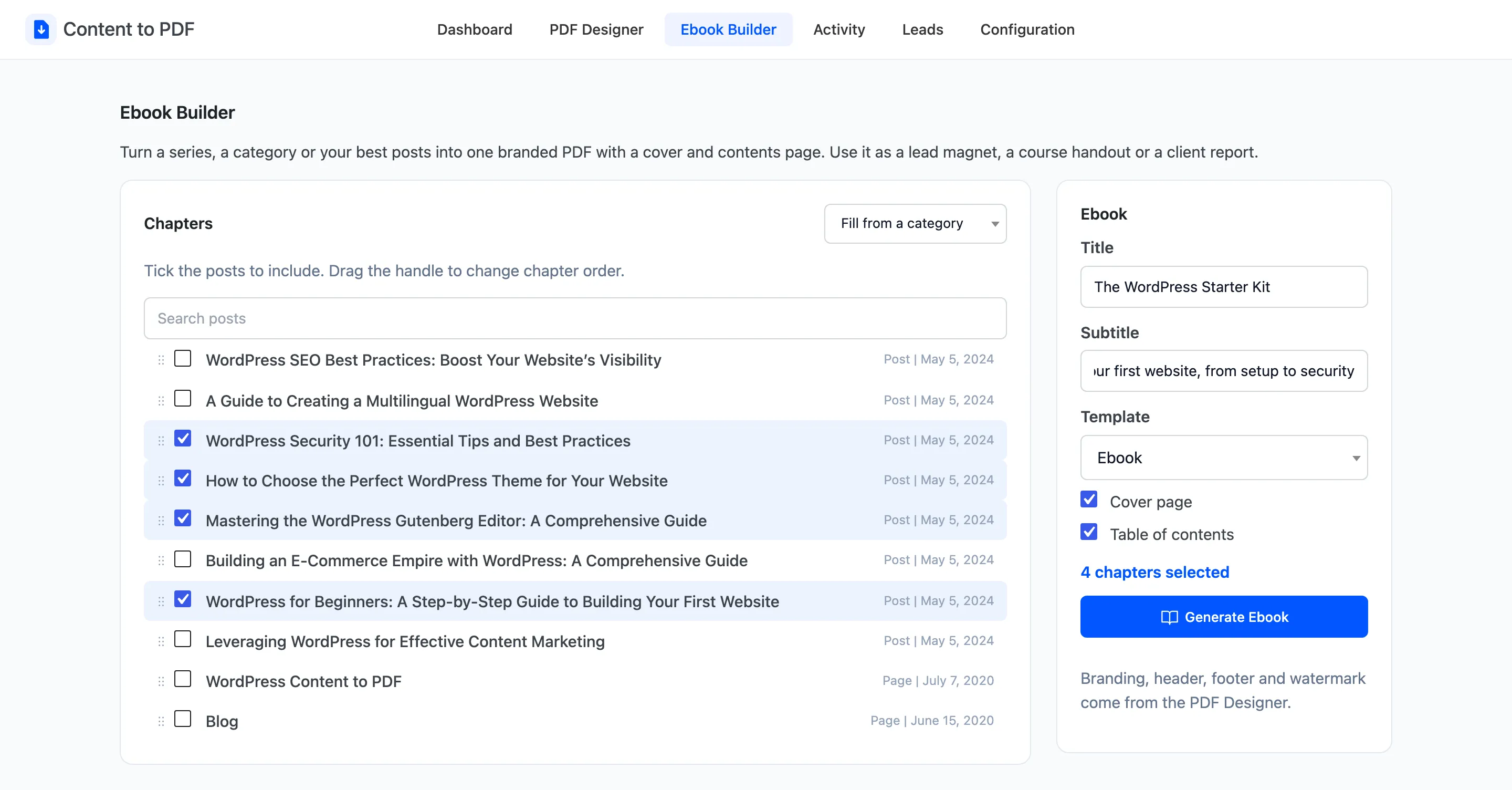
Generate Ebook makes the PDF and downloads it. “Select at least one post.” shows until one is ticked.
What you get
Section titled “What you get”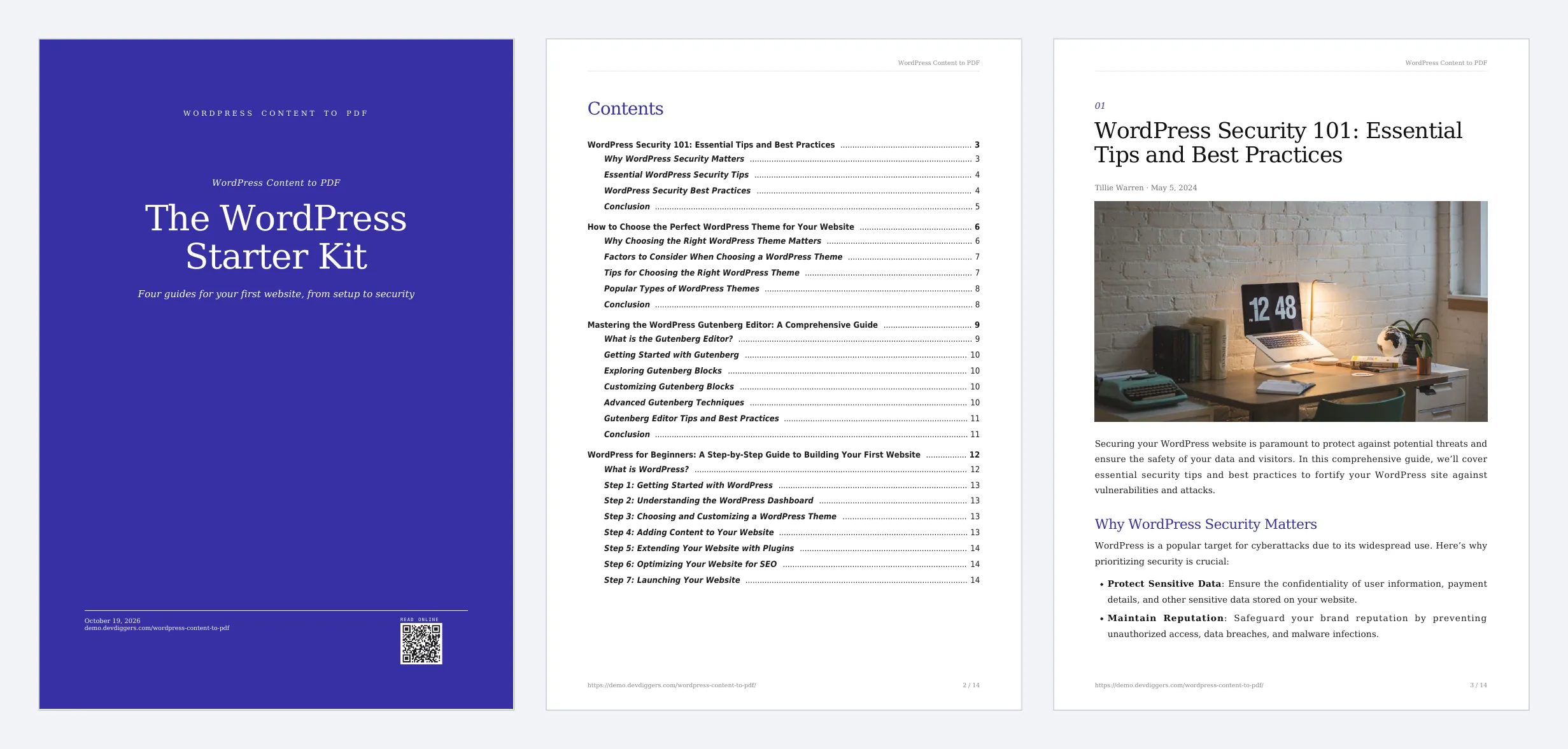
- The cover carries your title, subtitle, logo, the date and a QR code to your site.
- The contents page lists every chapter and its headings, with page numbers.
- Each chapter starts with its title, author and date.
Logo, header, footer and watermark come from the PDF Designer. The ebook’s own ticks for cover and contents override the Designer’s for this file.
Each ebook is added to the Activity log as Ebook.
You can also start an ebook from the Posts screen. See How to Export Selected Posts as an Ebook.