

How to Customize the PDF Email
The PDF email is plain text with the PDF attached. You can change both lines.
Step 1: Open the PDF Email section
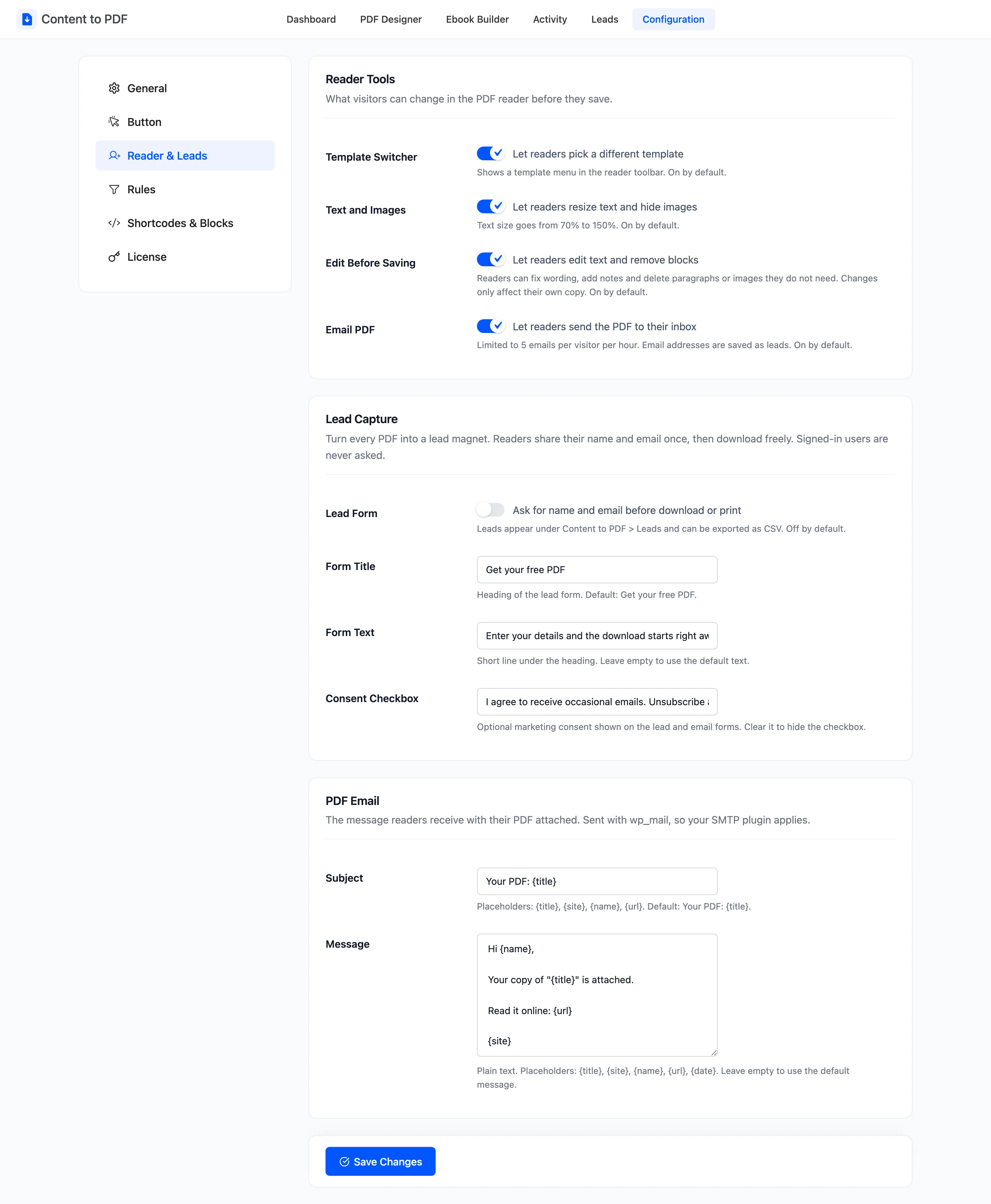
Section titled “Step 1: Open the PDF Email section”Go to Content to PDF → Configuration → Reader & Leads and scroll to PDF Email.
Step 2: Edit the subject
Section titled “Step 2: Edit the subject”The default is Your PDF: {title}. It takes:
{title}: The post title.{site}: Your site name.{name}: The name the reader typed. Empty if they left it blank.{url}: The post’s address.
Step 3: Edit the message
Section titled “Step 3: Edit the message”The message is plain text and takes the same placeholders, plus {date}, today’s date. The default:
Hi {name},
Your copy of "{title}" is attached.
Read it online: {url}
{site}
A reader who leaves the name blank reads “Hi ,”. If many skip it, start the message without the name.
Step 4: Save and test
Section titled “Step 4: Save and test”Click Save Changes, open a post, press Download PDF, then the envelope, and send the PDF to yourself.
Leave either field empty to go back to the default text.