

Installing and Activating Content to PDF
Content to PDF installs like any WordPress plugin. It does not need WooCommerce. The one step that is easy to miss is the license: until it is active, no button shows on your site.
Before you start
Section titled “Before you start”- WordPress 5.8 or newer.
- PHP 7.4 or newer.
- The zip file from your DevDiggers order.
Install from the zip
Section titled “Install from the zip”-
Go to Plugins → Add New Plugin.

-
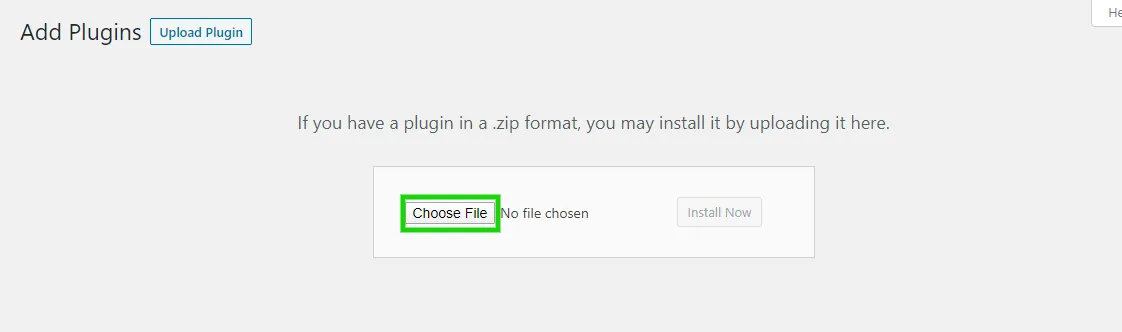
Click Upload Plugin at the top of the screen.

-
Click Choose File and select the plugin zip.
-
Click Install Now.

-
When the install finishes, click Activate Plugin.

Do not unzip the file first. WordPress expects the zip itself.
What activation sets up
Section titled “What activation sets up”A first activation opens the Setup Wizard. It also creates two database tables: one for the activity log and one for leads.
New installs start ready to use. The settings begin from these defaults:
- PDFs are on, for guests and signed-in visitors alike.
- The button reads Download PDF and sits before the content of every post and page.
- The button opens the PDF reader first, rather than downloading at once.
- PDFs use the Minimal template on A4 paper, with a cover page and a QR code.
Activate the license
Section titled “Activate the license”The wizard’s second step asks for your purchase code and email. You can also do it later under Content to PDF → Configuration → License. See License Activation.
Confirm it works
Section titled “Confirm it works”Open a published post in a private browser window, so you see it as a visitor does. The Download PDF button sits above the first paragraph. Click it and the reader opens over the article.
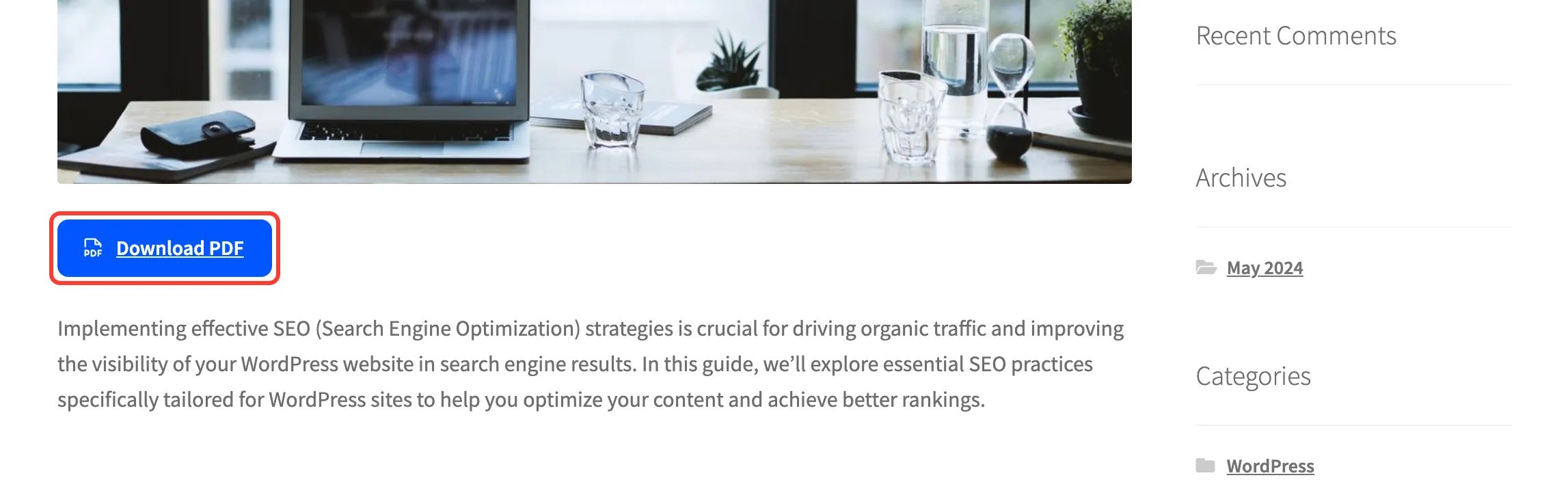
If no button shows, check three things:
- The license is active.
- Enable Content to PDF is ticked under Configuration → General.
- The post’s type is listed in Allowed Post Types on the same tab.
The plugin’s menu is Content to PDF, under DevDiggers Plugins in the admin sidebar.