

Introduction to Content to PDF
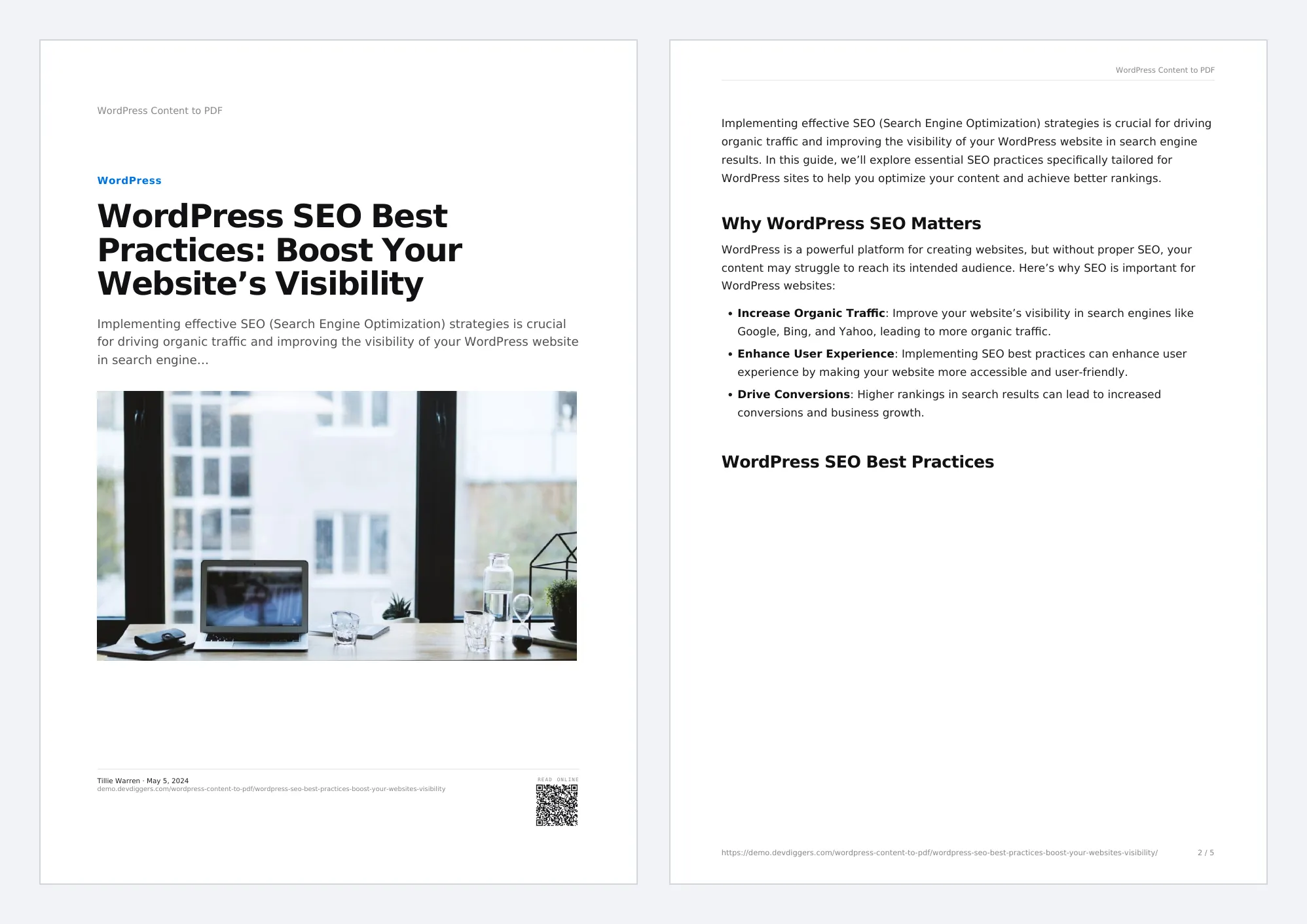
WordPress Content to PDF adds a Download PDF button to your posts, pages and products. A reader who presses it gets a designed document, not a printout of your theme. It has a cover page, your logo, a running header and footer, page numbers and a QR code back to the live page.
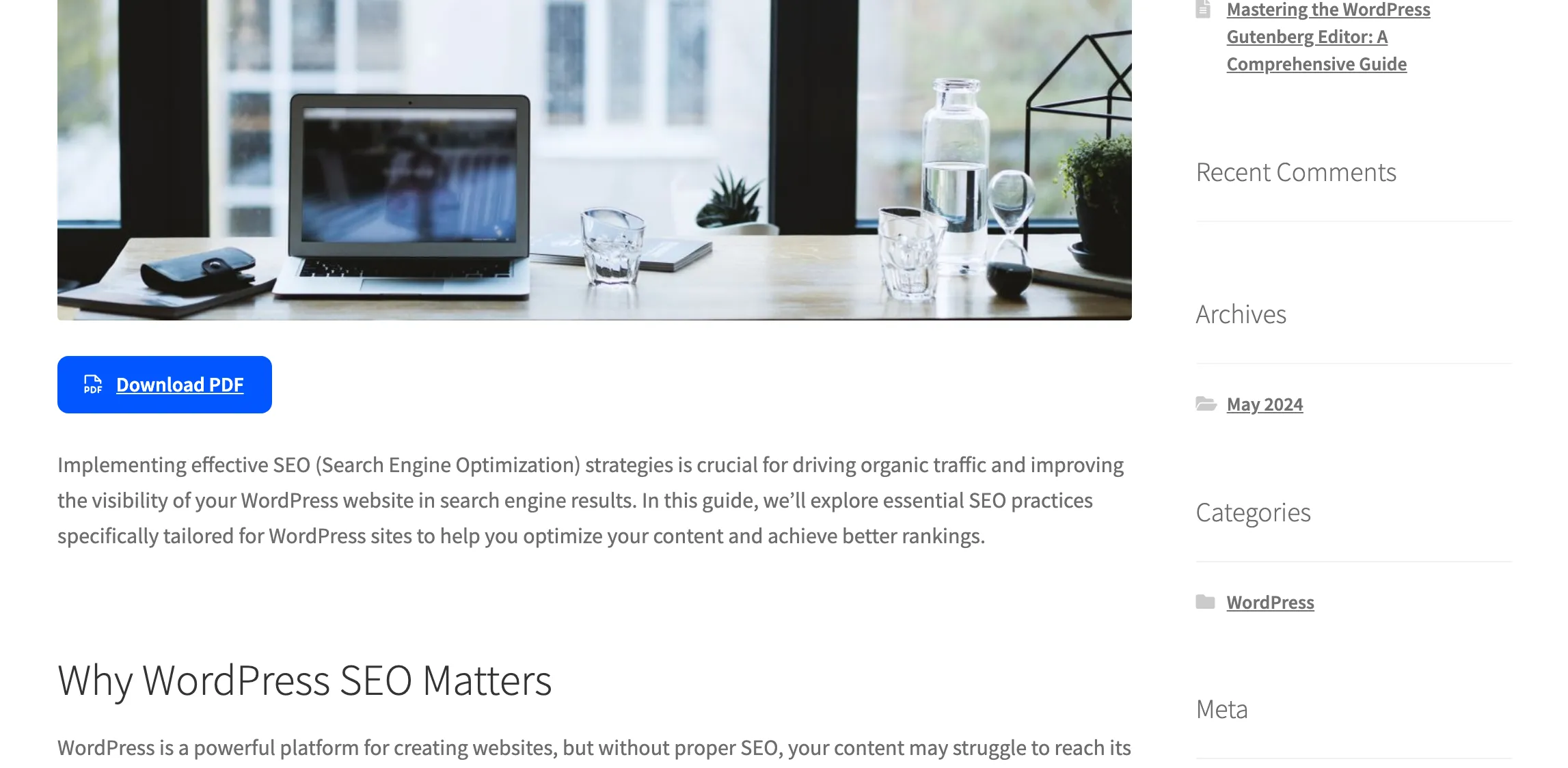
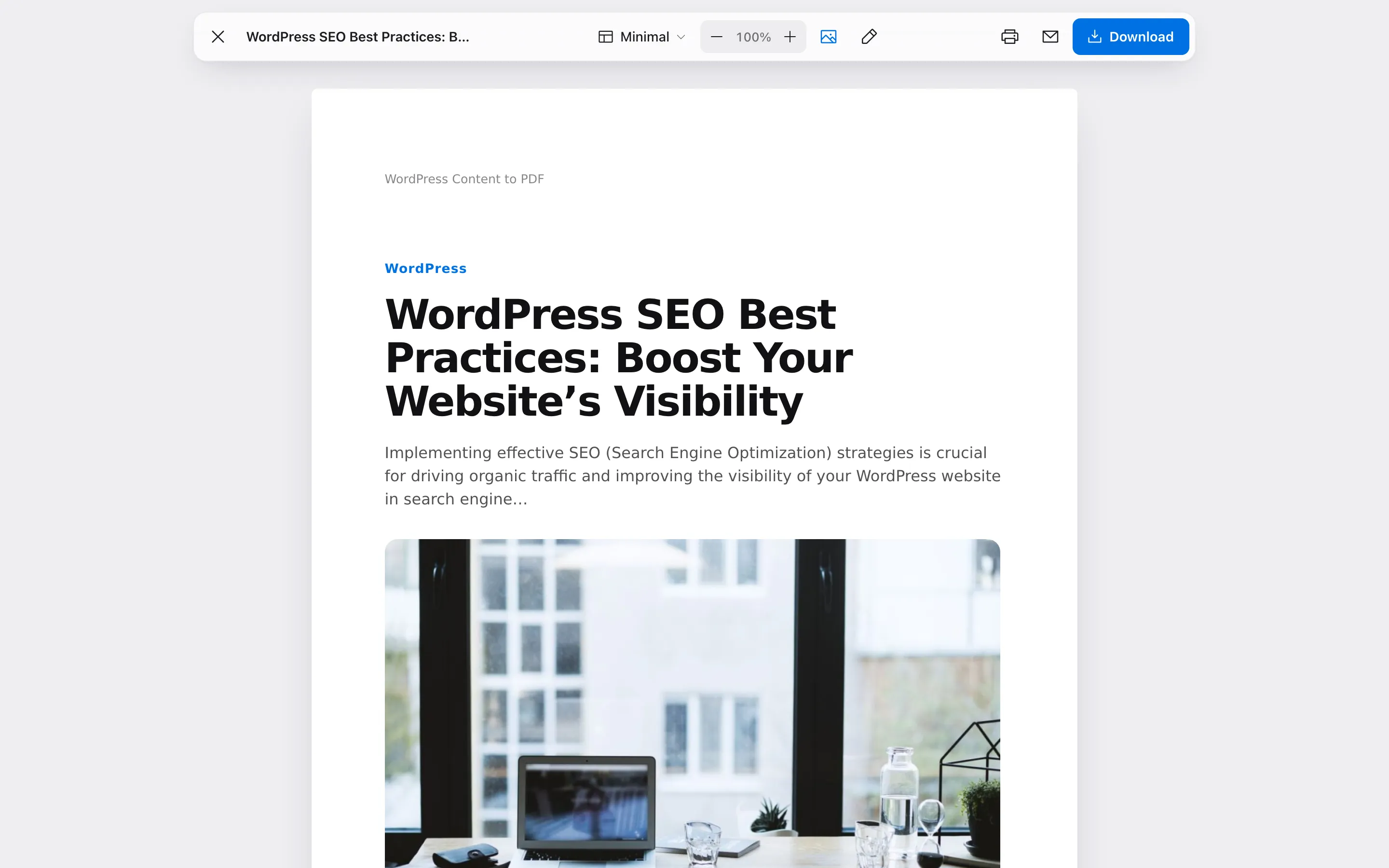
The button opens a preview of the document over the article. There, the reader can switch templates, resize text, remove paragraphs they do not need, then download, print or email the PDF.
What it does
Section titled “What it does”- Makes real PDFs on your server. Text stays selectable and searchable. No outside service, no API key and no per-document fee.
- Ships eight templates. Minimal, Editorial, Aurora, Mono, Magazine, Corporate Report, Ebook and a WooCommerce Product Sheet. Each follows your accent color.
- Brands every page. Logo, header and footer text, page numbers, a diagonal watermark, an optional contents page and an open password.
- Lets readers shape their copy. The reader can change the template, text size and images, edit wording and delete blocks before saving.
- Turns PDFs into leads. An optional form asks for a name and email before the download. Readers can also have the PDF emailed to them.
- Builds ebooks. Combine several posts, or a whole category, into one PDF with a cover and contents.
- Shows what gets used. The dashboard counts downloads, prints, emails and leads, per post and per template.
Who it is for
Section titled “Who it is for”- Blogs and publishers whose readers want to keep a long guide or print it.
- Course and documentation sites that hand out chapters as one ebook.
- Marketers who want an email address in exchange for a useful guide.
- WooCommerce stores that send buyers a product spec sheet.
One paid version
Section titled “One paid version”Content to PDF is a paid plugin. There is no free build, so every feature in these docs is in the version you buy, and no article is marked Pro.
Requirements
Section titled “Requirements”- WordPress 5.8 or newer.
- PHP 7.4 or newer.
- An active license. The button and the reader stay off until the license is activated.
- WooCommerce only if you want product sheets. Posts, pages and other post types need nothing else.
The built-in fonts cover Latin, Greek and Cyrillic scripts. Chinese, Japanese, Korean and some right-to-left scripts need extra fonts.
Where to start
Section titled “Where to start”- Install and activate the plugin.
- Walk the setup wizard. It activates the license and picks a button label, a position and a template.
- Open the PDF Designer and add your logo.
- Read How a PDF Is Made to see which settings decide where the button shows and what goes into the file.