

Rules Settings
The Rules tab fine-tunes where PDFs are offered and what goes into them. Open Content to PDF → Configuration → Rules.
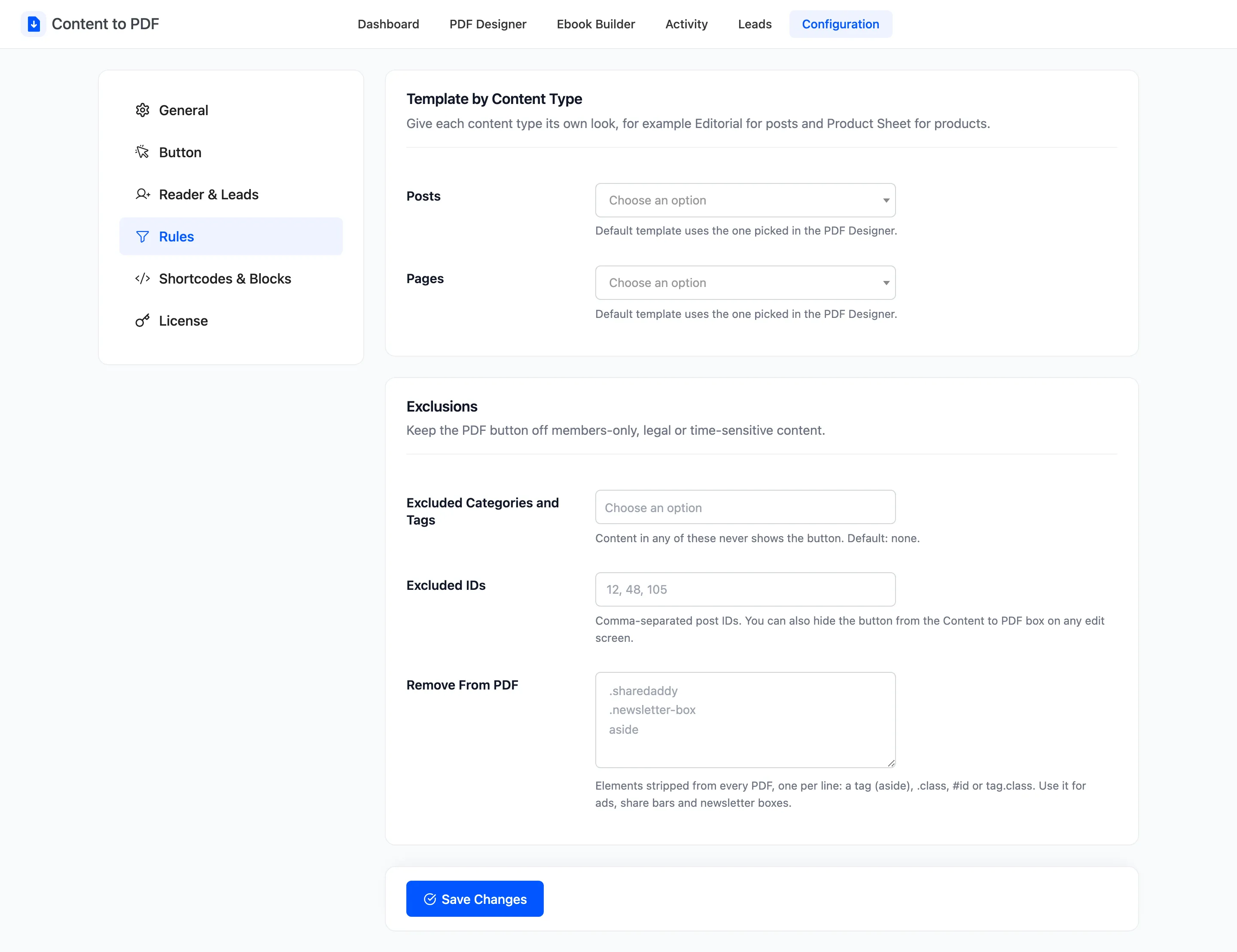
Template by Content Type
Section titled “Template by Content Type”One menu per public content type: Posts, Pages and any custom types, plus Products when WooCommerce is active. Each is Default template to start, which means the one picked in the PDF Designer.
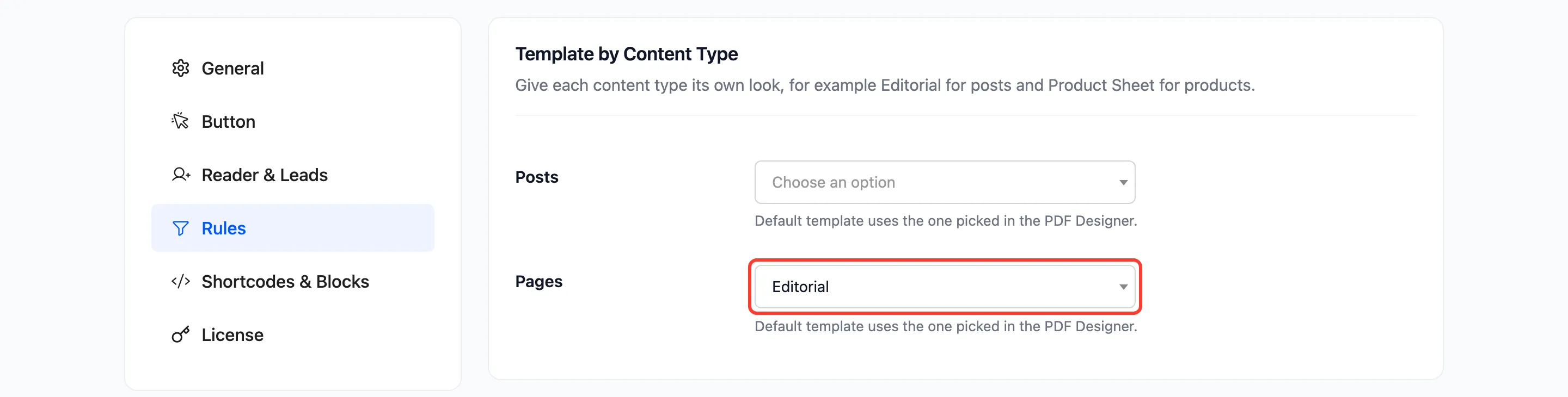
Products use Product Sheet unless you pick another. A template chosen here wins over the PDF Designer’s. A reader who switches template in the reader wins over both.
Exclusions
Section titled “Exclusions”- Excluded Categories and Tags: Content in any of these never shows the button. Lists post categories and tags. Empty by default.
- Excluded IDs: Comma-separated post IDs, such as
12, 48, 105. Empty by default. - Remove From PDF: Elements stripped from every PDF, one per line. Empty by default.
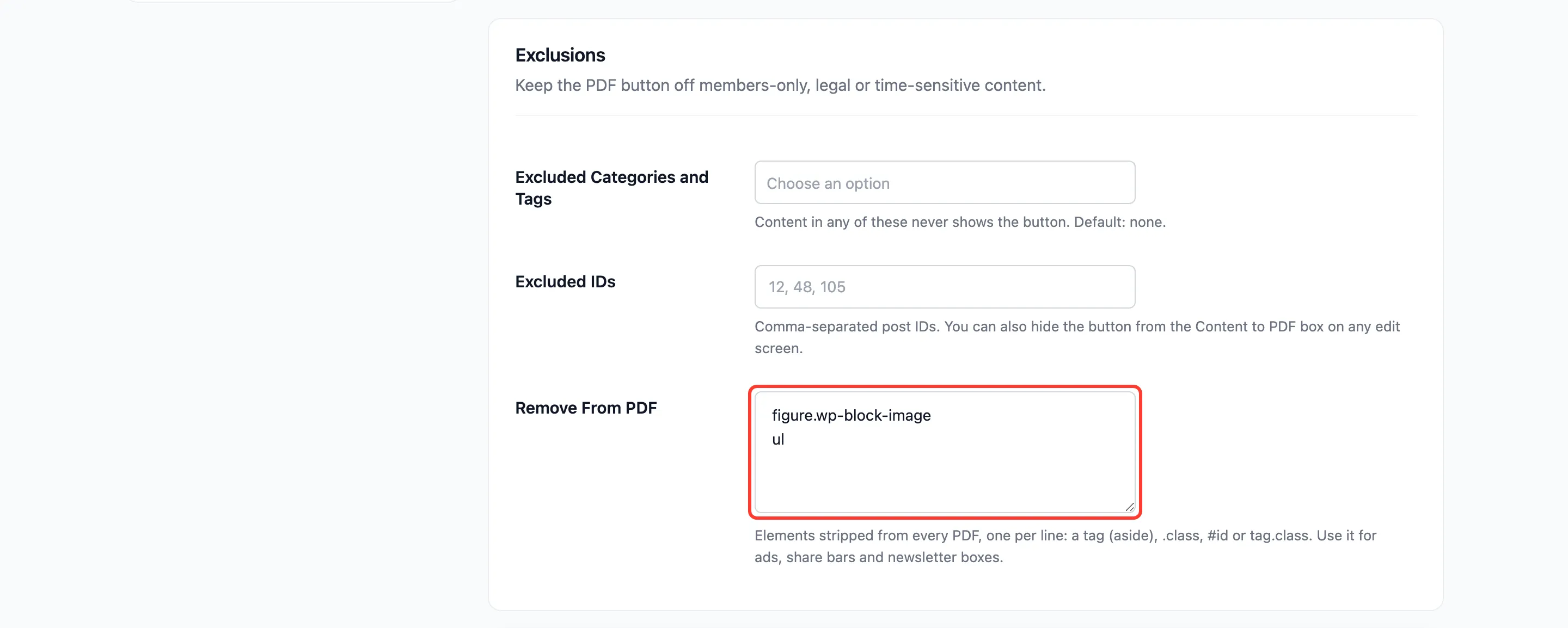
Remove From PDF accepts four forms:
- A tag:
aside - A class:
.newsletter-box - An ID:
#related-posts - A tag with a class:
figure.wp-block-image
Use it for ads, share bars, newsletter boxes and “related posts” blocks. See How to Remove Ads and Share Bars from PDFs.
To hide the button on a single post, tick Hide the PDF button on this content in the post’s own Content to PDF box. See The Post PDF Box.