

How to Let Readers Email a PDF
Some readers are on a phone, or want the guide where they will find it later. The email button sends the PDF to their inbox as an attachment.
Step 1: Check Email PDF is on
Section titled “Step 1: Check Email PDF is on”Under Content to PDF → Configuration → Reader & Leads, Email PDF is ticked by default.
Step 2: Open the email form
Section titled “Step 2: Open the email form”In the reader, press the envelope.

Step 3: Send the PDF
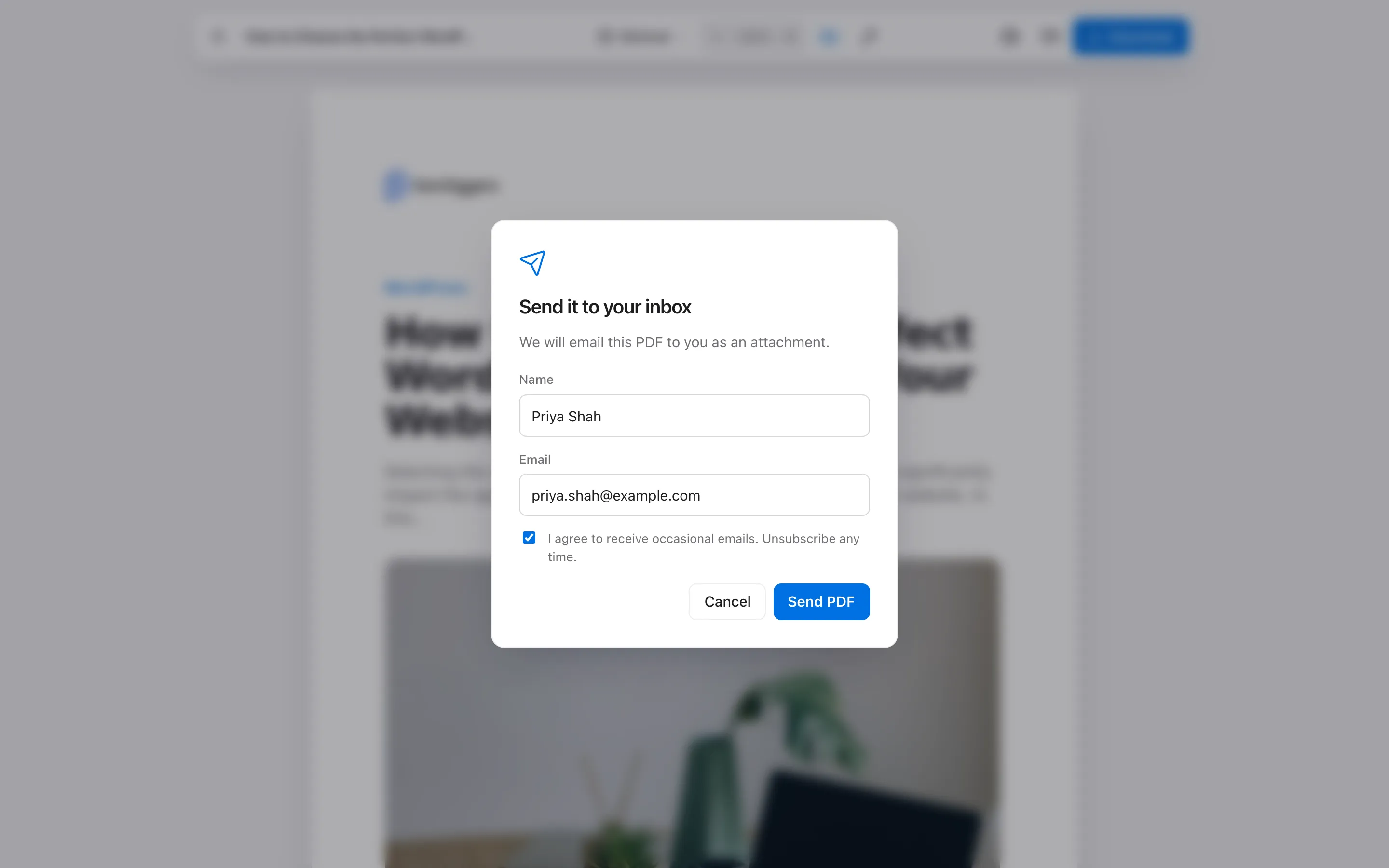
Section titled “Step 3: Send the PDF”The form reads “Send it to your inbox”. Email is required. Name and the consent checkbox are optional. Press Send PDF.
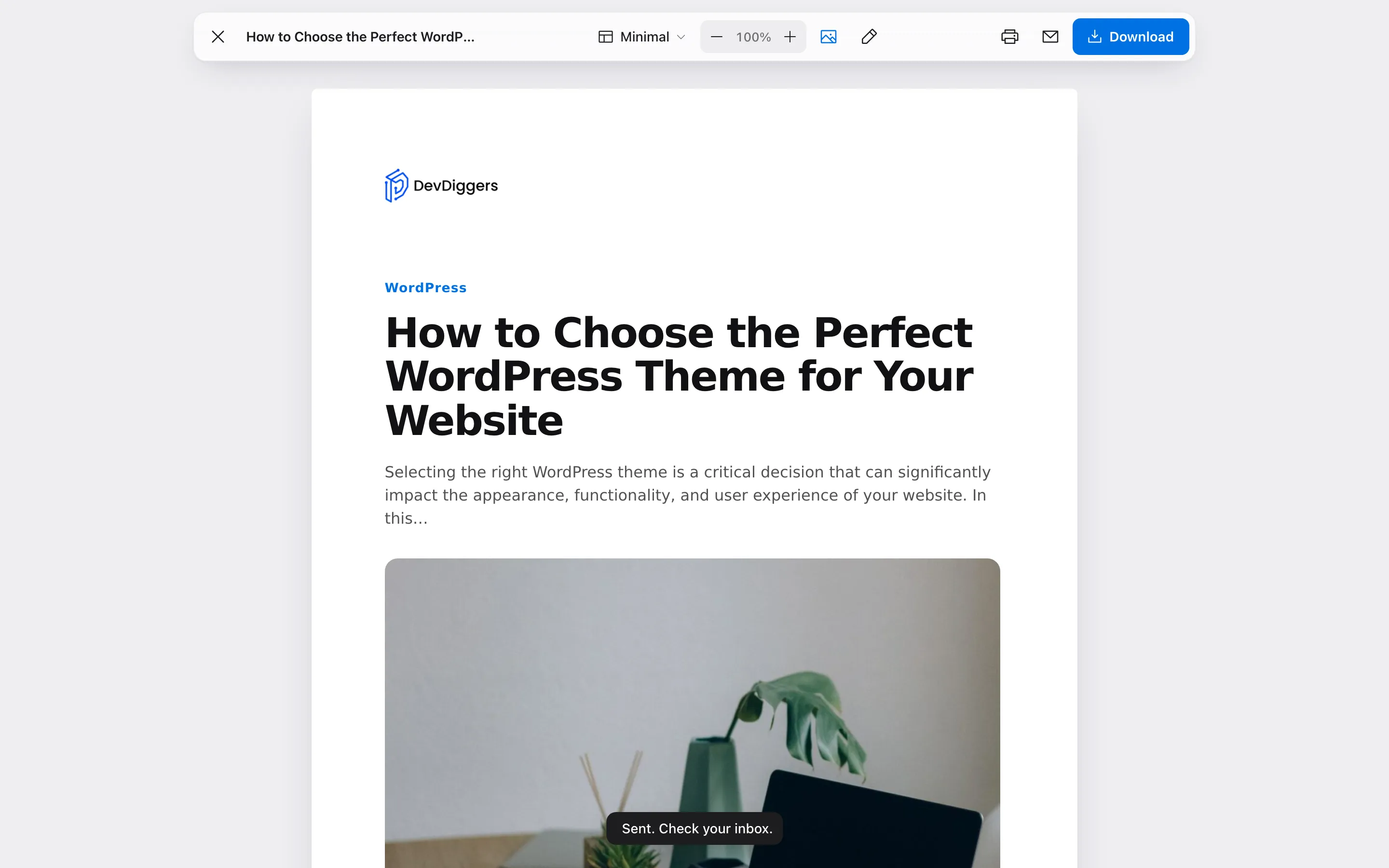
“Sent. Check your inbox.” confirms it.
What the reader receives
Section titled “What the reader receives”On the demo the message, caught before sending, read:
Subject: Your PDF: How to Choose the Perfect WordPress Theme for Your Website
Hi Priya Shah,
Your copy of "How to Choose the Perfect WordPress Theme for Your Website" is attached.
Read it online: https://demo.devdiggers.com/wordpress-content-to-pdf/how-to-choose-the-perfect-wordpress-theme-for-your-website/
WordPress Content to PDF
The PDF was attached. The wording is yours to change. See How to Customize the PDF Email.
The hourly limit
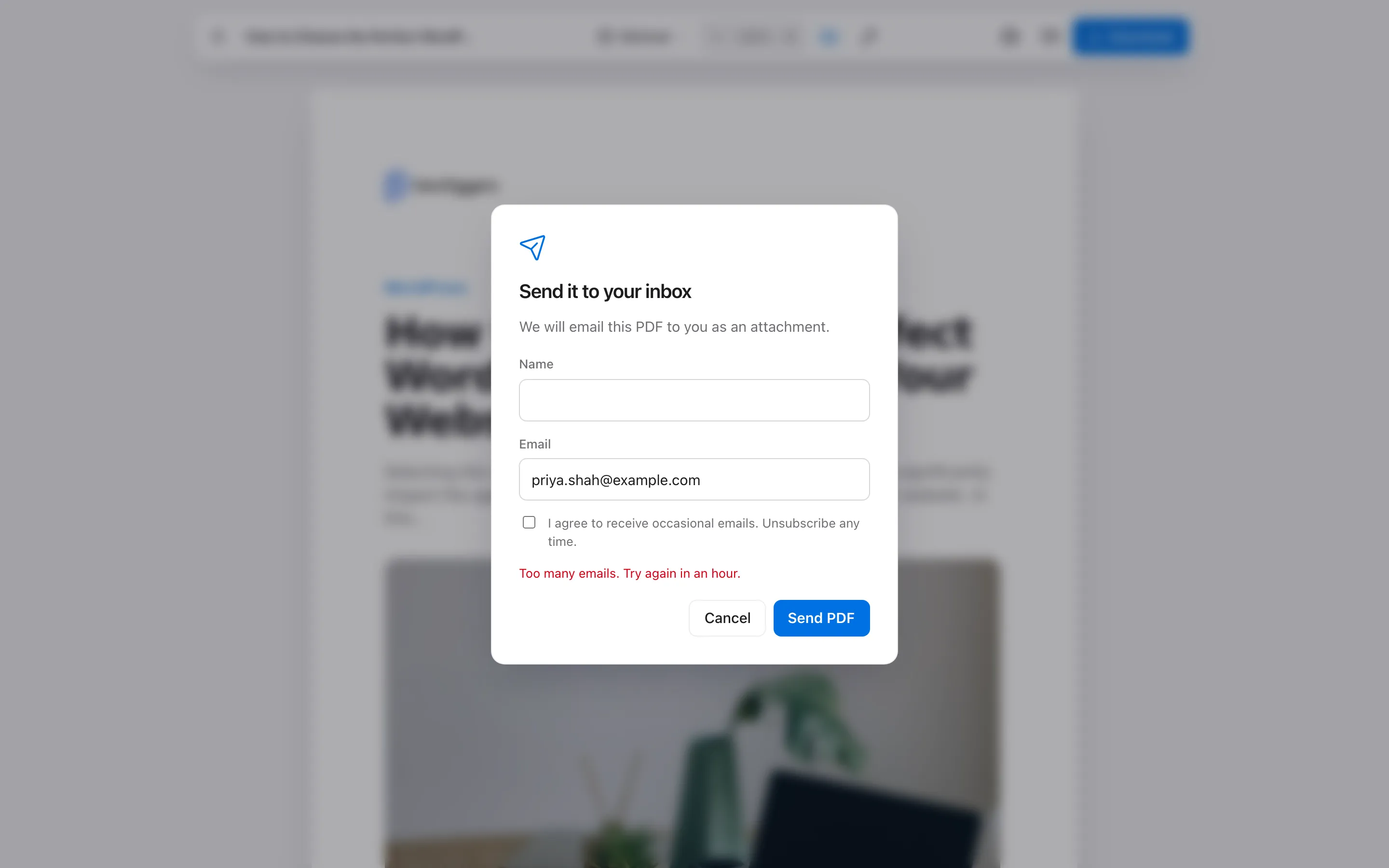
Section titled “The hourly limit”Each visitor can send 5 emails an hour. The sixth gets “Too many emails. Try again in an hour.”
Things to know
Section titled “Things to know”- Every address is saved as a lead, with Email as the source.
- The email goes through WordPress’s own mail. If your site’s mail is not set up, use an SMTP plugin.
- A guest’s edits in the reader are not emailed. They get the published text. Signed-in readers get their edited copy.