

How to Add a Table of Contents
A contents page helps with long guides. It lists the post’s headings with their page numbers, and each line is a link to its page. (Every PDF carries bookmarks for its headings, with or without this page.)
Step 1: Turn on Table of Contents
Section titled “Step 1: Turn on Table of Contents”Go to Content to PDF → PDF Designer → Structure and tick Table of Contents.
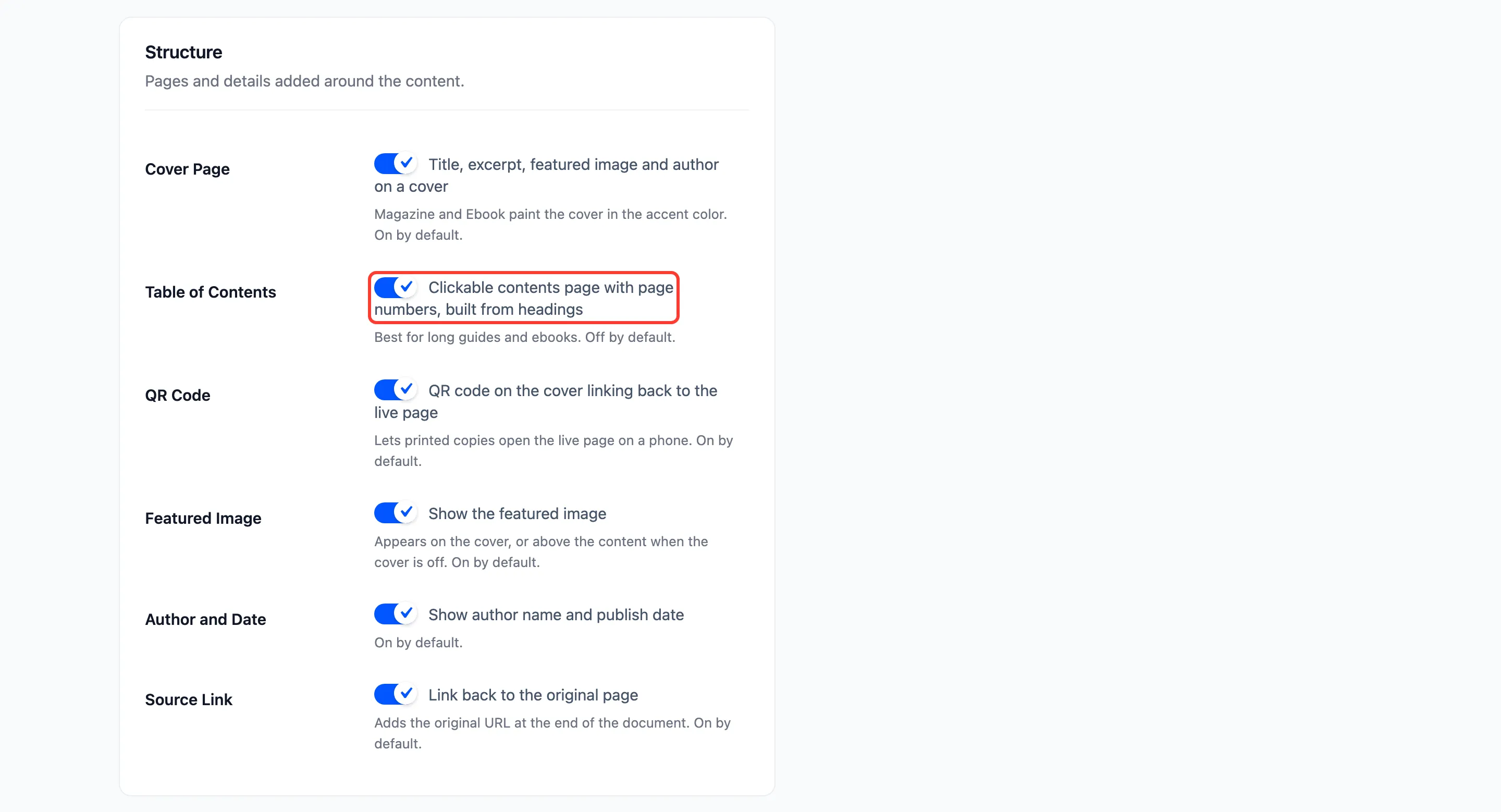
Step 2: Save and open a real PDF
Section titled “Step 2: Save and open a real PDF”Click Save Changes, then Open real PDF. The contents page comes right after the cover.
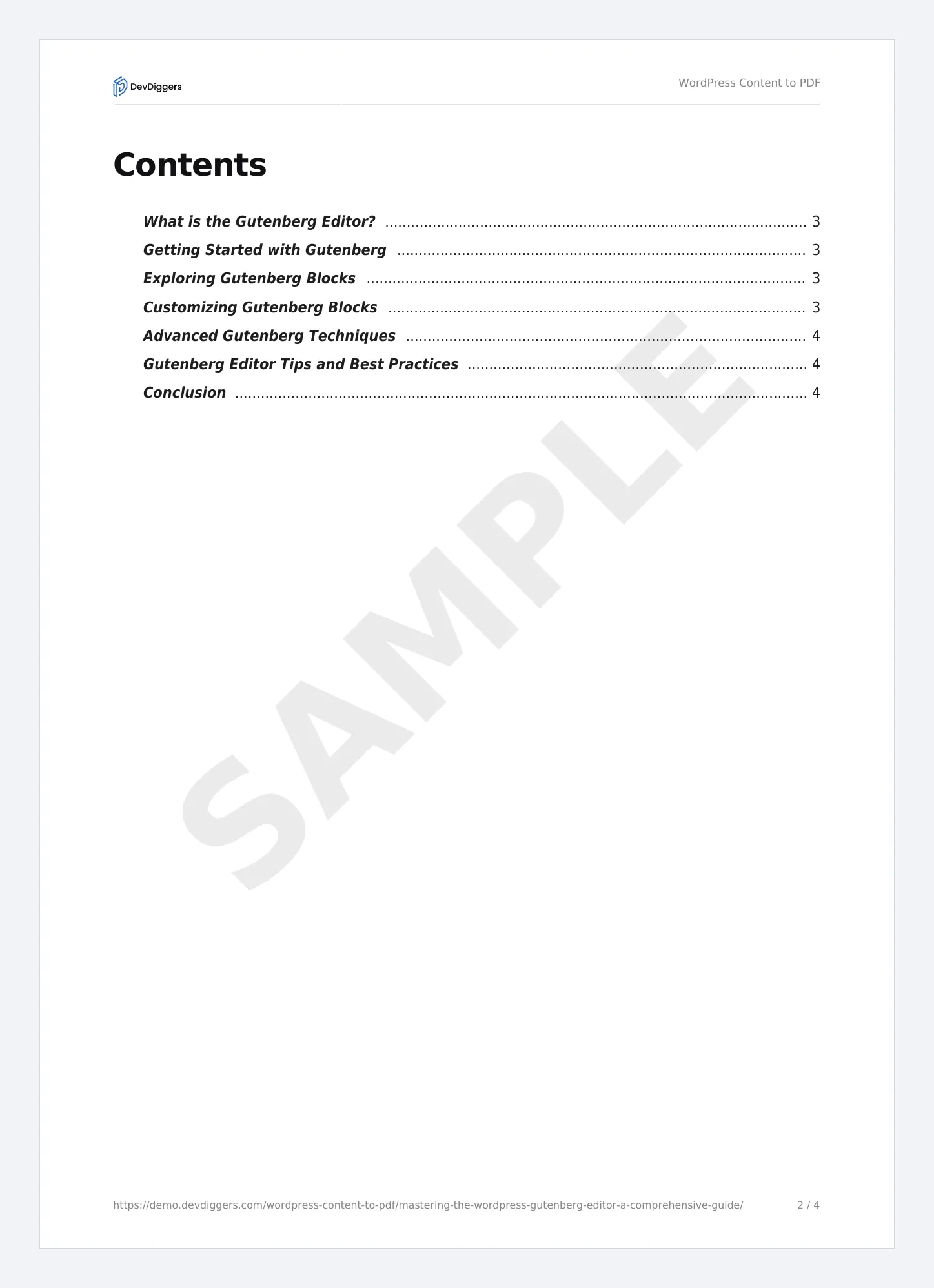
Step 3: Check your headings
Section titled “Step 3: Check your headings”The page lists H1, H2 and H3 headings, indented by level. A post with no headings gets no entries, so it is worth giving long posts a heading per section.
Things to know
Section titled “Things to know”- The Ebook Builder has its own Table of contents tick. There, the page lists every chapter and its headings.
- Product sheets never get a contents page. They open straight on the product.