

Reader & Leads Settings
This tab decides what readers can change in the reader, whether they trade their details for the PDF, and what the PDF email says. Open Content to PDF → Configuration → Reader & Leads.
Reader Tools
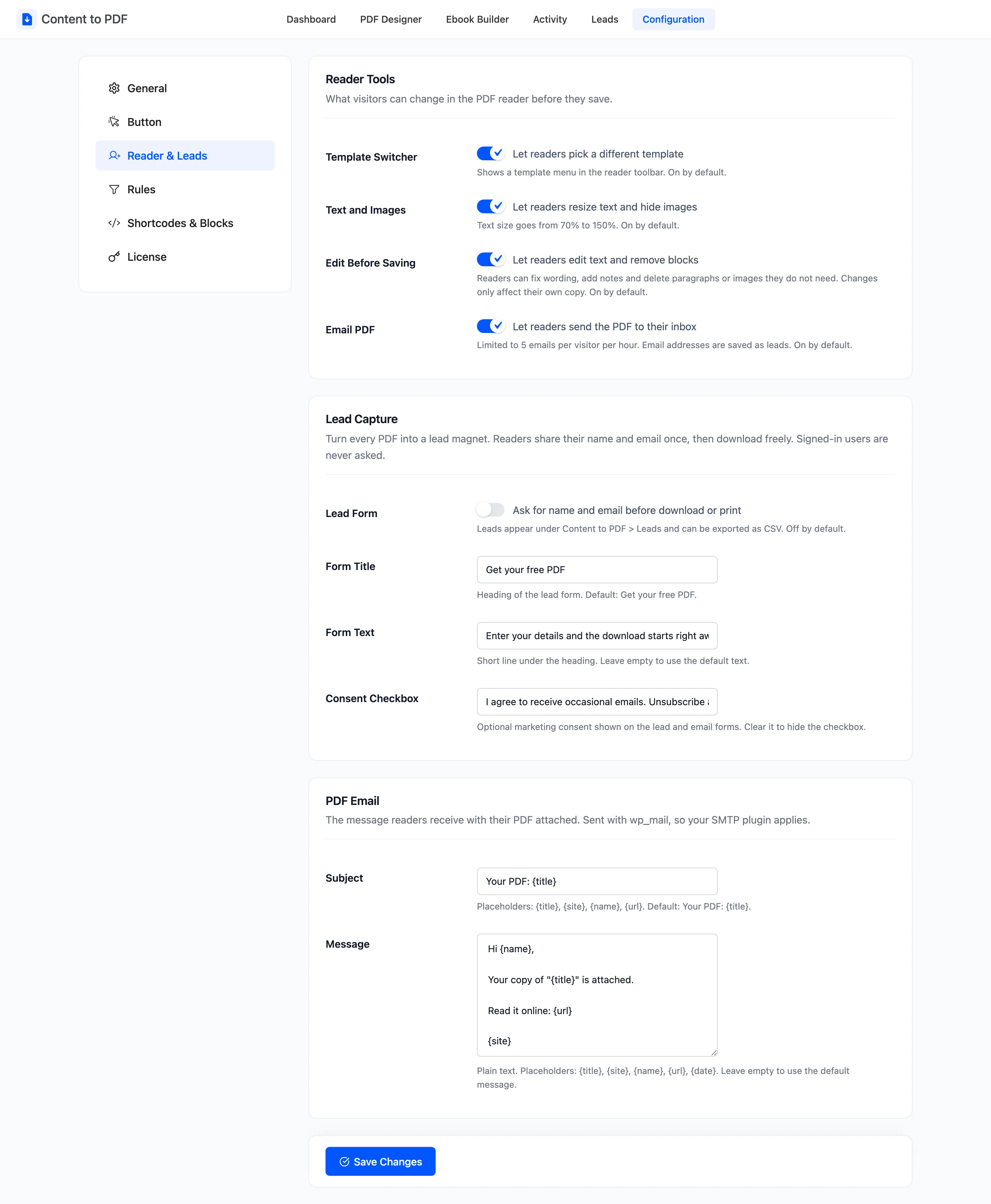
Section titled “Reader Tools”- Template Switcher: “Let readers pick a different template”. A template menu in the reader’s toolbar. On by default.
- Text and Images: “Let readers resize text and hide images”. Text size runs from 70% to 150%. On by default.
- Edit Before Saving: “Let readers edit text and remove blocks”. Changes only affect the reader’s own copy. On by default.
- Email PDF: “Let readers send the PDF to their inbox”. Limited to 5 emails per visitor per hour. Each address is saved as a lead. On by default.
Turning a tool off removes its button from the toolbar.
Lead Capture
Section titled “Lead Capture”- Lead Form: “Ask for name and email before download or print”. Off by default.
- Form Title: Default Get your free PDF.
- Form Text: The line under the title. Default Enter your details and the download starts right away.
- Consent Checkbox: An optional marketing consent line, shown on the lead form and the email form. Default I agree to receive occasional emails. Unsubscribe any time. Clear it to hide the checkbox.
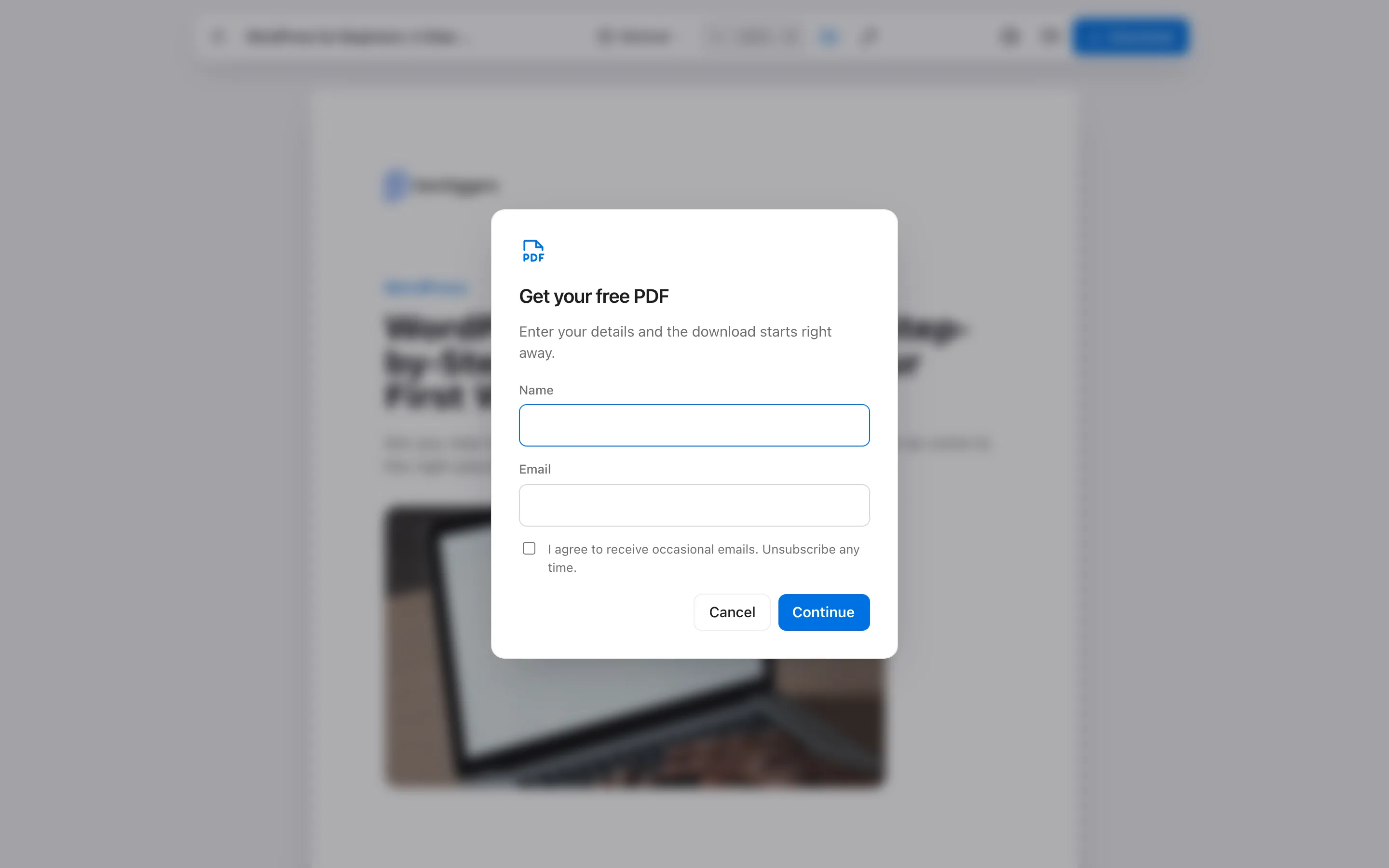
Signed-in users never see the form. A guest fills it in once: the browser remembers them for 90 days, and later PDFs download straight away. Leads appear on the Leads screen.
PDF Email
Section titled “PDF Email”The message sent when a reader uses Email. It goes through WordPress’s own mail, so your SMTP plugin applies.
- Subject: Default Your PDF: {title}.
- Message: Plain text. Default:
Hi {name},
Your copy of "{title}" is attached.
Read it online: {url}
{site}
The subject takes {title}, {site}, {name} and {url}. The message also takes {date}. Leave either empty to use the default.
A guest who emails a PDF gets the published text. Edits made in the reader go into downloads, not into emailed copies, unless the reader is signed in.