

How to Add a PDF Button to Posts and Pages
After the setup wizard, the button already shows on every post and page. This tutorial covers the two settings that decide where it appears, for when you want it somewhere else.
Step 1: Choose the content types
Section titled “Step 1: Choose the content types”Go to Content to PDF → Configuration → General. In Allowed Post Types, keep the types that should offer a PDF. Posts and Pages are there by default. Custom post types and Products are listed too.
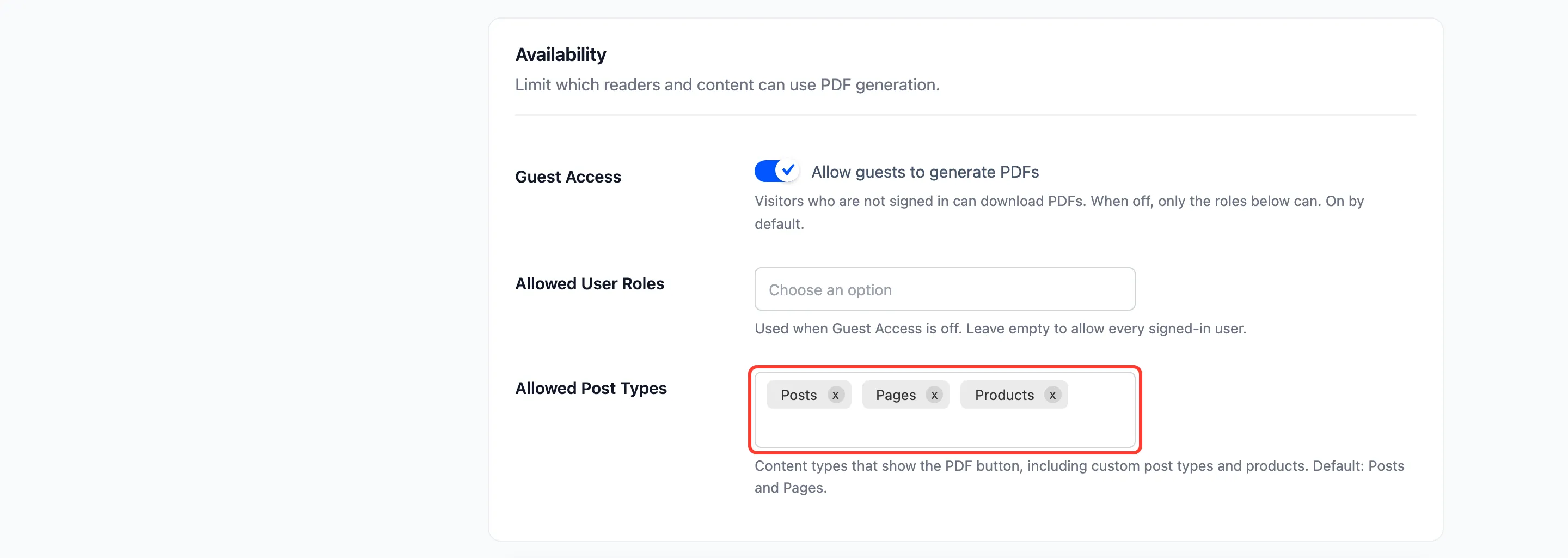
Click Save Changes.
Step 2: Choose the position
Section titled “Step 2: Choose the position”Open the Button tab and set Position.
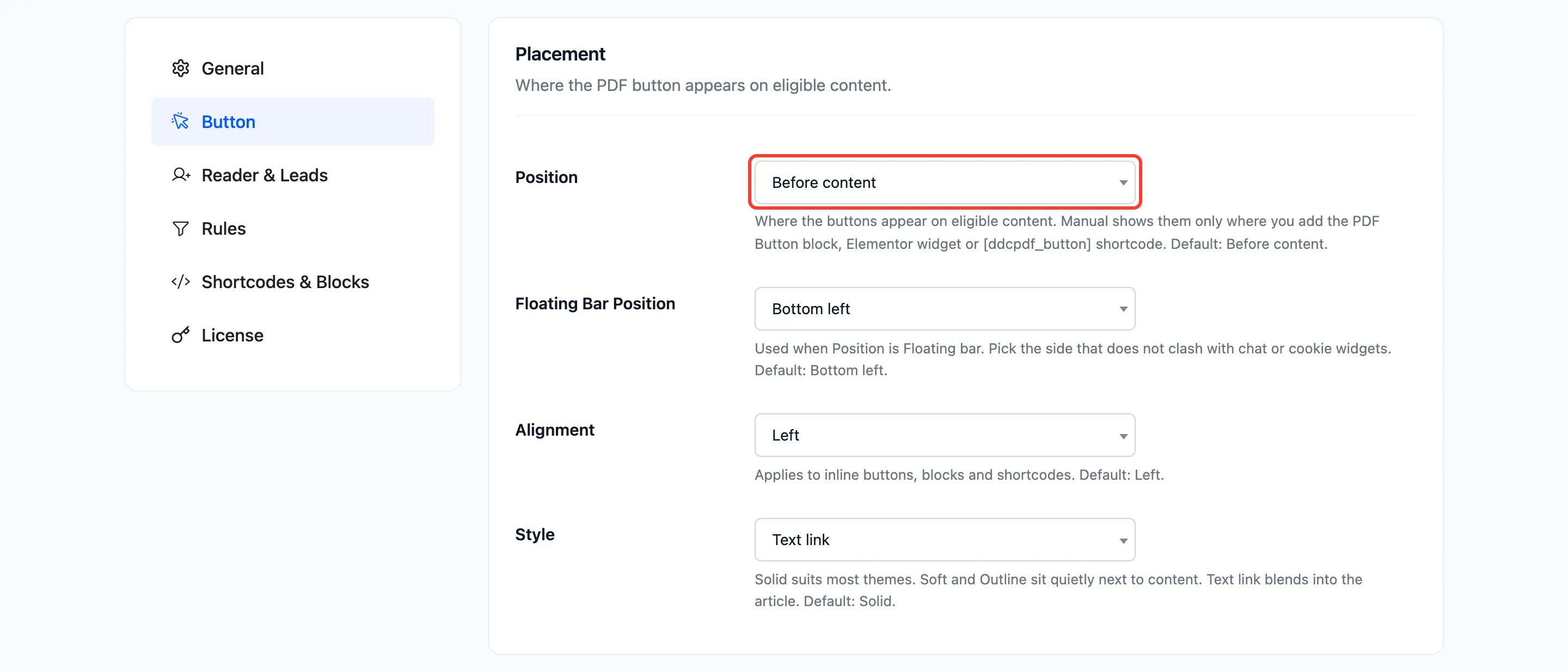
- Before content: Above the first paragraph, under the theme’s featured image. The default.
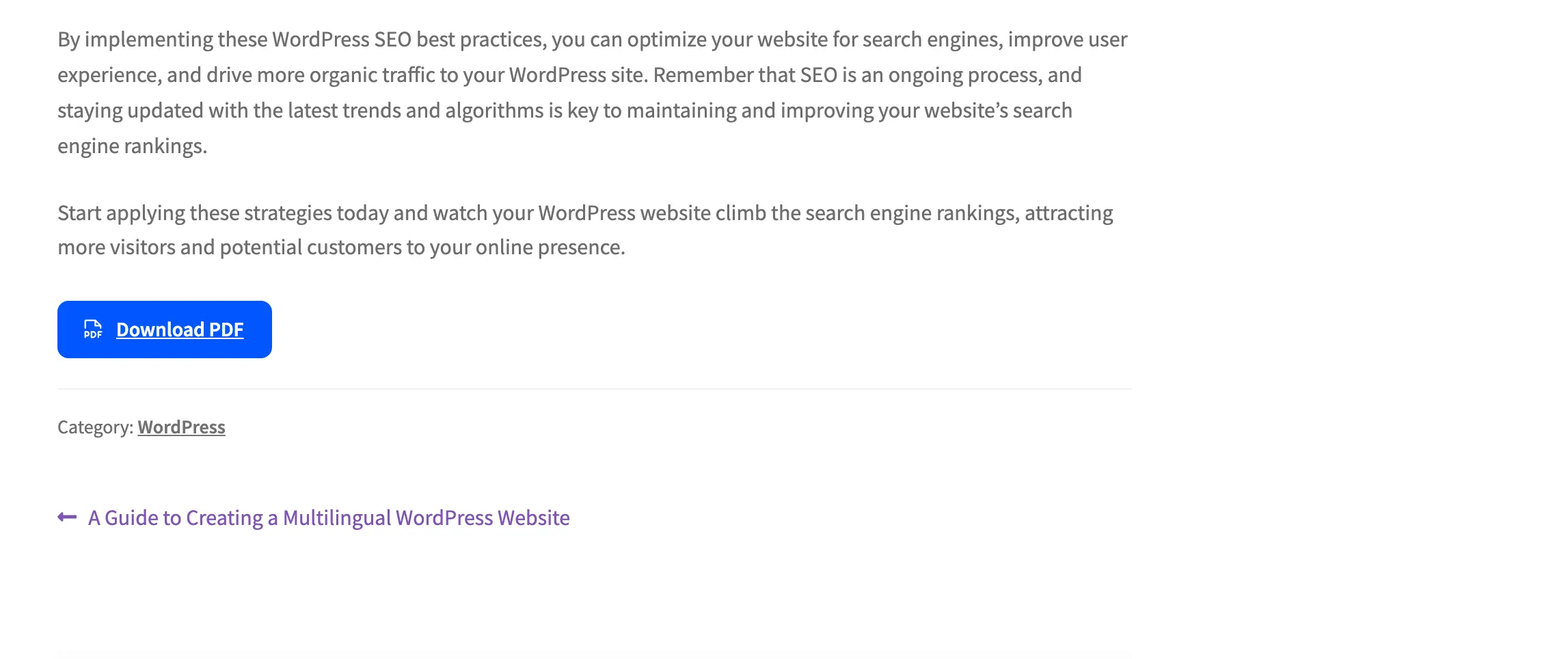
- After content: Under the last paragraph, where a reader who finished the post sees it.
- Before and after content: Both.
- Floating bar: Pinned to the bottom of the screen. See How to Use a Floating PDF Button.
- Manual: Only where you place a block or shortcode. See How to Place the Button with a Shortcode or Block.
Click Save Changes.
Step 3: Check a post
Section titled “Step 3: Check a post”Open a published post in a private window, so you see it as a guest does.
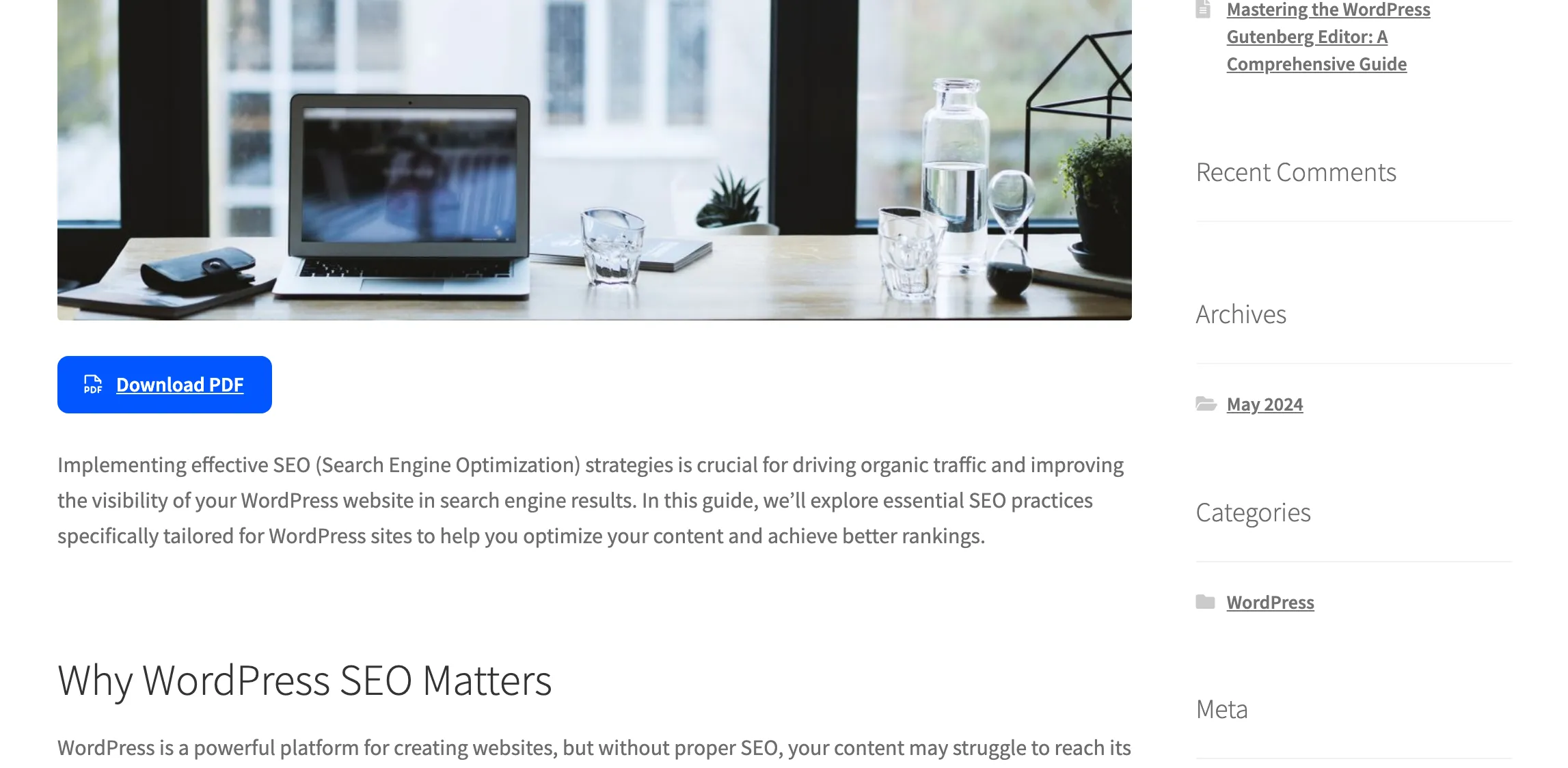
On a phone the button keeps its place under the featured image:

With After content, the button sits at the end instead:
Things to know
Section titled “Things to know”- The button only shows on single posts and pages, never on archives or the blog index.
- The button follows the visitor rules on the General tab. See How to Limit PDFs to Members.
- To change the label, colors or style, use the Appearance section of the Button tab. See Button Settings.