

How to Use the Waitlist on Variable Products
Each variation of a variable product has its own waitlist. A customer who wants the blue sneaker in a medium joins the Blue variation, and nobody waiting for Green is emailed when Blue comes back. This works the same in both editions.
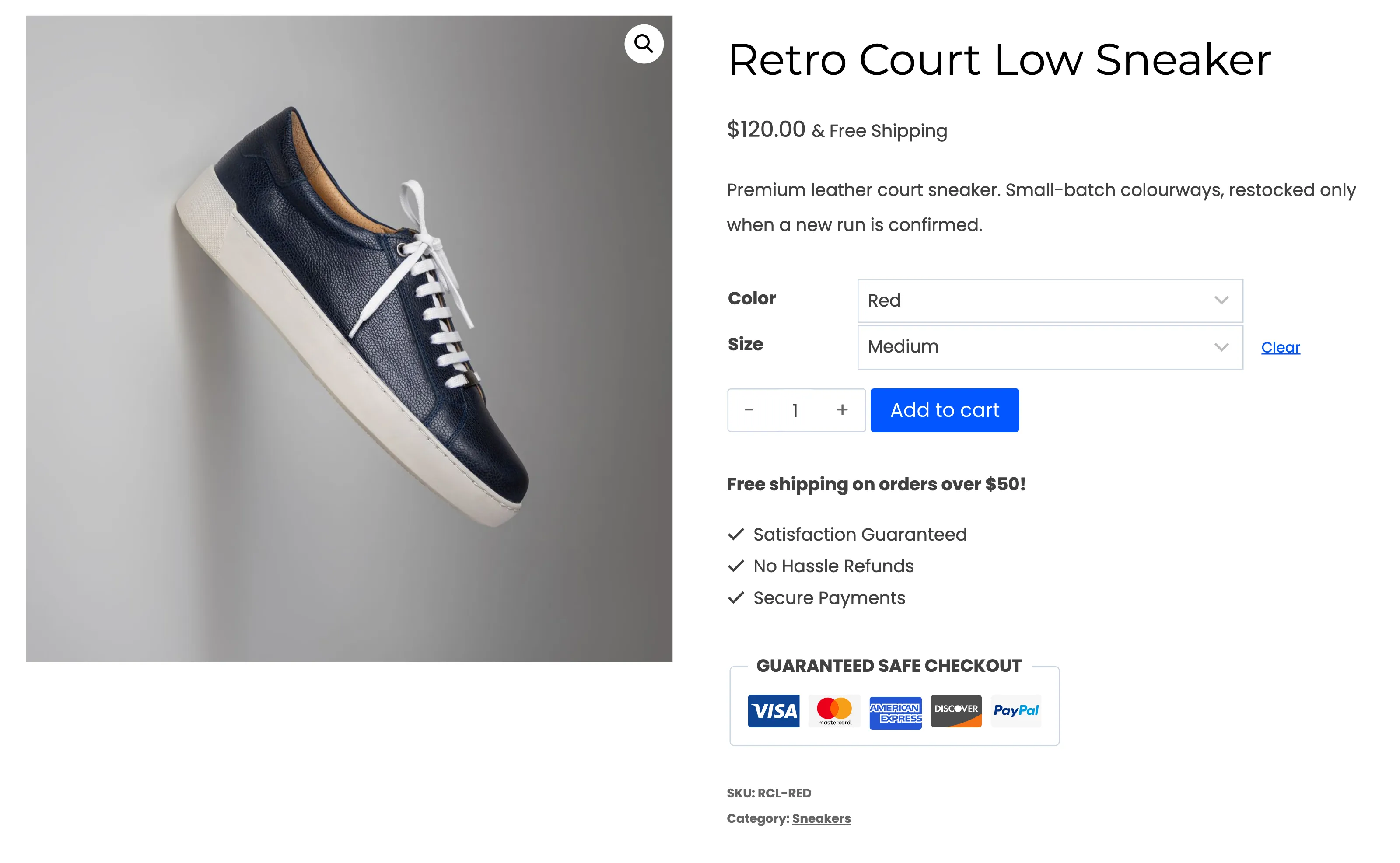
The demo’s Retro Court Low Sneaker has three colours: Red is in stock, Green and Blue are sold out.
Step 1: Let a variation sell out
Section titled “Step 1: Let a variation sell out”Open the product, go to Product data → Variations, open the variation and set Stock status to Out of stock, or its stock quantity to 0. The parent product stays on sale while any variation is in stock.
Step 2: Pick the variation on the product page
Section titled “Step 2: Pick the variation on the product page”The form is hidden until the customer has chosen every attribute. A variation that is in stock shows the normal Add to cart, with no form:
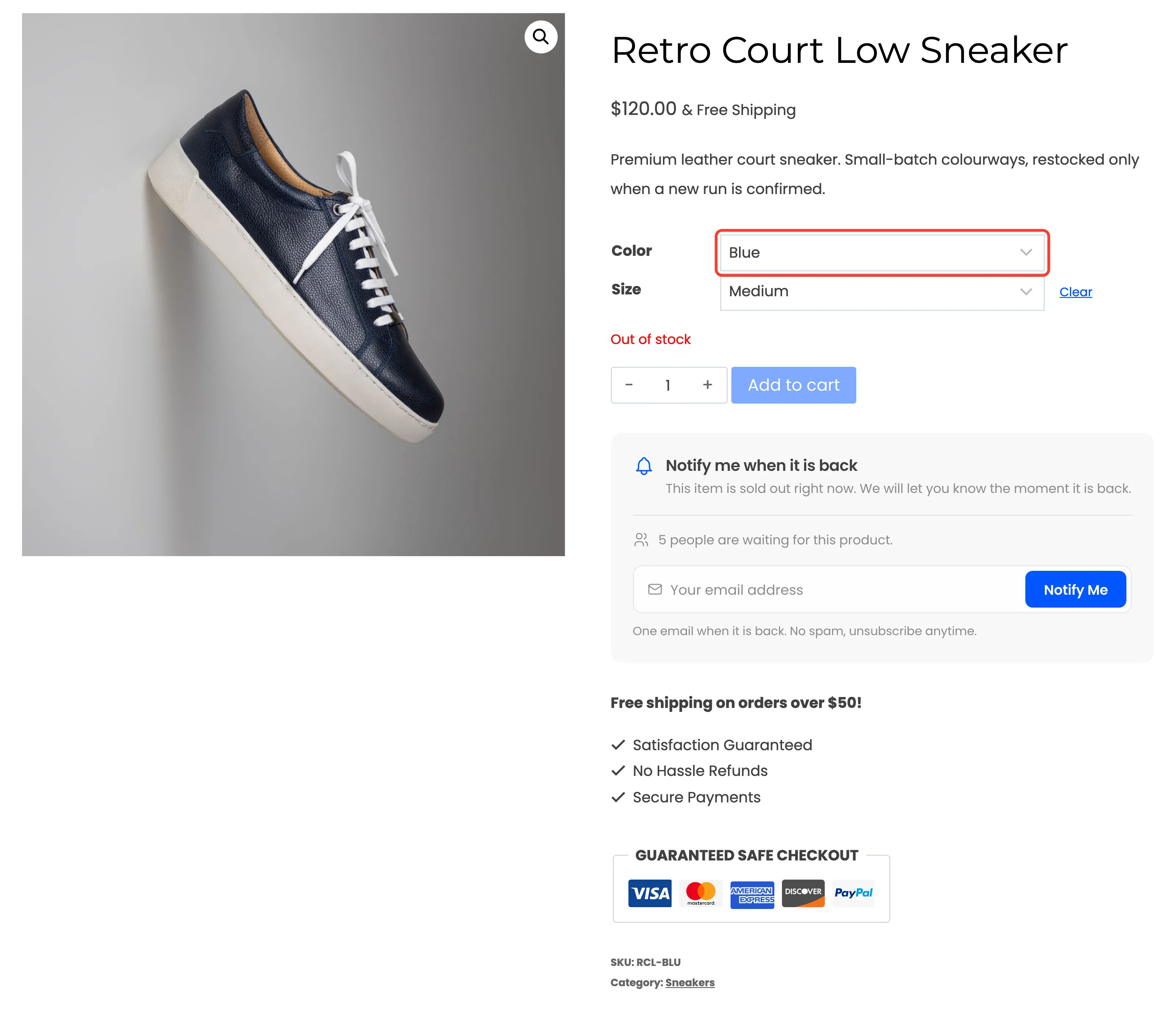
Picking a sold out one shows the form, with the waiting count for that variation alone. Blue had five people waiting:
Step 3: Join the variation
Section titled “Step 3: Join the variation”The customer enters an email and presses Notify Me. Switching to another sold out variation resets the form for that one.
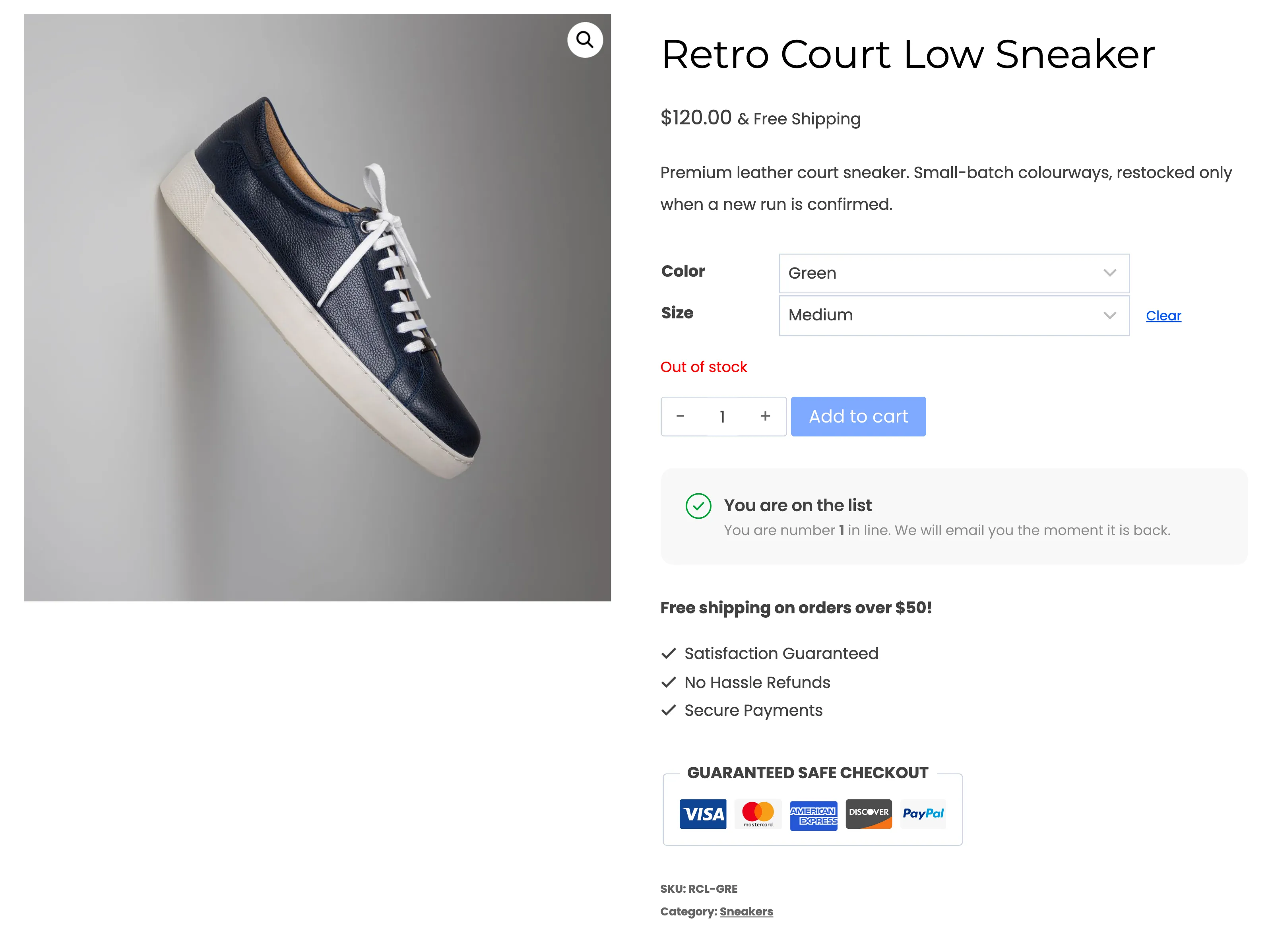
On the Subscribers and Products screens the signup shows the variation by name, such as Retro Court Low Sneaker - Green, with its own SKU.
Step 4: Restock the variation
Section titled “Step 4: Restock the variation”Set the variation back in stock. Only the customers waiting for that variation are emailed. The email names the variation and links to the product.
From the shop page (Pro)
Section titled “From the shop page (Pro)”Pro’s Notify Me button appears on a variable product in the shop grid only when the whole product is sold out. A partly available product can still be bought. Its window then has an Option menu with the sold out variations.
Per-variation restock dates (Pro)
Section titled “Per-variation restock dates (Pro)”Each variation can carry its own expected restock date. Leave it empty to use the parent’s. See How to Show an Expected Restock Date (Pro).