

Import and Export (Pro)
Both live on the Subscribers screen, next to Add Subscriber.
Import CSV
Section titled “Import CSV”Import CSV opens a three-step wizard: Select File, Mapping and Data Import.
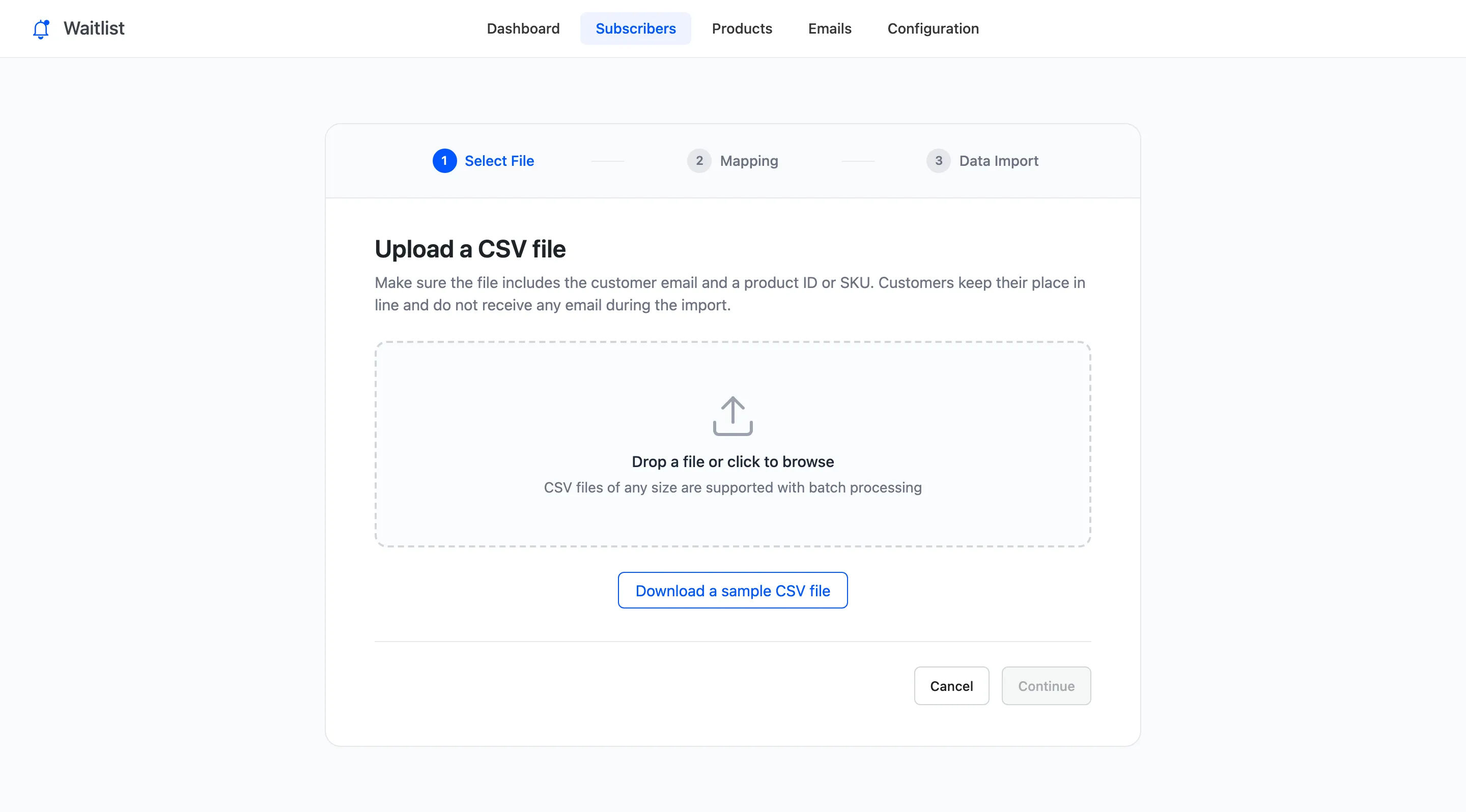
The file needs a header row. Two columns are required and the rest are optional:
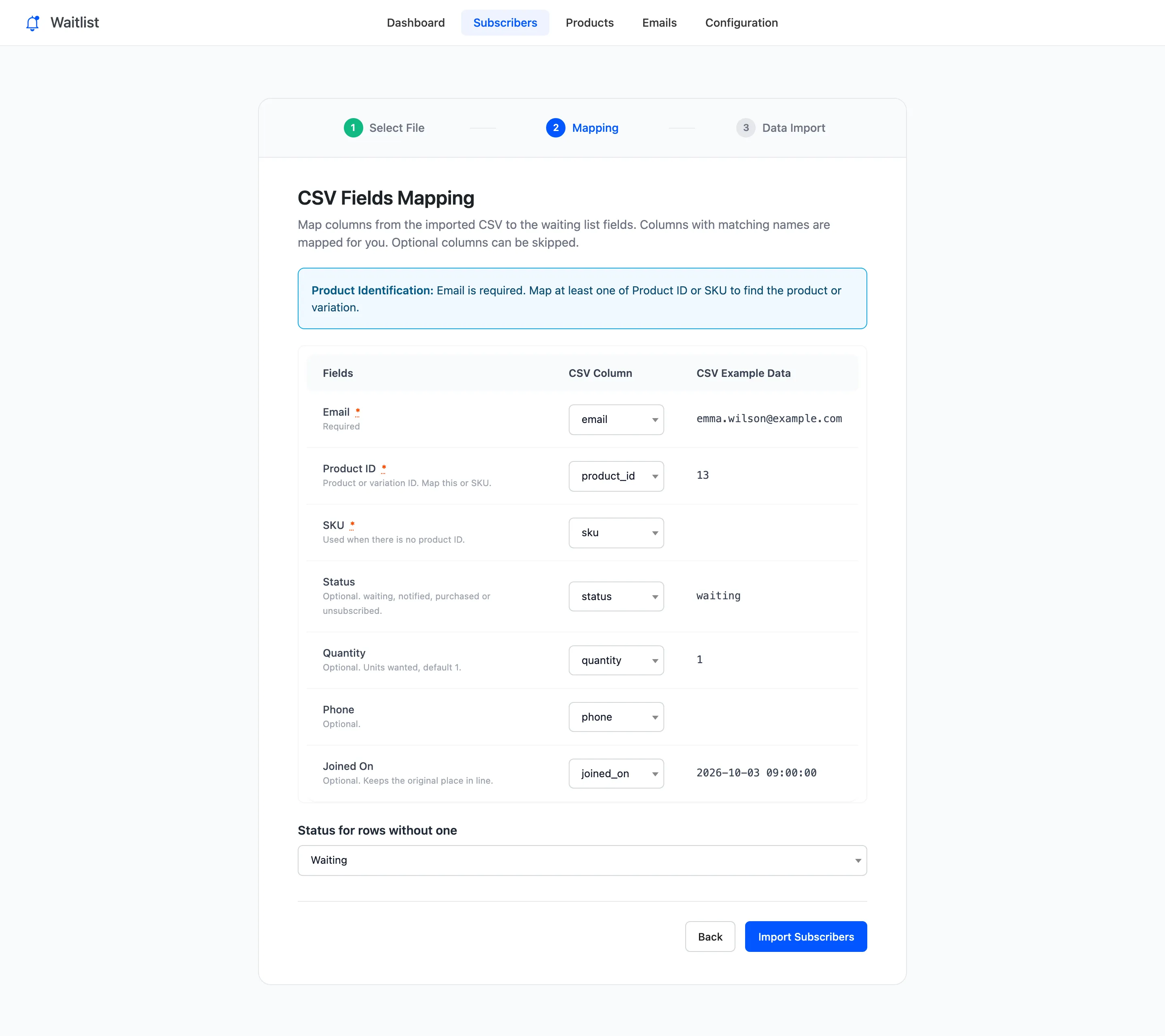
| Column | Needed | What it holds |
|---|---|---|
| Yes | The customer’s email | |
| Product ID or SKU | One of the two | The product or variation, by ID or by SKU |
| Status | No | waiting, notified, purchased or unsubscribed. Rows without one use the status you pick |
| Quantity | No | Units wanted, default 1 |
| Phone | No | Any phone number |
| Joined On | No | The original signup date, so the customer keeps their place in line |
Download a sample CSV file gives a file in this shape. A file exported from this screen imports as it is.
Columns with matching names are mapped for you on step 2, with the first row’s values as a preview. Change any mapping, or choose Do not import to skip a column. Status for rows without one sets the status of rows with an empty status.
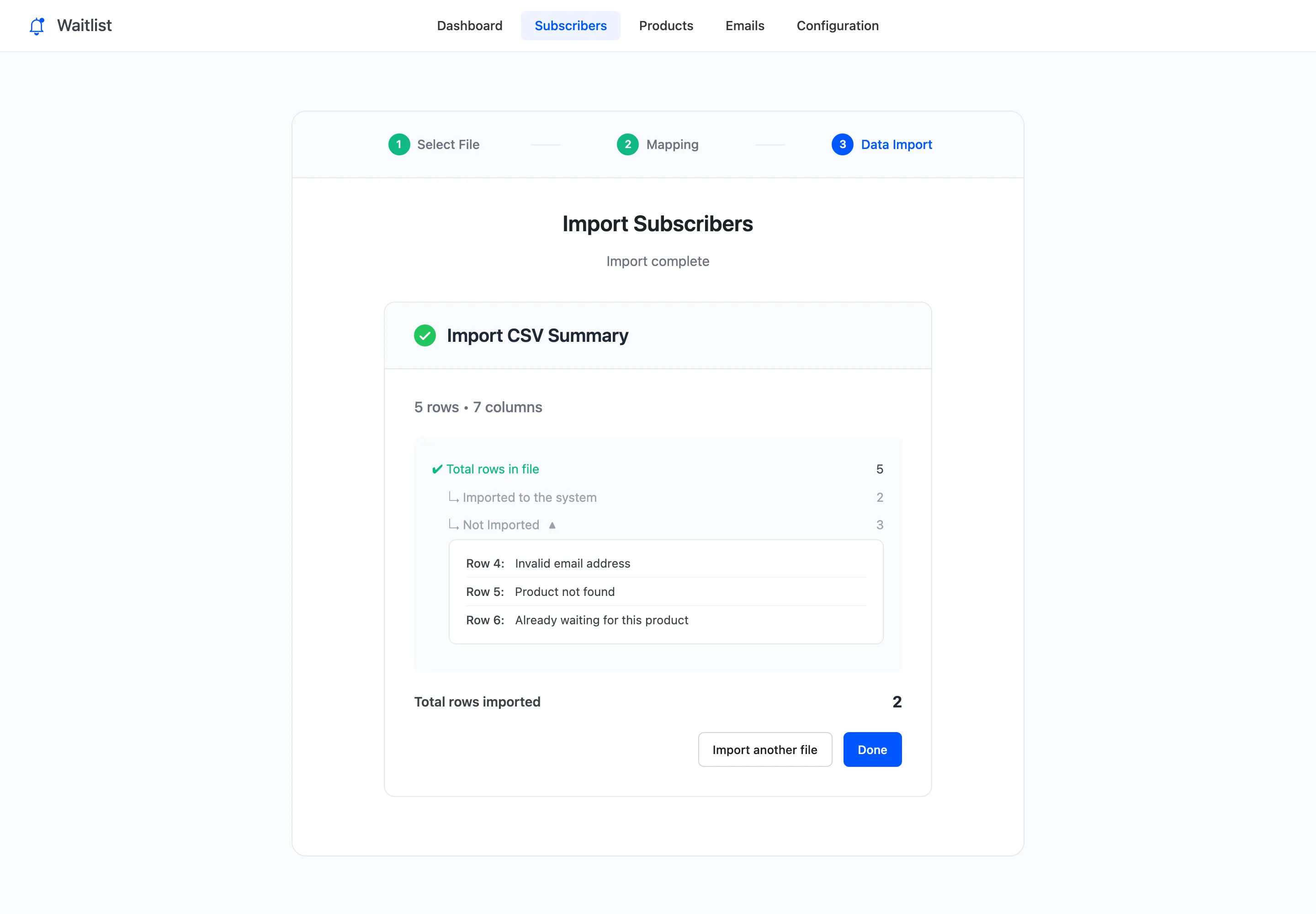
Import Subscribers works through the file in batches, so a long file is fine, then shows a summary. Not Imported opens the skipped rows with the reason for each:
- Invalid email address
- Product not found, for an ID or SKU that matches nothing
- Already waiting for this product
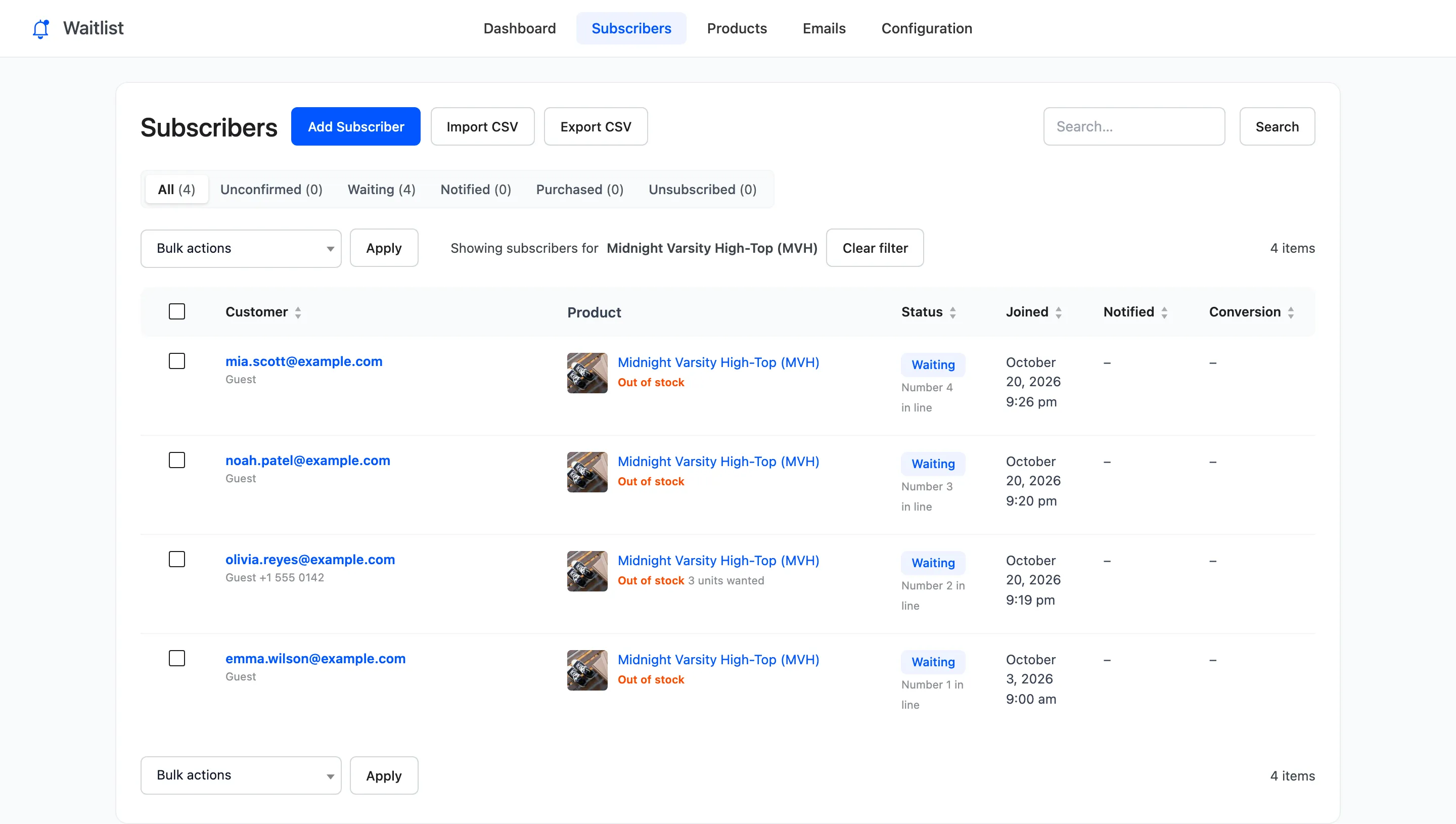
Imported customers receive no email: no Signup Confirmation, no Admin Alert. A Joined On date in the past puts them ahead of people who joined later. On the demo, a row dated 3 October went to the front of the Midnight Varsity High-Top line:
See How to Import Subscribers From a CSV File (Pro).
Export CSV
Section titled “Export CSV”Export CSV downloads the list you are looking at: the current status view, product filter and search. To export everything, click All first.
The file has these columns: ID, Email, Customer, Product ID, Product, SKU, Status, Quantity, Phone, Joined On, Notified On, Clicked On, Converted On, Order ID, Revenue and Coupon. Customer is the account name, or Guest.
ID,Email,Customer,"Product ID",Product,SKU,Status,Quantity,Phone,"Joined On","Notified On","Clicked On","Converted On","Order ID",Revenue,Coupon21,mia.scott@example.com,Guest,13,"Midnight Varsity High-Top",MVH,Waiting,1,,"2026-10-20 21:26:50",,,,,0.0000,A cell that starts with =, +, - or @ gets a leading apostrophe, so a spreadsheet never runs it as
a formula.