

How to Limit Restock Emails to the Stock You Have (Pro)
Three units back and two hundred people waiting is a bad email to send: 197 people click through to a sold out page. Customers per Unit caps the emails at the stock you have.
Step 1: Set Customers per Unit
Section titled “Step 1: Set Customers per Unit”Open Configuration → Restock Rules.
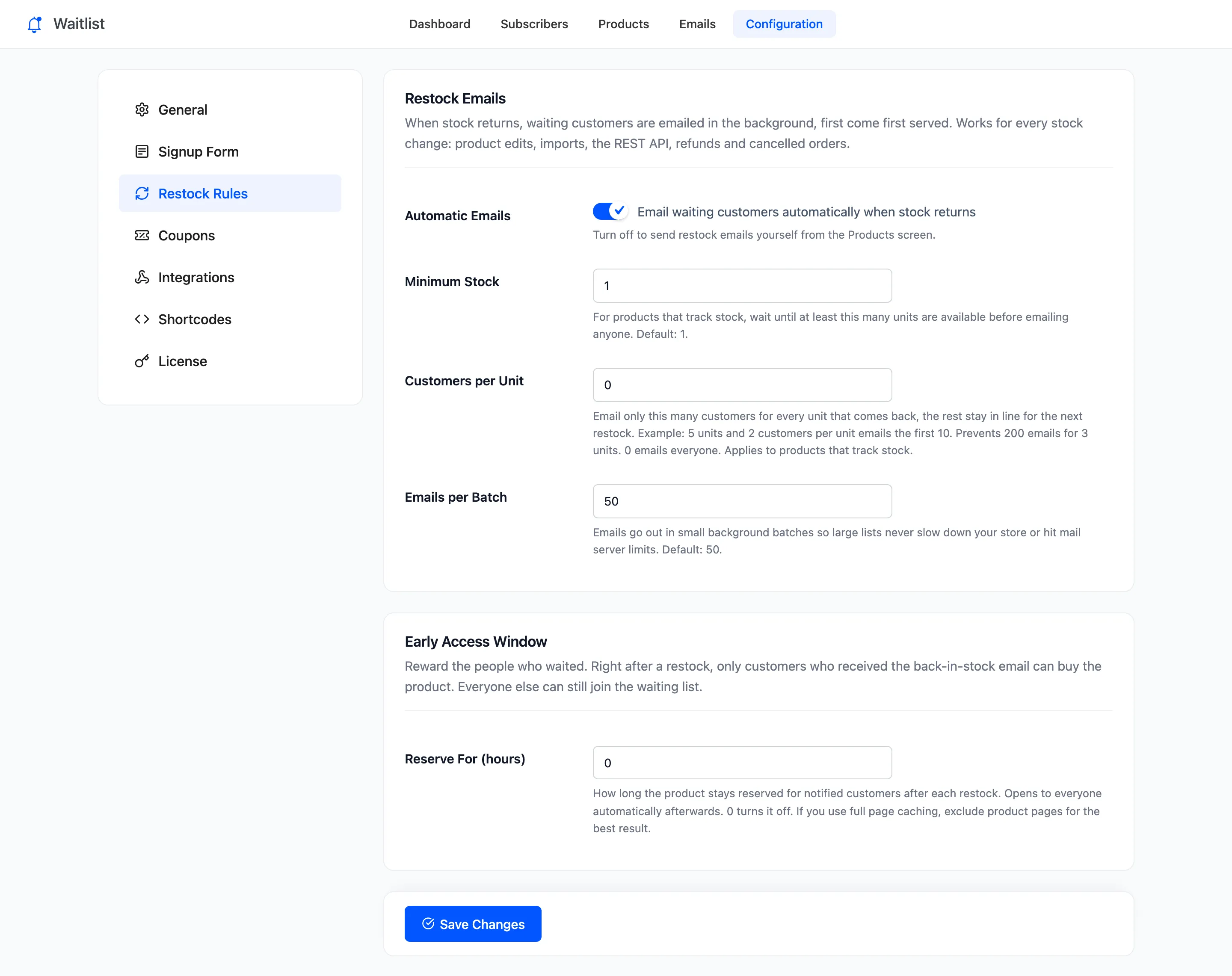
Set Customers per Unit:
- 1 emails one customer per unit. Fair, and nobody is let down.
- 2 or 3 allows for people who never open the email or change their mind.
- 0, the default, emails everyone.
Step 2: Set Minimum Stock if needed
Section titled “Step 2: Set Minimum Stock if needed”Minimum Stock waits until at least that many units are in stock before emailing anyone. Default 1. Raise it if a single returned unit should not wake up your whole list.
Click Save Changes.
Step 3: Make sure the product tracks stock
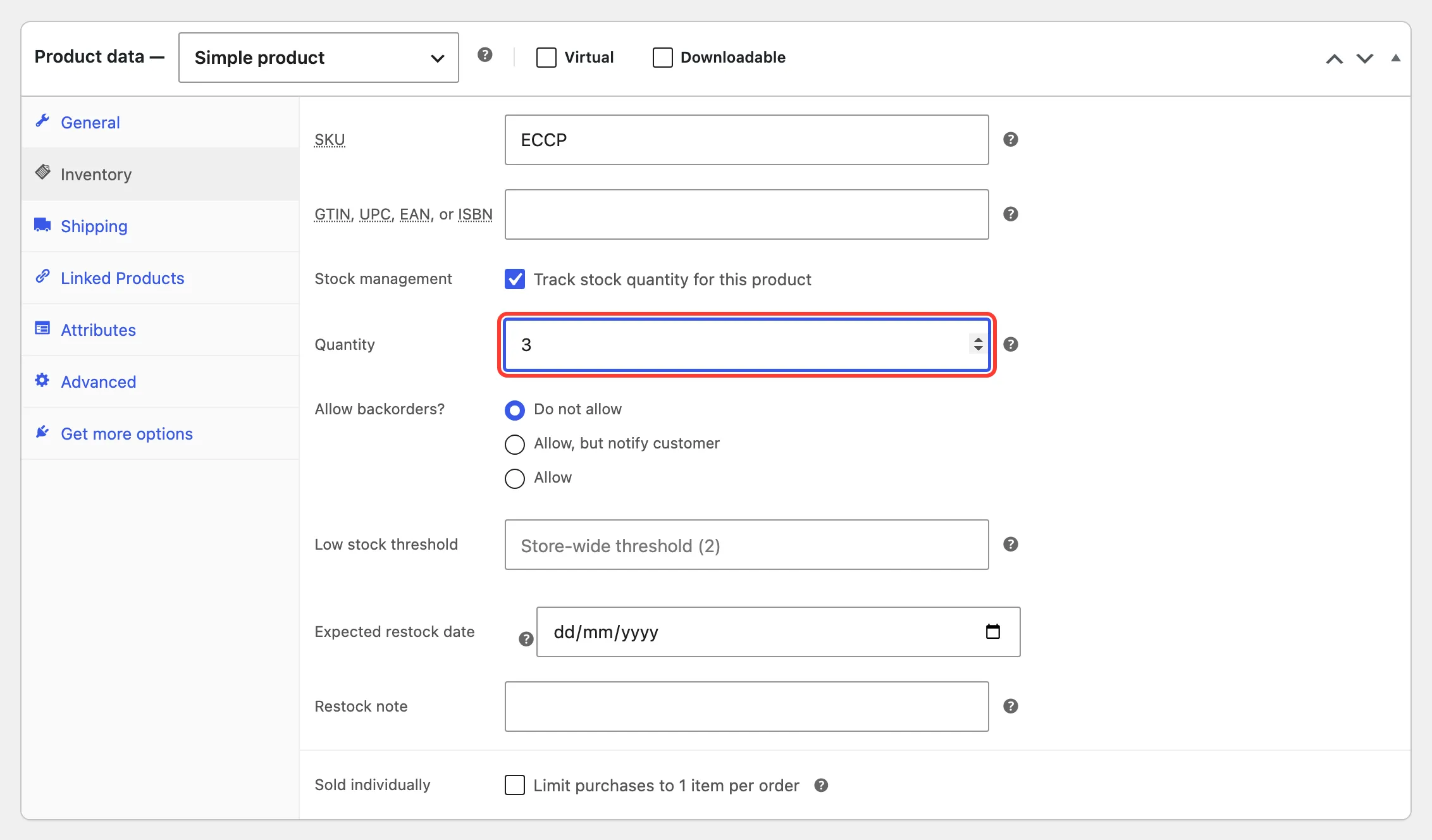
Section titled “Step 3: Make sure the product tracks stock”Both settings need a number to work with, so they apply only to products with Manage stock? ticked under Product data → Inventory. A product without a stock count is treated as plain in stock and everyone is emailed.
Step 4: Restock and check
Section titled “Step 4: Restock and check”The demo’s Ember Canvas Collector Pack had four customers waiting, with Customers per Unit at 1. It went from 0 to 3 units:
Exactly three emails went out, to the three oldest signups. The fourth customer stayed Waiting, still first in line for the next restock:
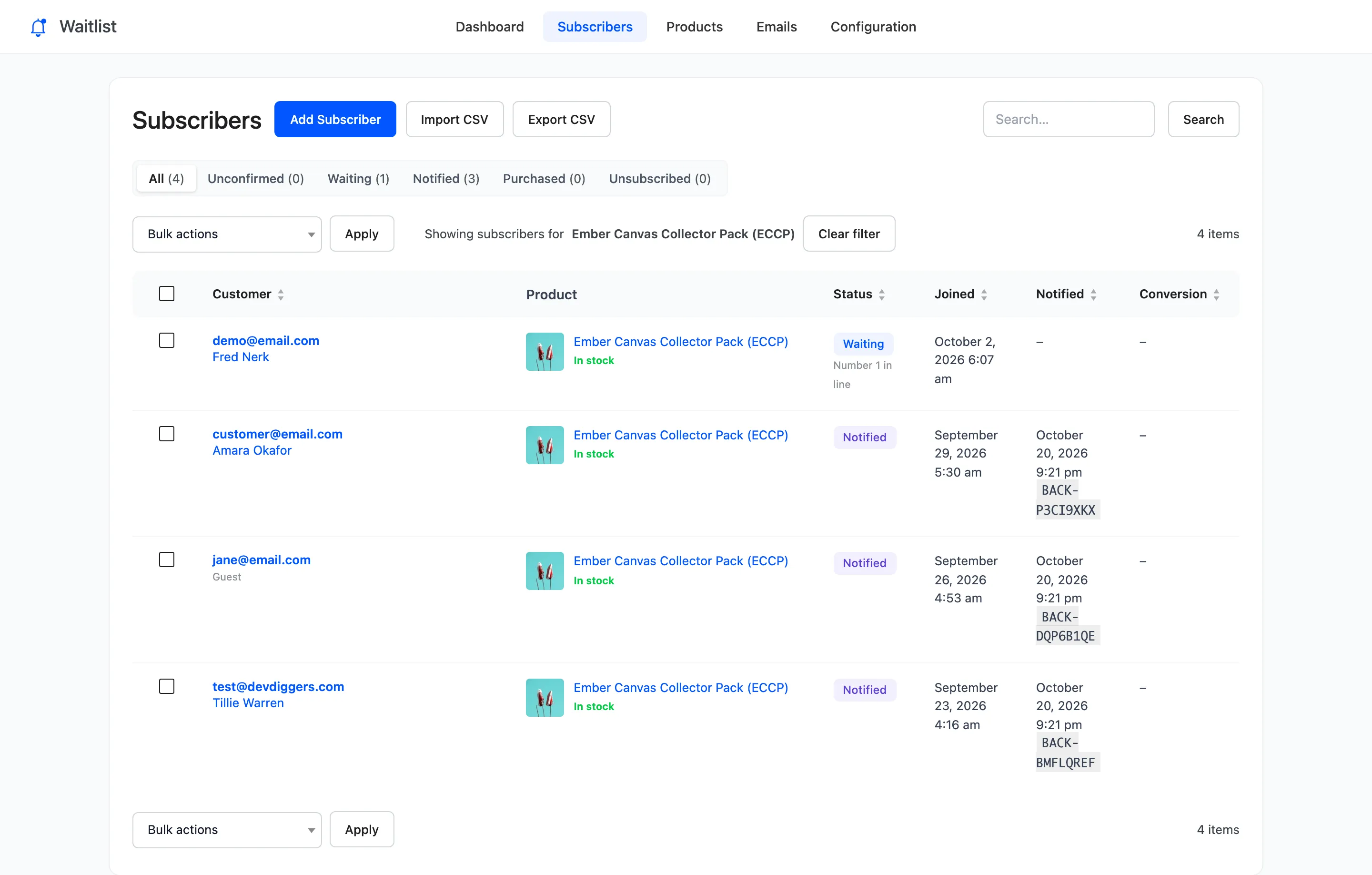
The product then shows on the dashboard under Ready to Sell, because it is in stock with someone waiting.
How the count works
Section titled “How the count works”Each rise in stock adds the new units times Customers per Unit to the product’s allowance, and every email spends one. Selling units does not add to it. If stock drops to zero the allowance resets, so the next restock starts fresh.
To email everyone anyway, use Email waiting customers on the Products screen. Manual sends ignore the cap. See How to Email Waiting Customers Yourself.
Emails per Batch
Section titled “Emails per Batch”Also on this tab, Emails per Batch sets how many emails each background batch sends. Default 50. Lower it if your mail service limits how many emails you send a minute.