

How to Give Waiting Customers Early Access (Pro)
The people who waited should not lose the product to someone who walked in an hour after the restock. The early access window keeps it for them for the hours you choose.
Step 1: Set the window
Section titled “Step 1: Set the window”Open Configuration → Restock Rules and set Reserve For (hours) under Early Access Window. 0, the default, turns it off. 24 hours suits most stores: long enough for people to see the email, short enough that unsold stock does not sit.
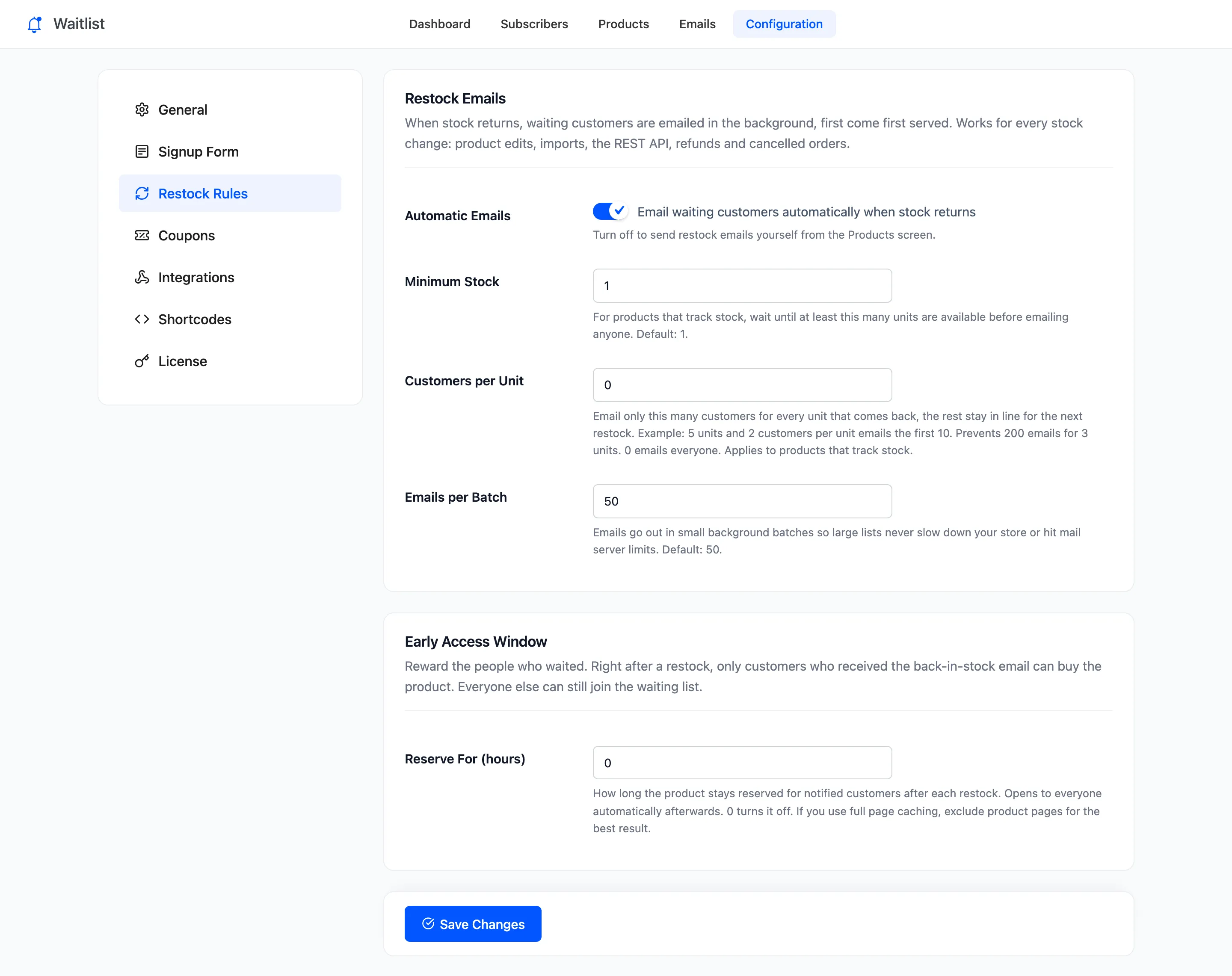
Click Save Changes.
Step 2: Restock the product
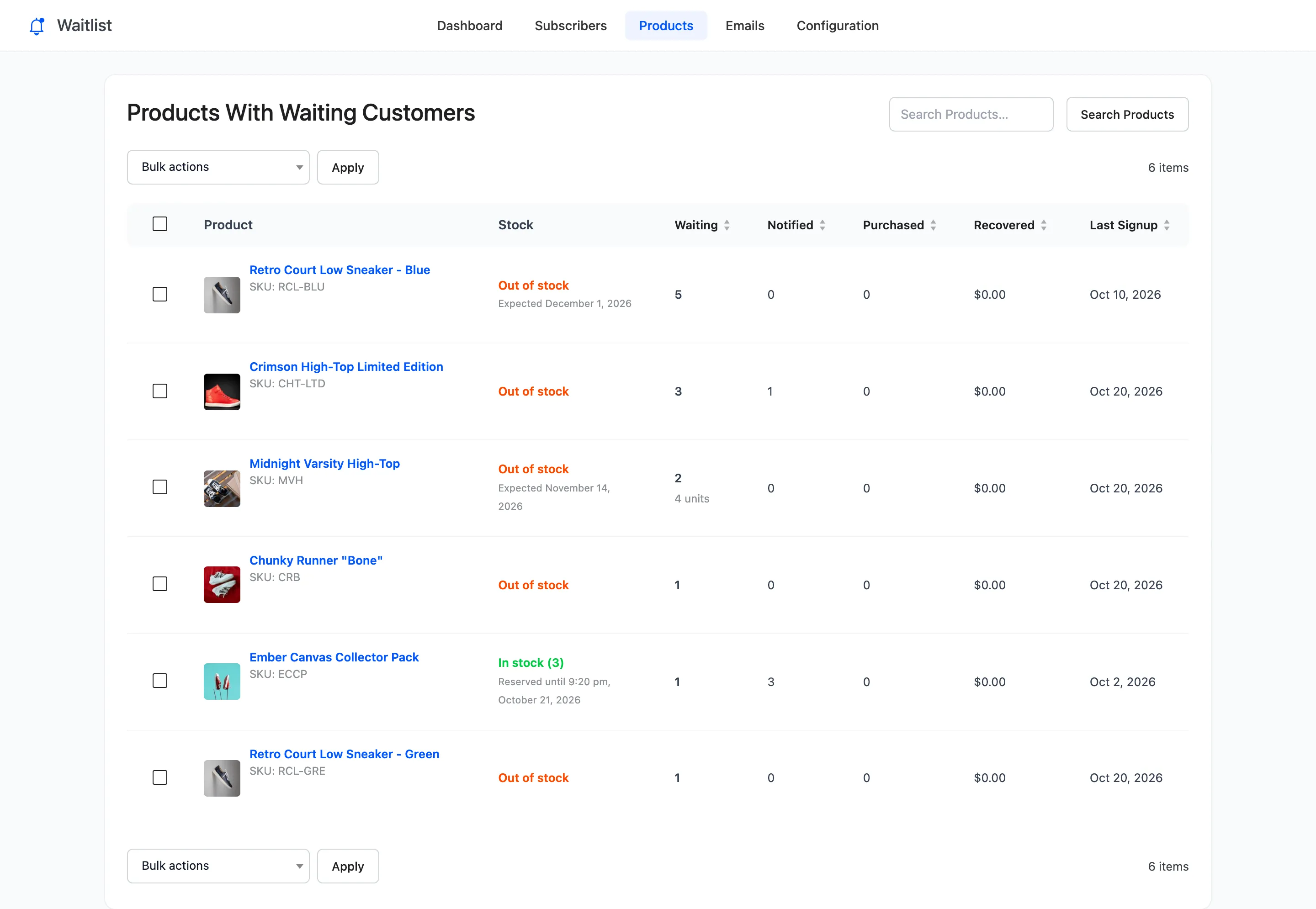
Section titled “Step 2: Restock the product”Restock as usual. The window starts when the restock emails are queued. The Products screen shows when it ends:
Step 3: Check the product as someone else
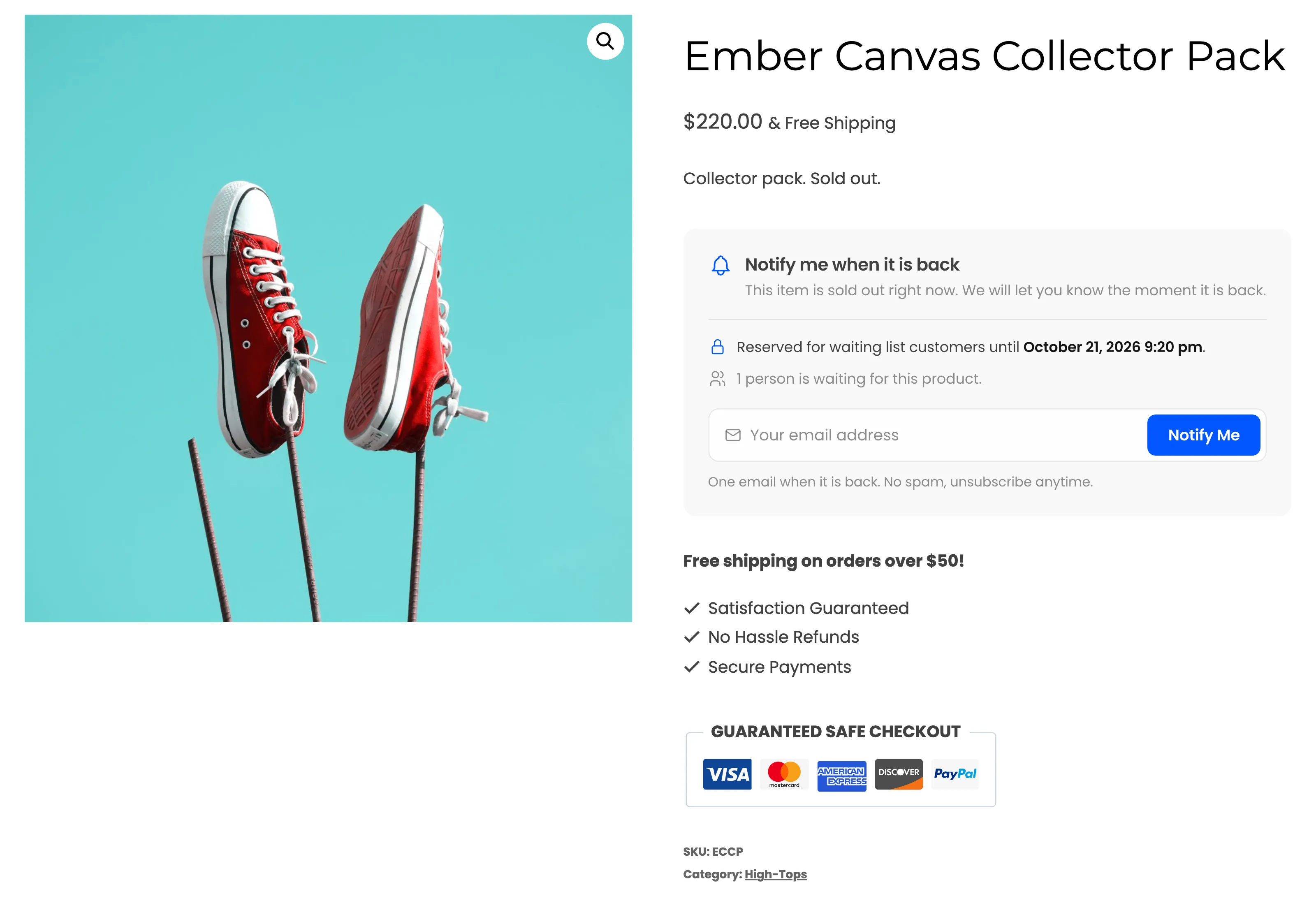
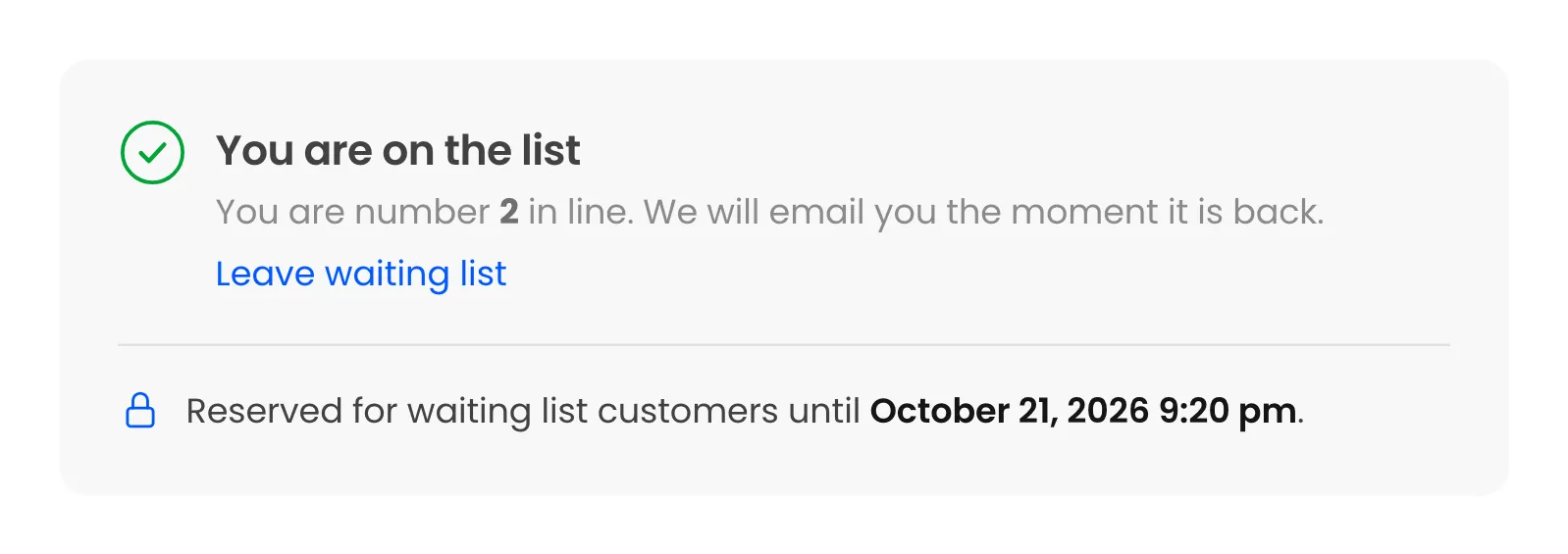
Section titled “Step 3: Check the product as someone else”Open the product in a private window. A guest sees the price but no Add to cart. The form is there, with “Reserved for waiting list customers until” and the time:
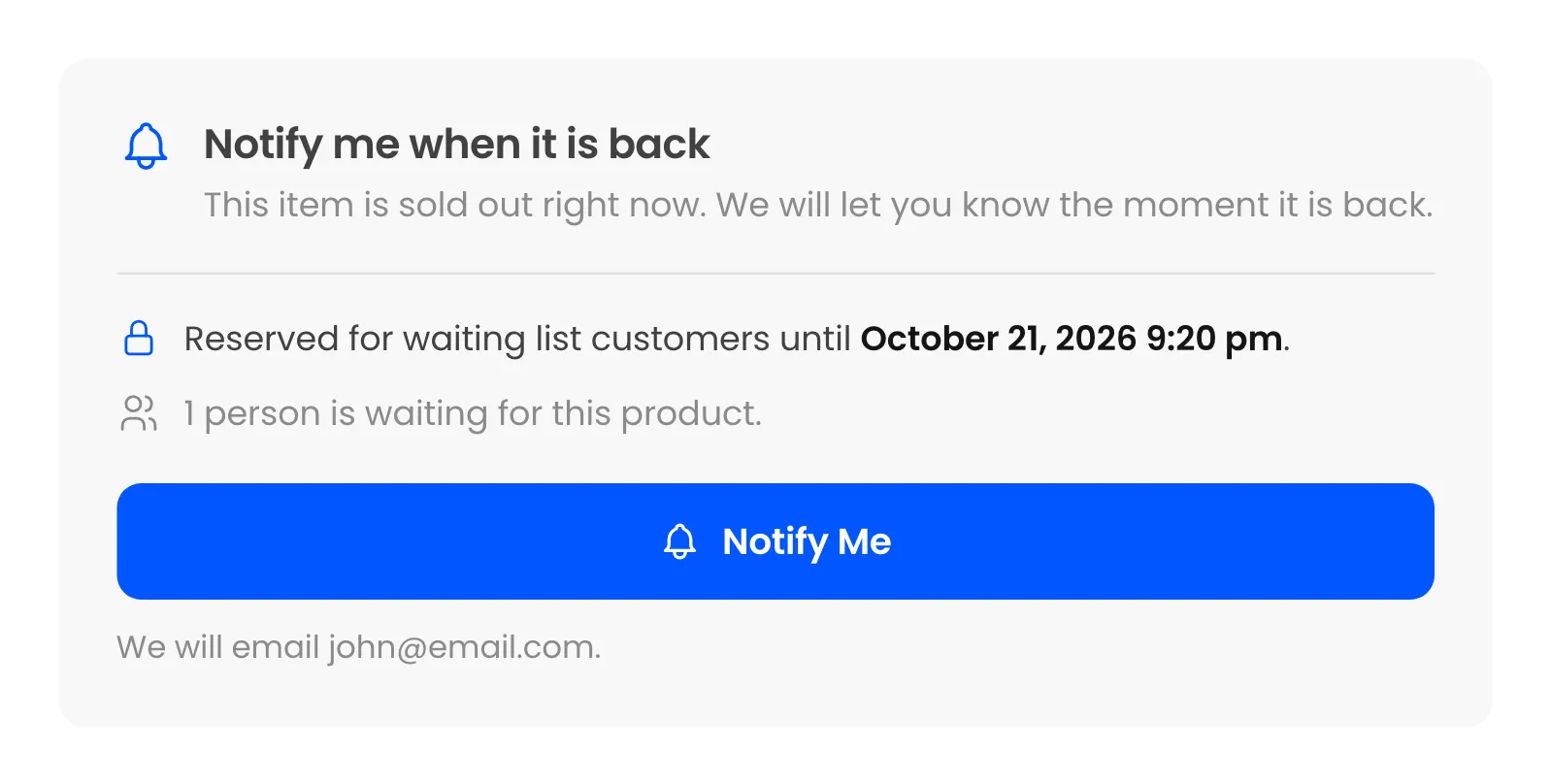
A logged-in customer who was not emailed sees the same, and can join the list:
Step 4: Buy as the emailed customer
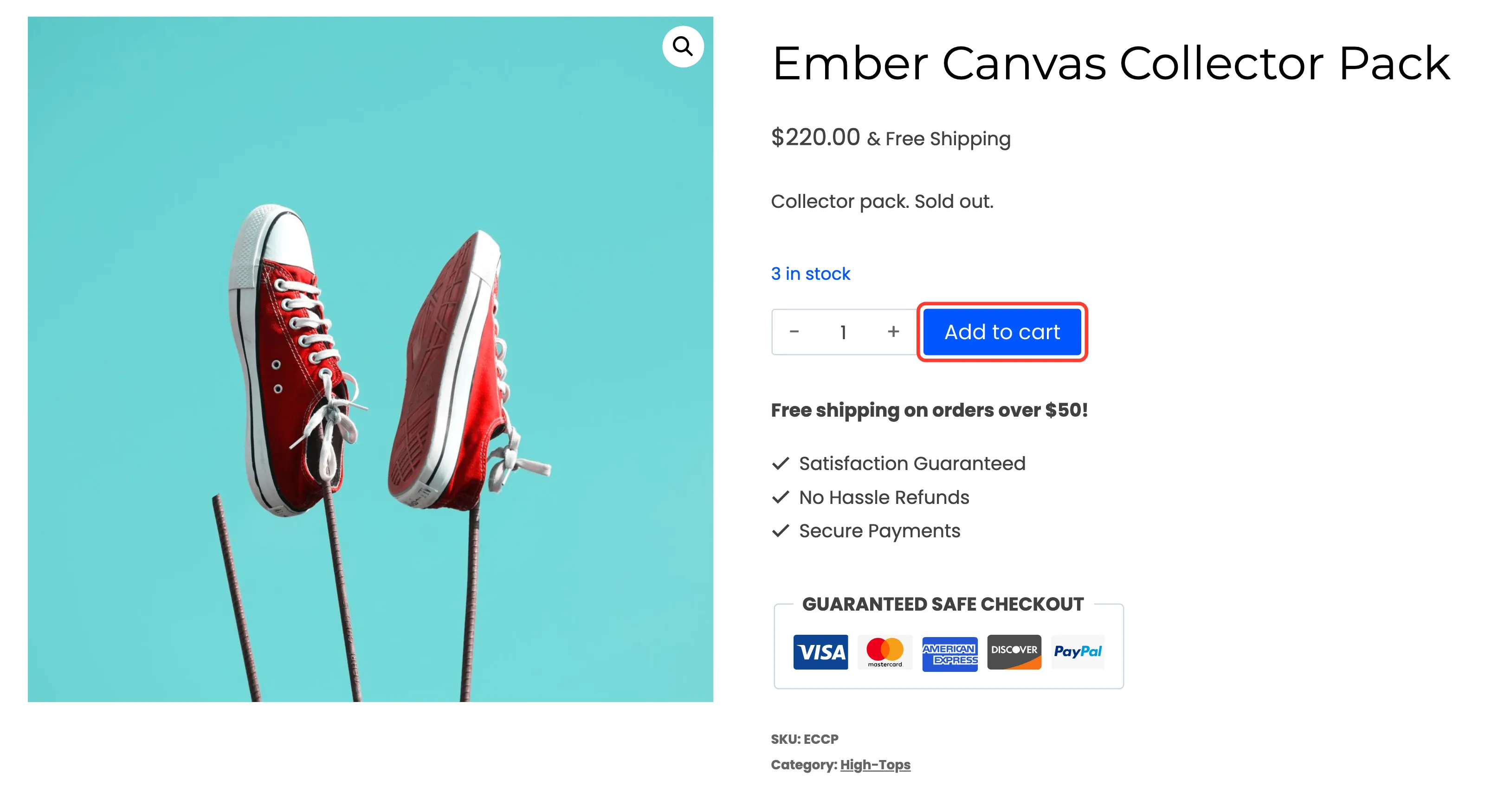
Section titled “Step 4: Buy as the emailed customer”The customer who was emailed clicks Shop Now in the email and can buy straight away:
Who can buy during the window
Section titled “Who can buy during the window”- Customers who were emailed, when they are logged in with the same email, or in any browser where they opened the product from the email’s button.
- Customers who already bought it after an earlier email.
- Your administrators and shop managers, so you can check the page.
Everyone else, guests included, sees the form. Opening the product from the email works without logging in, which is how a guest who joined by email gets in.
When the window ends
Section titled “When the window ends”The reservation is checked once an hour. When it has passed:
- Someone is still waiting: they are emailed, and their emails start a fresh window, so the next people in line get the same head start. With Customers per Unit on, the units still in stock decide how many are emailed. On the demo, two unsold units at one customer per unit emailed the one customer still waiting.
- Nobody is waiting: the product opens to everyone and the Products screen drops the “Reserved until” line.
Caching
Section titled “Caching”The window decides per visitor whether Add to cart shows. If your store caches full pages, exclude product pages from the cache, or a cached page can show the wrong state to the next visitor.