

The Setup Wizard
The wizard opens when you first activate the plugin. It takes about a minute and leaves you with a working waitlist: the form on sold out products, and restock emails on.
The free version has four steps: Welcome, General, Growth and Ready. Pro adds a License step after Welcome, and its General and Growth steps carry a few more switches.
Every value the wizard sets is also on the Configuration tabs, so you can skip it and change things later. To run it again, use the Setup Wizard link under the plugin’s name on the Plugins screen.
Step 1: Welcome
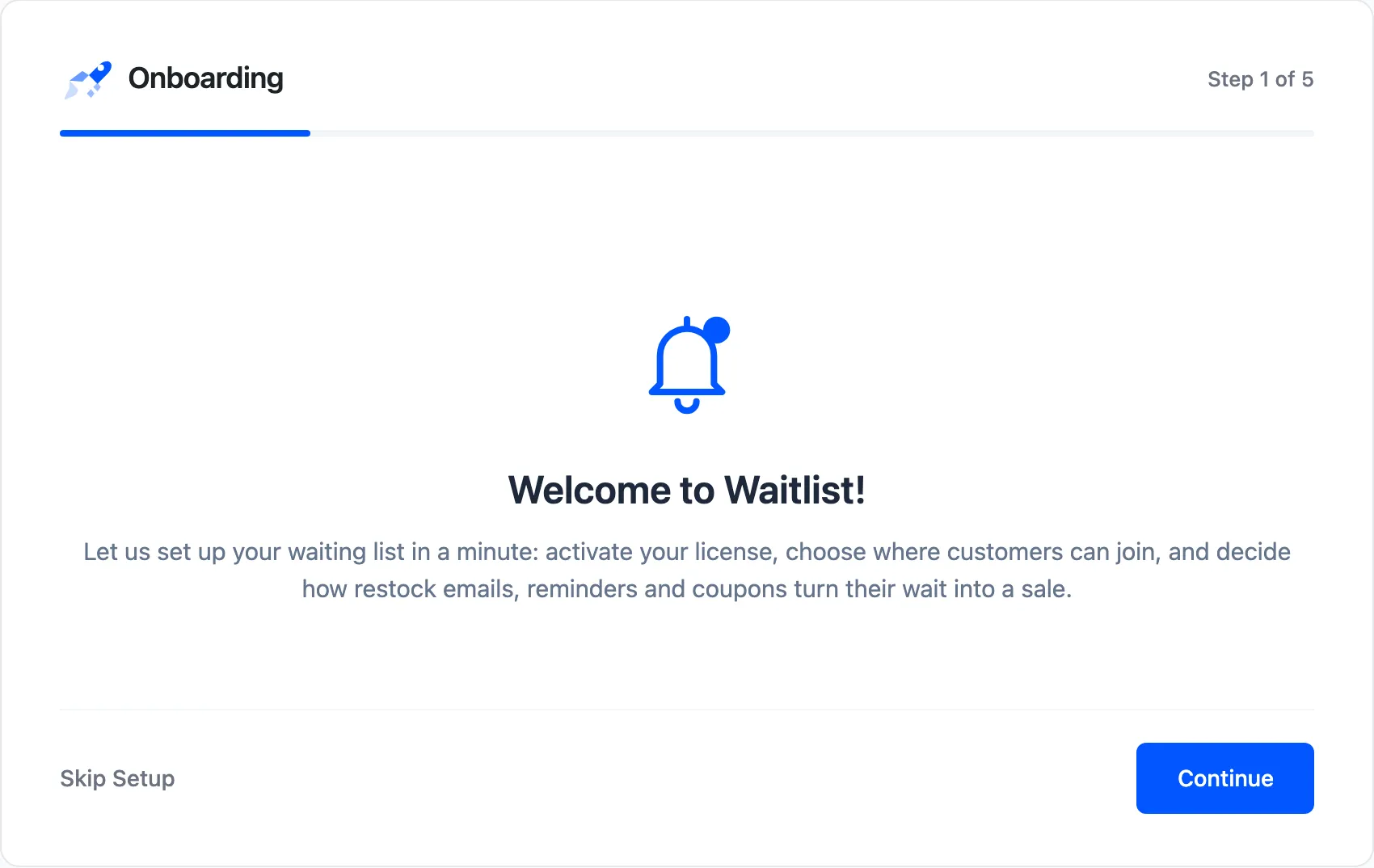
Section titled “Step 1: Welcome”A short summary of what the wizard sets up. Click Continue.
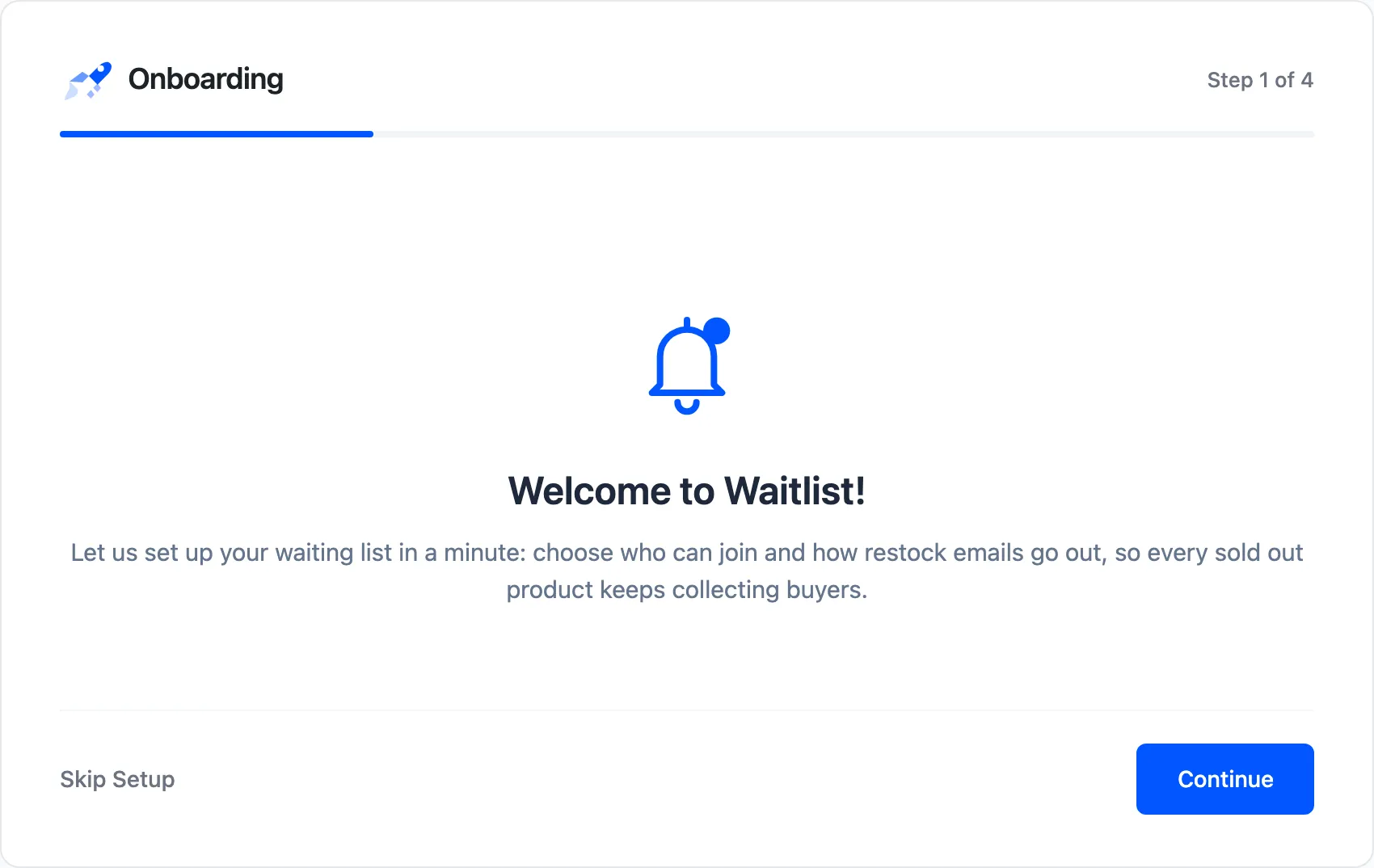
The free version’s welcome step leaves out the license:
Step 2: License (Pro)
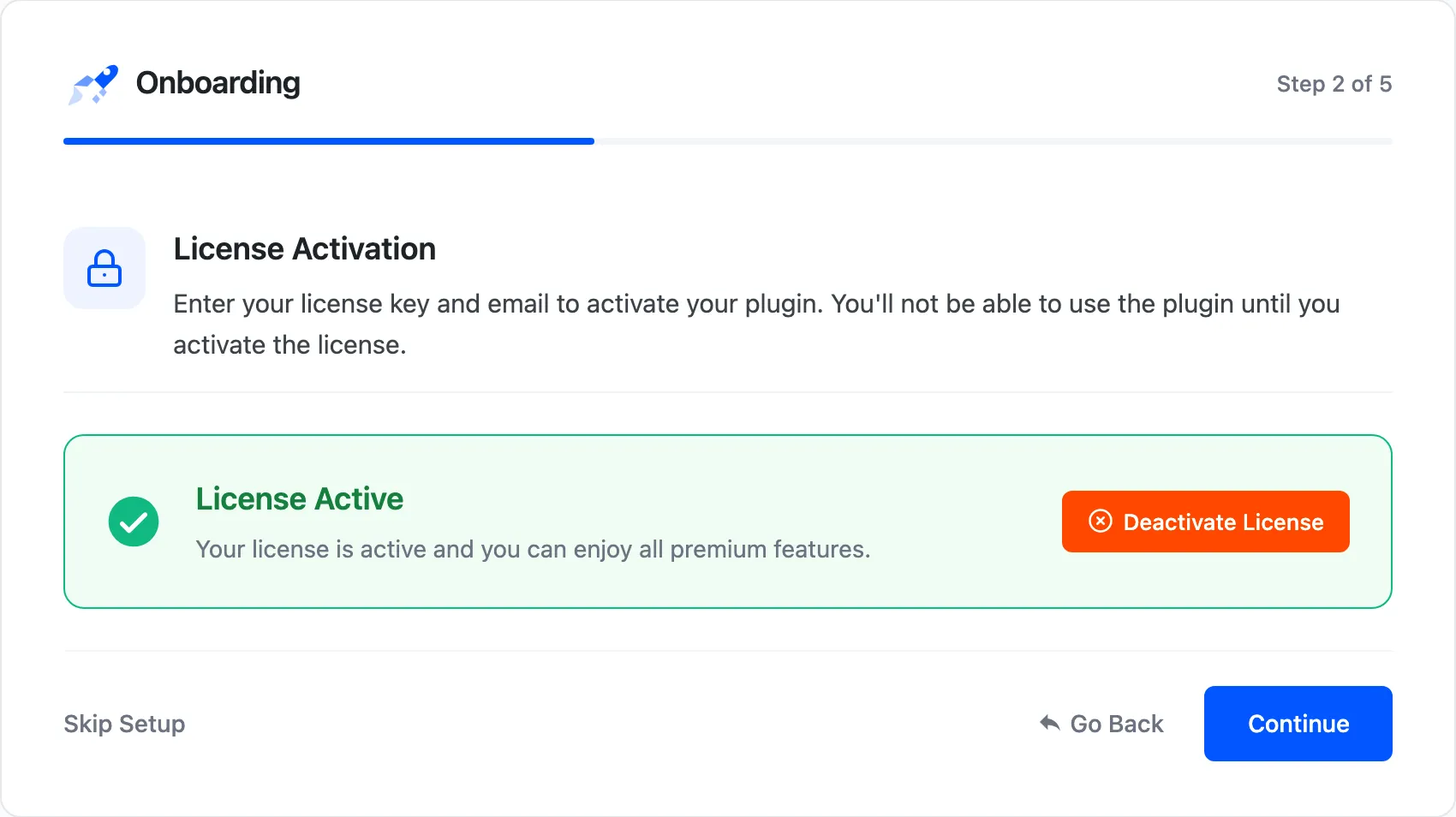
Section titled “Step 2: License (Pro)”Enter your purchase code and email, then activate. The wizard will not move on until the license is active, because Pro shows nothing on the storefront without it. The free version has no license and skips this step.
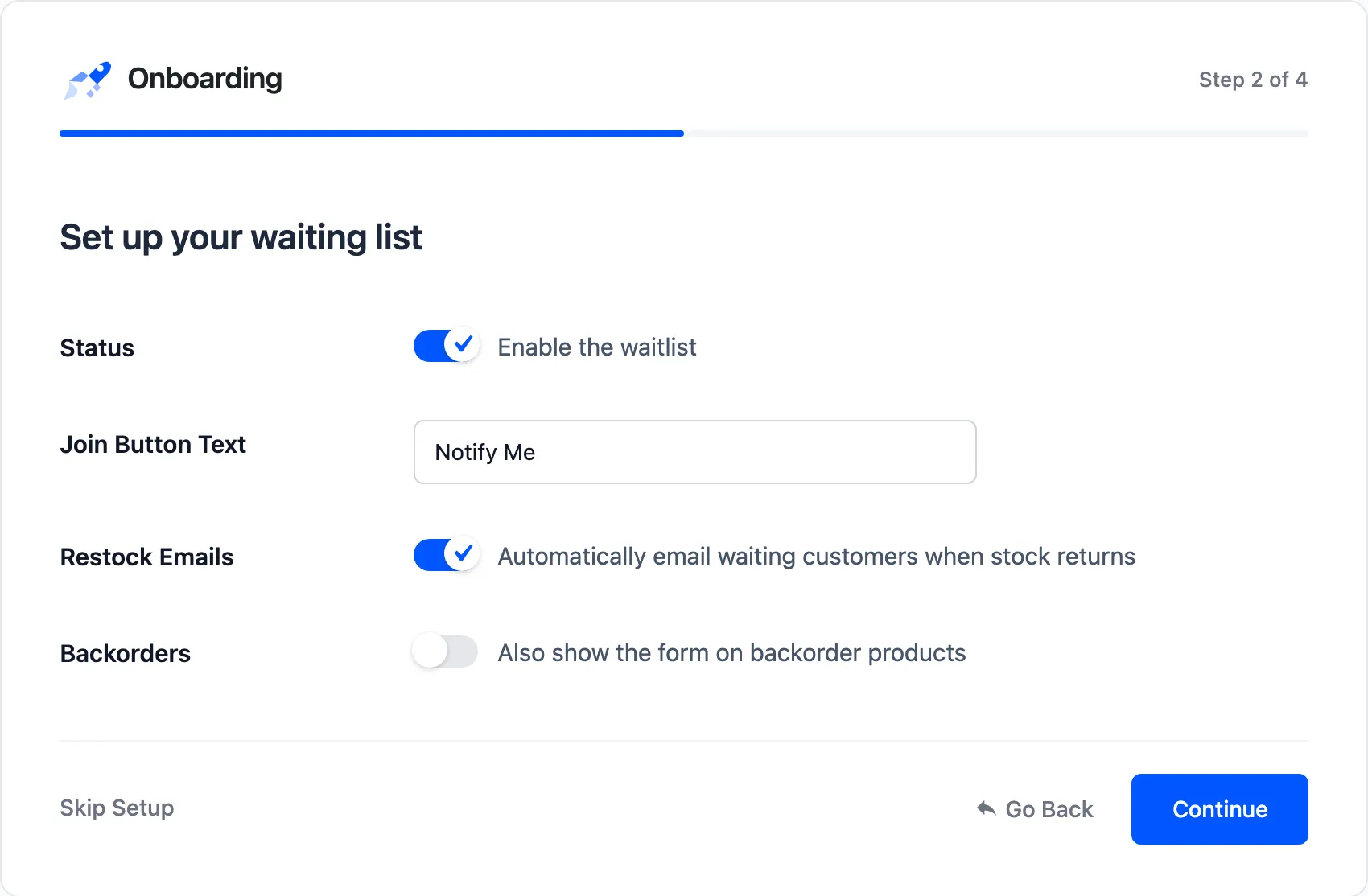
Step 3: General
Section titled “Step 3: General”“Set up your waiting list.”
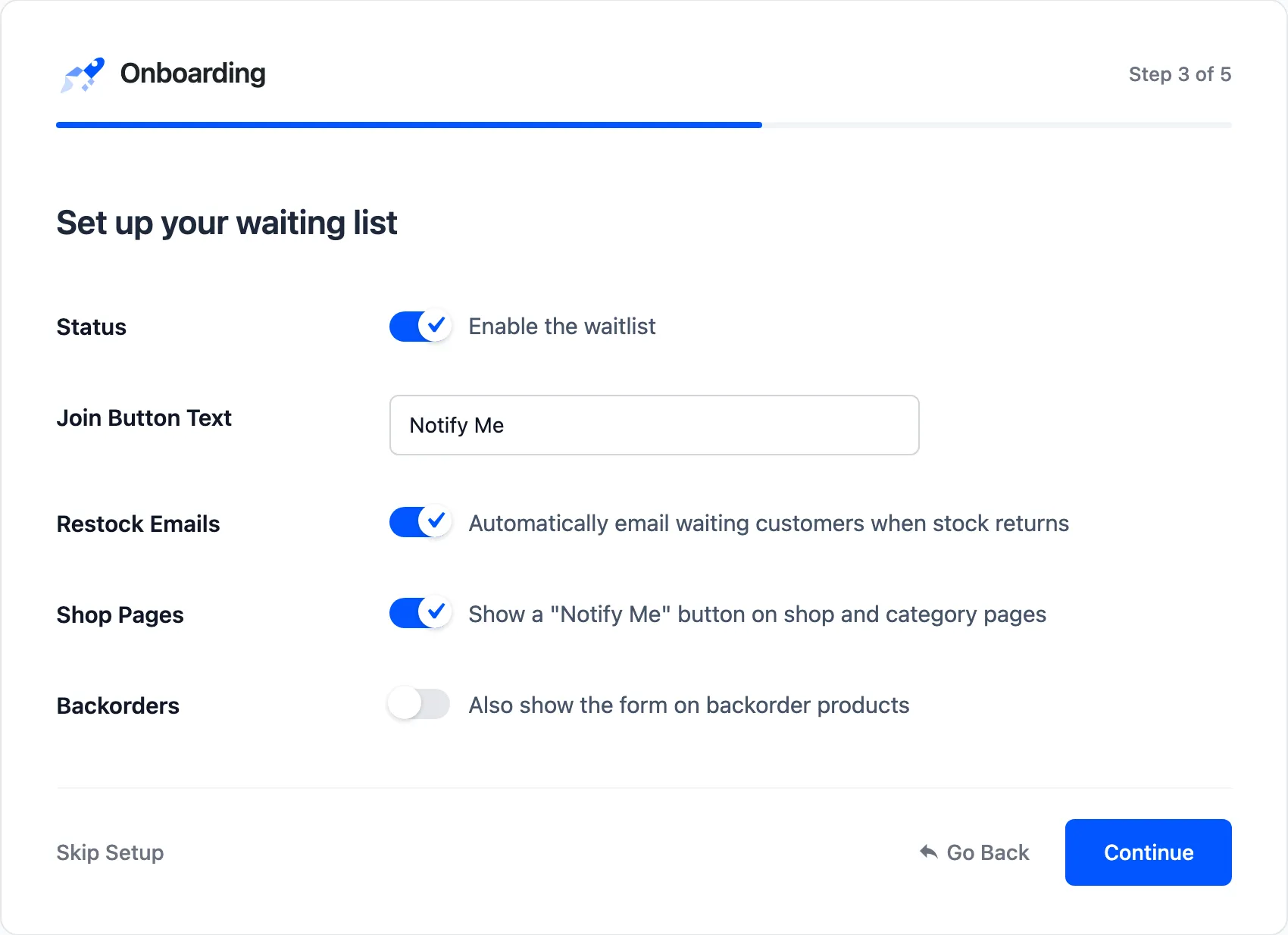
- Status: “Enable the waitlist”. Leave it ticked.
- Join Button Text: The button’s label. Default Notify Me.
- Restock Emails: “Automatically email waiting customers when stock returns”. On by default. Off, you send restock emails yourself from the Products screen.
- Shop Pages (Pro): “Show a “Notify Me” button on shop and category pages“. On by default in Pro.
- Backorders: “Also show the form on backorder products”. Off by default.
The free version’s General step has the same fields without Shop Pages.
Step 4: Growth
Section titled “Step 4: Growth”This step differs most between the editions.
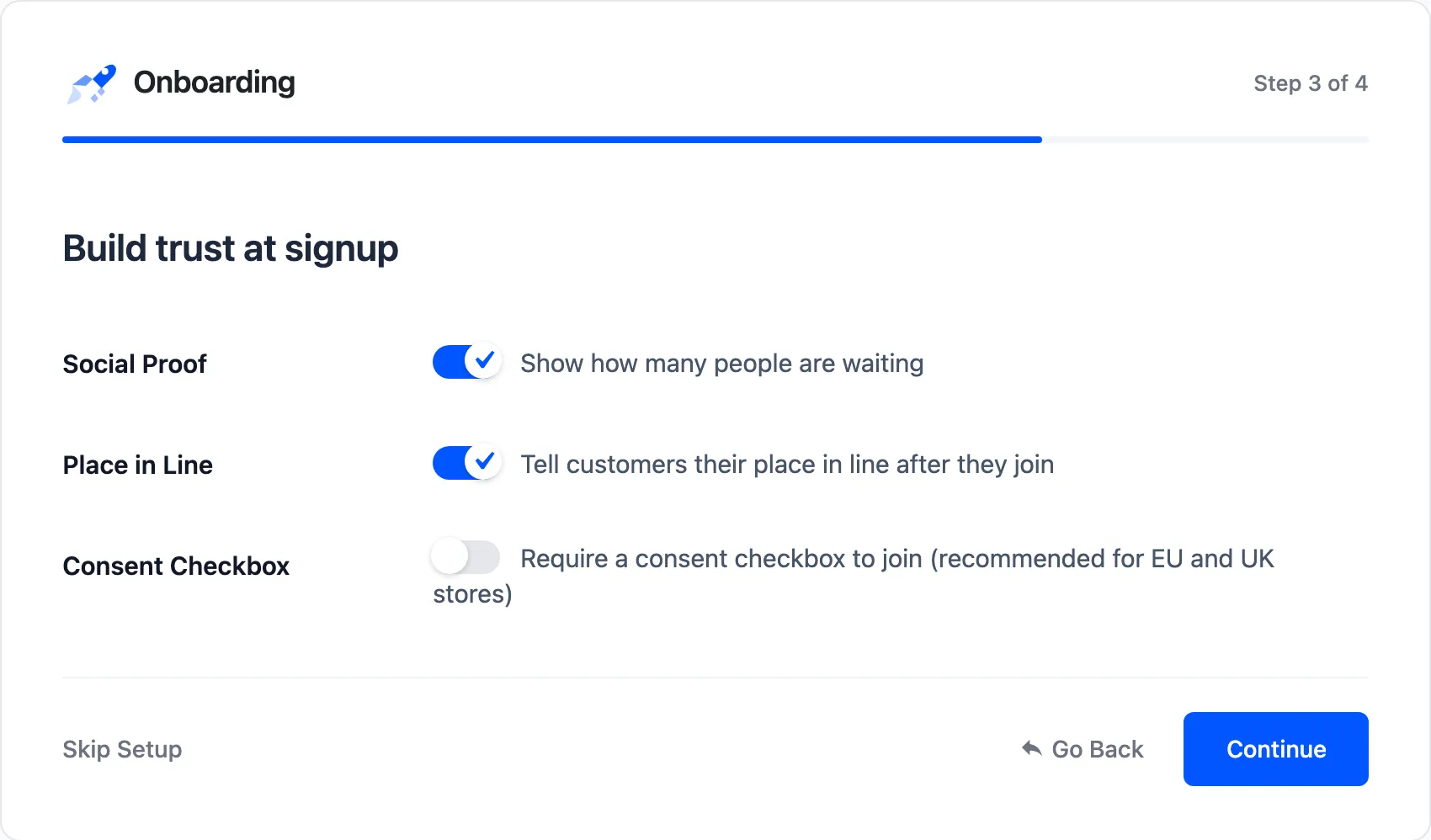
In the free version, “Build trust at signup”:
- Social Proof: “Show how many people are waiting”. On by default.
- Place in Line: “Tell customers their place in line after they join”. On by default.
- Consent Checkbox: “Require a consent checkbox to join (recommended for EU and UK stores)”. Off by default.
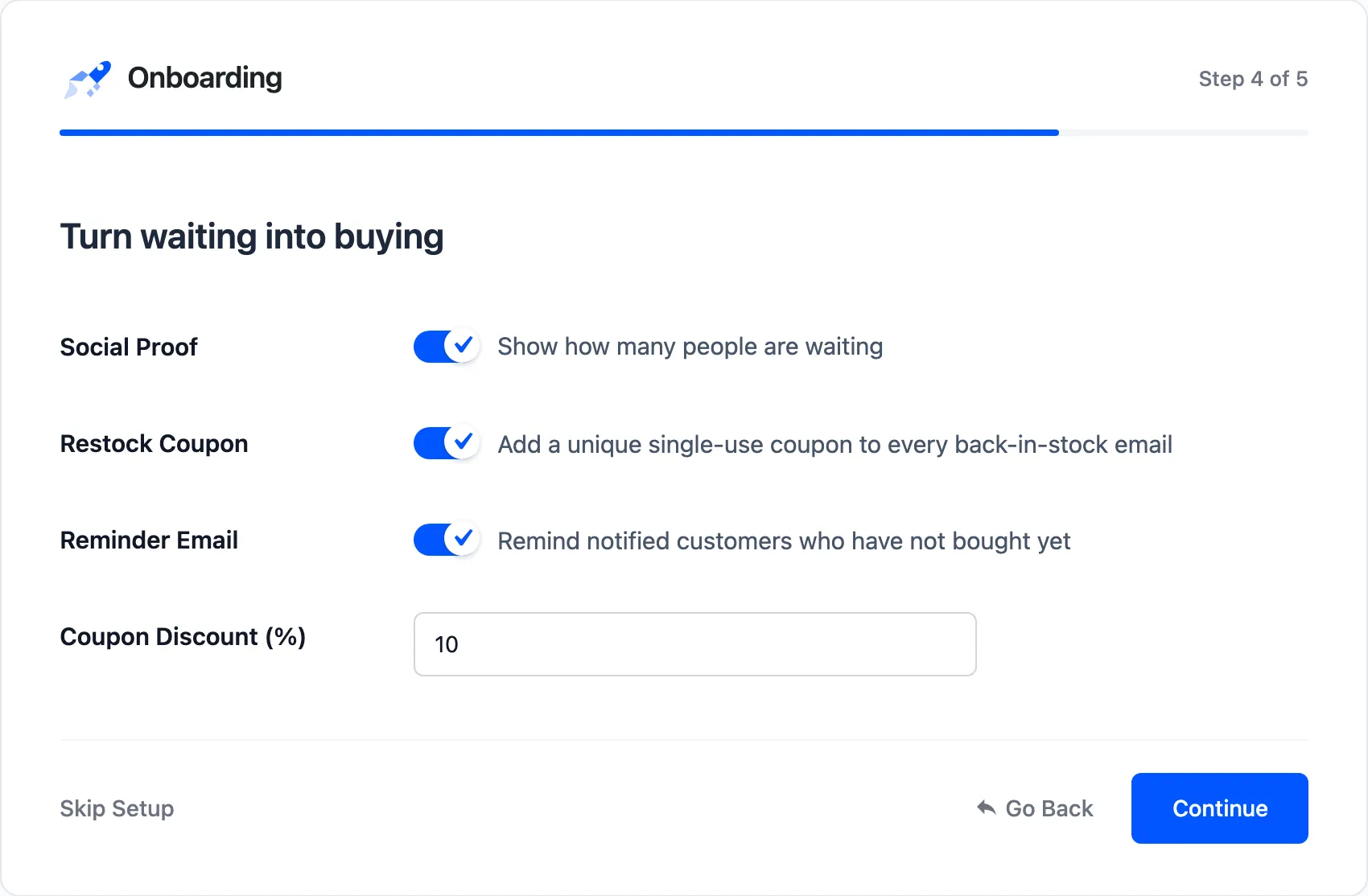
In Pro, “Turn waiting into buying”:
- Social Proof: The same waiting count switch.
- Restock Coupon: “Add a unique single-use coupon to every back-in-stock email”. Off by default.
- Reminder Email: “Remind notified customers who have not bought yet”. On by default.
- Coupon Discount (%): The coupon’s percentage. Default 10.
Running the wizard again changes only the fields on its screens. Your edited email subjects and content, and the Admin Alert switch, are left as they are.
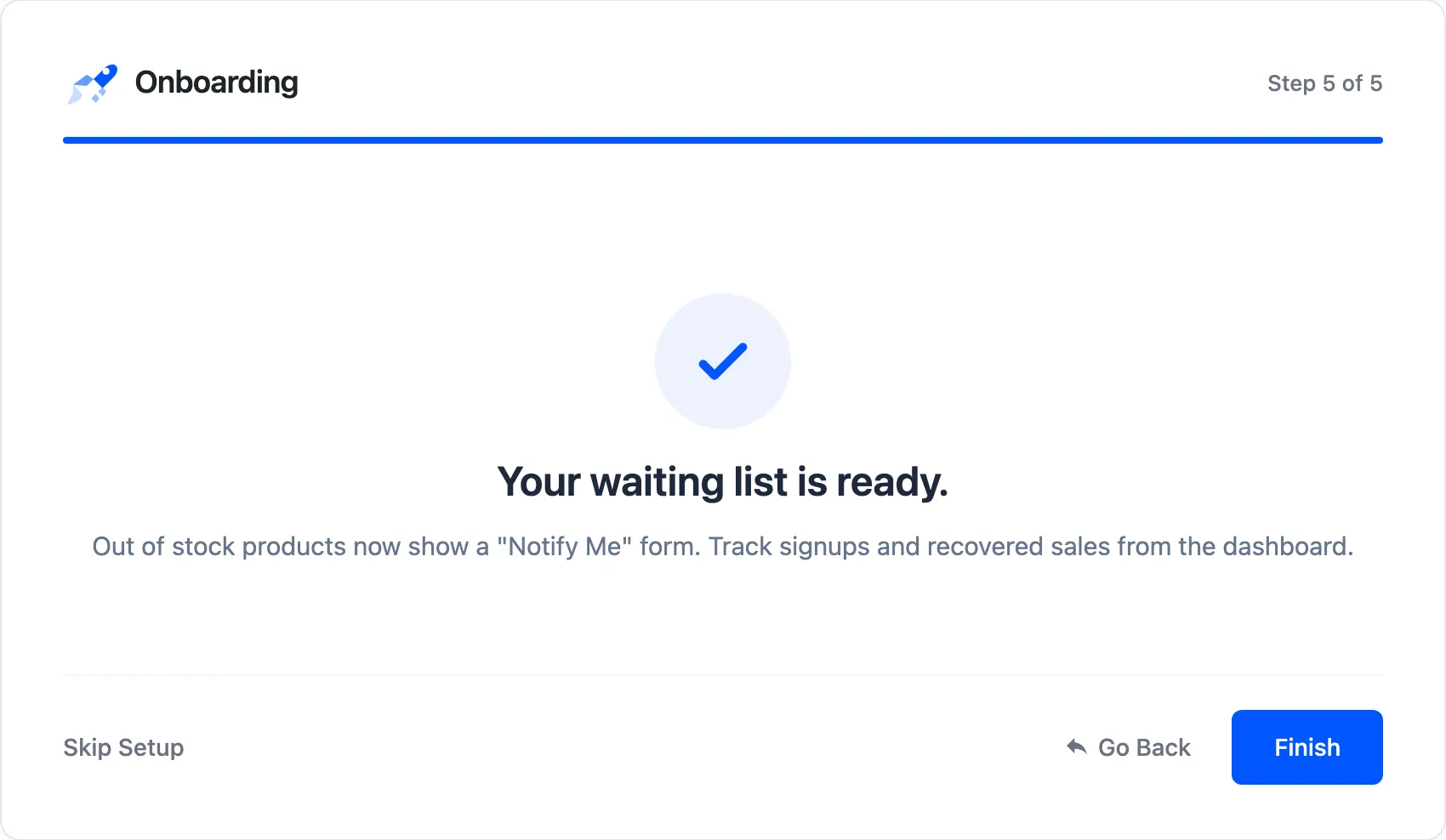
Step 5: Ready
Section titled “Step 5: Ready”“Your waiting list is ready.” The links lead to the dashboard and the settings.
After the wizard
Section titled “After the wizard”Open a sold out product in a private window to see what a guest sees. Then read How the Waitlist Works, which follows one signup through to the sale.