

How to Send Back in Stock Emails Automatically
When a product is back, the waitlist emails everyone waiting without you doing anything. This walk through restocks the demo’s Ember Canvas Collector Pack, which had four customers waiting.
Step 1: Check Automatic Emails is on
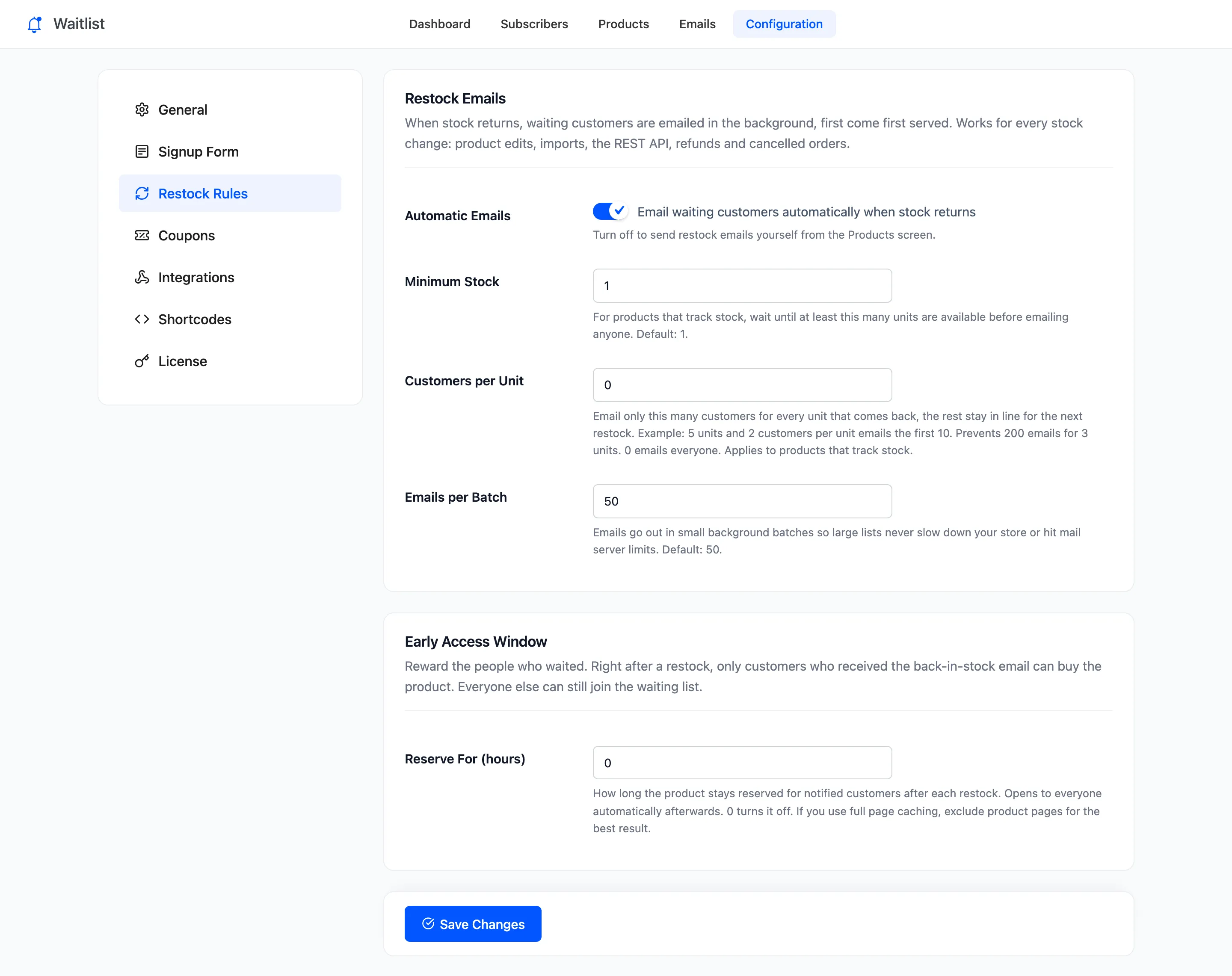
Section titled “Step 1: Check Automatic Emails is on”Open Configuration → Restock Rules. Automatic Emails is on by default.
Step 2: Check the Back in Stock email
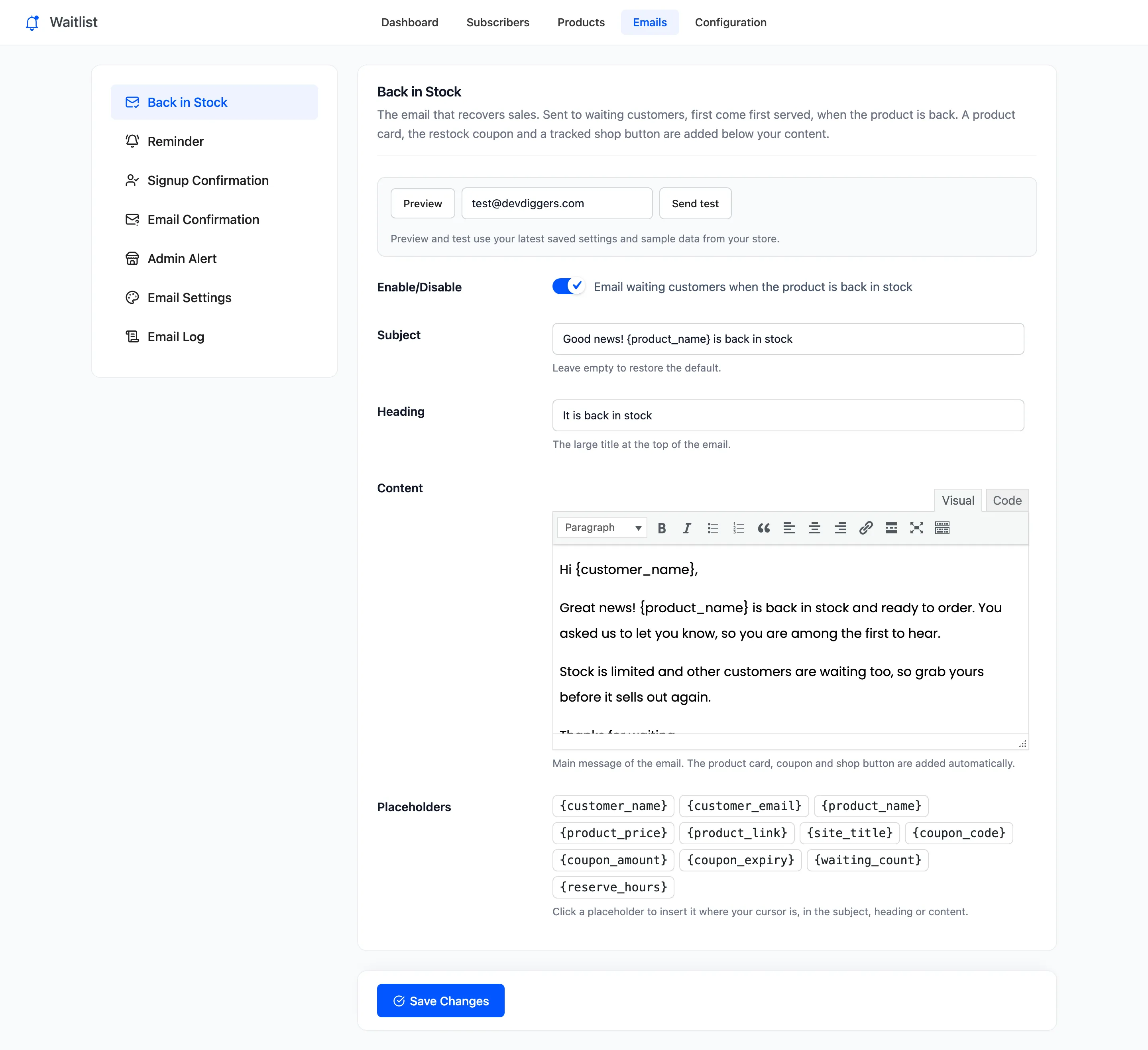
Section titled “Step 2: Check the Back in Stock email”Open Emails → Back in Stock. Make sure Enable/Disable is on and press Preview to read it as customers will.
Step 3: Restock the product
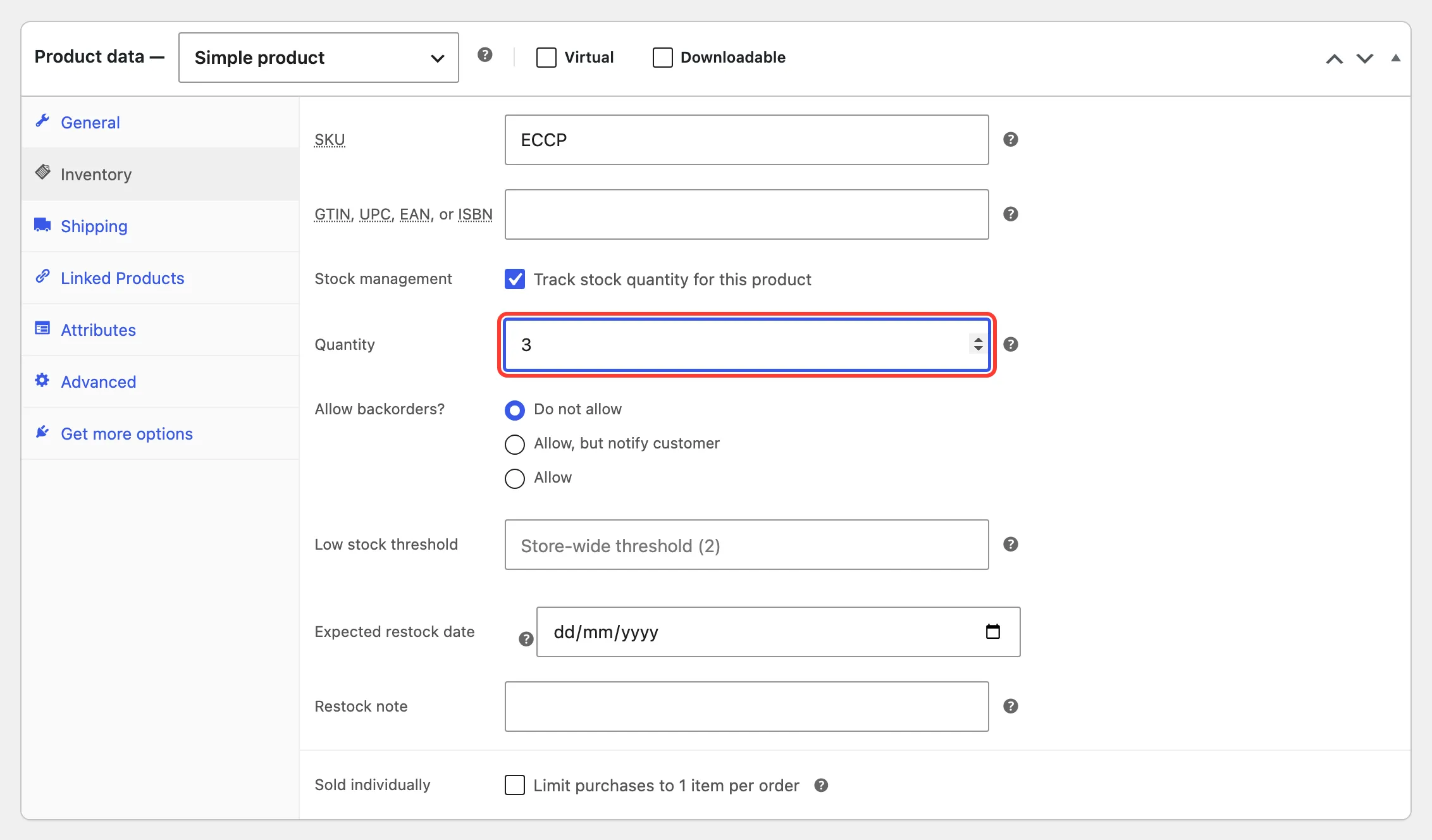
Section titled “Step 3: Restock the product”Restock it any way you like. In the product editor, open Product data → Inventory, set the stock quantity and click Update.
An import, the REST API, a refund or a cancelled order that puts units back all count the same way.
The page saves at once. The emails are queued in the background and sent in batches, oldest signup first, usually within a minute.
Step 4: Check who was emailed
Section titled “Step 4: Check who was emailed”Open Subscribers, or View subscribers from the Products screen. Everyone emailed now shows Notified with the date.
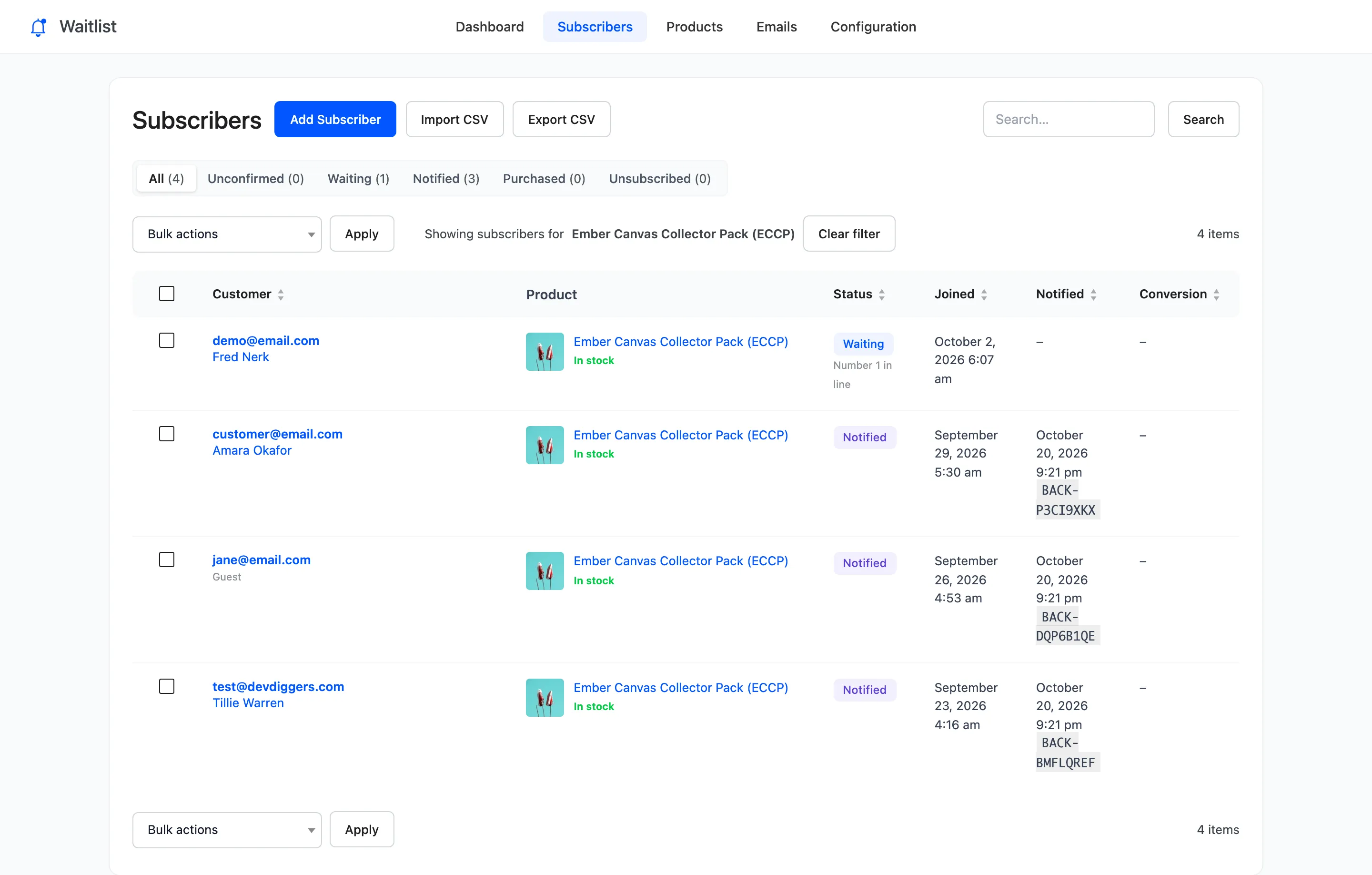
On the demo, Pro’s Customers per Unit was set to 1, so three units emailed three customers and the fourth stayed Waiting. With the default, every waiting customer is emailed.
What the customer receives
Section titled “What the customer receives”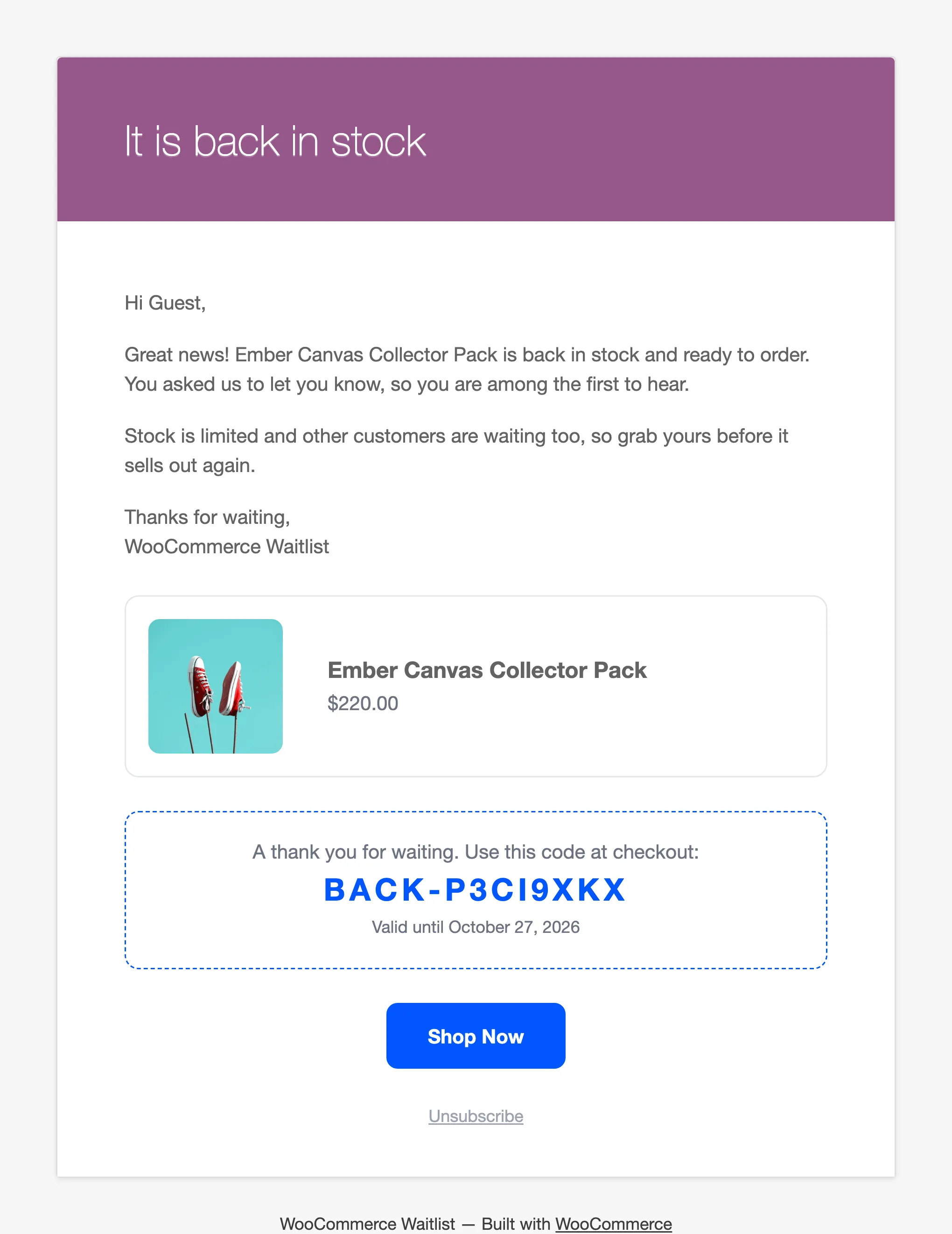
Shop Now opens the product. The coupon box appears only with Pro’s restock coupon on.
If nobody was emailed
Section titled “If nobody was emailed”- Automatic Emails is off. The product waits in Ready to Sell on the dashboard.
- The product is still Out of stock, or a draft.
- In Pro, the stock is below Minimum Stock, or Customers per Unit has already been used up by this restock.
- The site’s background tasks are not running. WooCommerce’s scheduler runs on page visits and WP-Cron;
check WooCommerce → Status → Scheduled Actions for pending
ddwcwl_process_restockactions.
If they were marked Notified but say they never got the email, check the Email Log (Pro) or send yourself a test from the email screen.