

How to Get an Email When Someone Joins
The Admin Alert tells your team each time someone joins. It is handy while a product is new or a drop is coming, so you see demand build. It is off by default, and both editions have it.
Step 1: Open the Admin Alert email
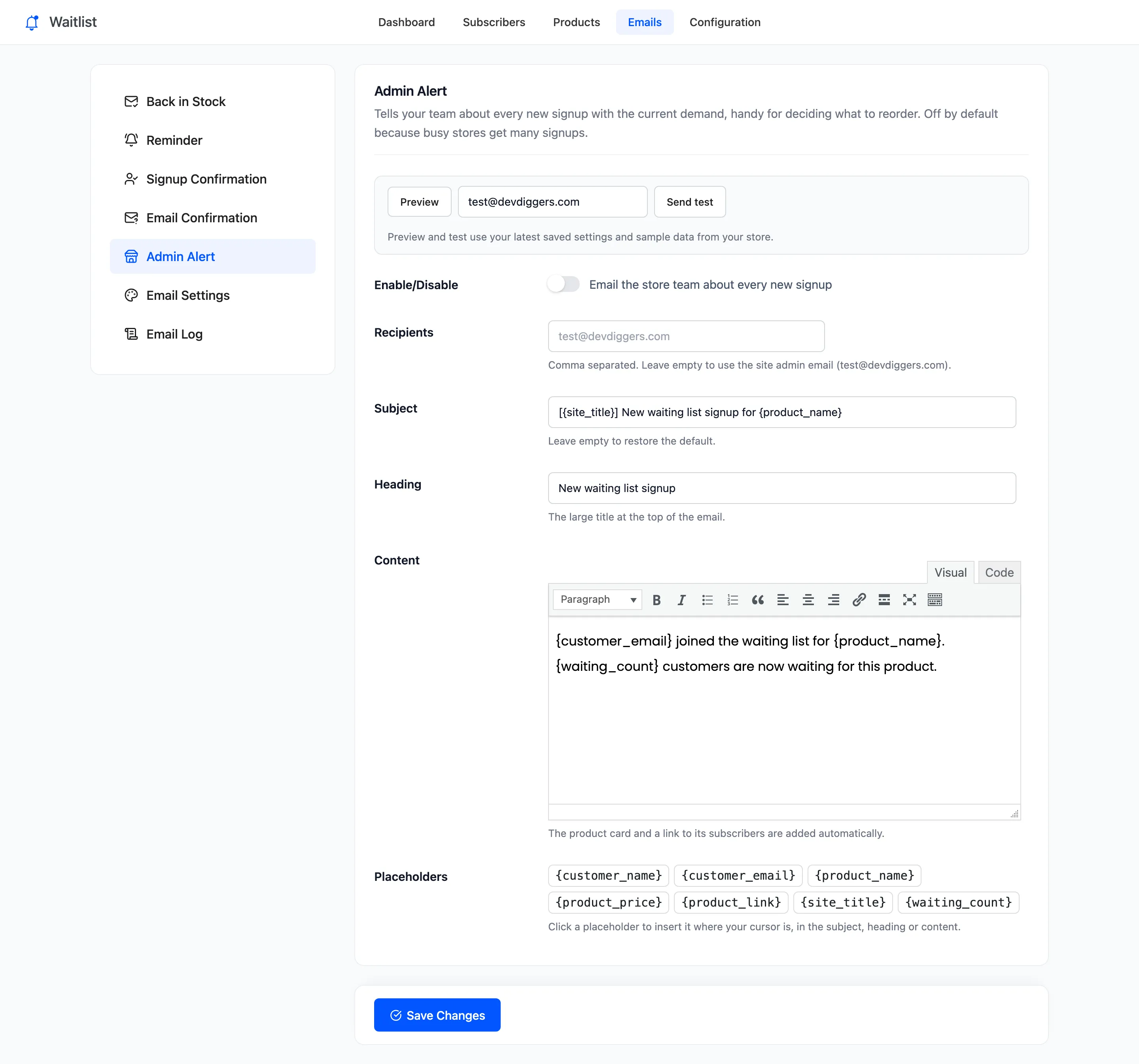
Section titled “Step 1: Open the Admin Alert email”Go to DevDiggers Plugins → Waitlist → Emails → Admin Alert.
Step 2: Turn it on and add recipients
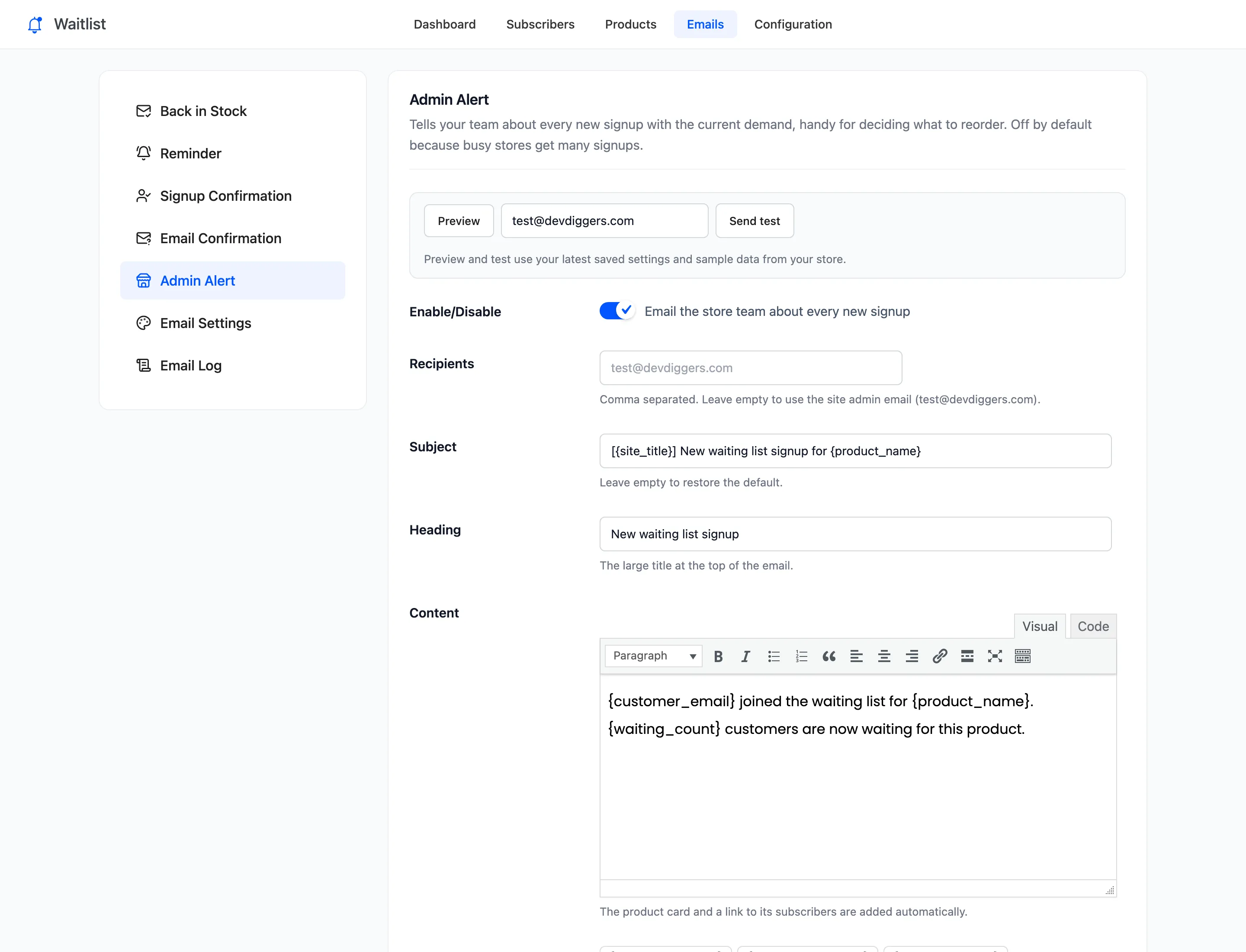
Section titled “Step 2: Turn it on and add recipients”- Tick Enable/Disable.
- Recipient: One address or several, separated by commas. Empty sends to the site’s admin email.
The default subject is “[{site_title}] New waiting list signup for {product_name}” and the content “{customer_email} joined the waiting list for {product_name}. {waiting_count} customers are now waiting for this product.” Change them if you like.
Step 3: Save and wait for a signup
Section titled “Step 3: Save and wait for a signup”Click Save Changes. The next signup sends the alert:
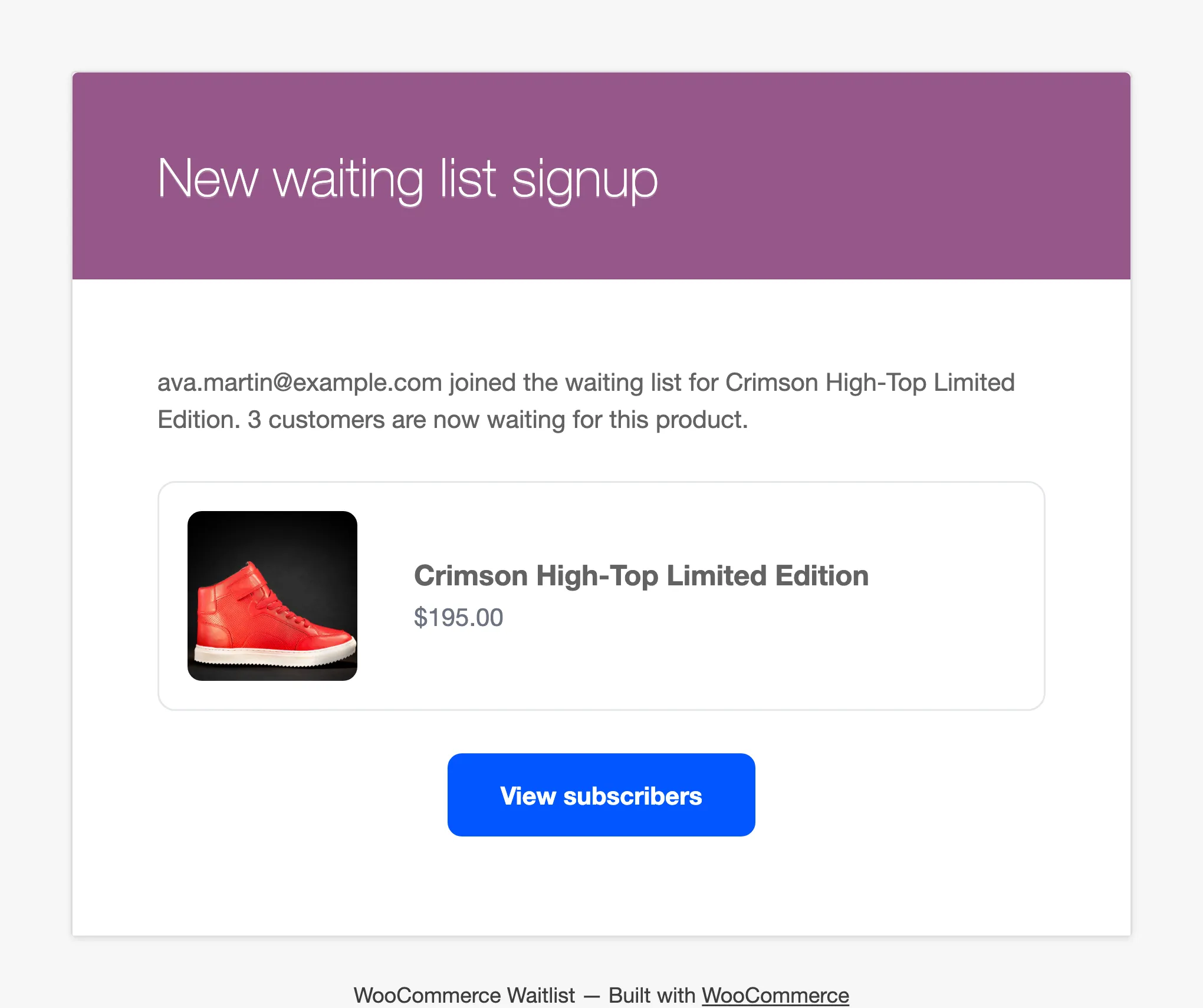
View subscribers opens the Subscribers screen for that product.
When it is sent
Section titled “When it is sent”- For every signup from the product page, the shop window or the shortcode.
- For a customer you add by hand on the Subscribers screen.
- In Pro with double opt-in, when the guest confirms, not when they first type their email.
- Never for an imported row.
On a busy store, consider a shared inbox or a mail filter: a popular drop can bring hundreds of alerts.