

How to Take Signups on Backorder Products
A product on backorder can still be bought, and paid for, before it is in your warehouse. Some customers would rather not. Backorder Products gives them a second choice: wait and be told. Both editions have it.
Step 1: Turn on Backorder Products
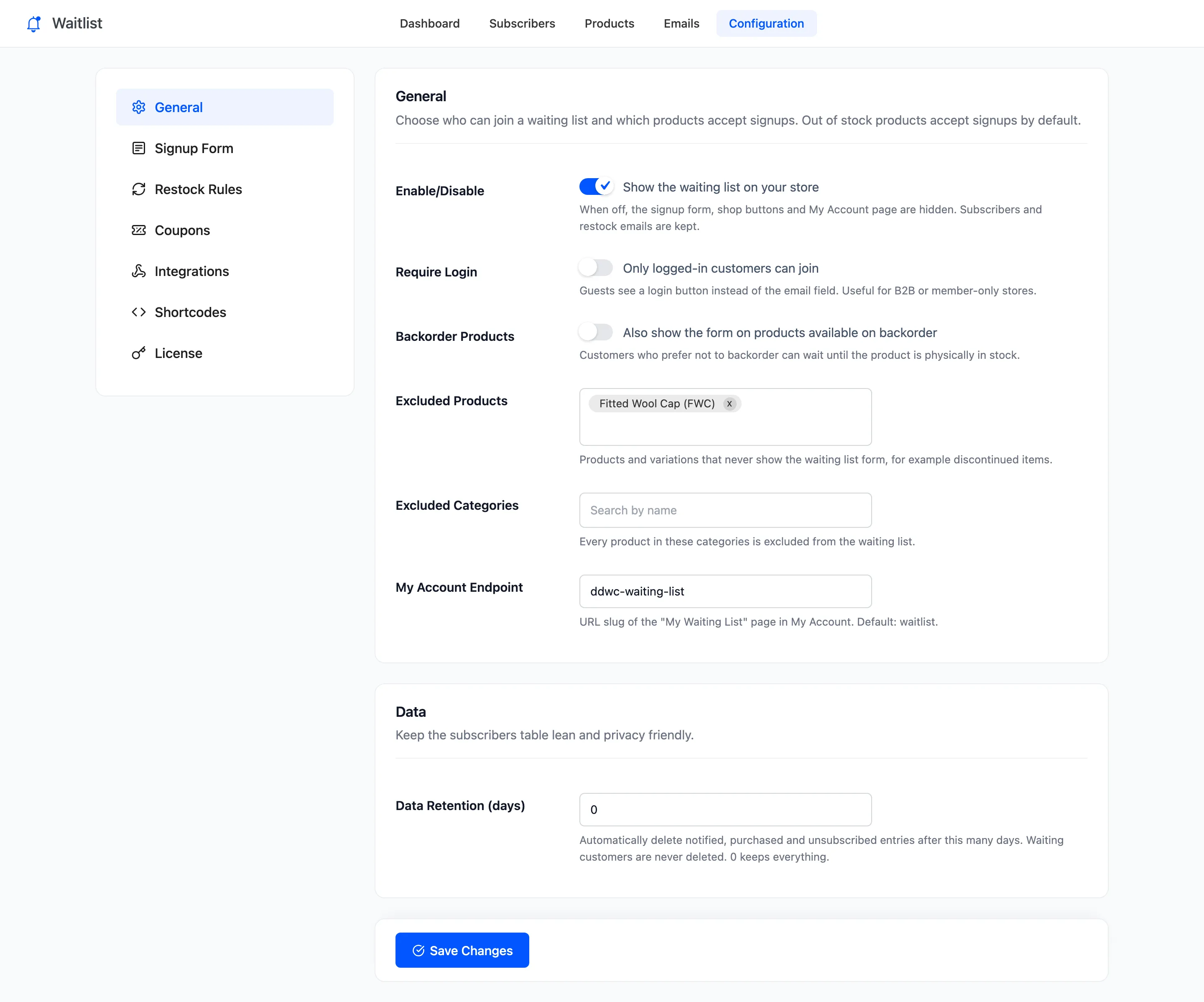
Section titled “Step 1: Turn on Backorder Products”Open Configuration → General and tick Backorder Products (“Also show the form on products available on backorder”). Click Save Changes.
Step 2: Check a backorder product
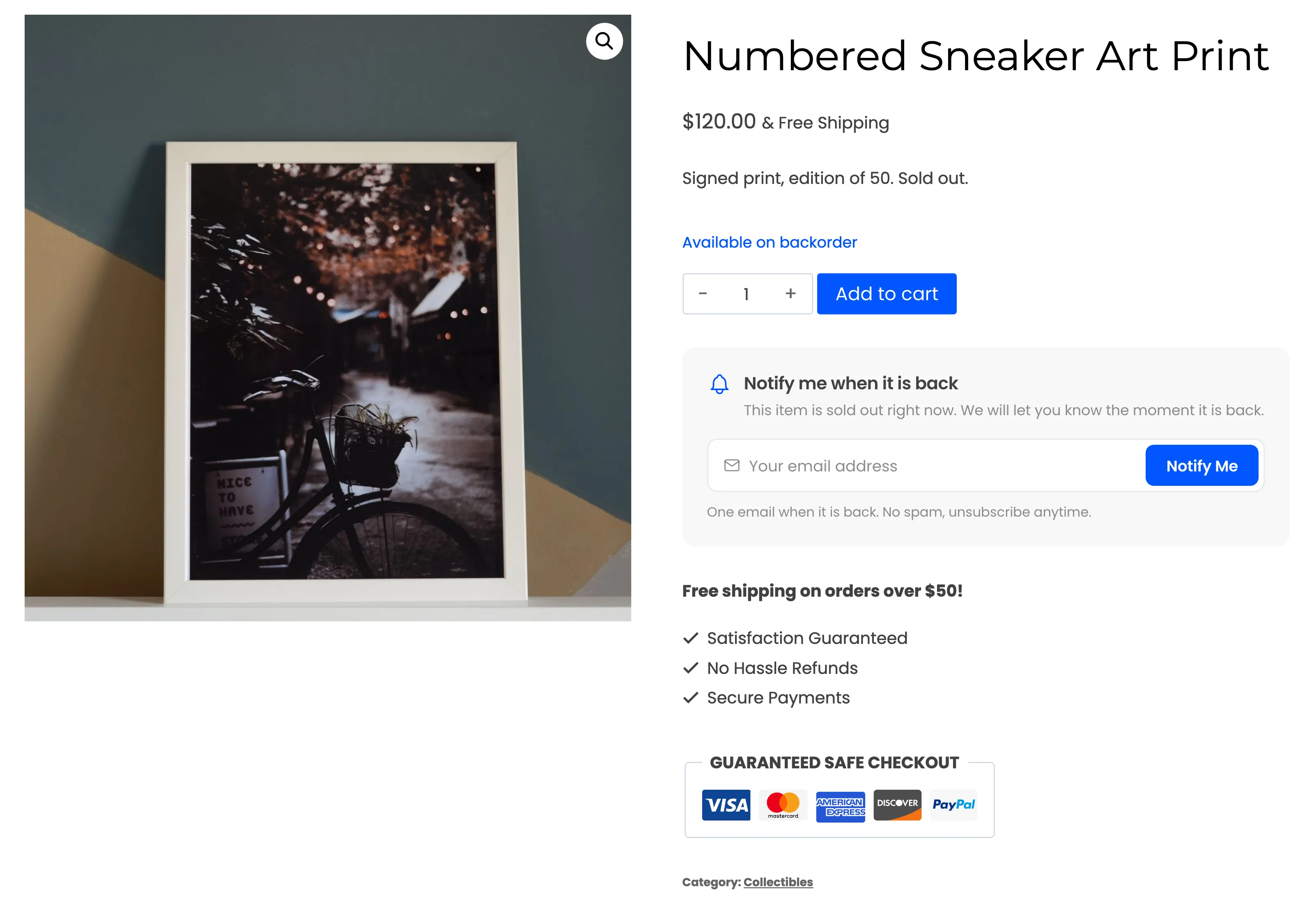
Section titled “Step 2: Check a backorder product”A product on backorder keeps its Add to cart button and gains the form under it. That is a Stock status of On backorder, or a product that tracks stock and allows backorders at zero. Customers choose: order now, or join and wait.
Step 3: Restock it
Section titled “Step 3: Restock it”When the product goes back to In stock, everyone waiting is emailed, as for any restock. A product that stays on backorder is never “back in stock”, so nobody is emailed until it is.
Things to know
Section titled “Things to know”- Off by default. Most stores want backorders to stay a plain sale.
- The dashboard’s Ready to Sell list leaves backorder products out, because they are not in stock.
- Exclusions still apply.