Signup Form Settings
The Signup Form tab controls everything customers see on a sold out product: the words, the extra details you ask for, the trust signals and the look. Open DevDiggers Plugins → Waitlist → Configuration → Signup Form. It has seven sections, covered in the order they appear.
Form Content
Section titled “Form Content”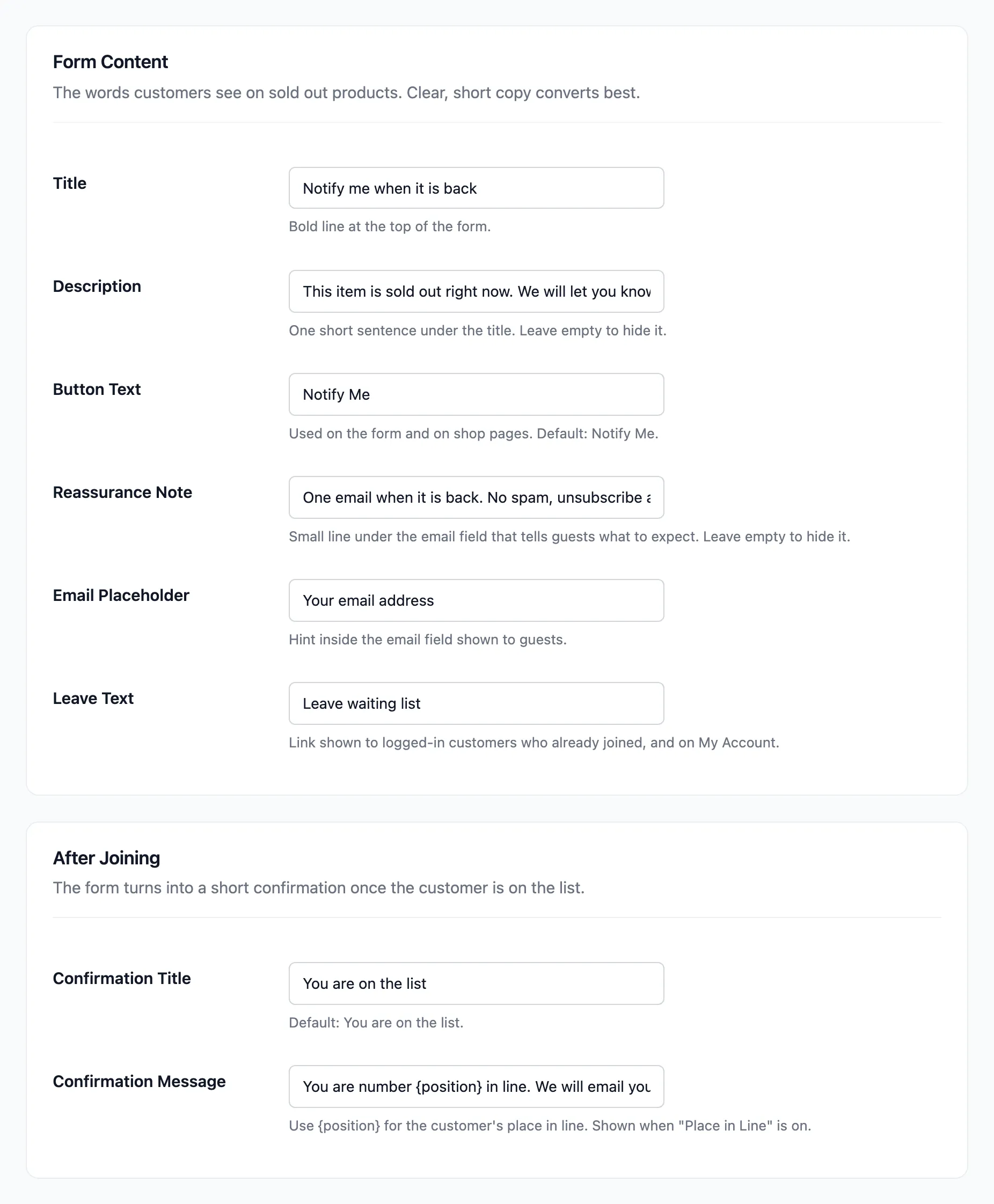
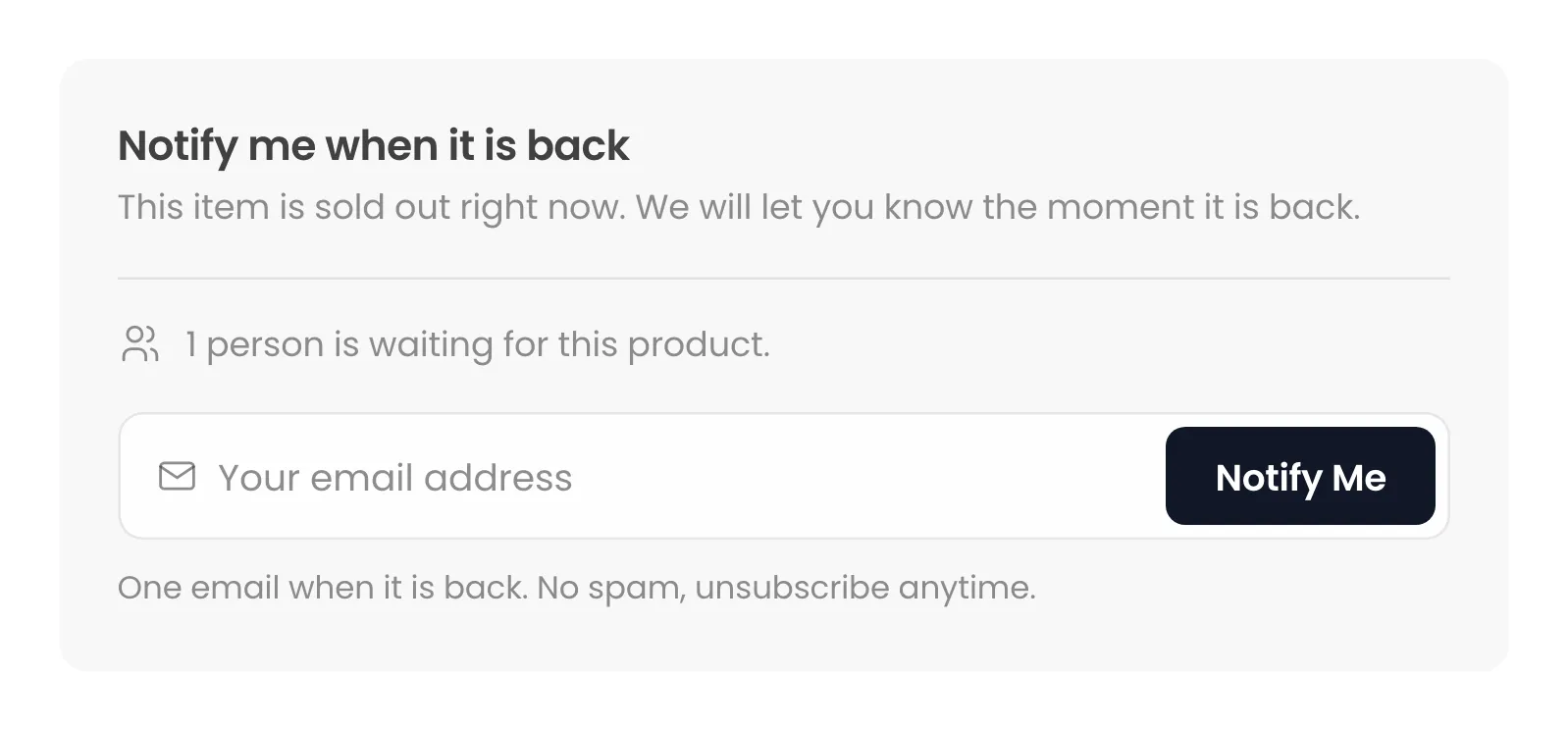
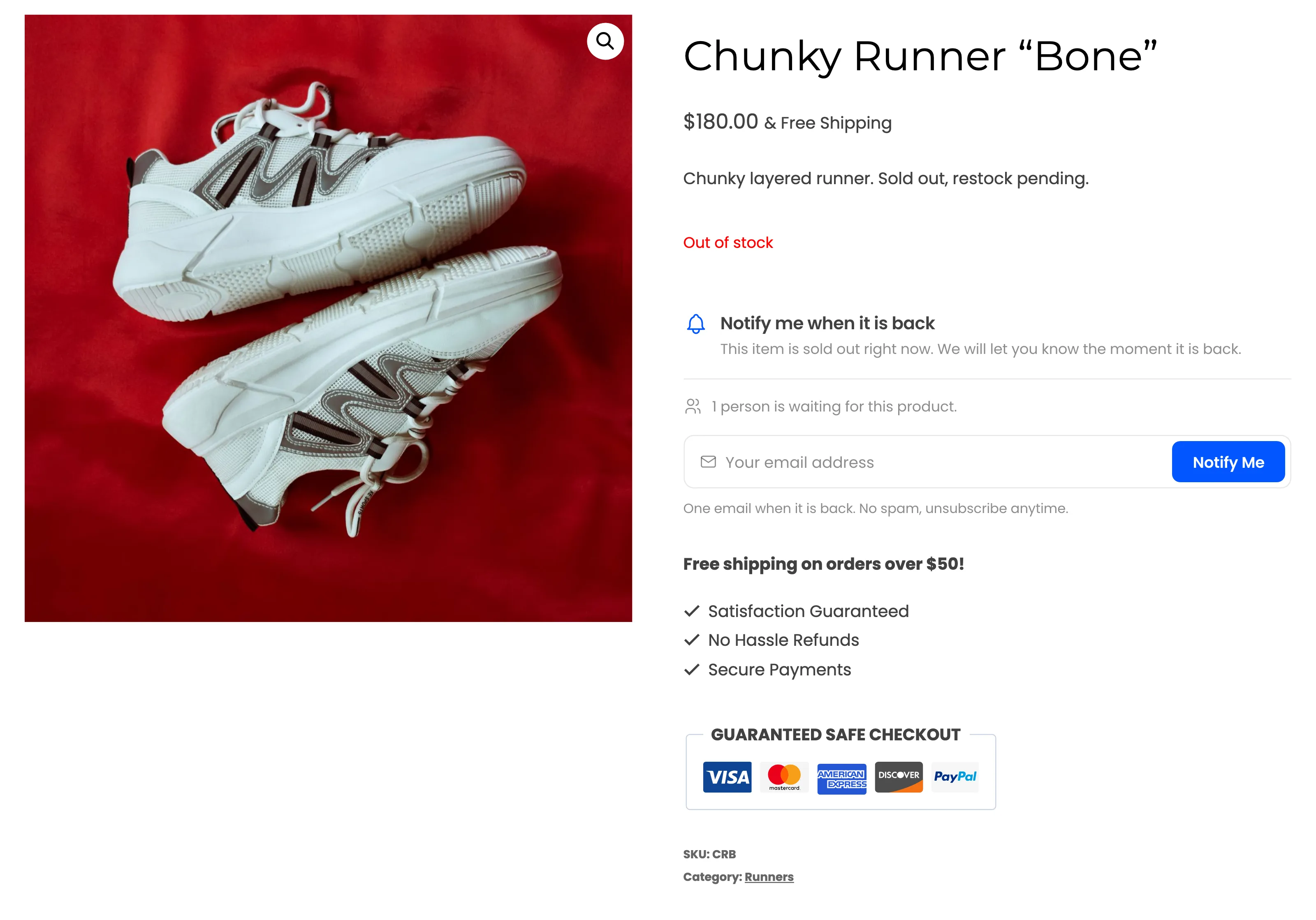
- Title: The bold line at the top. Default “Notify me when it is back”.
- Description: One sentence under the title. Default “This item is sold out right now. We will let you know the moment it is back.” Leave it empty to hide it.
- Button Text: The Notify Me button, on the form and, in Pro, on shop pages. Default Notify Me.
- Reassurance Note: The small line under the email field. Default “One email when it is back. No spam, unsubscribe anytime.” Leave it empty to hide it. Logged-in customers see “We will email” and their address in its place.
- Email Placeholder: The hint inside the email field. Default “Your email address”.
- Leave Text: The link a logged-in customer uses to leave, on the form and in My Account. Default “Leave waiting list”.
An emptied text field goes back to its default when you save, so the form is never left blank.
After Joining
Section titled “After Joining”- Confirmation Title: Default “You are on the list”.
- Confirmation Message: Default “You are number {position} in line. We will email you the moment
it is back.”
{position}becomes the customer’s place in line, in bold. The message shows only while Place in Line is on.
Where It Shows
Section titled “Where It Shows”The form always shows on sold out product pages, and wherever you place the shortcode.
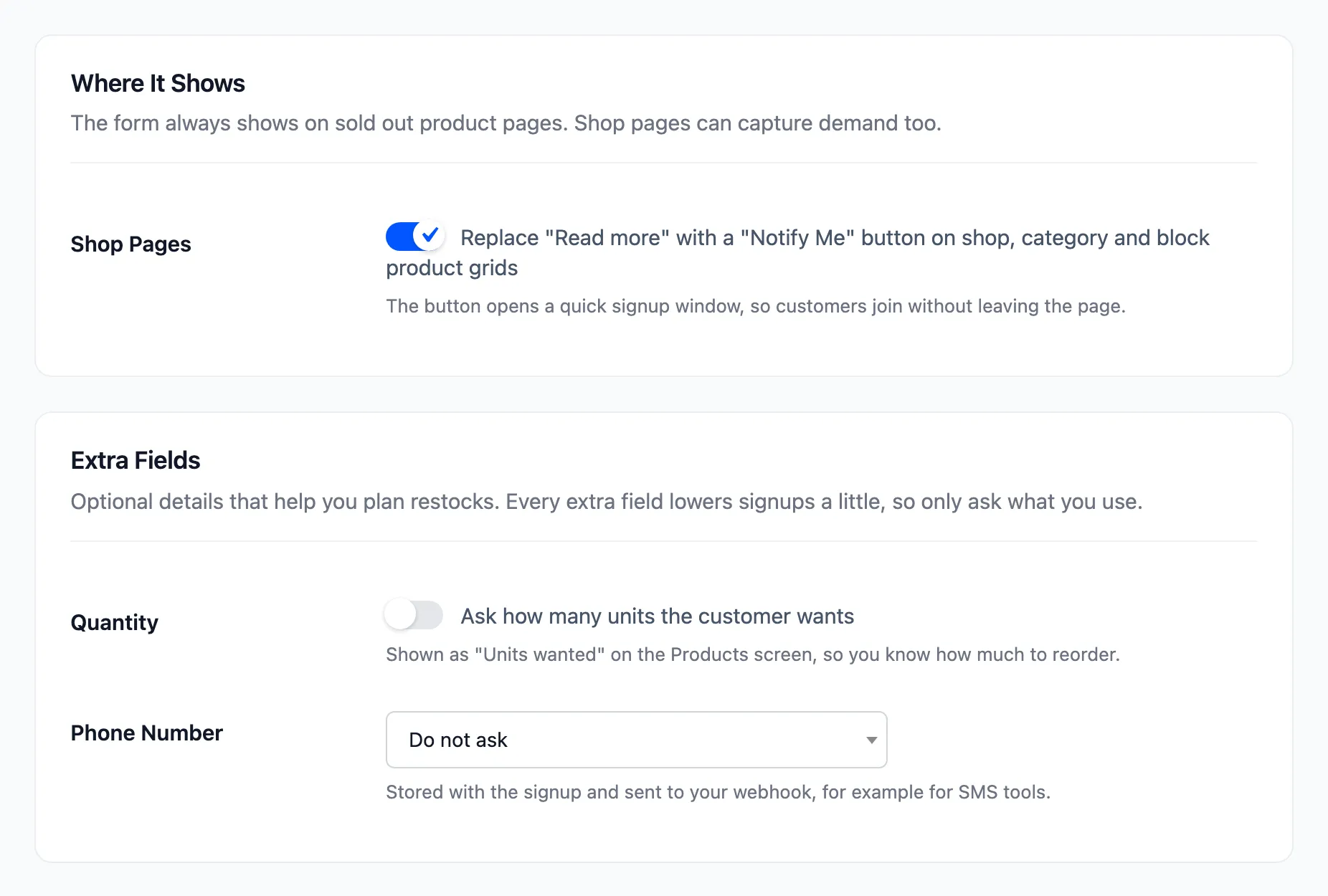
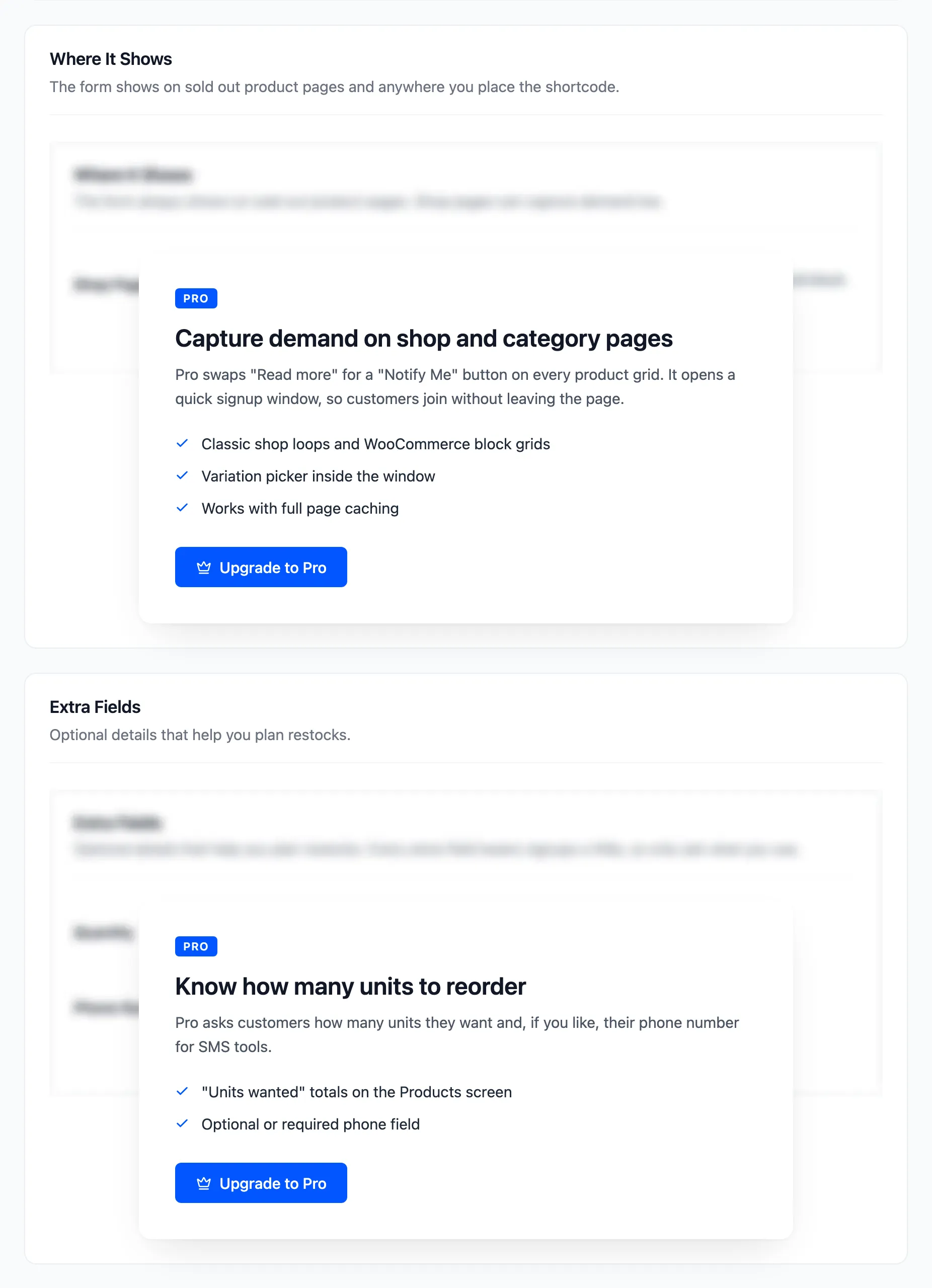
- Shop Pages (Pro): “Replace “Read more” with a “Notify Me” button on shop, category and block product grids“. On by default. The button opens a signup window. See How to Add Notify Me Buttons to Shop Pages (Pro).
Extra Fields (Pro)
Section titled “Extra Fields (Pro)”- Quantity: “Ask how many units the customer wants”. Off by default. The total shows as units wanted on the Products screen.
- Phone Number: Do not ask (default), Optional or Required. Stored with the signup, shown on the Subscribers screen and sent to your webhook.
See How to Ask for Quantity and Phone Number (Pro).
Social Proof & Expectations
Section titled “Social Proof & Expectations”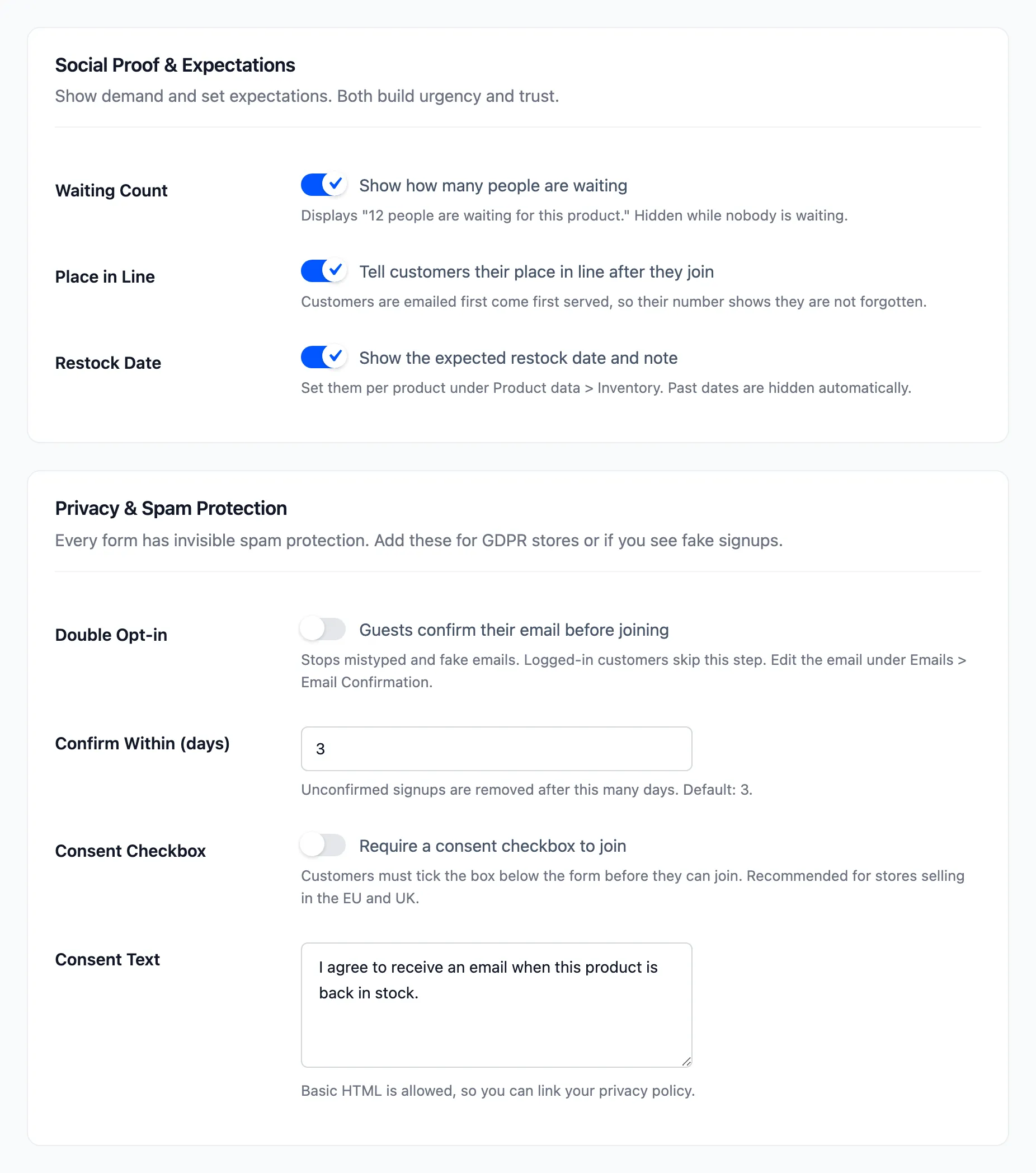
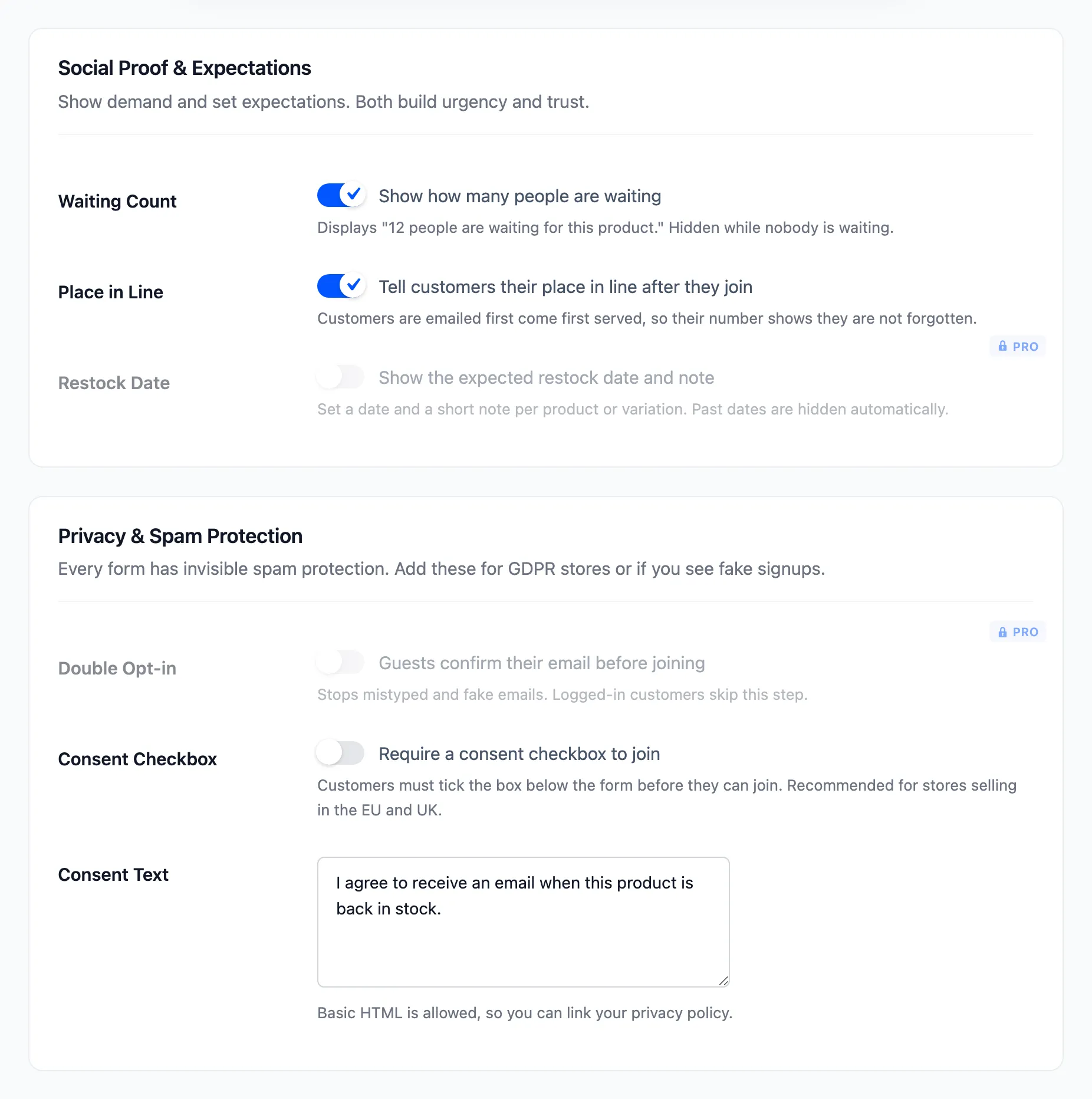
- Waiting Count: “Show how many people are waiting”. On by default. Hidden while nobody is waiting.
- Place in Line: “Tell customers their place in line after they join”. On by default. Also shows on My Waiting List.
- Restock Date (Pro): “Show the expected restock date and note”. On by default. You set the date and note per product. See How to Show an Expected Restock Date (Pro).
Privacy & Spam Protection
Section titled “Privacy & Spam Protection”Every form has invisible spam protection: a hidden field that people never see and bots fill in. A bot that fills it is told it joined, and nothing is saved.
- Double Opt-in (Pro): “Guests confirm their email before joining”. Off by default. See How to Turn On Double Opt-in (Pro).
- Confirm Within (days) (Pro): Unconfirmed signups are deleted after this many days. Default 3.
- Consent Checkbox: “Require a consent checkbox to join”. Off by default.
- Consent Text: The checkbox’s label. Default “I agree to receive an email when this product is back in stock.” Basic HTML is allowed, such as a link to your privacy policy.
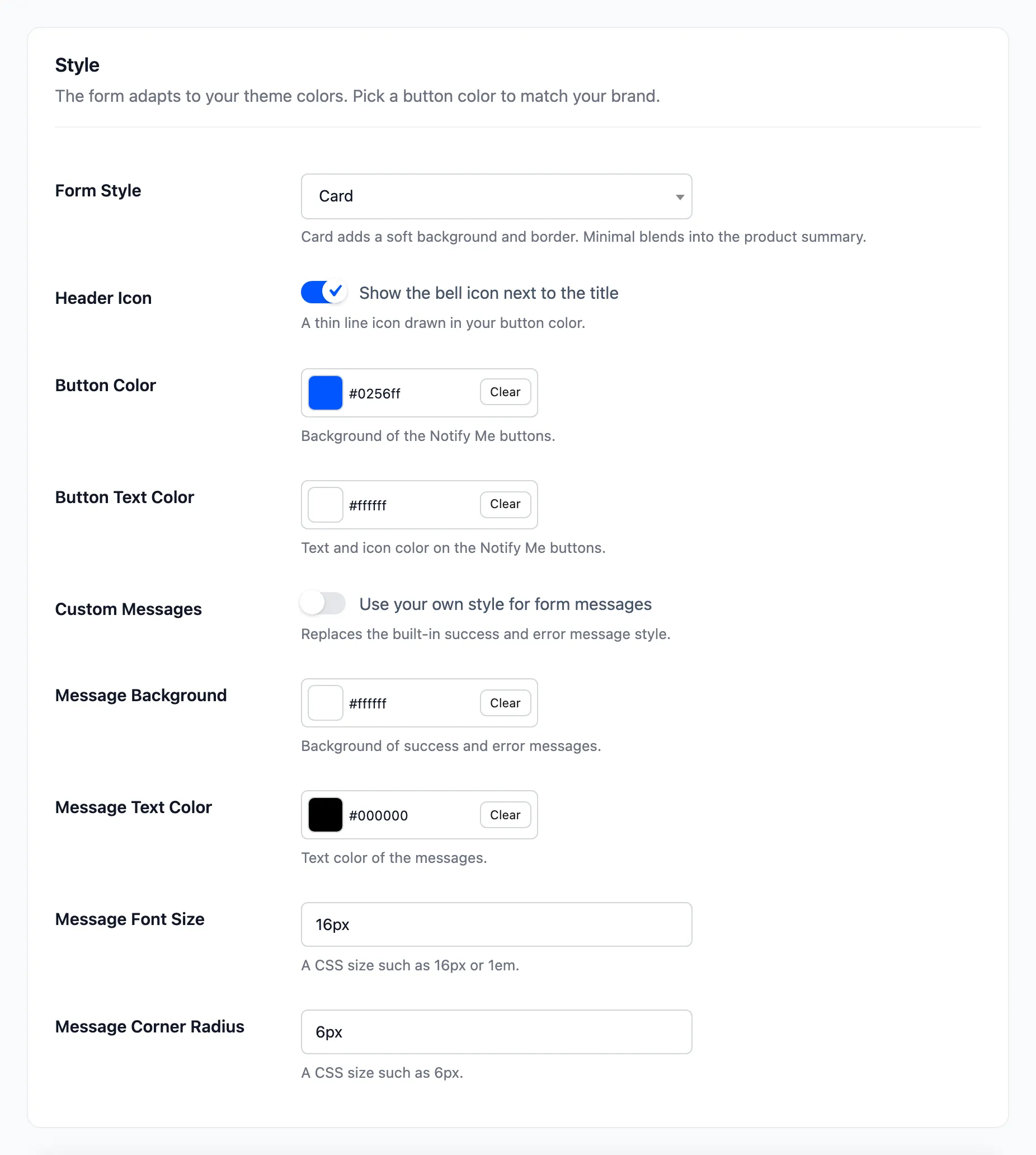
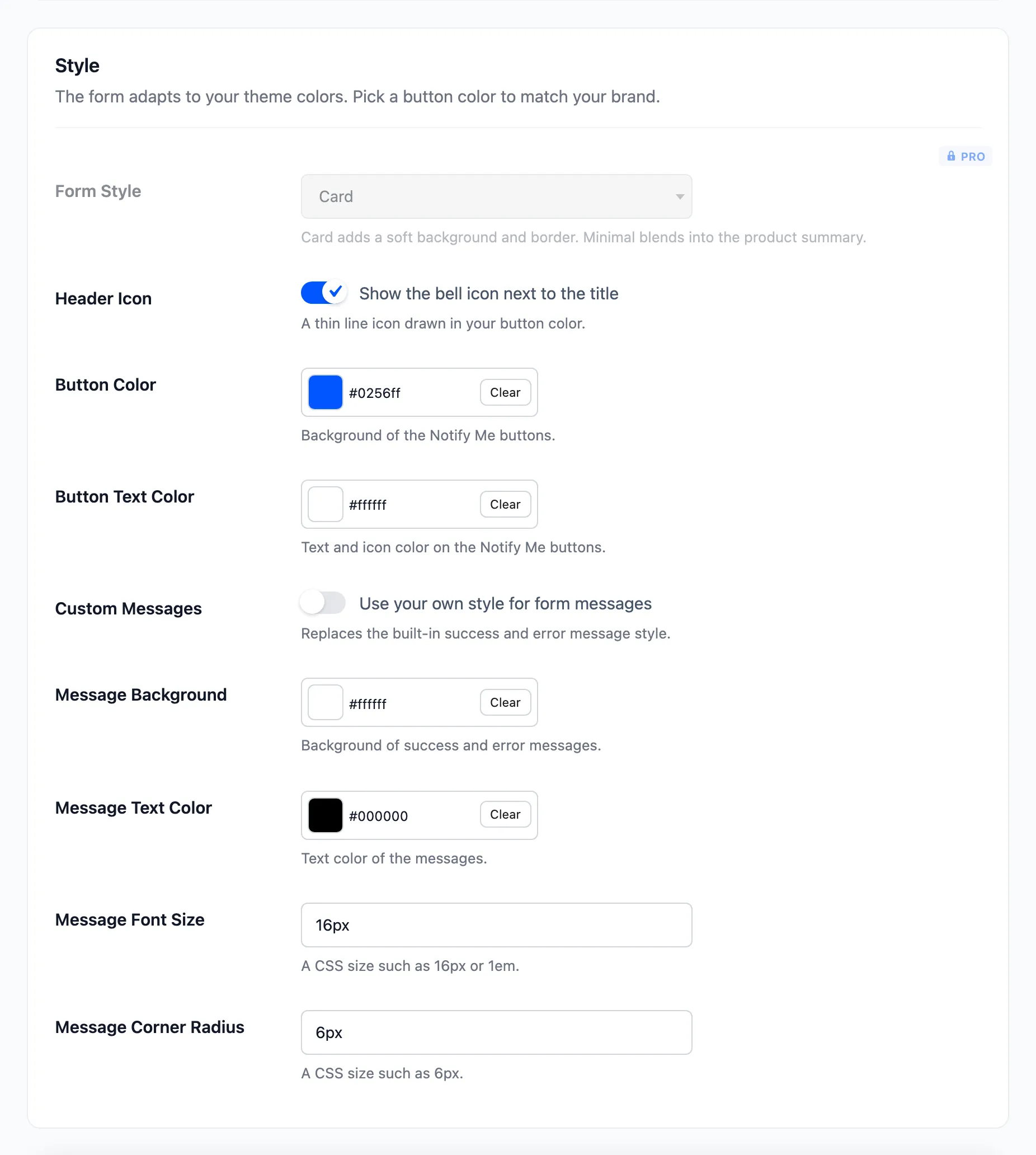
- Form Style (Pro): Card (default) gives the form a soft background. Minimal removes it so the form blends into the product summary.
- Header Icon: “Show the bell icon next to the title”. On by default.
- Button Color: The background of the Notify Me buttons. Default #0256ff.
- Button Text Color: Their text and icon. Default #ffffff.
- Custom Messages: “Use your own style for form messages”. Off by default, which keeps the built-in green and red messages.
- Message Background, Message Text Color, Message Font Size and Message Corner Radius: Used only with Custom Messages on. Defaults #ffffff, #000000, 16px and 6px.
Click Save Changes at the bottom of the tab.
In the free version
Section titled “In the free version”The free version has every field above without the (Pro) mark. The Pro sections show as upgrade cards, and the Pro fields as locked rows.