

The Waitlist Dashboard
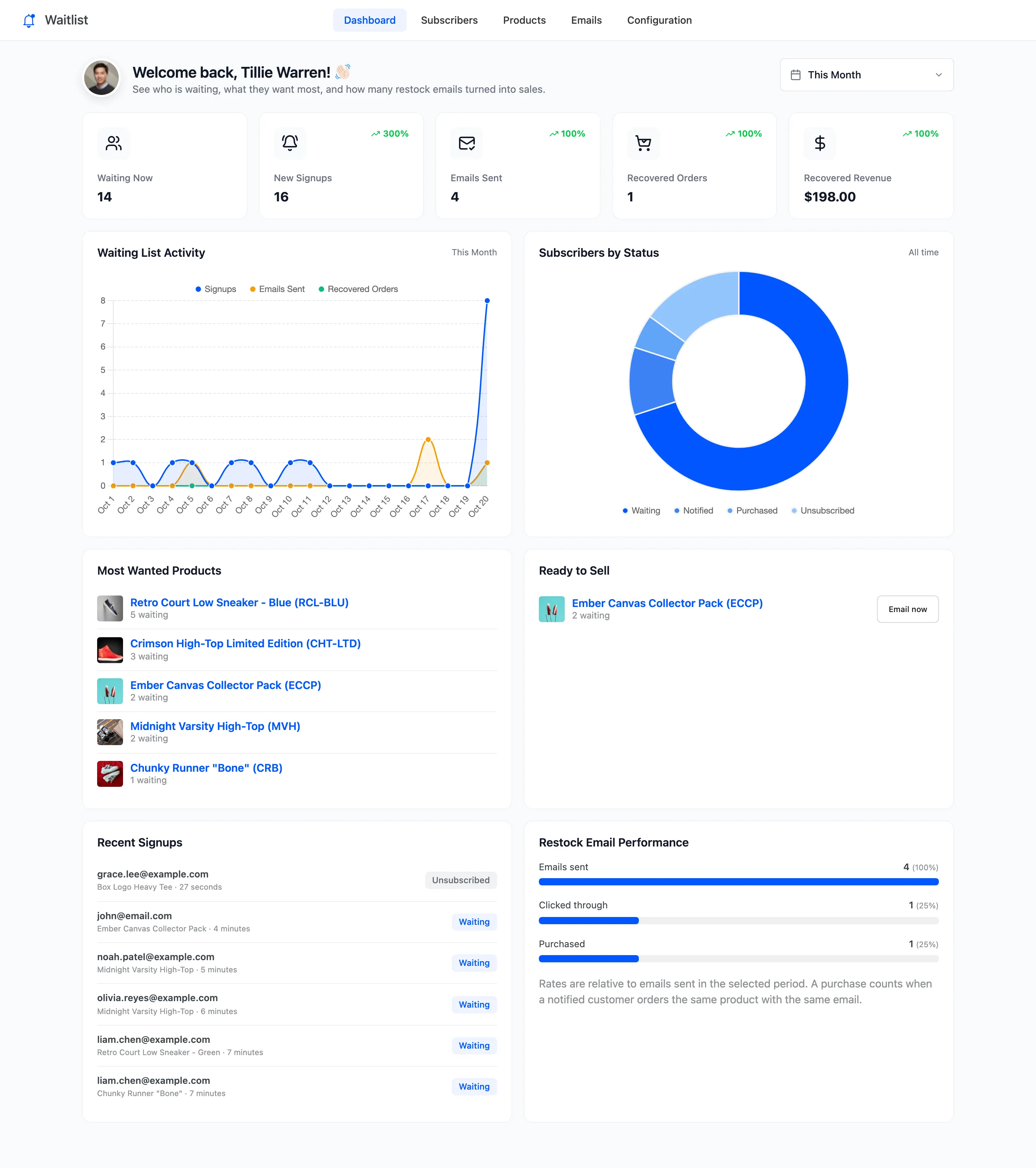
The dashboard is the first screen under DevDiggers Plugins → Waitlist. It answers three questions: how many people are waiting, which products they want, and, in Pro, how many restock emails turned into orders.
Date range
Section titled “Date range”The picker at the top right sets the period for the cards and the activity chart: This Month by default, with other presets and a custom range. Waiting Now and Subscribers by Status ignore it, because they describe today.
The summary cards
Section titled “The summary cards”
- Waiting Now: Customers waiting today, across every product.
- New Signups: People who joined in the period.
- Emails Sent: Back in stock emails sent in the period.
- Recovered Orders (Pro): Orders placed by customers you emailed, for the product you emailed them about.
- Recovered Revenue (Pro): The total of those order lines, after discounts.
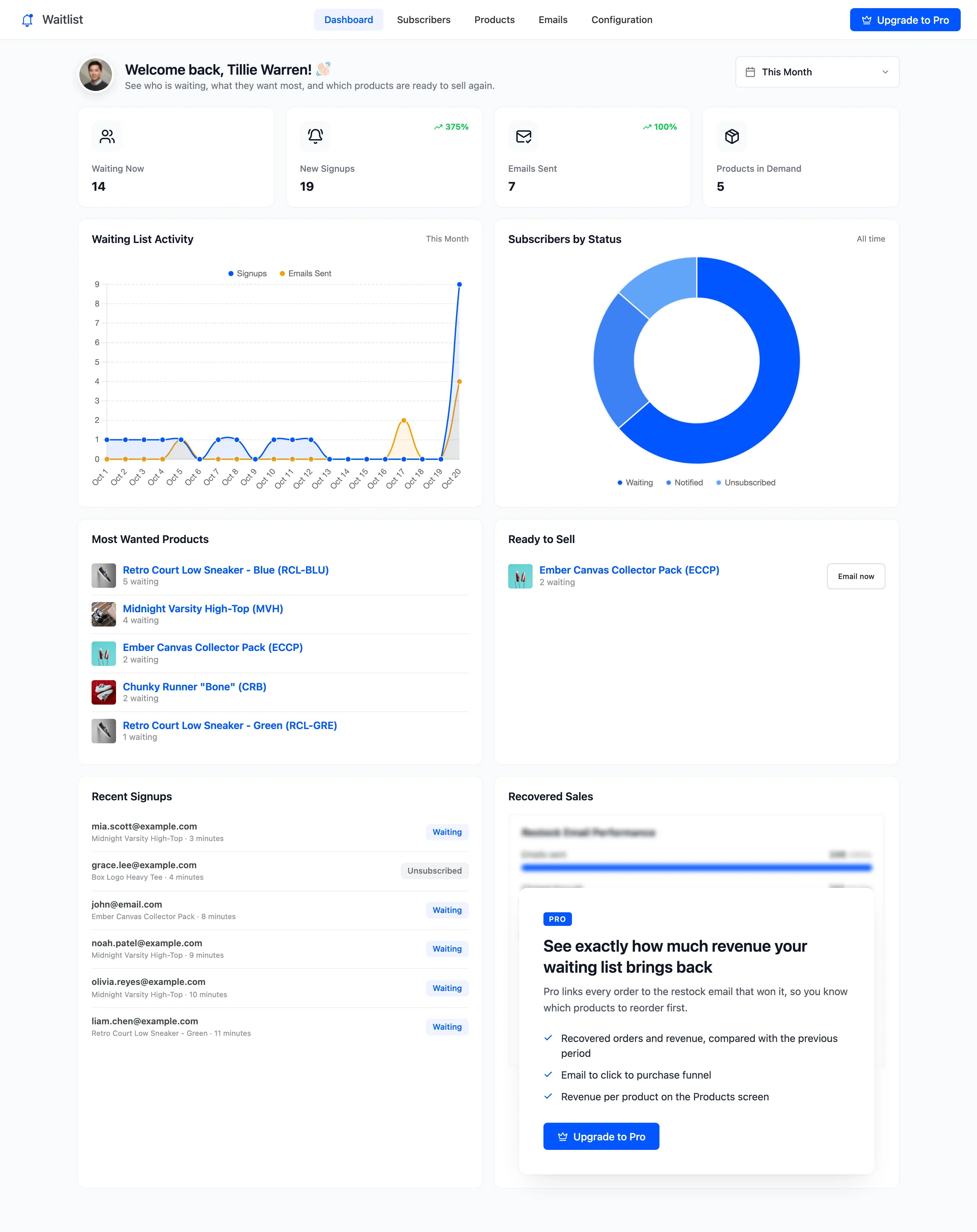
Each card compares itself with the period before, as a percentage. The free version shows Products in Demand, the number of products with someone waiting, in place of the two Pro cards.
Charts
Section titled “Charts”- Waiting List Activity: Signups and back in stock emails per day. Pro adds recovered orders.
- Subscribers by Status: Every signup you have, whatever the date range, split by where it stands today: Waiting, Notified, Purchased and Unsubscribed, plus Unconfirmed in Pro. It is labelled All time for that reason.
Most Wanted Products
Section titled “Most Wanted Products”The products with the most customers waiting, highest first, with the count under each name. A variation is listed on its own, such as Retro Court Low Sneaker - Blue, because each variation has its own line.
Ready to Sell
Section titled “Ready to Sell”Products that are in stock and still have customers waiting. This list should usually be empty. A product lands here when:
- Automatic Emails is off under Configuration → Restock Rules, so nobody was emailed.
- In Pro, Customers per Unit emailed only part of the line, and the rest wait for the next restock.
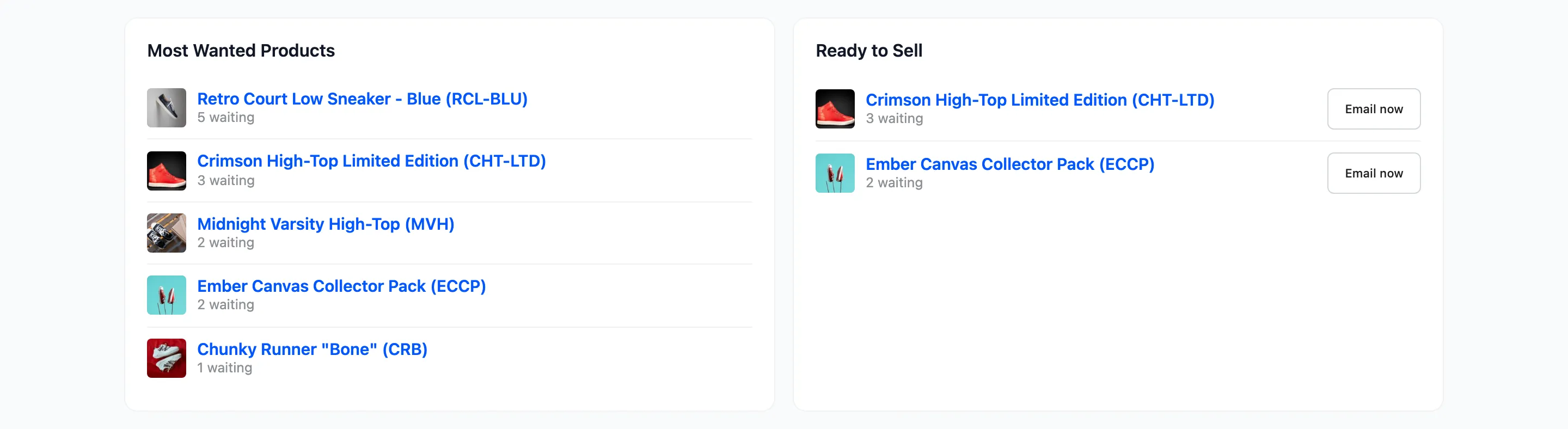
Email now emails every waiting customer for that product, in the order they joined. It is the same action as Email waiting customers on the Products screen.
Recent Signups
Section titled “Recent Signups”The latest people to join, with the product, how long ago, and their status today.
Restock Email Performance (Pro)
Section titled “Restock Email Performance (Pro)”Three bars for the period: Emails sent, Clicked through (opened the product from the email’s button) and Purchased. The rates are out of the emails sent. A purchase counts when a notified customer orders the same product with the same email address, and the order is Processing or Completed.
The free version shows an upgrade card here.
Reading it
Section titled “Reading it”- A high Waiting Now and an empty Ready to Sell is the normal state: demand is building and nothing is waiting on you.
- Something in Ready to Sell means stock is sitting next to customers who want it. Press Email now.
- Many clicks and few purchases in Pro often means the price or the coupon is the obstacle, not the product. See How to Track Recovered Sales (Pro).