

How to Collect Waitlist Signups on Sold Out Products
This is the basic loop, and it works the same in the free version and Pro. By the end, a sold out product takes signups and you have seen one arrive.
Step 1: Check the waitlist is on
Section titled “Step 1: Check the waitlist is on”Go to DevDiggers Plugins → Waitlist → Configuration → General and make sure Enable/Disable is ticked. It is on by default.
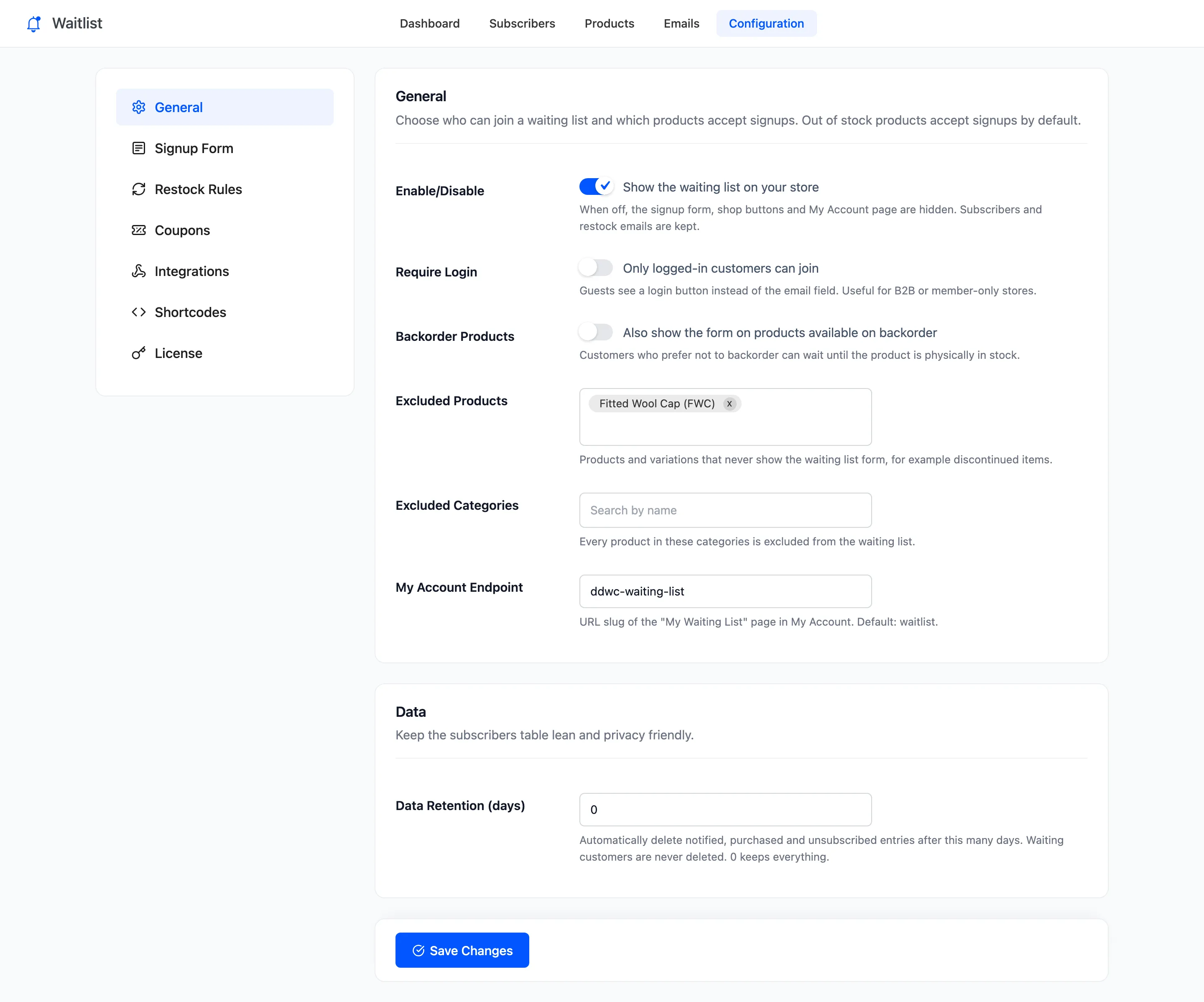
If some products should never take signups, such as discontinued lines, add them to Excluded Products or their category to Excluded Categories now.
Step 2: Write the form’s words
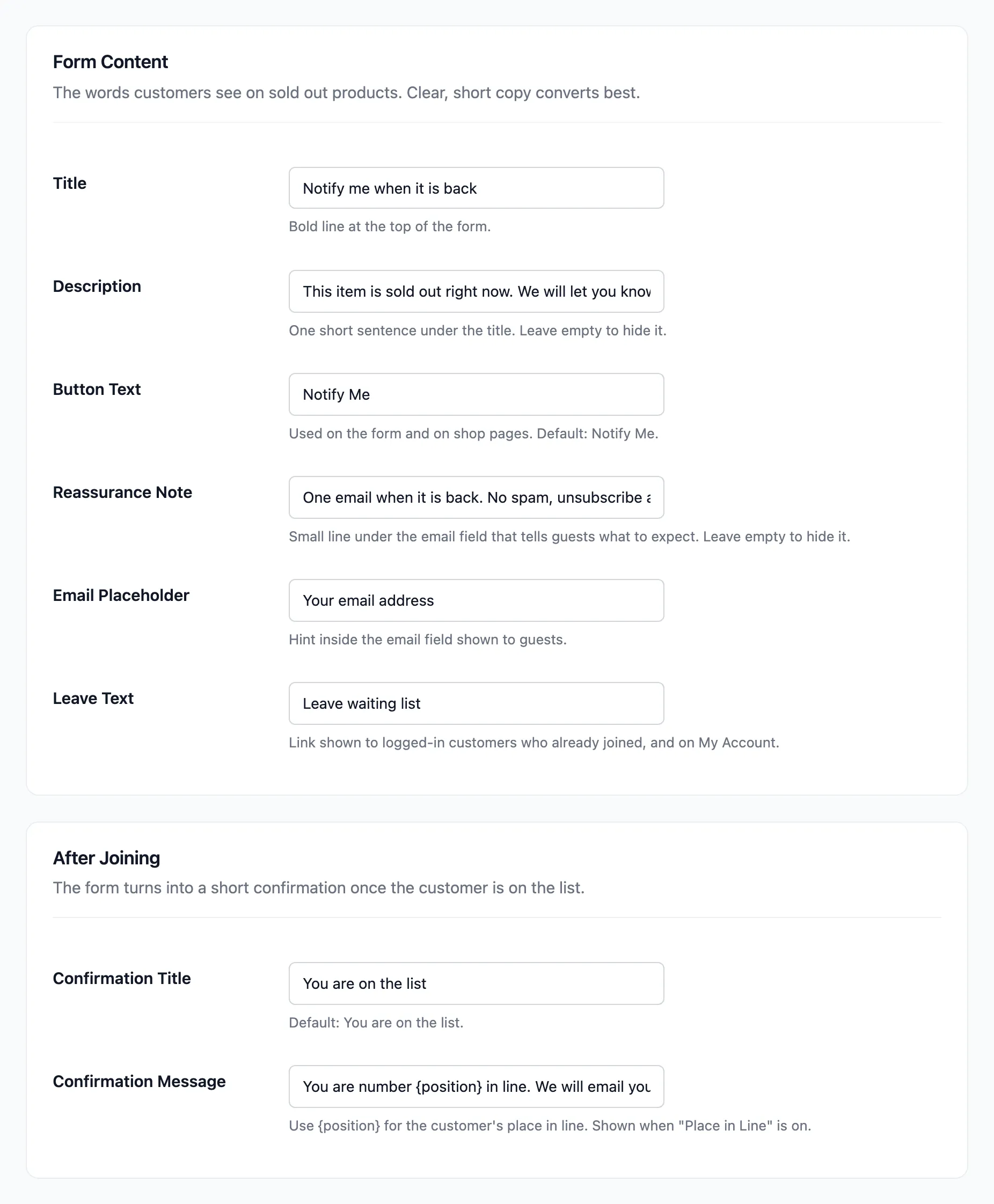
Section titled “Step 2: Write the form’s words”Open Configuration → Signup Form. The defaults are written to work as they are, so change only what does not sound like your store:
- Title: “Notify me when it is back”.
- Description: “This item is sold out right now. We will let you know the moment it is back.”
- Button Text: “Notify Me”.
- Reassurance Note: “One email when it is back. No spam, unsubscribe anytime.”
Click Save Changes.
Step 3: Make sure the product is out of stock
Section titled “Step 3: Make sure the product is out of stock”The form shows only on a product that is Out of stock. Usually it sells out on its own. To test, open the product and go to Product data → Inventory. Set Stock status to Out of stock, or Stock quantity to 0 if it tracks stock.
Step 4: Join as a guest
Section titled “Step 4: Join as a guest”Open the product in a private browser window, so you are a guest. The form is under the stock status.
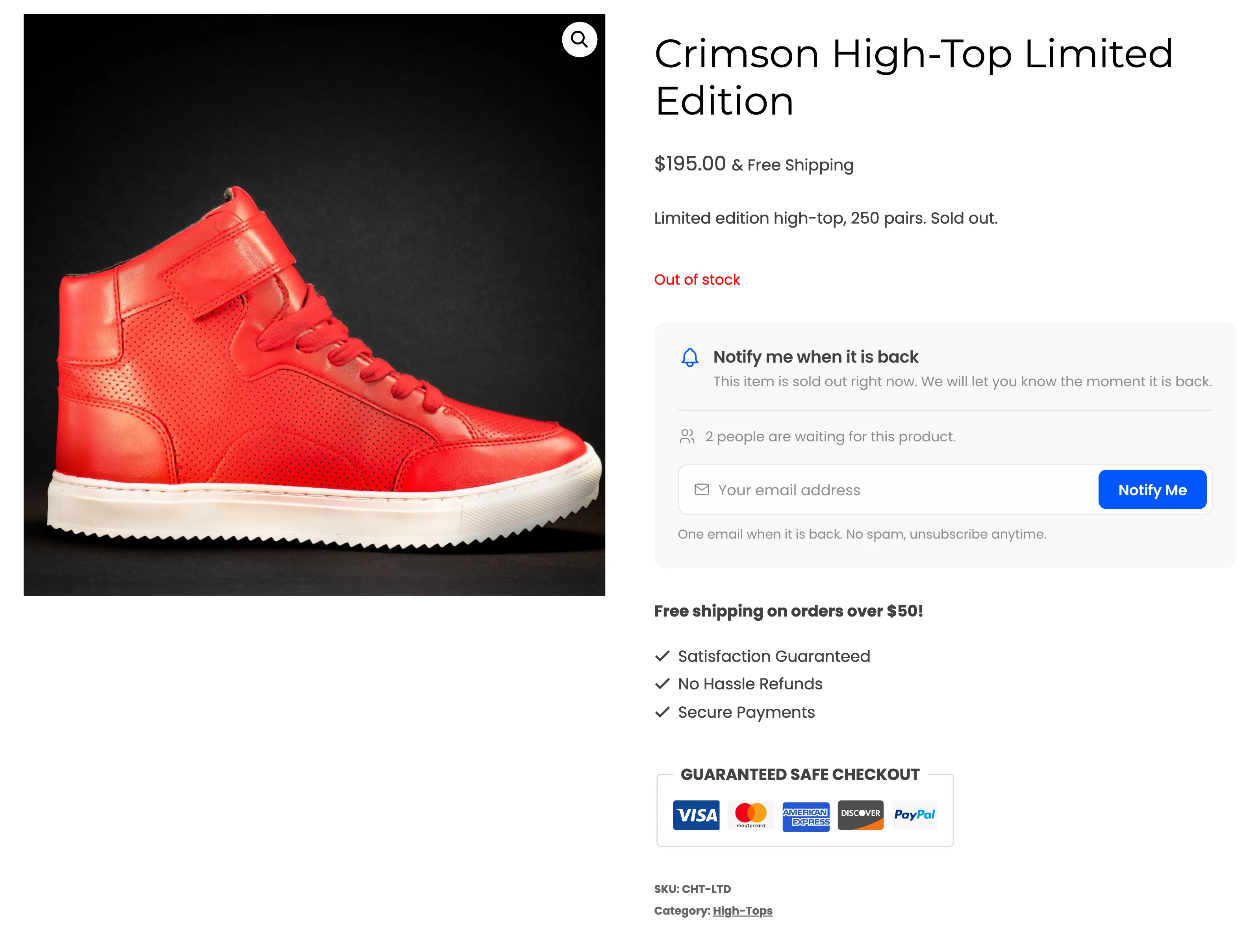
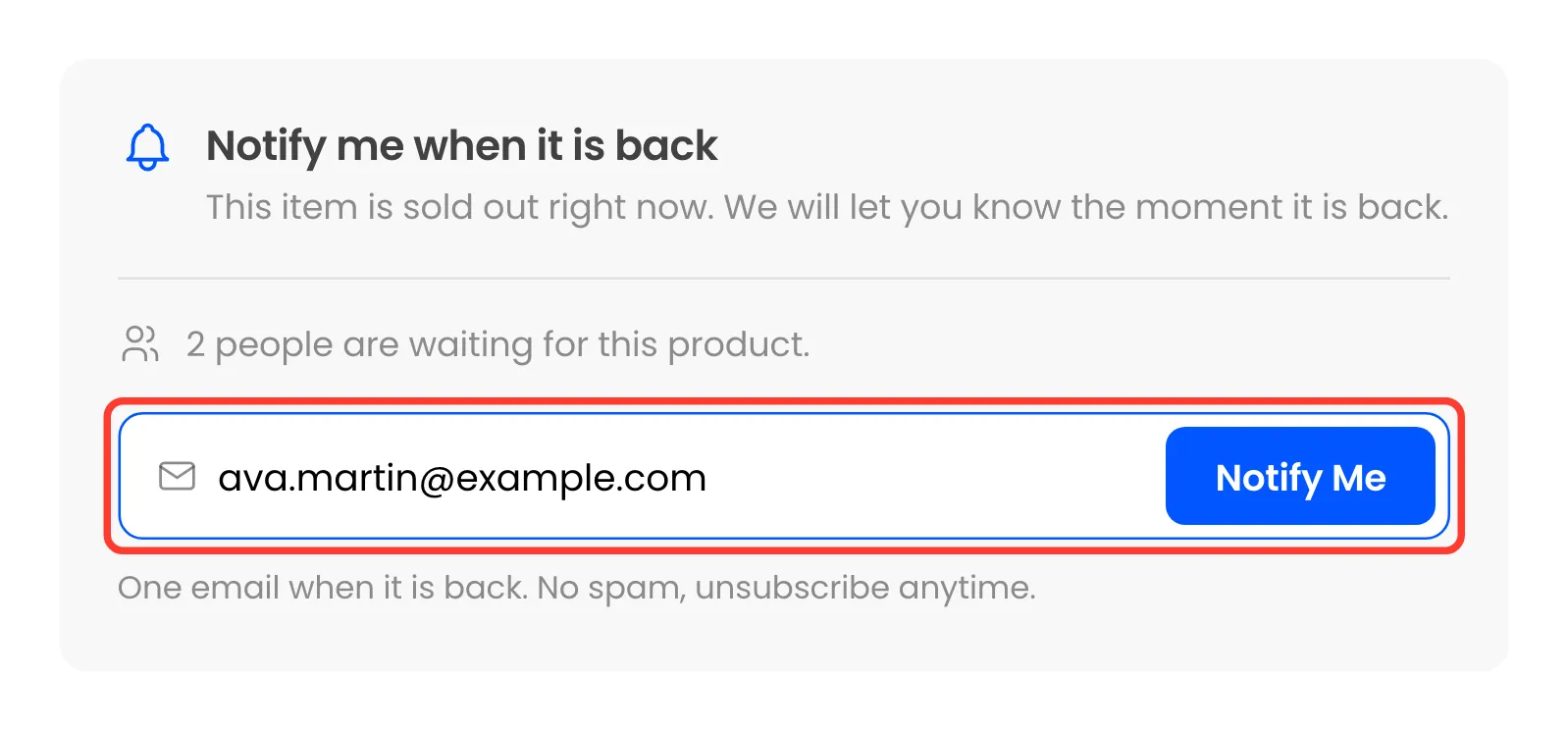
Type an email and press Notify Me.
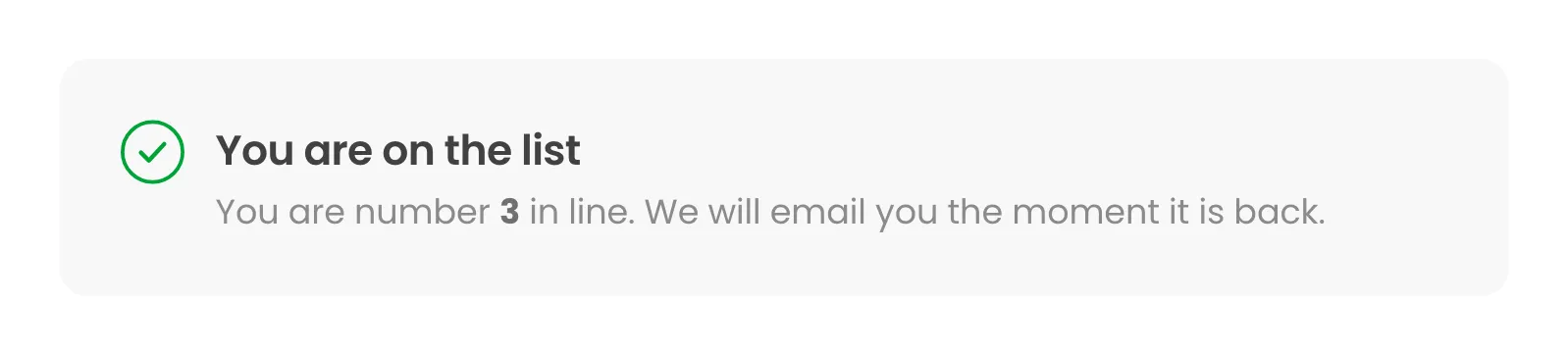
The form turns into a confirmation with the place in line.
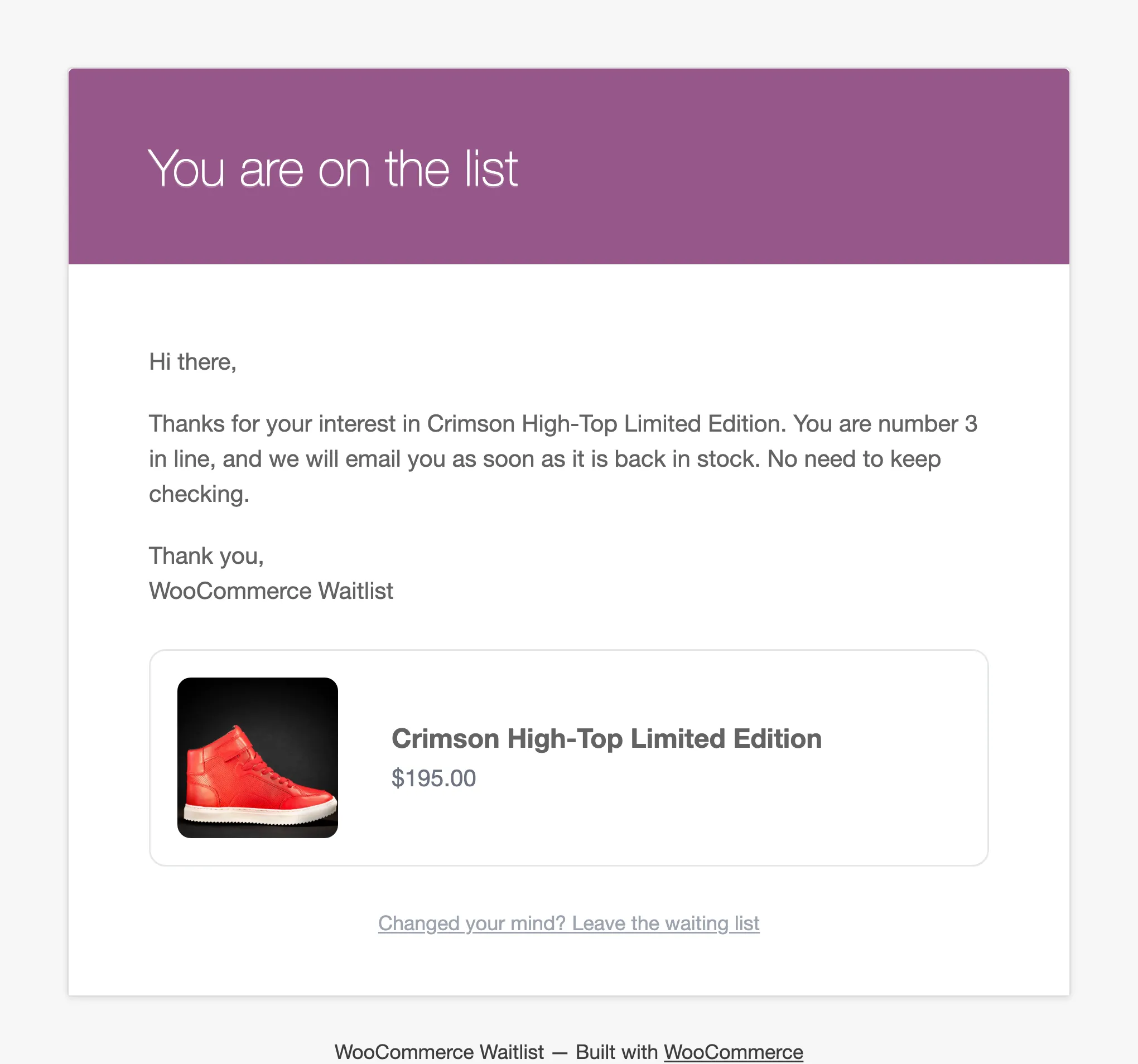
The address you used receives the Signup Confirmation within a minute:
Step 5: Find the signup
Section titled “Step 5: Find the signup”Back in the admin, open Waitlist → Subscribers. The signup is at the top with the status Waiting and its place in line.
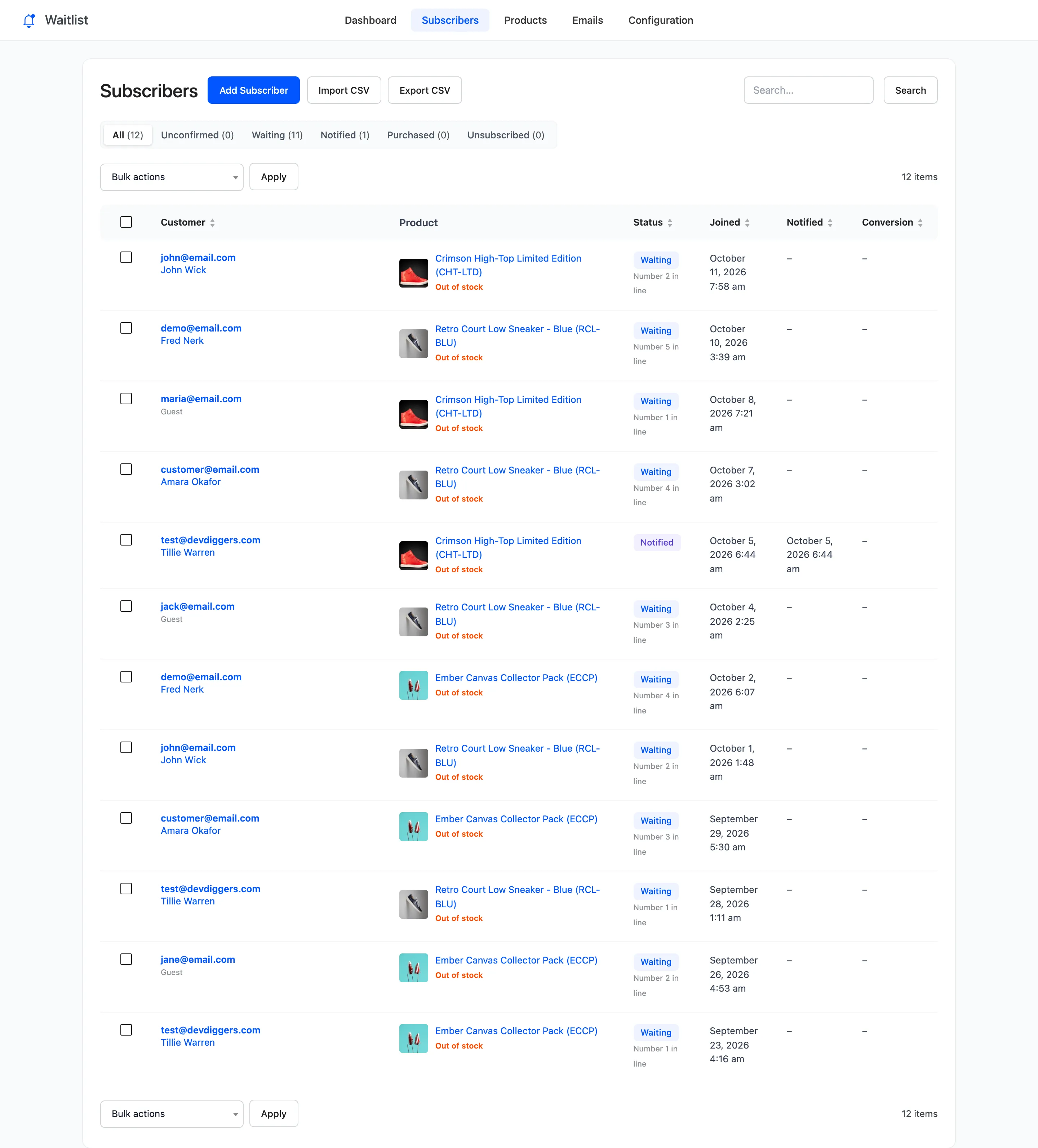
The product also appears on the Products screen, and the dashboard’s Waiting Now went up by one.
What happens next
Section titled “What happens next”Nothing more is needed. When the product comes back in stock, everyone waiting is emailed in the order they joined. How to Send Back in Stock Emails Automatically walks through that restock.
To be told about each signup yourself, see How to Get an Email When Someone Joins.