

How to Show an Expected Restock Date (Pro)
“When will it be back?” is the question behind most waitlist signups. A date and a line about the next batch answer it on the page, and make people more willing to wait.
Step 1: Open the product’s Inventory tab
Section titled “Step 1: Open the product’s Inventory tab”Edit the product and click Inventory under Product data.
Step 2: Set the date and note
Section titled “Step 2: Set the date and note”Two fields sit under the stock settings:
- Expected restock date: A date picker.
- Restock note: One short line, such as “A new run of 120 pairs is in production.”
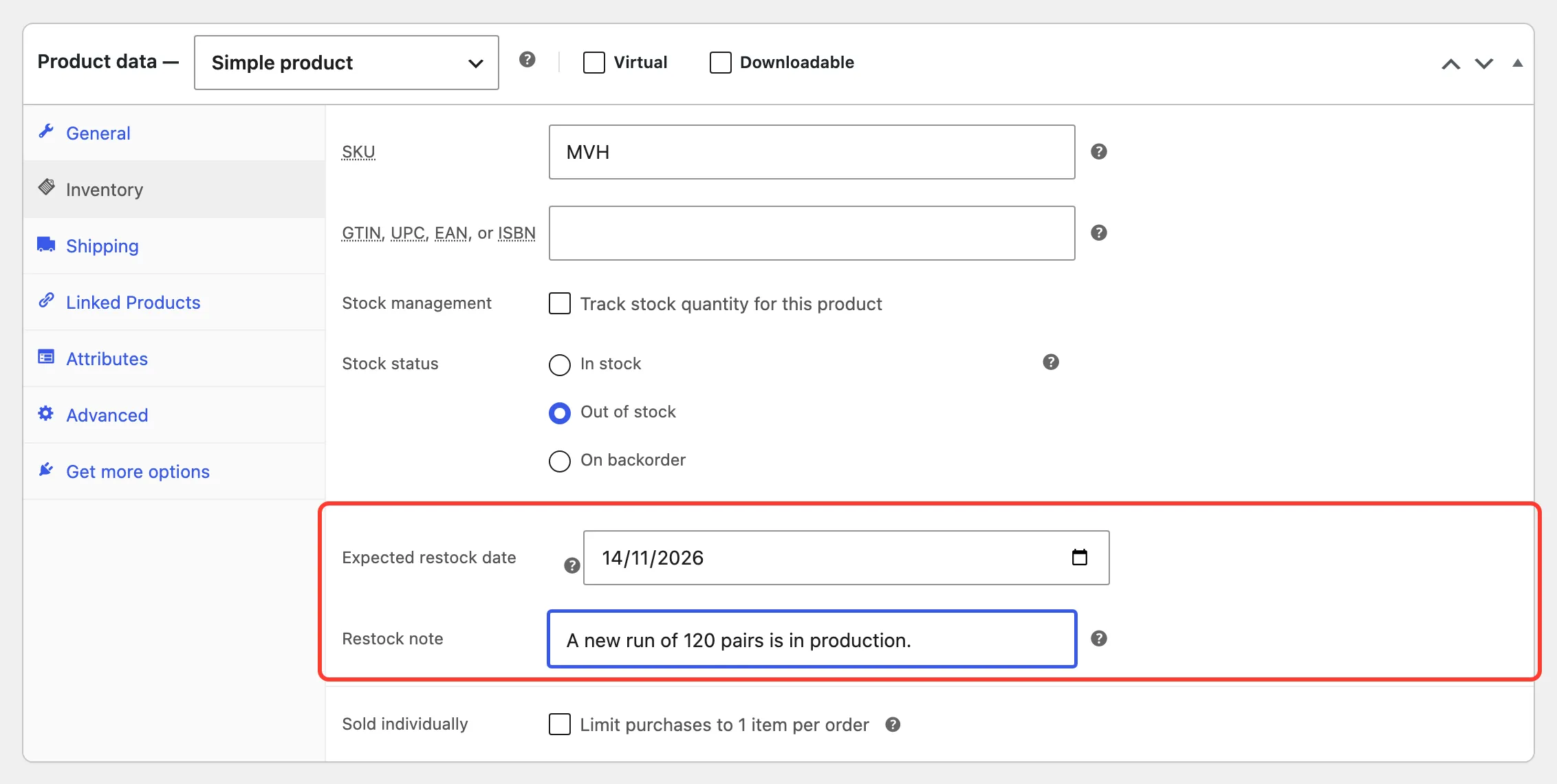
Click Update.
Step 3: Set a date on a variation if needed
Section titled “Step 3: Set a date on a variation if needed”Each variation has its own Expected restock date at the bottom of its panel under Product data → Variations. Leave it empty to use the parent’s date. The note always comes from the parent.
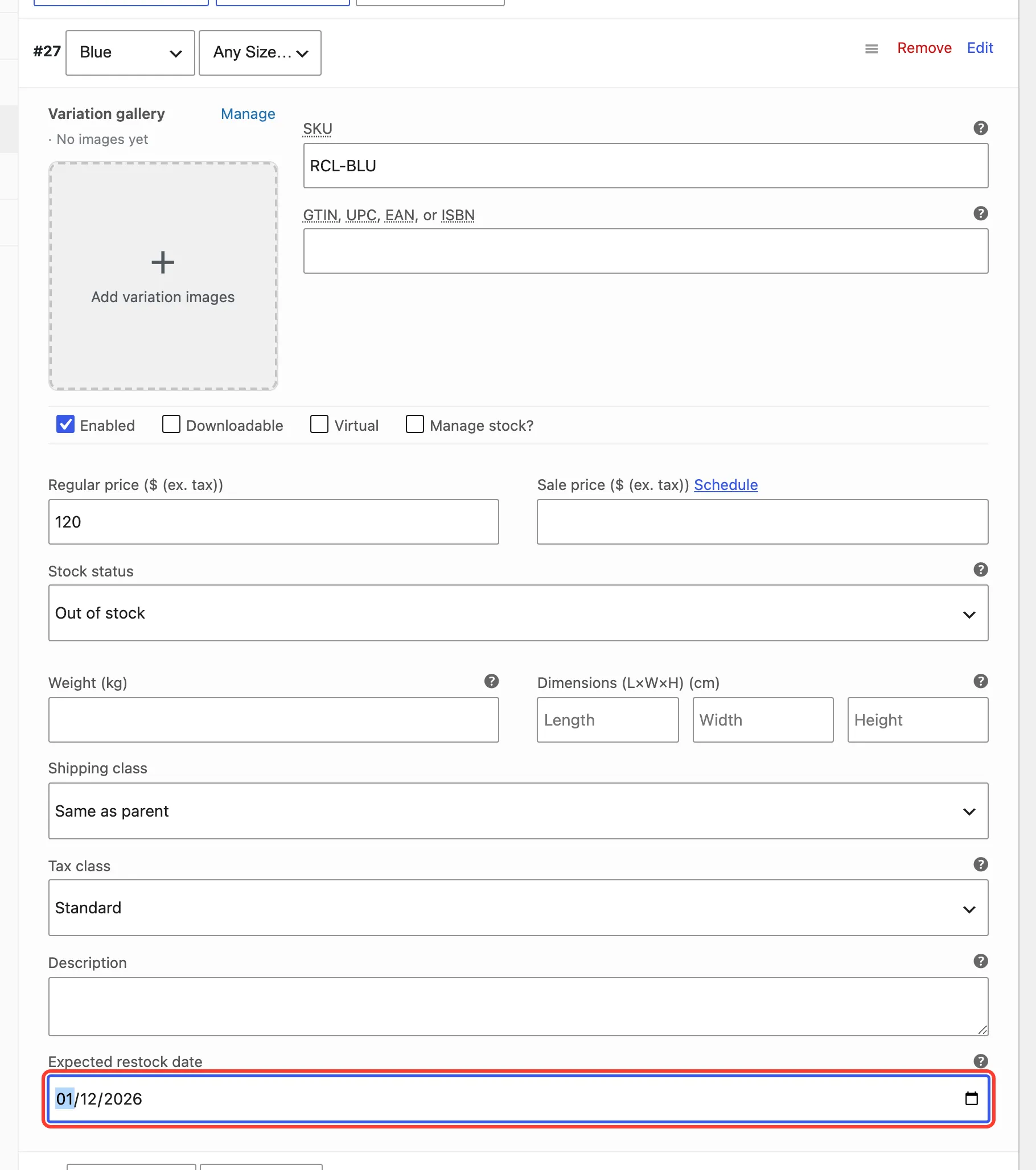
Click Save changes under the variations.
Step 4: Check the form
Section titled “Step 4: Check the form”The form shows the date and the note together:
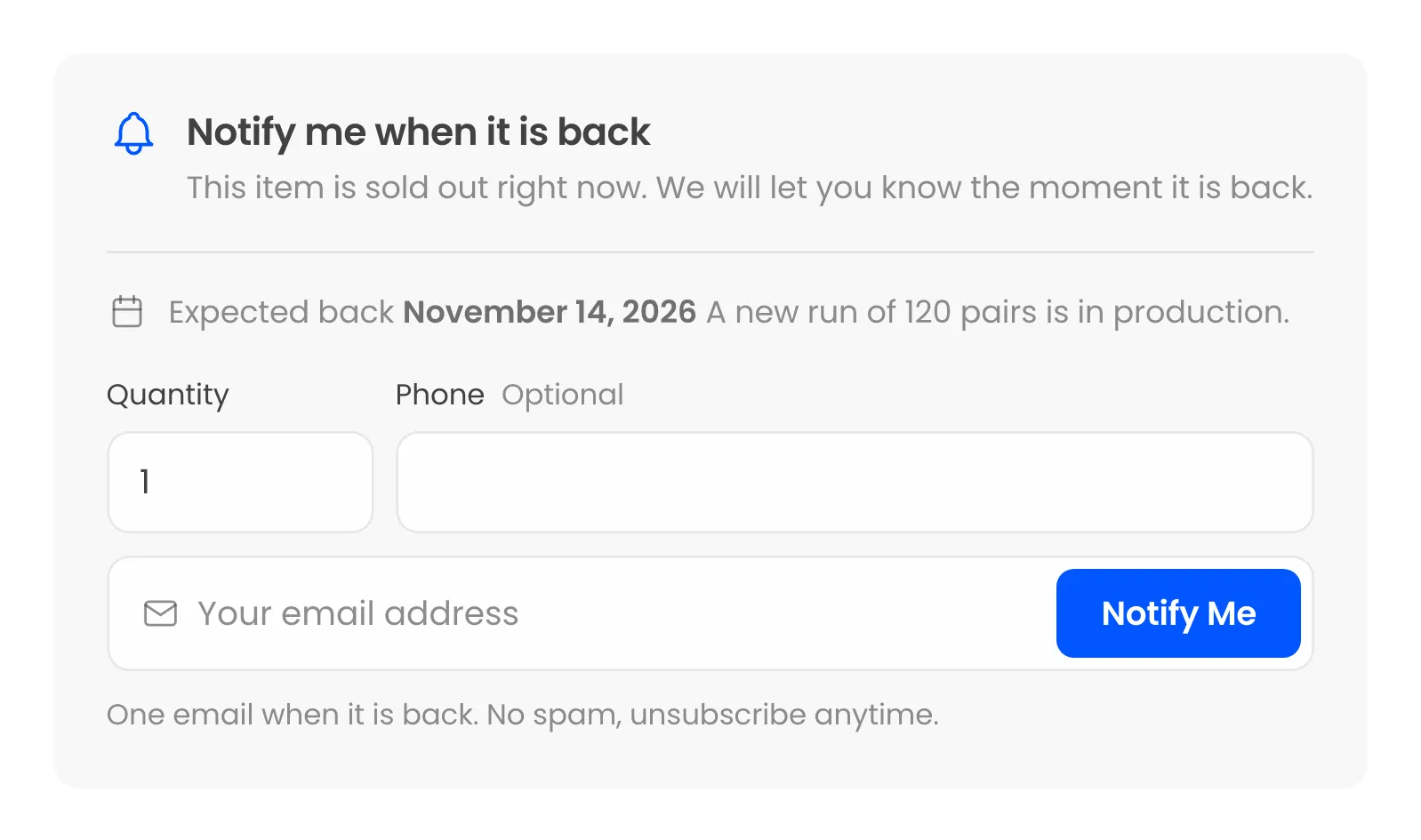
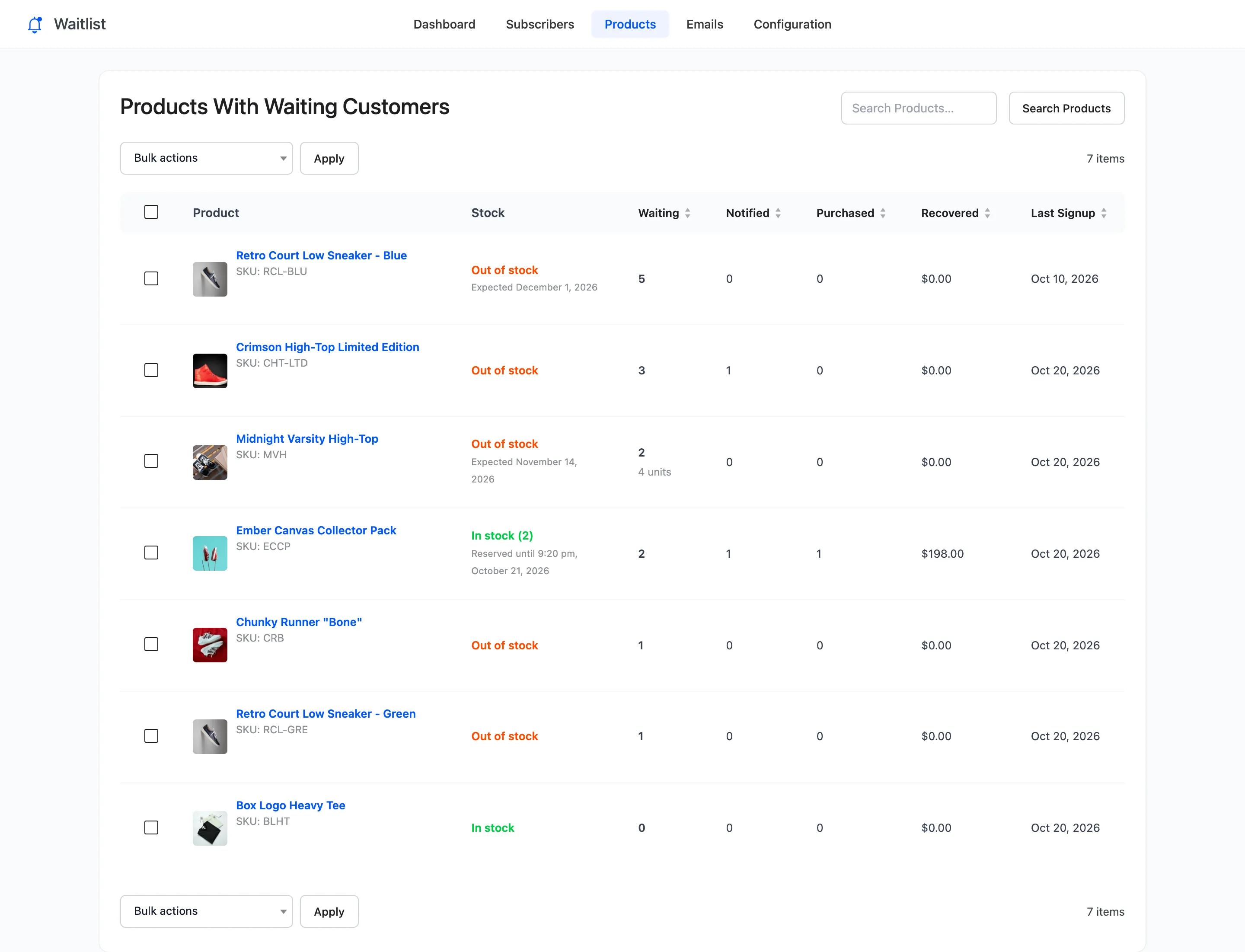
The Products screen shows “Expected” and the date under Out of stock, so your team sees it too:
When it hides
Section titled “When it hides”- The date passes. A date before today is hidden, so the page never promises a date you missed. The note still shows. Update the date when the delivery moves.
- The product is back in stock. The form, and the date with it, disappear.
- Restock Date is off under Configuration → Signup Form → Social Proof & Expectations.