The Customer Experience
This is the waitlist from the shopper’s side, in the order they meet it. Every screenshot is from the demo store, taken while a guest or one of its demo customers used it.
The form on a sold out product
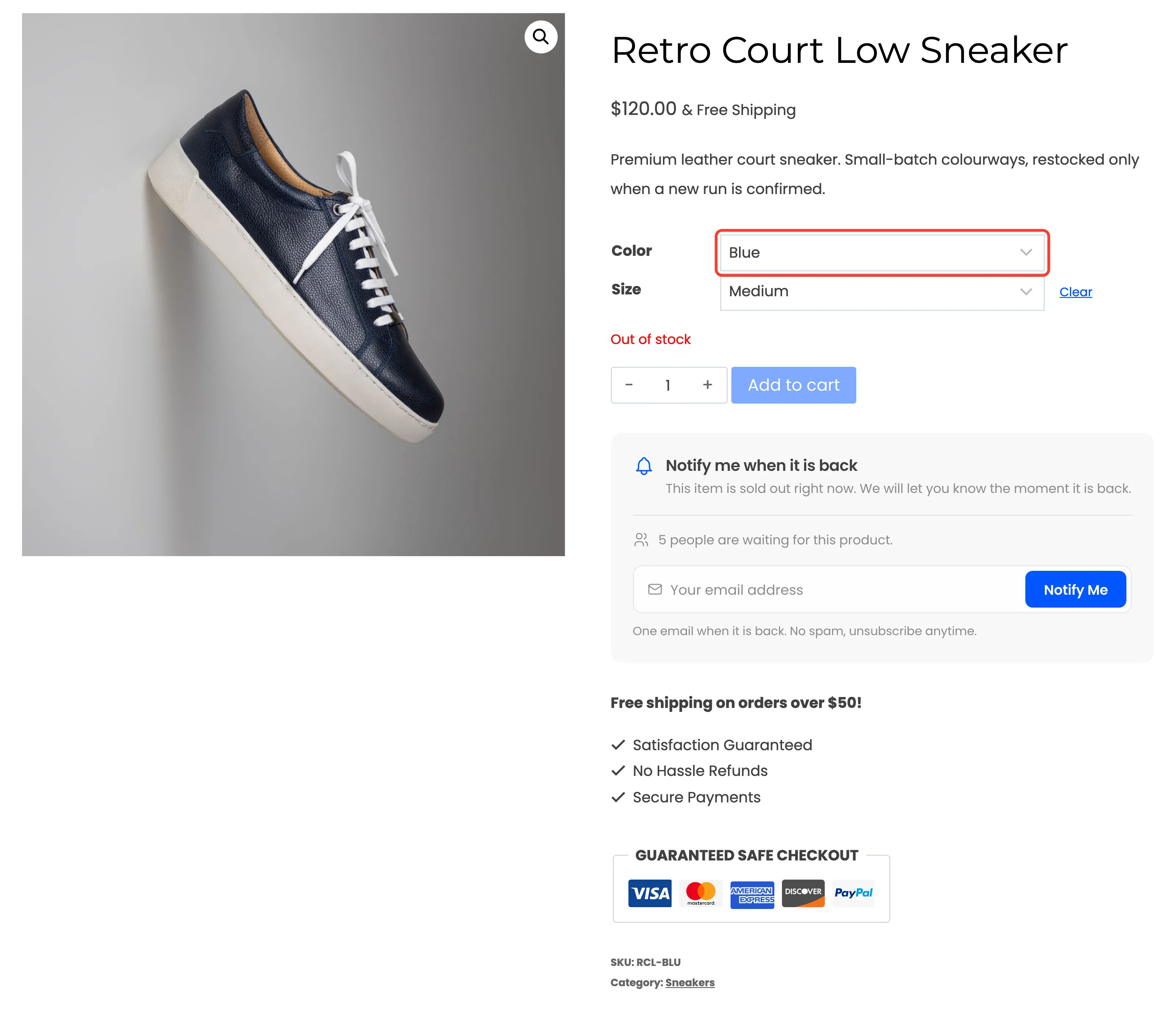
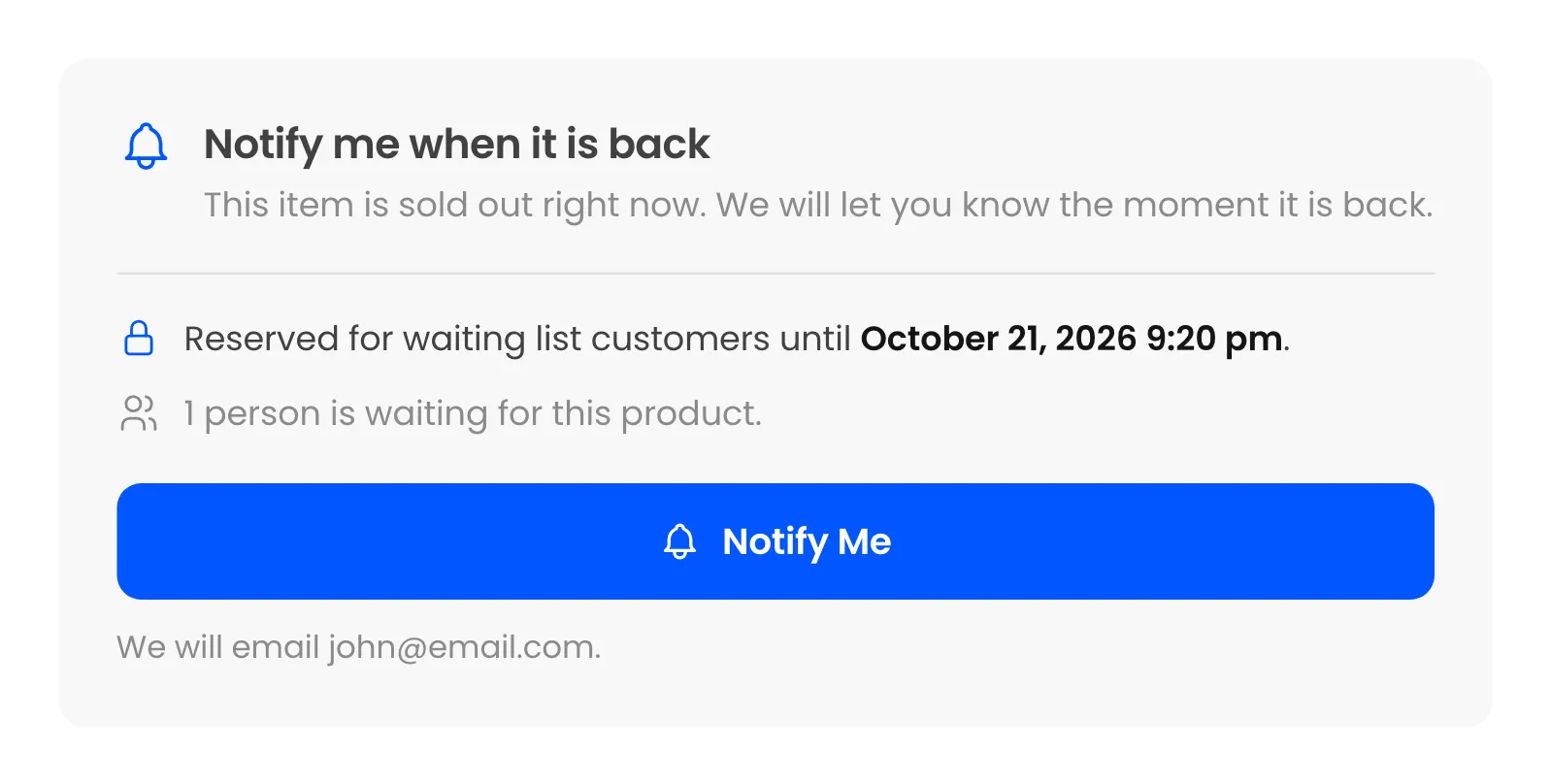
Section titled “The form on a sold out product”A guest sees the form under the stock status. It has a title, a short line, the number of people already waiting, an email field and a note about what to expect.
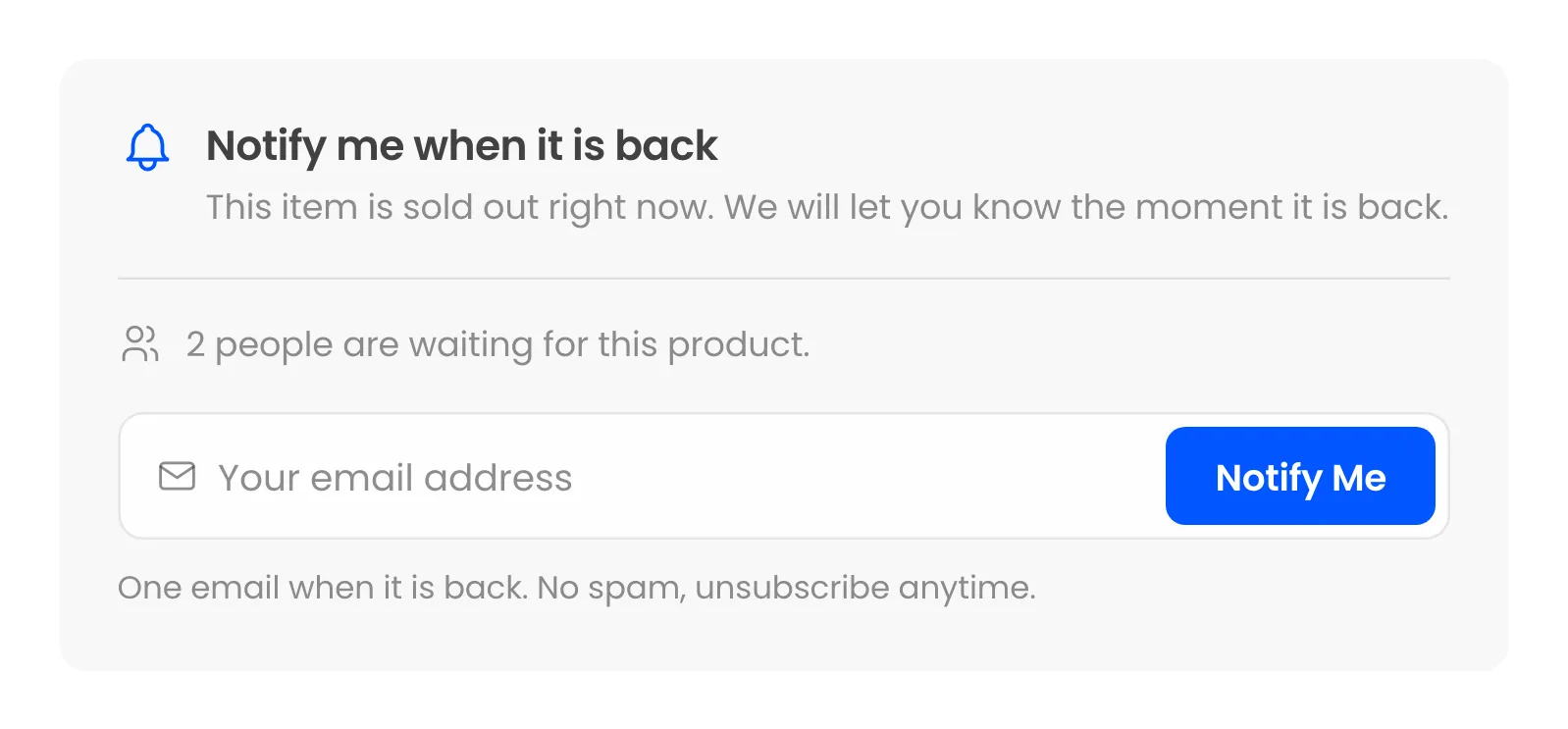
The waiting count hides while nobody is waiting, so the first customer never reads “0 people are waiting”. Every word on the form is yours to change under Configuration → Signup Form.
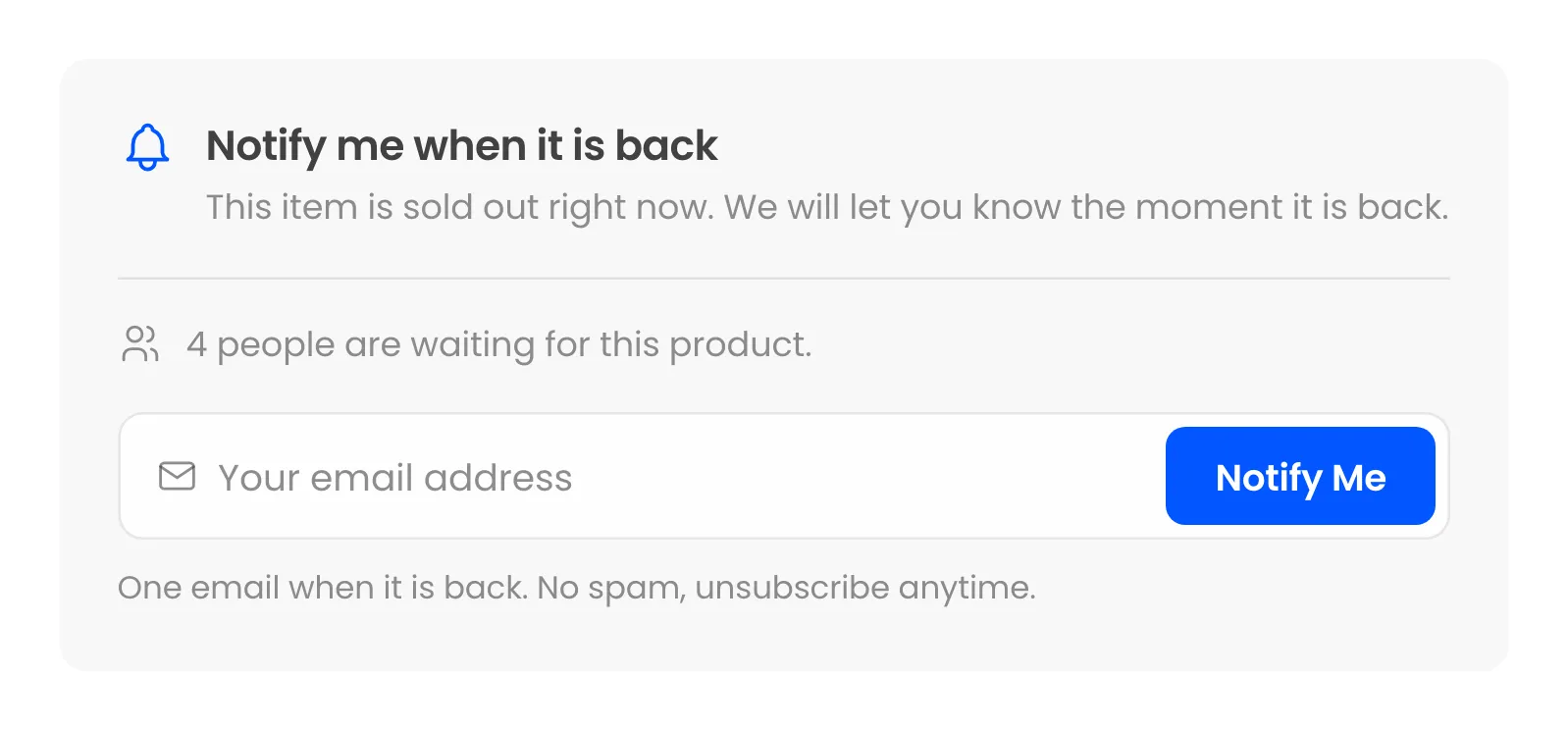
The free version’s form is the same, without Pro’s restock date line:
Joining as a guest
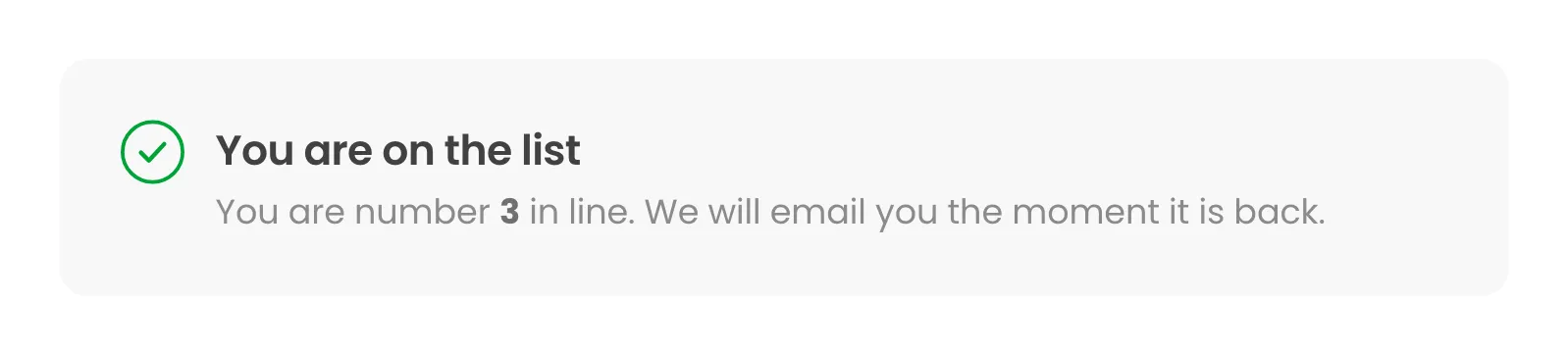
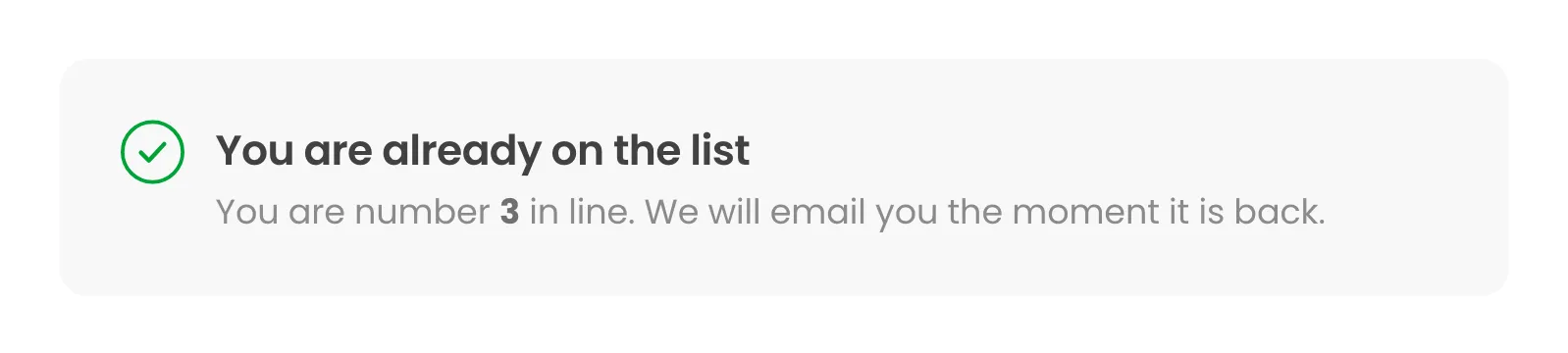
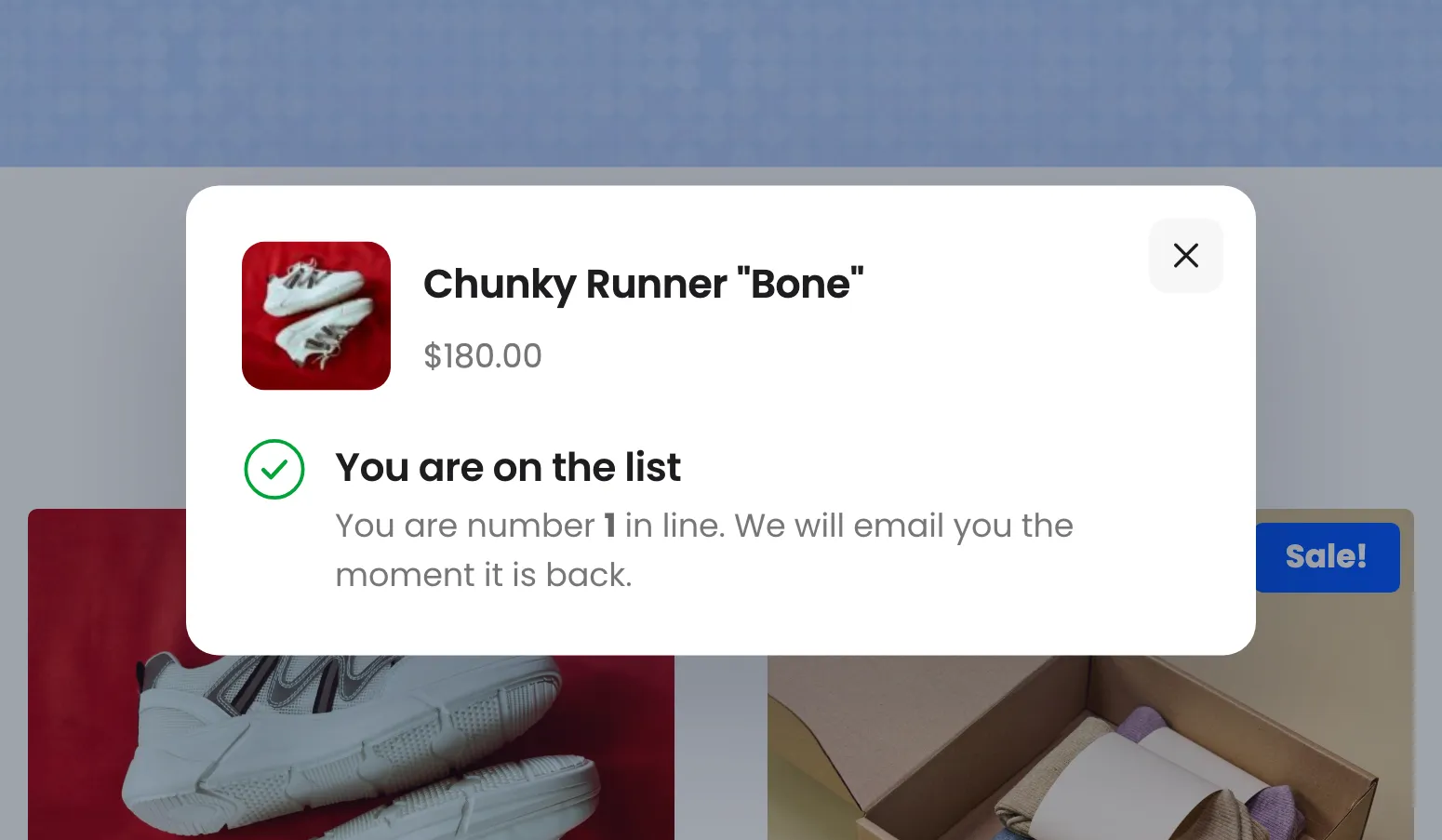
Section titled “Joining as a guest”The guest types an email and presses Notify Me. The page does not reload. The form becomes a confirmation with their place in line.
Pressing Notify Me again with the same email changes nothing, and says so.
Joining as a logged-in customer
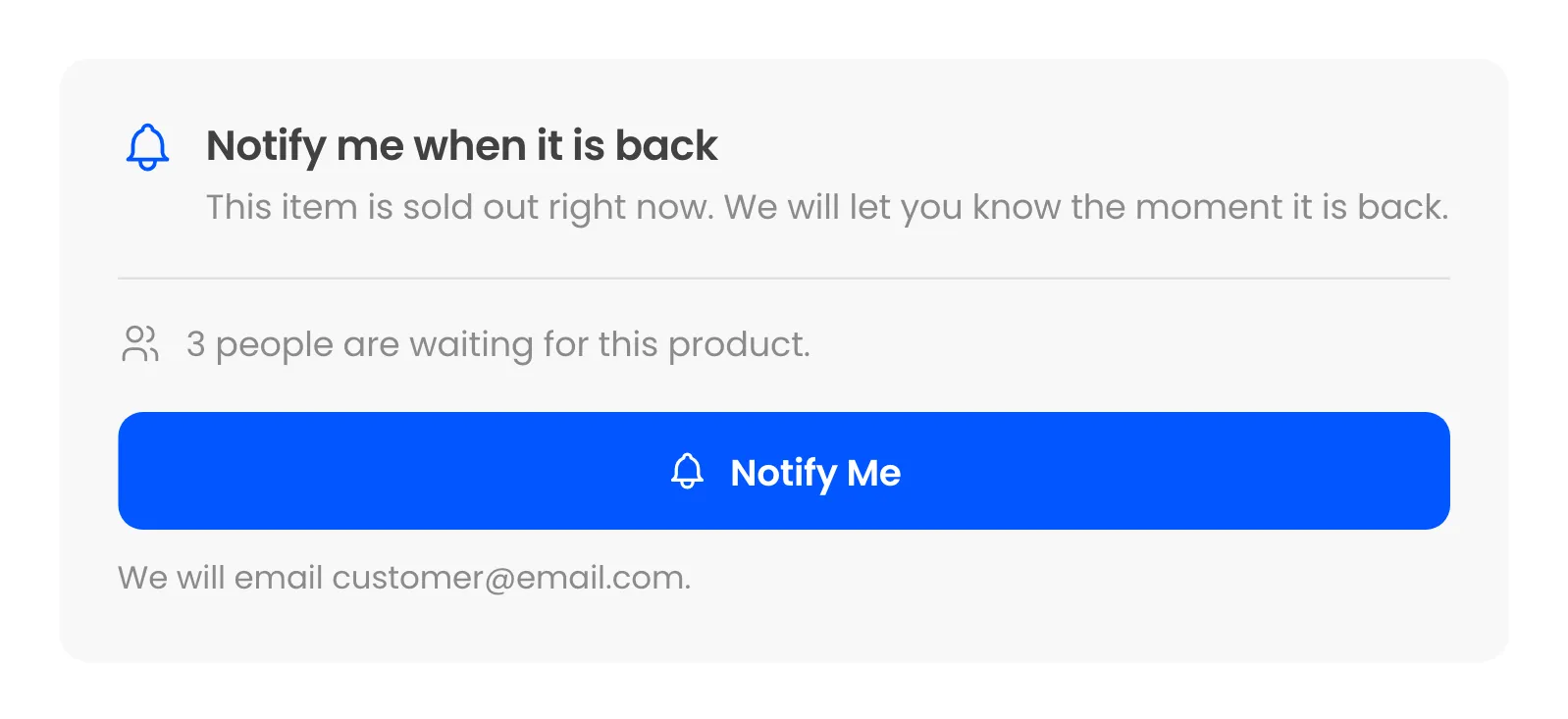
Section titled “Joining as a logged-in customer”A signed-in customer has no email field. One press of Notify Me joins with their account email, which the form shows under the button.
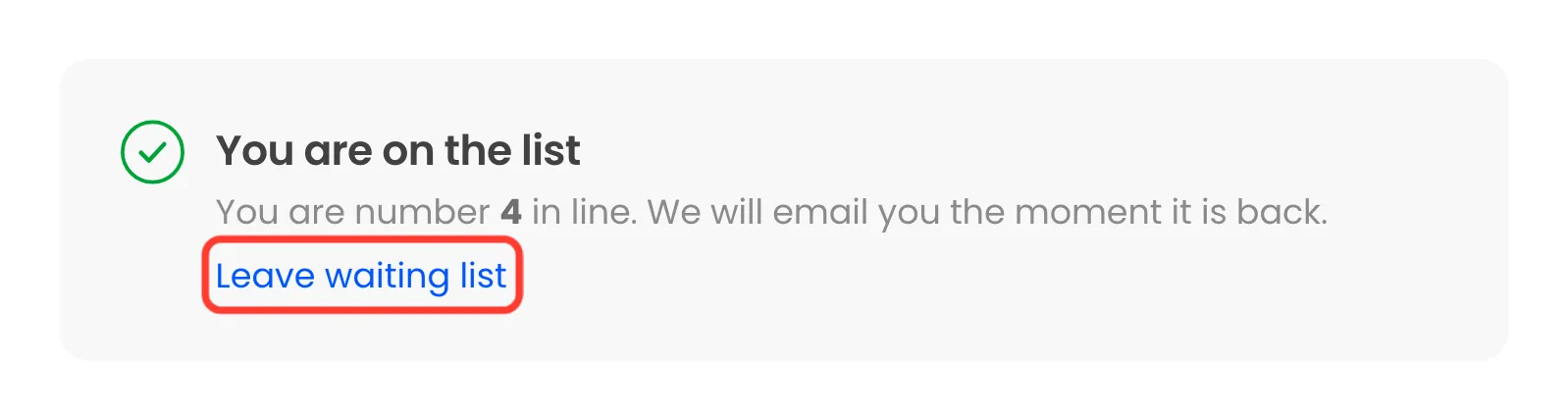
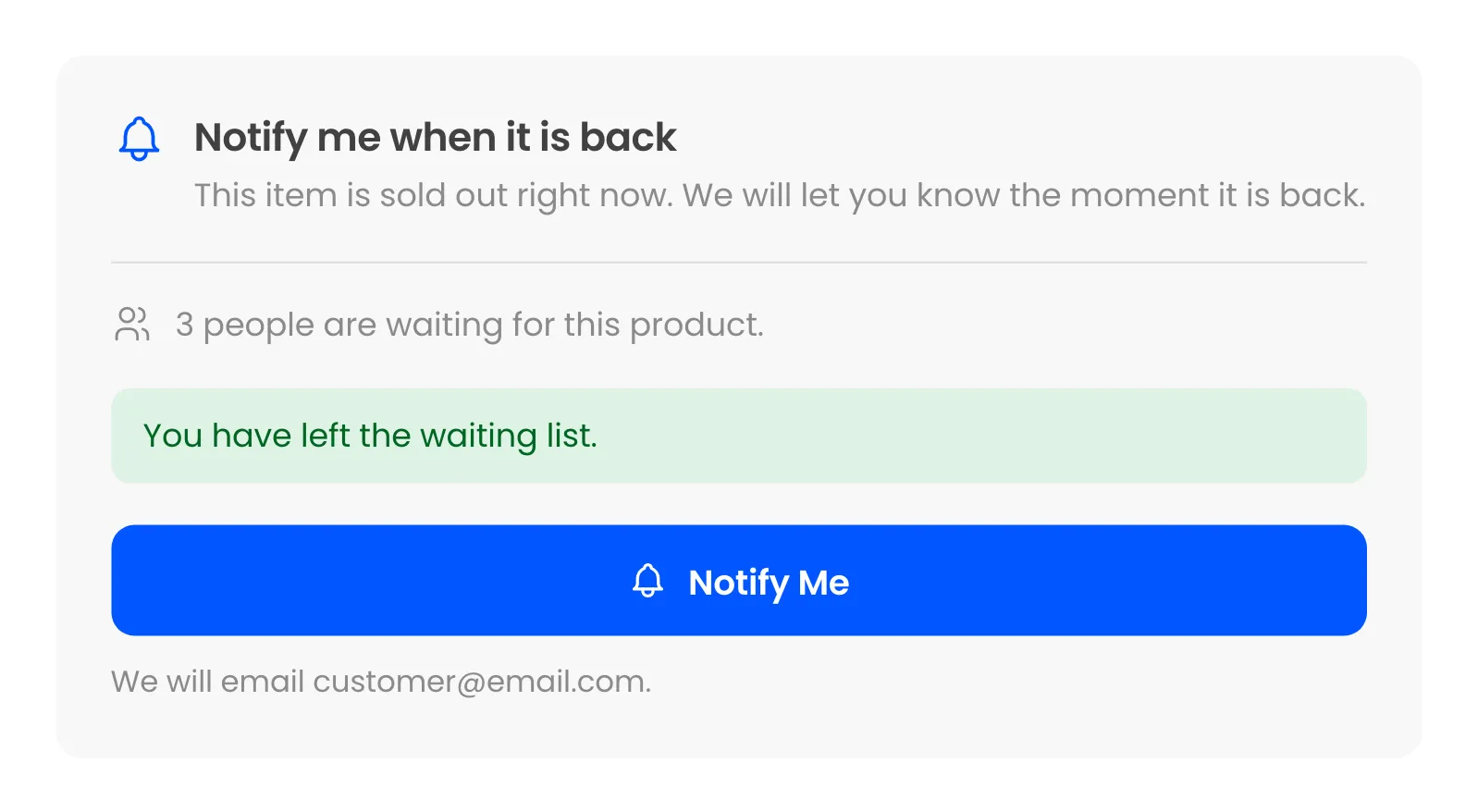
After joining they get a Leave waiting list link. Guests do not, because the page cannot tell who they are. A guest leaves from the link in their emails.
Variable products
Section titled “Variable products”The form appears only once the customer has picked a sold out variation, and joins them to that variation alone. Picking an in-stock variation hides it and shows the normal Add to cart.
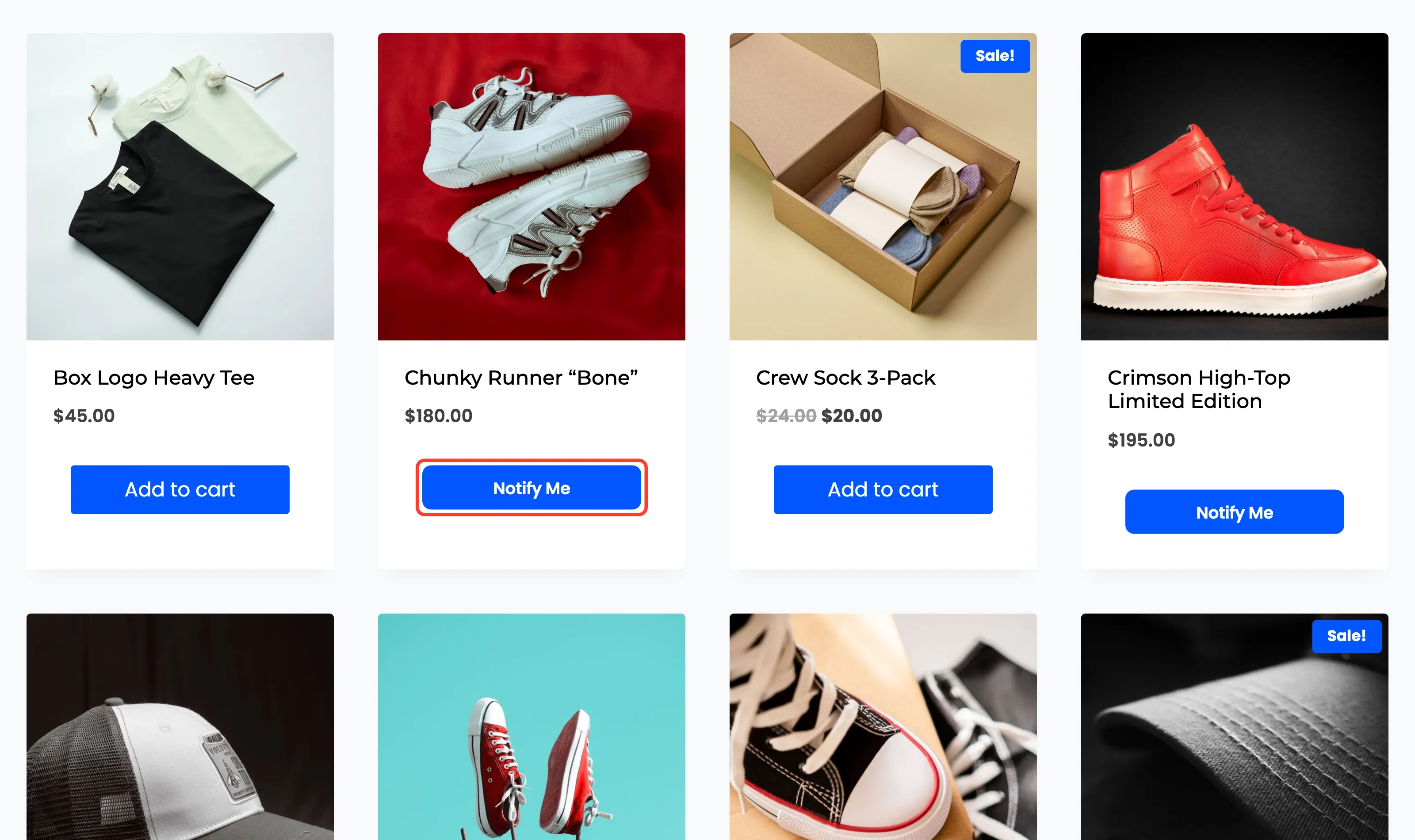
The Notify Me button on shop pages (Pro)
Section titled “The Notify Me button on shop pages (Pro)”In Pro, a sold out product’s Read more button on the shop and category pages becomes Notify Me.
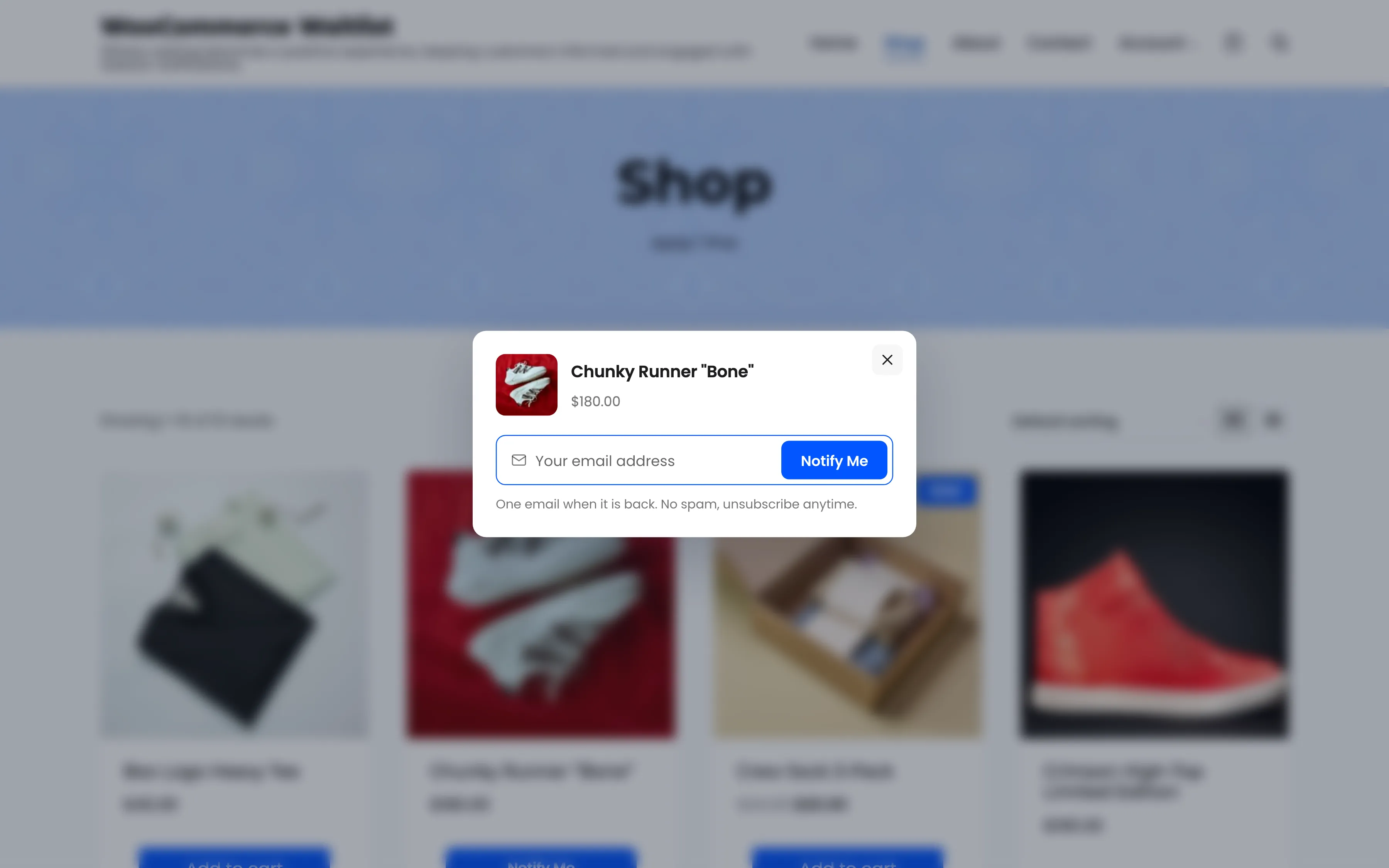
It opens a small window with the product, its price and the same form, so the customer joins without leaving the page.
The free version keeps WooCommerce’s Read more button, which leads to the product page and its form.
The confirmation email
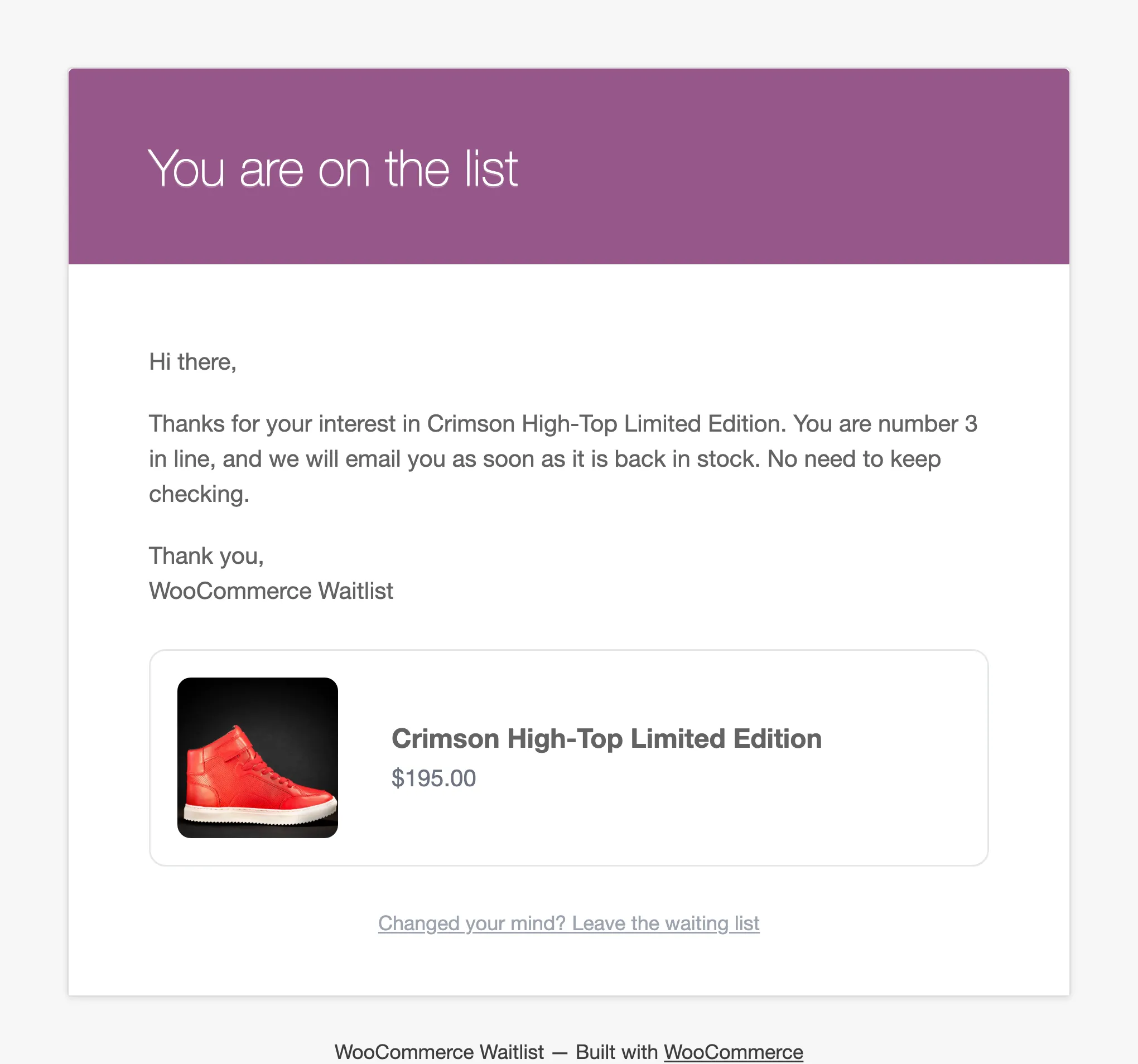
Section titled “The confirmation email”Every customer gets a Signup Confirmation with their place in line, the product card and a link to leave.
My Waiting List
Section titled “My Waiting List”Logged-in customers get a My Waiting List page in My Account. It lists every product they joined, with its stock, their status, place in line and the date they joined.
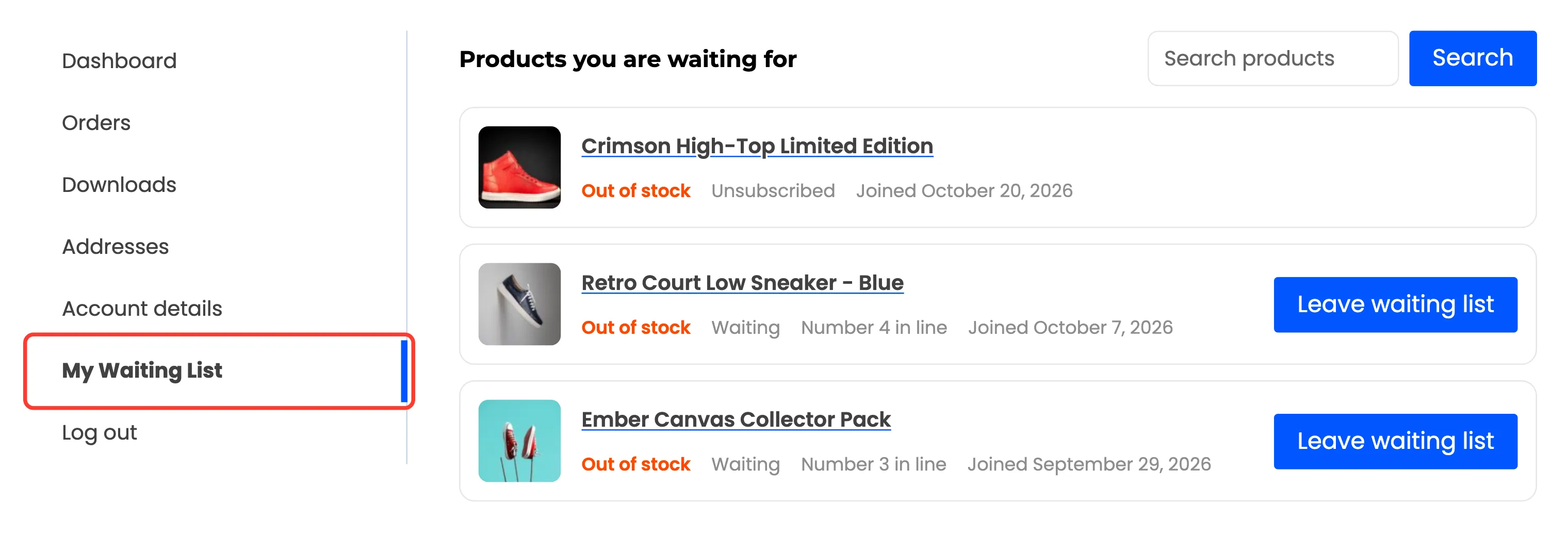
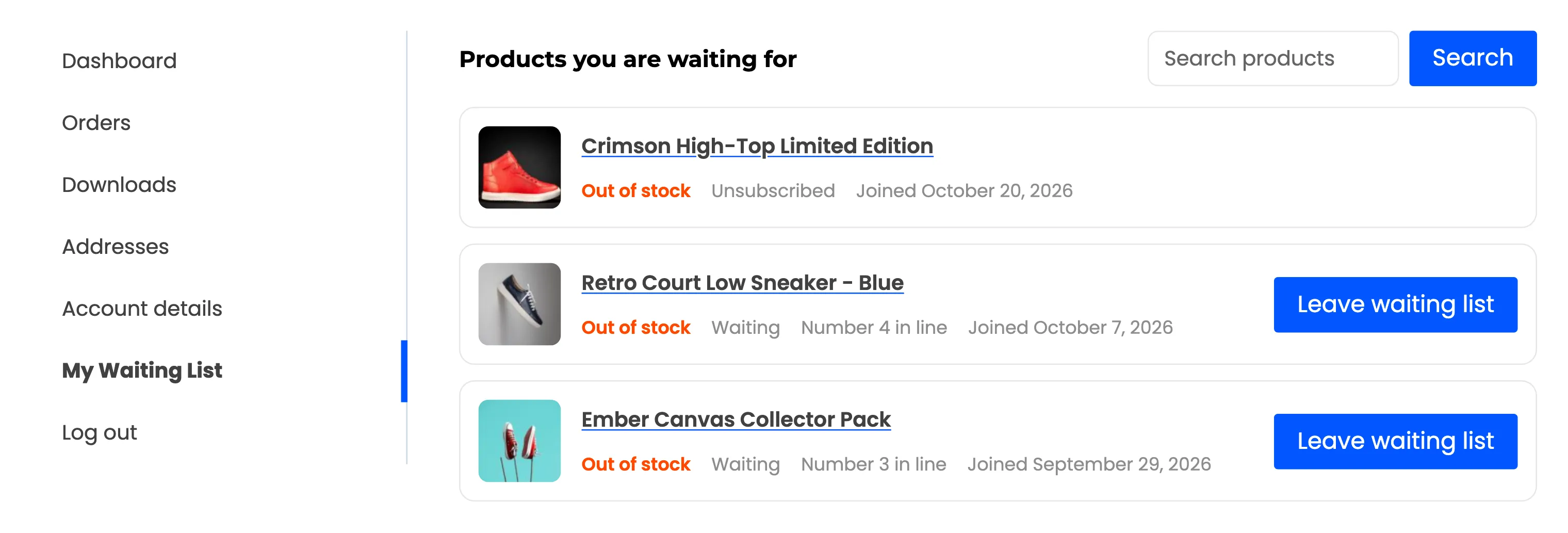
- Leave waiting list on anything they still wait for.
- Buy now on a product that is back in stock.
- Search to find a product in a long list. The page shows 10 at a time.
The back in stock email
Section titled “The back in stock email”When the product is back, the customer gets the Back in Stock email with a Shop Now button.
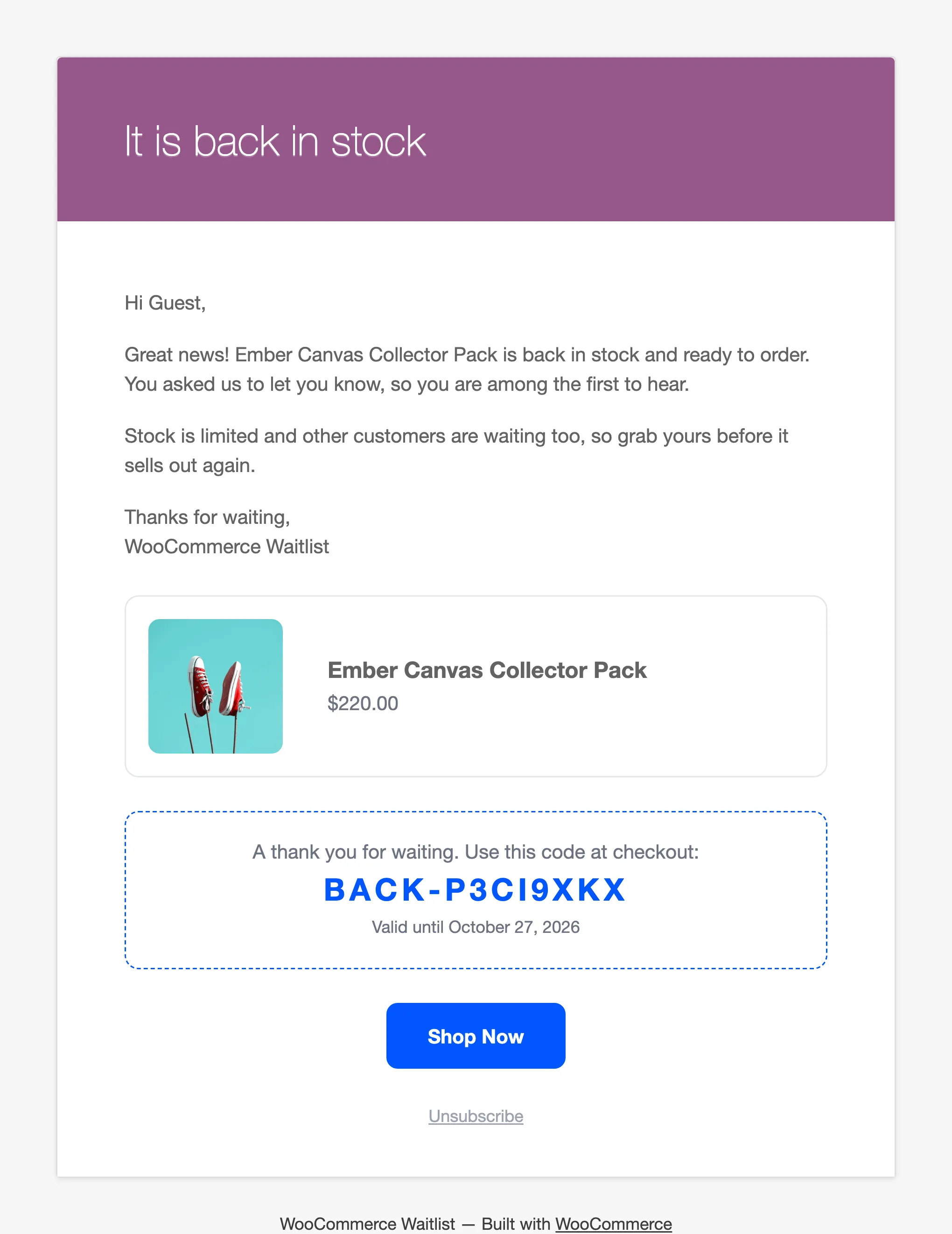
The coupon box is Pro. In the free version the email has the same message, product card and button.
During an early access window (Pro)
Section titled “During an early access window (Pro)”If you reserve restocks for your waitlist, people who were not emailed see the form instead of Add to cart until the window ends. The form shows when it opens to everyone, and they can still join the list.
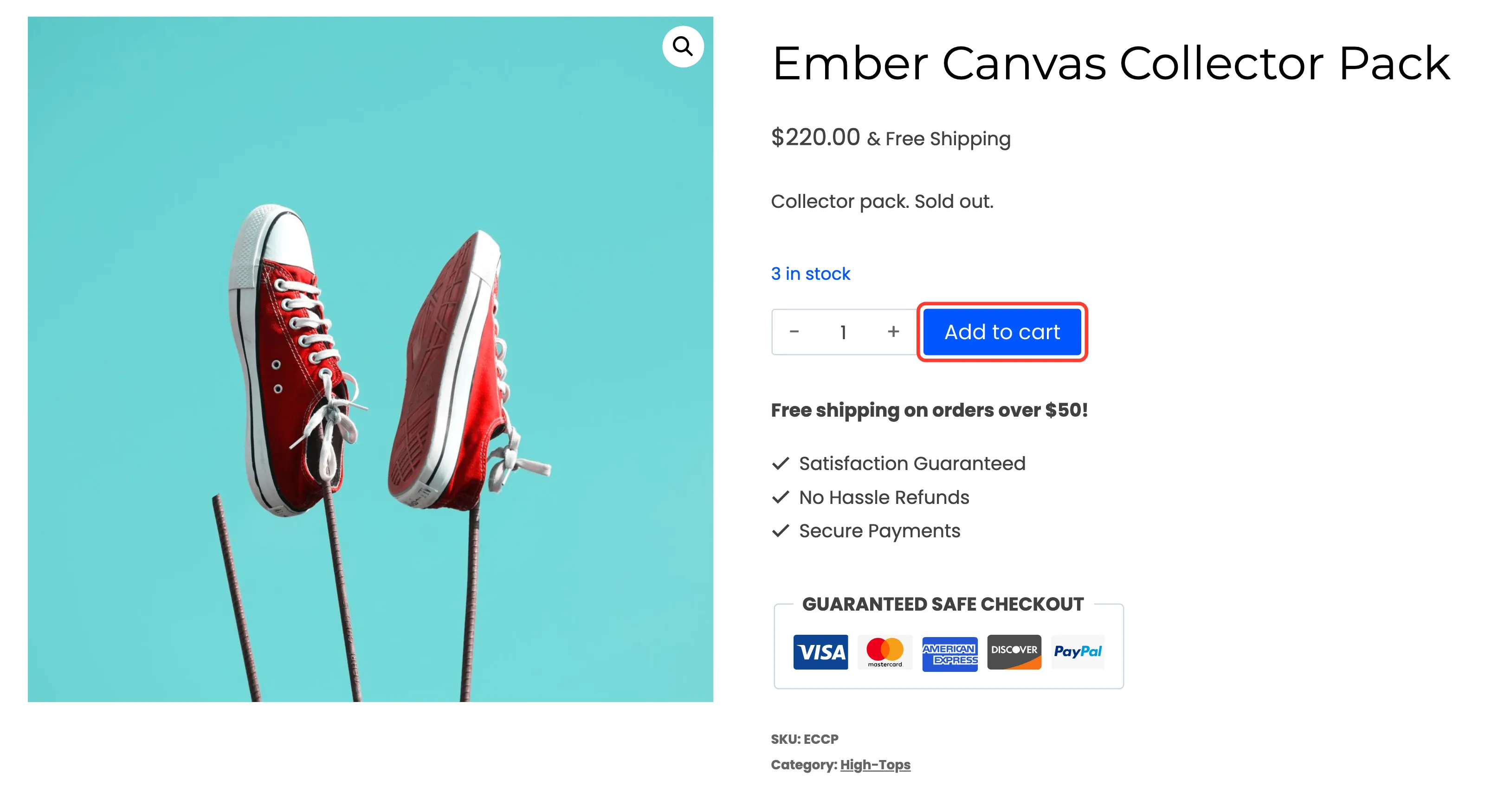
The customer who was emailed opens the product from their email and can buy.
Unsubscribing
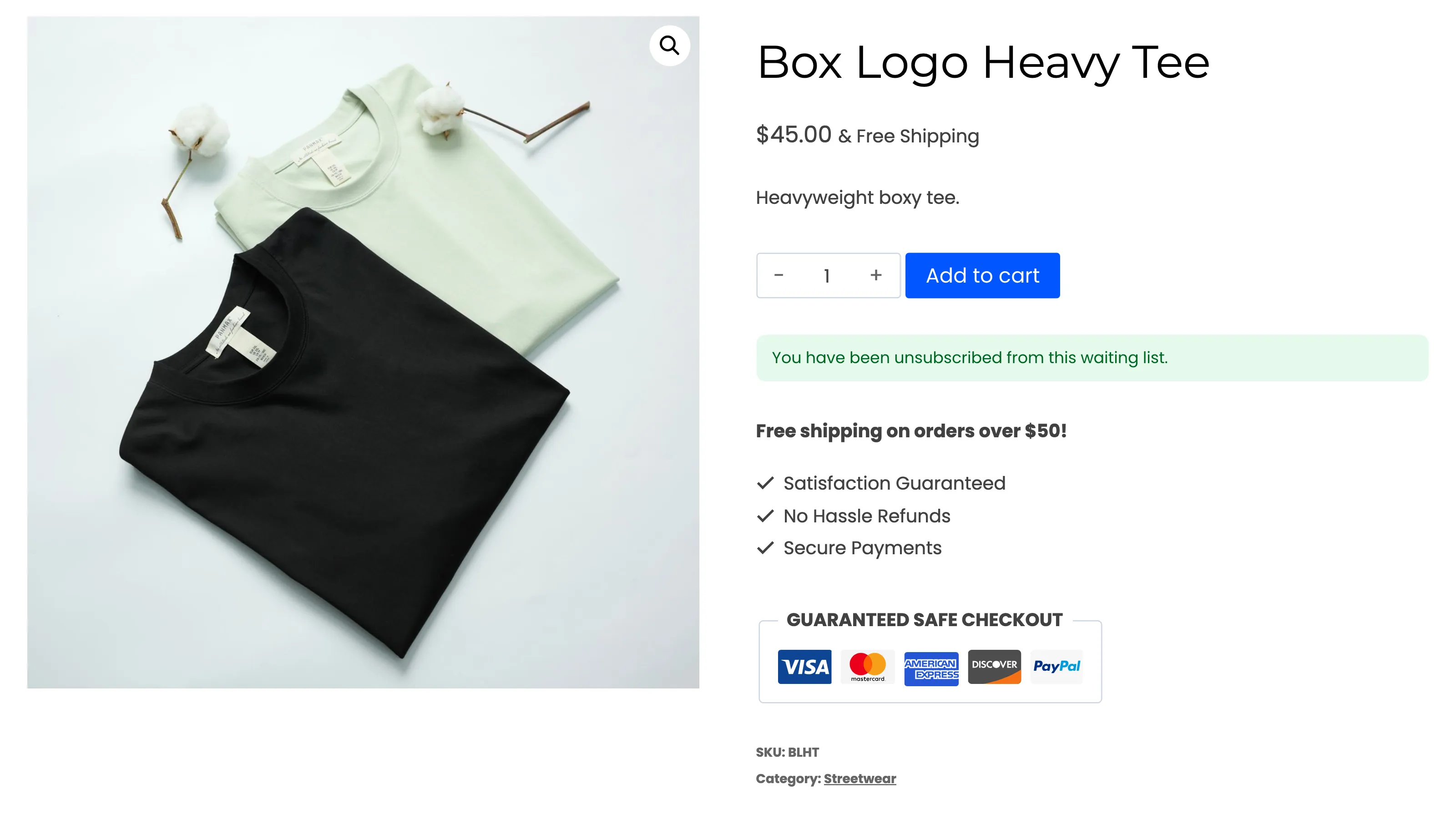
Section titled “Unsubscribing”Every customer email ends with an unsubscribe link. It works without logging in, and lands on the product with a confirmation.