

How the Waitlist Works
This page follows one customer through the whole waitlist, from the form to the sale. Each stage links to the page with its settings. Pro stages are marked.
1. A product sells out
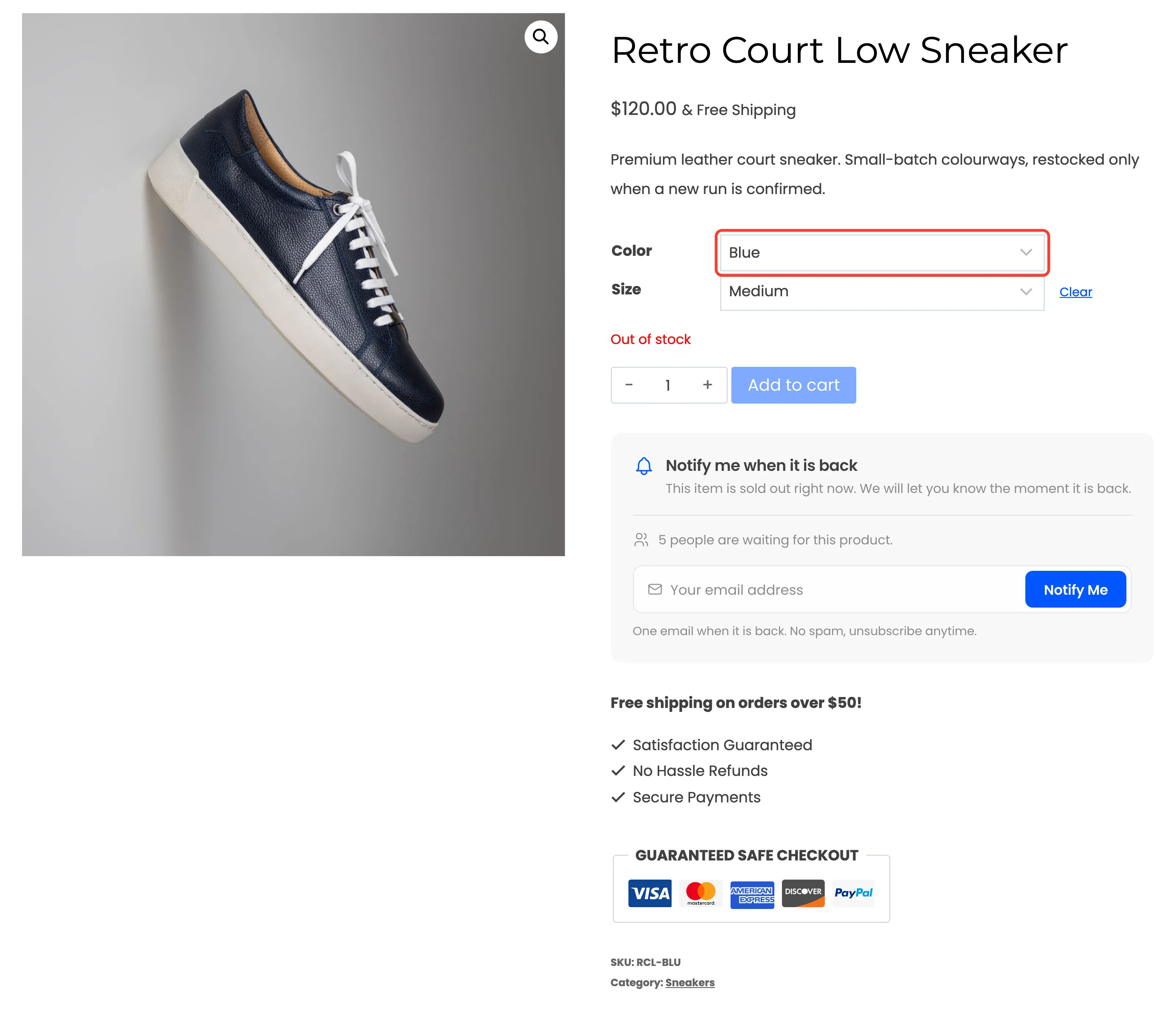
Section titled “1. A product sells out”The form appears on a product page when the product is Out of stock. It also appears on a product On backorder if Backorder Products is on under Configuration → General. Three things hide it:
- The product, or for a variation its parent, is in Excluded Products.
- The product’s category is in Excluded Categories.
- Enable/Disable is off, or in Pro the license is not active.
On a variable product the form waits until the customer picks a sold out variation, then shows for that variation alone.
2. The customer joins
Section titled “2. The customer joins”A guest types an email and presses Notify Me. A logged-in customer presses the button and is signed up with their account email. Either way the page does not reload: the form turns into a confirmation.
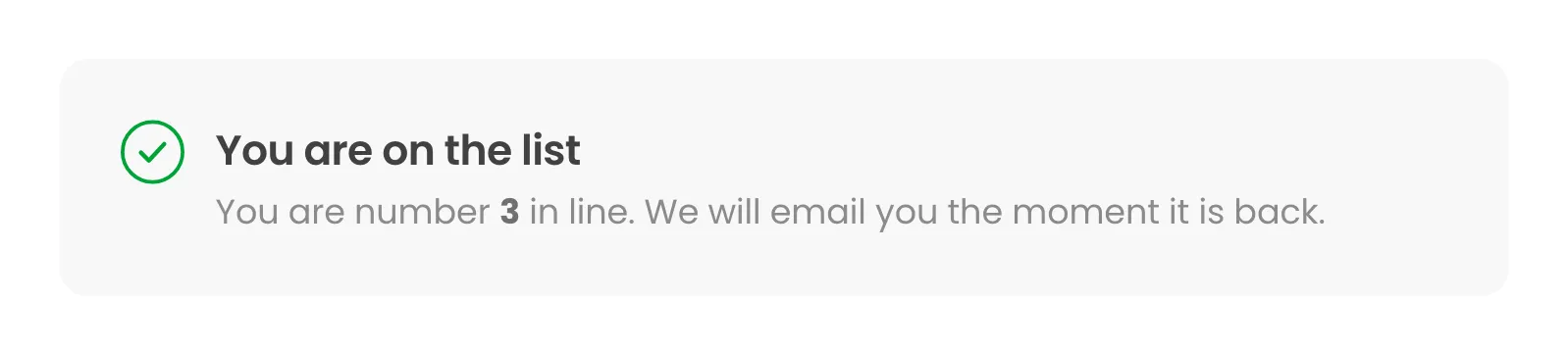
The signup is saved with the status Waiting. Two emails go out straight away:
- Signup Confirmation to the customer, with their place in line and a link to leave.
- Admin Alert to your team, if you switched it on, with how many people now wait for the product.
The same email cannot join the same product twice. A second try shows “You are already on the list”.
3. The queue
Section titled “3. The queue”Customers are emailed first come, first served. Place in line counts only the people still Waiting for the same product who joined earlier. When someone ahead of you is emailed or leaves, everyone behind moves up one.
4. Stock comes back
Section titled “4. Stock comes back”The plugin watches WooCommerce’s own stock events, so it does not matter how stock returns. A product edit, a CSV import, the REST API, a refund or a cancelled order that puts units back all count.
When a product goes back in stock and Automatic Emails is on, the plugin checks three things:
- The product is In stock and published.
- Someone is Waiting for it.
- In Pro, for a product that tracks stock: the quantity has reached Minimum Stock.
Then it queues the emails. It never sends them inside the page that changed the stock.
5. The emails go out in batches
Section titled “5. The emails go out in batches”The Back in Stock emails are sent in the background through WooCommerce’s scheduler, in batches of 50, oldest signup first. Each customer is marked Notified before their email is sent, so a slow mail server can never email the same person twice. If more people are waiting after a batch, the next batch is queued.
6. The customer comes back
Section titled “6. The customer comes back”The email’s button opens the product. In Pro the click is recorded, and it opens the product to them in that browser during an early access window.
7. The sale (Pro)
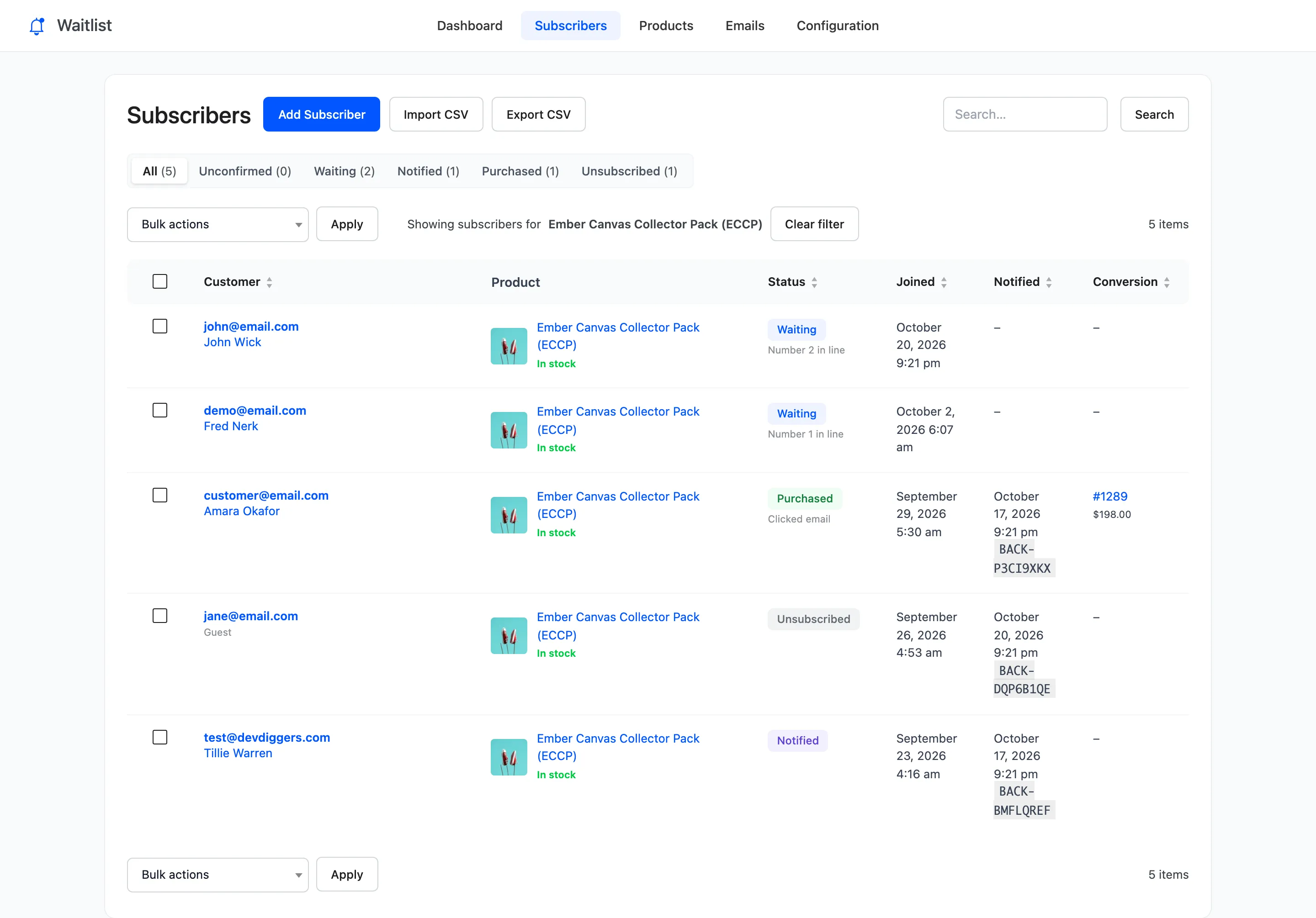
Section titled “7. The sale (Pro)”When an order reaches Processing or Completed, Pro looks for a Notified signup with the same billing email and the same product or variation. It marks that signup Purchased, links the order and records the line total after discounts as recovered revenue. An order paid by bank transfer counts only once you mark it Processing.
Customers who were emailed and did not buy get a Reminder after two days, if the product is still in stock. It goes out once per customer.
What ends a signup
Section titled “What ends a signup”| Status | How a signup gets there |
|---|---|
| Unconfirmed (Pro) | A guest joined with double opt-in on and has not clicked the confirmation |
| Waiting | Joined, or confirmed, and not yet emailed |
| Notified | The back in stock email was sent |
| Purchased (Pro) | A notified customer ordered the product |
| Unsubscribed | Left from the product page, My Account or an email’s link |
You can move a Notified signup back to Waiting on the Subscribers screen, for example if the restock fell through.