

How to Store and Delete Prescription Files Safely
A prescription is a health record. It should be seen only by the people who need it, and kept no longer than you have a reason to. The first half of that is automatic; the second is a setting.
Step 1: Find the vault
Section titled “Step 1: Find the vault”Go to DevDiggers Plugins → Prescriptions → Configuration → Compliance. Vault Location shows the folder every prescription is written to.
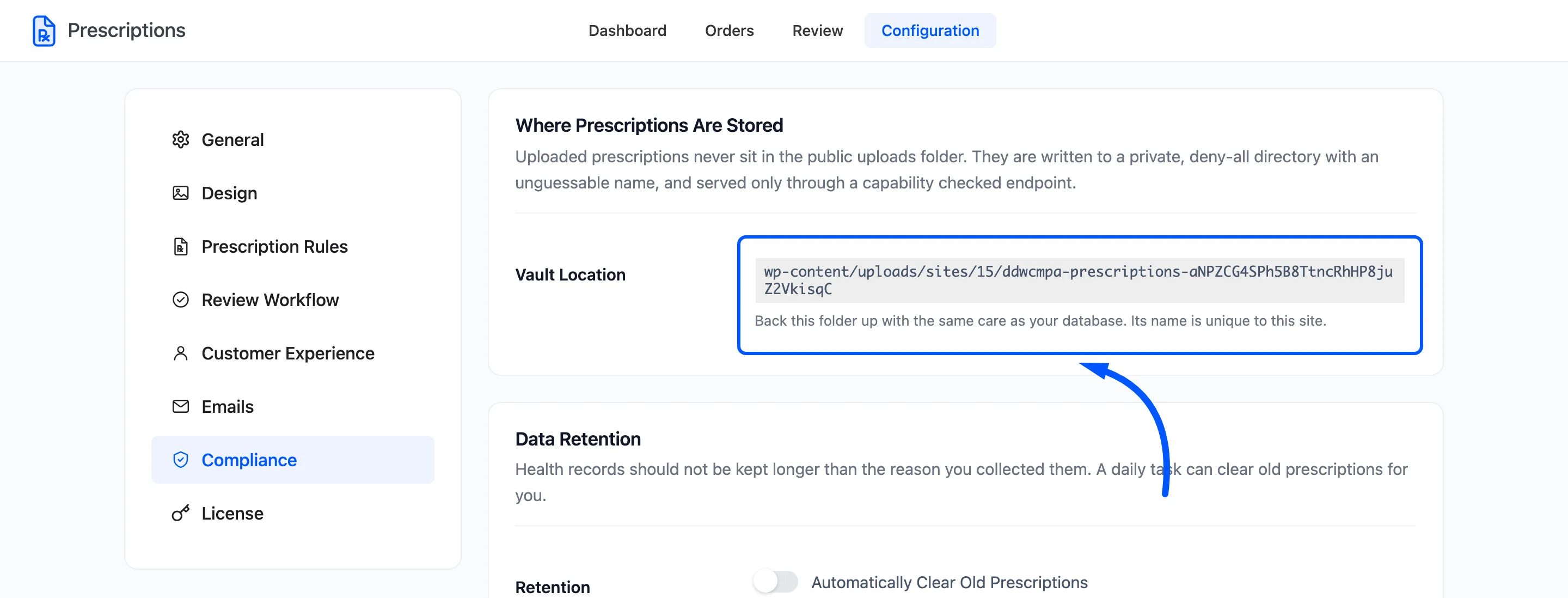
The folder sits inside your uploads folder with a random name unique to your site, and it refuses every direct request. Guessing a file’s address gets nothing.
Files are served only through the plugin, and only to:
- the customer who uploaded the file, or whose order it is on,
- users who can review prescriptions or manage WooCommerce,
- a prescriber with a valid verification link, for that one order’s files.
They are also kept out of the media library for everyone but administrators. A colleague who uploads images to a blog post never stumbles on a prescription.
Step 2: Add the vault to your backups
Section titled “Step 2: Add the vault to your backups”There is nothing to click in the plugin for this step. Most backup tools copy the whole uploads folder, which includes the vault. Check yours does. A backup of the database alone restores the orders and their decisions, and loses every prescription.
Restoring to a different site is fine as long as the folder comes with it. The folder name is stored in the database, so it keeps working after a restore.
Step 3: Decide how long to keep prescriptions
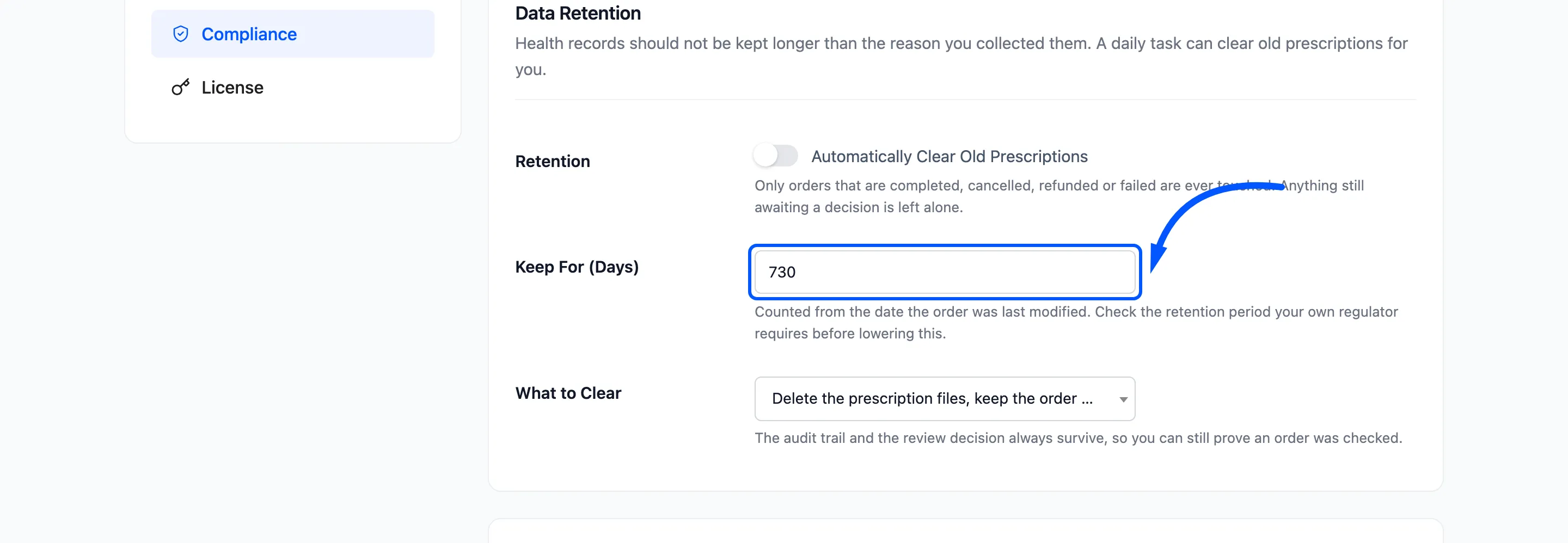
Section titled “Step 3: Decide how long to keep prescriptions”Check the retention period your regulator requires. It differs between countries and between kinds of product, and it is usually a minimum as well as a maximum.
Then set Keep For (Days). The default is 730, two years. The count starts from the date the order was last modified, not from when it was placed.
Step 4: Choose what to clear
Section titled “Step 4: Choose what to clear”What to Clear has two choices:
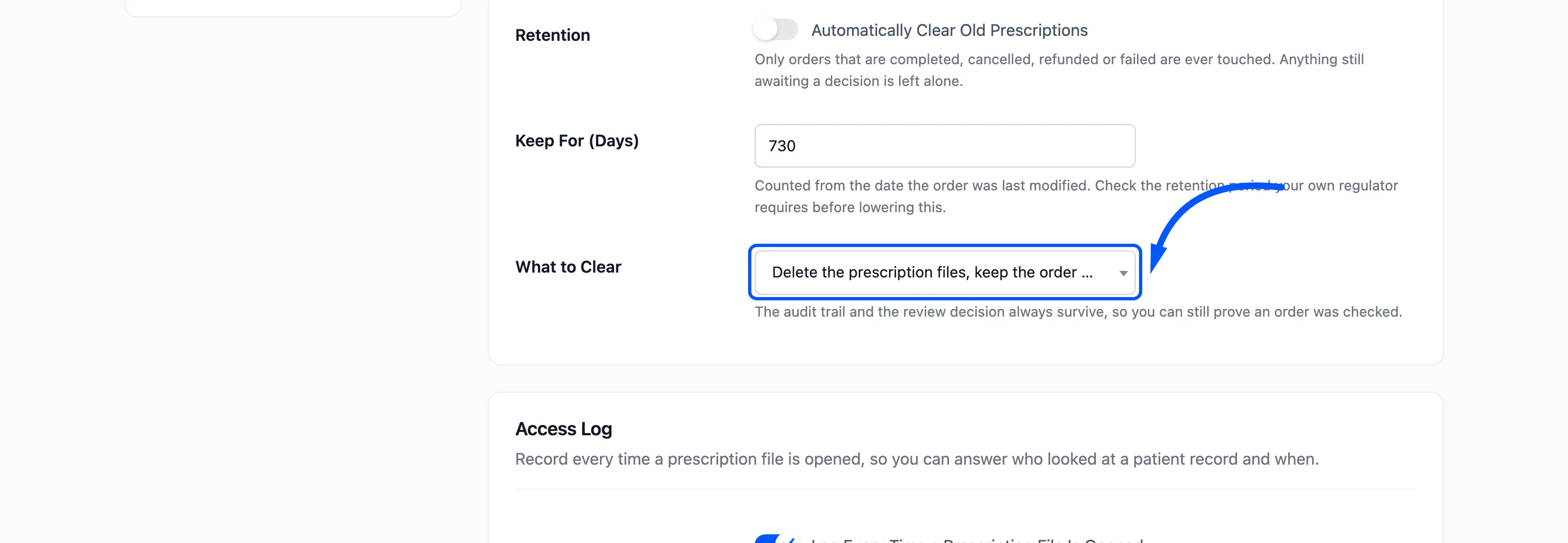
- Delete the prescription files, keep the order record: The default. The files go; the details the customer typed stay.
- Delete the files and clear the patient and prescriber details: The files and the details go, and the file access log too.
Either way, the decision and the audit trail stay, and a note “Prescription files were cleared by the retention policy” is added. You can still show the order was checked.
Step 5: Switch retention on
Section titled “Step 5: Switch retention on”Tick Retention, Automatically Clear Old Prescriptions, and click Save Changes.
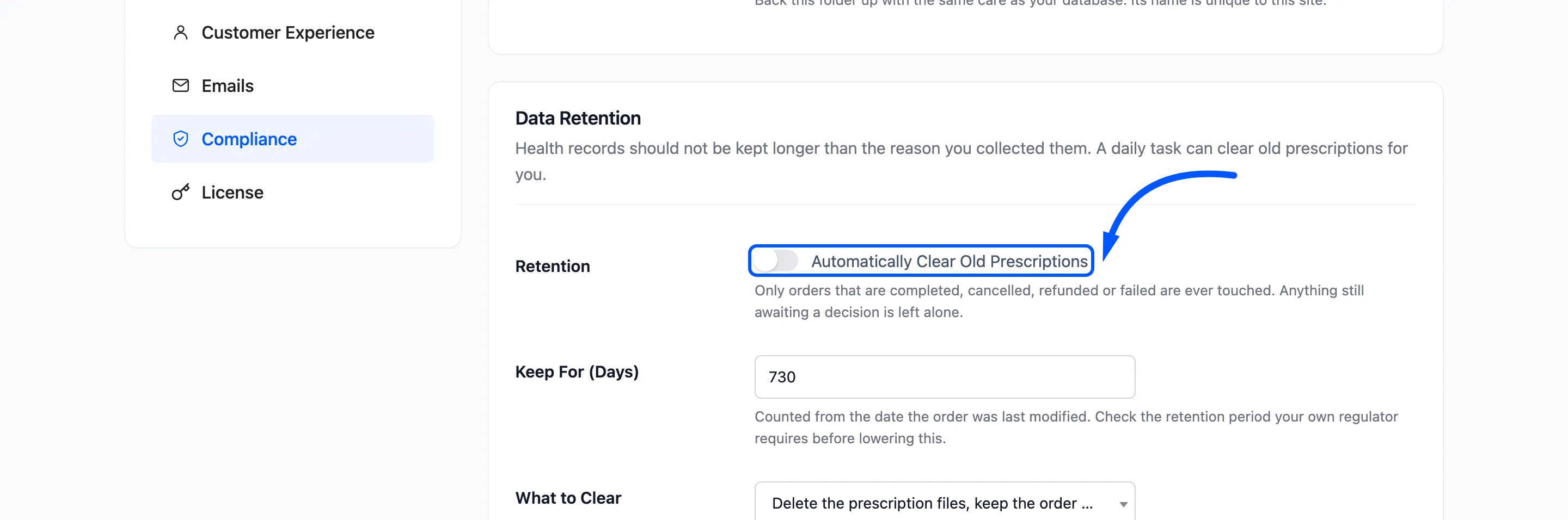
A task runs once a day and clears up to 50 orders each time. It only touches orders that are Completed, Cancelled, Refunded or Failed. An open order is never cleared, however old.
After clearing, the review workspace shows No file to look at yet for that order.