

Prescription Rules Settings
The Prescription Rules tab decides what a prescription has to include, and how long it stays usable once approved.
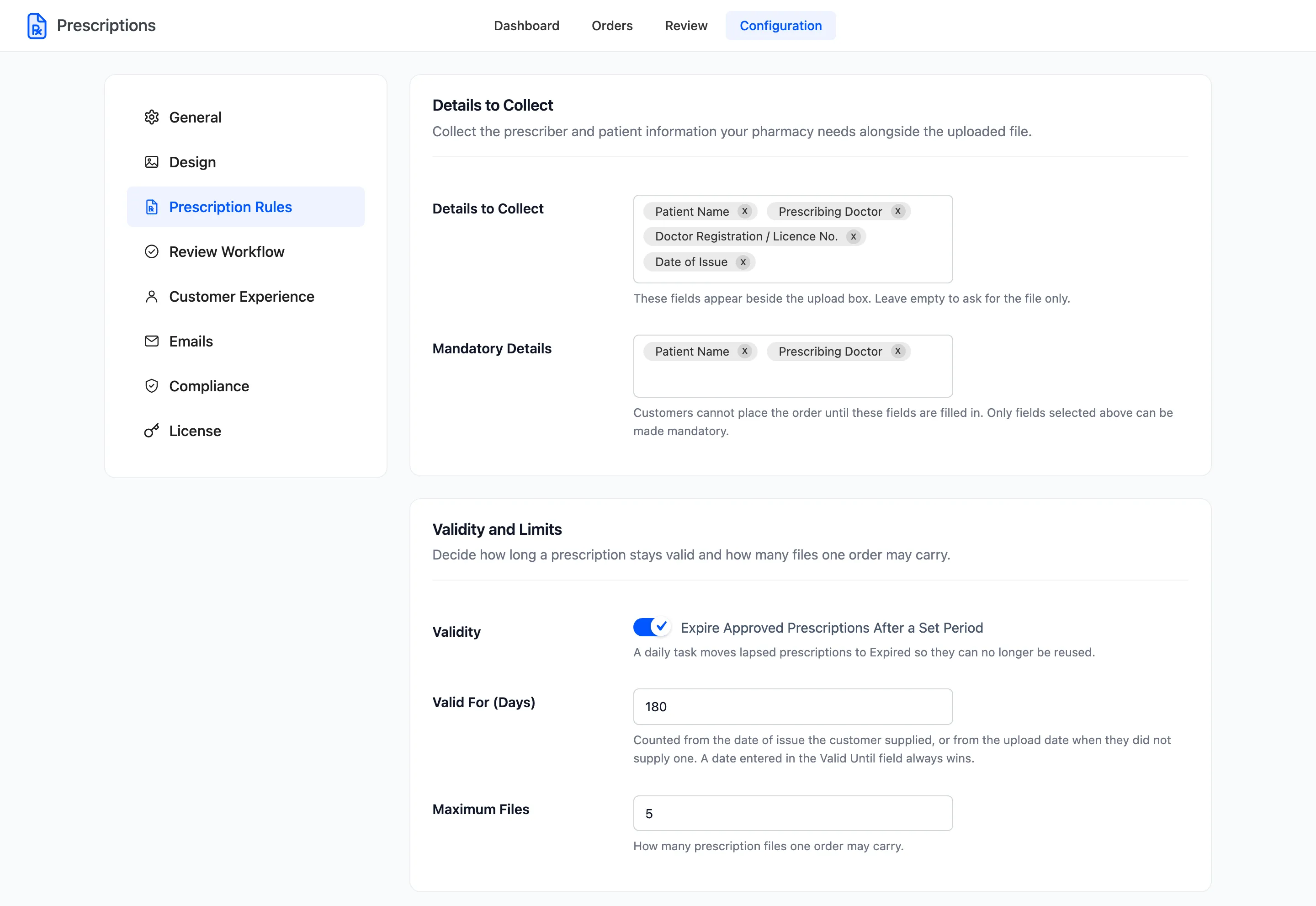
Go to DevDiggers Plugins → Prescriptions → Configuration → Prescription Rules.
Details to Collect
Section titled “Details to Collect”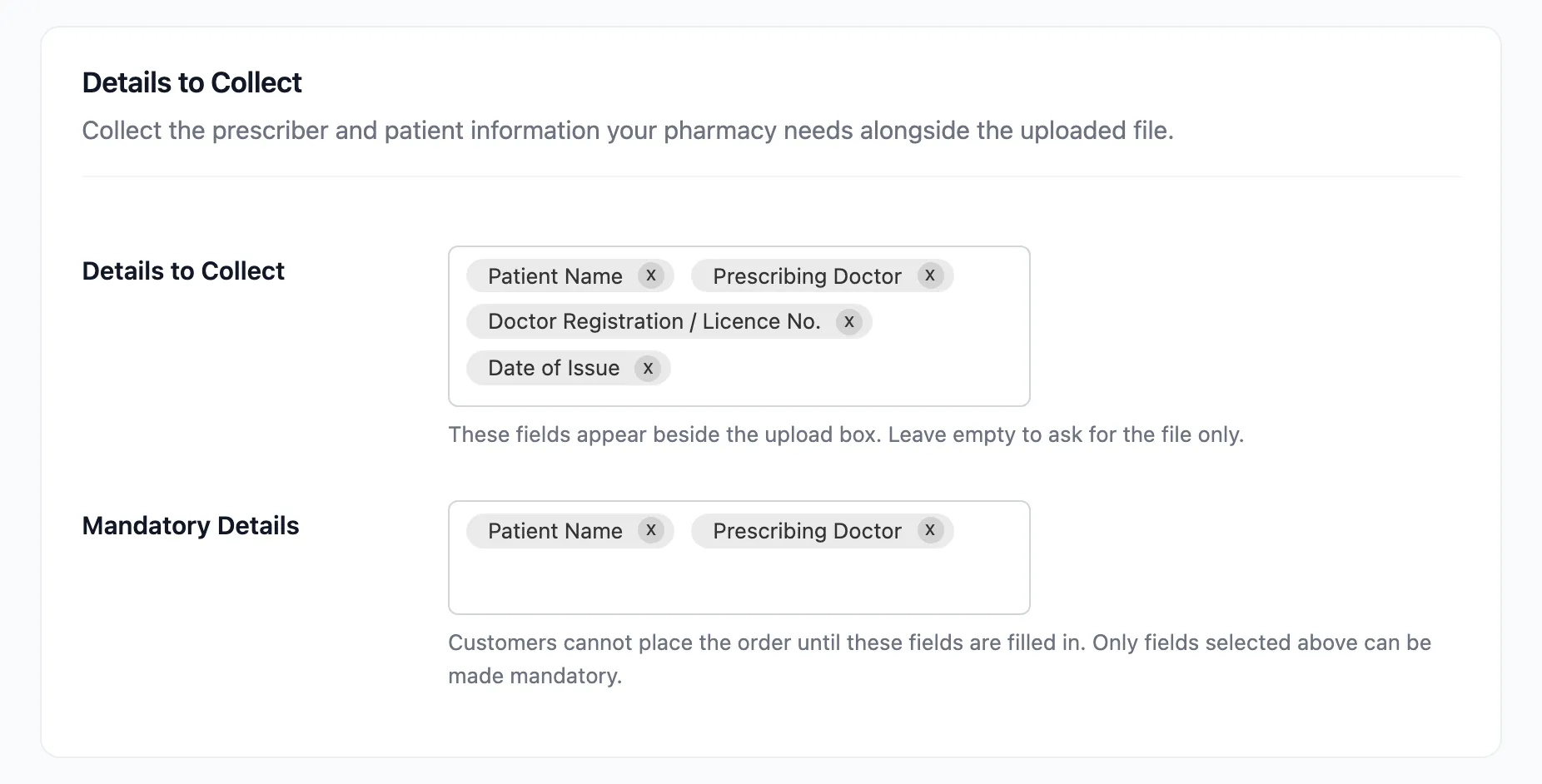
- Details to Collect: The fields shown beside the upload box. Choose from Patient Name, Patient Age, Prescribing Doctor, Doctor Registration / Licence No., Date of Issue and Valid Until. Default: Patient Name, Prescribing Doctor, Doctor Registration / Licence No. and Date of Issue.
- Mandatory Details: Which of those the customer cannot skip. Default: Patient Name and Prescribing Doctor. A field that is not collected cannot be mandatory.
The details are what let a pharmacist tell one prescription from another. The doctor’s name and licence number are also what the prescriber registry matches on.
To ask for the file alone, clear Details to Collect and save. The upload box then shows no detail fields at all. Clear Mandatory Details to let the customer skip every field you do collect. A store that has never saved this tab gets the defaults above.
Validity and Limits
Section titled “Validity and Limits”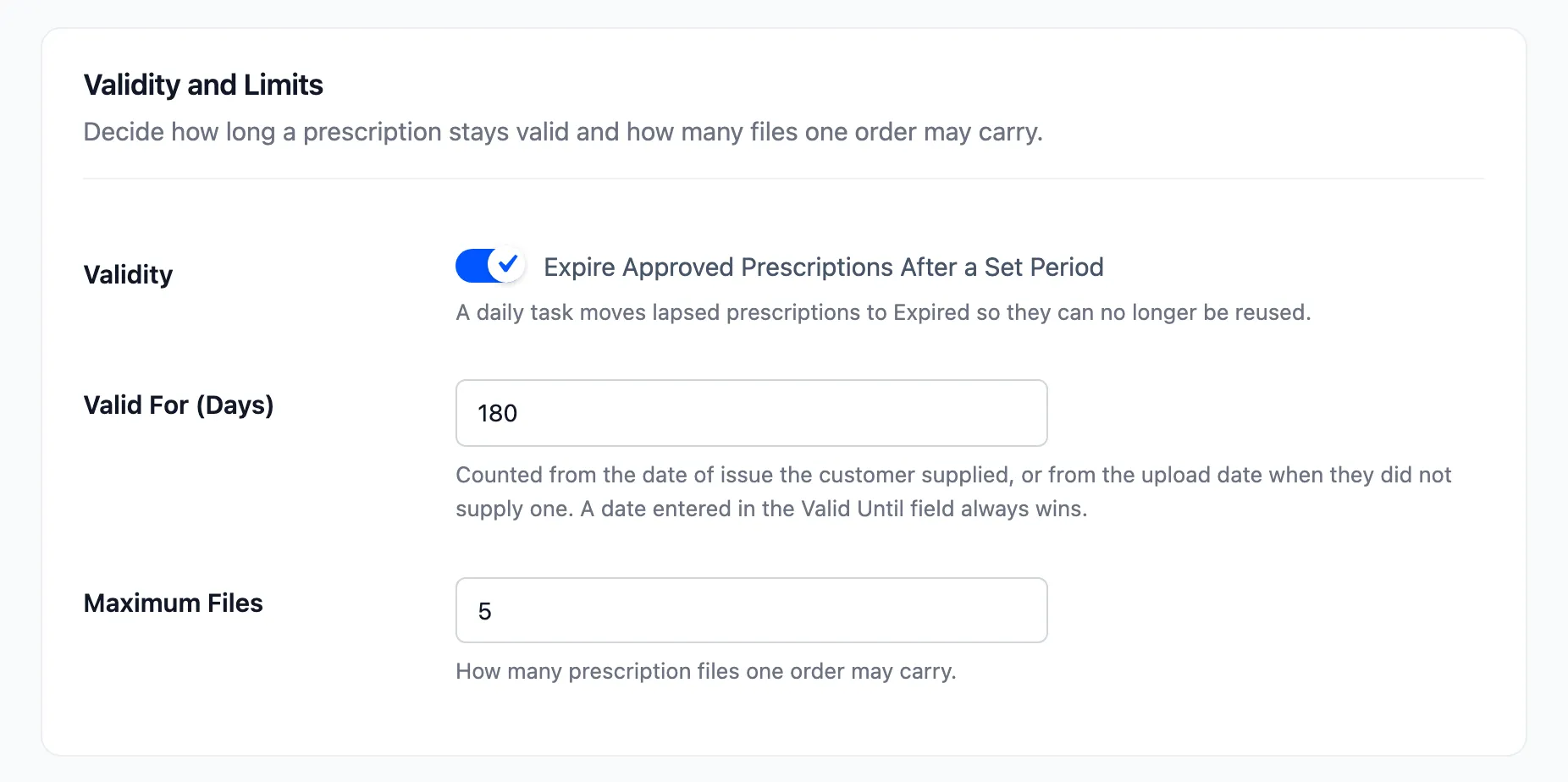
- Validity: Expire Approved Prescriptions After a Set Period. On by default. A daily task moves an approved prescription past its date to Expired, and it can no longer be reused.
- Valid For (Days): Default 180. Counted from the Date of Issue the customer gave, or from the upload date when they gave none. A date in the Valid Until field always wins.
- Maximum Files: How many files one order may carry. Default 5. Free.
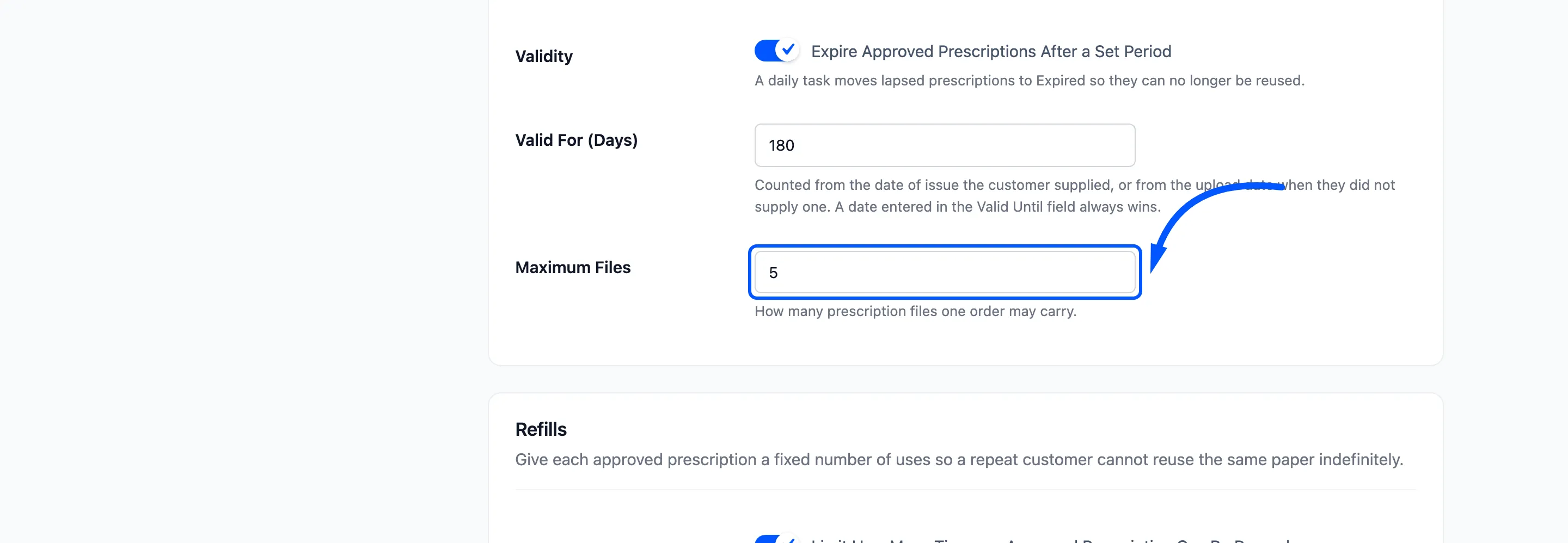
The validity date is worked out when the prescription is uploaded and stored on the order. Changing Valid For later does not move the dates already given.
Refills
Section titled “Refills”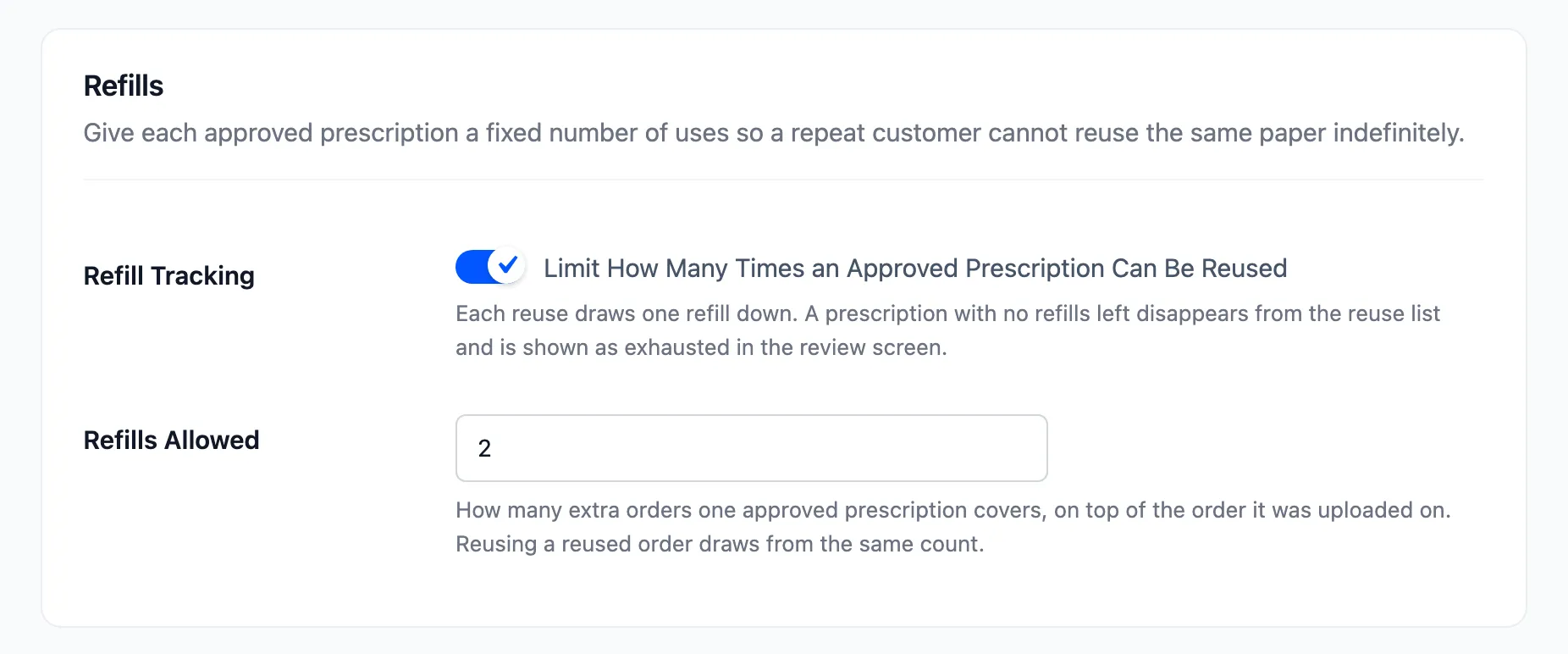
- Refill Tracking: Limit How Many Times an Approved Prescription Can Be Reused. Off by default, which means an approved prescription can be reused until it expires.
- Refills Allowed: Default 0. How many extra orders one approval covers, on top of the order it was uploaded on.
Each reuse takes one refill off the prescription it came from. Reusing an order that was itself a reuse still draws from the first approval, so chaining reuses cannot reset the count. At zero it drops out of the customer’s reuse list and shows 0 refills left in the review screen.
With Refill Tracking on and Refills Allowed left at 0, every approval is used up the moment it is approved. No prescription is ever offered for reuse. Set it to at least 1 when you switch this on.
Every approval starts with the same allowance. There is no per-order override.
Prescriber Registry
Section titled “Prescriber Registry”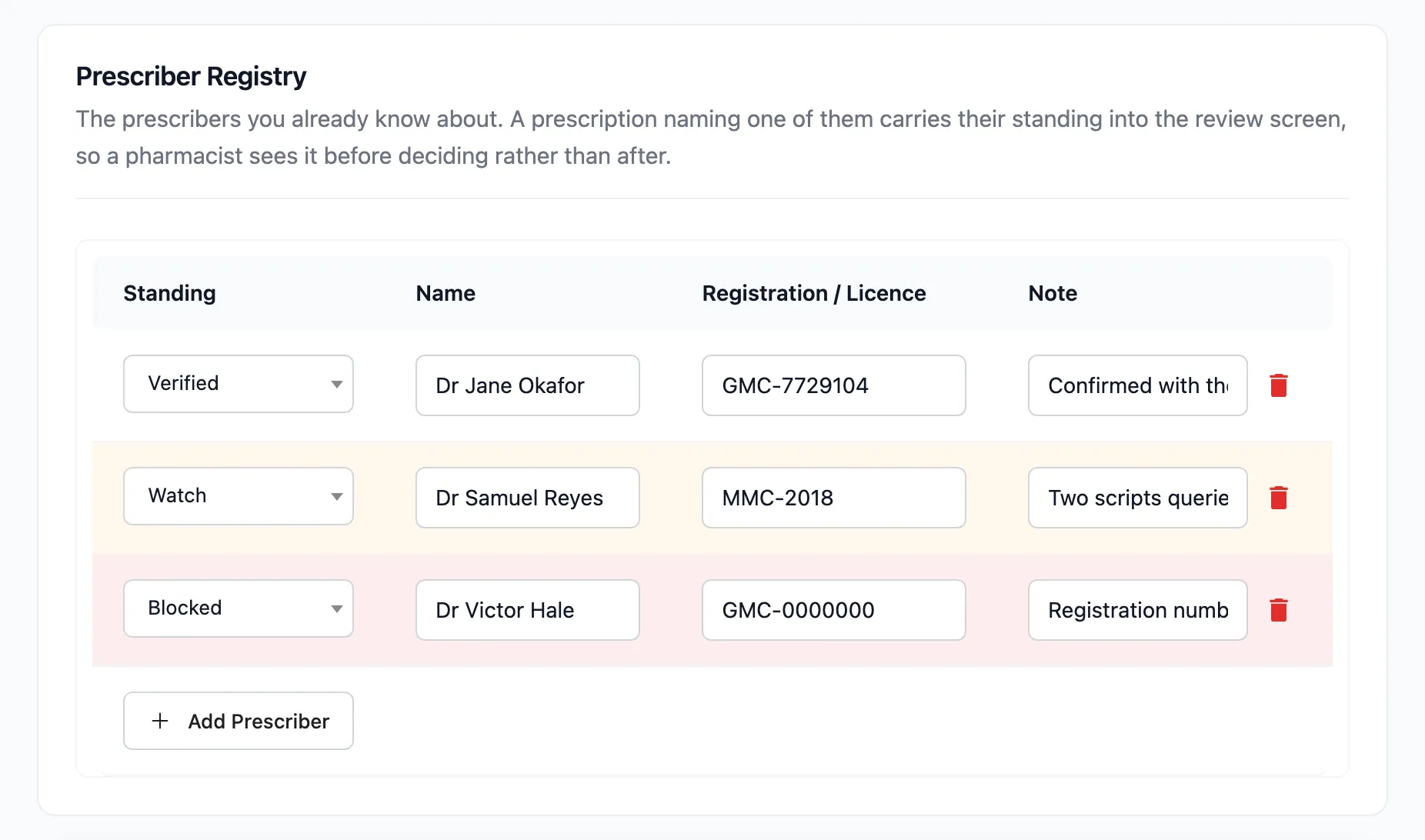
A list of the prescribers you already know about. Each row has a Standing, a Name, a Registration / Licence number and a Note.
| Standing | What the pharmacist sees |
|---|---|
| Verified | A green line: this prescriber is verified in your registry |
| Watch | An amber warning with your note |
| Blocked | A red warning with your note |
A prescription matches a row by licence number first, then by name. Capitals, spaces and punctuation are ignored. A prescription naming nobody on the list shows “This prescriber is not in your registry yet”. Click Add Prescriber for a new row and the bin icon to remove one.
The registry warns and never blocks. A prescription from a blocked prescriber can still be approved.