

Design Settings
The Design tab controls what the customer sees and where they see it. It changes nothing about which products need a prescription.
Go to DevDiggers Plugins → Prescriptions → Configuration → Design.
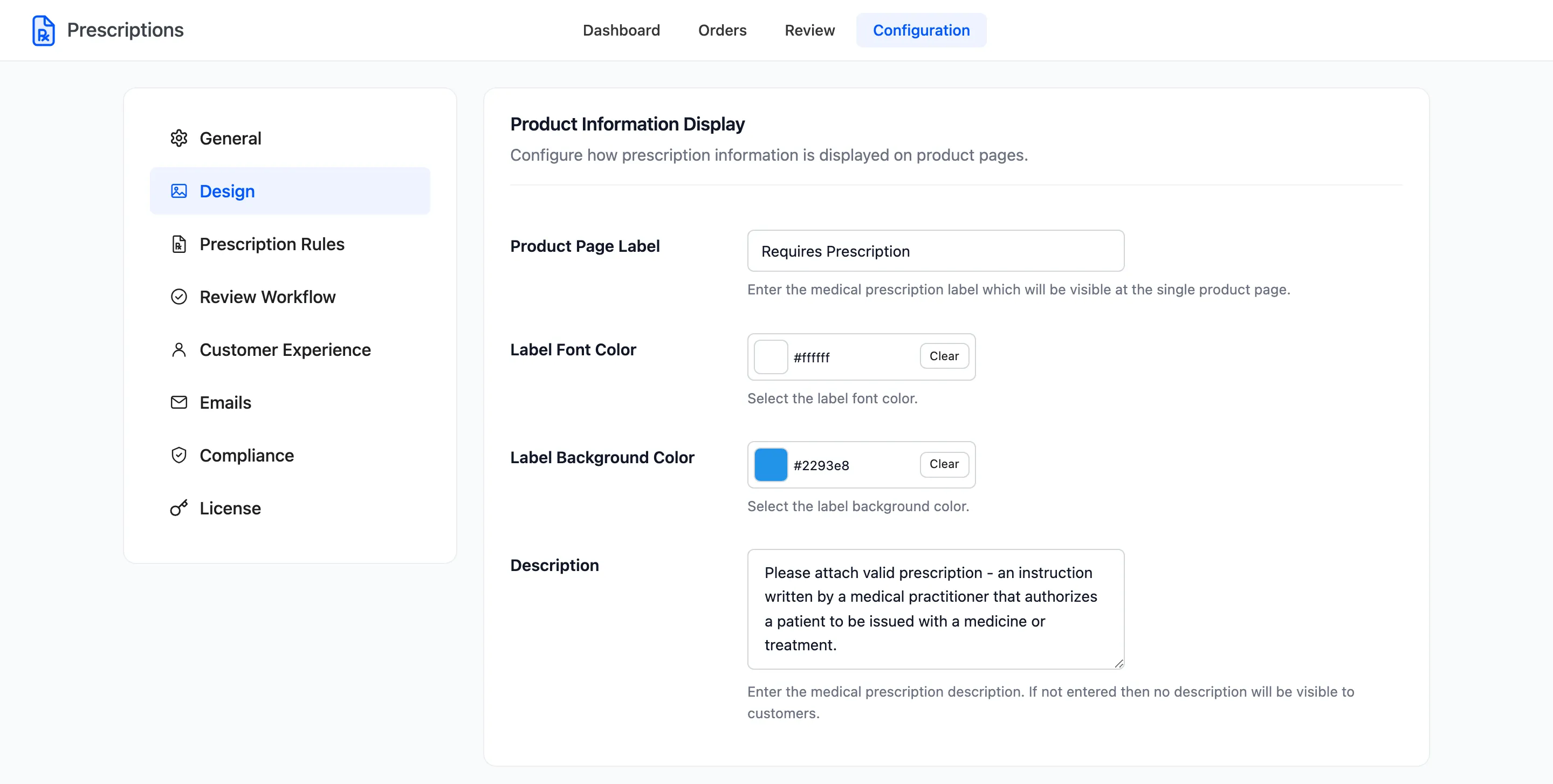
Every field on this tab is in the free version.
Product Information Display
Section titled “Product Information Display”- Product Page Label: The badge text. Default Requires Prescription. Leave it empty and no badge shows anywhere, on the product page or in the shop grid.
- Label Font Color: The badge text colour. Default white.
- Label Background Color: The badge colour. Default brand blue,
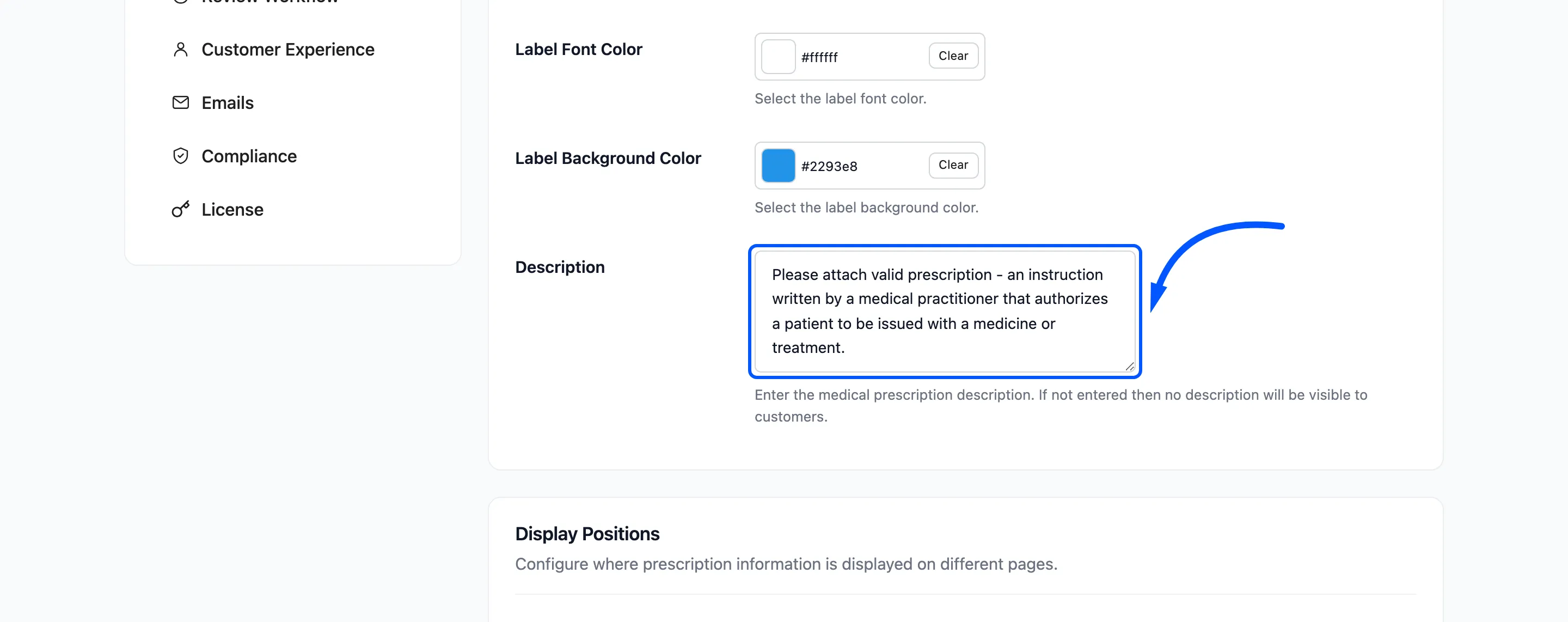
#0256ff. - Description: A short note under the Attach Medical Prescription heading in the upload box. Leave it empty for no note.
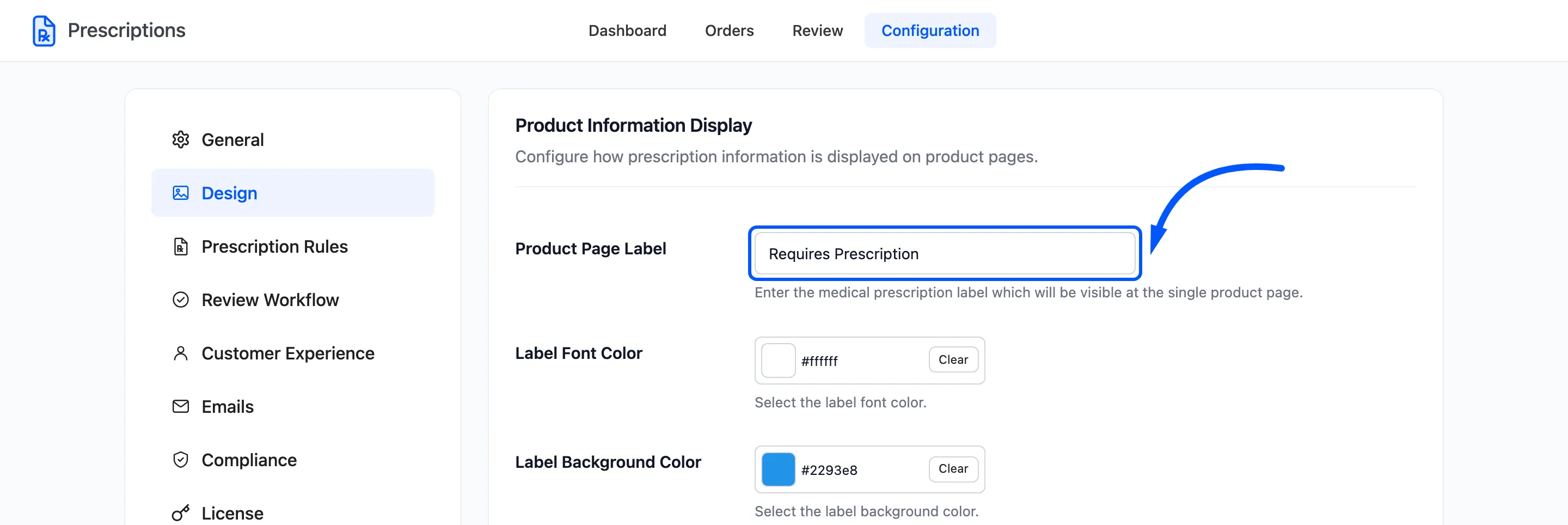
Use the description to say what counts as a valid prescription, for example “a clear photo of the whole page, including the prescriber’s signature”. It is the one sentence every customer reads before uploading.
Display Positions
Section titled “Display Positions”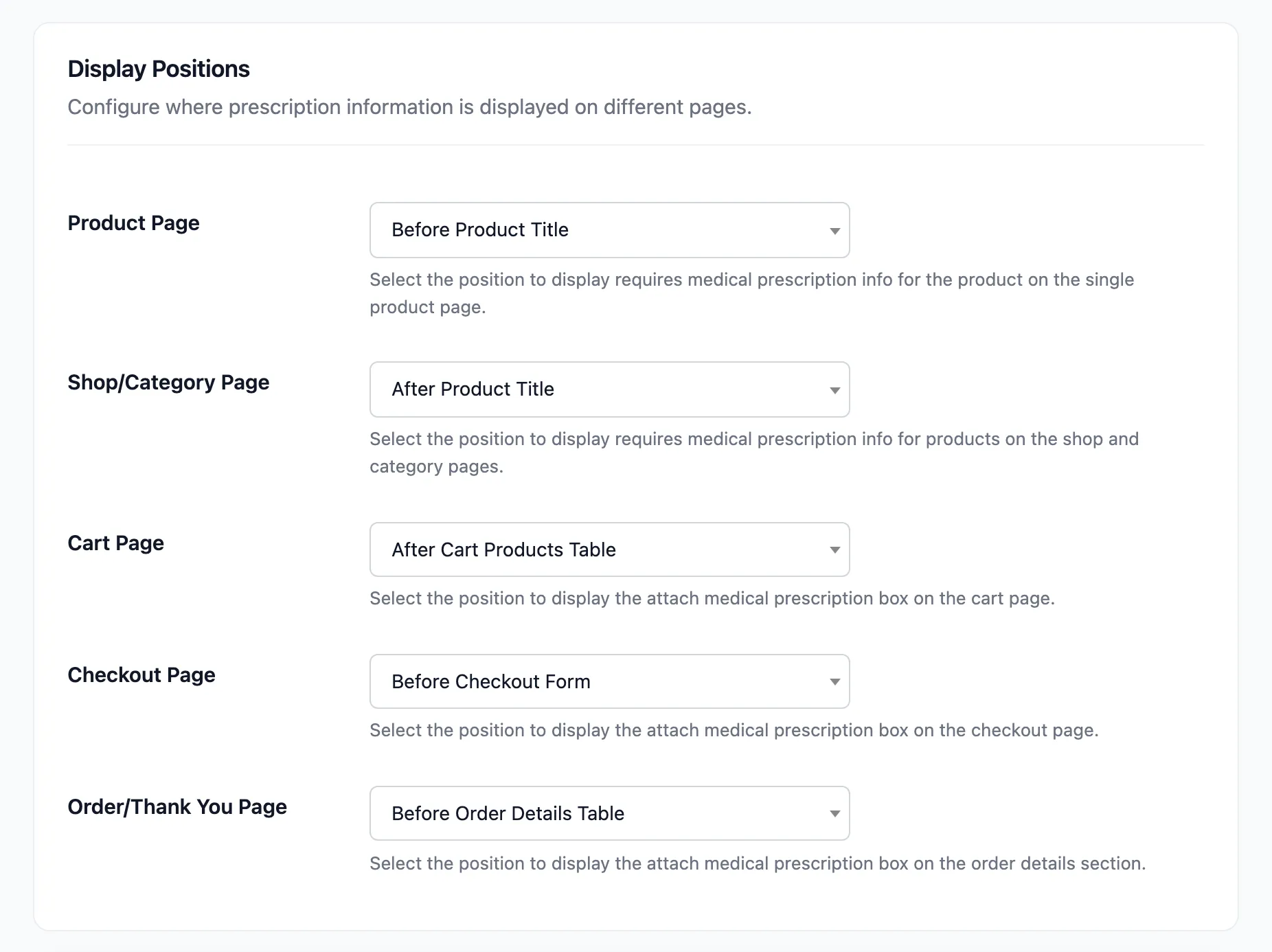
Each page has its own position, and each can be set to Disabled.
| Setting | What appears | Options | Default |
|---|---|---|---|
| Product Page | The badge | Default, After Product Image, After Product Title, Before Product Title, After Short Description, After Add To Cart Button, Before Tab Information | Before Product Title |
| Shop/Category Page | The badge | Before Product Title, After Product Title, Before Add to Cart Button, After Add to Cart Button | After Product Title |
| Cart Page | The upload box | Before Cart Products Table, After Cart Products Table, Before Proceed To Checkout Button, After Proceed To Checkout Button | After Cart Products Table |
| Checkout Page | The upload box | Before Checkout Form, After Checkout Form | Before Checkout Form |
| Order/Thank You Page | The prescription box | Before Order Details Table, After Order Details Table | Before Order Details Table |
Disabling a position hides that surface only. Disabling the cart box still leaves checkout, where the order is actually placed.
Where to go next
Section titled “Where to go next”- The Customer Experience for how each surface looks.
- How to Show the Prescription Notice on Your Store