

How to Require a Prescription for Specific Products
Most stores that need this plugin sell a mix: a few products that need a prescription and many that do not. This guide sets the line between them.
Three rules decide it, and the first one that applies wins: the product’s own setting, then the excluded products, then the categories.
Step 1: Switch prescriptions on
Section titled “Step 1: Switch prescriptions on”Go to DevDiggers Plugins → Prescriptions → Configuration → General and tick Enable WooCommerce Medical Prescription Attachment.
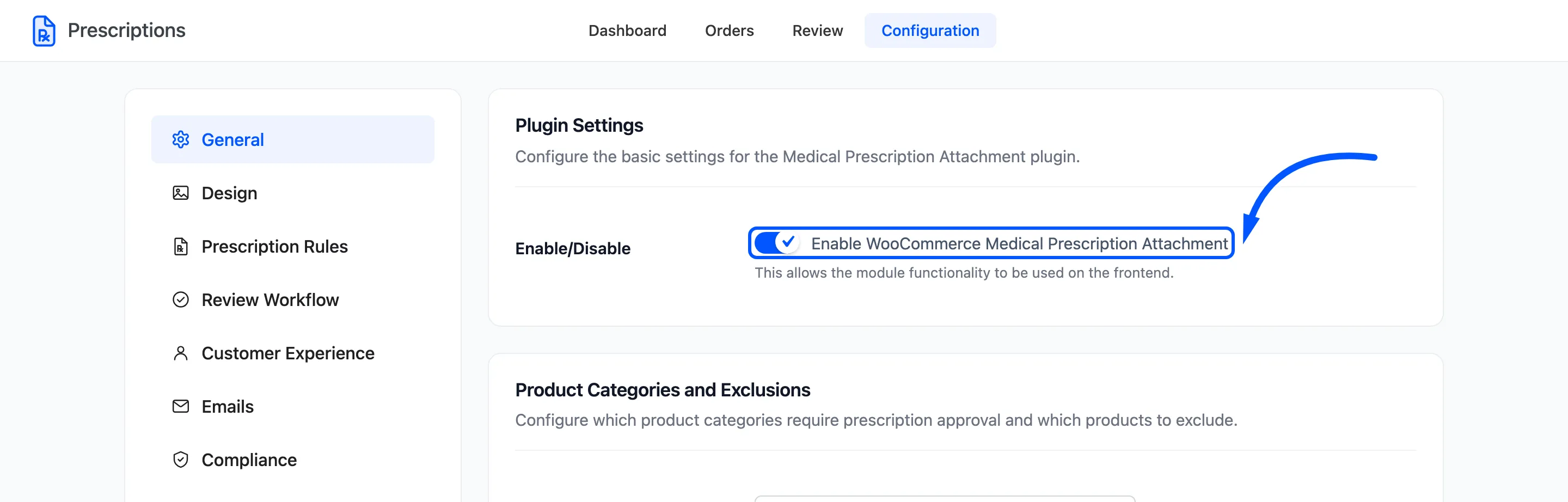
Nothing below matters while this is off.
Step 2: Choose the prescription categories
Section titled “Step 2: Choose the prescription categories”In Allowed Categories, add each category that may only be sold against a prescription. On the demo store that is one category, Medicines.
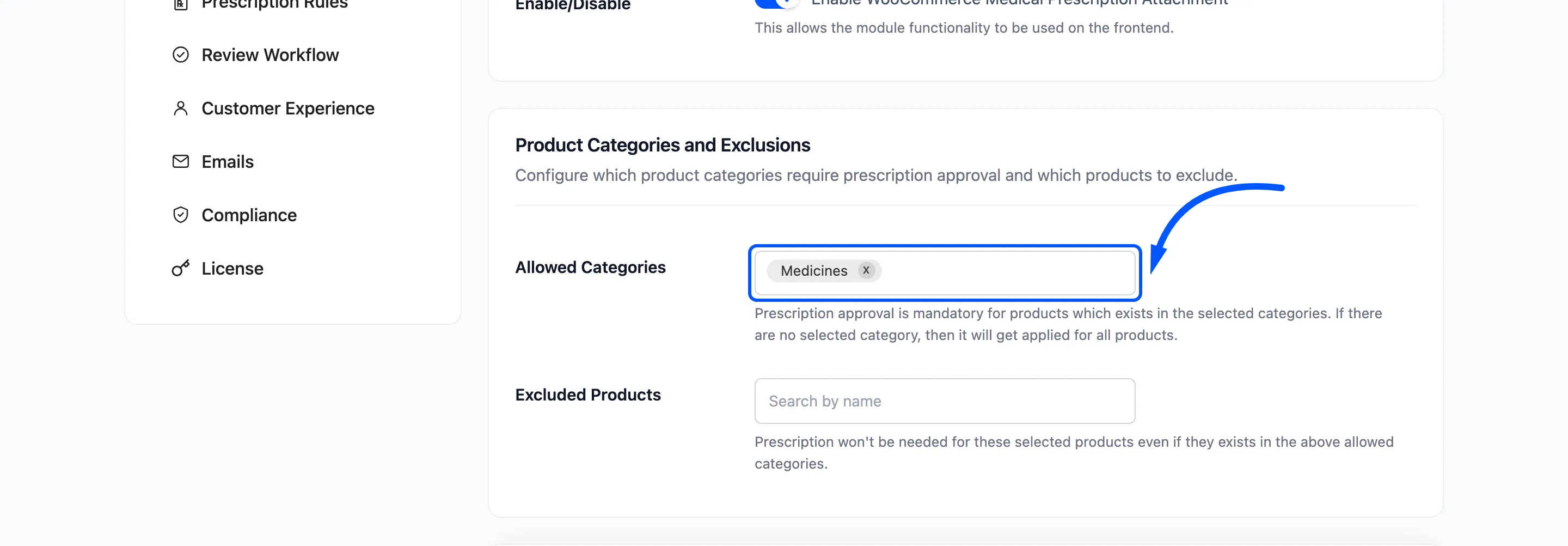
Two things catch people out here:
- An empty field means every product. Leaving it empty does not switch the check off. Every product in the store would need a prescription.
- A product in two categories needs a prescription if either one is chosen. A product filed under both Medicines and Travel counts as a medicine.
Step 3: Exclude the products that do not need one
Section titled “Step 3: Exclude the products that do not need one”Prescription categories often hold a few items that do not need one: a pill organiser, a pharmacy multivitamin. Add those to Excluded Products.
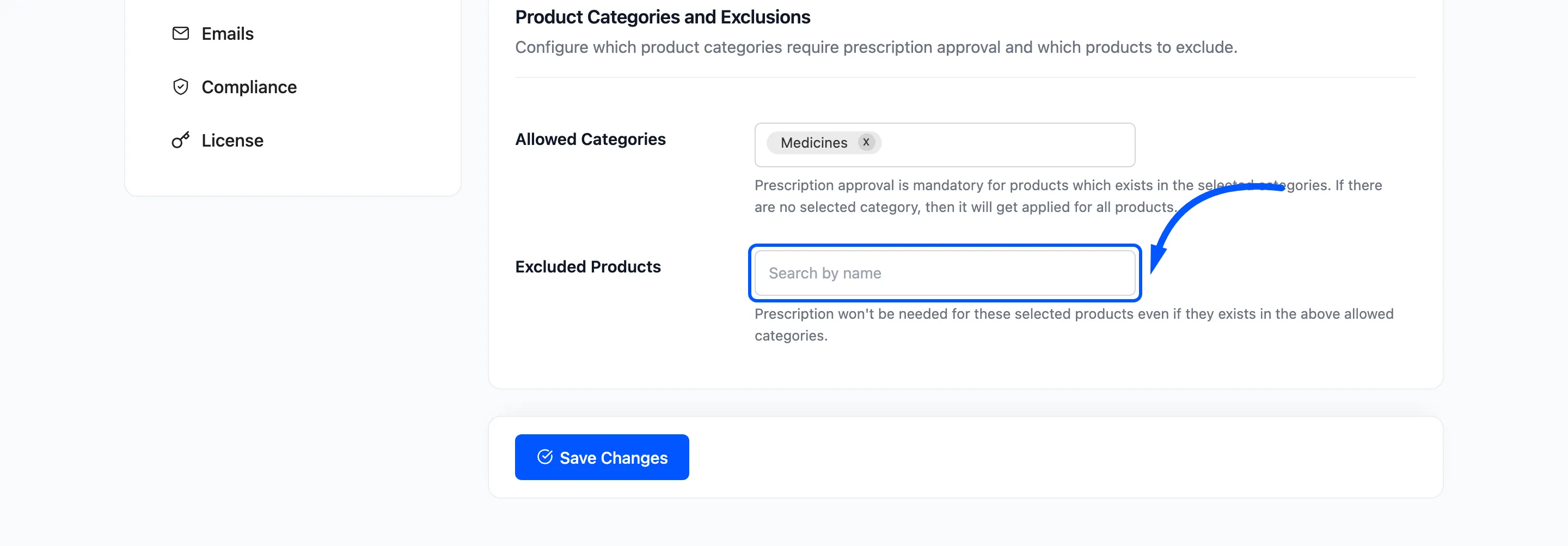
Click Save Changes.
Step 4: Override a single product
Section titled “Step 4: Override a single product”Sometimes the product is the exception to its own category. Open it in Products → All Products and find Requires prescription in the General tab of Product data.
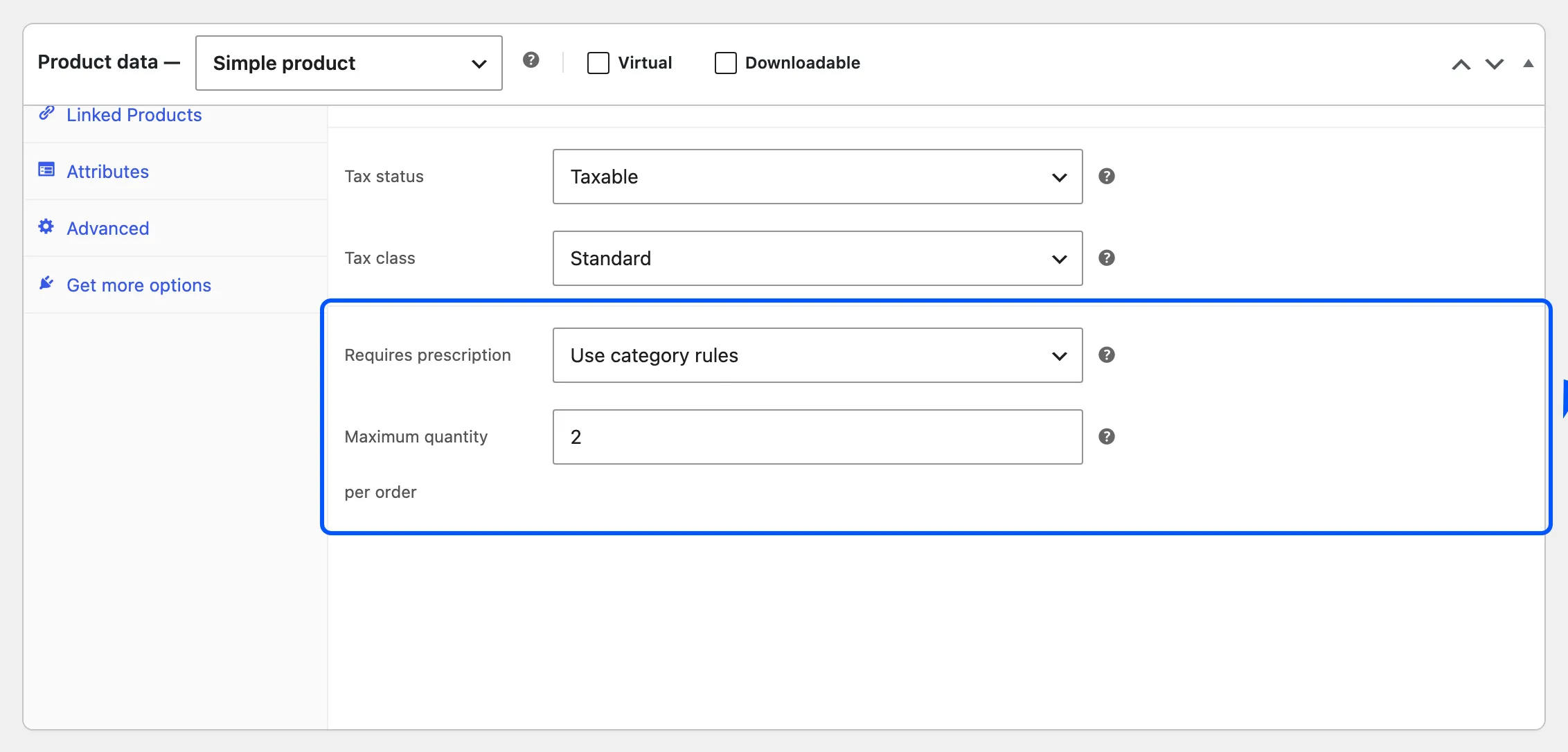
- Use category rules: The default. Steps 2 and 3 decide.
- Always require a prescription: Needs one even outside the chosen categories. Use it for a single controlled product in an ordinary category.
- Never require a prescription: Never needs one, even inside a chosen category.
Click Update on the product.
Step 5: Check it on the storefront
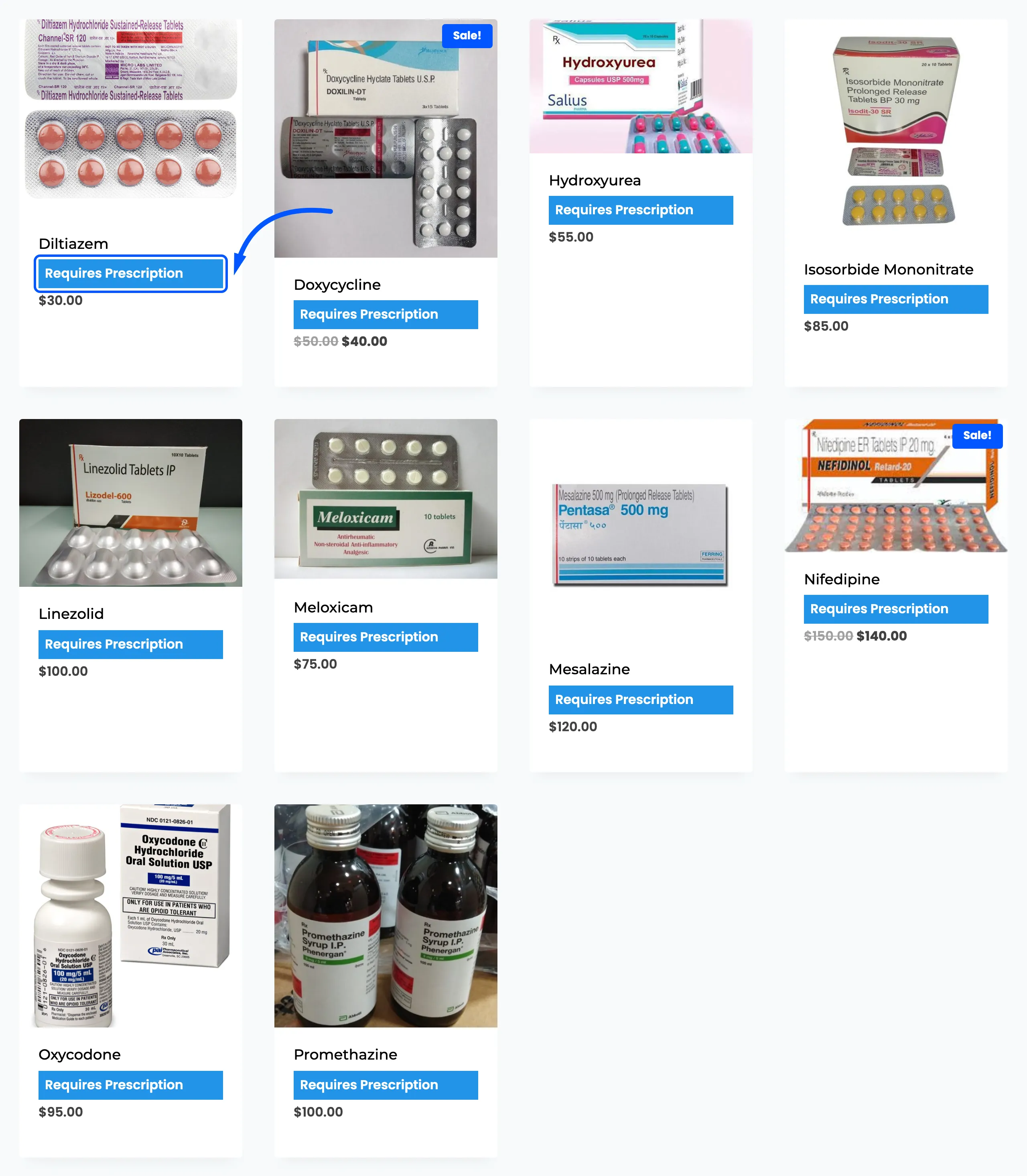
Section titled “Step 5: Check it on the storefront”Open the product on your shop. A product that needs a prescription shows the Requires Prescription badge by its title and in the shop grid.
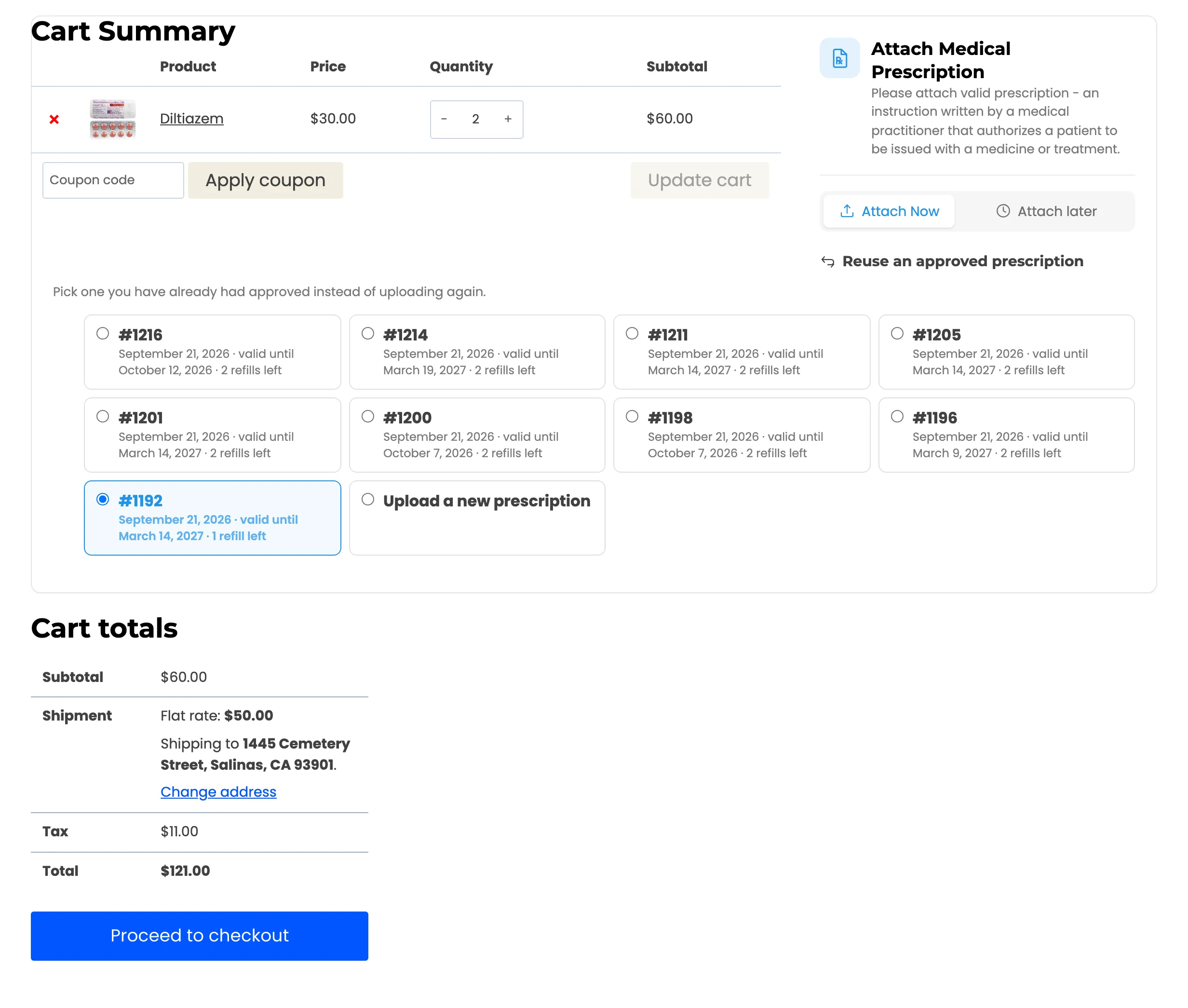
Add it to the cart. The Attach Medical Prescription box appears in the cart and at checkout, and checkout will not complete without a file.
A product that should not need one shows no badge, and a cart holding only such products shows no box.
Mixed carts
Section titled “Mixed carts”One prescription product is enough to ask for a prescription for the whole order. A cart with a prescription medicine and a bottle of shampoo shows the box, and the whole order waits for the decision. There is no way to ship part of an order early.
If that matters to you, keep prescription products in their own orders by telling customers so in the Description on the Design tab.