

How to Ask a Customer for More Information
Most problems with a prescription are not refusals. The photo is blurred, the bottom of the page is cut off, the licence number is missing. Ask for more sends it back without refusing anything, and the customer’s email says so in as many words.
Step 1: Open the prescription
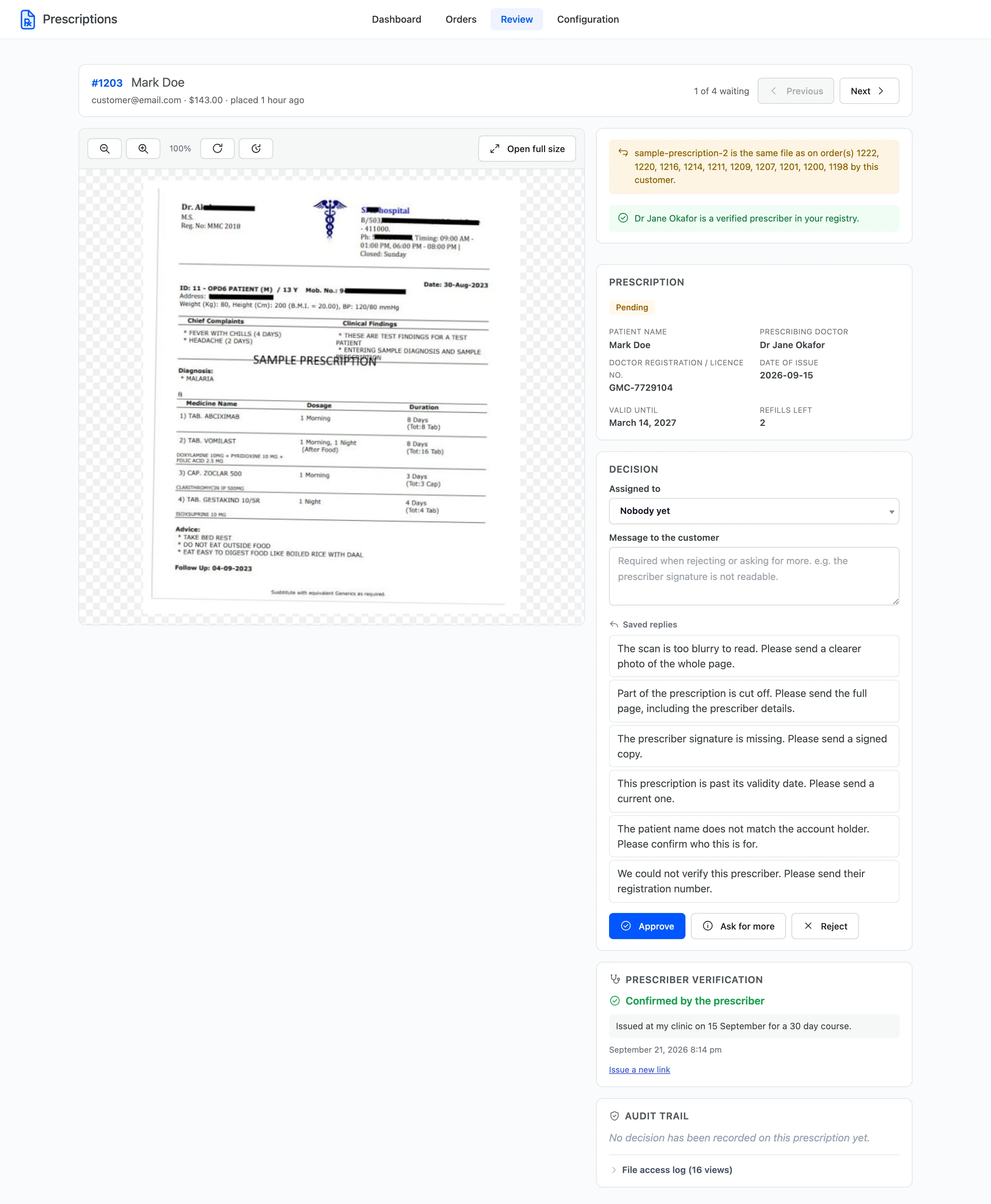
Section titled “Step 1: Open the prescription”Open the prescription in DevDiggers Plugins → Prescriptions → Review, or from Open in workspace on the Orders screen.
Step 2: Write what you need
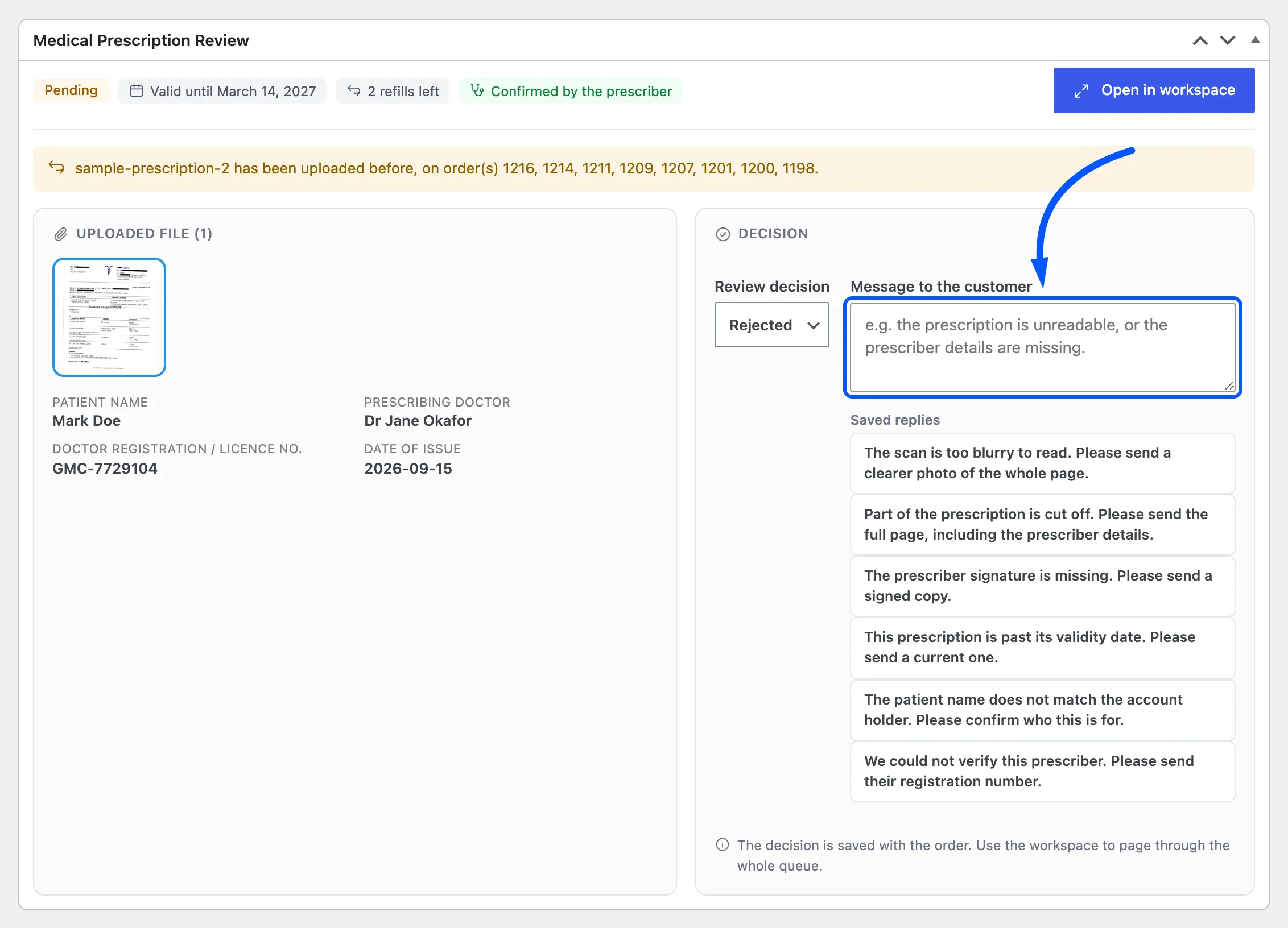
Section titled “Step 2: Write what you need”Click the saved reply that fits, or type your own request into Message to the customer. A saved reply drops its text into the box, where you can still change it.
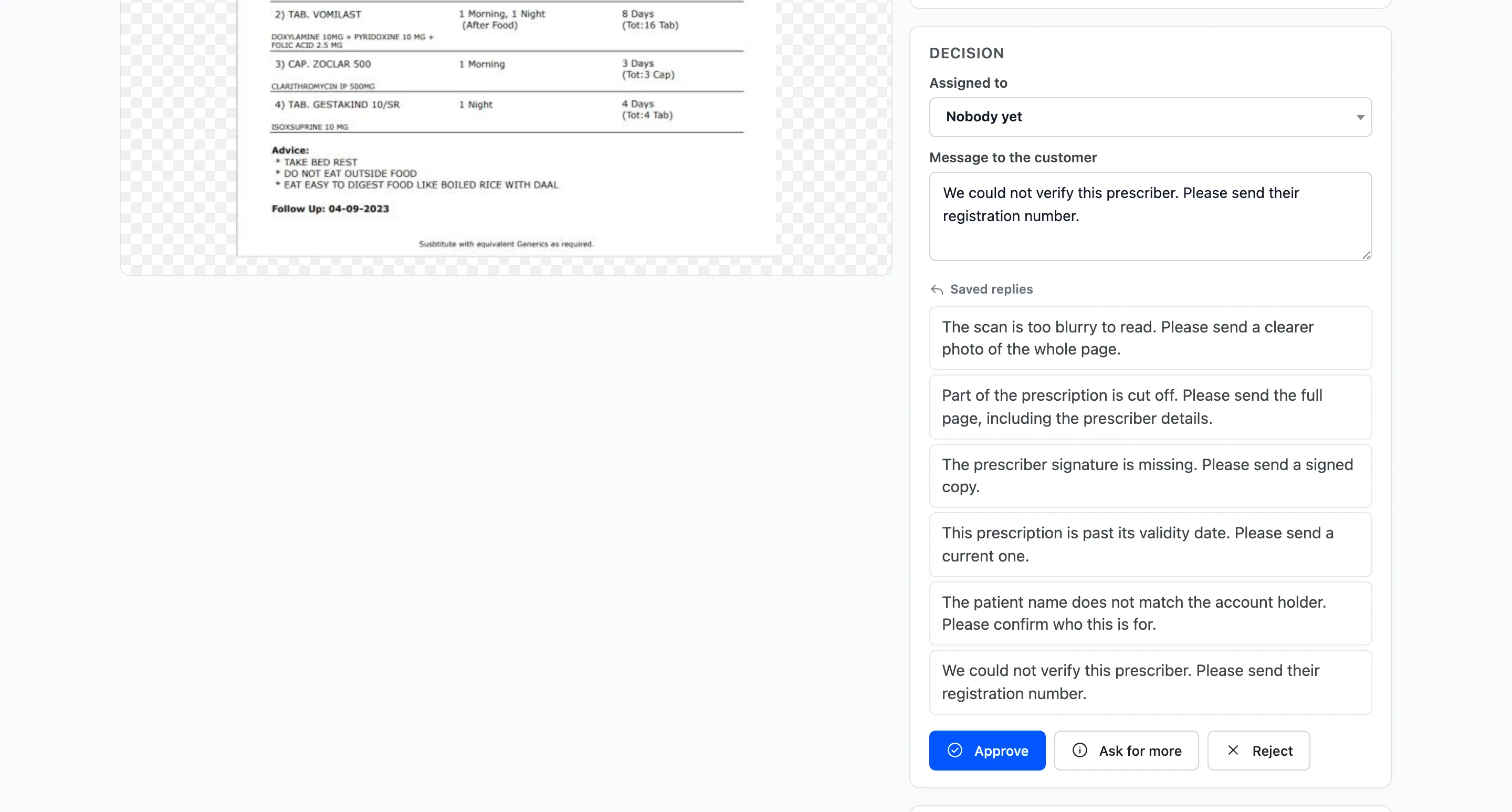
Say exactly what would let you approve. “Please send your prescriber’s registration number” gets an answer. “More information needed” gets a reply asking what you mean.
Step 3: Click Ask for more
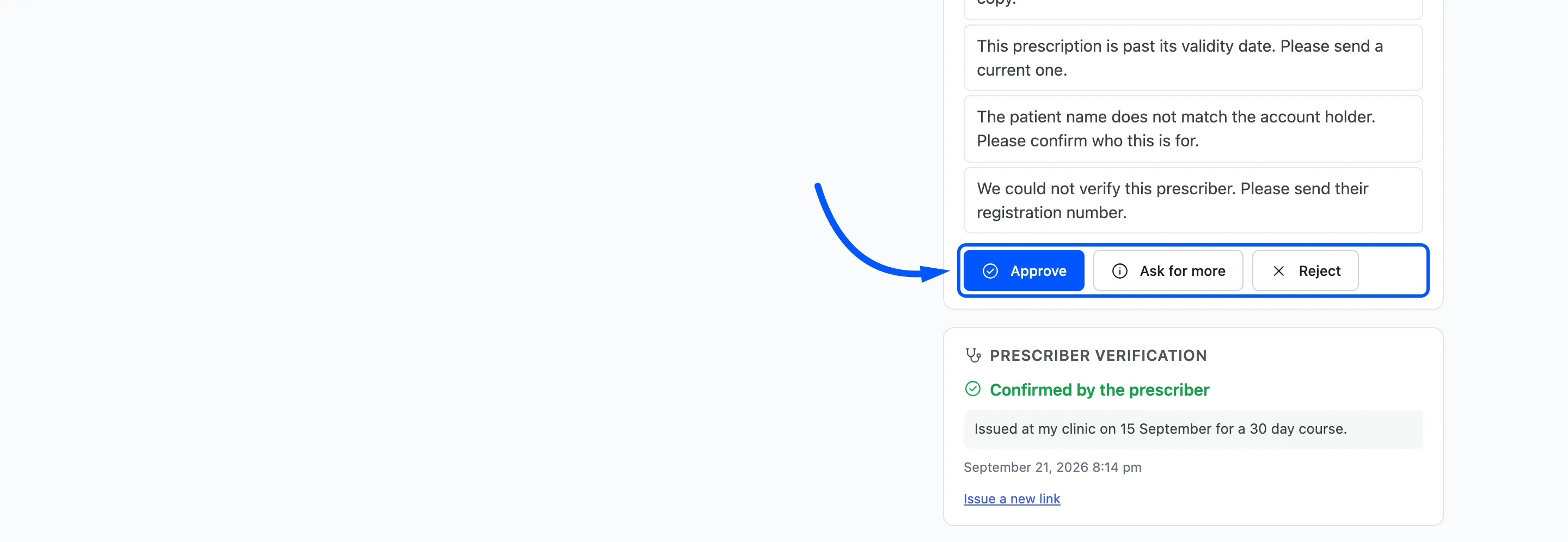
Section titled “Step 3: Click Ask for more”Click Ask for more.
- The prescription moves to Information Requested.
- The order goes back to your While Under Review status, On hold by default. It is not released.
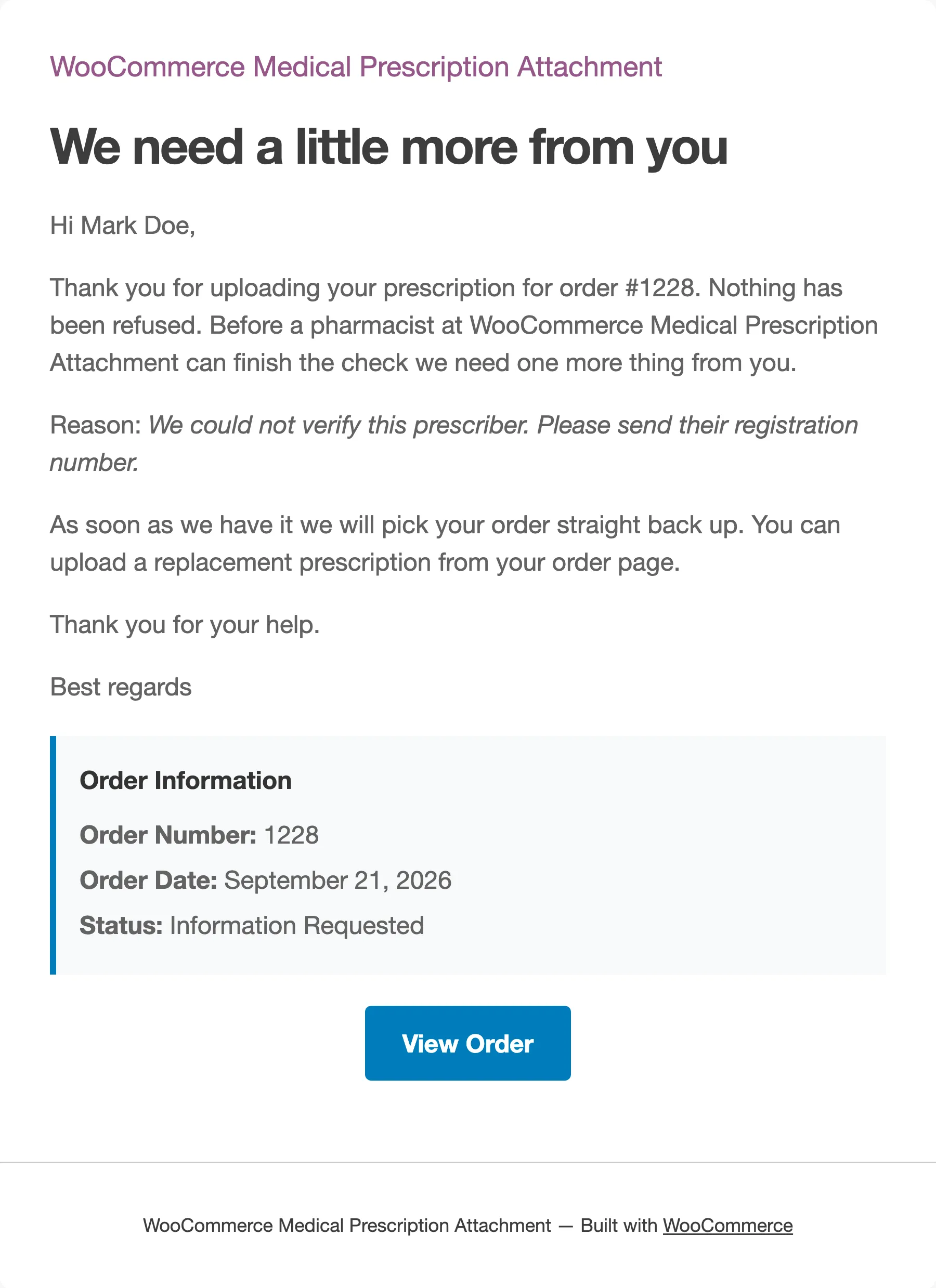
- The customer gets the More Information Needed email with your message.
- The dashboard counts it under Waiting on the Customer.
The prescription stays in the review queue while it waits. A prescription waiting on the customer is still your open case.
Step 4: The customer fixes it
Section titled “Step 4: The customer fixes it”The customer’s order page shows your message in a blue panel, with the upload box and their details open again.
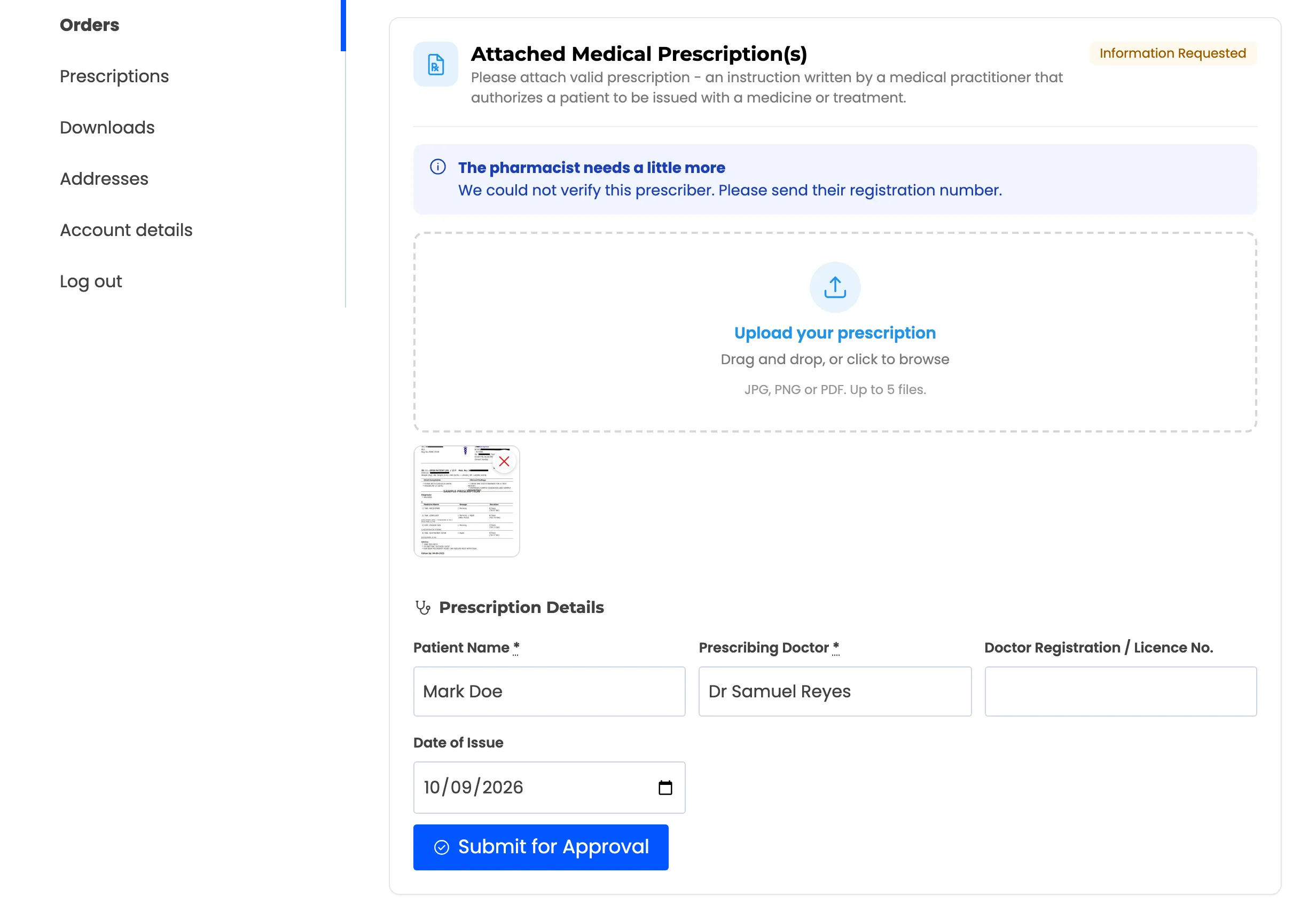
They can remove the old file, upload a new one, or correct a detail. On the demo the customer only added the missing licence number. Then they click Submit for Approval.
The same card appears in the Prescriptions tab of My Account, so they can fix it from there too.
This needs Self Service on, under Customer Experience. With it off, the customer can read the request but has nowhere to answer it.
Step 5: Decide again
Section titled “Step 5: Decide again”The prescription is back to Pending, and the store gets the new-prescription email again. The customer gets no email for their own resubmission.
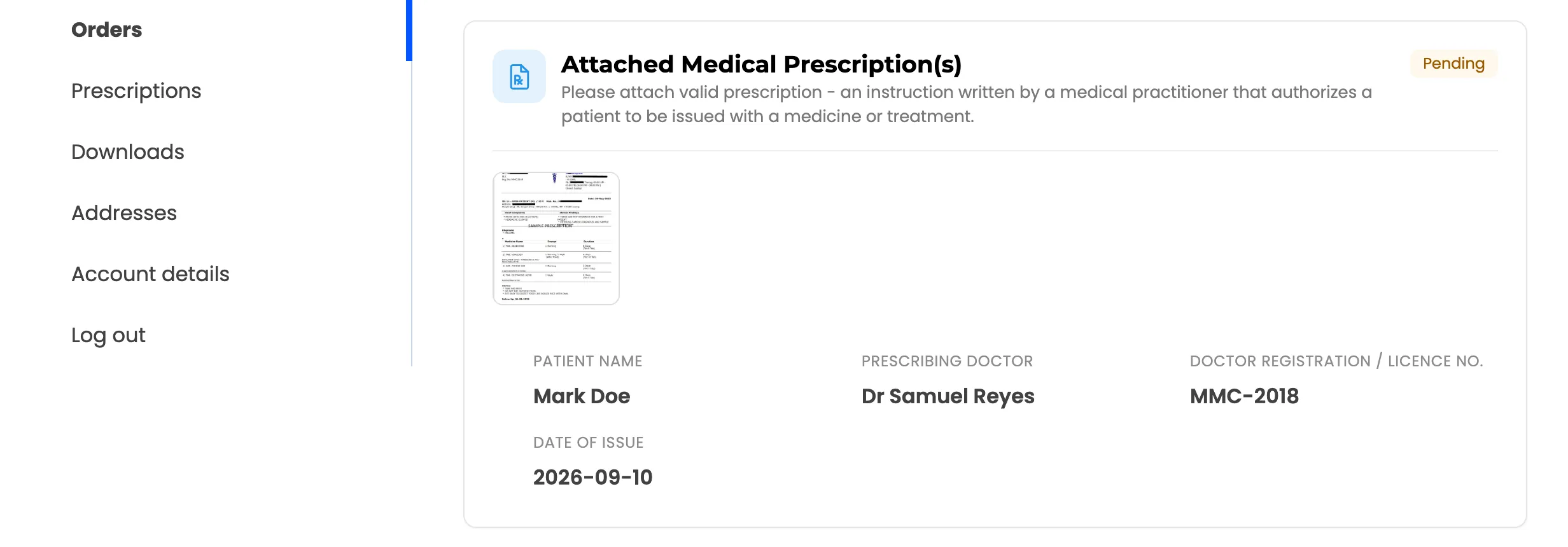
Open it in the workspace and decide as normal. The audit trail keeps both the request and the new decision.
In the free version
Section titled “In the free version”The free order screen makes the same request. Choose Information Requested in Review decision on the Medical Prescription Review panel, type the message, and click Update.
Where to go next
Section titled “Where to go next”- How to Approve or Reject a Prescription
- Review Workflow Settings to write your own saved replies.