How to Show the Prescription Notice on Your Store
A customer should know a product needs a prescription before they add it to the cart, not when the checkout refuses them. The Design tab controls the badge that tells them, and where the upload box waits.
Go to DevDiggers Plugins → Prescriptions → Configuration → Design.
Step 1: Word the badge
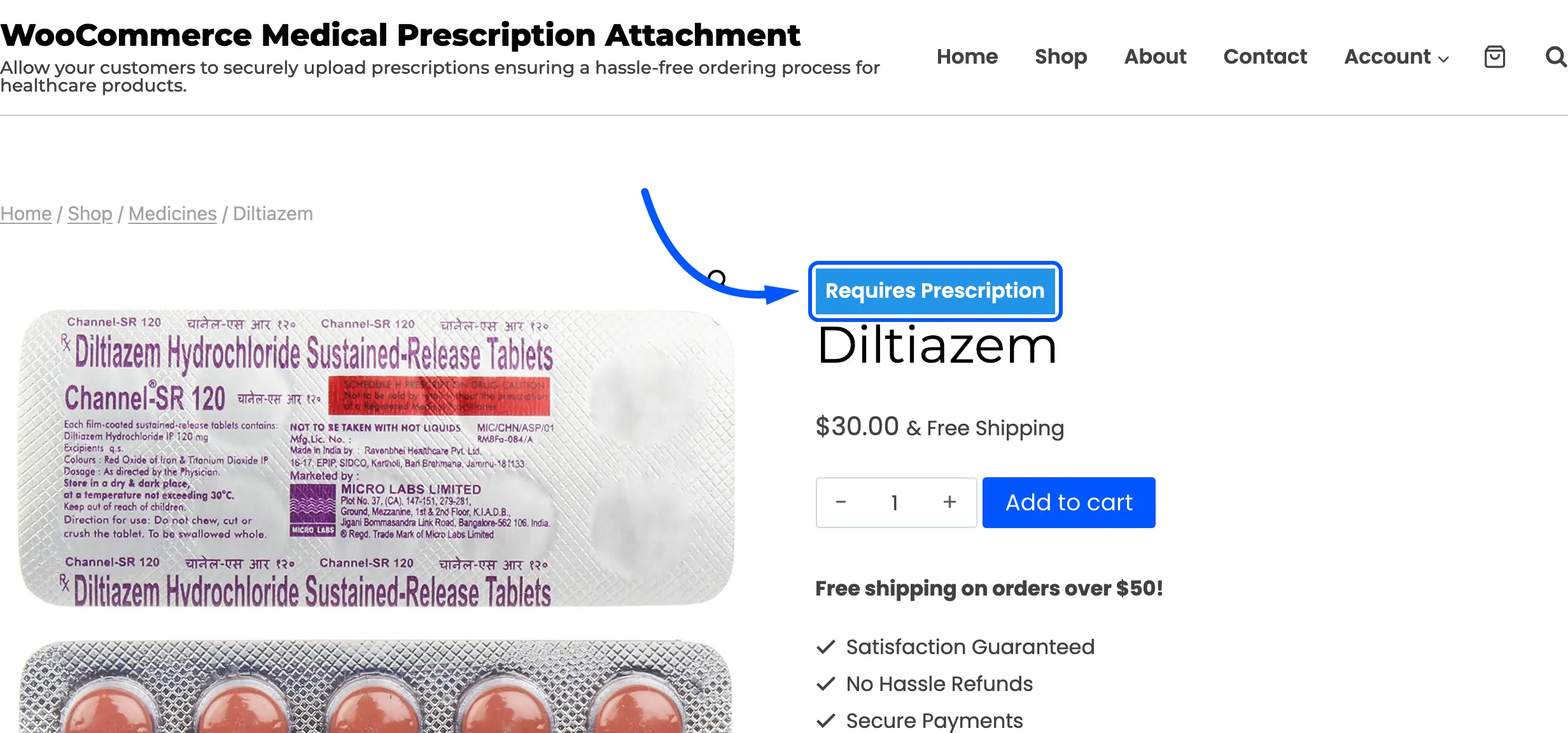
Section titled “Step 1: Word the badge”Product Page Label is the badge text. The default is Requires Prescription.
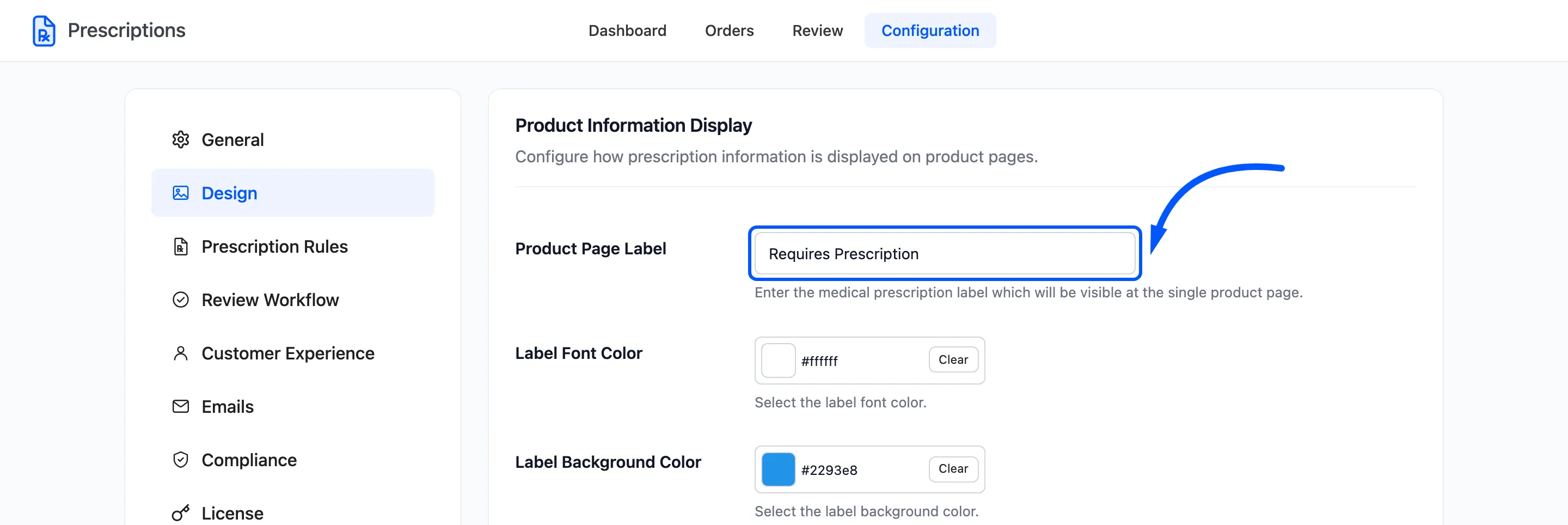
Keep it short. It sits beside a product title, so two or three words read best: Prescription only, Rx required.
Emptying the field removes the badge everywhere. The upload box and the checkout check still work.
Step 2: Colour the badge
Section titled “Step 2: Colour the badge”Pick Label Font Color and Label Background Color. The defaults are white text on brand blue.
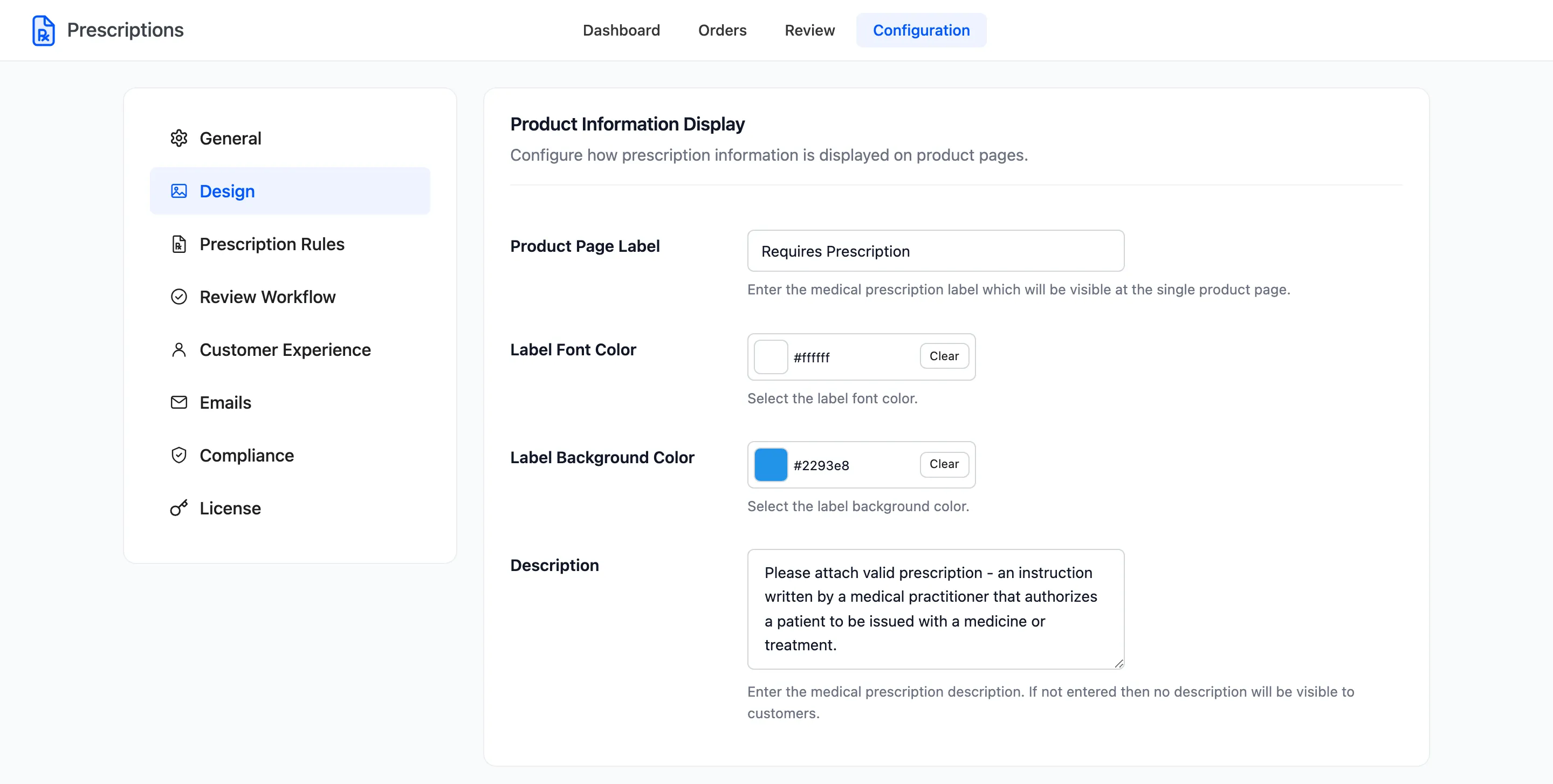
Choose a background that stands apart from your sale badges, so a customer does not read it as a discount.
Step 3: Add upload instructions
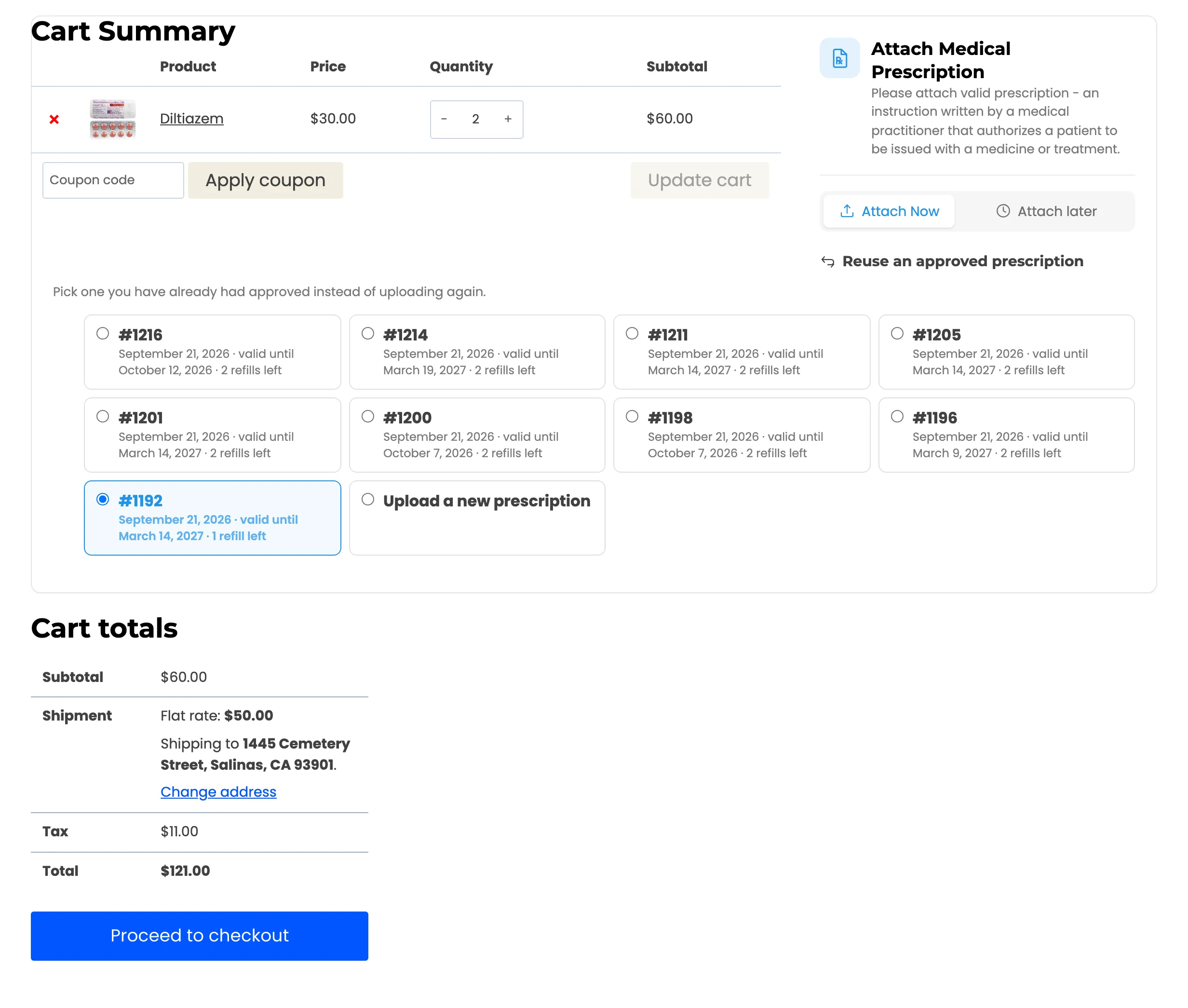
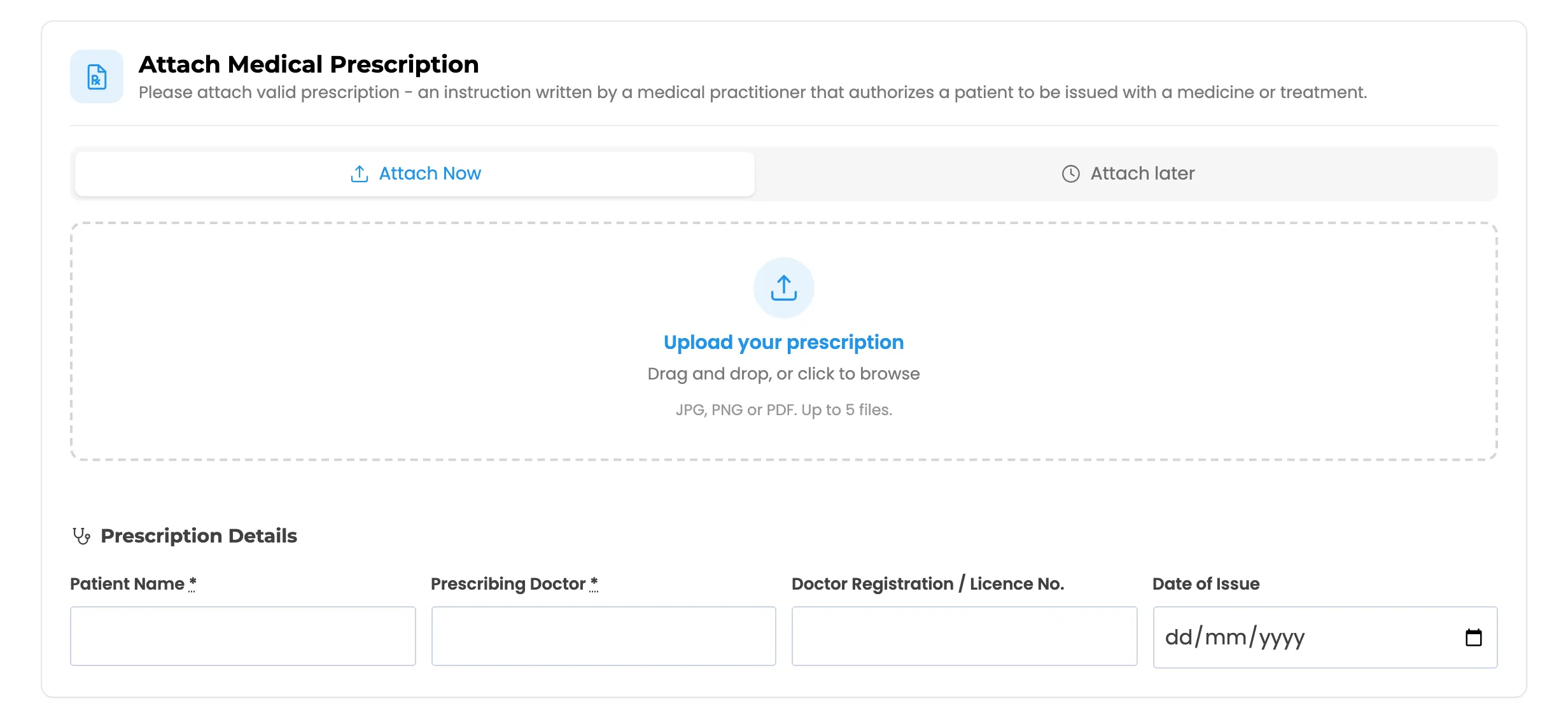
Section titled “Step 3: Add upload instructions”Description appears under the Attach Medical Prescription heading in the upload box.
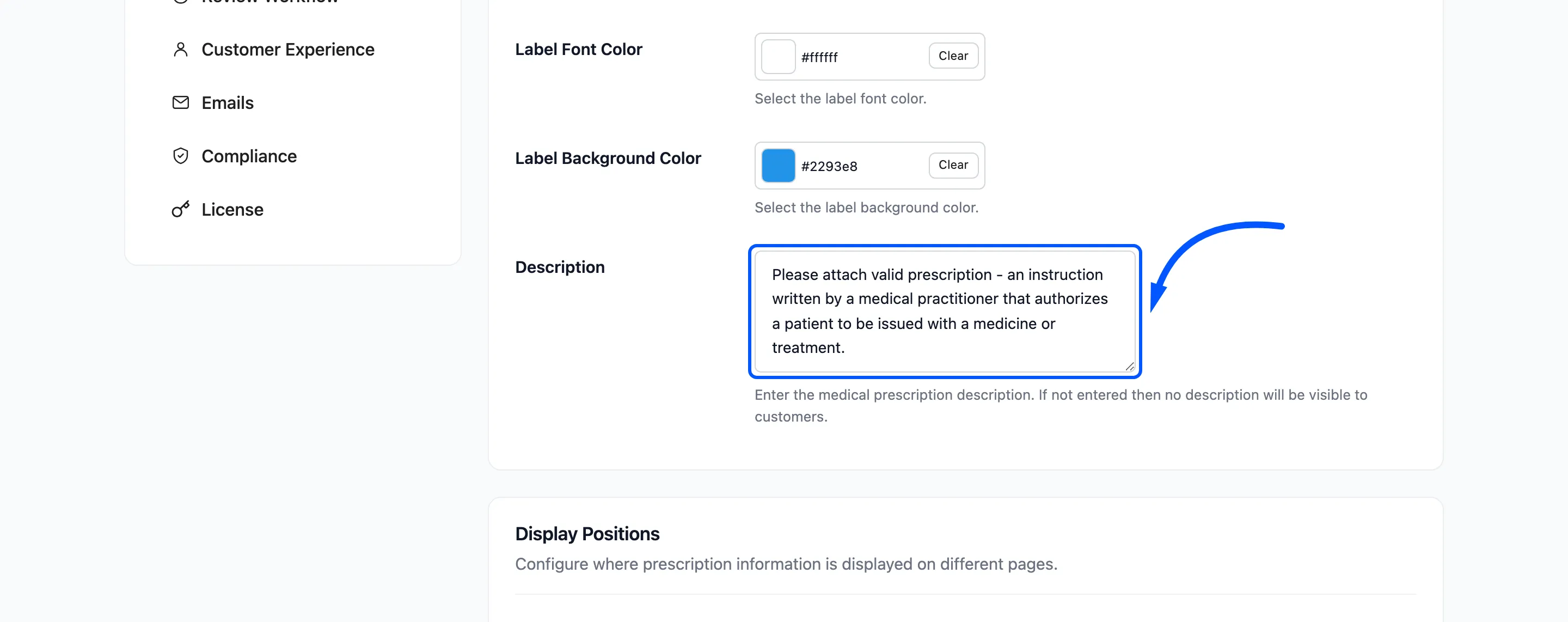
Use it to prevent the most common refusal before it happens. The demo store explains what a prescription is. A more useful note says what a good upload looks like:
A clear photo of the whole page, including the prescriber’s name, signature and the date it was written.
Step 4: Place the badge
Section titled “Step 4: Place the badge”Under Display Positions, set Product Page and Shop/Category Page.
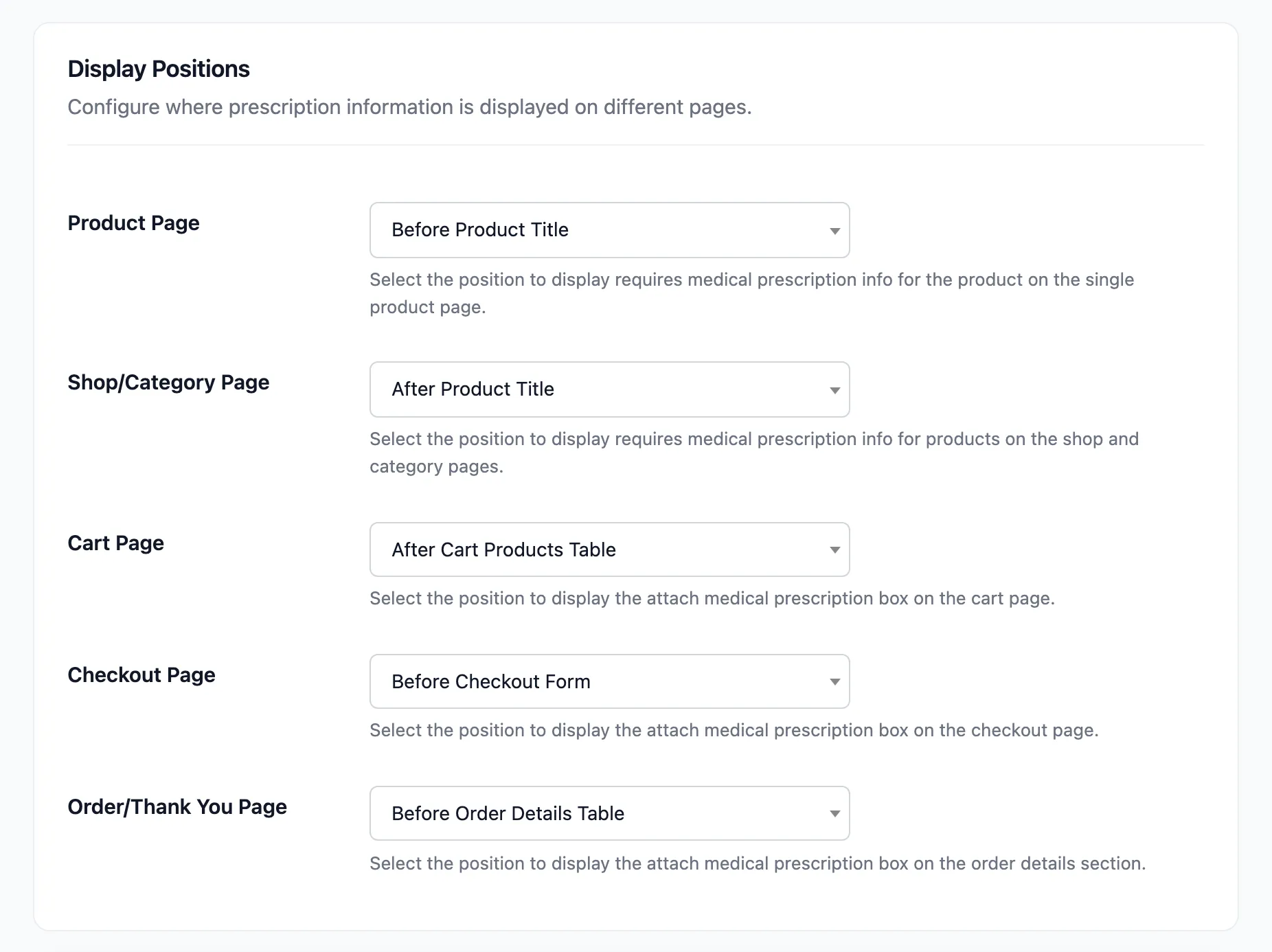
The defaults put the badge above the title on the product page and under the title in the shop grid.
Step 5: Place the upload box
Section titled “Step 5: Place the upload box”Set Cart Page, Checkout Page and Order/Thank You Page. The defaults put the box after the cart table, before the checkout form and before the order details.
Keep at least one of the cart and checkout positions on, and keep the order page on. The order page is where a customer attaches a prescription later or replaces a refused one.
Click Save Changes, then open a prescription product on the storefront to check each position.