Orders with Prescriptions
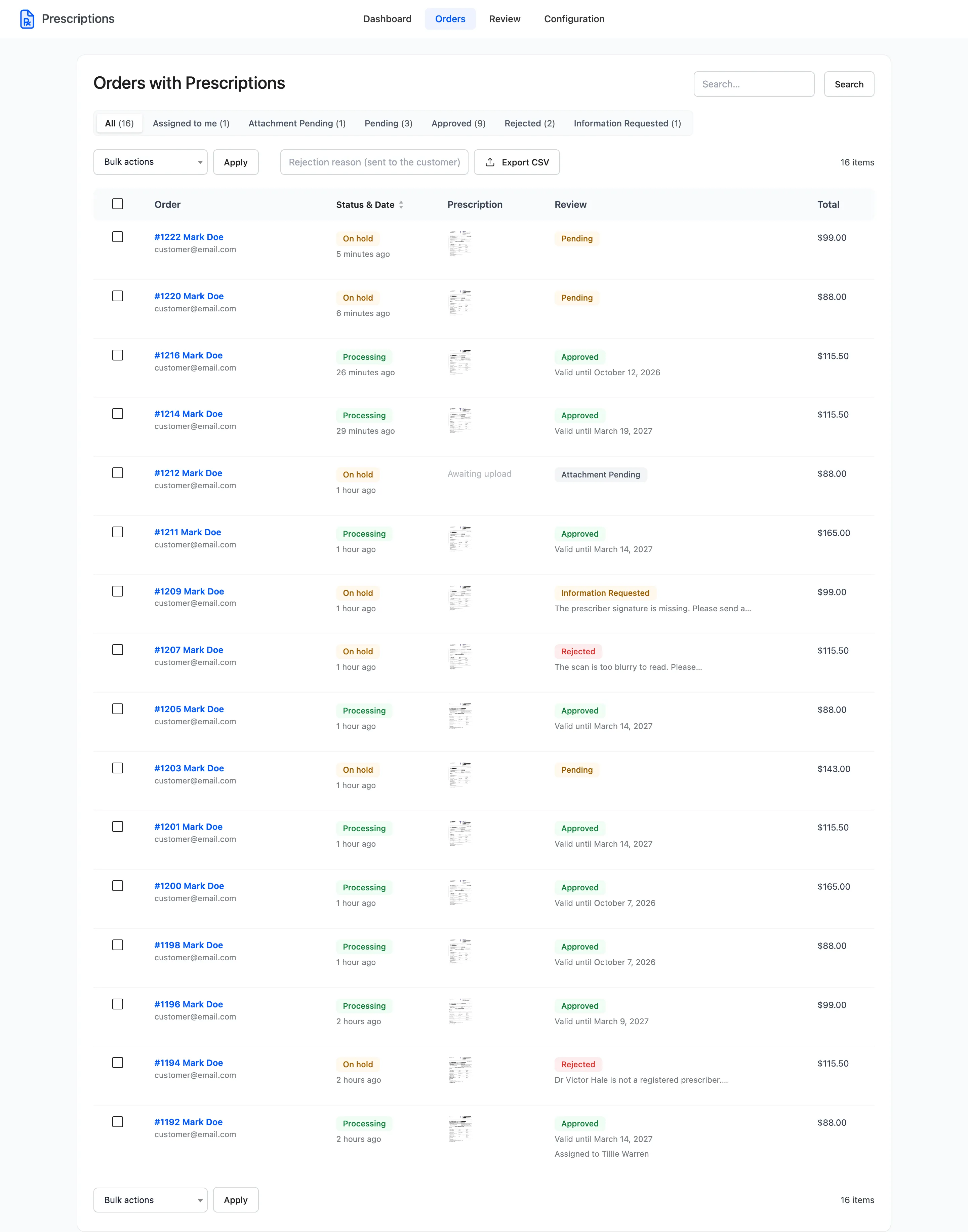
The Orders screen lists every order that needed a prescription, newest first. It is where you see the whole queue at once and where the bulk decisions live.
Go to DevDiggers Plugins → Prescriptions → Orders.
The status tabs
Section titled “The status tabs”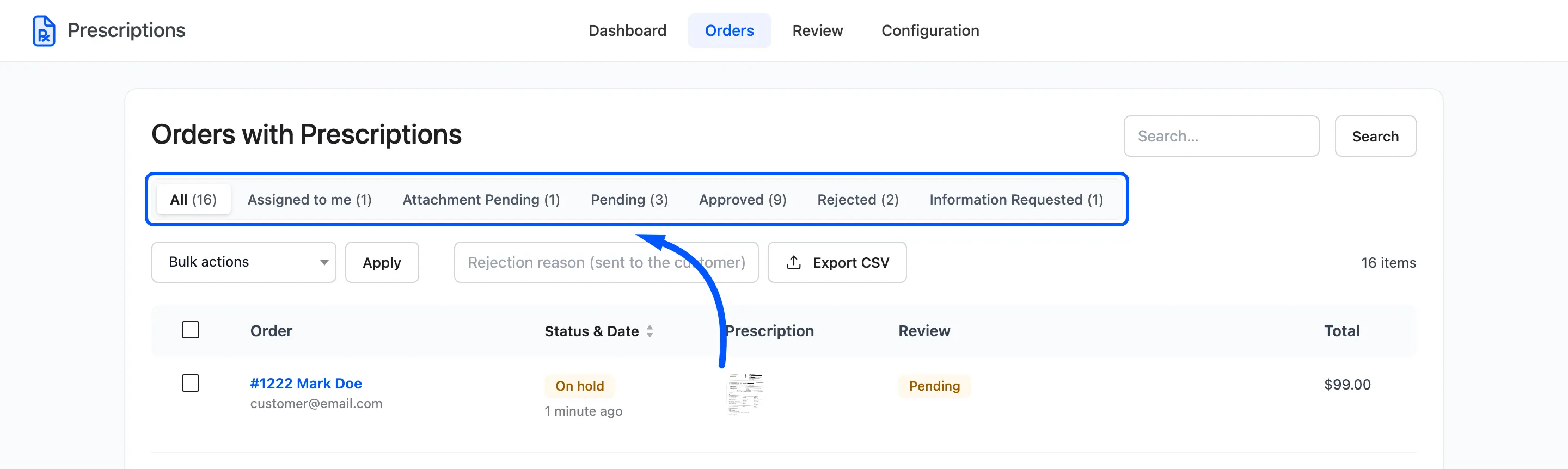
All comes first, then Assigned to me. After them comes one tab for each prescription status that has at least one order. The count beside each is the number of orders in it.
Assigned to me lists the prescriptions a colleague assigned to you in the review workspace. It only appears while Assignment is on.
Searching
Section titled “Searching”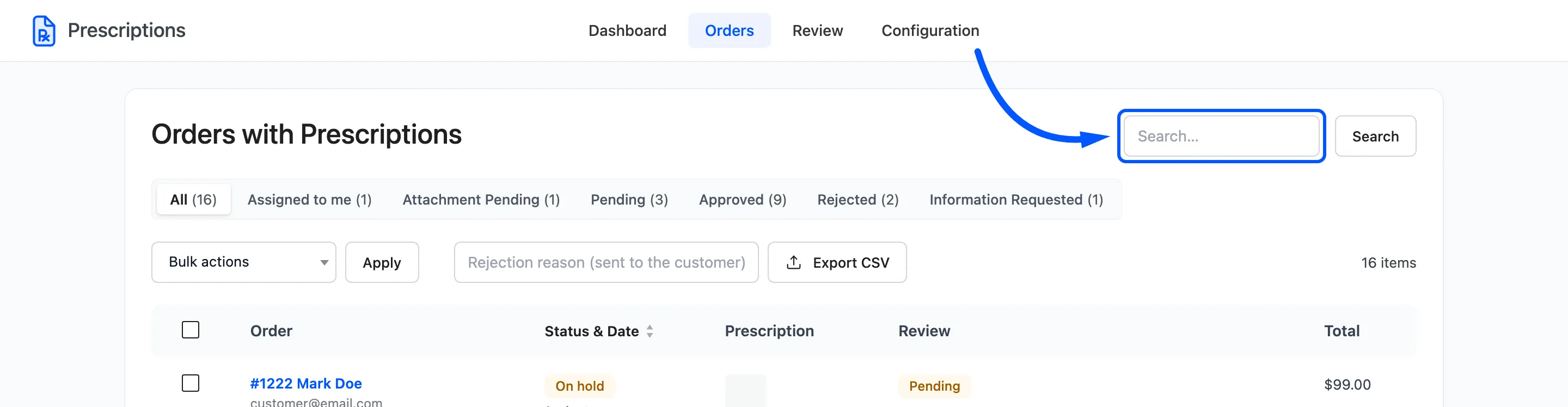
Search by order number, billing email or customer name. The search runs inside the tab you are on.
The columns
Section titled “The columns”| Column | What it shows |
|---|---|
| Order | The order number and customer name, with the billing email under it |
| Status & Date | The WooCommerce order status and when it was placed. Click the heading to sort by date |
| Prescription | Thumbnails of the uploaded files, or Awaiting upload |
| Review | The prescription status, plus the details that matter for it |
| Total | The order total |
The Review column adds what you need at a glance. A refused or returned order shows the pharmacist’s message, and an approval shows Valid until. An assigned one shows Assigned to, and anything past your review target is badged Overdue.
Hover a row for its two links. Open in workspace goes to the review workspace, and Edit order to the WooCommerce order screen.
Bulk decisions
Section titled “Bulk decisions”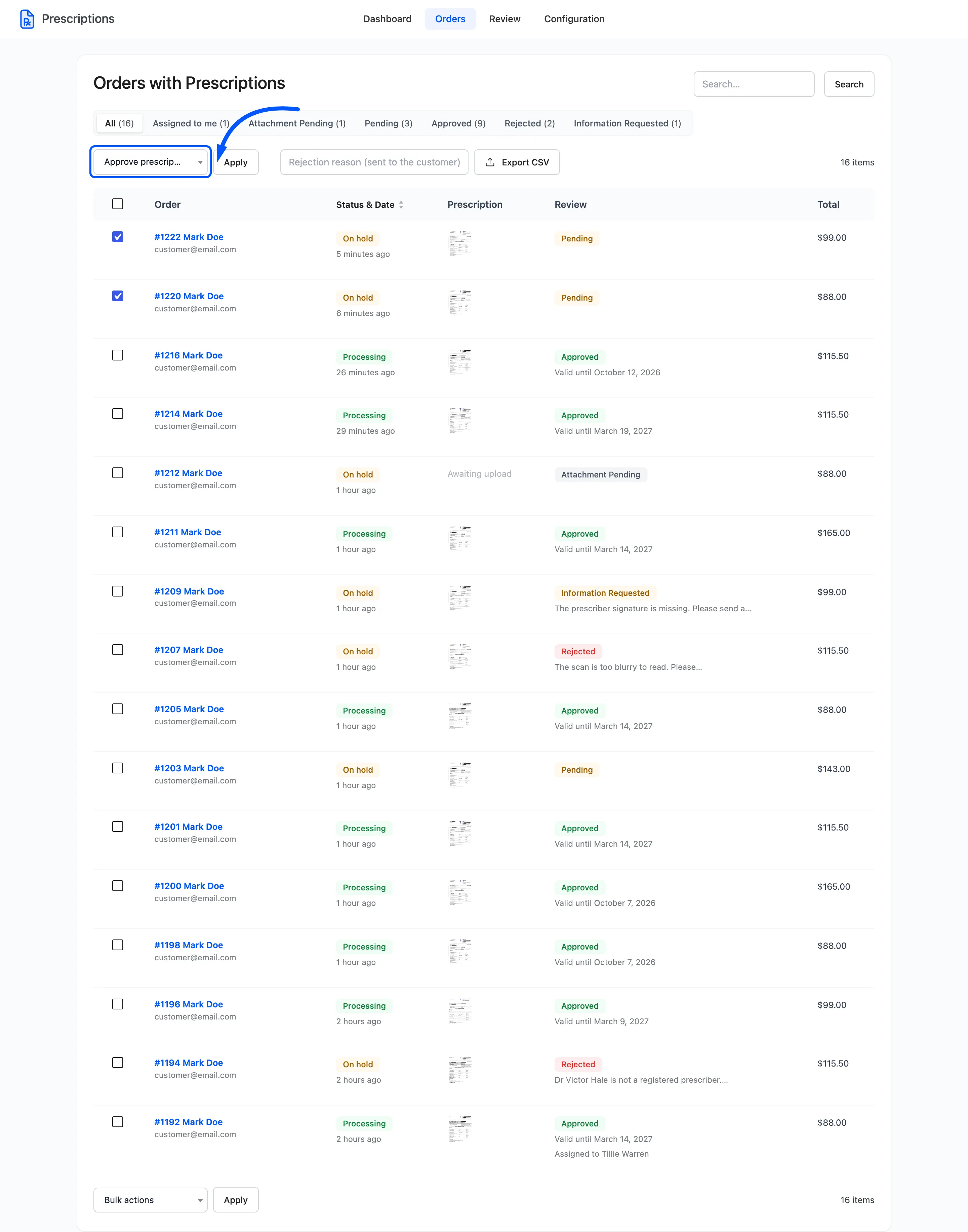
Tick the orders, choose Approve prescription or Reject prescription in Bulk actions, and click Apply. The browser asks you to confirm.
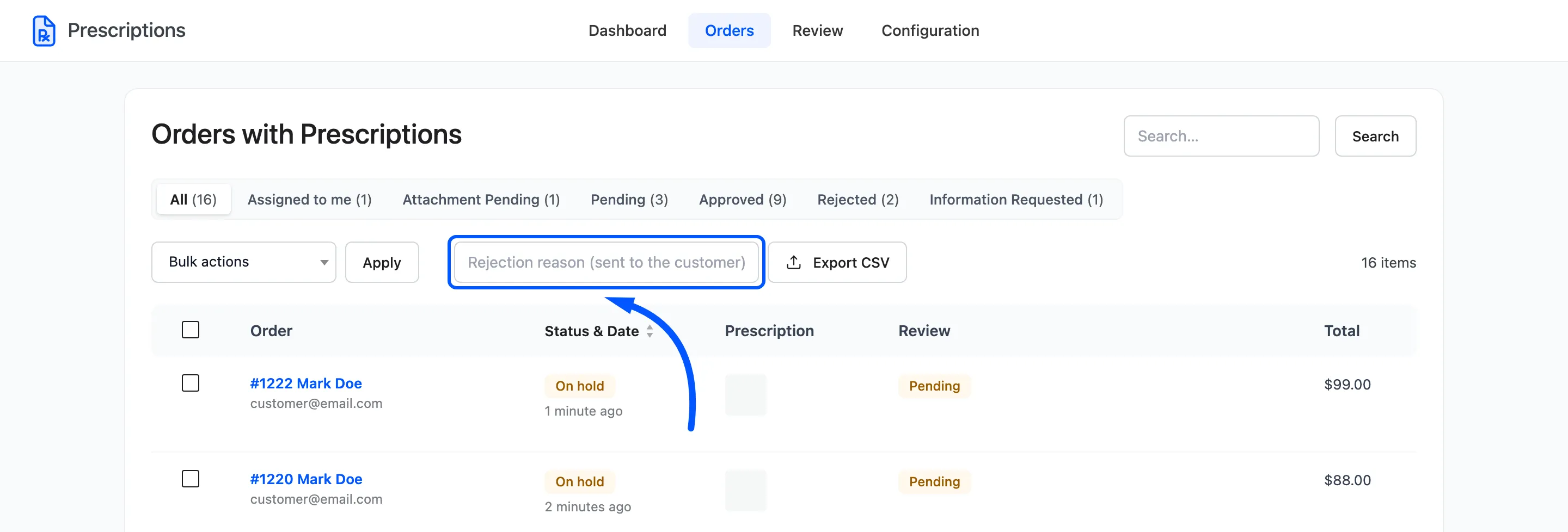
To reject in bulk, type the reason into Rejection reason (sent to the customer) first. Every customer in the batch receives the same reason, and without one nothing is changed.
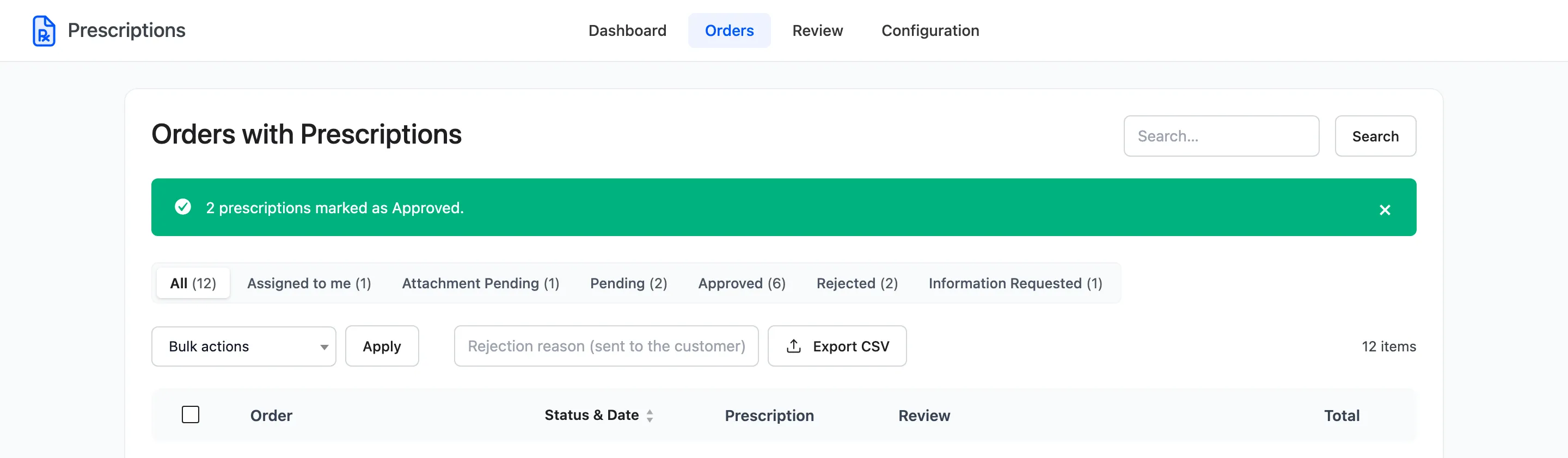
Each order in the batch is decided exactly as if it had been decided alone. Its status moves, the customer is emailed and the decision is recorded. An order already in the chosen status is skipped and not counted.
Export CSV
Section titled “Export CSV”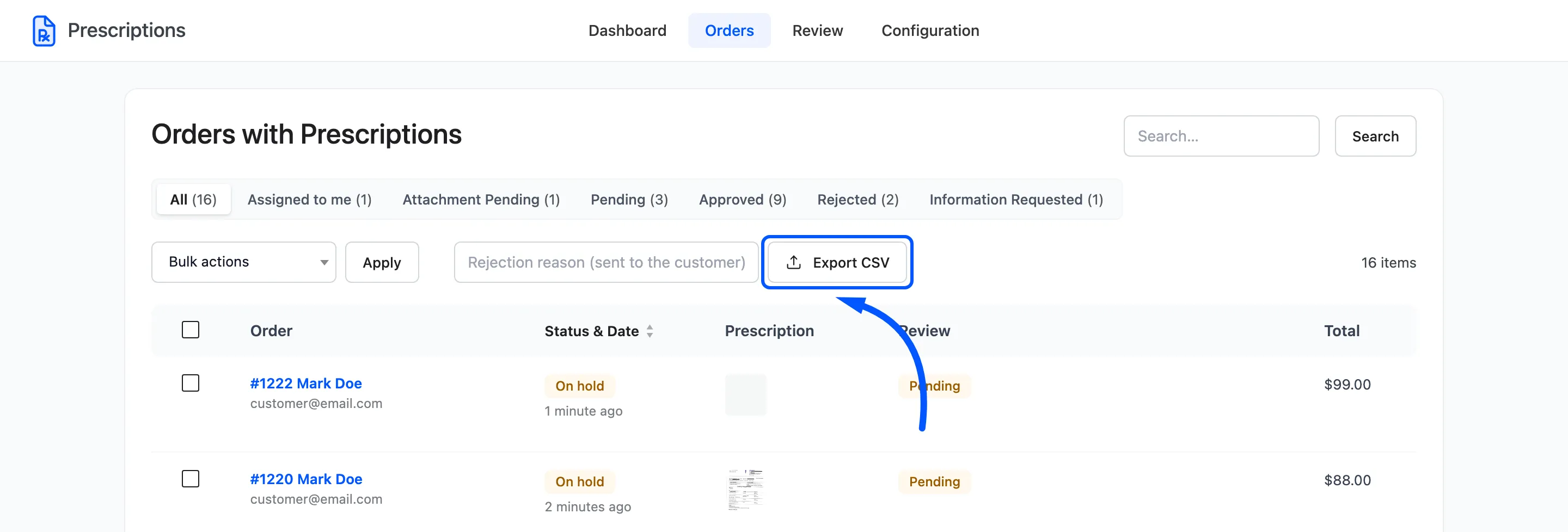
Export CSV opens the export wizard. See Exporting Prescriptions.
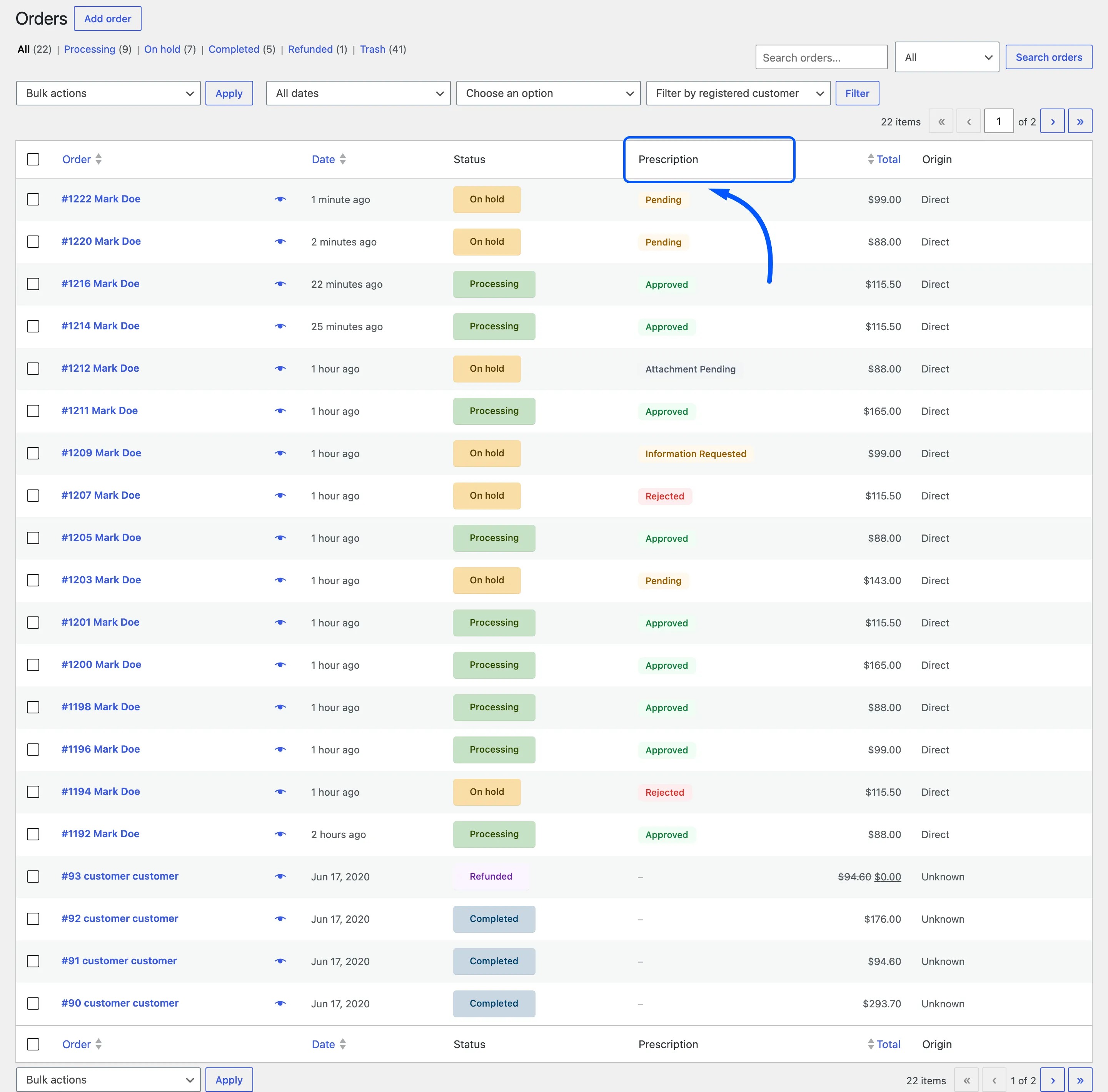
The Prescription column in WooCommerce
Section titled “The Prescription column in WooCommerce”The plugin also adds a Prescription column to the ordinary WooCommerce → Orders screen, next to the order status. It shows the prescription status of each order, and a dash for orders that did not need one.