How to Customise the Prescription Emails (Pro)
Every customer email ships with complete, friendly wording. Rewriting it lets the messages sound like your pharmacy. You can also add what your customers ask about most, such as opening hours or a phone number.
Step 1: Open the Emails tab
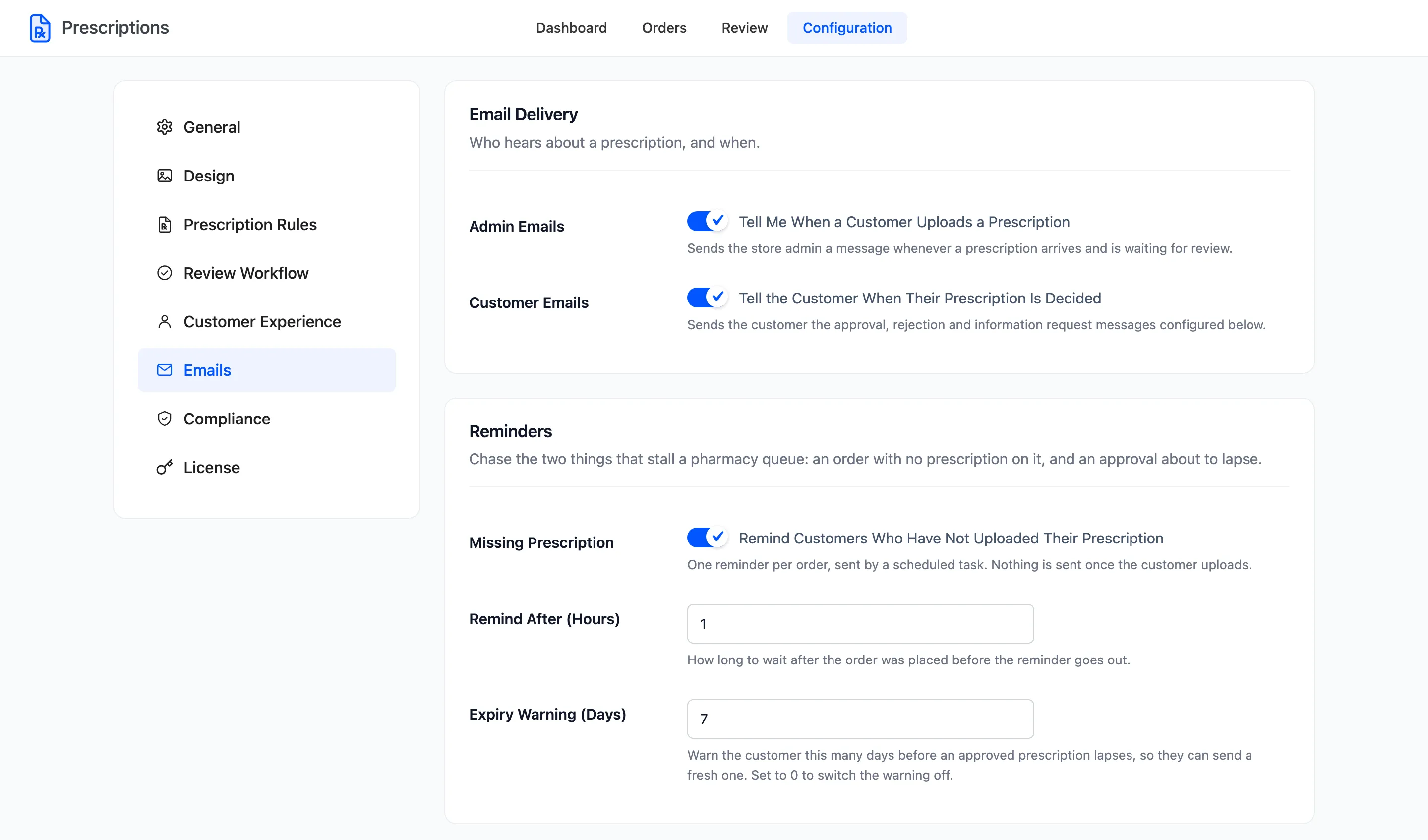
Section titled “Step 1: Open the Emails tab”Go to DevDiggers Plugins → Prescriptions → Configuration → Emails.
Step 2: Pick the email
Section titled “Step 2: Pick the email”Six sections follow the reminders, one per email.
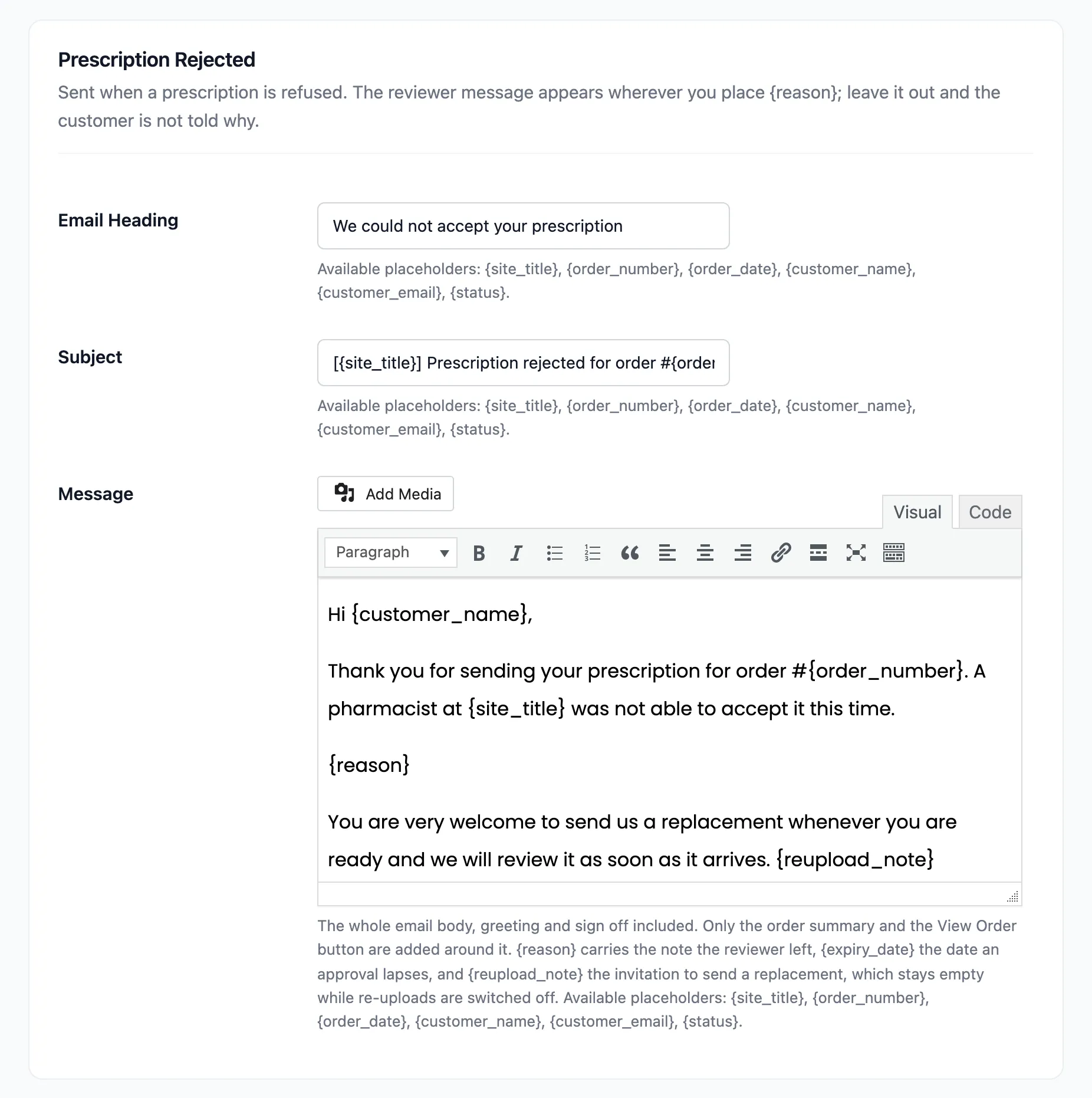
They are Prescription Approved, Prescription Rejected, More Information Needed, Prescription Expiring, Prescription Expired and Upload Reminder.
Step 3: Reword the heading and subject
Section titled “Step 3: Reword the heading and subject”Email Heading is the large title at the top of the email. Subject is the subject line.
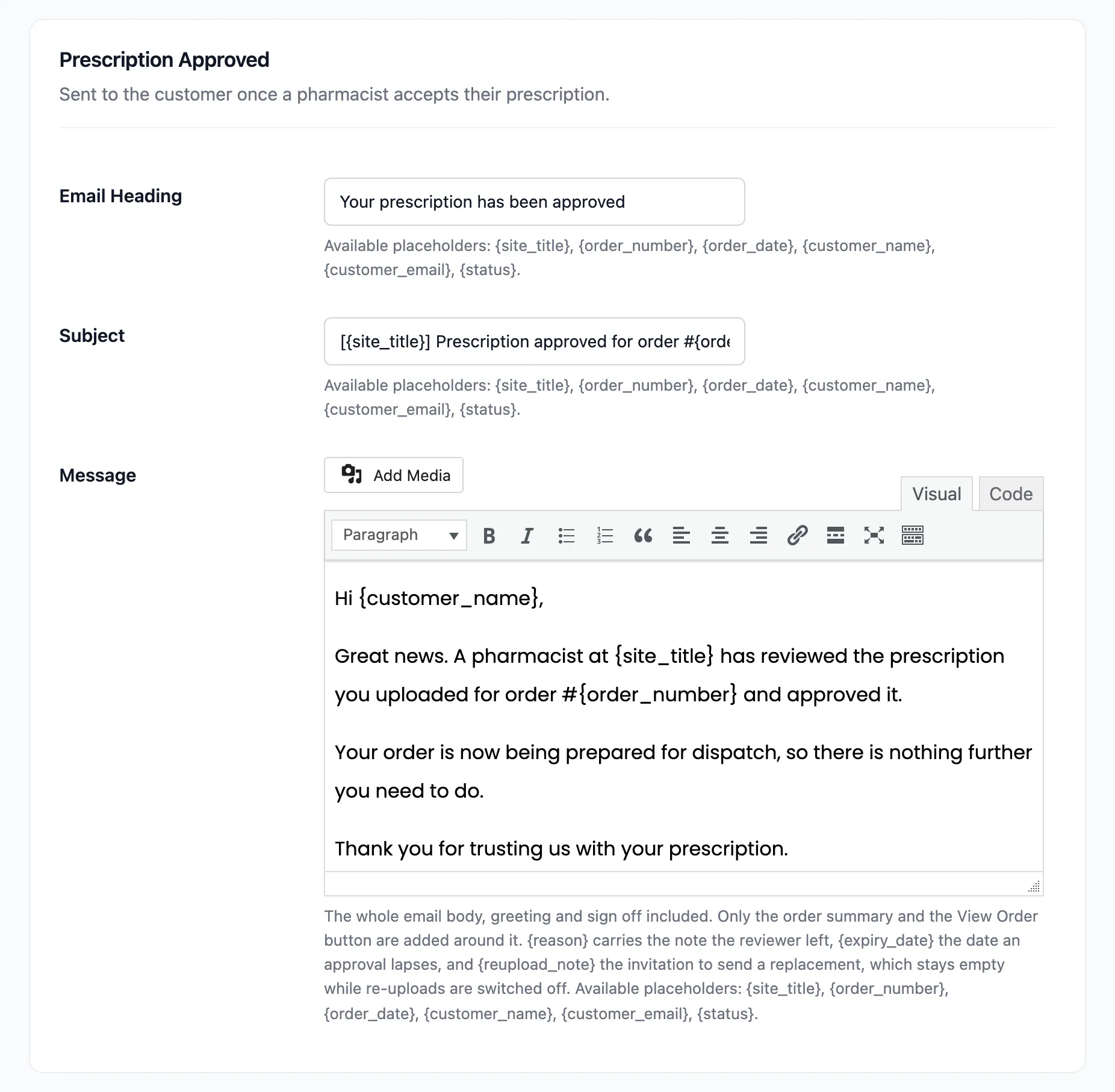
Both take placeholders in braces: {site_title}, {order_number}, {order_date}, {customer_name},
{customer_email} and {status}. Keep {order_number} in the subject. A customer with two orders
needs to know which one it is about.
Step 4: Rewrite the message
Section titled “Step 4: Rewrite the message”Message is the whole email body, greeting and sign-off included. The plugin adds only the order summary box and the View Order button around it.
Three placeholders carry what the pharmacist or the plugin knows:
{reason}: The pharmacist’s message, shown as “Reason:” and the text. Keep it in Prescription Rejected and More Information Needed, where it belongs. Remove it and the customer is refused without being told why.{reupload_note}: “You can upload a replacement prescription from your order page.” It is empty while Self Service is off. The sentence disappears rather than promising something you do not offer.{expiry_date}: The date the approval lapses. Use it in Prescription Expiring and Prescription Expired.
Step 5: Save and check a real email
Section titled “Step 5: Save and check a real email”Click Save Changes. Then trigger the email for real, on a test order, and read what arrived.
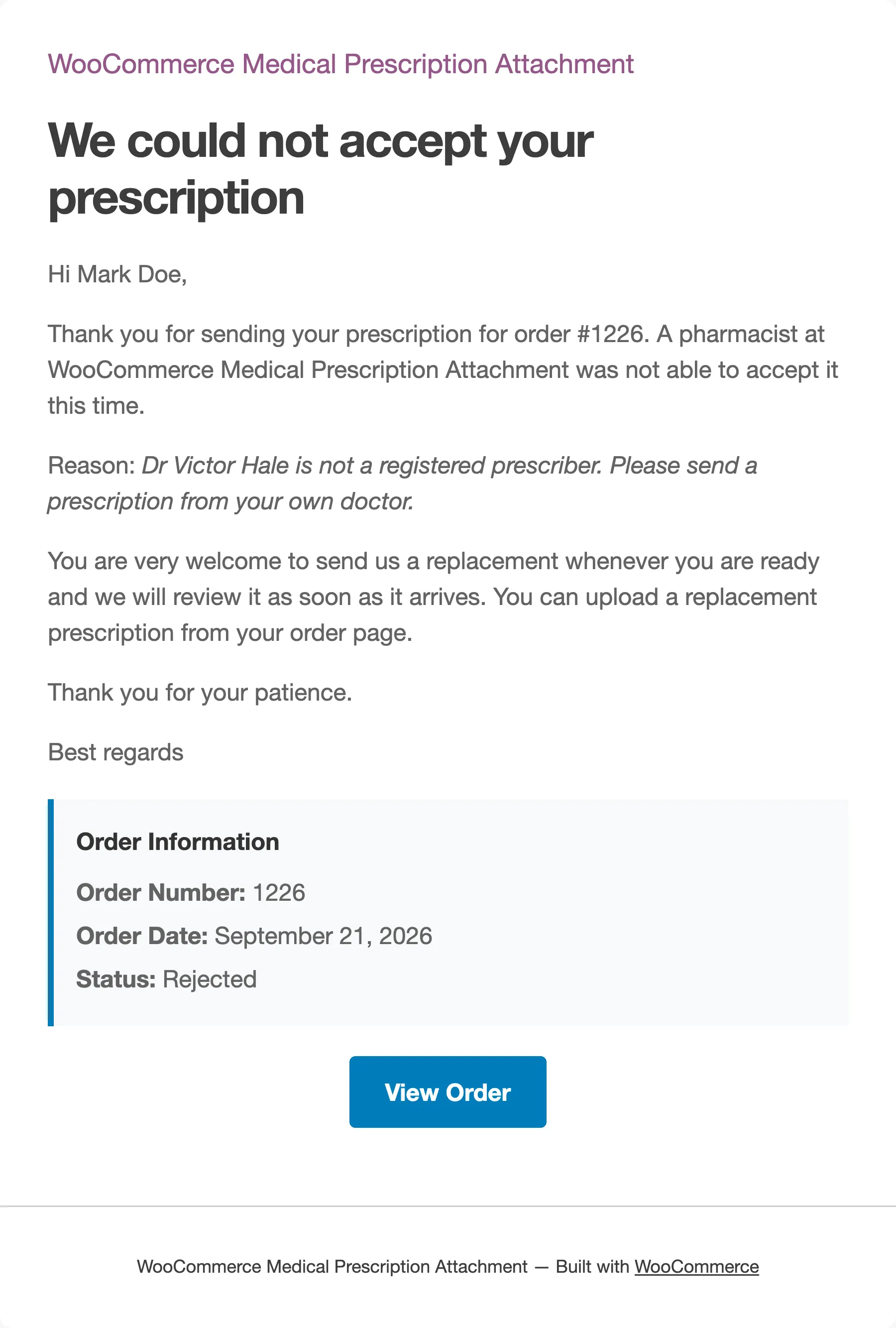
Write the message in either view of the editor. Blank lines become paragraphs, and anything you format in the Visual view arrives as you set it out.
The message sits inside WooCommerce’s own email design, so the store name at the top and the footer come from WooCommerce → Settings → Emails. Change them there and every prescription email follows.
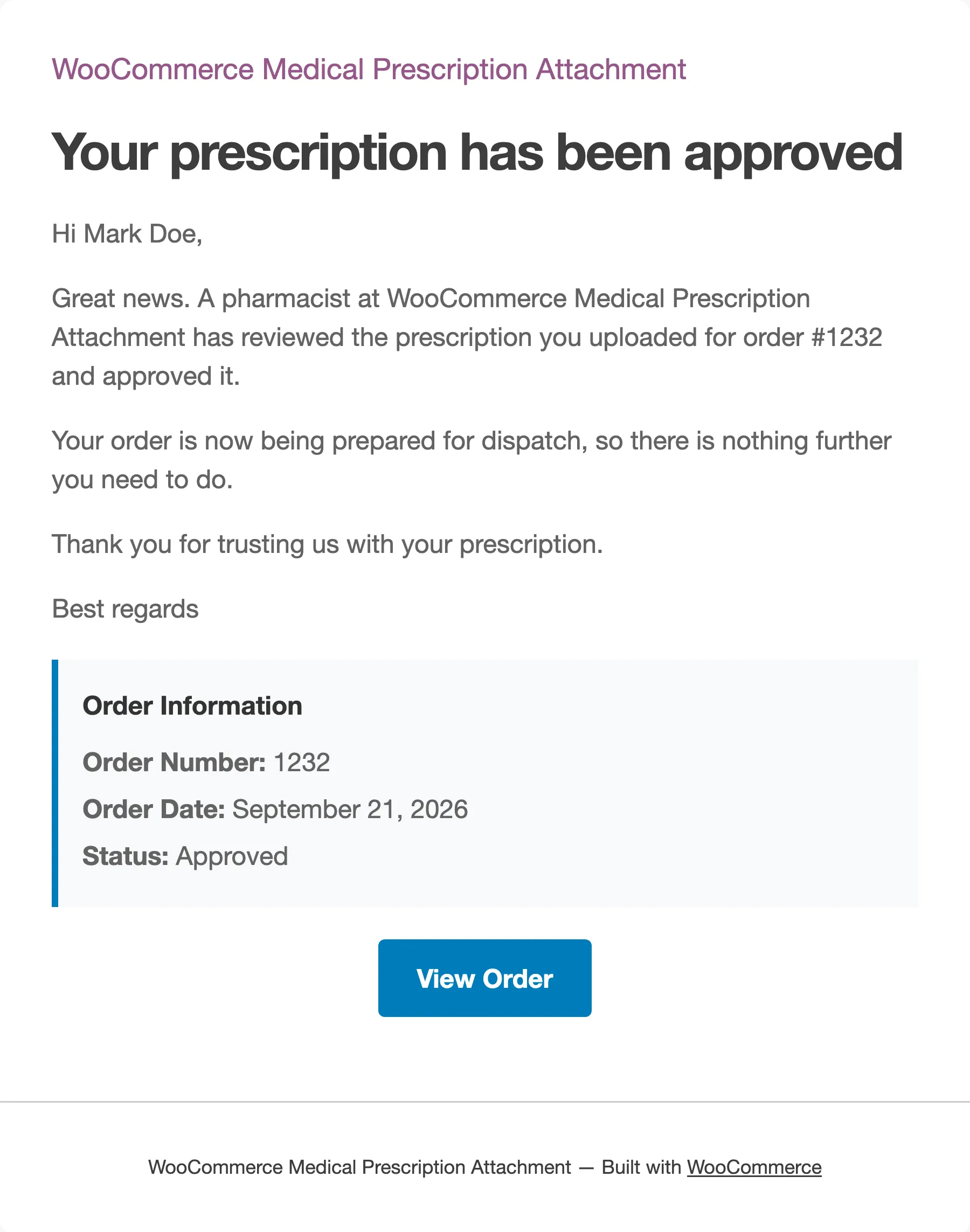
The store’s email
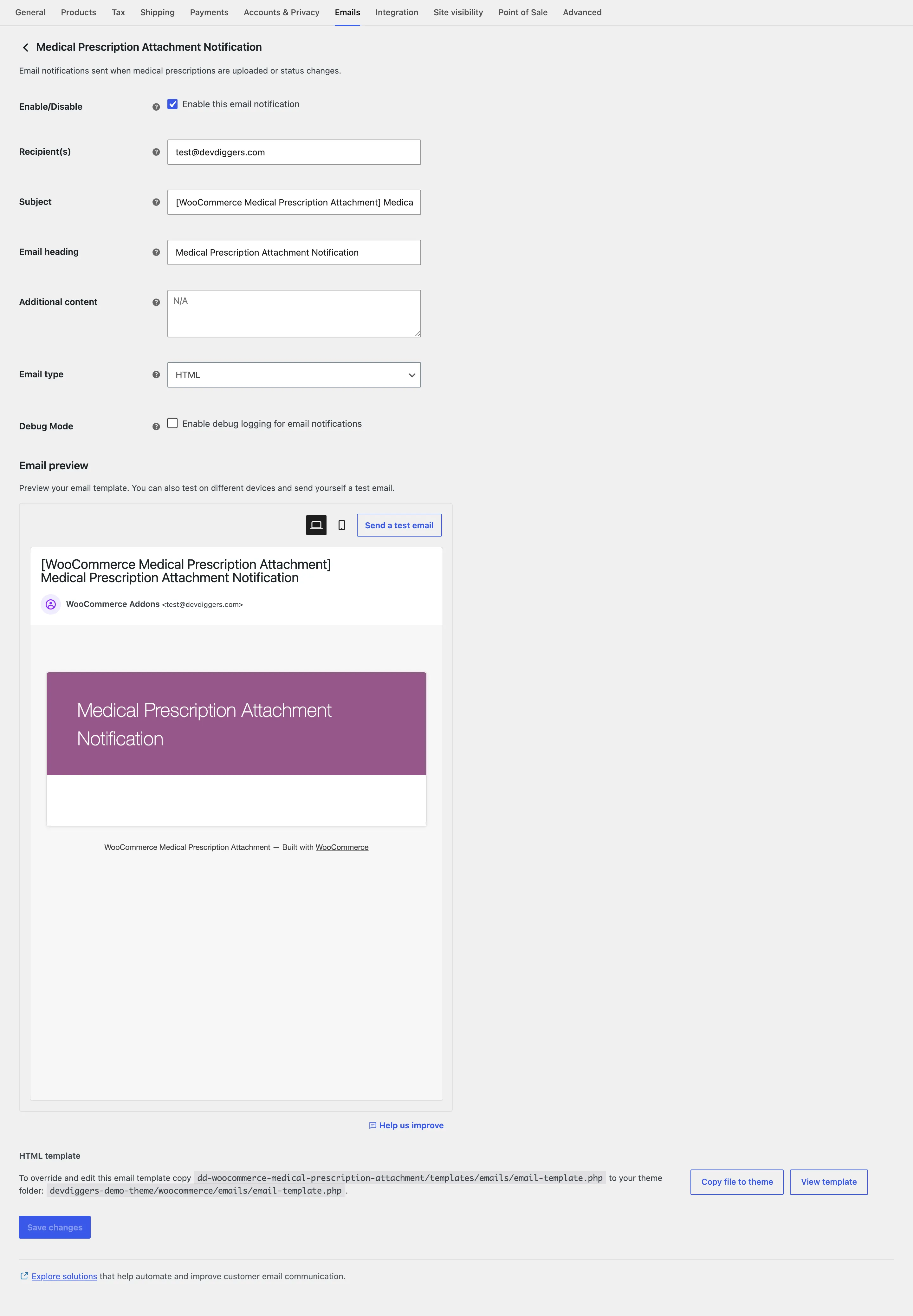
Section titled “The store’s email”The email the store receives is a WooCommerce email. Change its recipient, subject and heading under WooCommerce → Settings → Emails → Medical Prescription Attachment Notification.