

How to Let Customers Attach a Prescription Later
Not every customer has the prescription to hand at checkout. Attach later lets them pay now and upload it afterwards, instead of abandoning the cart. The order does not move until the file arrives and is approved.
Step 1: Switch Attach Later on
Section titled “Step 1: Switch Attach Later on”Go to DevDiggers Plugins → Prescriptions → Configuration → Customer Experience and tick Attach Later. It is on by default.
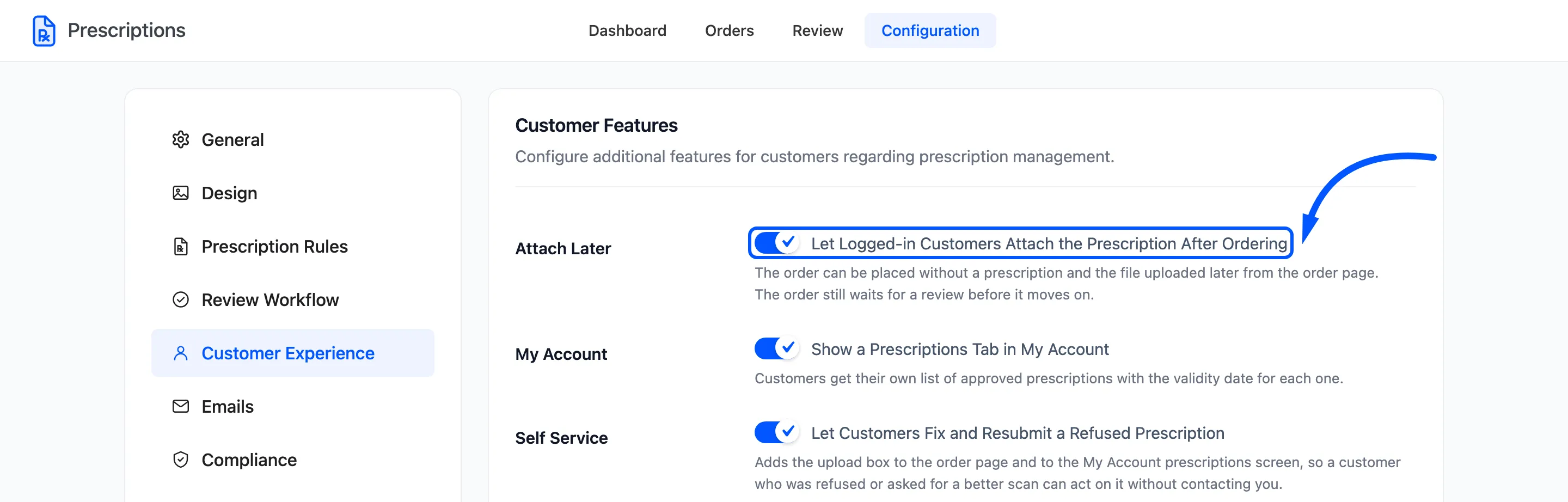
Click Save Changes. This setting is in the free version.
Step 2: The customer picks Attach later at checkout
Section titled “Step 2: The customer picks Attach later at checkout”The upload box now has two tabs. The customer clicks Attach later.
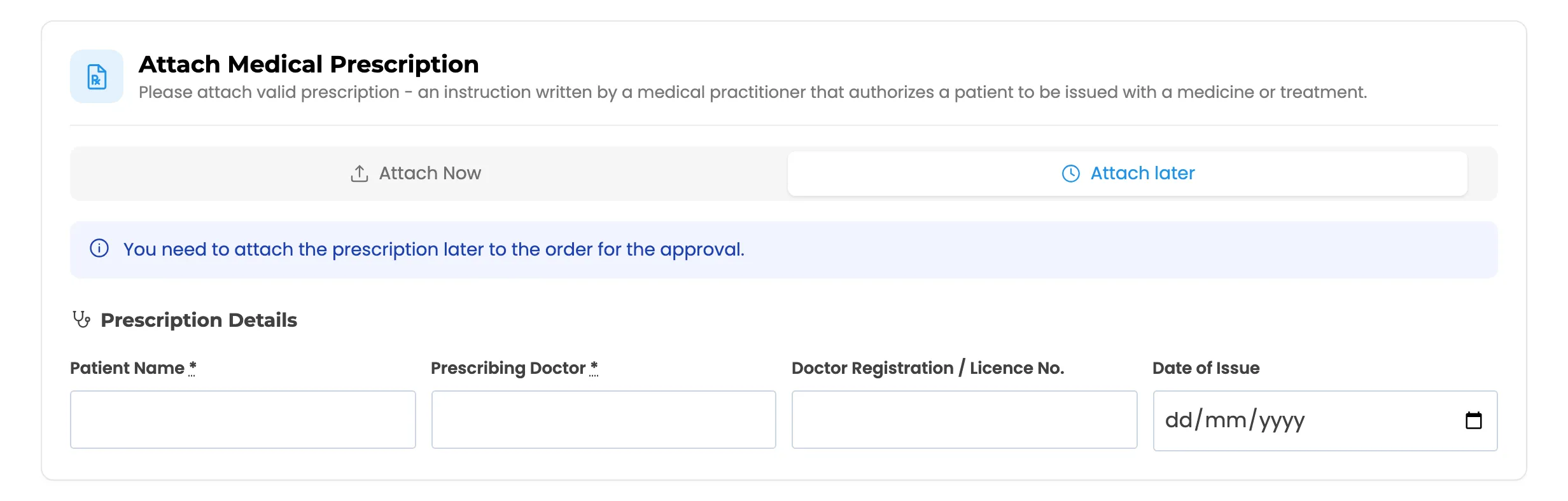
The upload area disappears, a note says the prescription must be attached to the order later, and Place order is available straight away.
A guest is told to log in first. Only an account can come back to the order, so a guest who places the order this way is refused at checkout.
If the customer uploaded a file and then switched to Attach later, that file is deleted when the order is placed. The choice is one or the other.
Step 3: The order waits as Attachment Pending
Section titled “Step 3: The order waits as Attachment Pending”The order is placed with the prescription status Attachment Pending and held On hold.
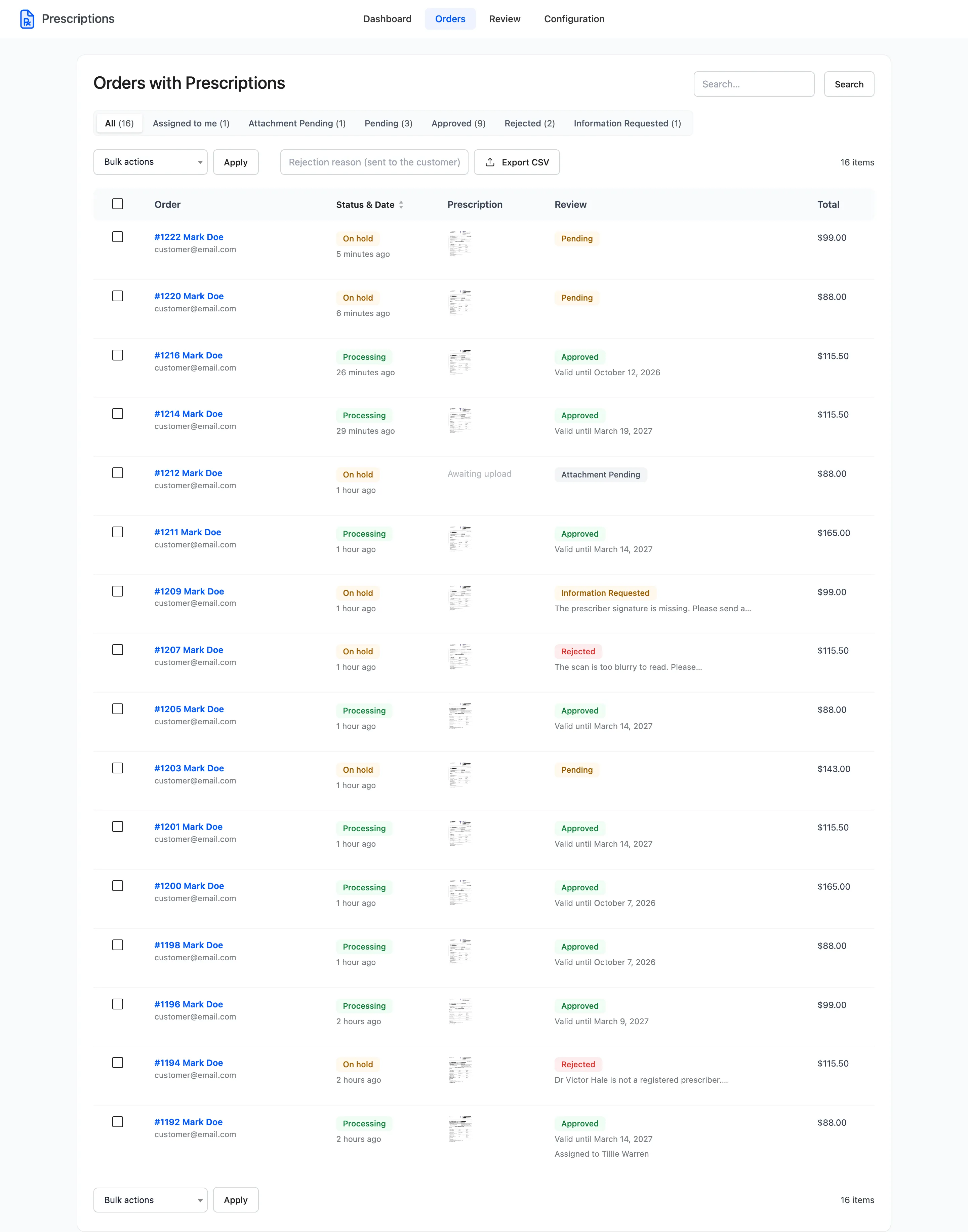
On the Orders screen its Prescription column says Awaiting upload. It counts on the dashboard under Awaiting Review, but it is not in the review queue yet, because there is nothing to review.
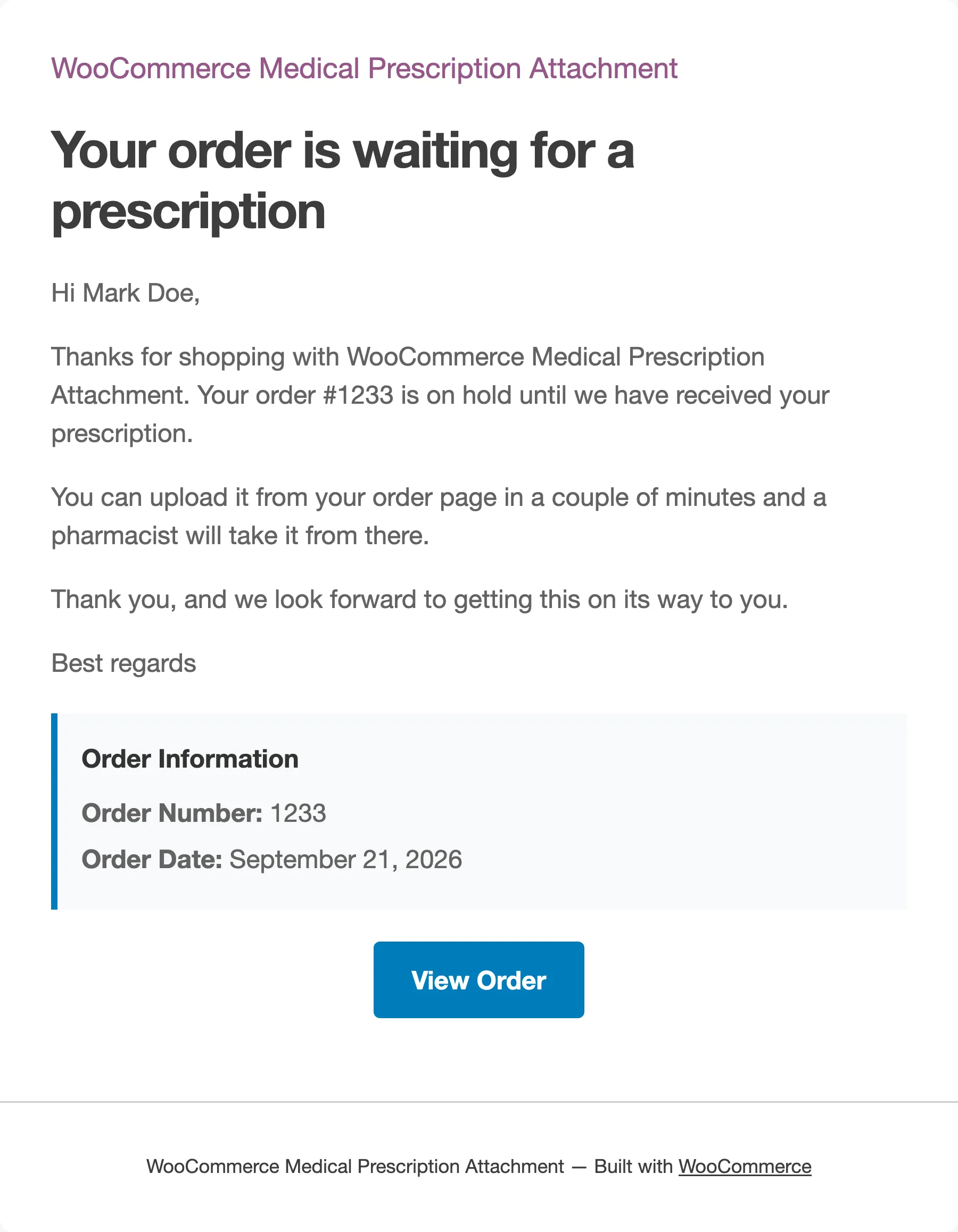
In Pro, the Missing Prescription reminder emails the customer once if the file has not arrived after Remind After hours, 24 by default.
Step 4: The customer uploads from the order page
Section titled “Step 4: The customer uploads from the order page”The customer opens the order from My Account → Orders. The prescription box on the order page has the upload area and the details form open.
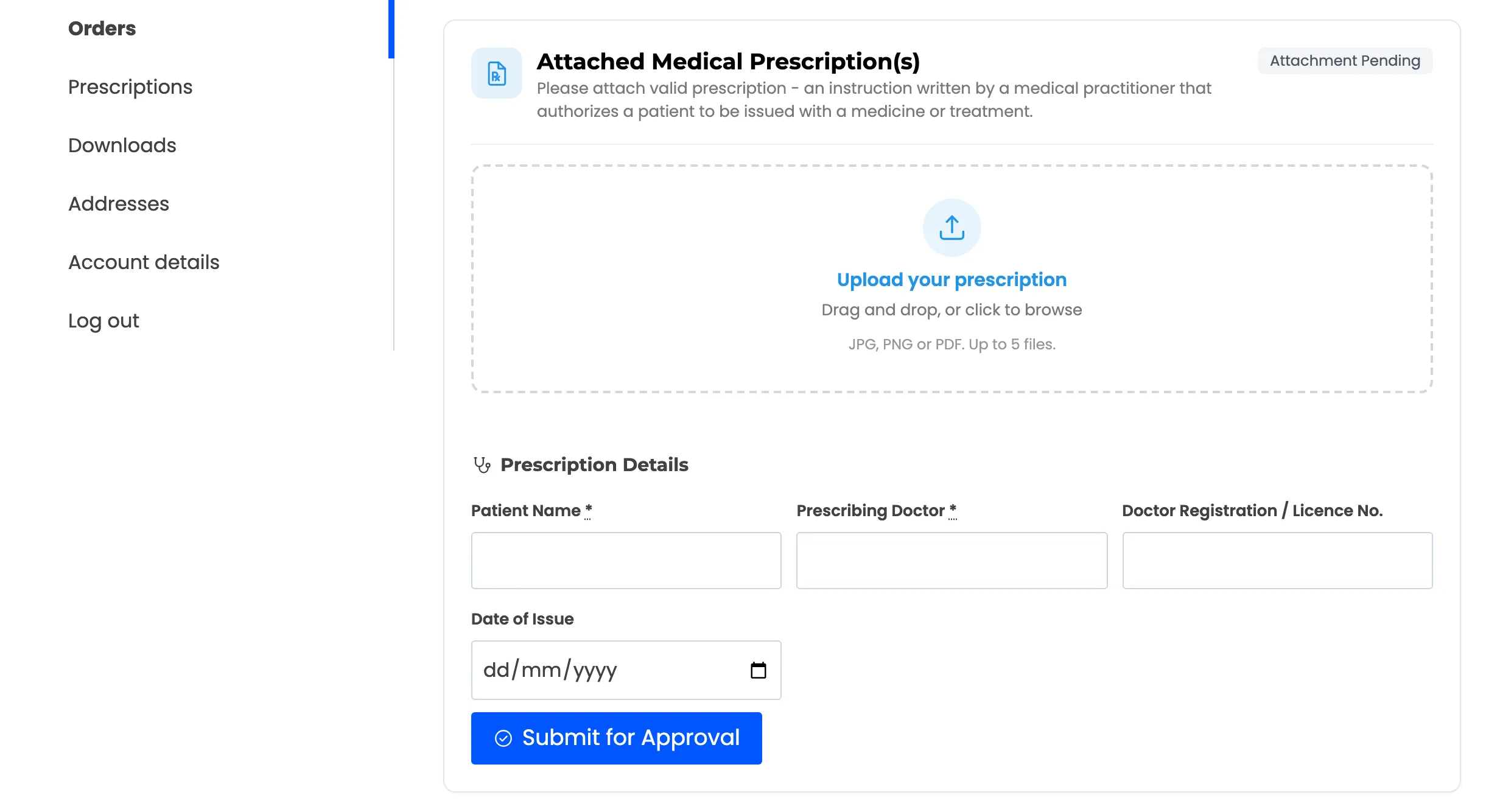
They upload the file and fill in the details.
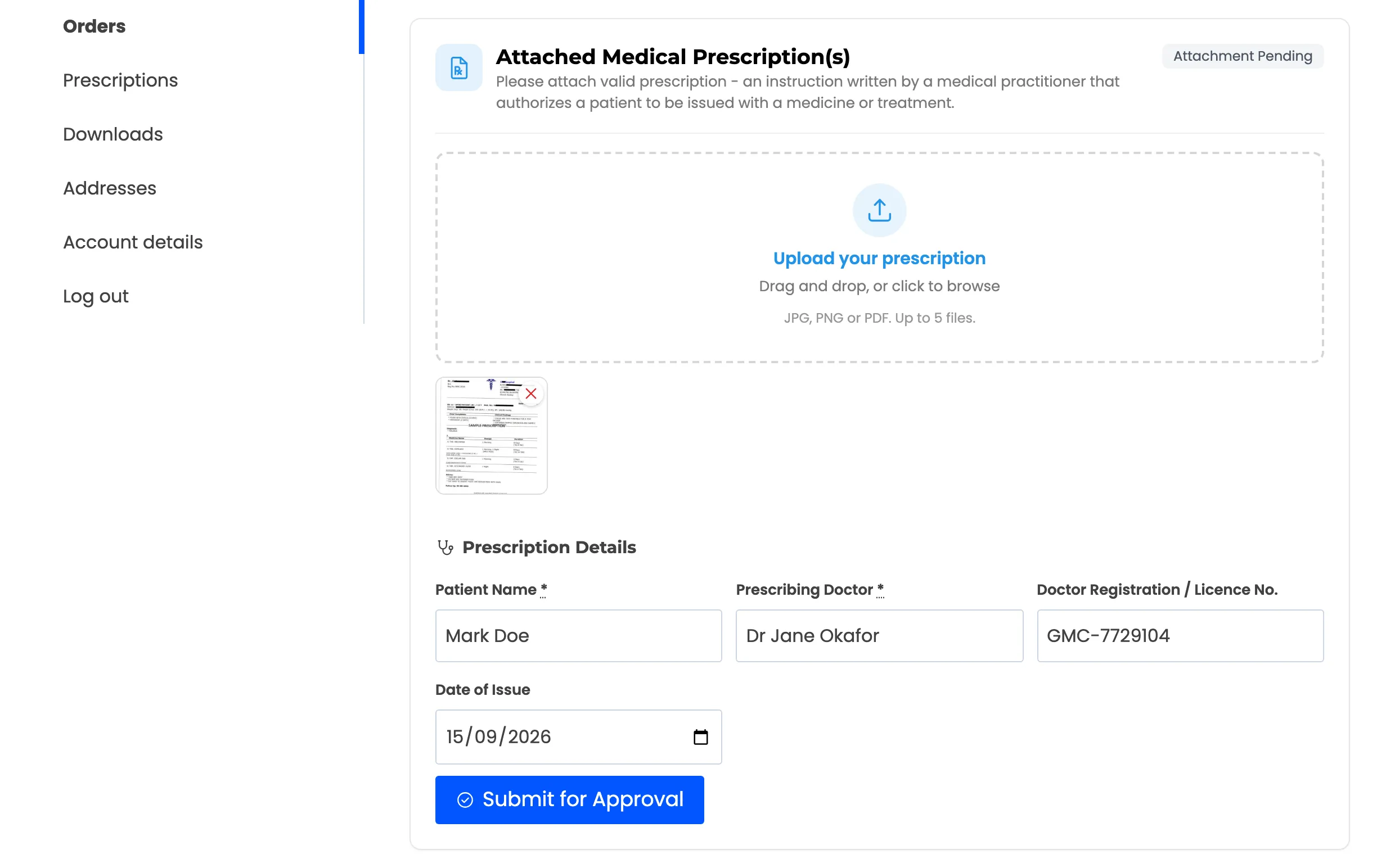
Then they click Submit for Approval. Every mandatory detail must be filled first.
Step 5: Review it as normal
Section titled “Step 5: Review it as normal”The prescription moves to Pending, the store gets the new-prescription email, and the order joins the review queue.
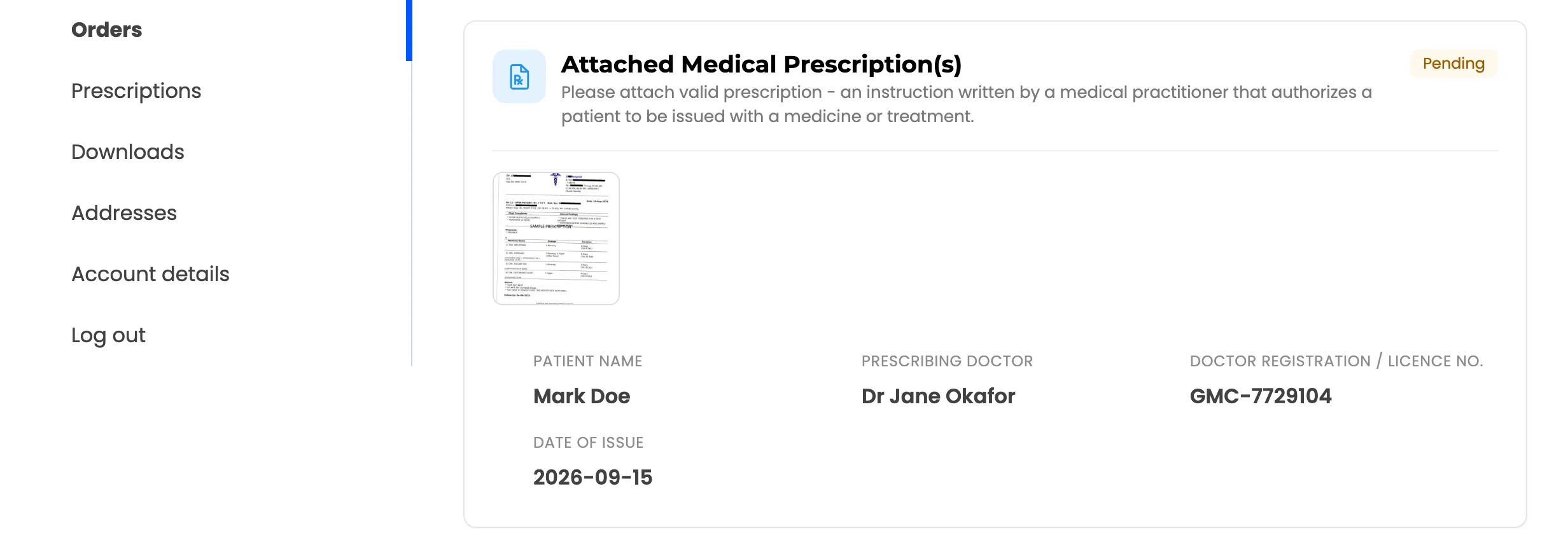
From here it is an ordinary prescription. See How to Approve or Reject a Prescription.