

Installing and Activating Medical Prescription Attachment
The plugin installs like any WordPress plugin. The Pro version needs two things the free one does not: the free plugin running underneath it, and an active licence.
Before you start
Section titled “Before you start”WooCommerce must be installed and active. The plugin works on WooCommerce products, the cart and the checkout, so without it the plugin shows a notice and does nothing.
Minimum versions are WordPress 6.5, WooCommerce 9.0 and PHP 7.4.
Installing the free plugin
Section titled “Installing the free plugin”The free version is Prescription for WooCommerce in the WordPress plugin directory.
- Go to Plugins → Add New Plugin.
- Search for Prescription for WooCommerce.
- Click Install Now, then Activate.
A Prescriptions entry appears under DevDiggers Plugins in the admin menu.
Installing Pro
Section titled “Installing Pro”- Go to Plugins → Add New Plugin → Upload Plugin.
- Choose the zip from your DevDiggers order and click Install Now.
- Click Activate Plugin.
Pro runs on top of the free plugin rather than replacing it. If the free plugin is missing, Pro installs and activates it for you on the next admin page load. Until then it shows a notice saying the free plugin is required. Keep both active.
Activating your licence
Section titled “Activating your licence”Go to DevDiggers Plugins → Prescriptions → Configuration → License.
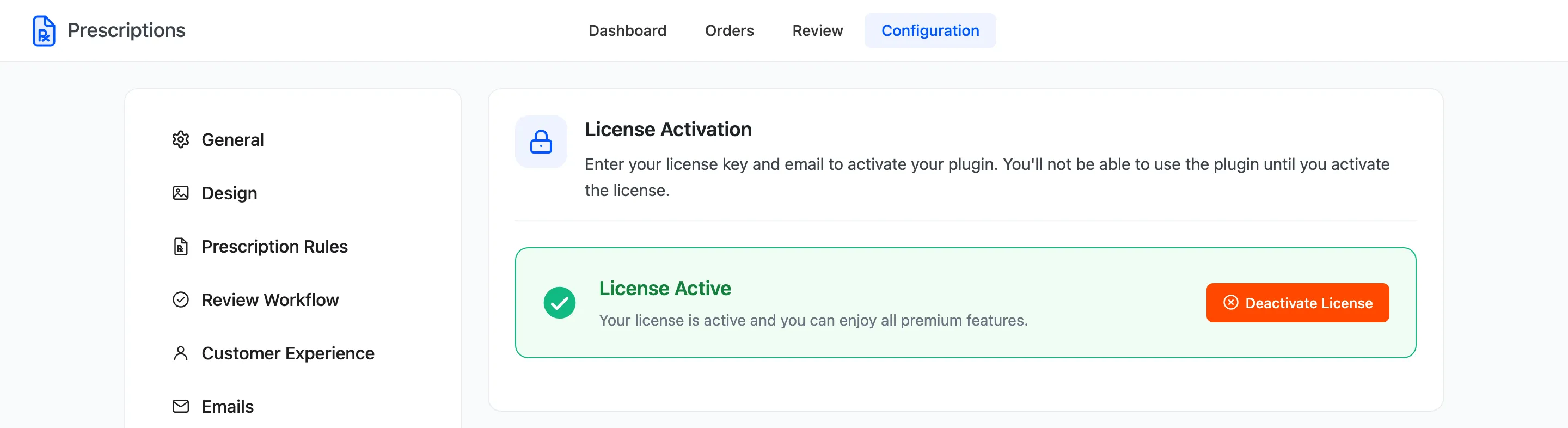
Enter the purchase code and the email address from your order, then click Activate License.
The licence is not decoration. Until it reads active, the storefront loads nothing from the plugin: no badge, no upload box and no checkout check. The admin screens still open, so it is easy to set everything up and wonder why the shop looks unchanged.
Switching prescriptions on
Section titled “Switching prescriptions on”Go to Configuration → General and tick Enable WooCommerce Medical Prescription Attachment.
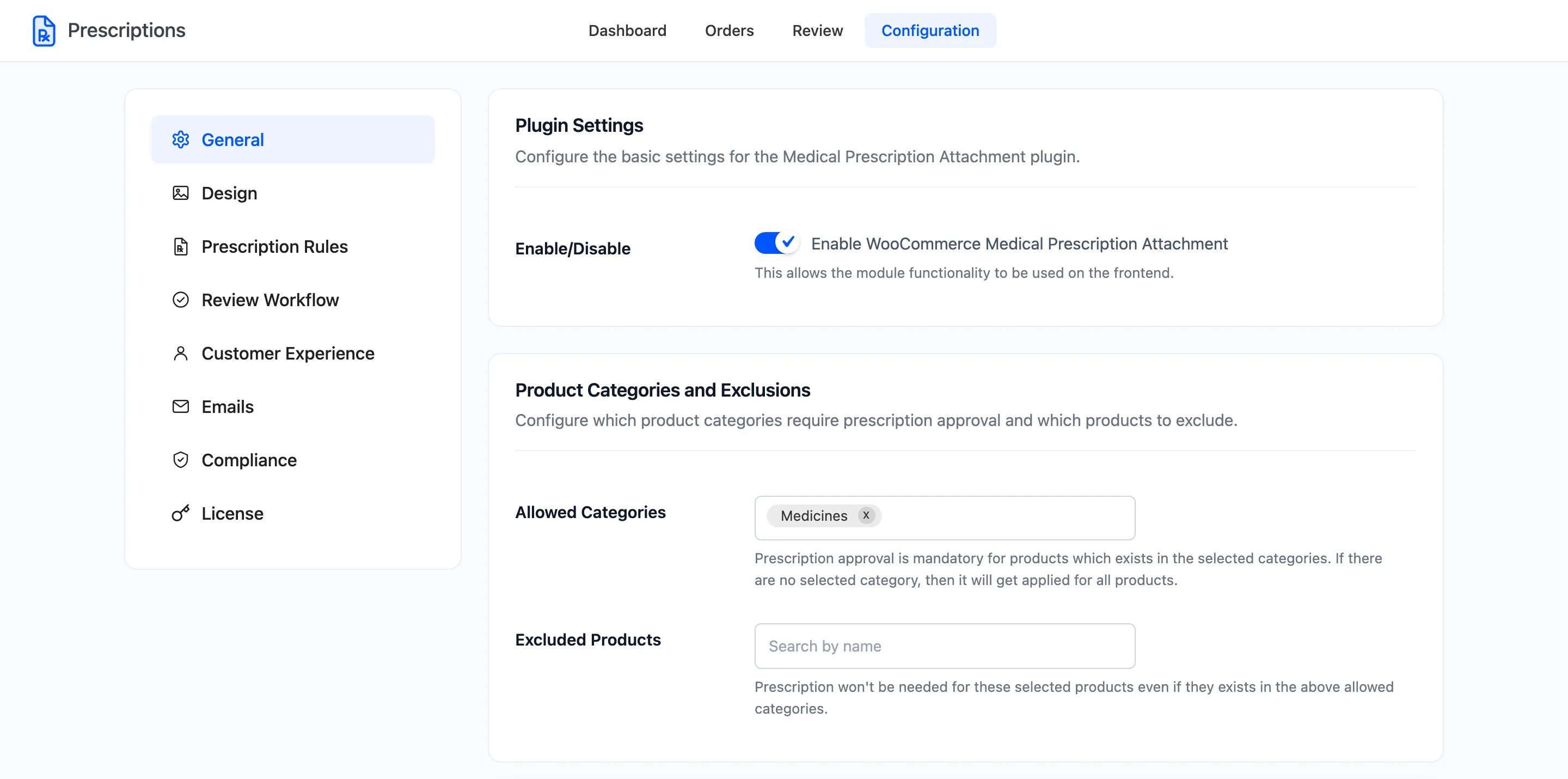
This is the master switch, and it ships off. With it off, nothing is asked for, shown or held on the storefront. Every other setting already has a working default, so ticking this is enough to start.
Click Save Changes.
Running the setup wizard
Section titled “Running the setup wizard”The Setup Wizard link on the Plugins screen opens a short guided setup. It covers the master switch, the categories, the order statuses and the emails.
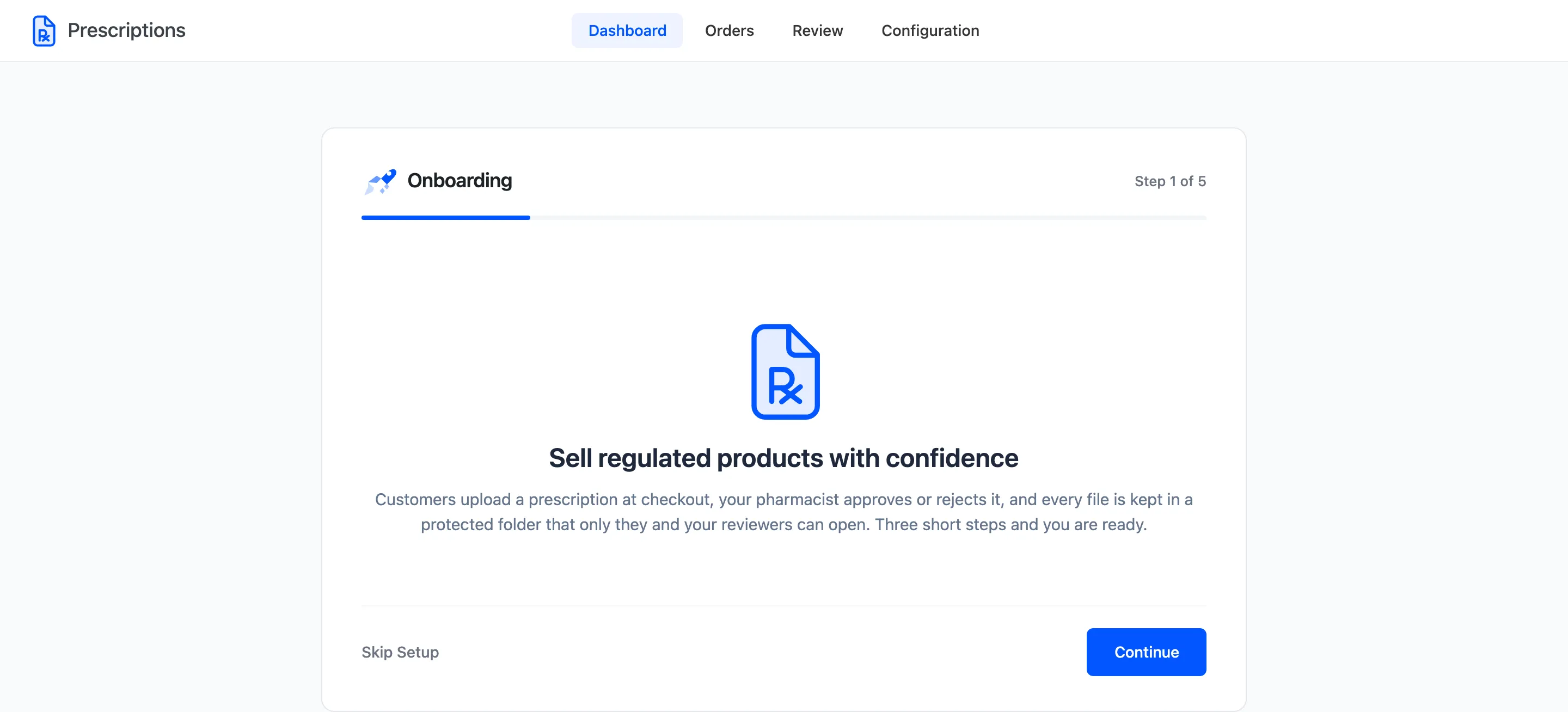
The Setup Wizard walks through each step.
Checking it worked
Section titled “Checking it worked”Open a product from a category you chose, logged in as a customer.
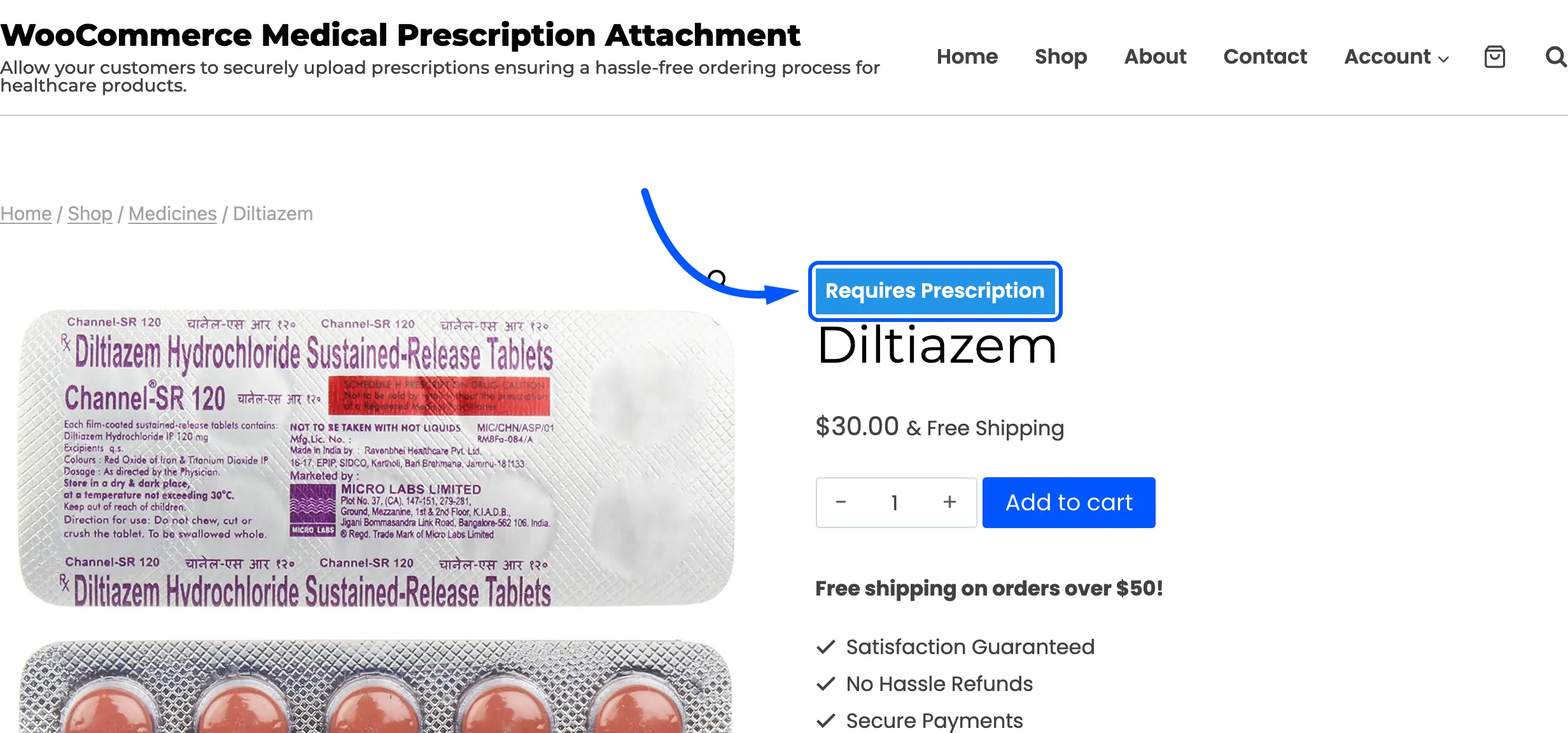
The Requires Prescription badge sits by the title. Add it to the cart and the Attach Medical Prescription box appears. If you see neither, check these three things in order:
- The licence is active (Pro).
- Enable WooCommerce Medical Prescription Attachment is ticked.
- The product is in one of the Allowed Categories, or no category is selected at all.