

Customer Experience Settings
The Customer Experience tab decides how much a customer can do for themselves, without writing to you.
Go to DevDiggers Plugins → Prescriptions → Configuration → Customer Experience.
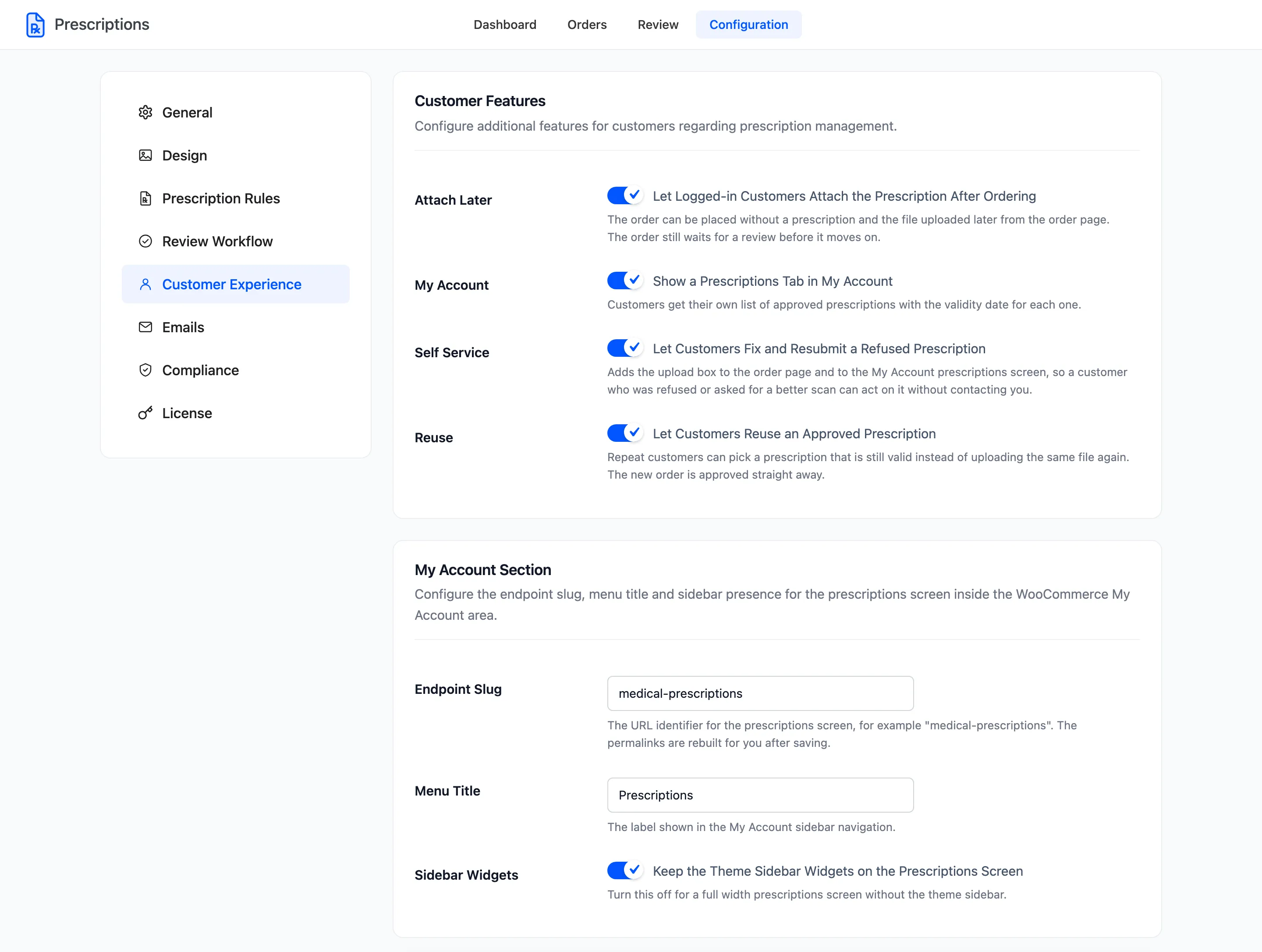
Customer Features
Section titled “Customer Features”Attach Later
Section titled “Attach Later”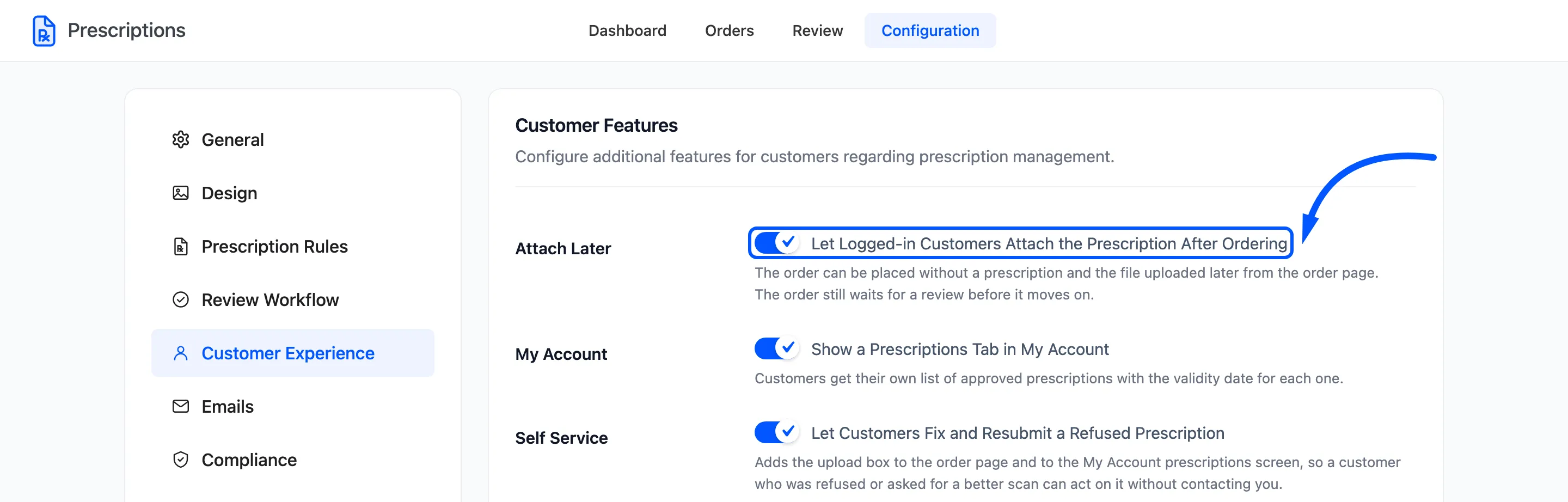
Let Logged-in Customers Attach the Prescription After Ordering. On by default. Adds Attach Now and Attach later tabs to the upload box. With Attach later the order is placed without a file, held with the status Attachment Pending, and the customer uploads from the order page.
Only a logged-in customer can finish that route. A guest who picks it is asked to log in first.
My Account
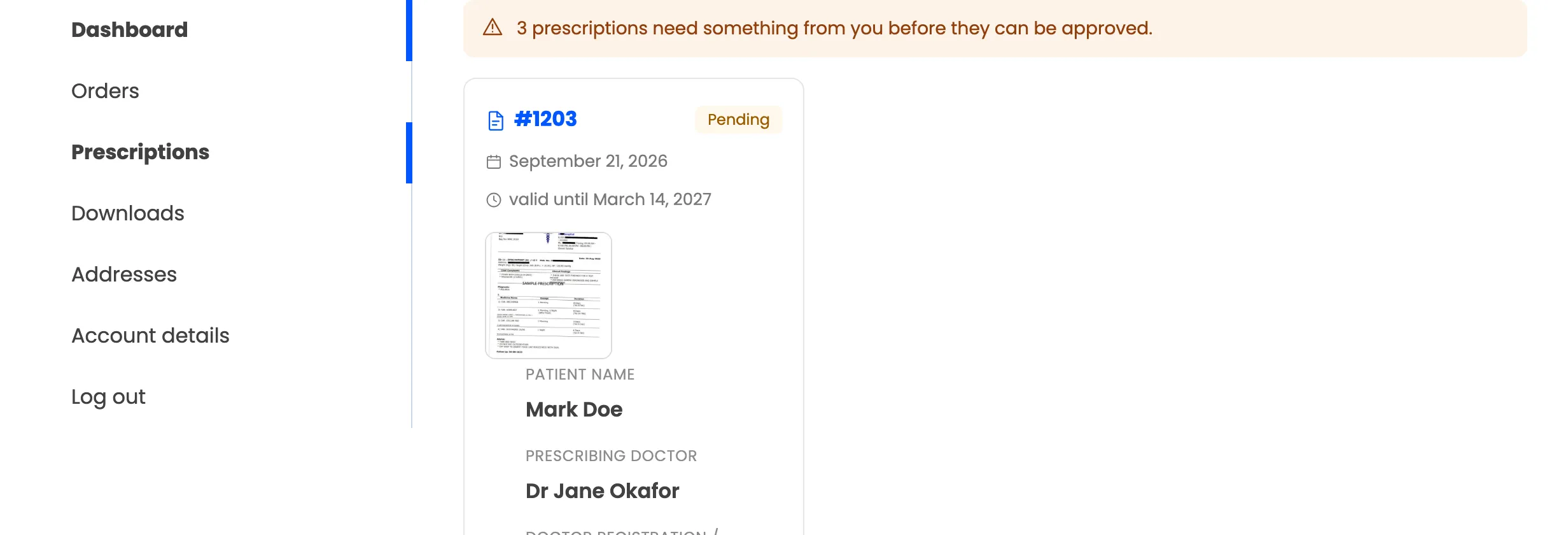
Section titled “My Account”Show a Prescriptions Tab in My Account. On by default. Adds a Prescriptions tab to My Account, under Orders. Pro.
With Self Service on, the tab lists every prescription on the account, including the ones that need the customer. With it off, it lists approved prescriptions only.
Self Service
Section titled “Self Service”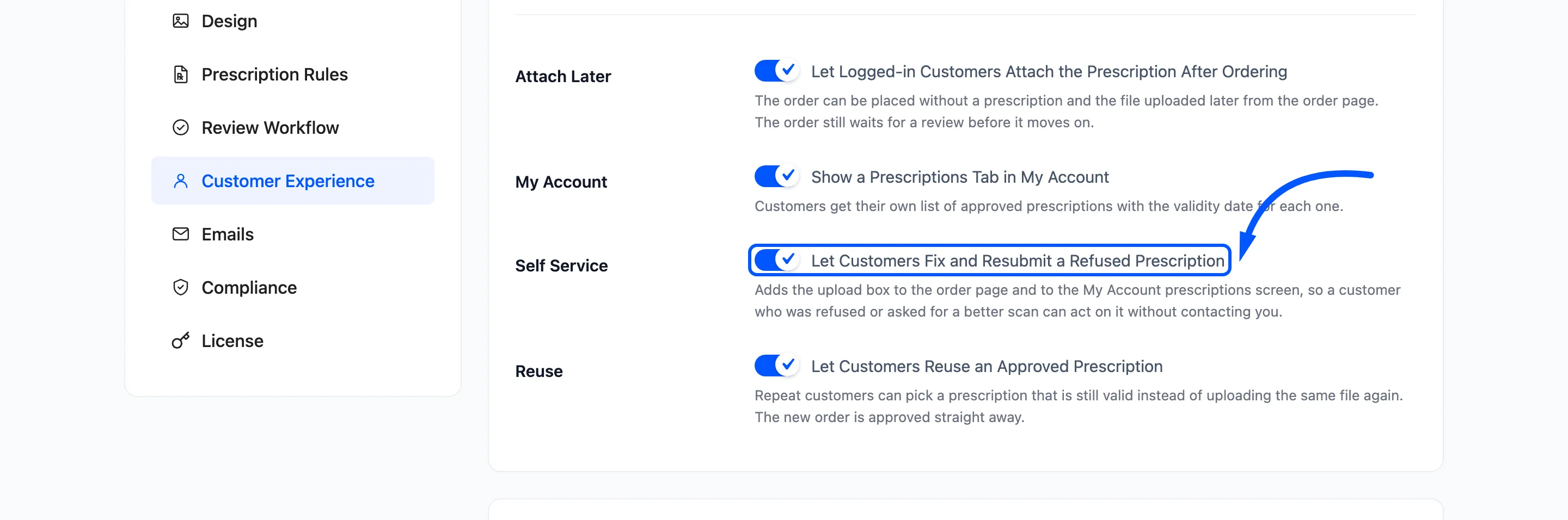
Let Customers Fix and Resubmit a Refused Prescription. On by default. After a rejection, a request for more information or an expiry, the upload box opens again on the order page and in the Prescriptions tab. The customer fixes it and presses Submit for Approval.
With it off, a refused prescription is final as far as the customer is concerned. The emails also stop inviting them to send a replacement.
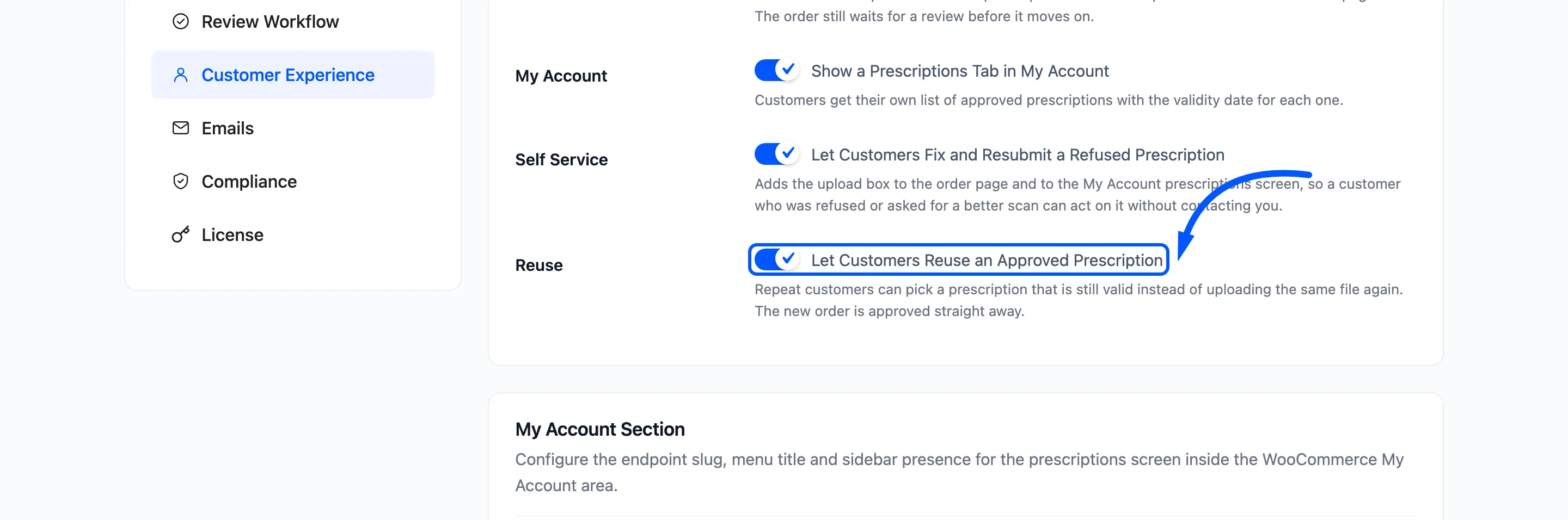
Let Customers Reuse an Approved Prescription. On by default. A returning customer can pick an approved, still valid prescription at checkout instead of uploading it again. The new order is approved on arrival. Pro.
Refills, set under Prescription Rules, limit how many times each approval can be reused.
My Account Section
Section titled “My Account Section”These three settings belong to the Prescriptions tab, and all three are Pro.
- Endpoint Slug: Default
medical-prescriptions. The last part of the tab’s address. Permalinks are rebuilt for you after saving. - Menu Title: Default Prescriptions. The label in the My Account menu.
- Sidebar Widgets: Keep the Theme Sidebar Widgets on the Prescriptions Screen. On by default. Turn it off for a full-width screen.