

How to Read the Audit Trail and File Access Log (Pro)
Sooner or later someone asks: who approved this, and who has seen it? The audit trail answers the first question and the file access log the second, order by order.
Step 1: Check both logs are on
Section titled “Step 1: Check both logs are on”Audit Trail is under Configuration → Review Workflow, and Access Log under Configuration → Compliance. Both are on by default.
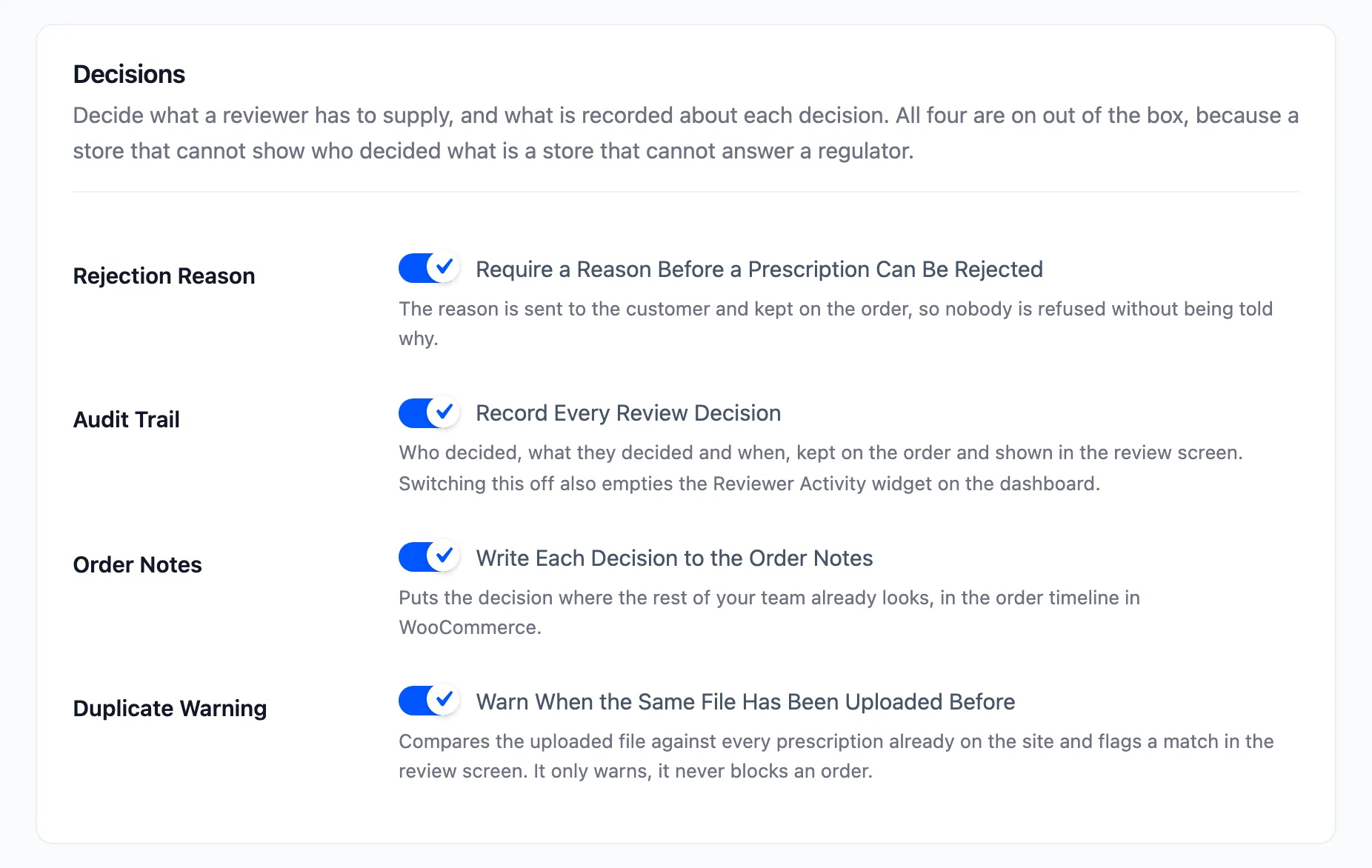
Neither can fill in the past. A decision made while the audit trail was off is not in it.
Step 2: Open the order
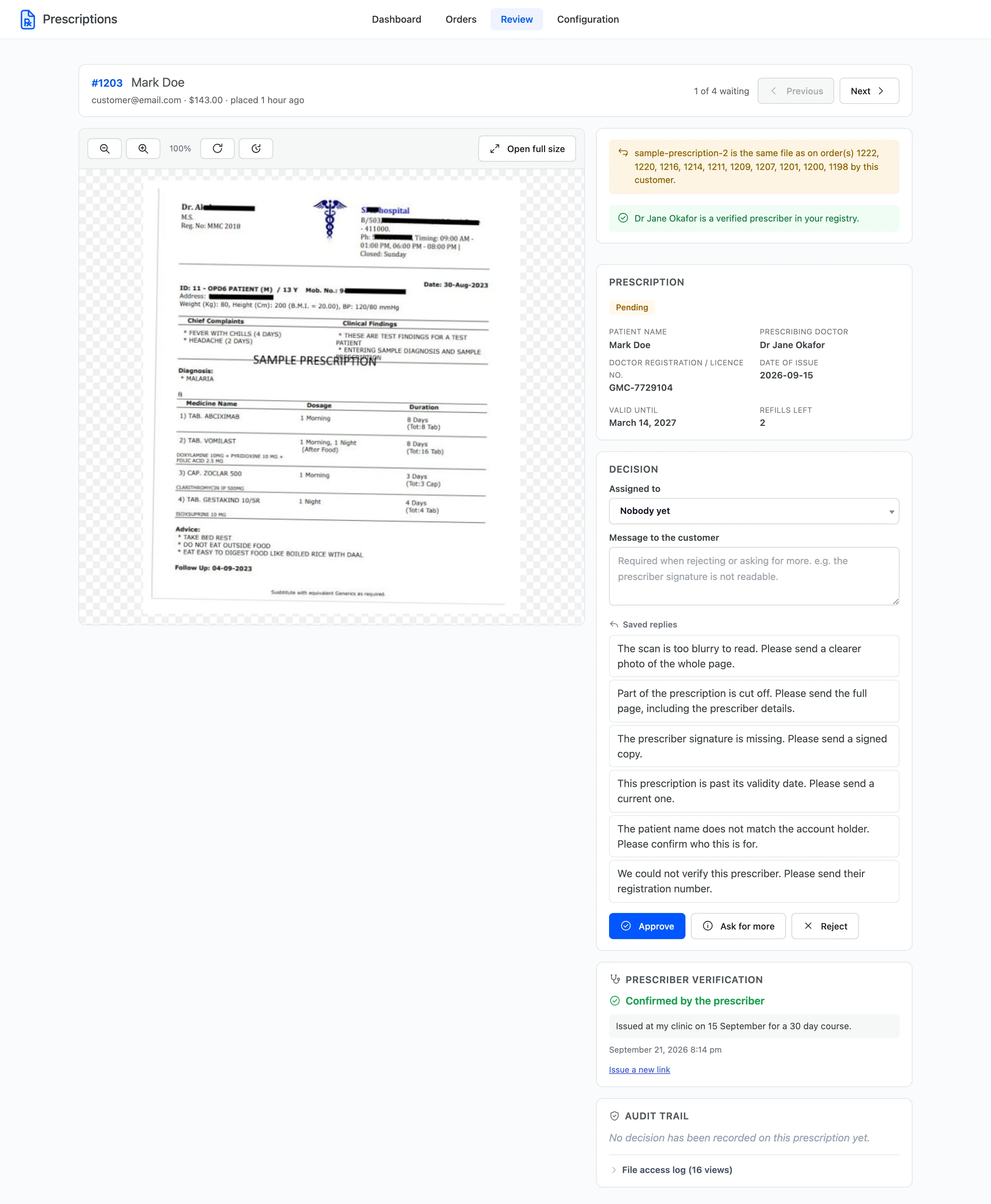
Section titled “Step 2: Open the order”Open the prescription in the review workspace. Both logs are in the Audit trail panel at the foot of the right column.
Step 3: Read the audit trail
Section titled “Step 3: Read the audit trail”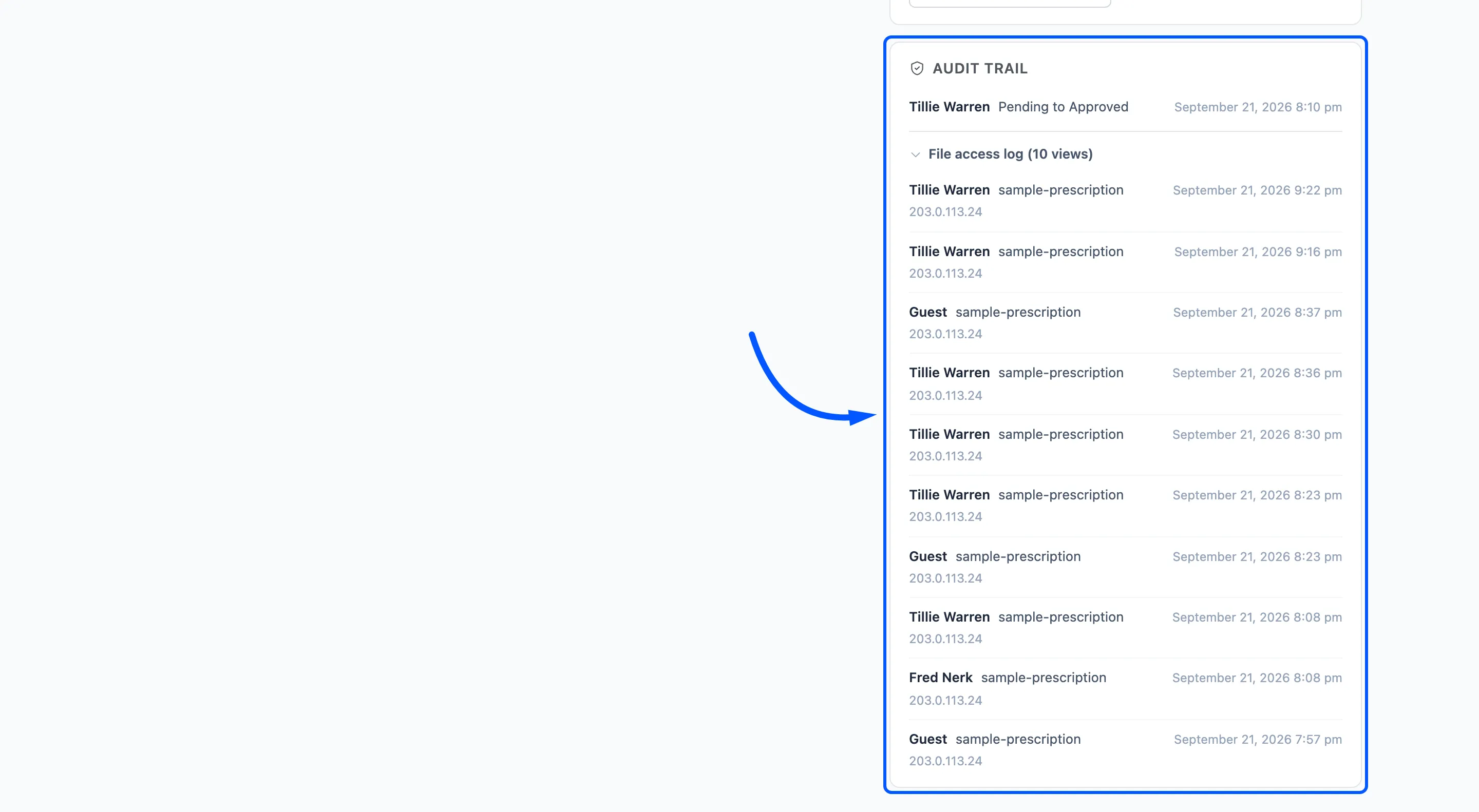
Each line shows:
- Who: The reviewer’s name. A decision made by the plugin itself, such as an expiry, shows Scheduled task.
- What: The change, for example Pending to Approved.
- When: The date and time.
- Why: The message sent to the customer, when there was one.
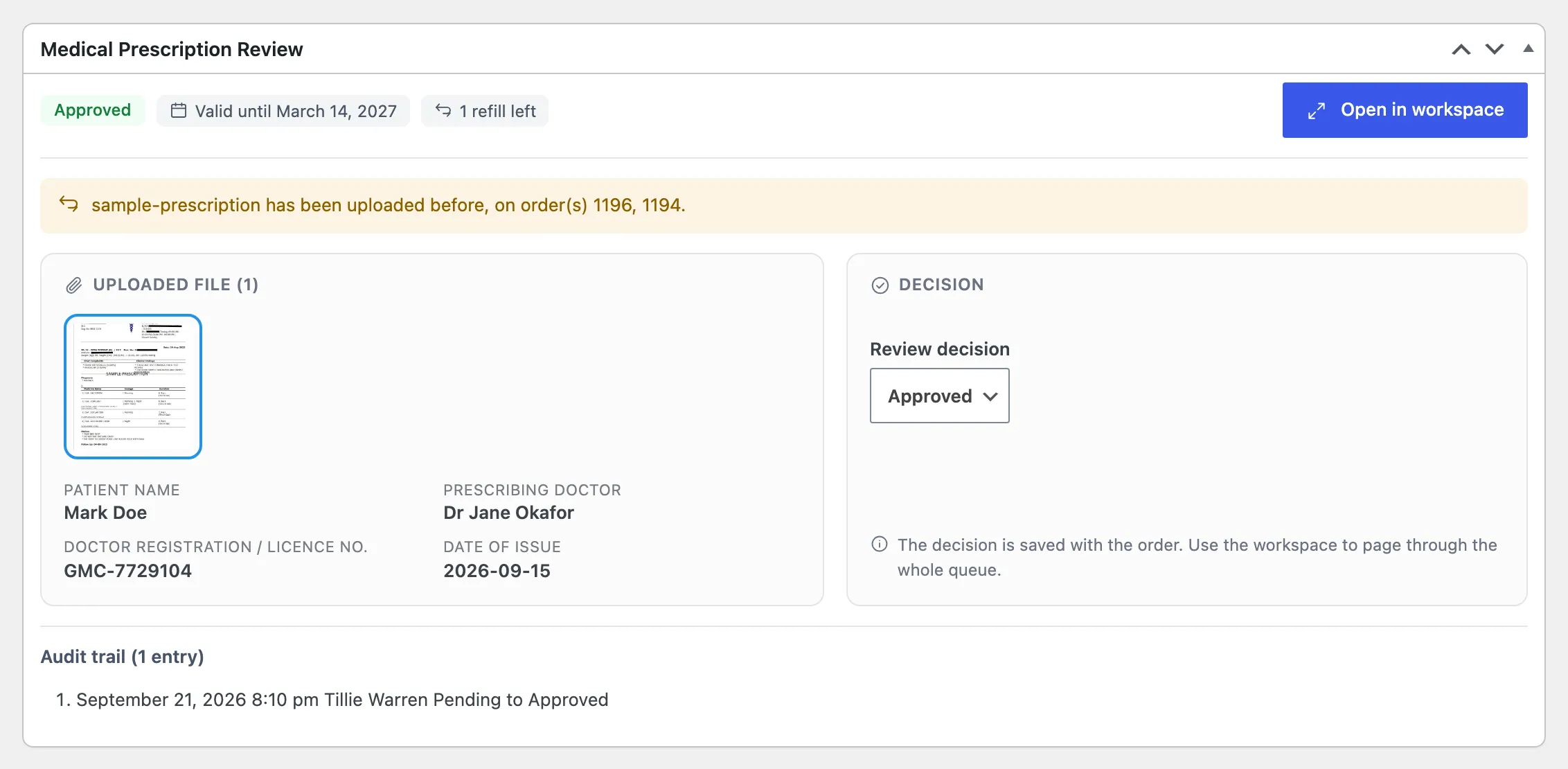
The same trail appears on the order screen, in the Medical Prescription Review panel.
Step 4: Read the file access log
Section titled “Step 4: Read the file access log”Expand File access log.
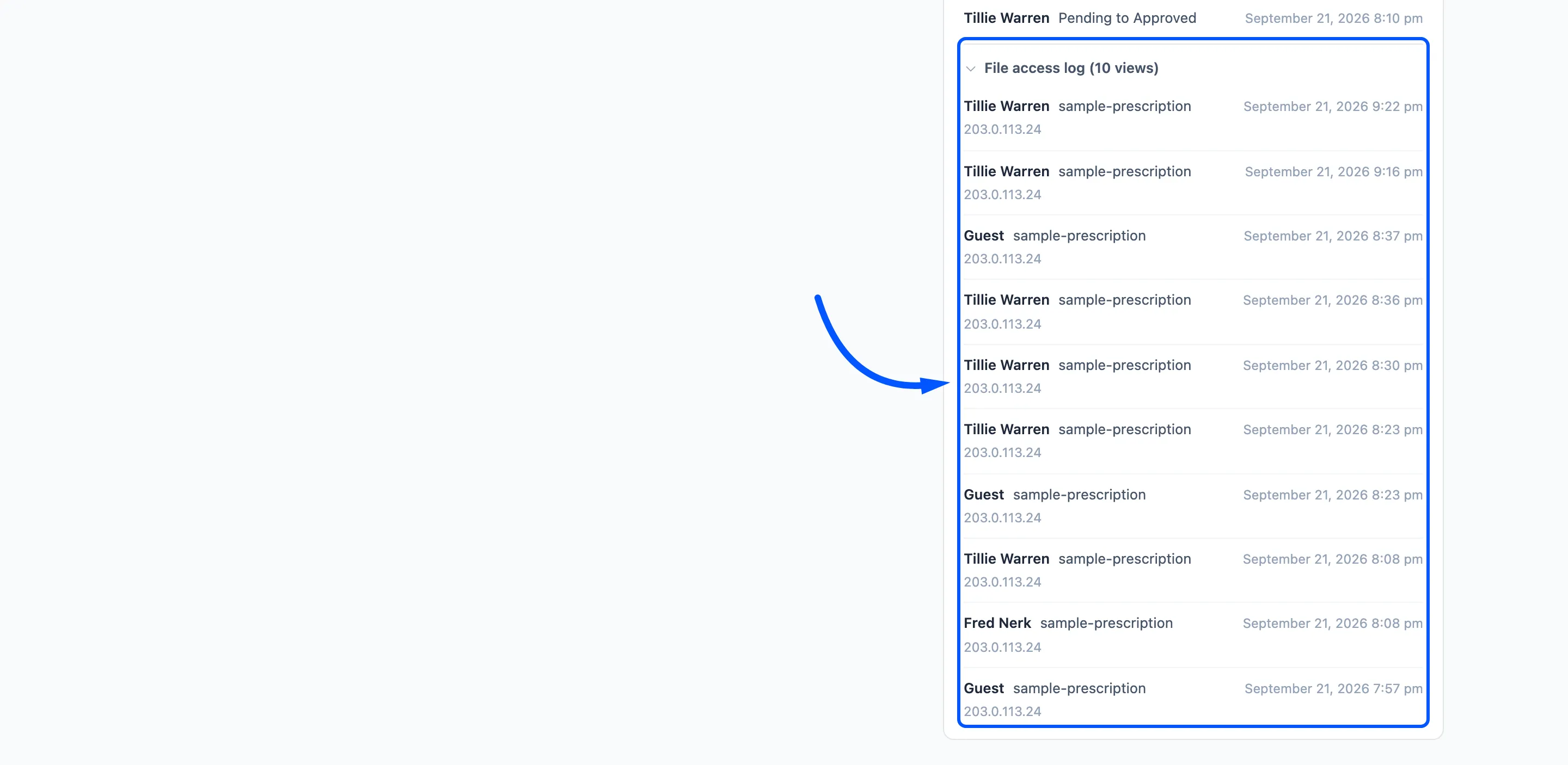
Each line is one person opening a file: their name, the file, the time and the IP address. The IP address in the screenshot is a documentation example.
A customer opening their own file shows under their name. A visitor who is not logged in, such as a prescriber on a verification link, shows as Guest.
Repeat views of the same file by the same person within five minutes count once. The log keeps the latest 100 entries per order.
Step 5: Look at the whole team
Section titled “Step 5: Look at the whole team”Reviewer Activity on the dashboard adds up the audit trail per person: how many prescriptions each reviewer approved, rejected and sent back in the period.
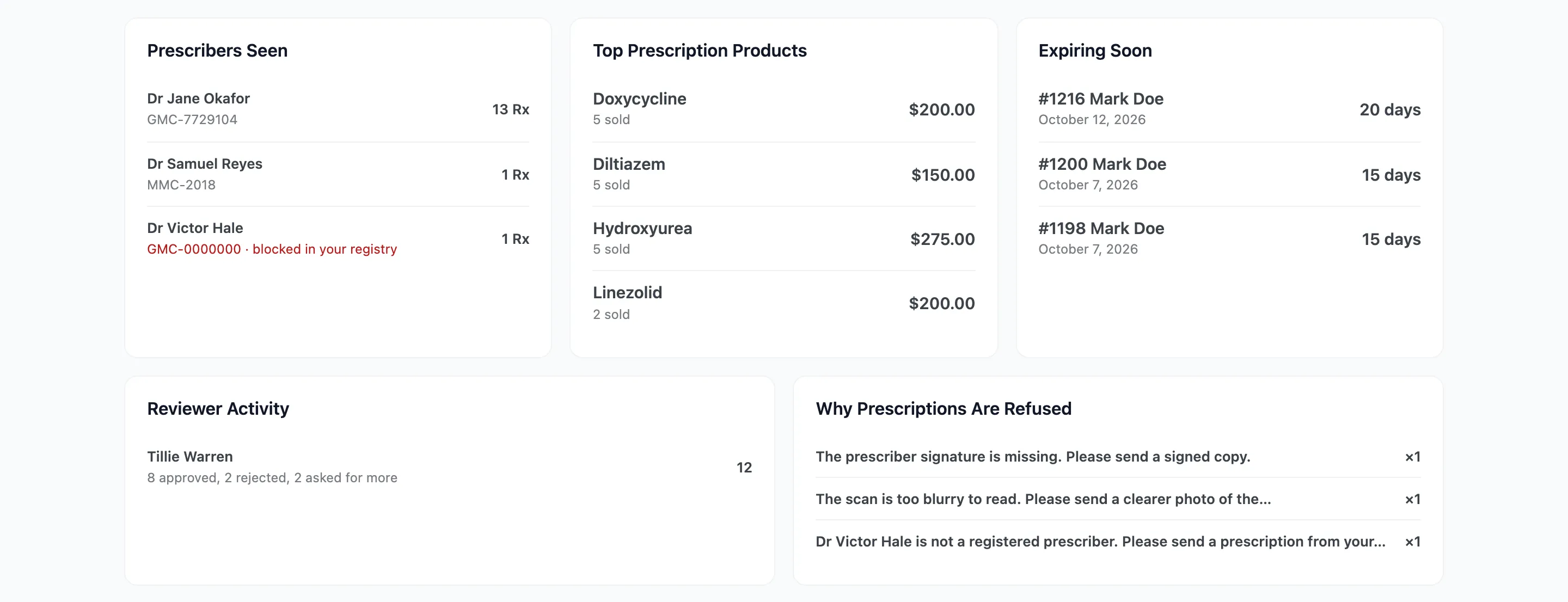
For a record outside WordPress, the CSV export carries each prescription’s status, reviewer and message. See Exporting Prescriptions.