

Compliance Settings
Prescriptions are health records. The Compliance tab keeps them private, keeps them no longer than you need, and keeps the proof of who saw them.
Go to DevDiggers Plugins → Prescriptions → Configuration → Compliance.
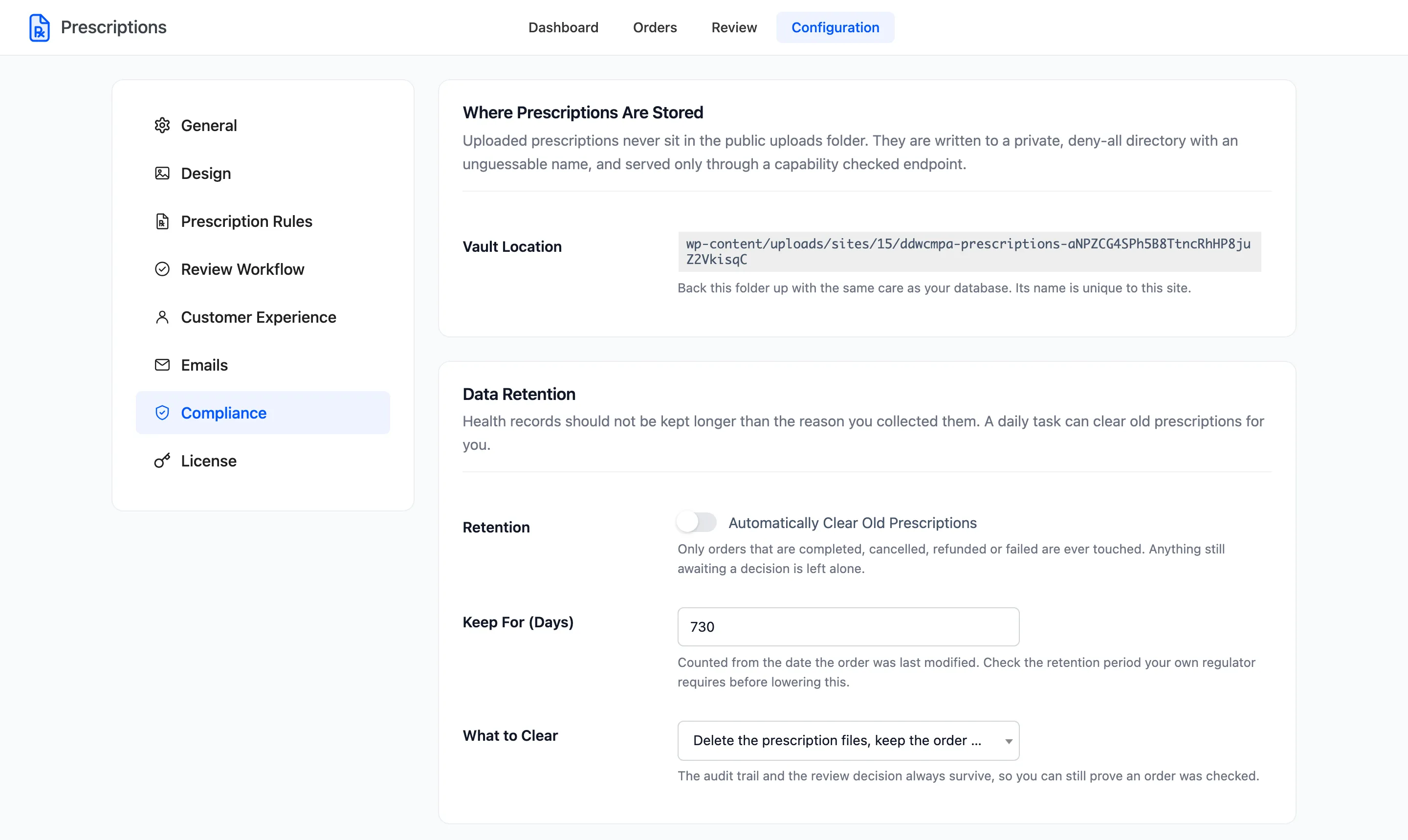
Where Prescriptions Are Stored
Section titled “Where Prescriptions Are Stored”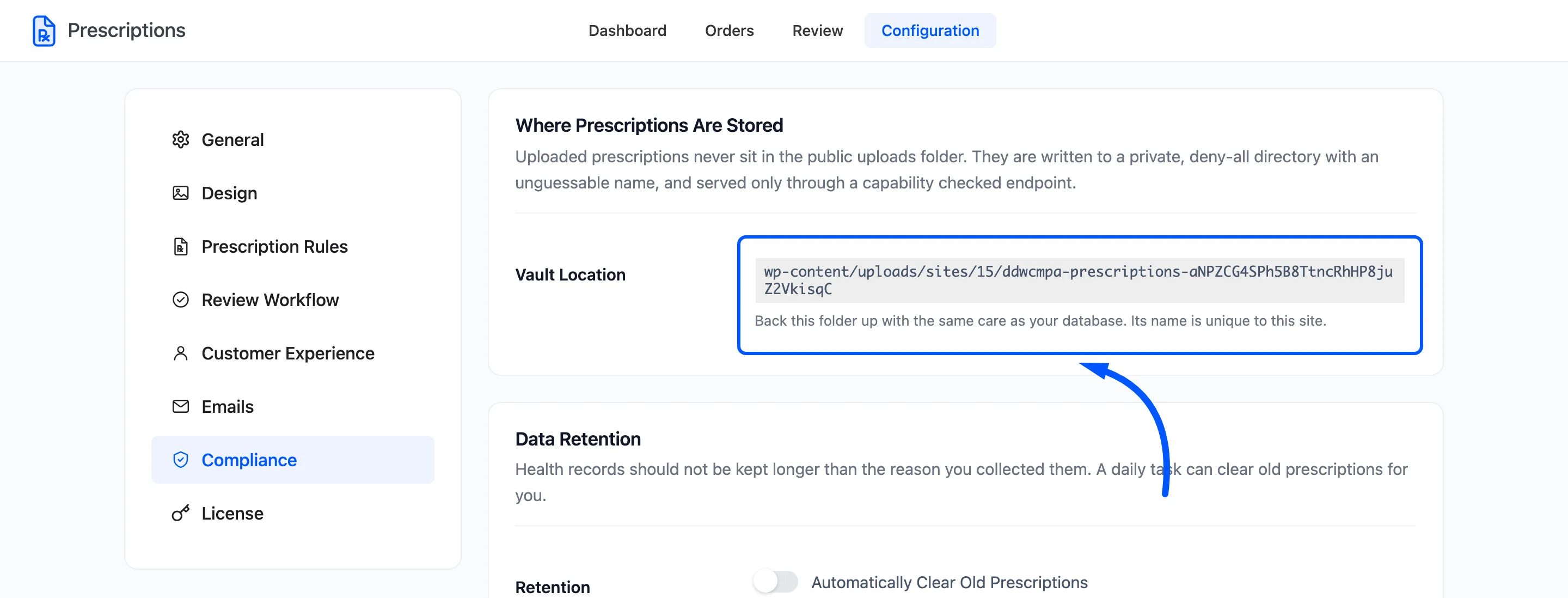
Vault Location shows the folder uploads go to. It sits inside your uploads folder, has a random name unique to your site, and refuses every direct request. A file is only ever served through the plugin, and only to:
- the customer who uploaded it or whose order it is on,
- a user who can review prescriptions or manage WooCommerce,
- a prescriber holding a valid verification link, for the files on that one order.
Prescription files are also hidden from the media library for anyone who is not an administrator.
Back this folder up with the same care as your database. A backup of the database alone restores the orders and loses the prescriptions.
Data Retention
Section titled “Data Retention”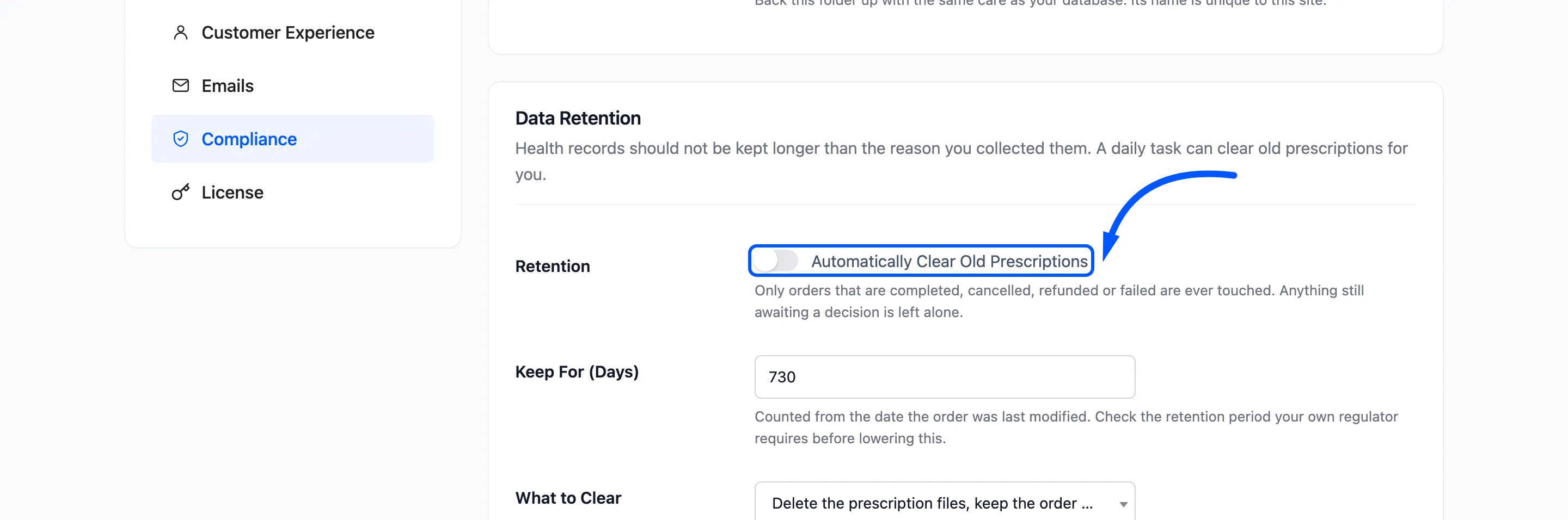
- Retention: Automatically Clear Old Prescriptions. Off by default.
- Keep For (Days): Default 730, two years. Counted from the date the order was last modified.
- What to Clear: Delete the prescription files, keep the order record (default), or Delete the files and clear the patient and prescriber details. The second also clears the access log.
A daily task clears up to 50 orders per run. It only touches orders that are Completed, Cancelled, Refunded or Failed. Anything still open is left alone however old it is.
The decision and the audit trail always survive, and a note “Prescription files were cleared by the retention policy” is added to the order. You can still prove the order was checked.
Access Log
Section titled “Access Log”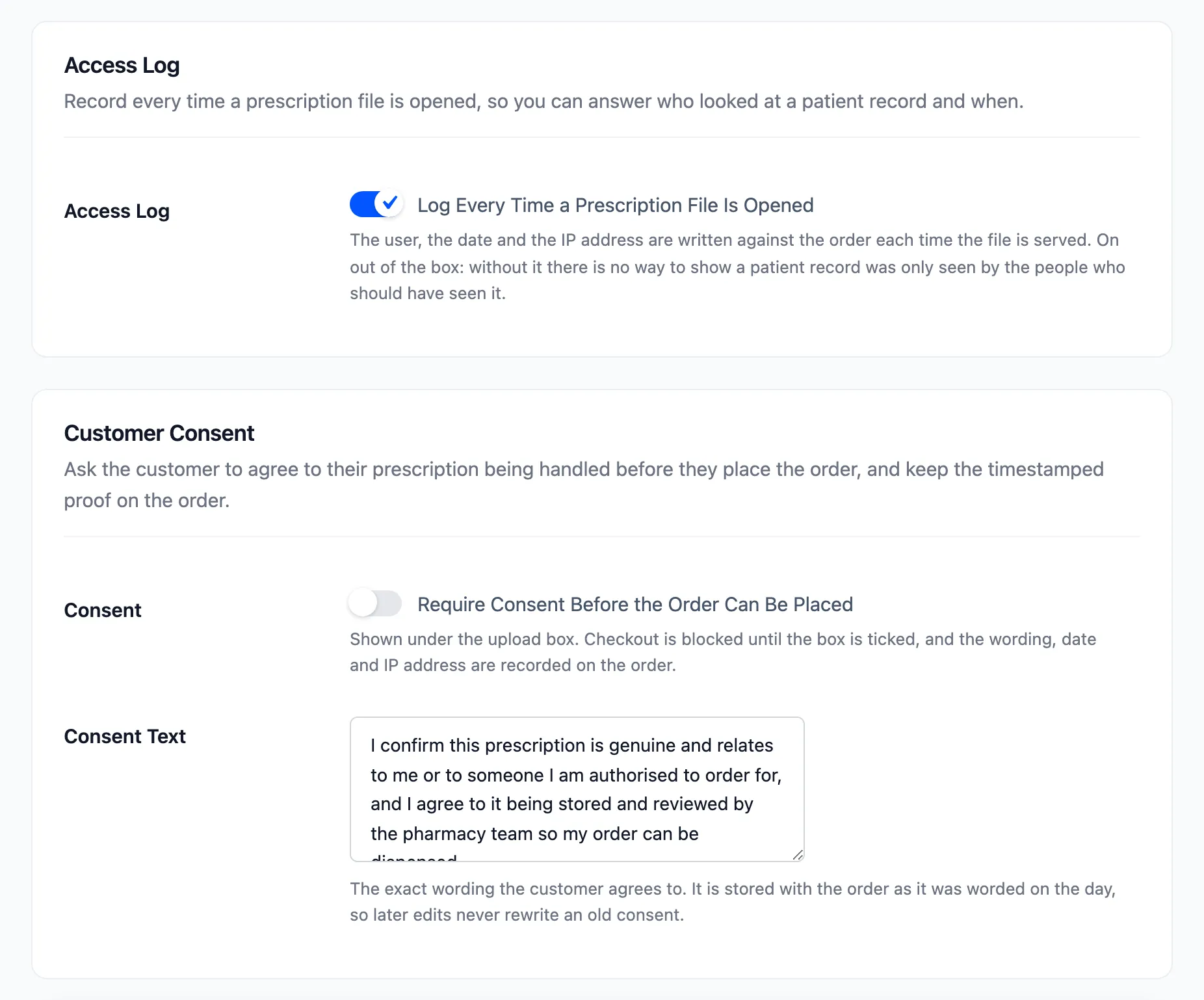
Log Every Time a Prescription File Is Opened. On by default. Each time a file is served, the user, the date and the IP address are written against the order. Repeat views by the same person within five minutes count once, so the log shows people rather than page refreshes.
The log appears as File access log in the review workspace. It keeps the latest 100 entries per order.
Customer Consent
Section titled “Customer Consent”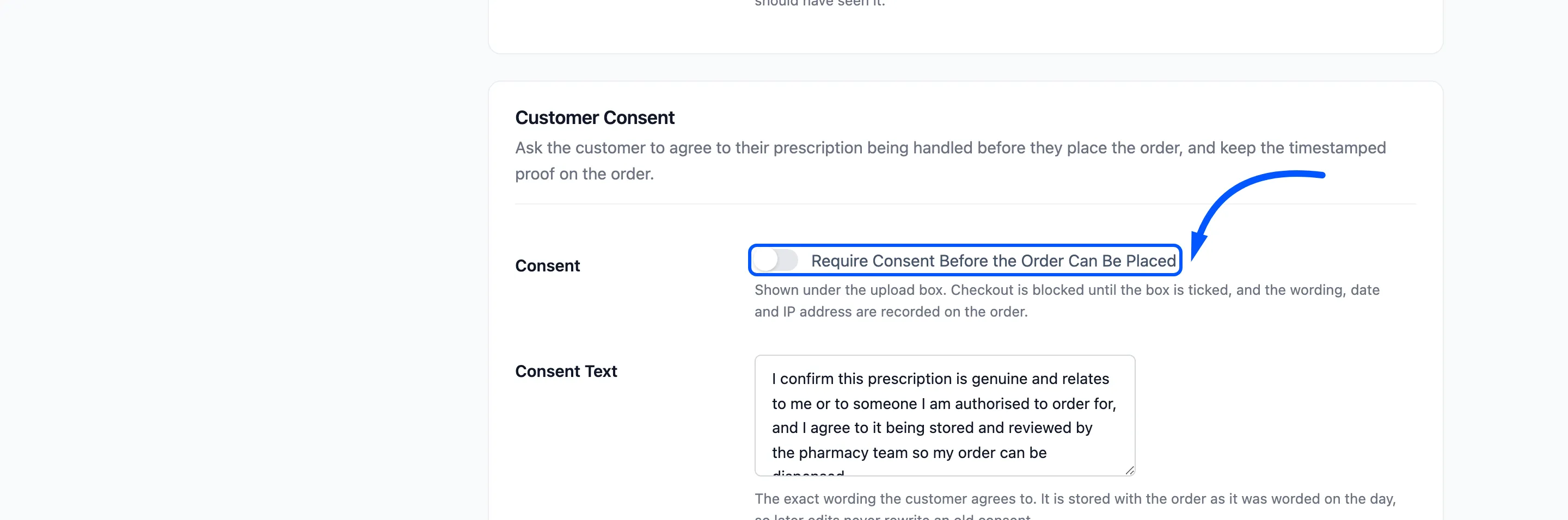
- Consent: Require Consent Before the Order Can Be Placed. Off by default. A statement with a checkbox appears under the upload box, and checkout is blocked until it is ticked. It works on the classic and the block checkout.
- Consent Text: The statement the customer agrees to. It is stored on the order exactly as worded on the day, with the date and IP address. Editing it later never rewrites an old consent.
The default wording is a starting point. The right statement depends on where you trade, so have it checked before you switch this on.