

How to Set Prescription Expiry and Reminders (Pro)
An approval that never lapses lets a customer keep reordering on a prescription written years ago. Expiry closes that, and two reminder emails keep the customer ahead of it.
Step 1: Switch expiry on
Section titled “Step 1: Switch expiry on”Go to DevDiggers Plugins → Prescriptions → Configuration → Prescription Rules. Tick Validity and set Valid For (Days). The defaults are on and 180 days.
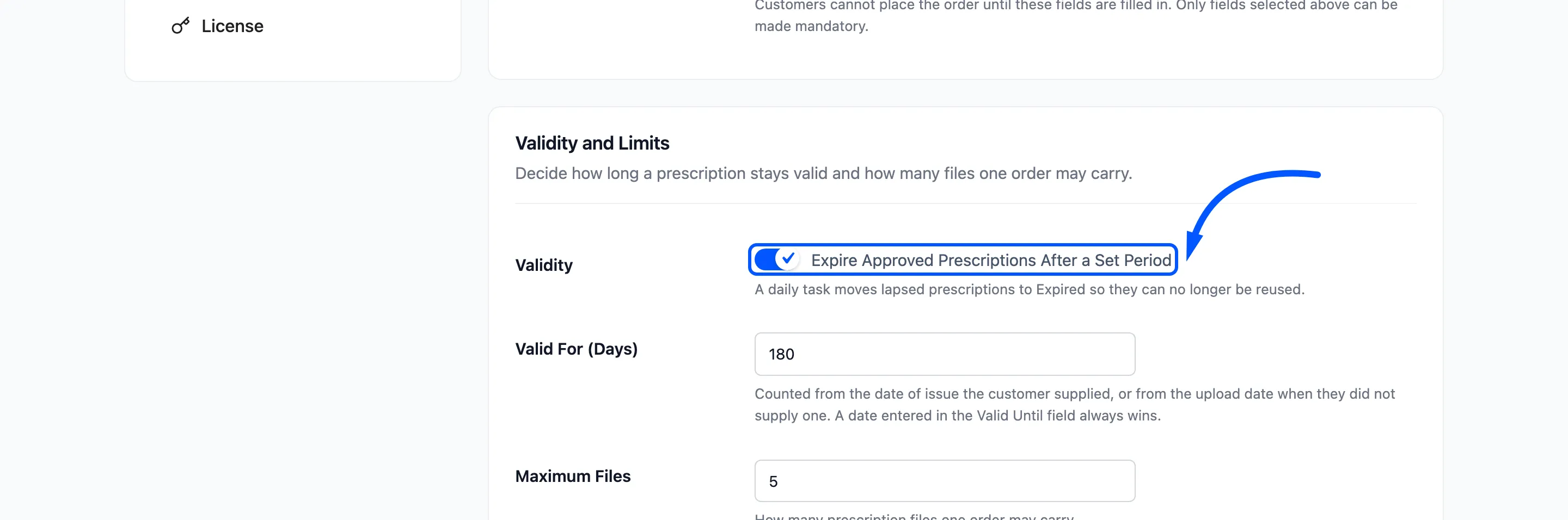
Each prescription gets a validity date when it is uploaded:
- The Valid Until date the customer typed, if you collect that field.
- Otherwise, the Date of Issue plus Valid For.
- Otherwise, the upload date plus Valid For.
The date is fixed on the order at that moment. Changing Valid For later leaves existing dates alone.
Step 2: Collect the date of issue
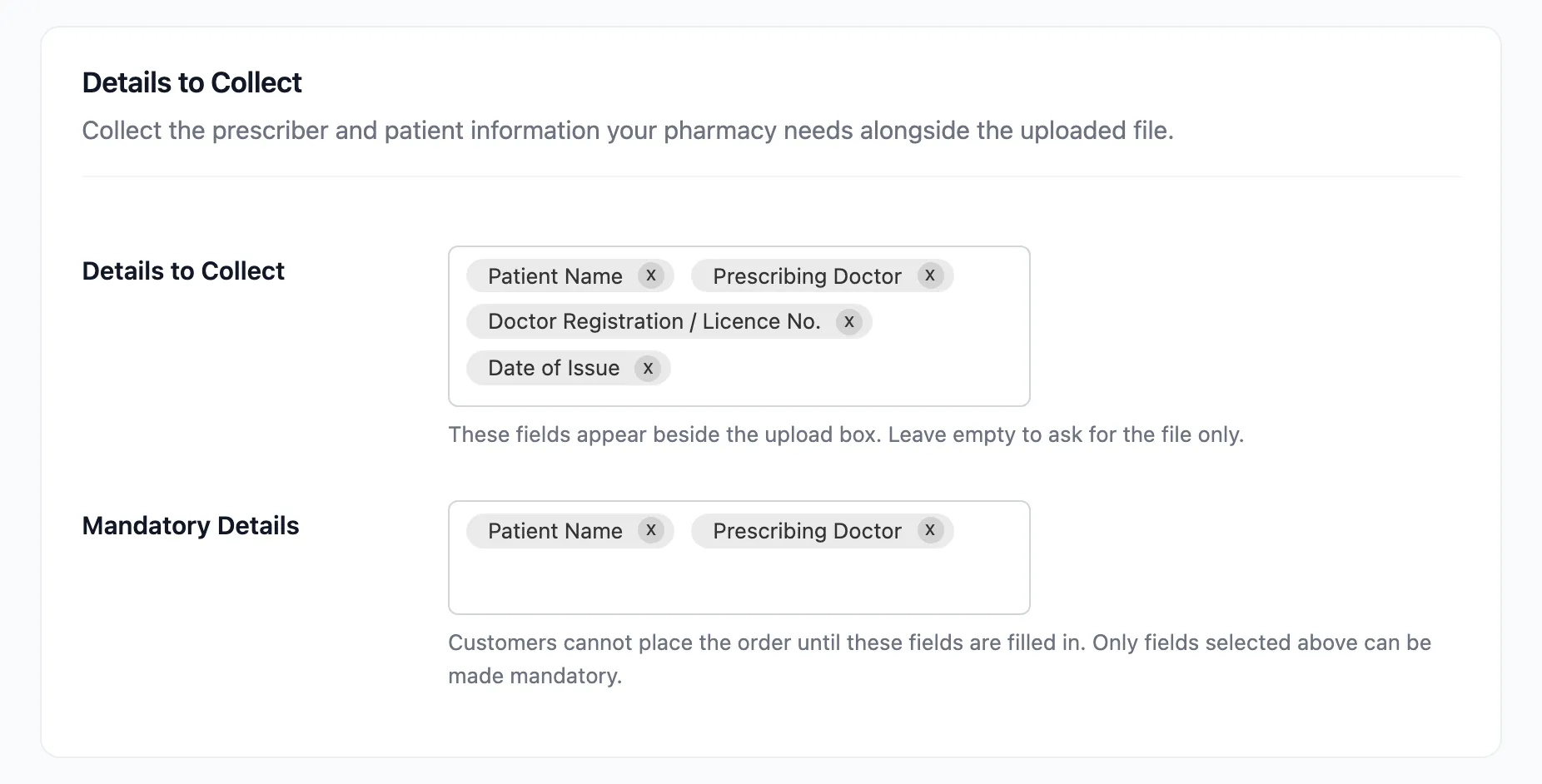
Section titled “Step 2: Collect the date of issue”Without Date of Issue, the period starts on the upload date, which can be weeks after the doctor wrote it. Add it to Details to Collect so the clock starts at the right place.
Step 3: Set the expiry warning
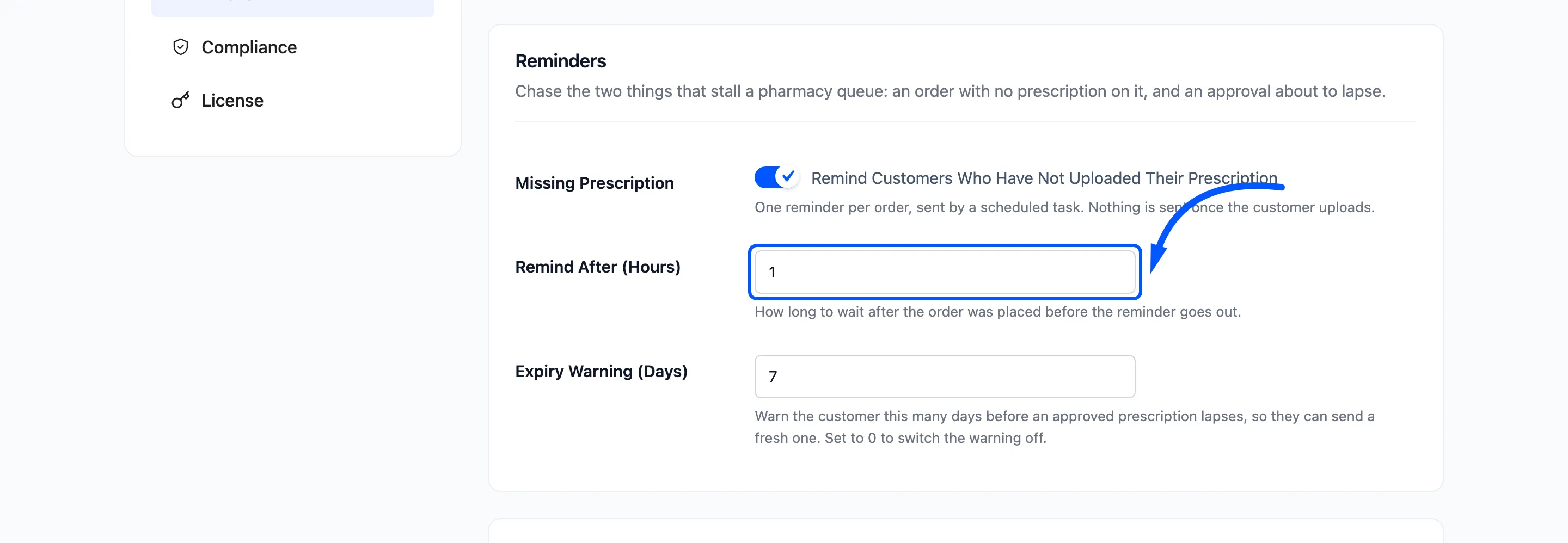
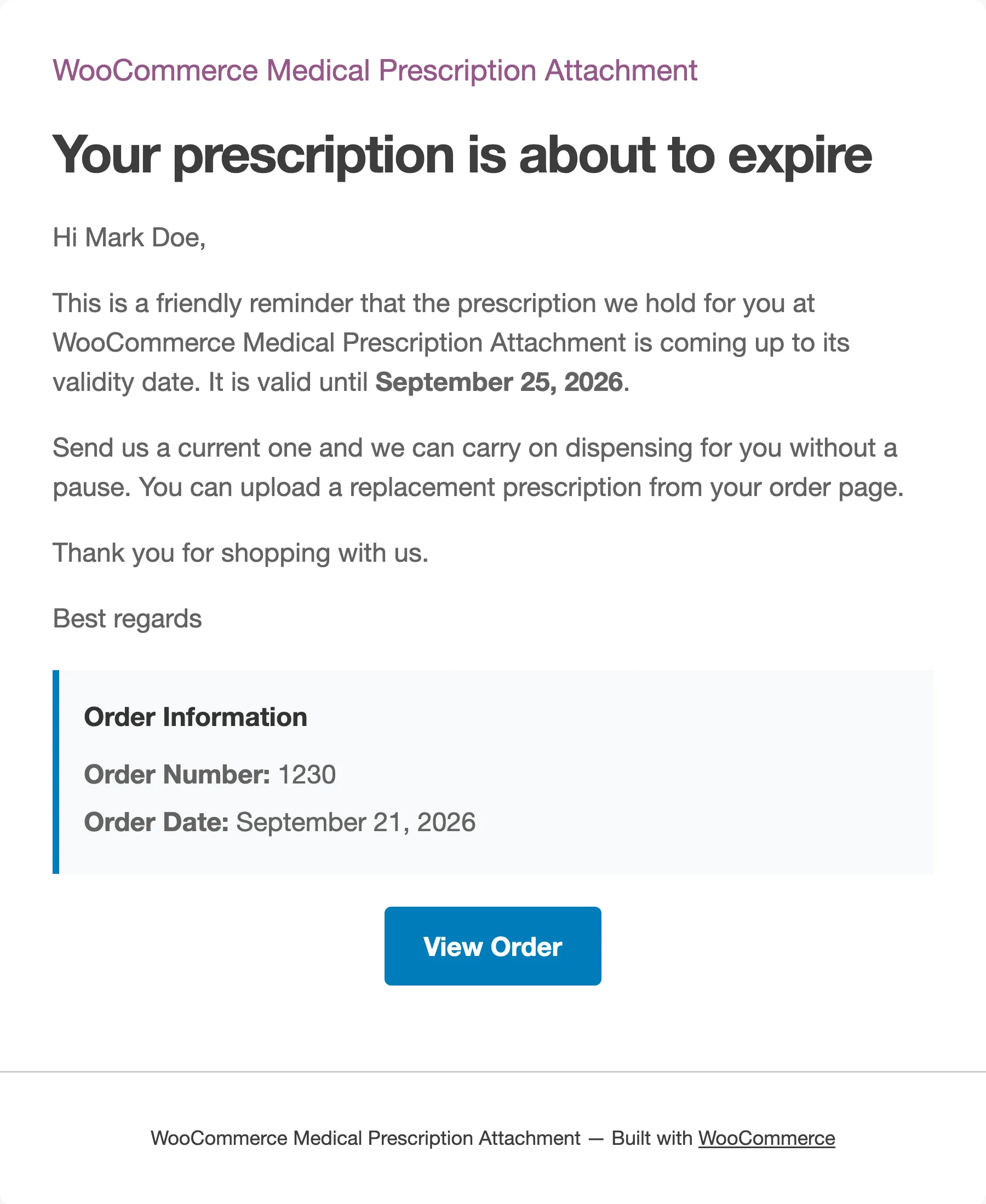
Section titled “Step 3: Set the expiry warning”Go to Configuration → Emails. Expiry Warning (Days) warns the customer this many days before an approved prescription lapses. The default is 7; 0 switches it off.
Each approval is warned once.
Step 4: Set the missing prescription reminder
Section titled “Step 4: Set the missing prescription reminder”On the same tab, Missing Prescription reminds a customer who chose Attach later and has not uploaded. Remind After (Hours) sets the wait, 24 by default. Each order is reminded once.
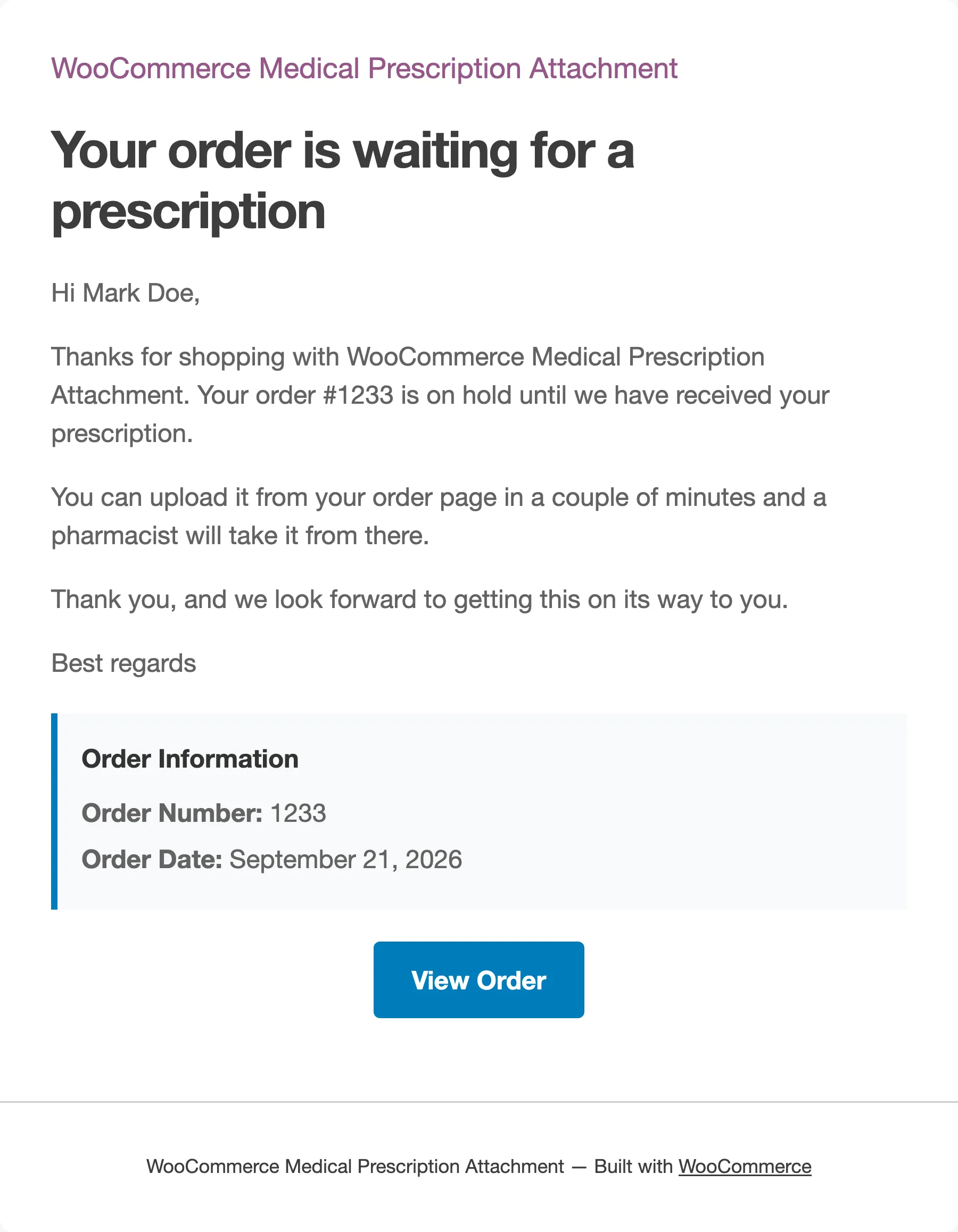
Both reminders need Customer Emails on. Click Save Changes.
Step 5: Watch the results
Section titled “Step 5: Watch the results”Expiring Soon on the dashboard lists approvals lapsing in the next 30 days.
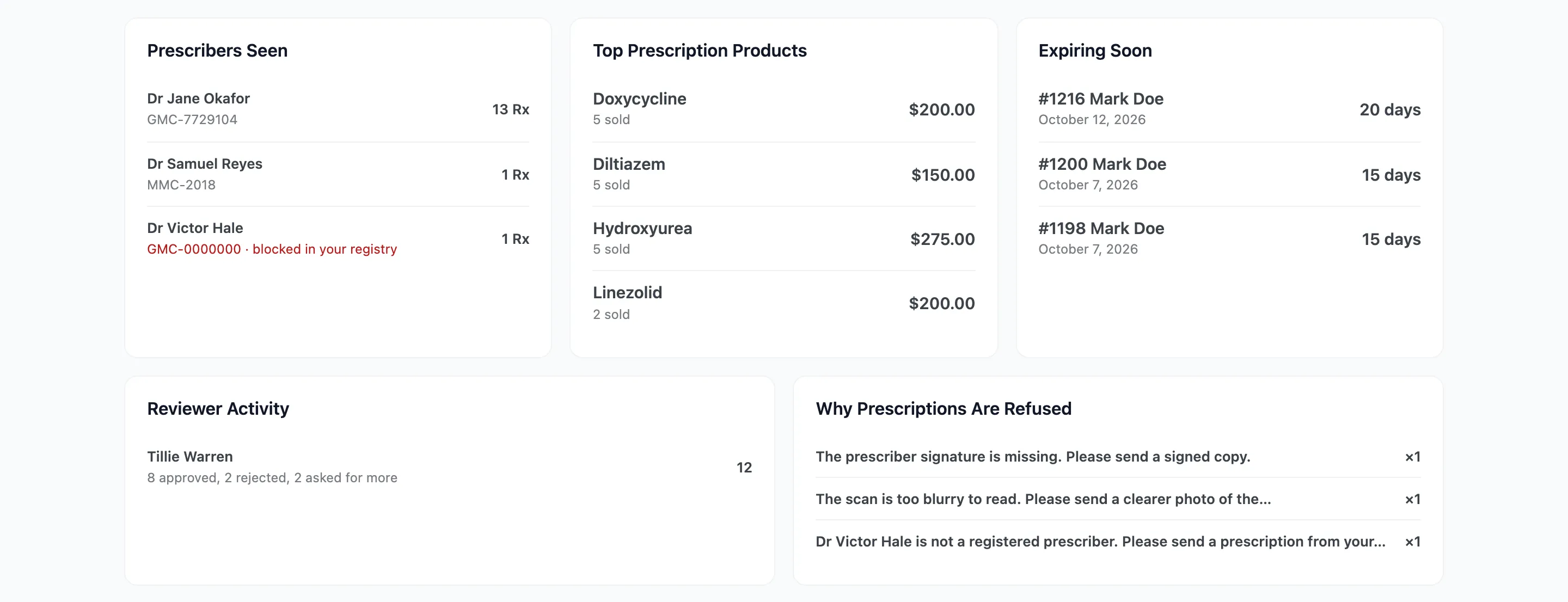
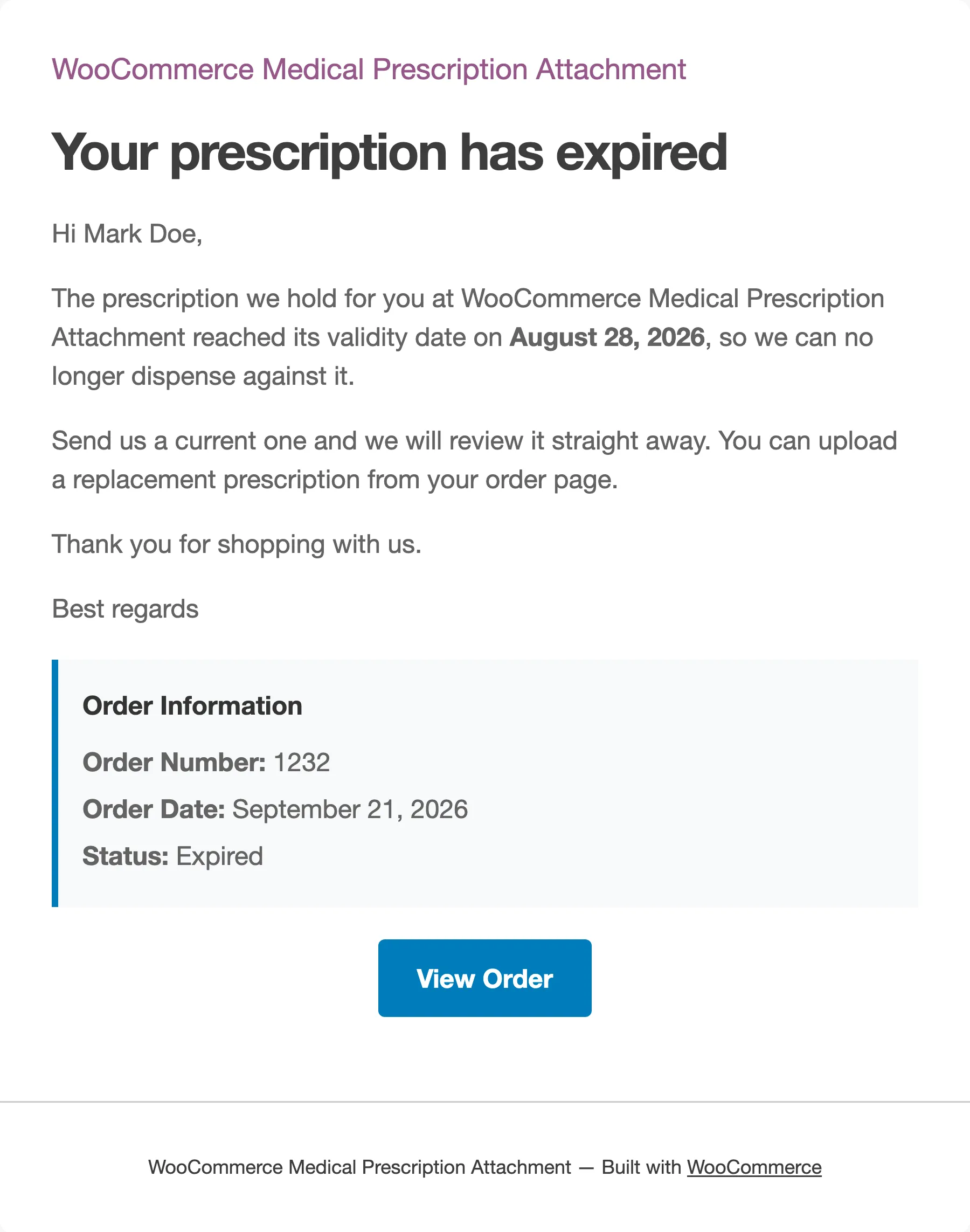
A task runs once a day and moves every approval past its date to Expired. The audit trail records it as “The prescription passed its validity date” by Scheduled task. An expired prescription:
- drops out of the customer’s reuse list,
- shows Expired in the Orders list and the My Account tab,
- can be replaced by the customer from the order page, while Self Service is on.
The order itself is not changed. The customer gets the Prescription Expired email once, with the date that passed.
How the timing works
Section titled “How the timing works”Both reminders are sent by a task that runs every hour, and expiry by one that runs daily. WordPress runs these tasks when the site gets visits, so on a quiet store they can run late.