

How Prescription Review Works
Every setting in this plugin changes one chain of events. A product needs a prescription, the customer uploads one, the order waits, a pharmacist decides, and the order moves on. Knowing the chain makes every other page in these docs easier to read.
The chain in six steps
Section titled “The chain in six steps”- A product needs a prescription. A rule on the product or its category says so.
- The customer uploads it. In the cart or at checkout, before the order can be placed.
- The order is placed and held. It gets a prescription status of Pending and waits On hold.
- The store is told. An email goes to the store address with the files attached.
- A pharmacist decides. Approve, reject or ask for more.
- The order moves on. Its status changes, the customer is emailed and the decision is recorded.
Step 1: Which products need a prescription
Section titled “Step 1: Which products need a prescription”Three rules decide it, checked in this order. The first one that applies wins.
| Order | Rule | Where it is set |
|---|---|---|
| 1 | The product’s own Requires prescription setting, when it is not Use category rules | The product’s edit screen |
| 2 | The product is in Excluded Products | Configuration → General |
| 3 | The product is in one of the Allowed Categories, or no category is selected at all | Configuration → General |
A variation follows its parent product’s category and its parent’s own rule. An empty Allowed Categories field is not “nothing”: it means every product in the store needs a prescription.
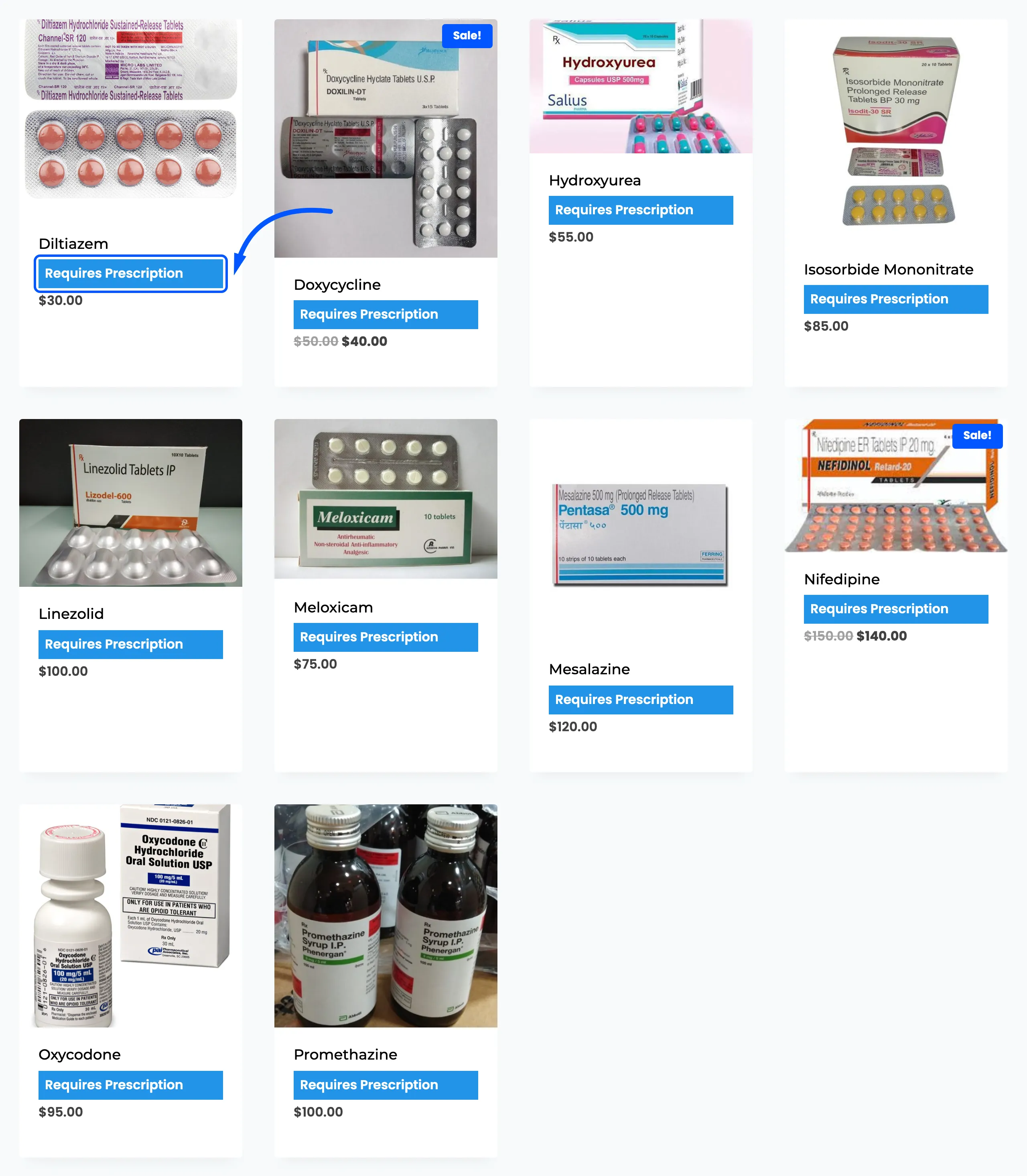
A product that needs one shows the Requires Prescription badge on the shop and product pages. The customer knows before they add it to the cart.
Step 2: The upload
Section titled “Step 2: The upload”As soon as the cart holds one prescription product, the Attach Medical Prescription box appears in the cart and at checkout.
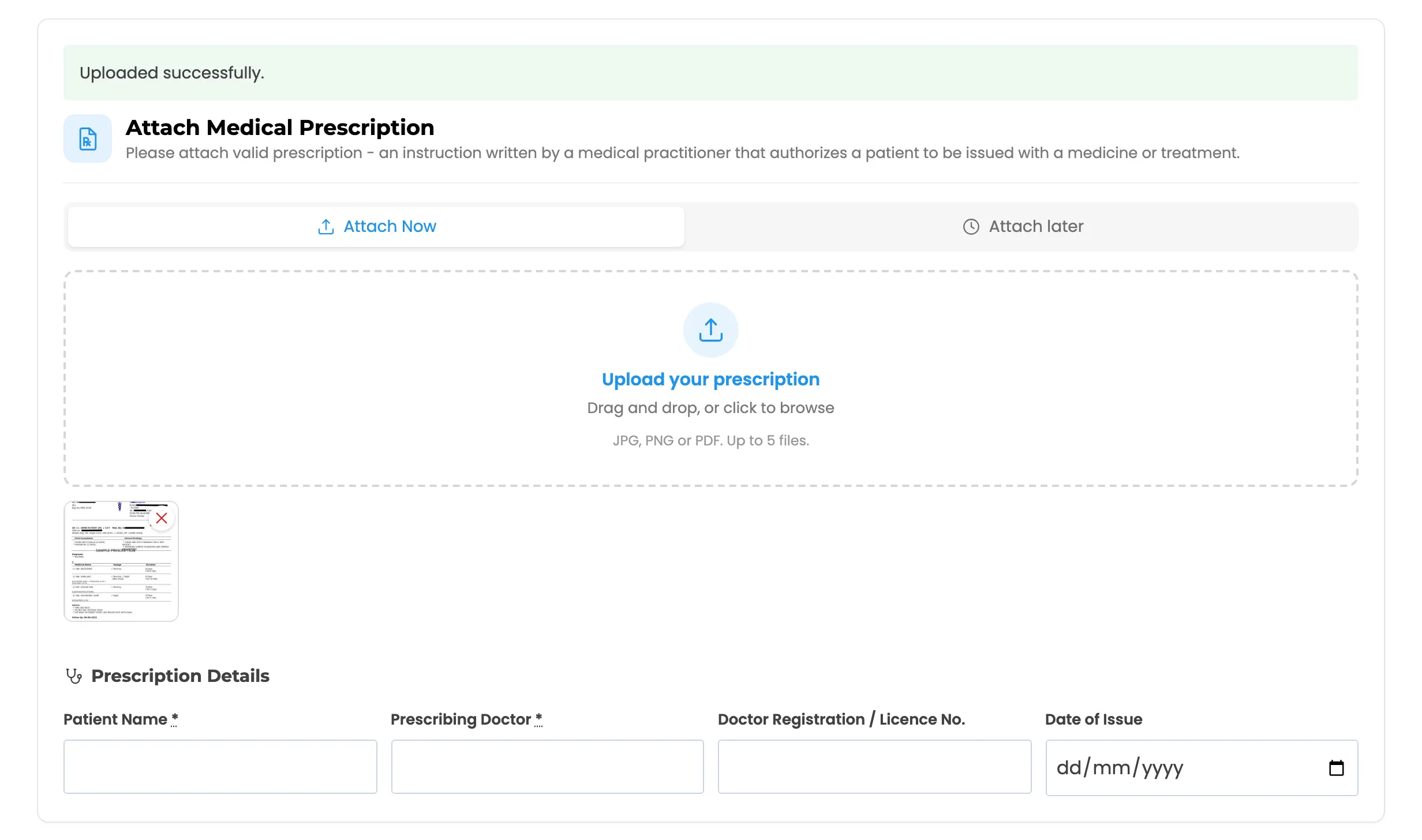
The file uploads the moment it is chosen, before the order exists. It goes straight into a private folder, not the public media library. Photos, PDFs and Word documents are accepted, up to the Maximum Files you set and the size limit of your server.
Pro adds a Prescription Details form under the upload box: the patient, the doctor, their licence number and the dates. The fields you mark as mandatory must be filled before checkout will go on.
Step 3: The order is placed and held
Section titled “Step 3: The order is placed and held”Until a file is uploaded, the Place order button is replaced by a message. On the block checkout the order is refused with the same message instead.
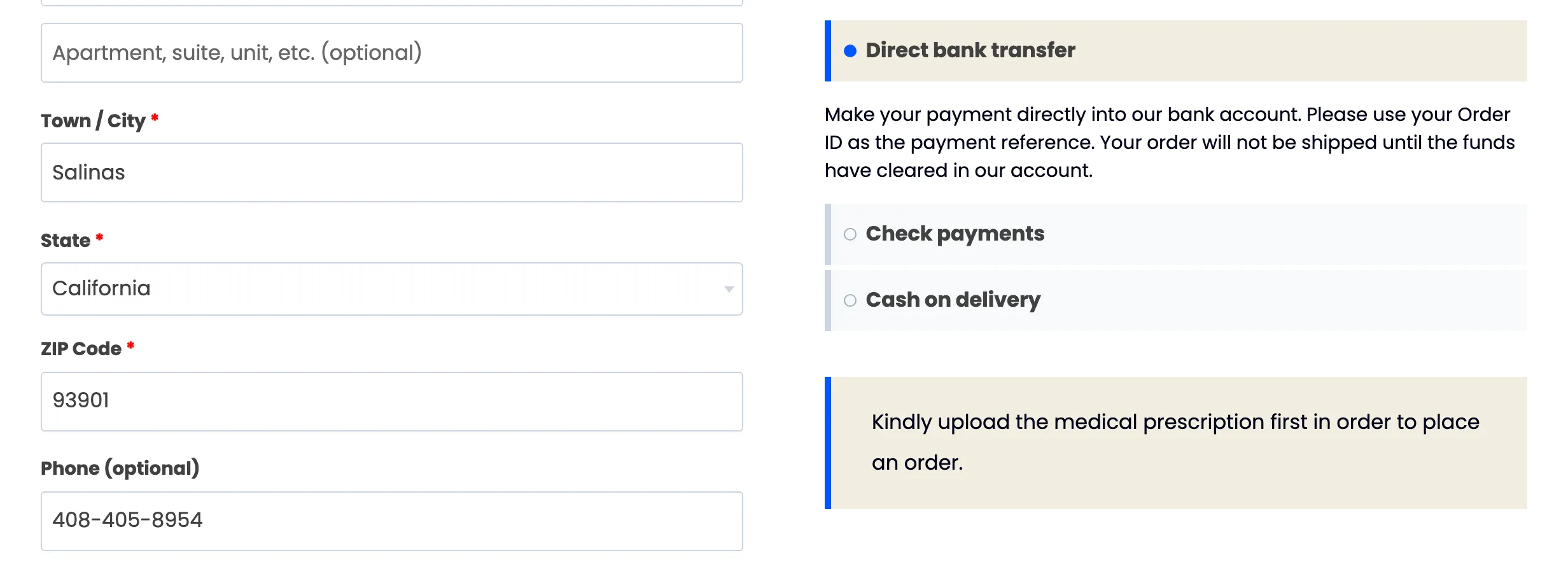
Once the order goes through, it gets a prescription status of Pending. It moves to the status set in While Under Review, which is On hold by default. The hold beats the payment method. Cash on delivery, bank transfer, cheque and card payments would normally send the order to Processing, and the plugin keeps it on hold instead.
A customer who chose Attach later gets an order with the status Attachment Pending. It is held the same way until the file arrives.
Step 4: The store is told
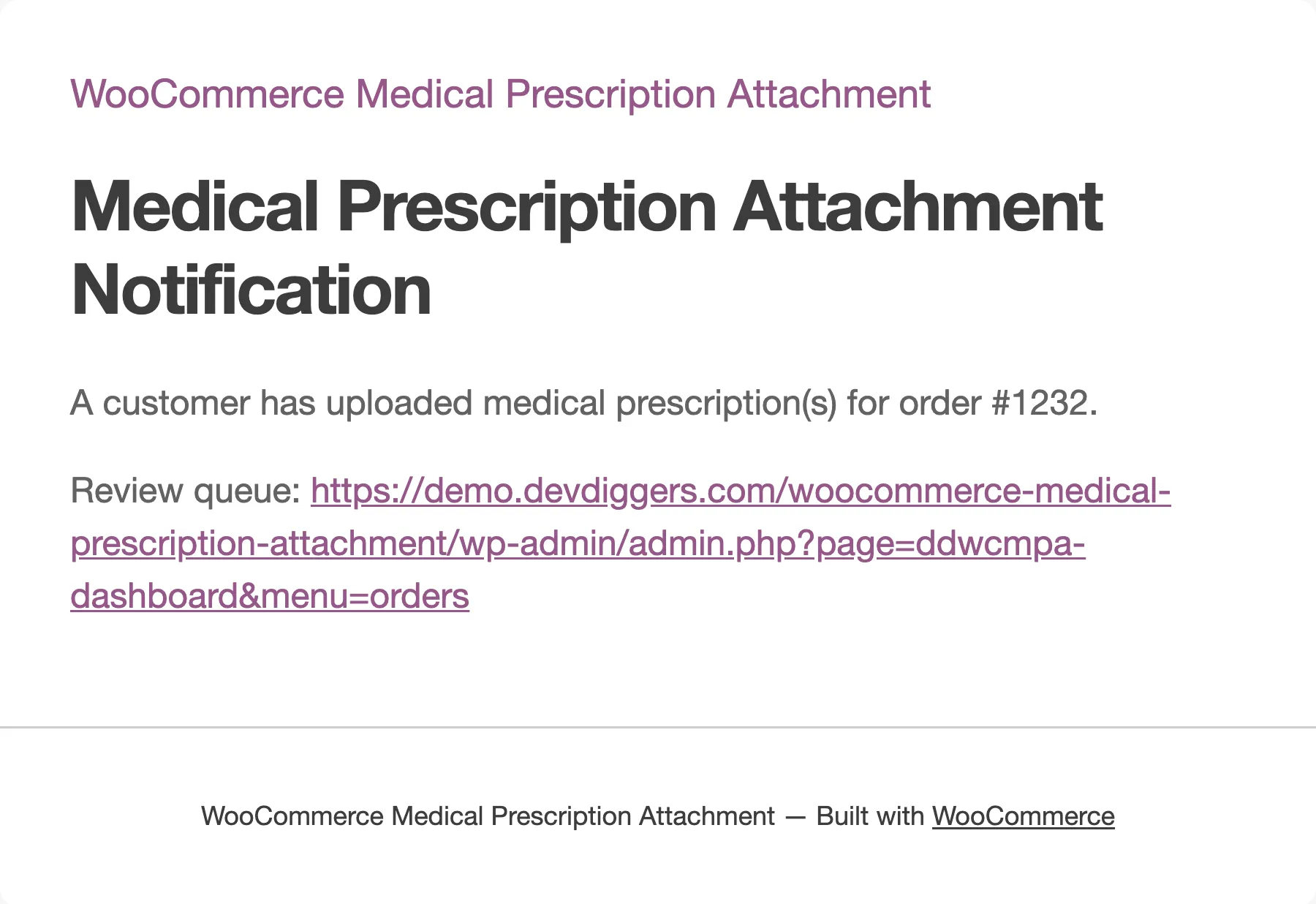
Section titled “Step 4: The store is told”With Admin Emails on, the store address gets a message for every new prescription. It links to the review queue and carries the uploaded files as attachments.
The order also appears in Prescriptions → Orders, in the dashboard’s Review Queue, and in the Pro review workspace.
Step 5: The decision
Section titled “Step 5: The decision”A pharmacist opens the order and makes one of three decisions.
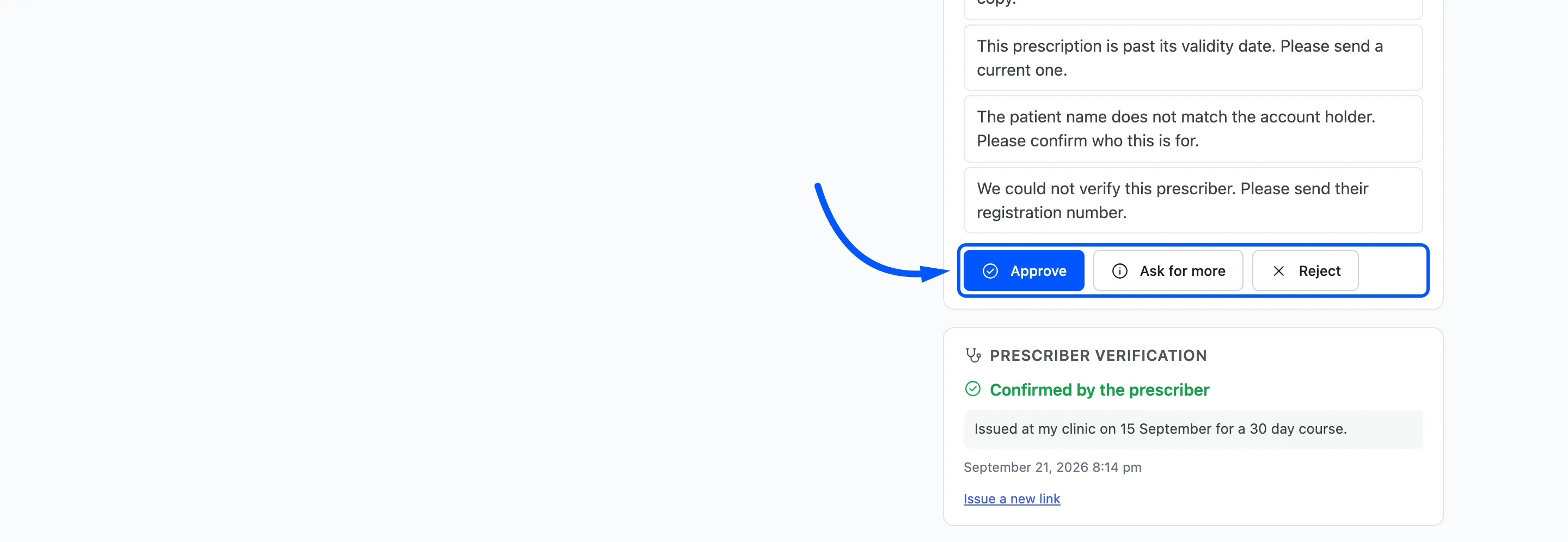
- Approve: The prescription is accepted.
- Reject: The prescription is refused. A reason is required by default, and it is sent to the customer.
- Ask for more: Nothing is refused. The customer is asked for a clearer scan or a missing detail, and a message is always required.
In the free version the same three decisions are made from the Medical Prescription Review panel on the order’s own edit screen.
Step 6: What each decision does to the order
Section titled “Step 6: What each decision does to the order”| Decision | Order status | Customer email | Recorded |
|---|---|---|---|
| Approve | On Approval, Processing by default | Prescription Approved | Order note, audit trail (Pro) |
| Reject | On Rejection, unchanged by default | Prescription Rejected, with the reason | Order note, audit trail (Pro) |
| Ask for more | Back to While Under Review | More Information Needed, with the message | Order note, audit trail (Pro) |
An approved order is released to your normal fulfilment. A rejected one stays on hold by default, so the customer can send a replacement without you reopening anything.
After the decision
Section titled “After the decision”The customer sees the result on their order page. After a rejection or a request, the upload box is open again there, as long as Self Service is on.
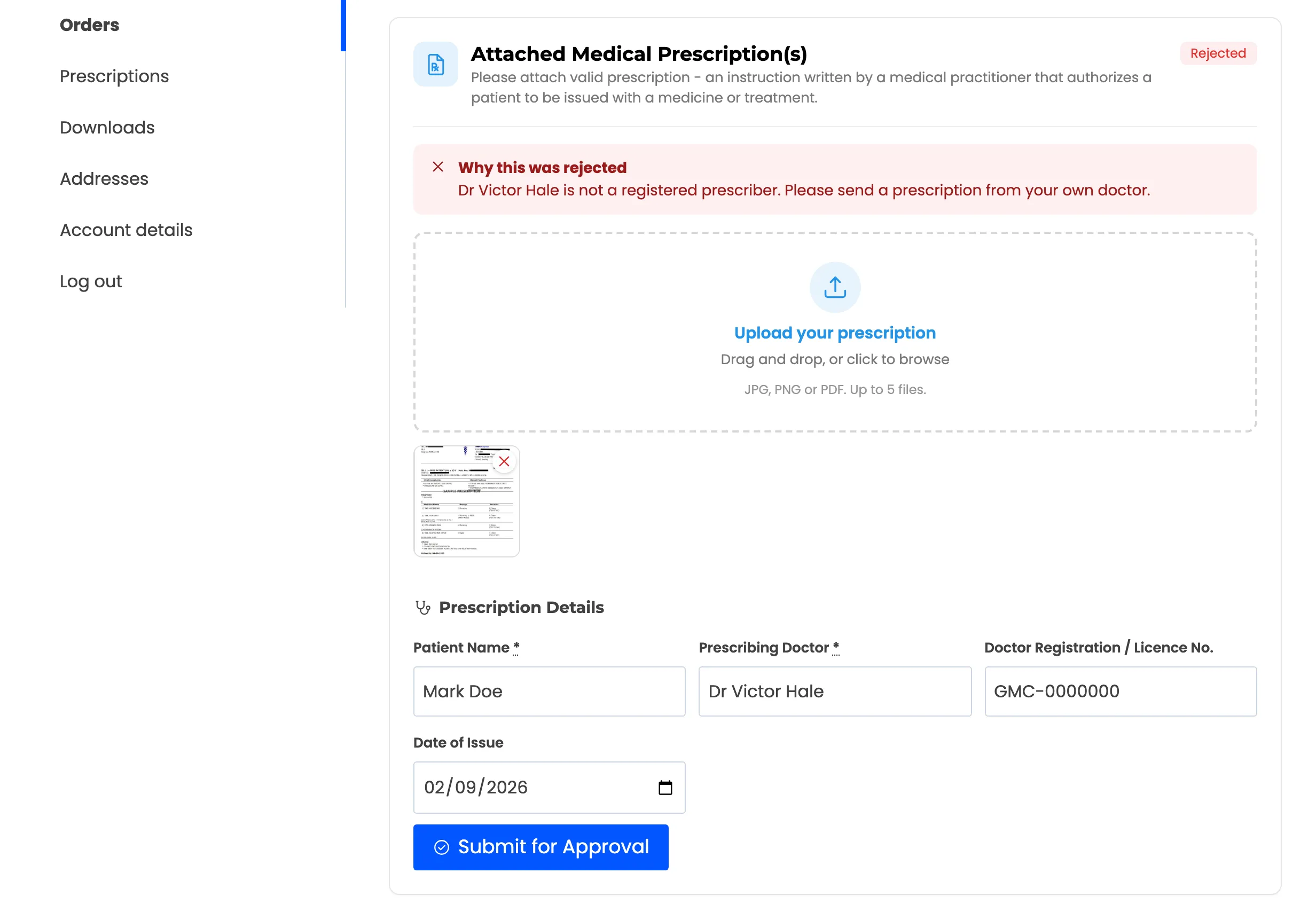
When they press Submit for Approval, the prescription goes back to Pending and the store is emailed again. The customer gets no email for their own resubmission.
Pro adds three things that happen later still:
- Reuse: An approved prescription can be picked at a later checkout instead of uploading again. The new order is approved on arrival.
- Expiry: A daily task moves an approval past its validity date to Expired, and it can no longer be reused.
- Reminders: An hourly task chases orders still waiting for their file, and warns customers before an approval lapses.
The prescription statuses
Section titled “The prescription statuses”| Status | Means | Order status |
|---|---|---|
| Attachment Pending | The customer chose Attach later and has not uploaded yet | Held |
| Pending | A file is waiting for a pharmacist | Held |
| Information Requested | Sent back to the customer for more | Held |
| Approved | Accepted | Your On Approval status |
| Rejected | Refused | Your On Rejection status |
| Expired | Approved, then passed its validity date (Pro) | Unchanged |