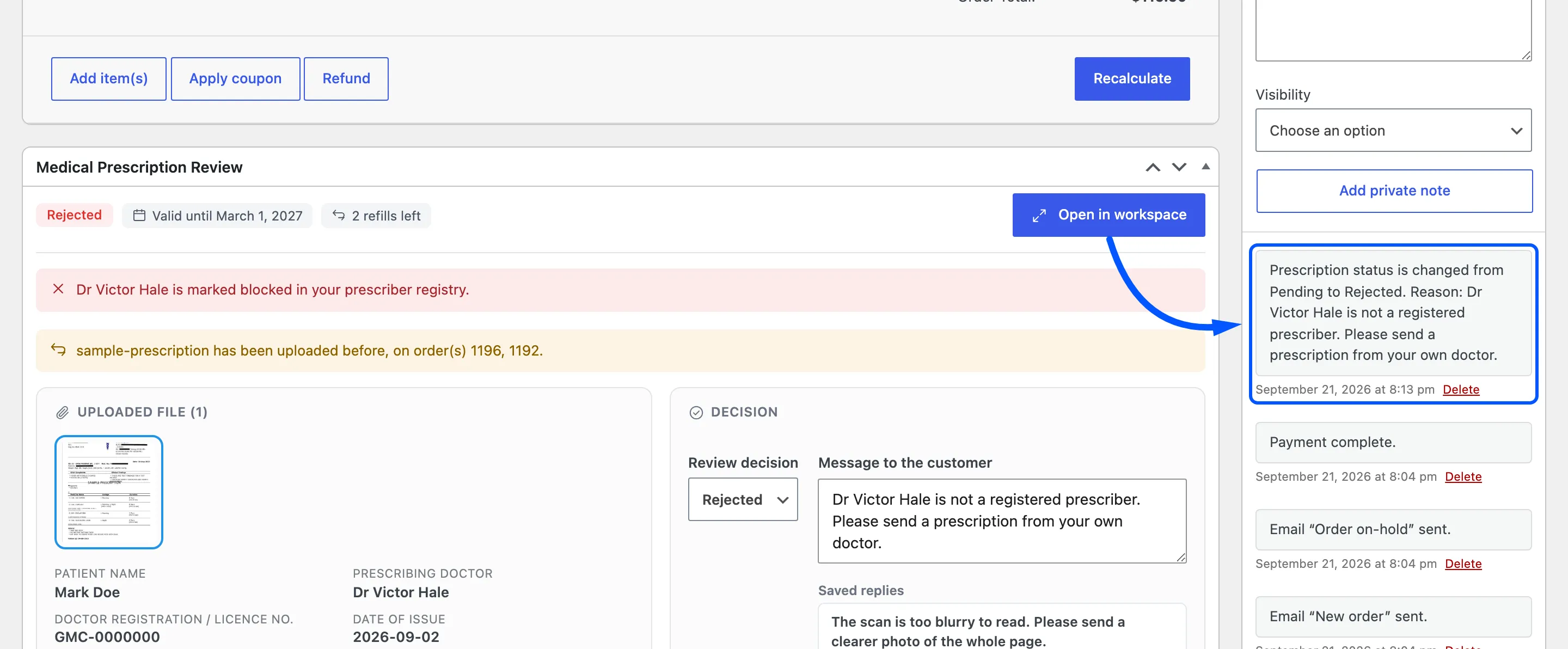
The Order Review Panel
Every order that needed a prescription gets a Medical Prescription Review panel on its WooCommerce edit screen. In the free version this is where prescriptions are decided. In Pro it is a second route to the same decision, handy when you are already on the order.
Open any prescription order from WooCommerce → Orders, or from Edit order on the Prescriptions Orders screen.
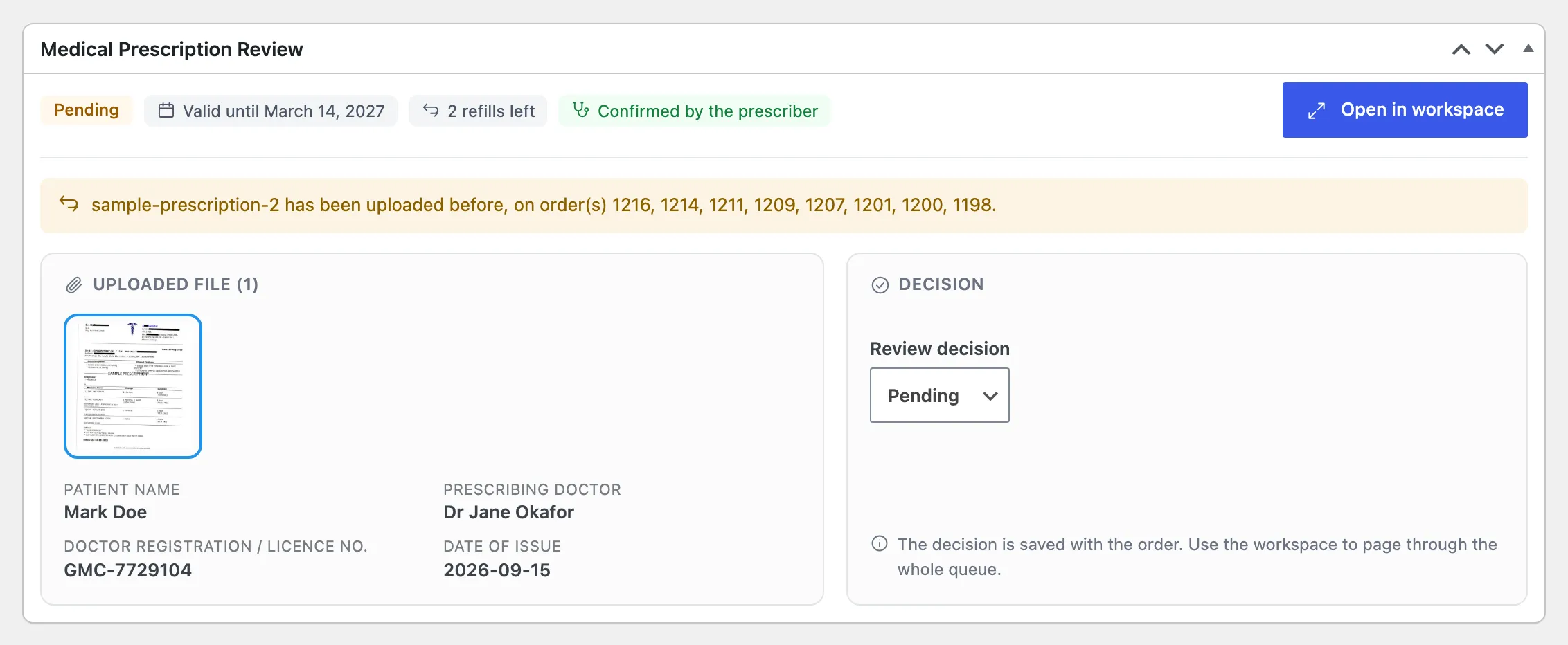
The top bar
Section titled “The top bar”The prescription status, then chips for Valid until, the refills left, Reused from and the prescriber’s verification answer when there is one. Open in workspace takes you to the review workspace on this order (Pro).
Warnings about a repeated file, a watched or blocked prescriber or a lapsed prescription sit under the top bar.
Uploaded Files
Section titled “Uploaded Files”The files the customer sent, as thumbnails. Click one to open it. Under them, the prescription details the customer gave (Pro).
Decision
Section titled “Decision”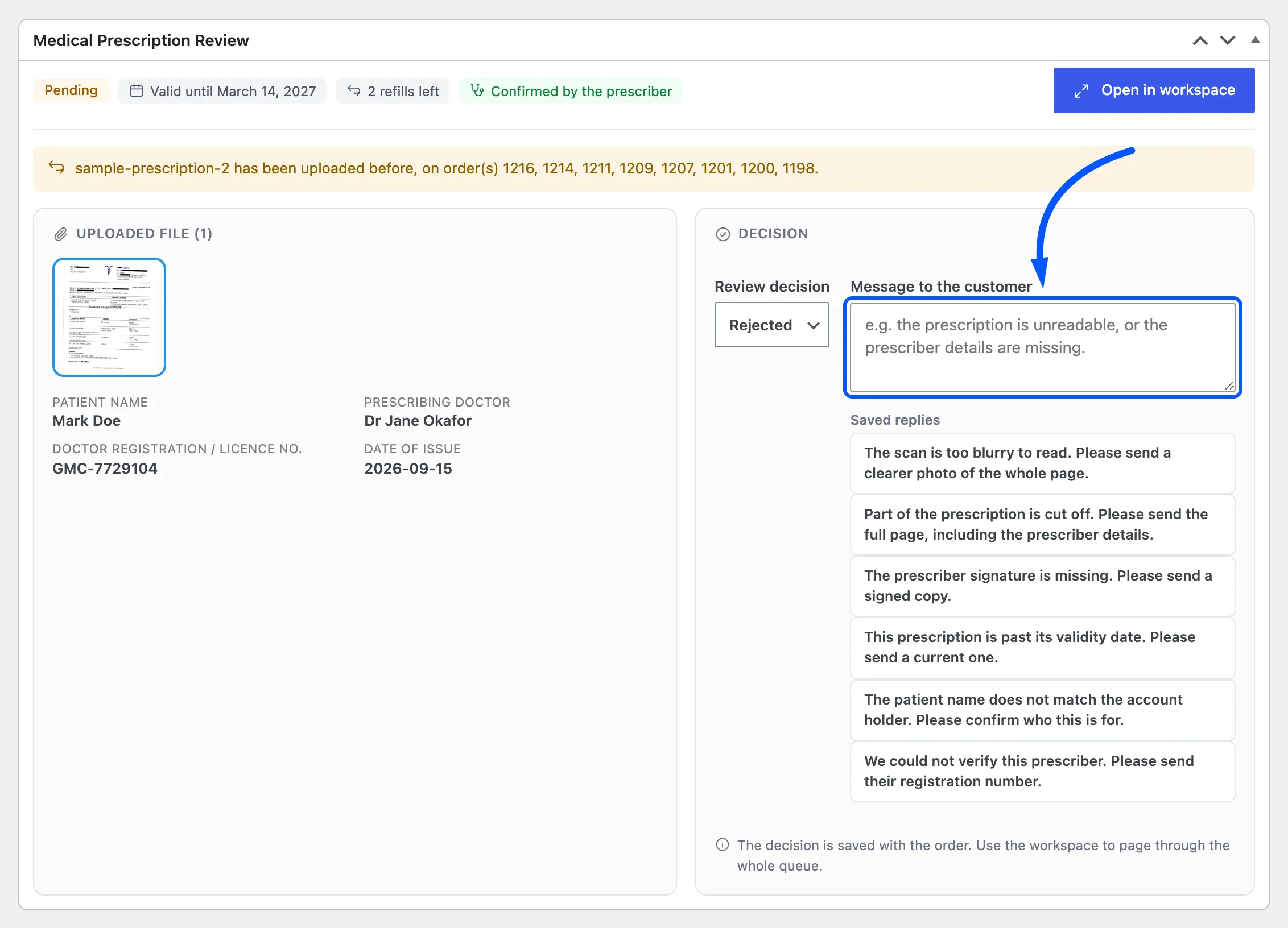
- Choose the result in Review decision: Attachment Pending, Pending, Approved, Rejected, Information Requested, or Expired (Pro).
- For Rejected or Information Requested, the Message to the customer box opens. Type the reason, or click a saved reply (Pro).
- Click Update on the order.
The decision is saved with the order. The order status moves, the customer is emailed and a note is added, exactly as from the workspace.
With Rejection Reason on, a rejection with an empty message is refused. The order saves, the prescription status stays as it was, and a notice says a reason is required.
The audit trail (Pro)
Section titled “The audit trail (Pro)”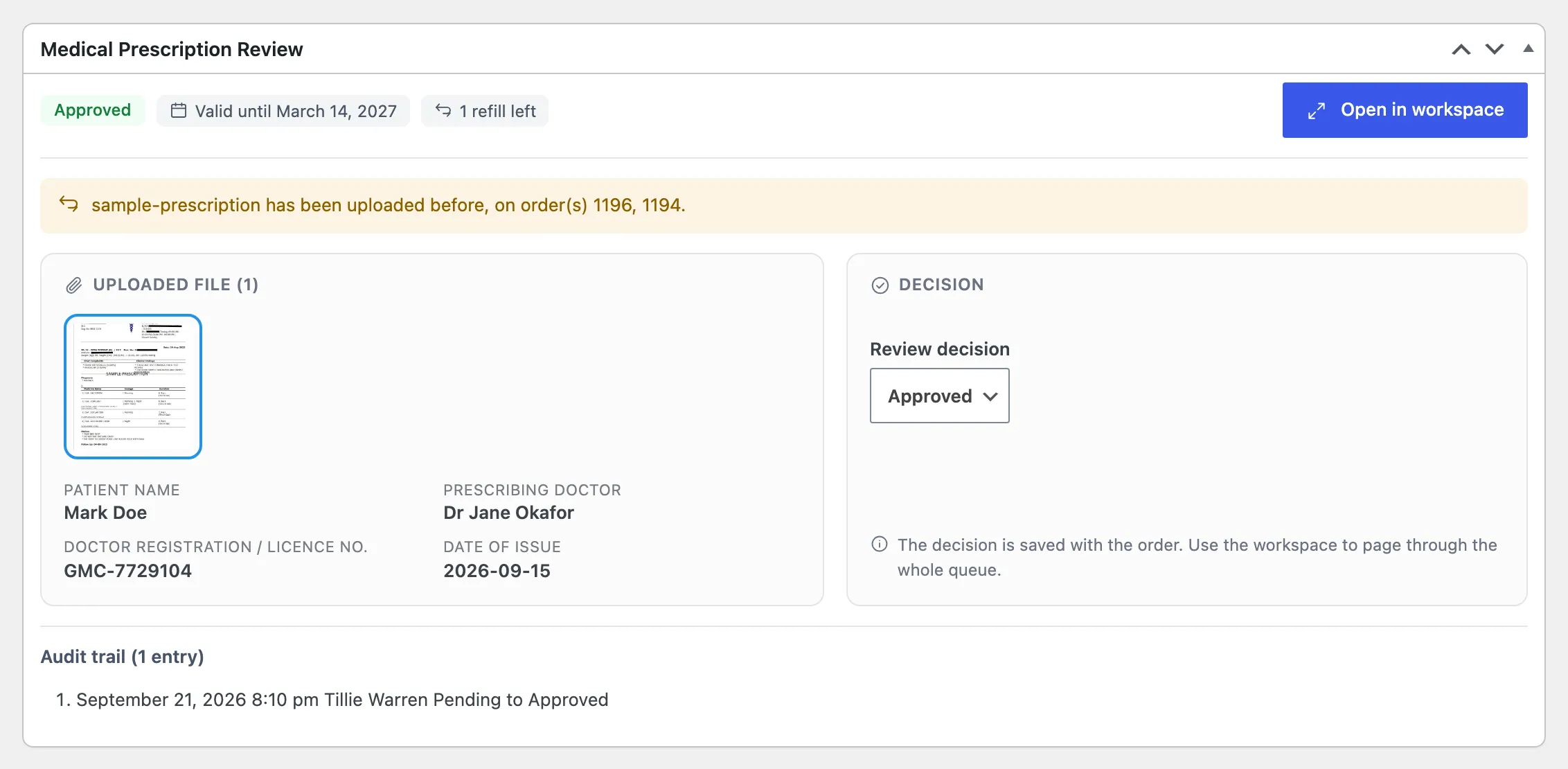
Audit trail at the foot of the panel lists every decision, newest first.
The order notes
Section titled “The order notes”Every decision is also written to the order’s own notes while Order Notes is on.