

How to Collect Prescription Details (Pro)
A file on its own is hard to check. Is it for the account holder or their child? Who wrote it, and when? Asking the customer to type the key facts beside the upload puts them in front of the pharmacist. It also gives the registry and the expiry something to work with.
Step 1: Choose the details to collect
Section titled “Step 1: Choose the details to collect”Go to DevDiggers Plugins → Prescriptions → Configuration → Prescription Rules.
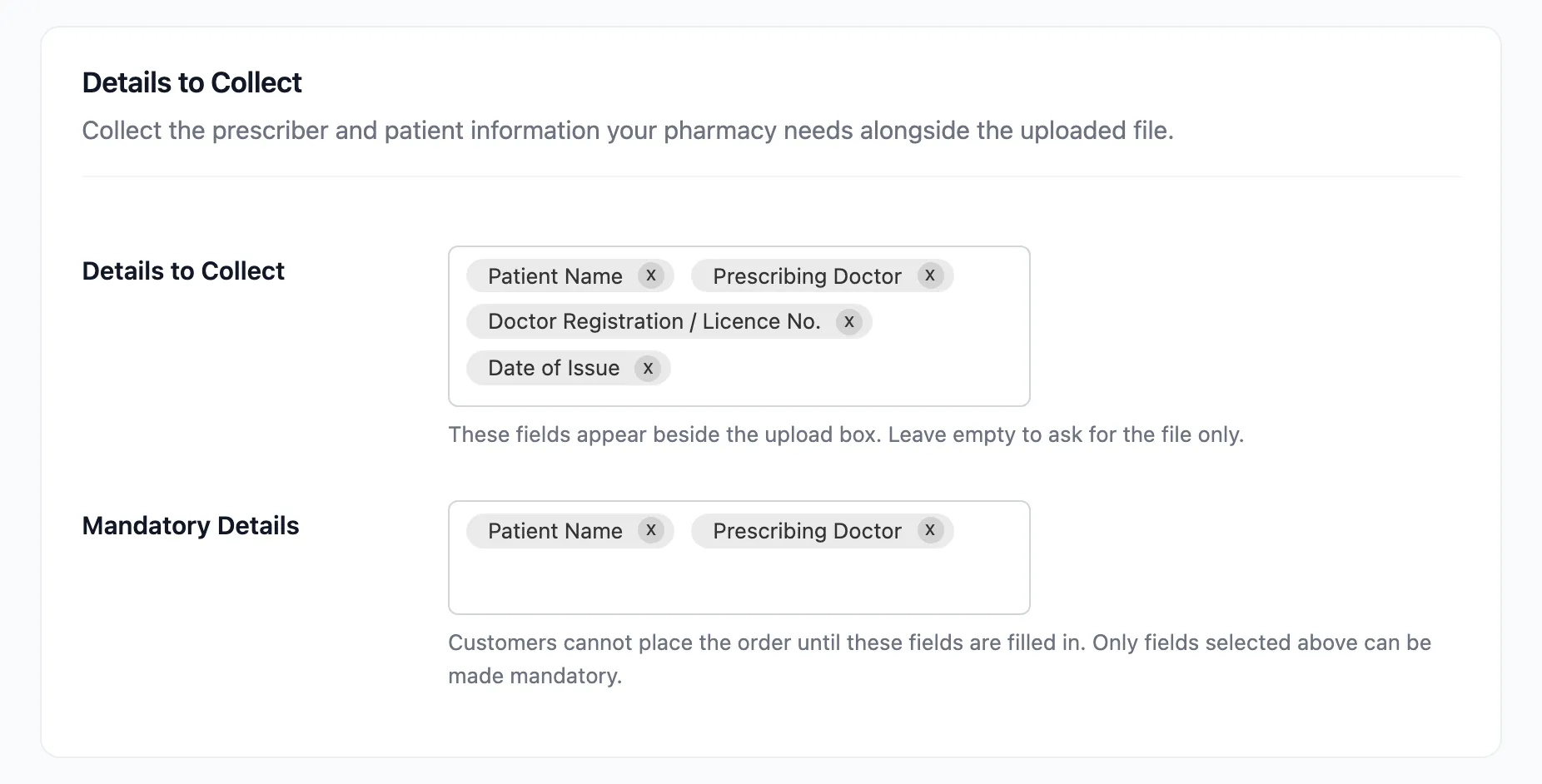
In Details to Collect, pick from six fields:
| Field | Type | Used by |
|---|---|---|
| Patient Name | Text | The review; the “patient name does not match” saved reply |
| Patient Age | Number | The review |
| Prescribing Doctor | Text | The prescriber registry, the Prescribers Seen widget |
| Doctor Registration / Licence No. | Text | The prescriber registry, matched before the name |
| Date of Issue | Date | The validity date is counted from it |
| Valid Until | Date | Overrides the validity period entirely |
The default is Patient Name, Prescribing Doctor, Doctor Registration / Licence No. and Date of Issue.
Valid Until is left out by default for a reason: it lets the customer set their own expiry date. Add it only if your pharmacists check that date against the paper every time.
Step 2: Choose which are mandatory
Section titled “Step 2: Choose which are mandatory”In Mandatory Details, pick the fields the customer cannot skip. The default is Patient Name and Prescribing Doctor. Only a field you collect can be mandatory.
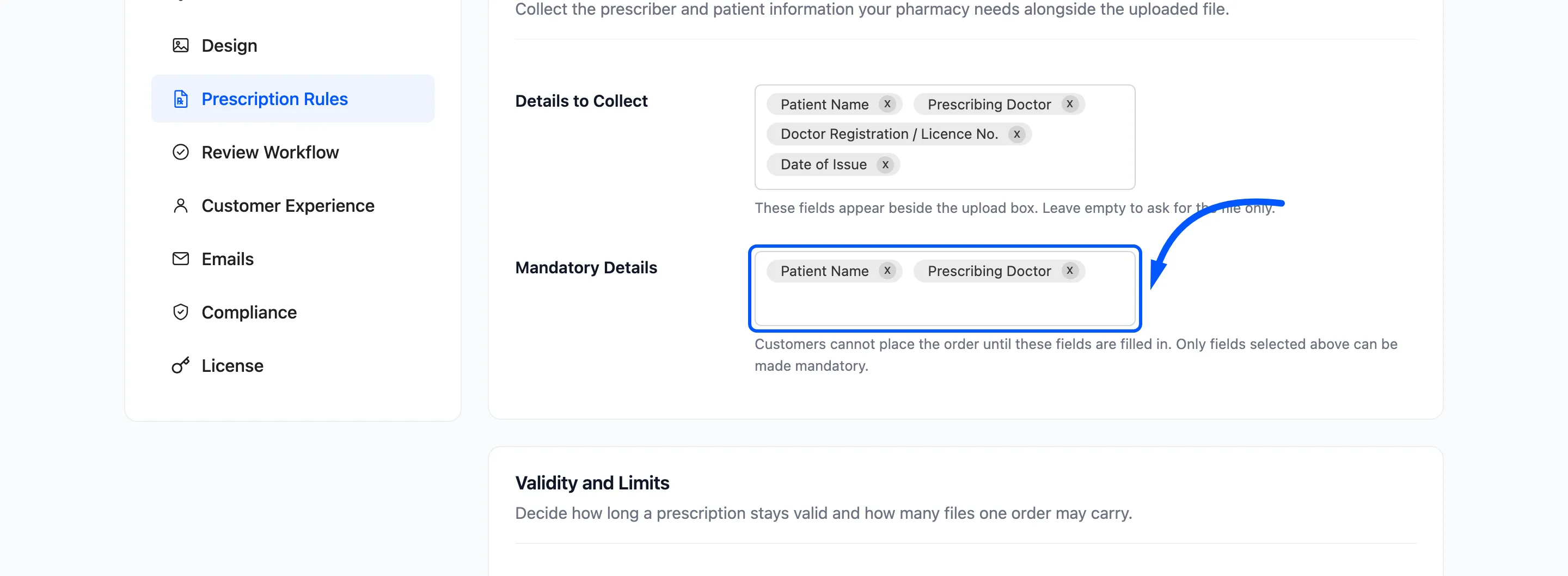
Click Save Changes.
To go back to asking for the file only, clear Details to Collect and save. Clear Mandatory Details to make every field optional.
Step 3: The customer fills them in at checkout
Section titled “Step 3: The customer fills them in at checkout”The fields appear under the upload box as Prescription Details. Mandatory ones carry an asterisk.
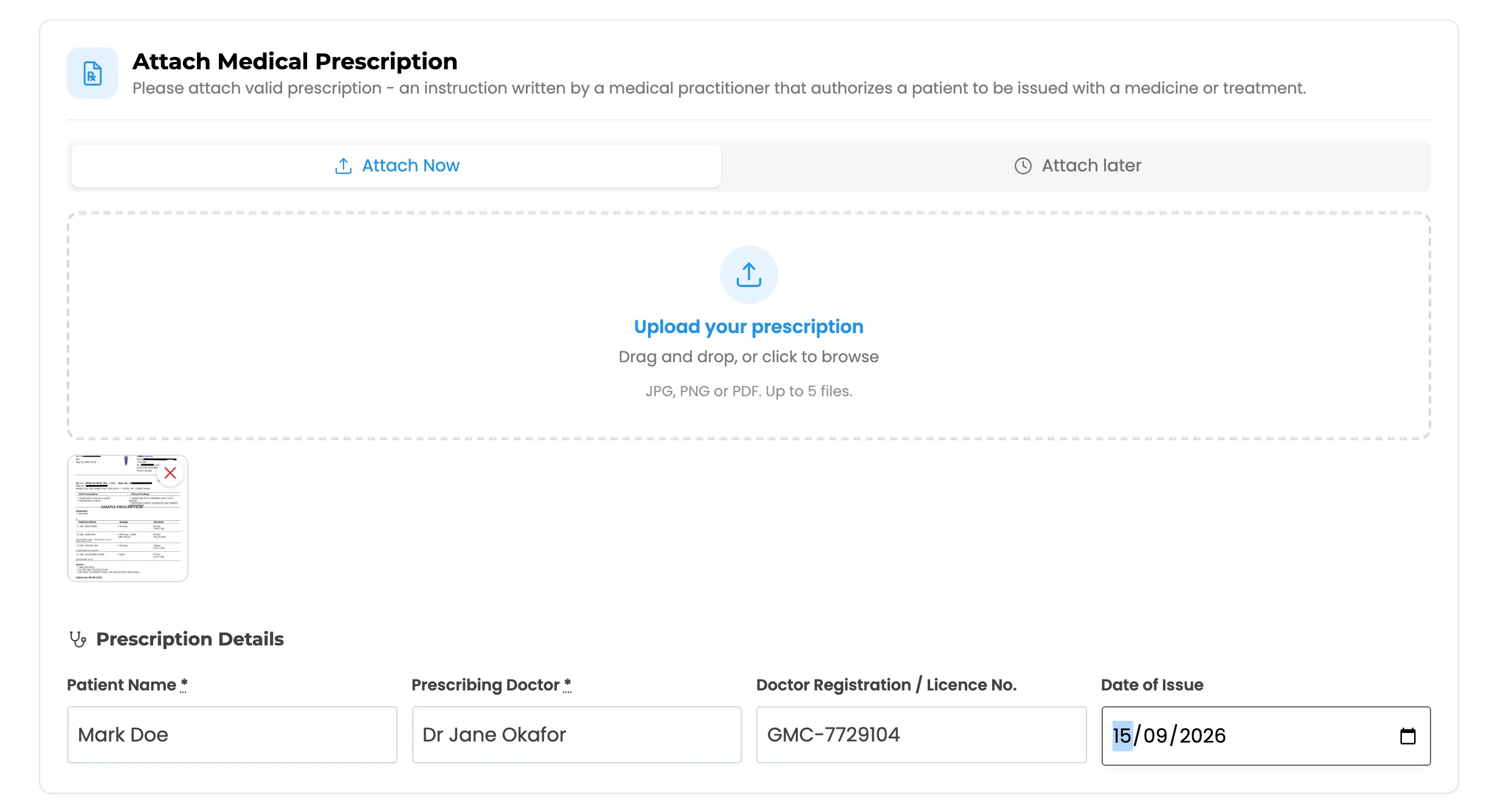
What the customer types is saved as they go, so a checkout refresh does not lose it. Until every mandatory field is filled, Place order stays hidden behind a message naming the missing field. The same check runs when the customer submits from the order page.
Step 4: Read them in the review
Section titled “Step 4: Read them in the review”The details show in the Prescription panel of the review workspace, next to the file they describe.
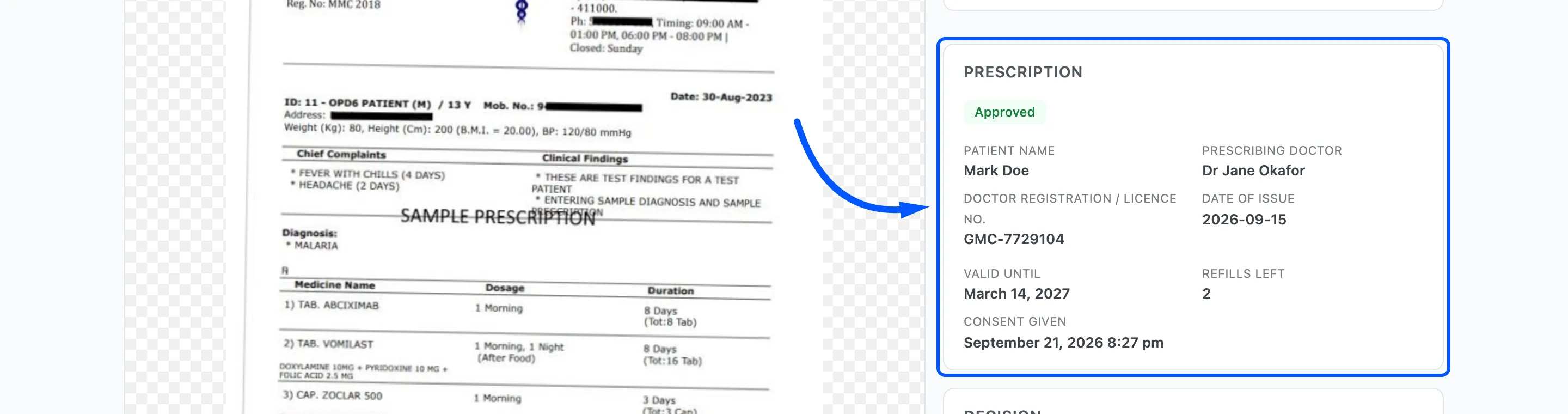
Check them against the page. The details are what the customer says; the file is what the doctor wrote. A mismatch is a question worth asking before approving.
They also appear on the customer’s order page, in the order review panel, in the My Account Prescriptions tab and on the prescriber’s verification page.