

How to Approve Prescriptions in Bulk (Pro)
Some batches do not need a screen each. Think of repeat prescriptions already checked on paper, or uploads that are all the same unreadable photo. Bulk actions decide them together.
Step 1: Open the pending prescriptions
Section titled “Step 1: Open the pending prescriptions”Go to DevDiggers Plugins → Prescriptions → Orders and click the Pending tab.
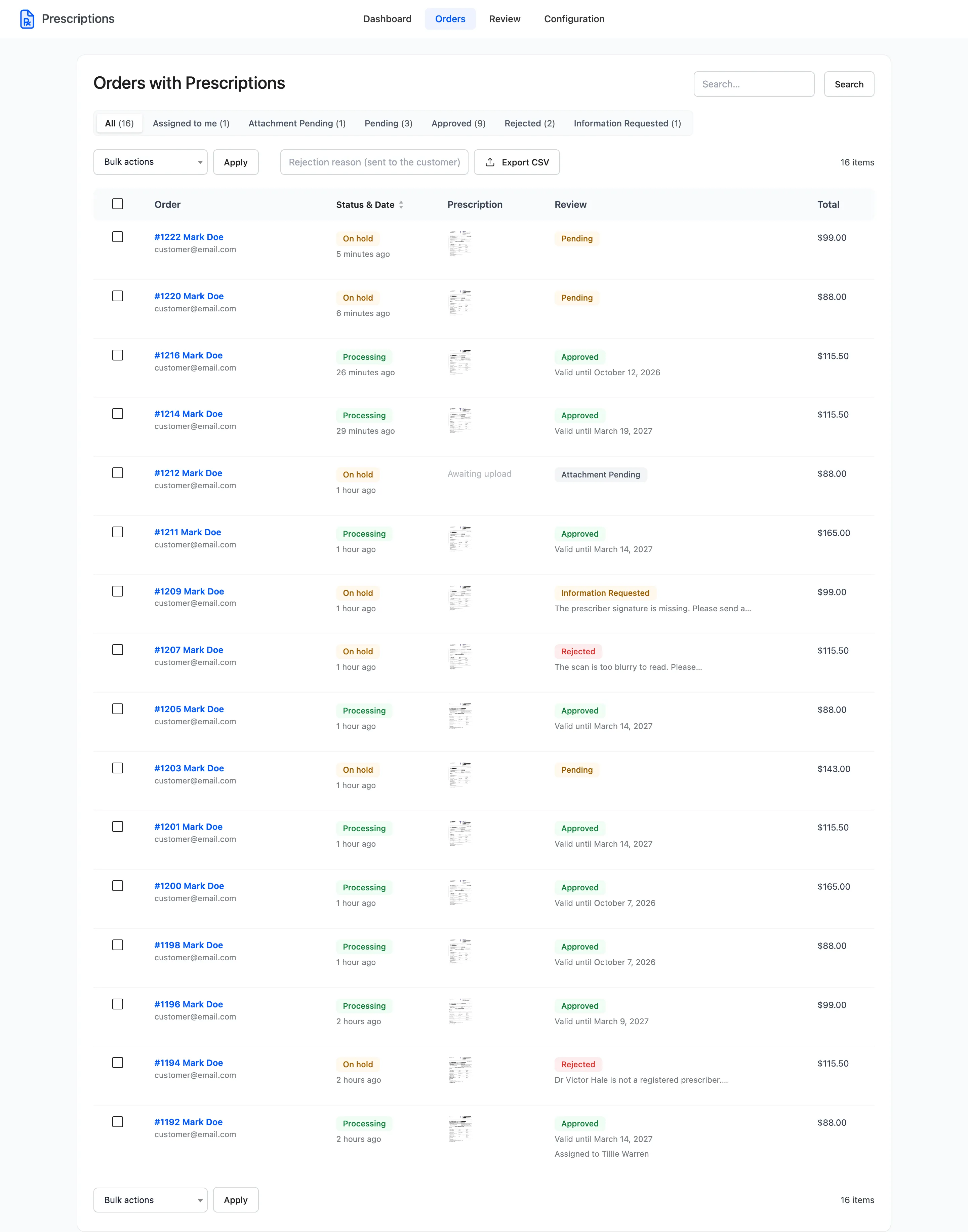
Bulk approval skips the viewer. Only approve in bulk what has already been looked at.
Step 2: Tick the orders and choose the action
Section titled “Step 2: Tick the orders and choose the action”Tick the box at the start of each row, or the box in the heading for the whole page. Then open Bulk actions and choose Approve prescription or Reject prescription.
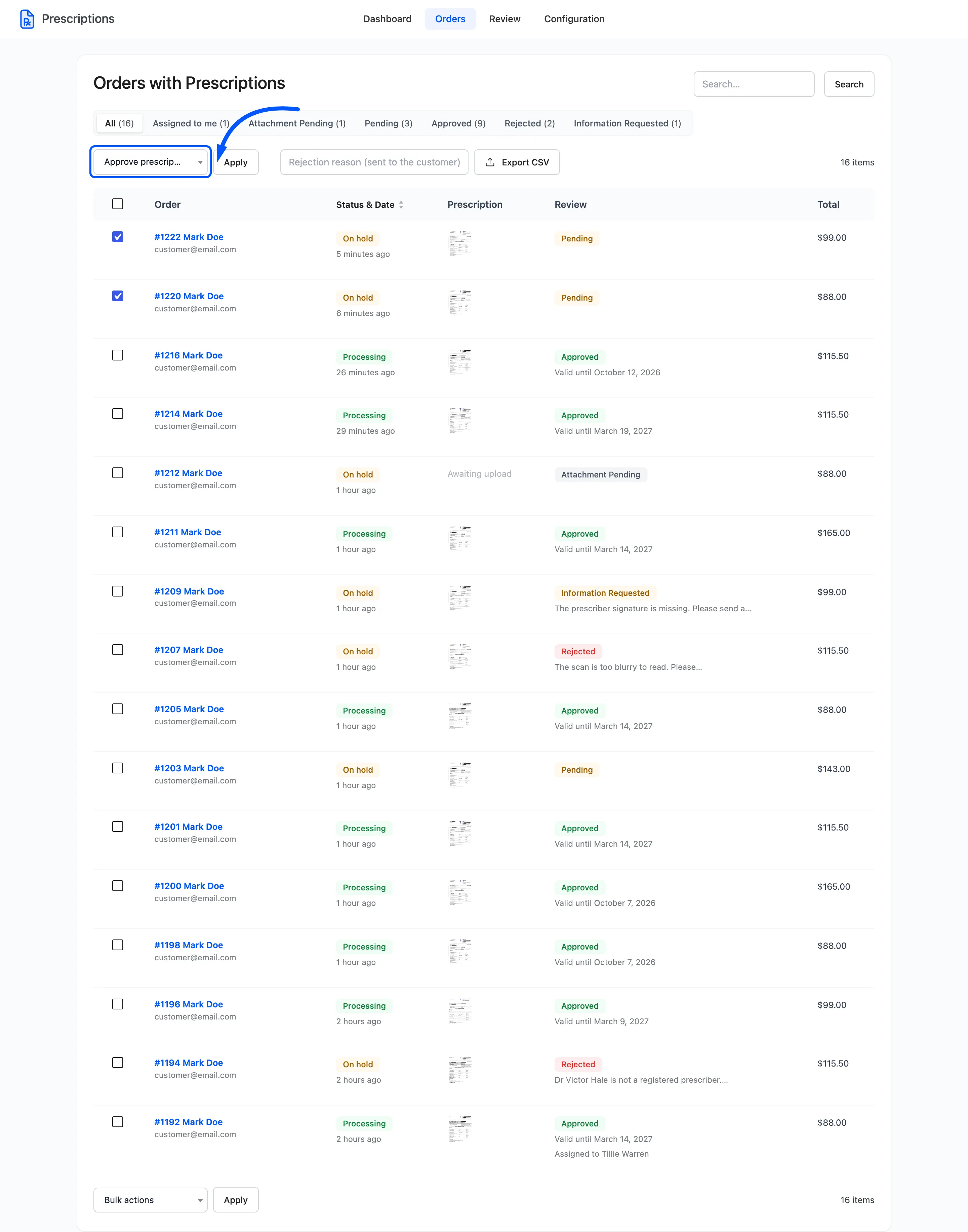
Step 3: Add a reason for a rejection
Section titled “Step 3: Add a reason for a rejection”To reject, type the reason into Rejection reason (sent to the customer) first. Every customer in the batch receives the same reason, so keep it general enough to be true for all of them.
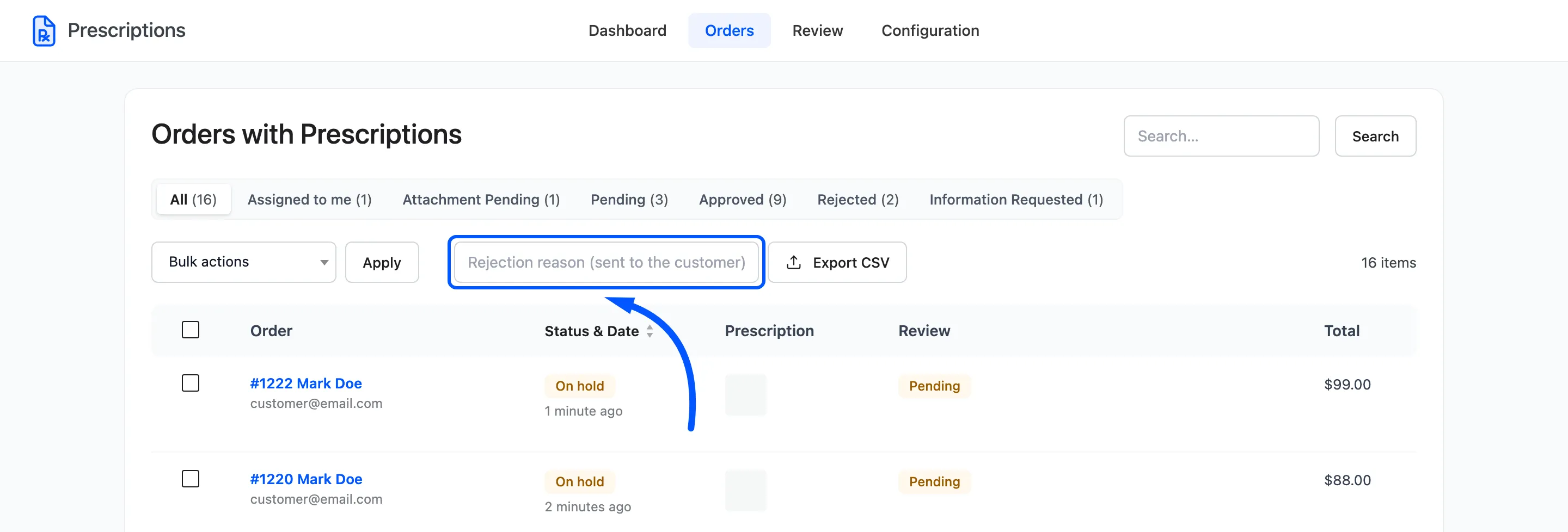
With Rejection Reason required, a bulk rejection without a reason changes nothing and says so.
Step 4: Apply and confirm
Section titled “Step 4: Apply and confirm”Click Apply. The browser asks Apply this decision to the selected orders? Click OK.
That box is your browser’s own confirmation dialog, not part of the plugin. It looks different in every browser, so there is no screenshot of it here.
Step 5: Check the result
Section titled “Step 5: Check the result”A notice says how many prescriptions were marked.
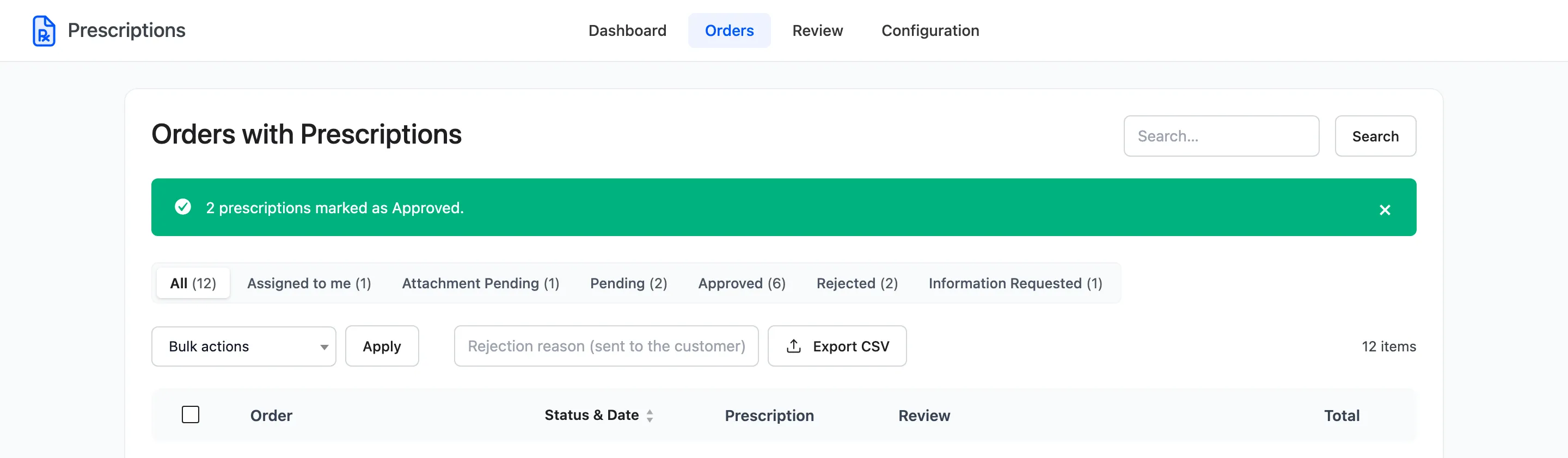
Each order is decided exactly as it would be alone:
- the order moves to your On Approval or On Rejection status,
- the customer gets their email,
- the decision goes into the order notes and the audit trail, under your name.
An order already in the chosen status is skipped and not counted in the notice.