

The Setup Wizard
The wizard gets a working prescription check live in a couple of minutes. Everything it sets can be changed later under Configuration, so treat it as a quick start rather than a commitment.
Open it from the Setup Wizard link under the plugin’s name on the Plugins screen. You can run it again at any time.
Step 1: Welcome
Section titled “Step 1: Welcome”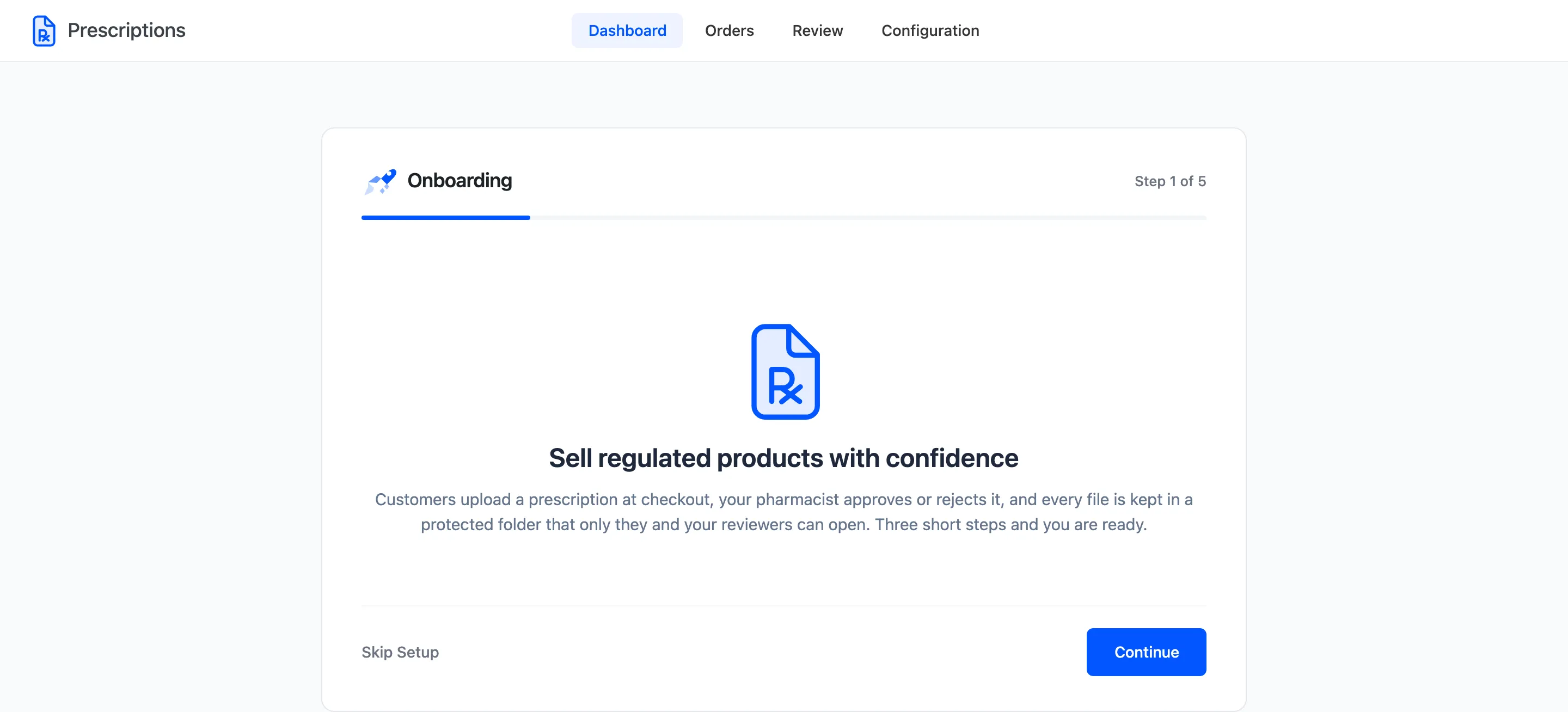
A one-screen summary of what the plugin does. Click Continue, or Skip Setup to go straight to the plugin’s dashboard.
Step 2: Products
Section titled “Step 2: Products”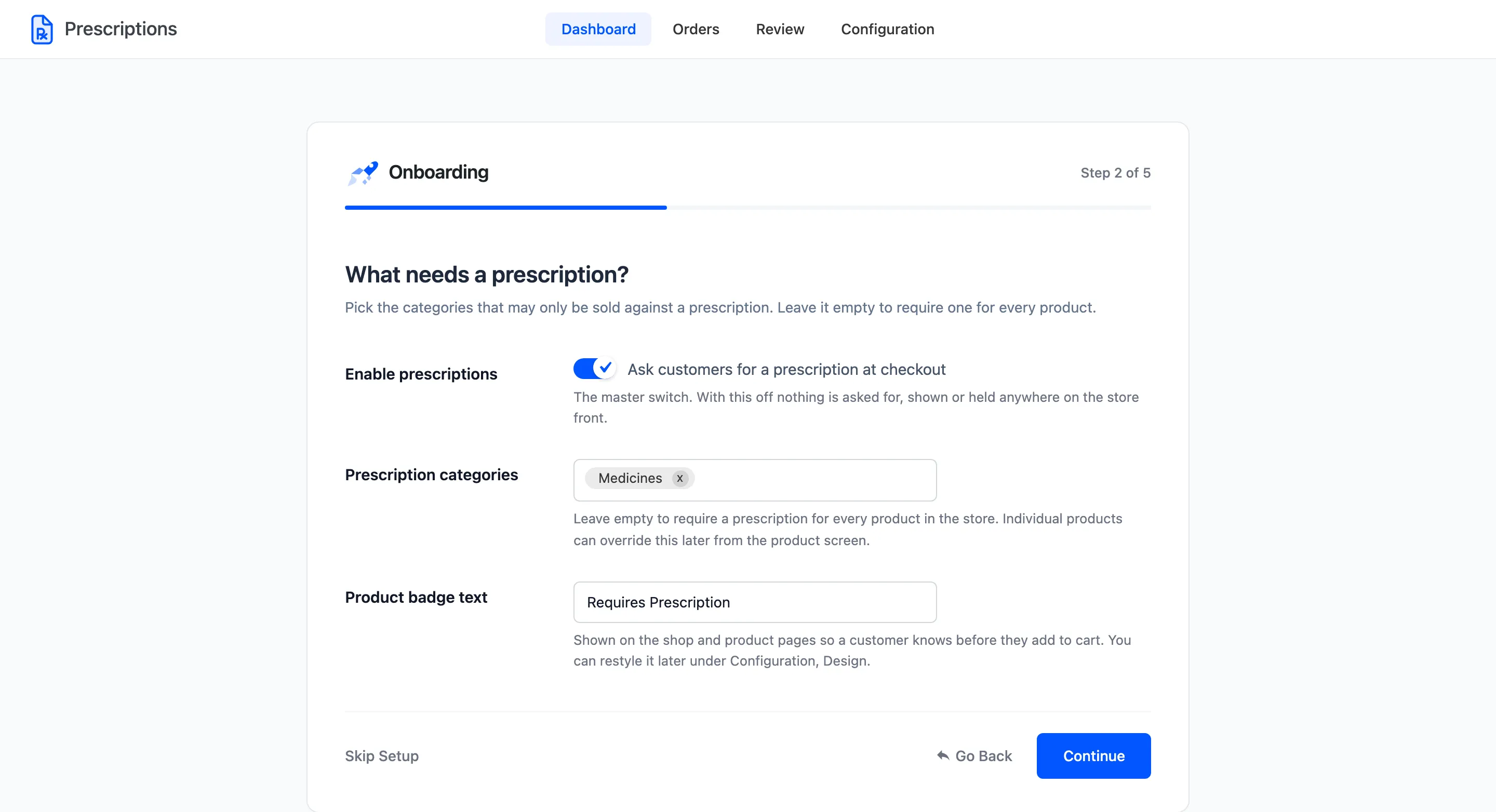
- Enable prescriptions: The master switch. It is ticked here, so finishing the wizard turns the plugin on.
- Prescription categories: The categories that may only be sold against a prescription. Leave it empty to require one for every product in the store.
- Product badge text: The label shown on the shop and product pages. The default is Requires Prescription.
Single products can override the categories later, from the product’s own edit screen. See Product Prescription Settings.
Step 3: Details
Section titled “Step 3: Details”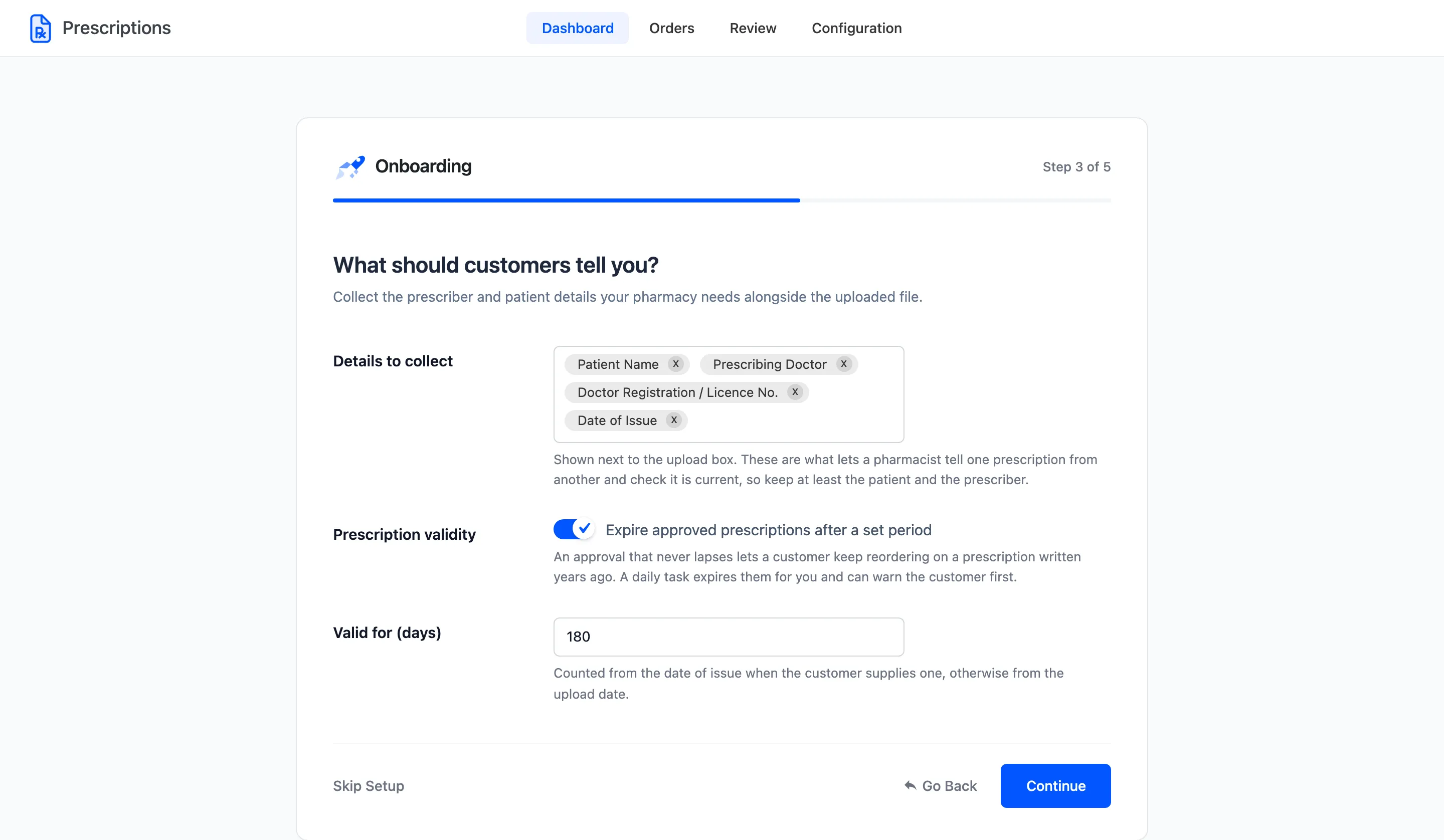
- Details to collect: Fields shown beside the upload box. Choose from patient name and age, prescribing doctor, licence number, date of issue and a valid until date.
- Prescription validity: Expire approved prescriptions after a set period, so an old one cannot be reused forever.
- Valid for (days): How long an approval lasts. The default is 180 days, counted from the date of issue when the customer gives one.
Step 4: Workflow
Section titled “Step 4: Workflow”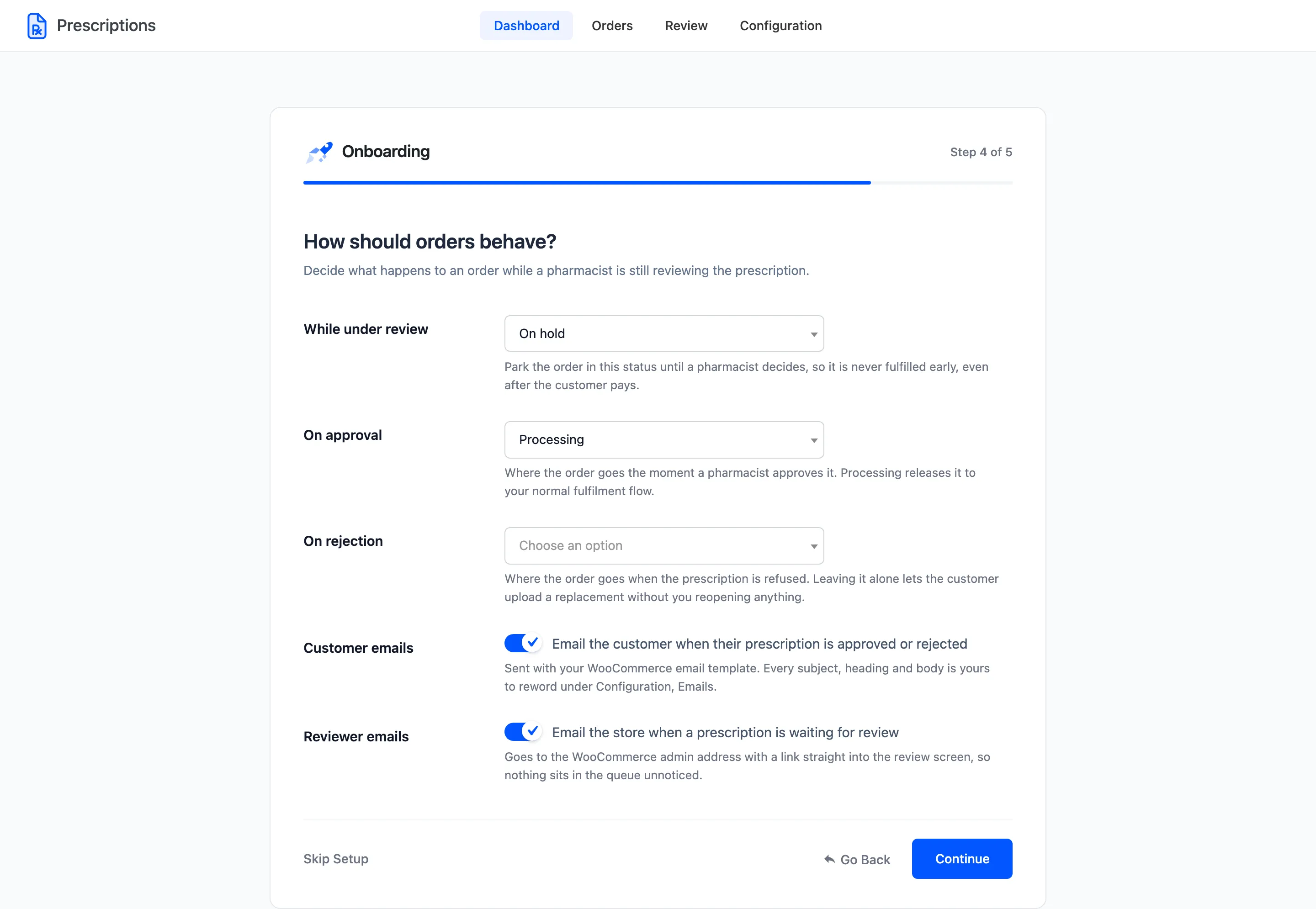
- While under review: The status an order waits in until a pharmacist decides. Choose On hold.
- On approval: Where the order goes once the prescription is approved. Choose Processing to release it to your normal fulfilment.
- On rejection: Where the order goes when the prescription is refused. Leaving it unchanged lets the customer upload a replacement without you reopening anything.
- Customer emails: Email the customer when their prescription is approved, rejected or needs more information.
- Reviewer emails: Email the store address when a new prescription is waiting.
On a new store the step opens with On hold and Processing already chosen, the values the plugin runs with. On rejection shows Choose an option, which leaves the order alone. Clicking Continue saves exactly what the step shows.
Step 5: Ready
Section titled “Step 5: Ready”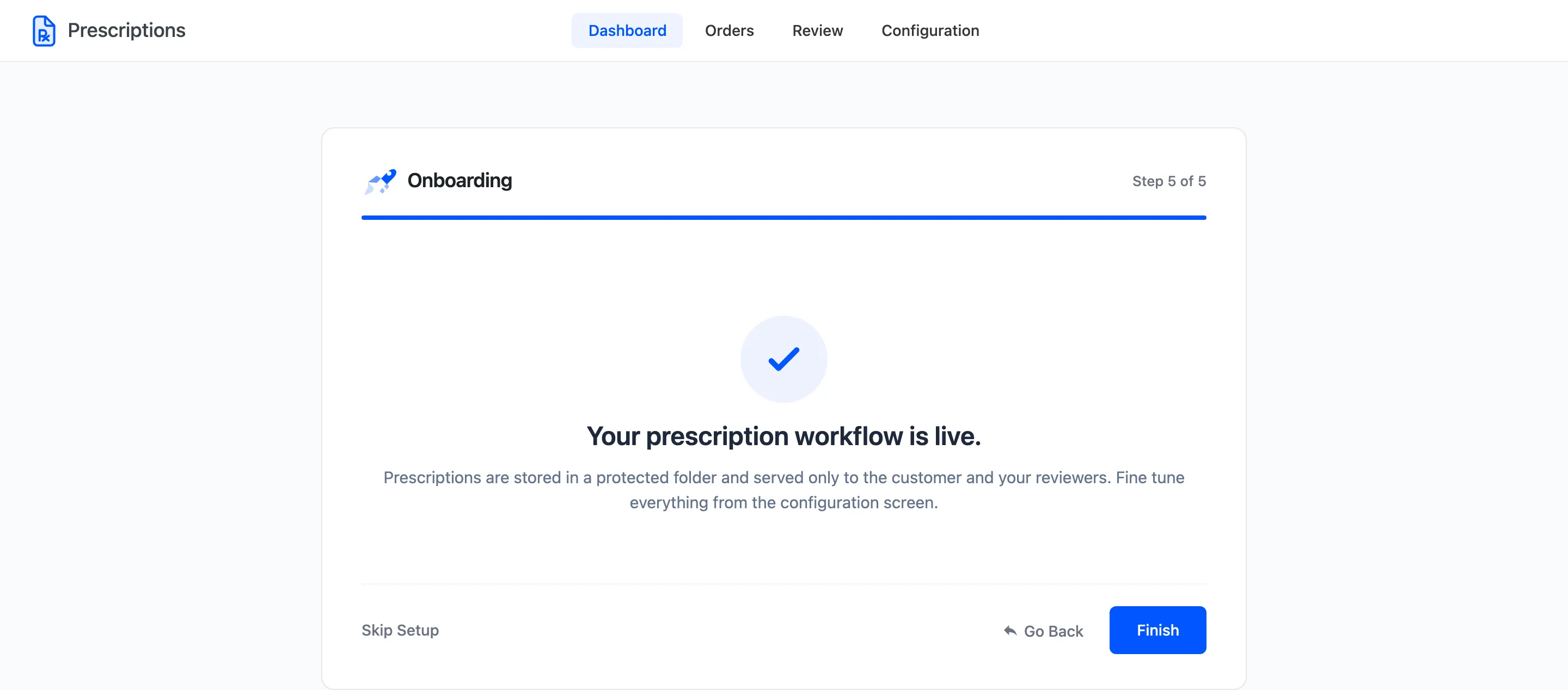
Click Finish to land on the dashboard. Uploaded prescriptions are already going to the protected folder, and the badge, upload box and order hold are live on the storefront.
What the wizard does not set
Section titled “What the wizard does not set”The wizard covers the choices a store has to make on day one. These live only under Configuration:
- Where the badge and the upload box appear, and their colours. See Design Settings.
- Attach later, re-uploads, reuse and the My Account tab. See Customer Experience Settings.
- Consent, the access log and data retention. See Compliance Settings.