

Exporting Prescriptions (Pro)
The export wizard writes your prescriptions to a CSV file. Use it for an inspection, a spreadsheet of the month’s approvals, or to move the register elsewhere.
Go to DevDiggers Plugins → Prescriptions → Orders and click Export CSV.
Step 1: Export Options
Section titled “Step 1: Export Options”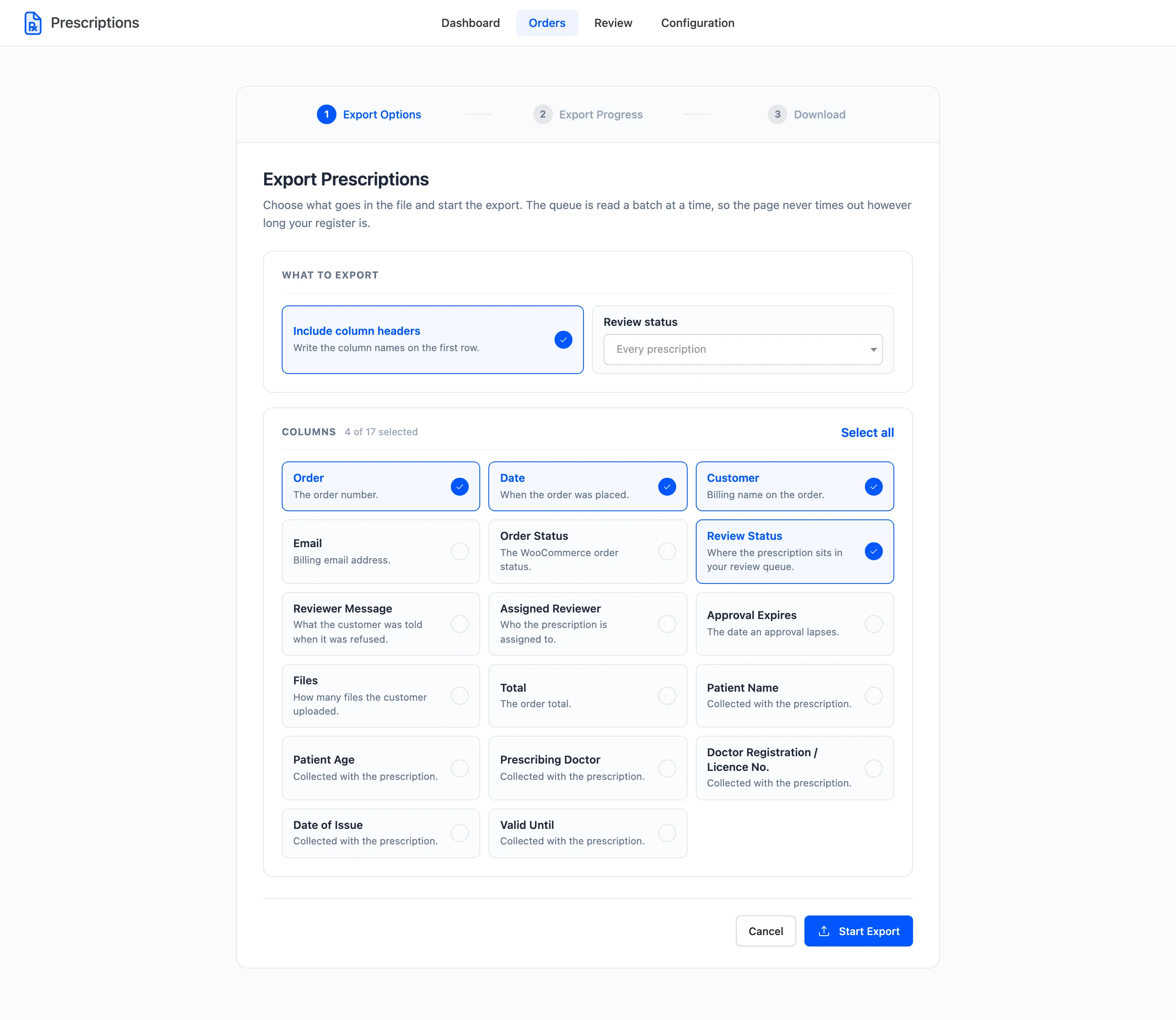
What to export has two settings:
- Include column headers: Write the column names on the first row. On by default.
- Review status: Export every prescription, or only one status such as Approved.
Columns holds one card per column. Four are selected by default: Order, Date, Customer and Review Status. Select all ticks the rest.
| Column | Contents |
|---|---|
| Order | The order number |
| Date | When the order was placed |
| Customer | The billing name |
| The billing email | |
| Order Status | The WooCommerce order status |
| Review Status | The prescription status |
| Reviewer Message | What the customer was told on a refusal or request |
| Assigned Reviewer | Who the prescription is assigned to |
| Approval Expires | The date an approval lapses |
| Files | How many files were uploaded |
| Total | The order total |
| Patient Name, Patient Age, Prescribing Doctor, Doctor Registration / Licence No., Date of Issue, Valid Until | The details the customer gave |
The file never contains the prescription images. It is a register, not an archive.
Click Start Export.
Step 2: Export Progress
Section titled “Step 2: Export Progress”The wizard reads the orders a batch at a time and shows a progress count. Leave the tab open until it finishes. Because it works in batches, a register of thousands of orders does not time out.
Step 3: Download
Section titled “Step 3: Download”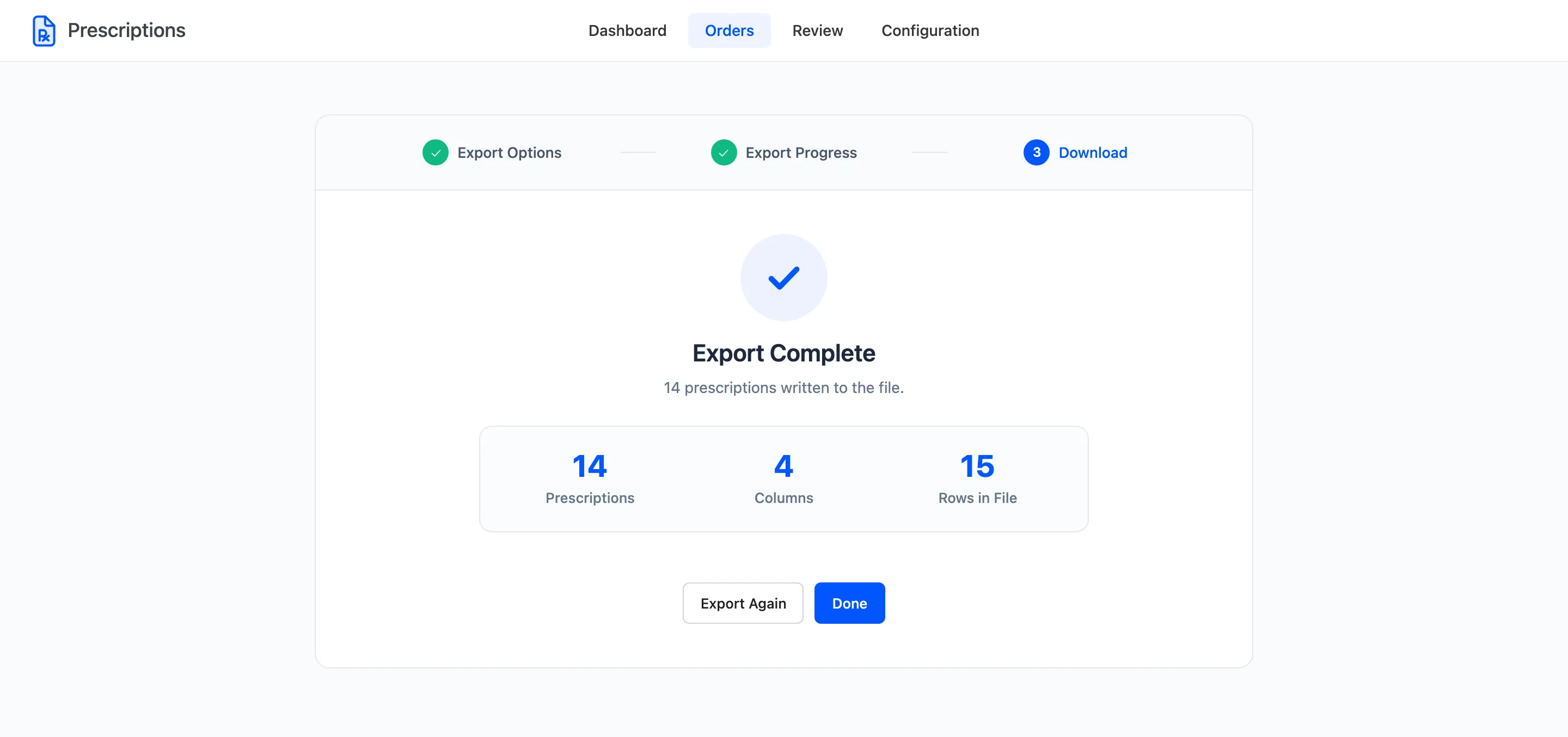
The file downloads by itself, named prescriptions- followed by the date. The summary shows the prescriptions written, the columns chosen and the rows in the file. With headers on, the rows are one more than the prescriptions.
Export Again starts over, and Done returns to the Orders screen.