Email Settings
The Emails tab decides who hears about a prescription, when, and in what words.
Go to DevDiggers Plugins → Prescriptions → Configuration → Emails.
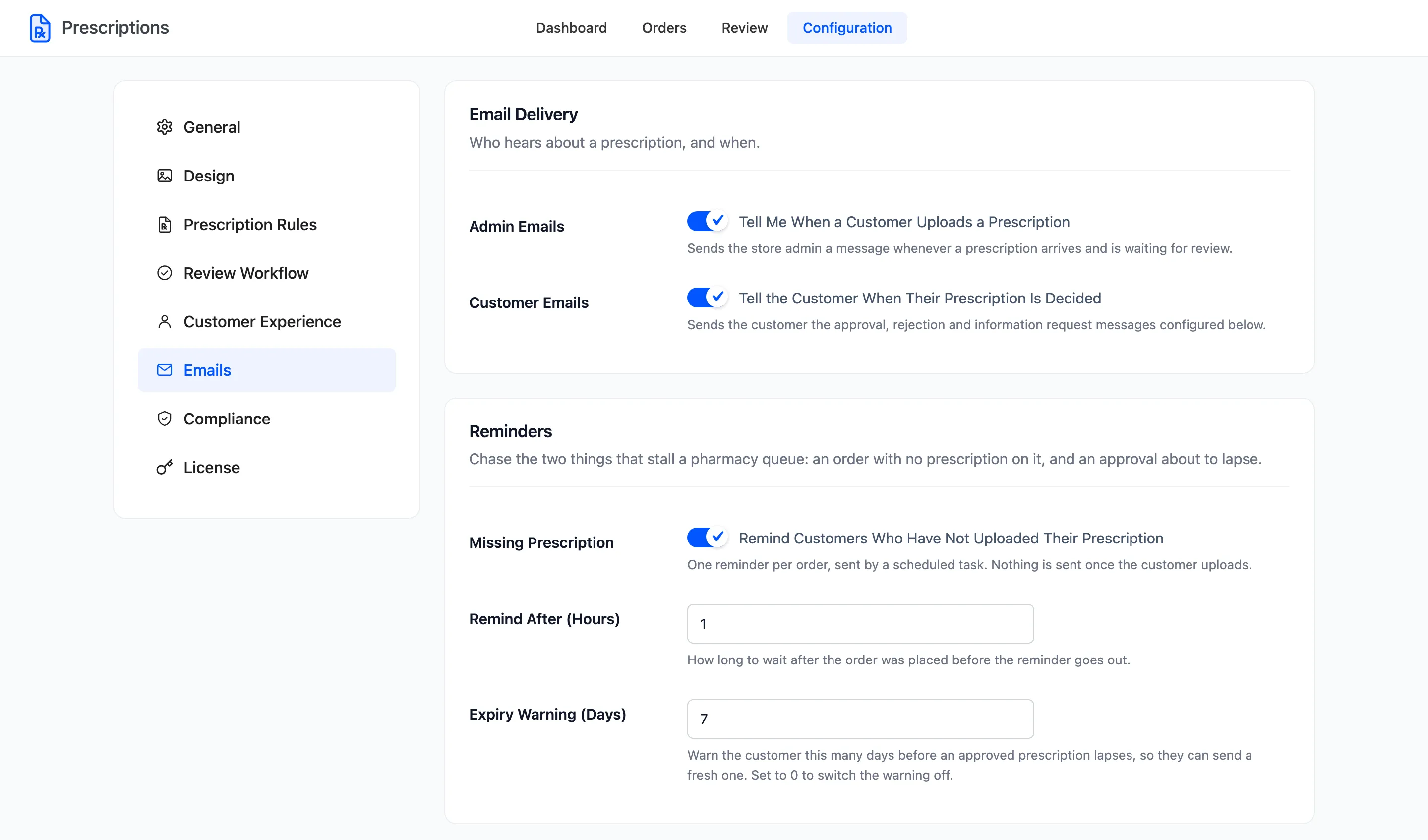
Email Delivery
Section titled “Email Delivery”- Admin Emails: Tell Me When a Customer Uploads a Prescription. On by default. The store is emailed for every new prescription and every resubmission, with a link to the review queue and the files attached.
- Customer Emails: Tell the Customer When Their Prescription Is Decided. On by default. Sends the approved, rejected and more-information messages. The reminders below need it on as well.
Reminders
Section titled “Reminders”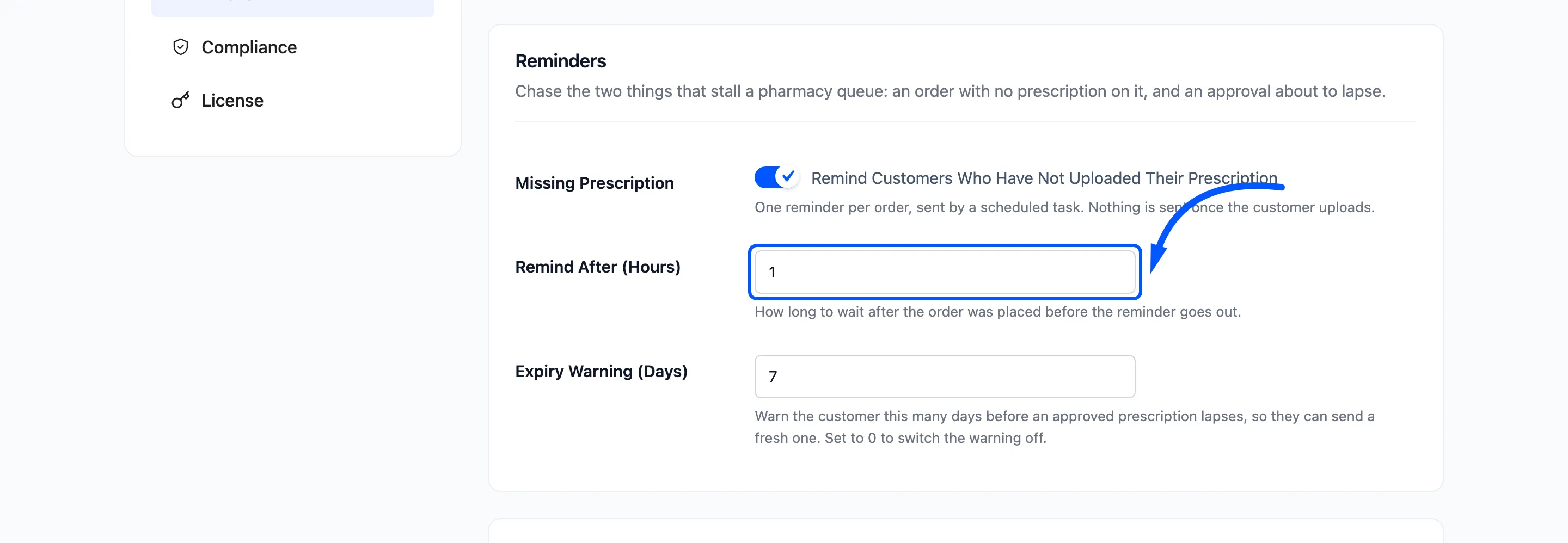
- Missing Prescription: Remind Customers Who Have Not Uploaded Their Prescription. On by default. One reminder per order, for orders placed with Attach later that still have no file.
- Remind After (Hours): Default 24. How long after the order was placed the reminder goes.
- Expiry Warning (Days): Default 7. Warns the customer this many days before an approved prescription lapses. Set it to 0 to switch the warning off. It needs Validity on, under Prescription Rules.
Both are sent by a task that runs once an hour, so a reminder can arrive up to an hour after it is due. Each order gets each reminder once, even if the email bounces.
The customer emails
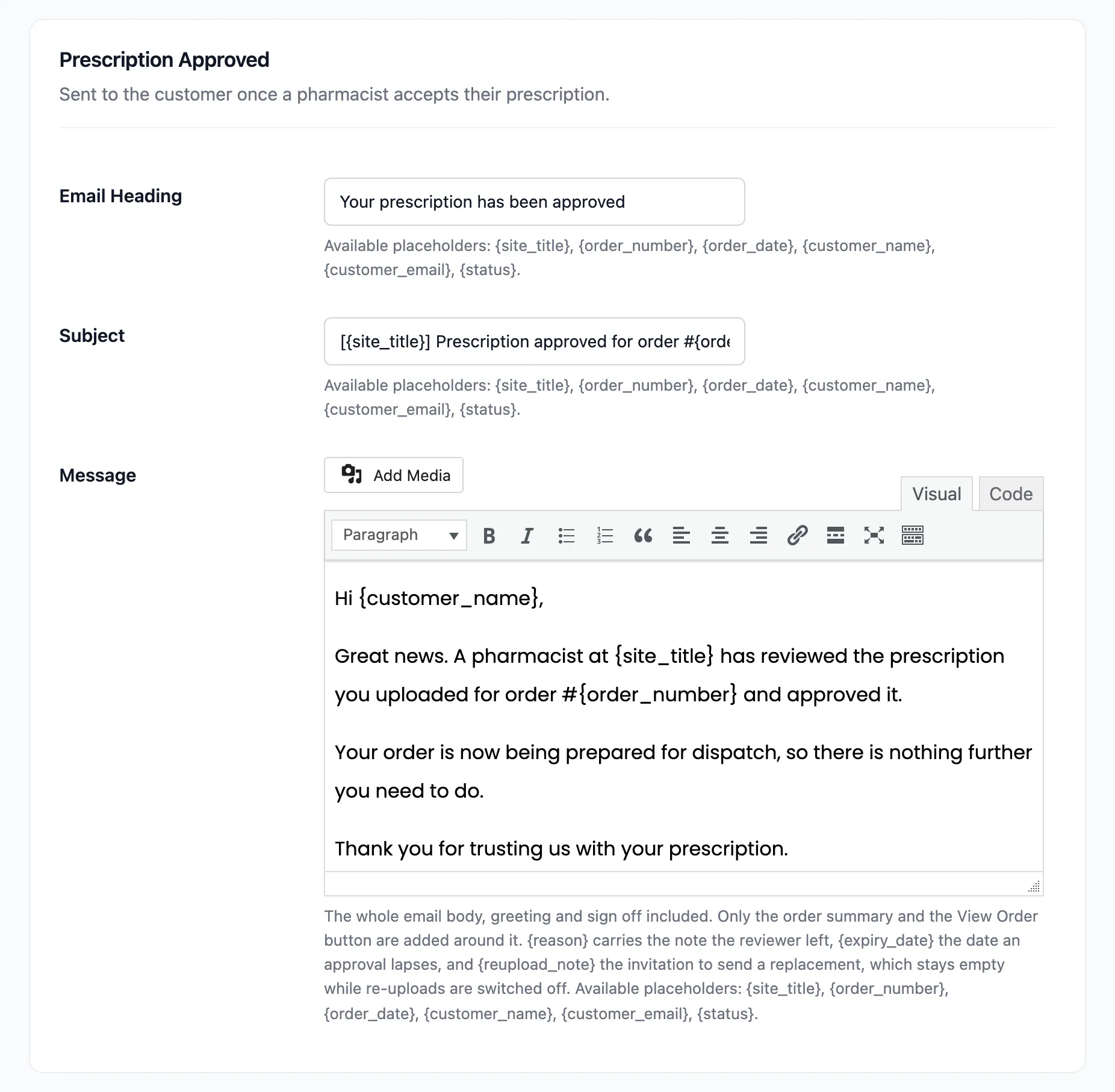
Section titled “The customer emails”Each message has its own section with three fields:
- Email Heading: The large title at the top of the email.
- Subject: The subject line.
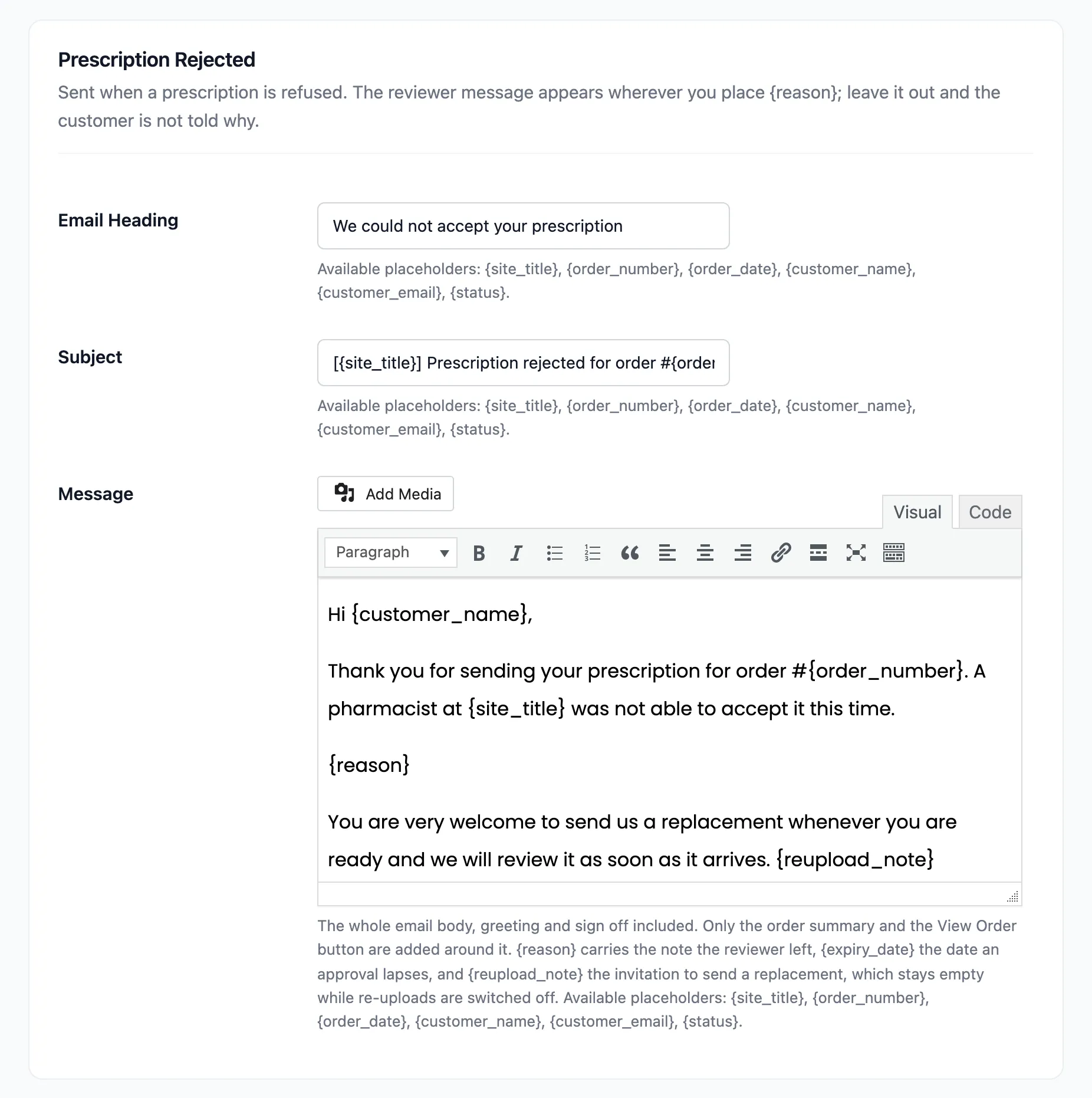
- Message: The whole body, from the greeting to the sign-off. Only the order summary and the View Order button are added around it. Write it in the Visual or the Code view; blank lines become paragraphs either way.
The emails use WooCommerce’s own email design, so your store name, colours and footer from WooCommerce → Settings → Emails frame every message.
| Section | Sent when | Default subject |
|---|---|---|
| Prescription Approved | A pharmacist approves | [{site_title}] Prescription approved for order #{order_number} |
| Prescription Rejected | A pharmacist rejects | [{site_title}] Prescription rejected for order #{order_number} |
| More Information Needed | A pharmacist presses Ask for more | [{site_title}] More information needed for order #{order_number} |
| Prescription Expiring | The expiry warning, before an approval lapses | [{site_title}] Your prescription is about to expire |
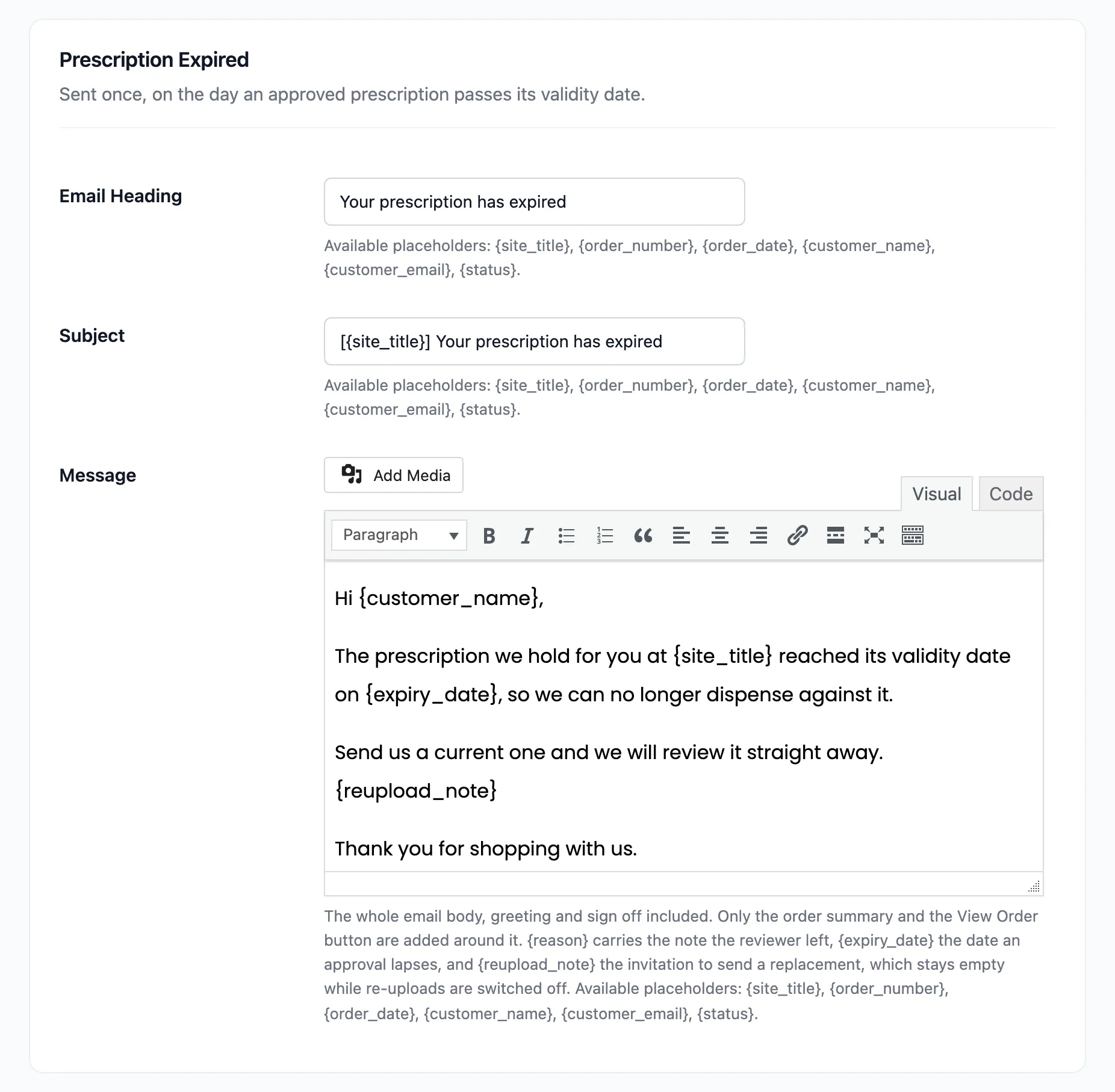
| Prescription Expired | Once, on the day an approval lapses | [{site_title}] Your prescription has expired |
| Upload Reminder | The missing prescription reminder | [{site_title}] Your order #{order_number} is waiting for a prescription |
Prescription Expired is sent by the daily validity task, at the moment it moves an approval to
Expired. Use {expiry_date} in it to tell the customer which date passed.
Placeholders
Section titled “Placeholders”Every field accepts these:
| Placeholder | Becomes |
|---|---|
{site_title} |
Your store name |
{order_number} |
The order number |
{order_date} |
The order date |
{customer_name} |
The billing first and last name |
{customer_email} |
The billing email |
{status} |
The prescription status, for example Rejected |
{reason} |
The pharmacist’s message, as “Reason: …”. Empty on an approval |
{expiry_date} |
The date an approval lapses, in the expiry emails |
{reupload_note} |
“You can upload a replacement prescription from your order page.” Empty while Self Service is off |
Place {reason} where you want the pharmacist’s message to sit. Leave it out and the customer is
refused without being told why, even though the reviewer wrote one.
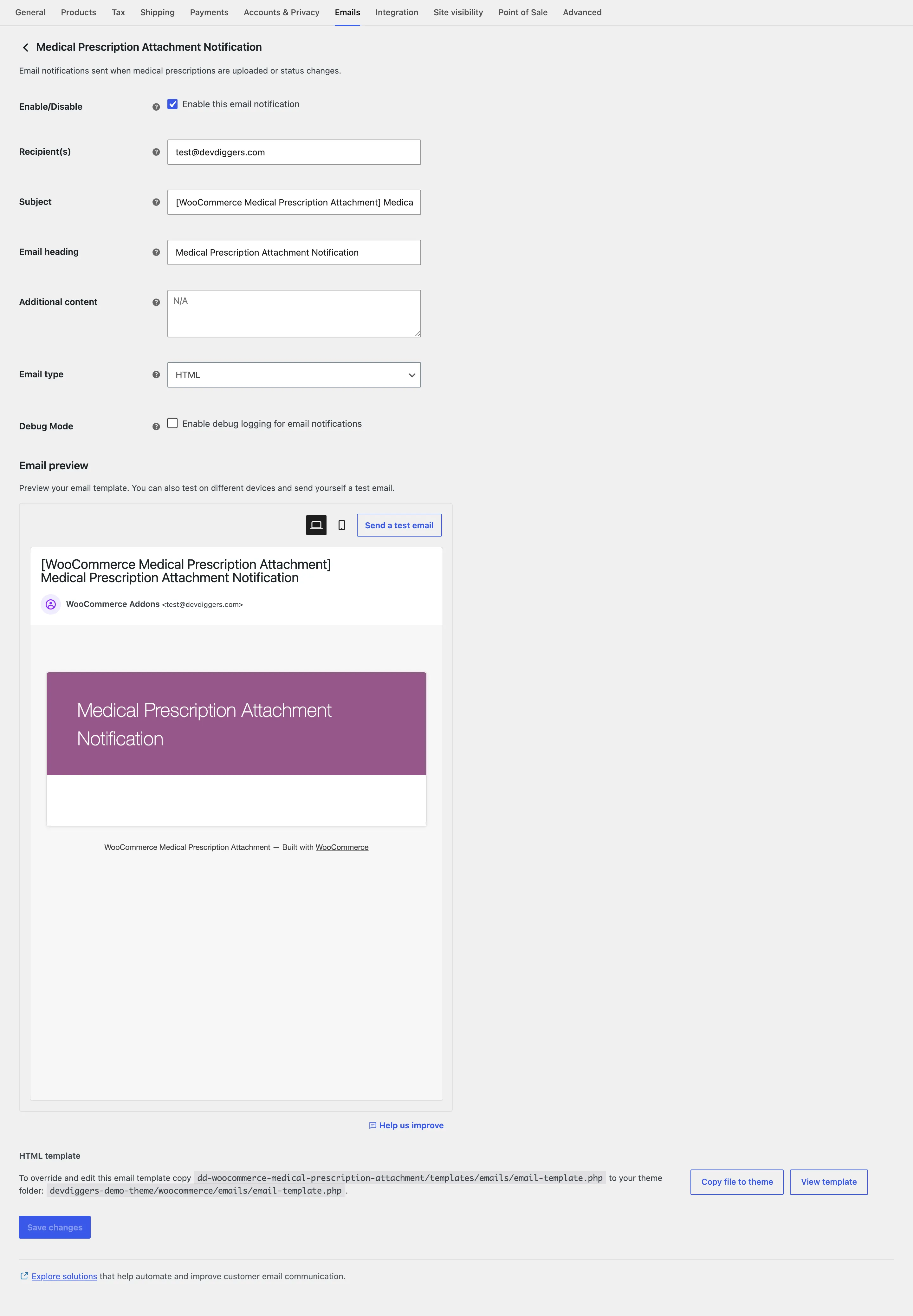
The store’s email
Section titled “The store’s email”The email the store receives is a WooCommerce email. Its recipient, subject and heading are set under WooCommerce → Settings → Emails → Medical Prescription Attachment Notification.