

Review Workflow Settings
The Review Workflow tab decides what happens to an order while a pharmacist looks at it, and what is kept once they have decided.
Go to DevDiggers Plugins → Prescriptions → Configuration → Review Workflow.
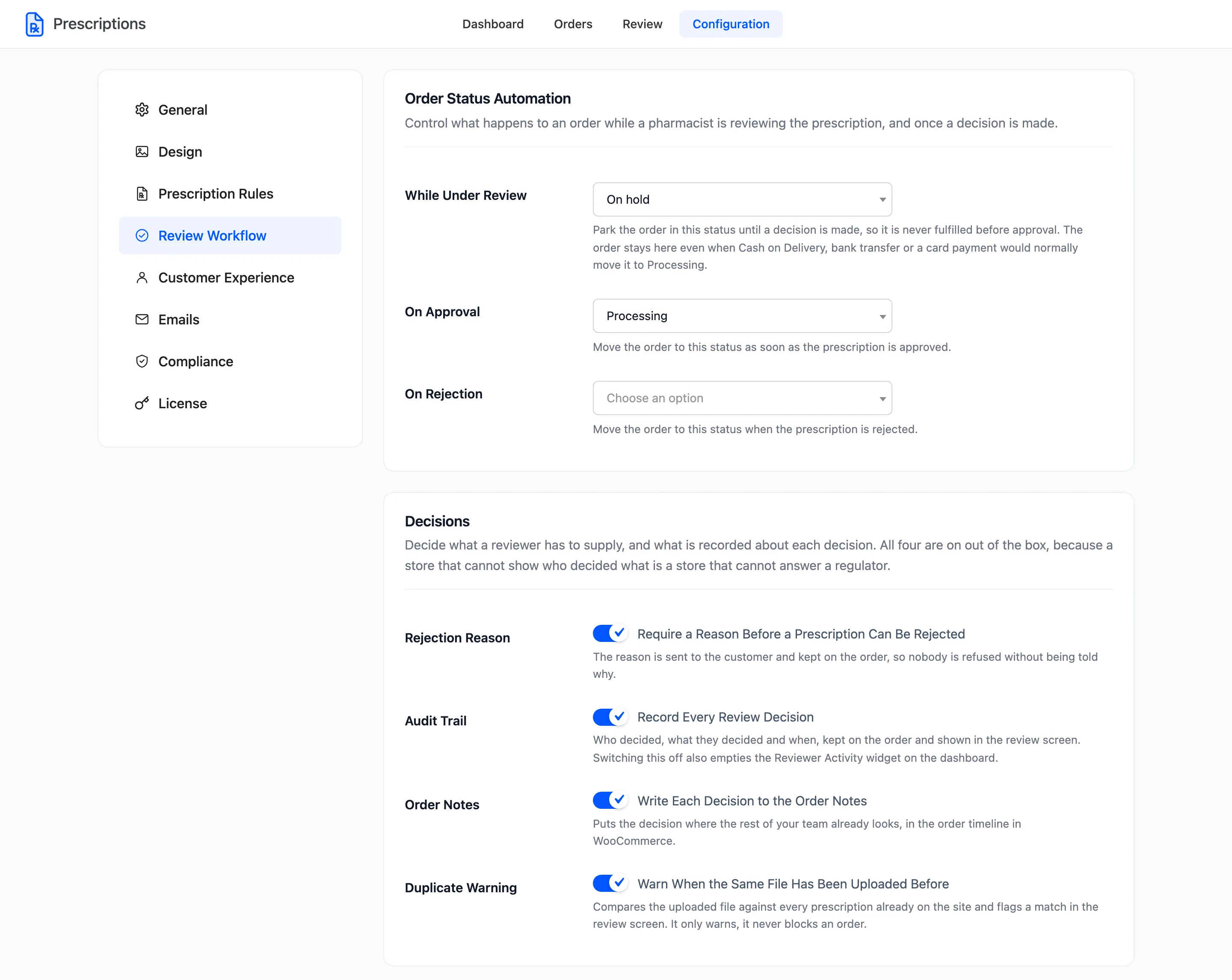
Order Status Automation
Section titled “Order Status Automation”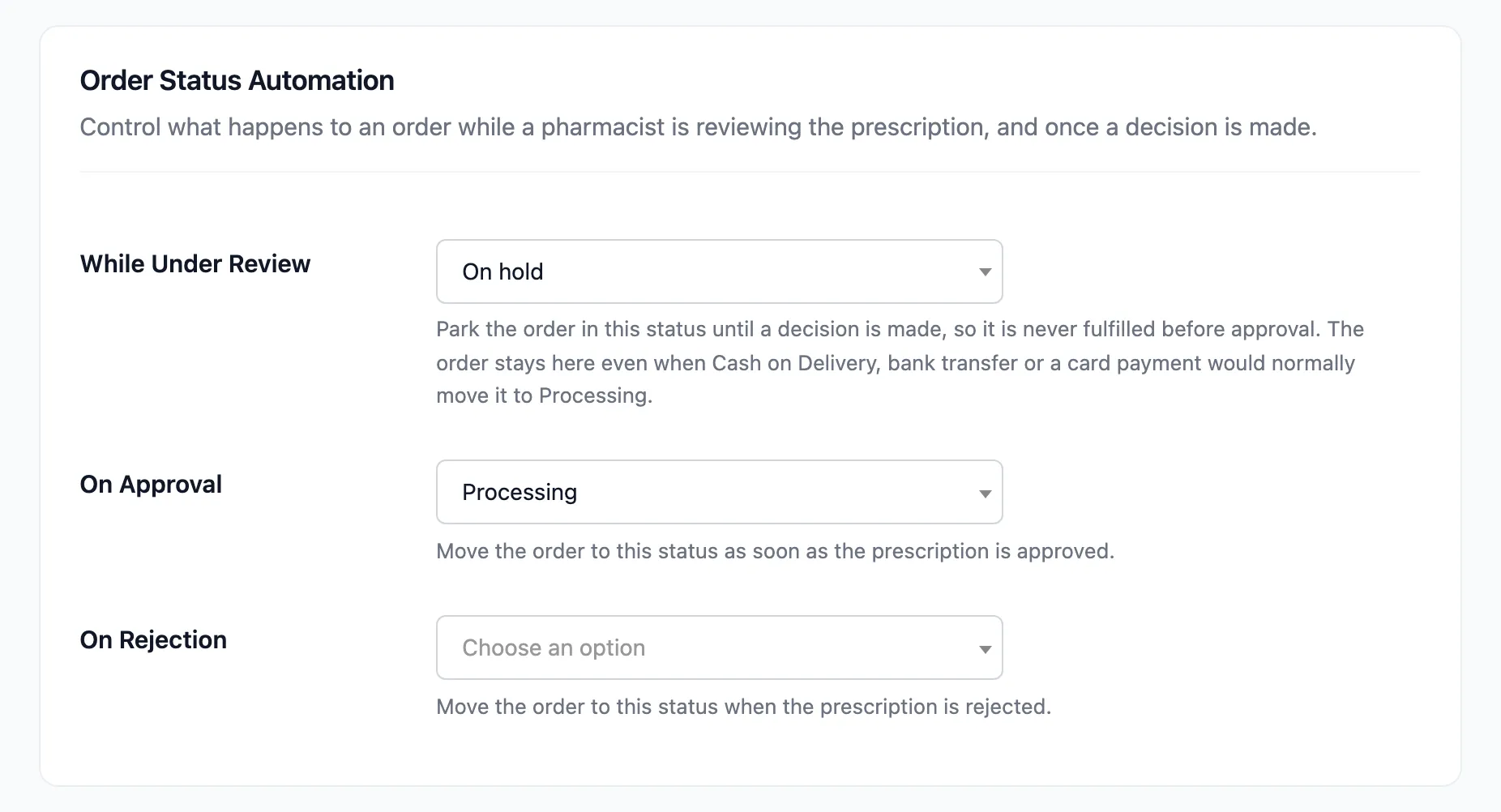
| Field | What it does | Default |
|---|---|---|
| While Under Review | The status an order waits in until a decision is made | On hold |
| On Approval | The status an order moves to when the prescription is approved | Processing |
| On Rejection | The status an order moves to when the prescription is refused | Leave the order unchanged |
While Under Review is the hold, and it is the reason the plugin exists. It applies the moment the order is placed. It stays in place even when Cash on delivery, bank transfer, cheque or a card payment would normally move the order to Processing. Ask for more also sends an order back here.
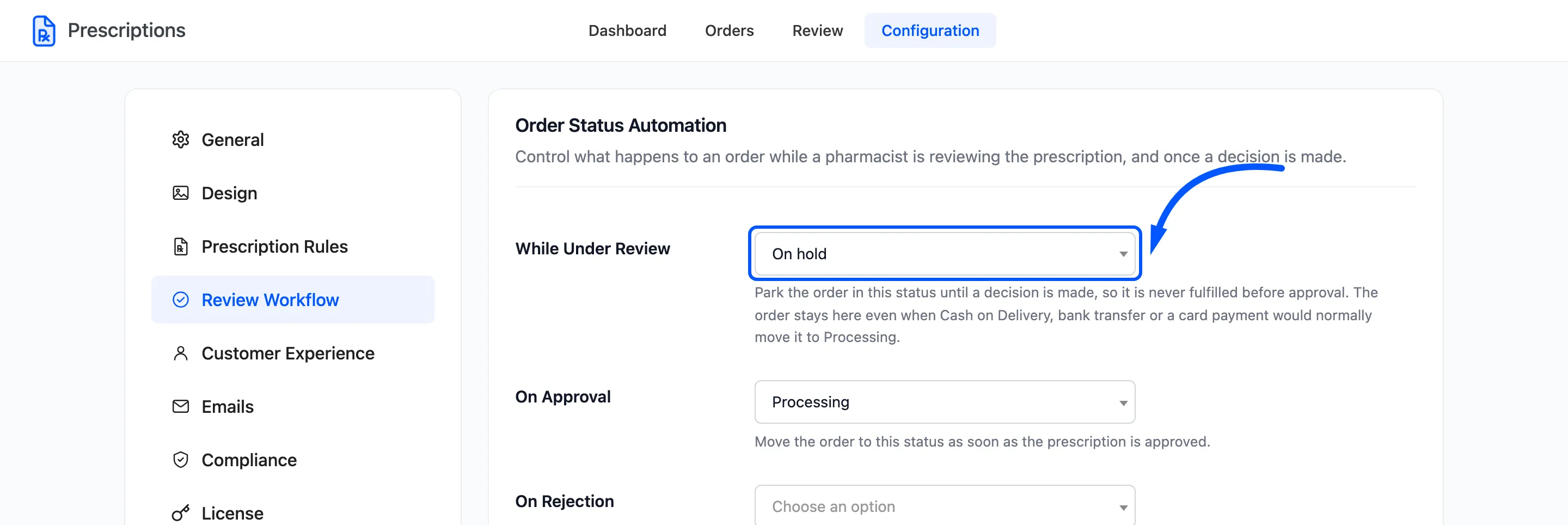
Setting it to Leave the order unchanged turns the hold off. The order then follows its payment method, and a paid order can reach your fulfilment before anyone has looked at the prescription.
Leaving On Rejection unchanged keeps a refused order on hold, so the customer can upload a replacement. Set it to Cancelled if a refusal should end the order instead.
Decisions
Section titled “Decisions”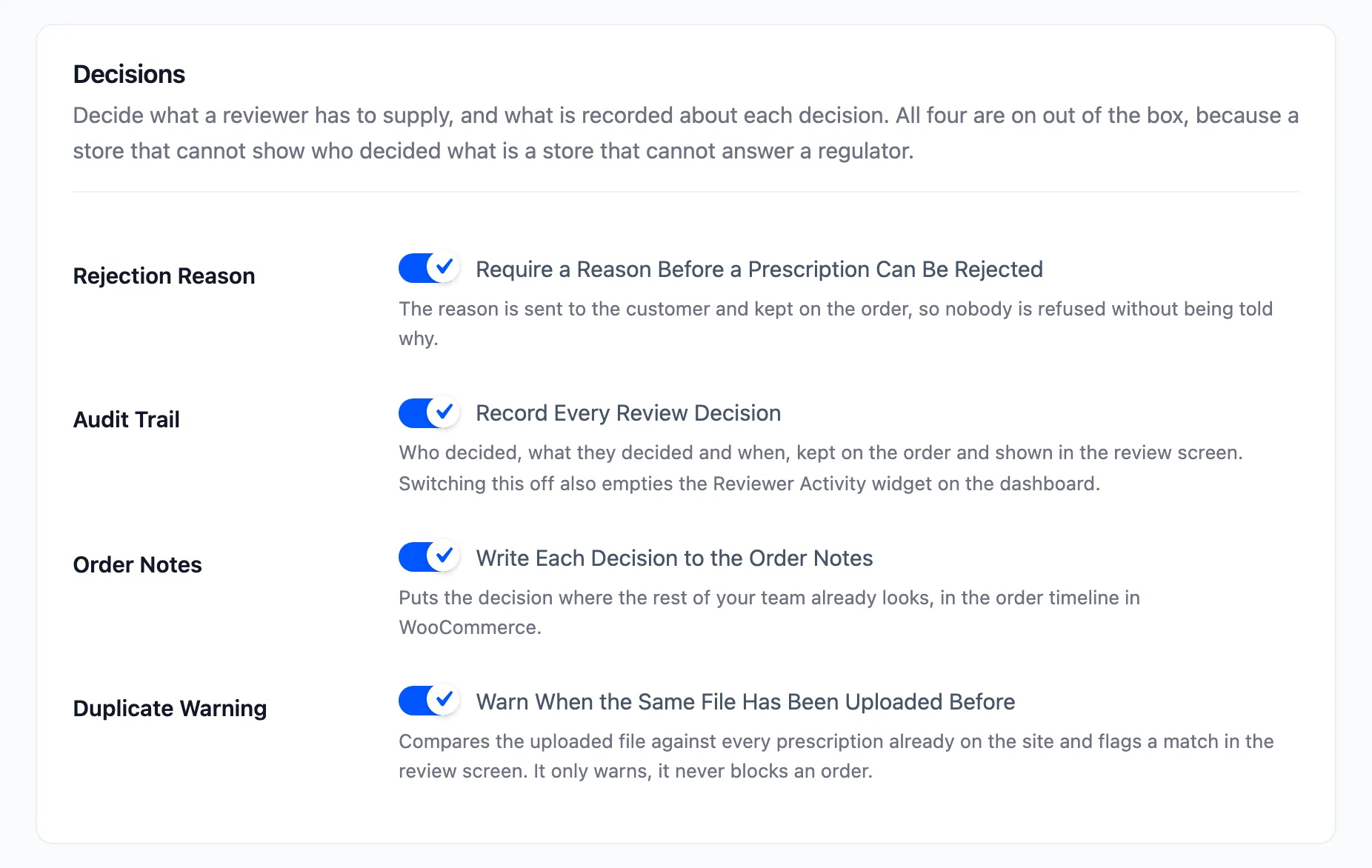
All four are on out of the box.
- Rejection Reason: Require a Reason Before a Prescription Can Be Rejected. The reason goes to the customer and stays on the order. It governs the order screen and bulk rejections. The review workspace asks for a message on every Reject and Ask for more, whatever this is set to. Free.
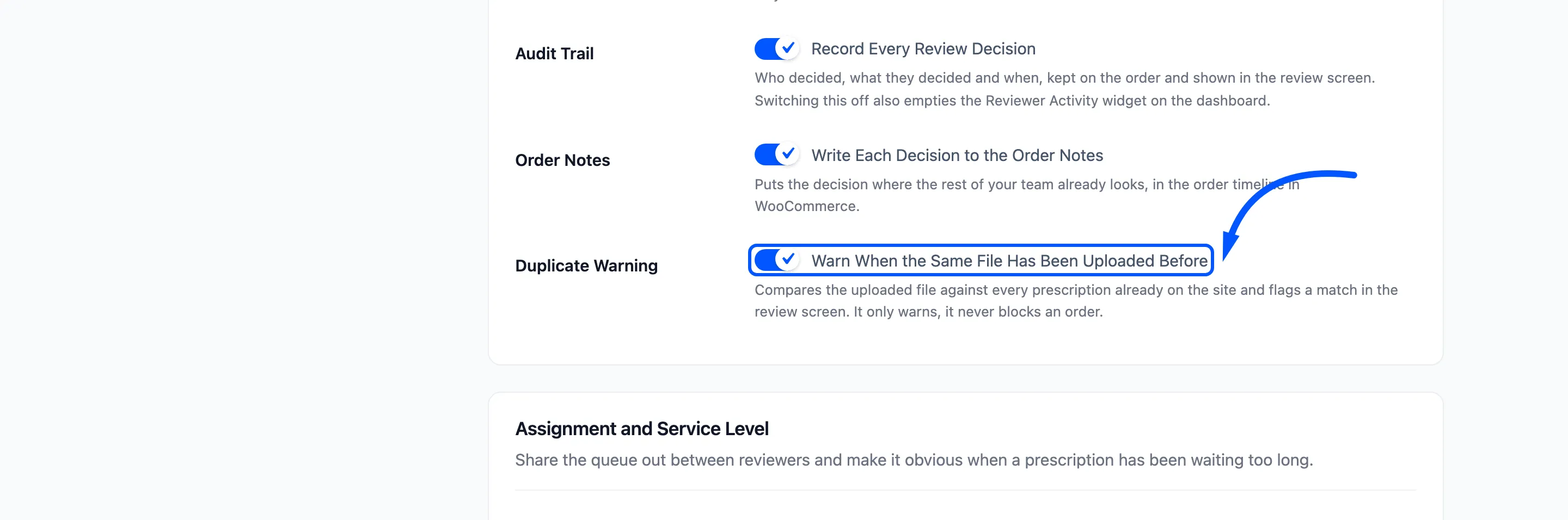
- Audit Trail: Record Every Review Decision. Who decided, what and when, shown on the order and in the review screen. Switching it off also empties the dashboard’s Reviewer Activity. Pro.
- Order Notes: Write Each Decision to the Order Notes. Adds a note such as “Prescription status is changed from Pending to Rejected”, with the reason. Free.
- Duplicate Warning: Warn When the Same File Has Been Uploaded Before. Compares every upload with every prescription already on the site. It warns and never blocks. Pro.
Assignment and Service Level
Section titled “Assignment and Service Level”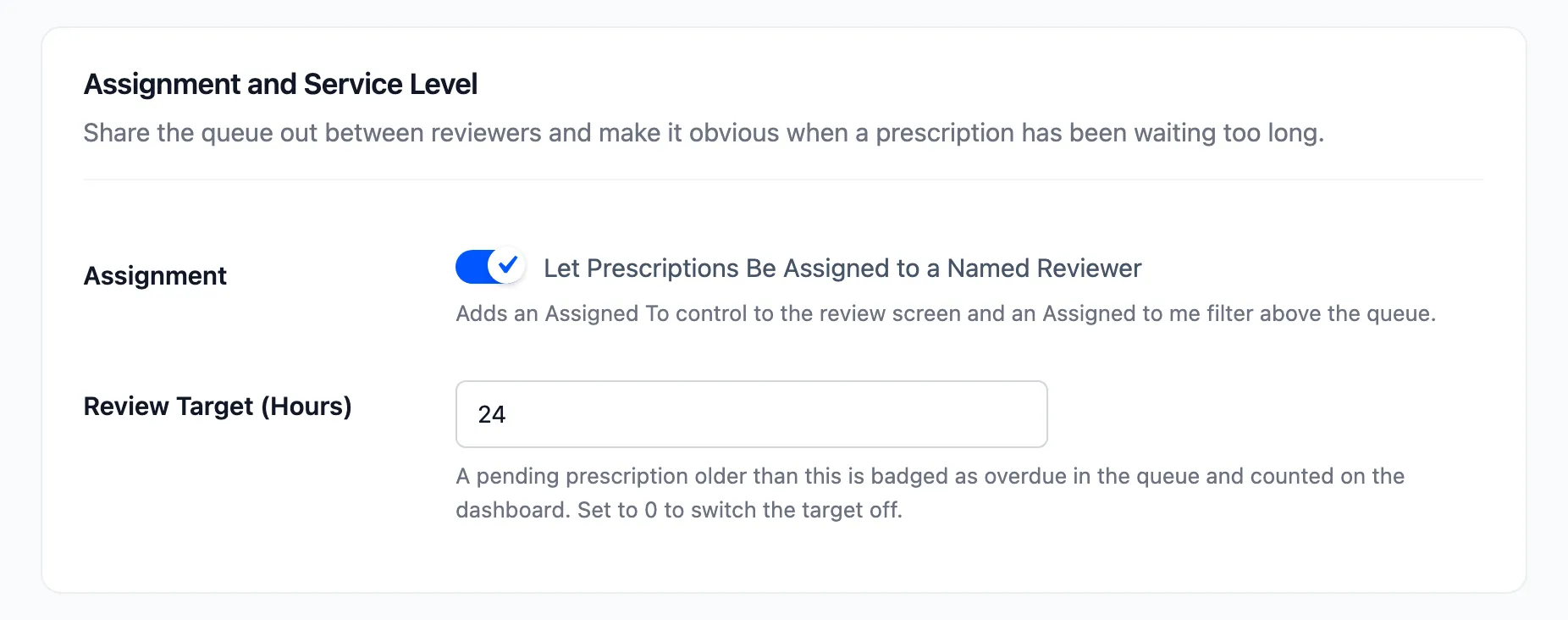
- Assignment: Let Prescriptions Be Assigned to a Named Reviewer. On by default. Adds an Assigned to field to the review screen and an Assigned to me tab above the Orders list.
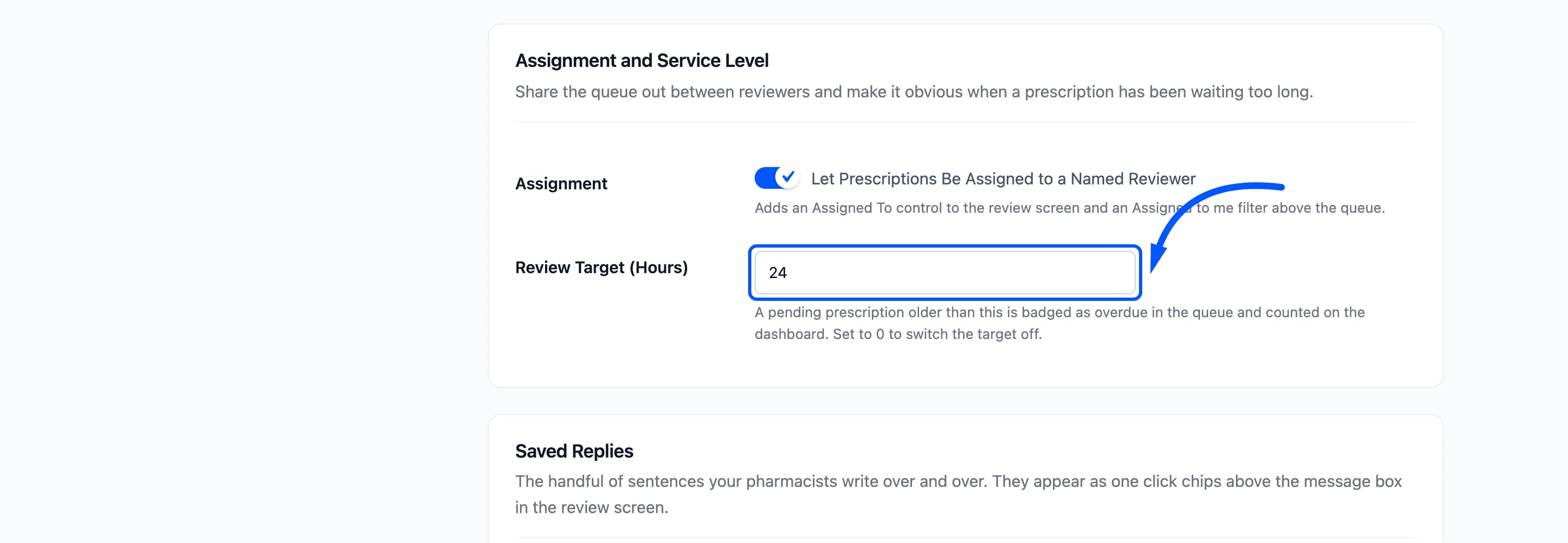
- Review Target (Hours): Default 24. A pending prescription older than this is badged Overdue in the Orders list and counted on the dashboard. Set it to 0 to switch the target off.
Saved Replies
Section titled “Saved Replies”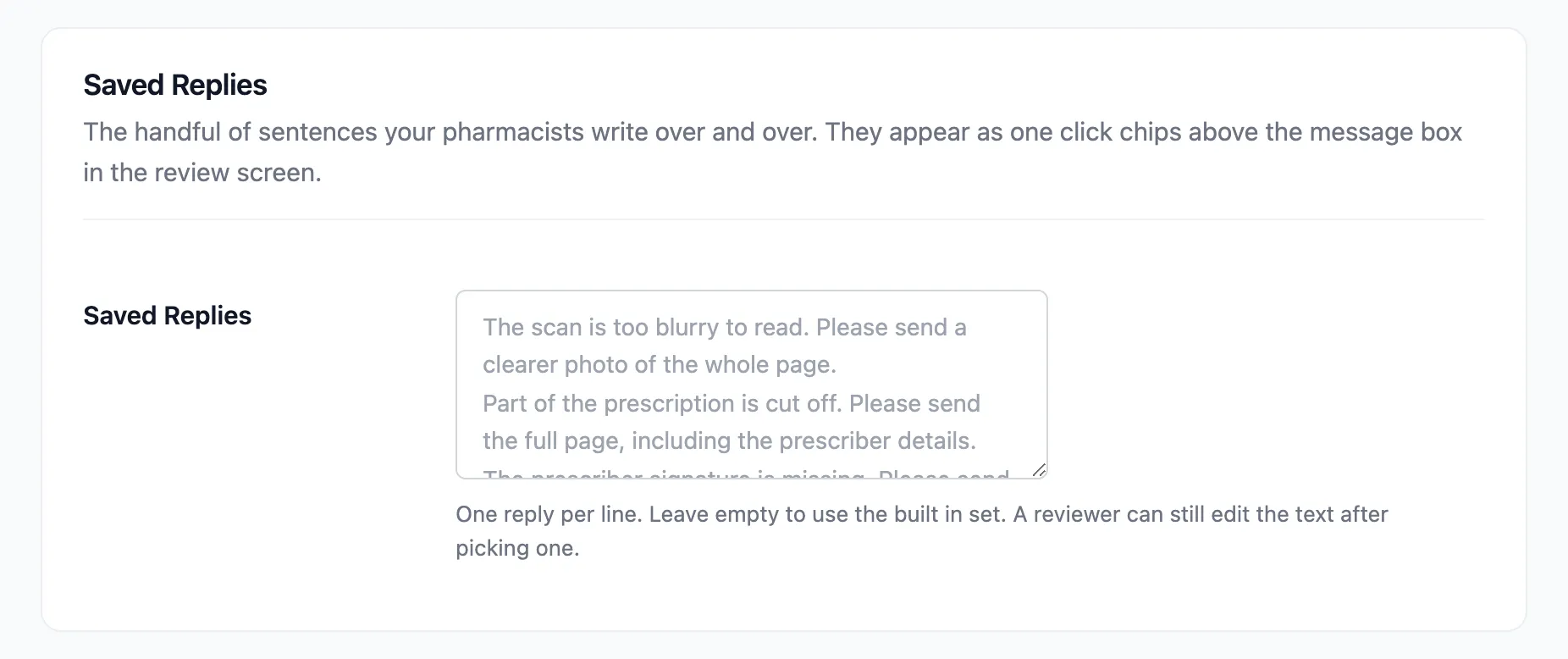
The sentences your pharmacists send most often, one per line. They appear as one-click chips above the message box in the review screen. A reviewer can still edit the text after picking one.
Leave the box empty to use the six built-in replies:
- The scan is too blurry to read. Please send a clearer photo of the whole page.
- Part of the prescription is cut off. Please send the full page, including the prescriber details.
- The prescriber signature is missing. Please send a signed copy.
- This prescription is past its validity date. Please send a current one.
- The patient name does not match the account holder. Please confirm who this is for.
- We could not verify this prescriber. Please send their registration number.
Prescriber Verification
Section titled “Prescriber Verification”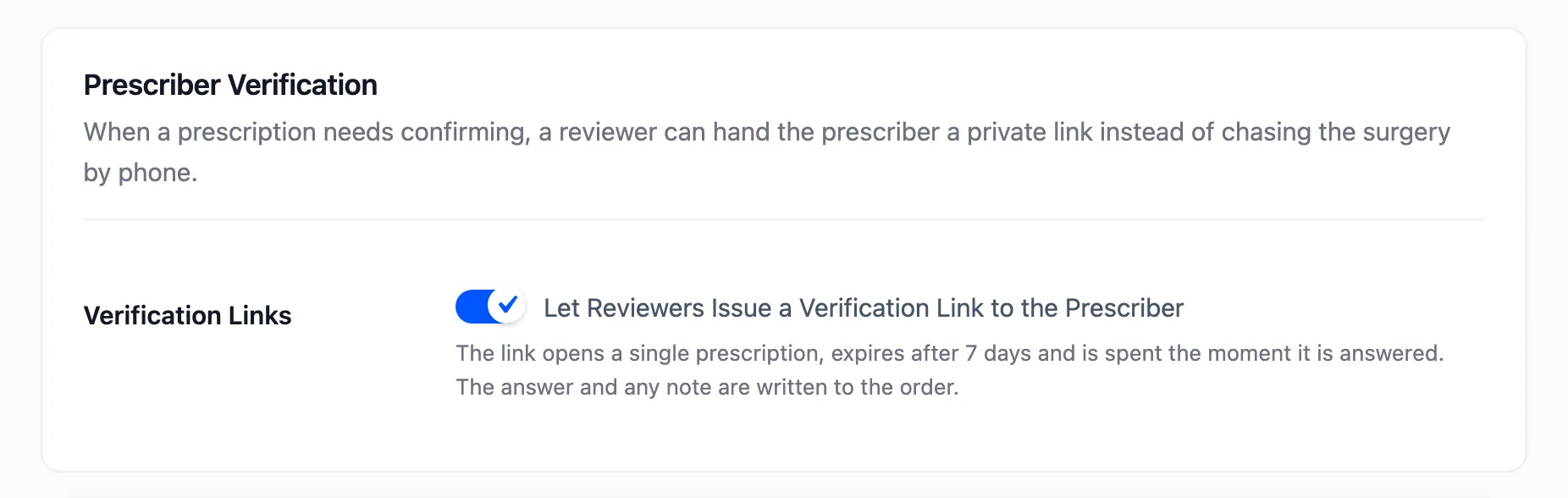
Verification Links, Let Reviewers Issue a Verification Link to the Prescriber, is on by default. It adds a Prescriber verification panel to the review screen. The link opens that one prescription, works for 7 days and stops working once it has been answered.