

The Review Workspace (Pro)
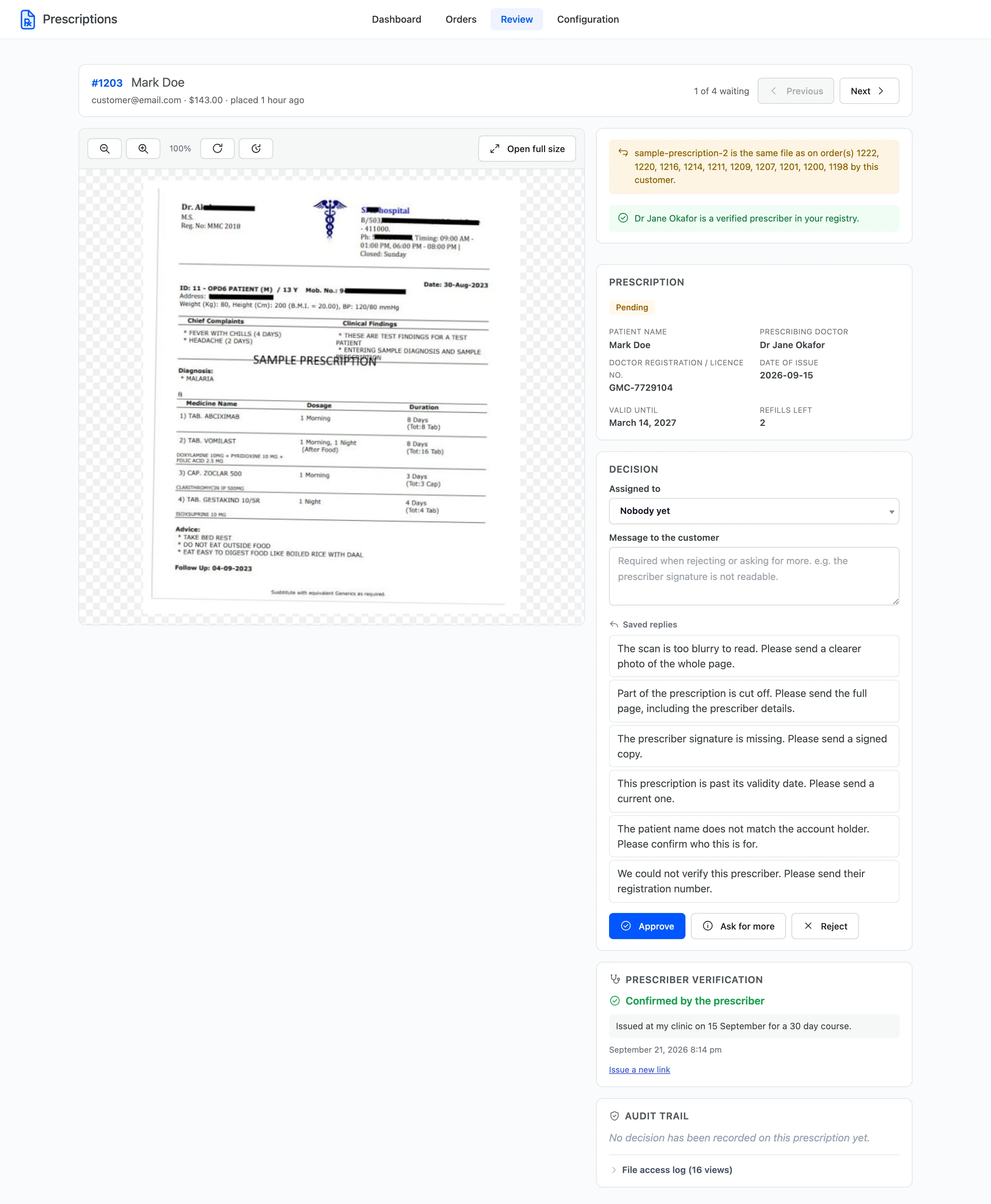
The review workspace puts the prescription, everything known about it and the decision on one screen. After each decision it opens the next one in the queue, so a pharmacist can clear the queue without going back to a list.
Go to DevDiggers Plugins → Prescriptions → Review.
Which prescription opens
Section titled “Which prescription opens”The Review tab opens the oldest prescription still waiting: status Pending or Information Requested, oldest order first. Open in workspace on the Orders screen opens a particular one.
When nothing is waiting, the screen says The queue is clear.
The header
Section titled “The header”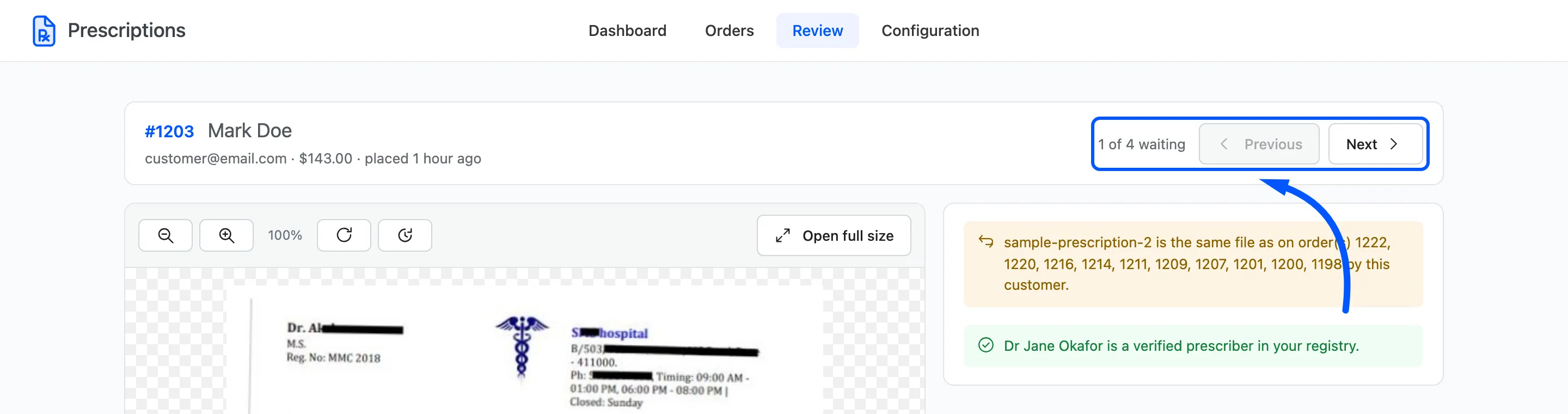
The order number, the customer’s name and email, the total and how long ago the order was placed. On the right, the position in the queue, such as 5 of 7 waiting, with Previous and Next. They move through the queue without reloading the page.
The viewer
Section titled “The viewer”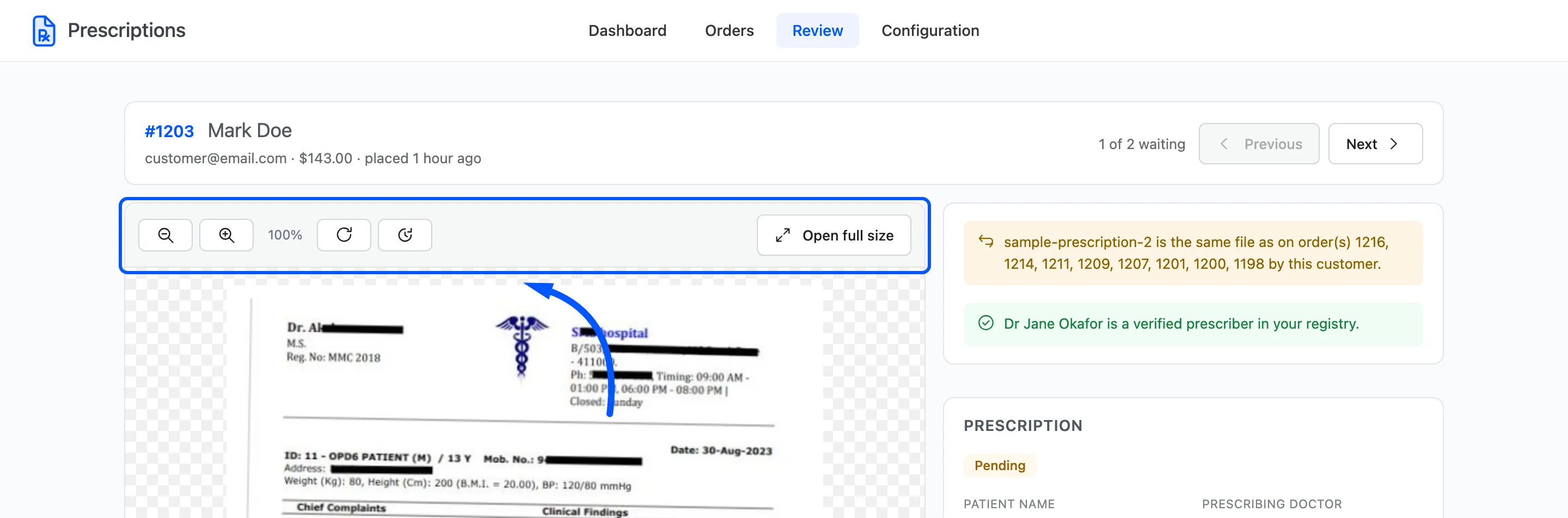
The uploaded file fills the left column. The toolbar zooms out and in, rotates a sideways phone photo, resets the view, and Open full size opens the file in a new tab. An order with more than one file shows each in turn.
An order with nothing to look at says No file to look at yet. Either the customer chose Attach later, or retention has already cleared the file.
The warnings
Section titled “The warnings”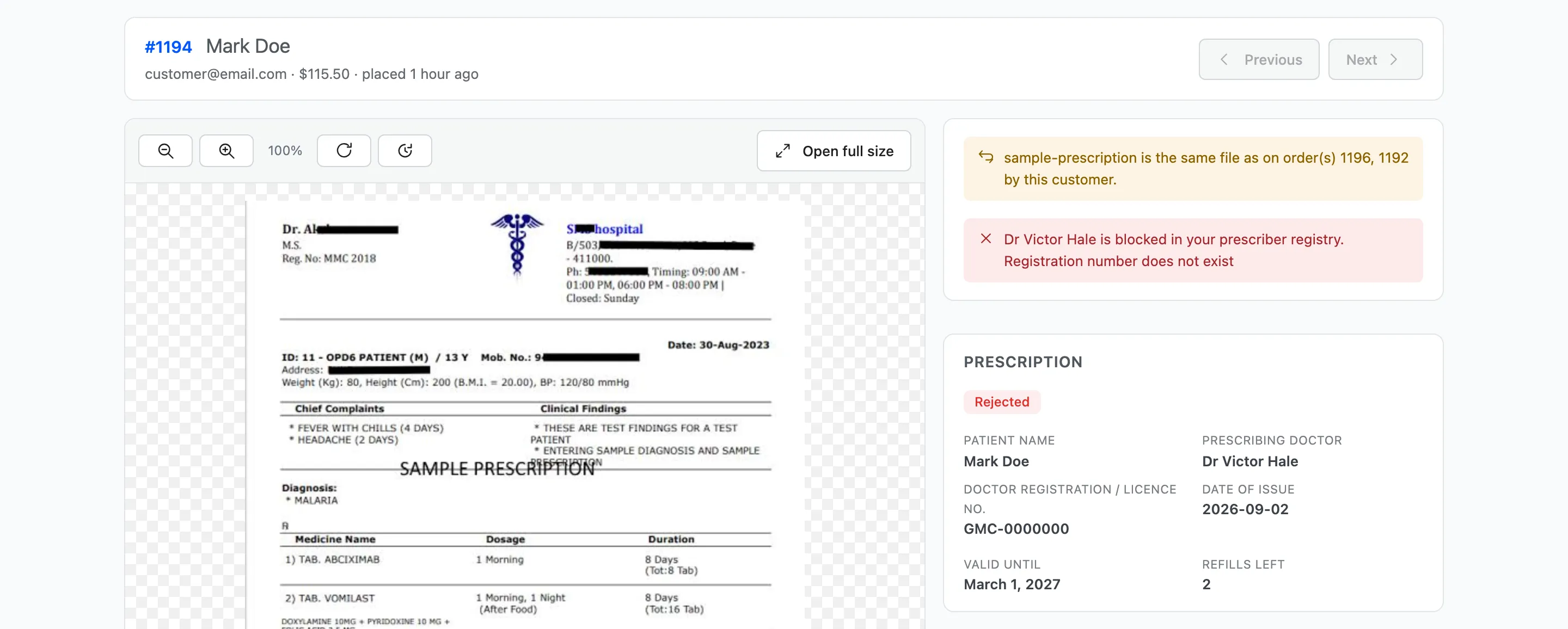
Warnings sit at the top of the right column, before the decision, so they are read first.
- The same file uploaded before: Amber when it was this customer’s own earlier order, red when a different customer sent it.
- The prescriber’s standing: Red for blocked, amber for watch, green for verified, or a note that they are not in your registry yet.
- Past its validity date: The prescription has already expired.
None of them stops you deciding. They tell you what to look at.
The Prescription panel
Section titled “The Prescription panel”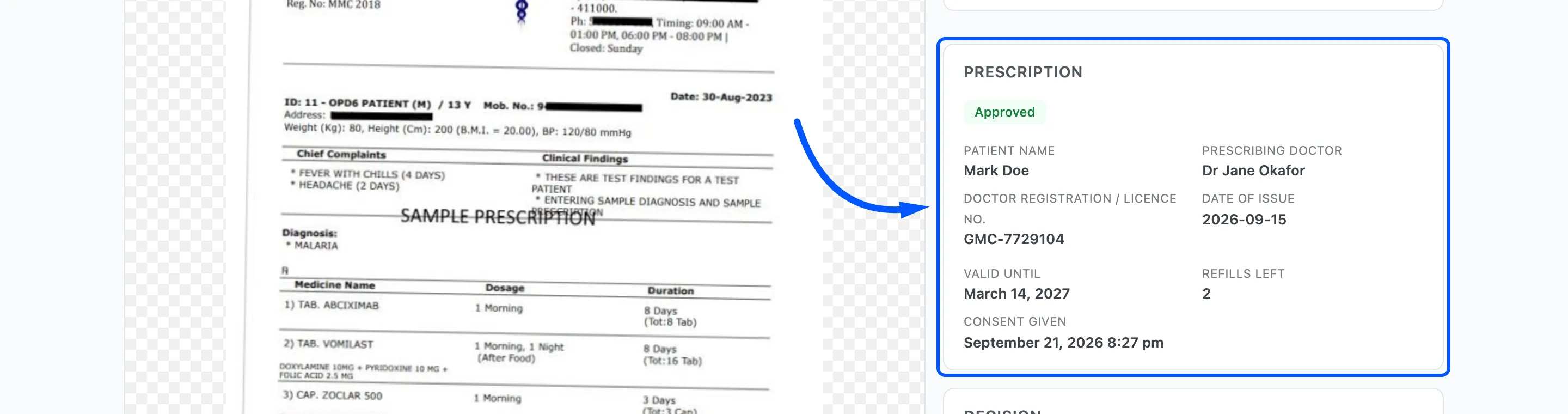
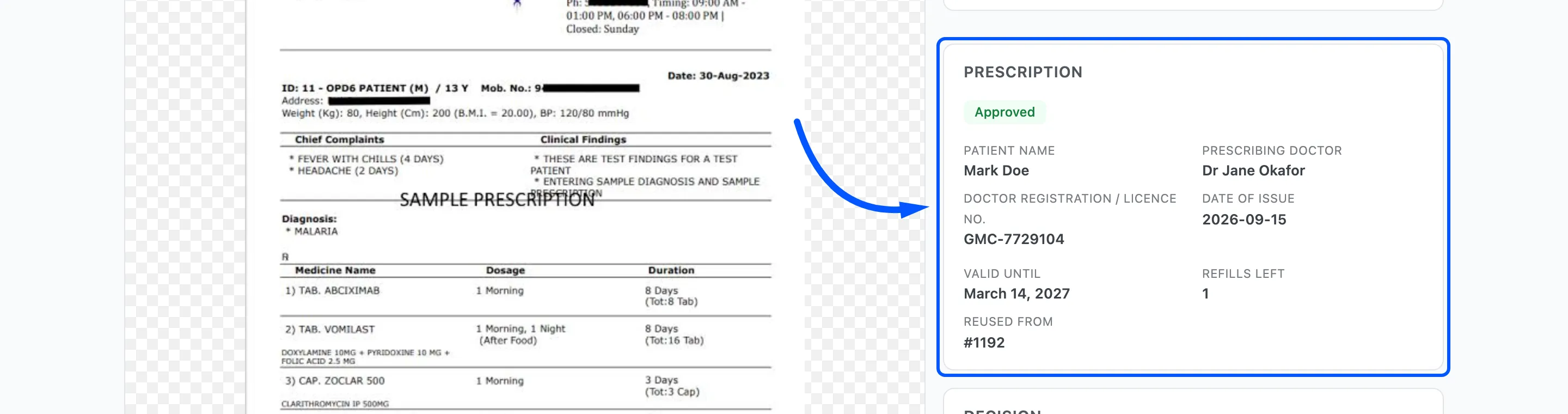
The prescription status and every detail the customer gave, followed by what the plugin worked out:
- Valid until: The date the approval lapses.
- Refills left: How many more reuses the approval covers, when refills are on.
- Reused from: The earlier order whose approval this one reused.
- Consent given: When the customer ticked the consent statement.
The Decision panel
Section titled “The Decision panel”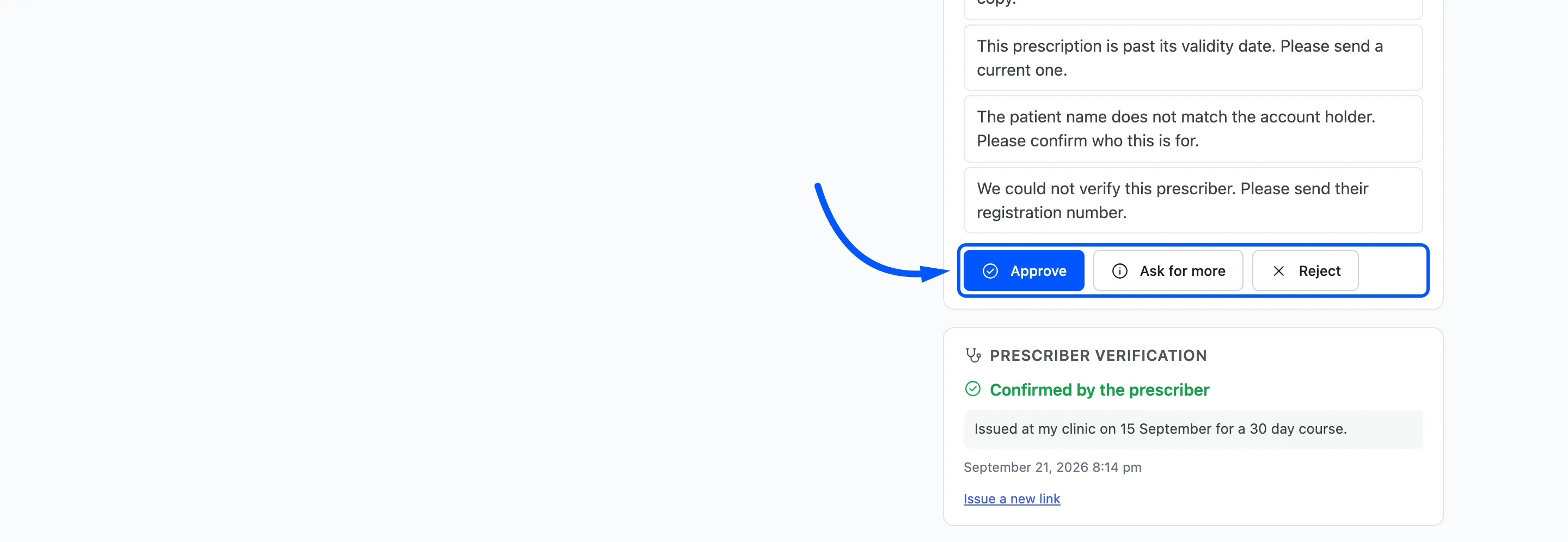
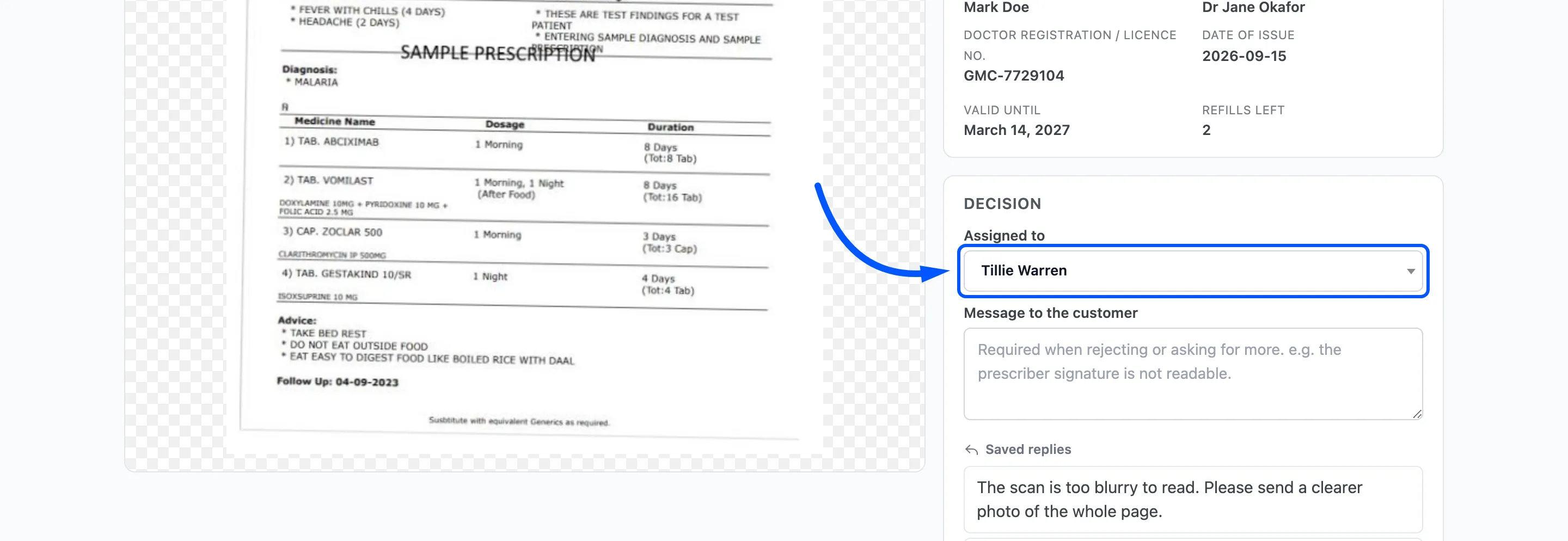
- Assigned to: The reviewer responsible. It is saved with the decision. Shown while Assignment is on.
- Message to the customer: Required for Reject and Ask for more. It is emailed to the customer and shown on their order page.
- Saved replies: One click puts a reply in the message box, where it can still be edited.
- The three buttons: Approve, Ask for more and Reject.
After a decision the workspace opens the next prescription waiting.
Prescriber verification
Section titled “Prescriber verification”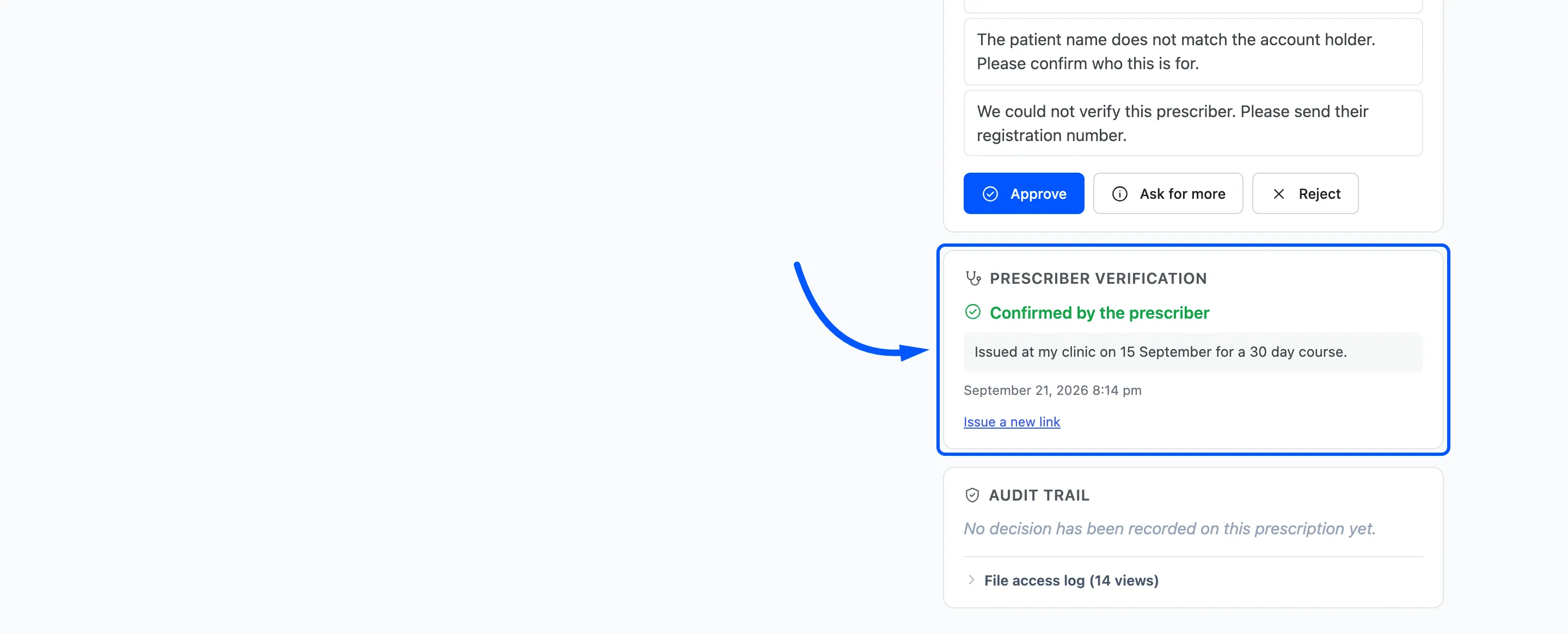
Create verification link issues a private link for the prescriber. Their answer, Confirmed by the prescriber or Denied by the prescriber, and their note appear here. See How to Verify a Prescription With the Prescriber.
The audit trail and file access log
Section titled “The audit trail and file access log”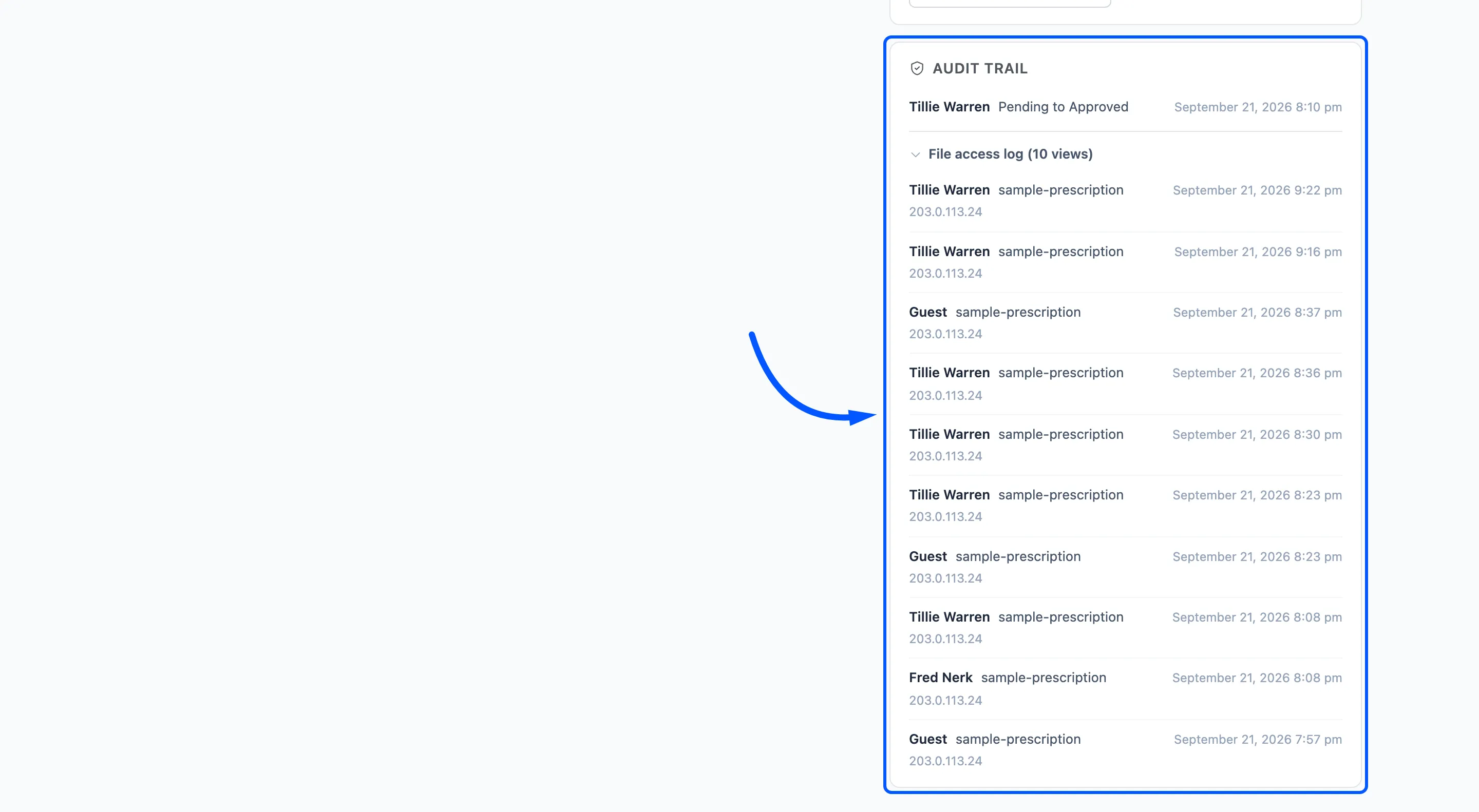
Audit trail lists every decision on this prescription: who, from what to what, when, and the message. File access log lists who opened the file, when and from which IP address. See How to Read the Audit Trail and File Access Log.
Who can use it
Section titled “Who can use it”Administrators, shop managers and users with the Pharmacist role. A pharmacist reaches the prescription screens and orders, and not your products, settings or reports. See How to Assign Prescriptions to Pharmacists.