How to Collect Customer Consent (Pro)
A prescription is health data, and in many places you need the customer’s agreement to store and review it. The consent statement asks for it at the point of upload and keeps proof of the answer.
Step 1: Write the consent statement
Section titled “Step 1: Write the consent statement”Go to DevDiggers Plugins → Prescriptions → Configuration → Compliance. Under Customer Consent, Consent Text holds a default statement:
I confirm this prescription is genuine and relates to me or to someone I am authorised to order for, and I agree to it being stored and reviewed by the pharmacy team so my order can be dispensed.
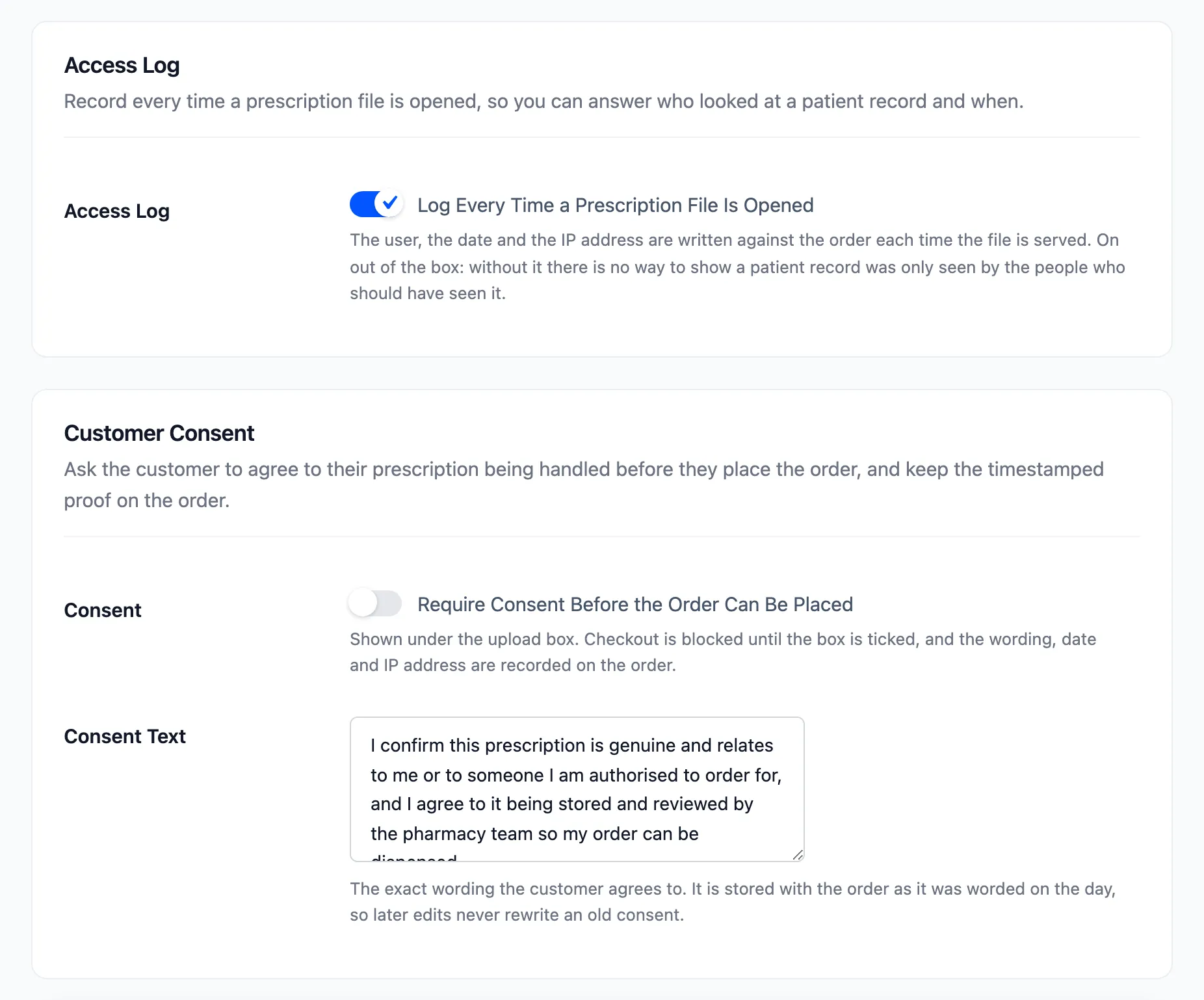
Treat that as a starting point. What a customer has to agree to depends on where you trade, so have your own wording checked.
Step 2: Switch consent on
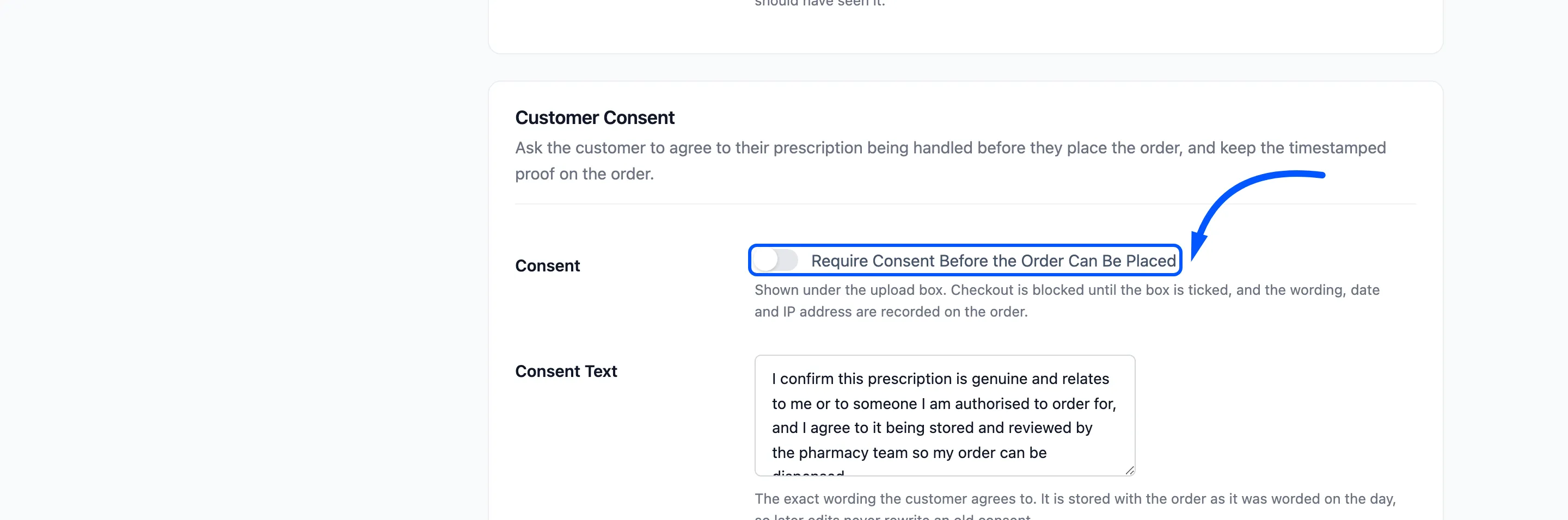
Section titled “Step 2: Switch consent on”Tick Consent, Require Consent Before the Order Can Be Placed. It is off by default. Click Save Changes.
Step 3: The customer sees the statement
Section titled “Step 3: The customer sees the statement”The statement appears under the upload box at checkout, with a checkbox.

Until it is ticked, Place order is replaced by a message. It reads “Please agree to the prescription handling statement before placing the order.” On the block checkout the order is refused with the same message.
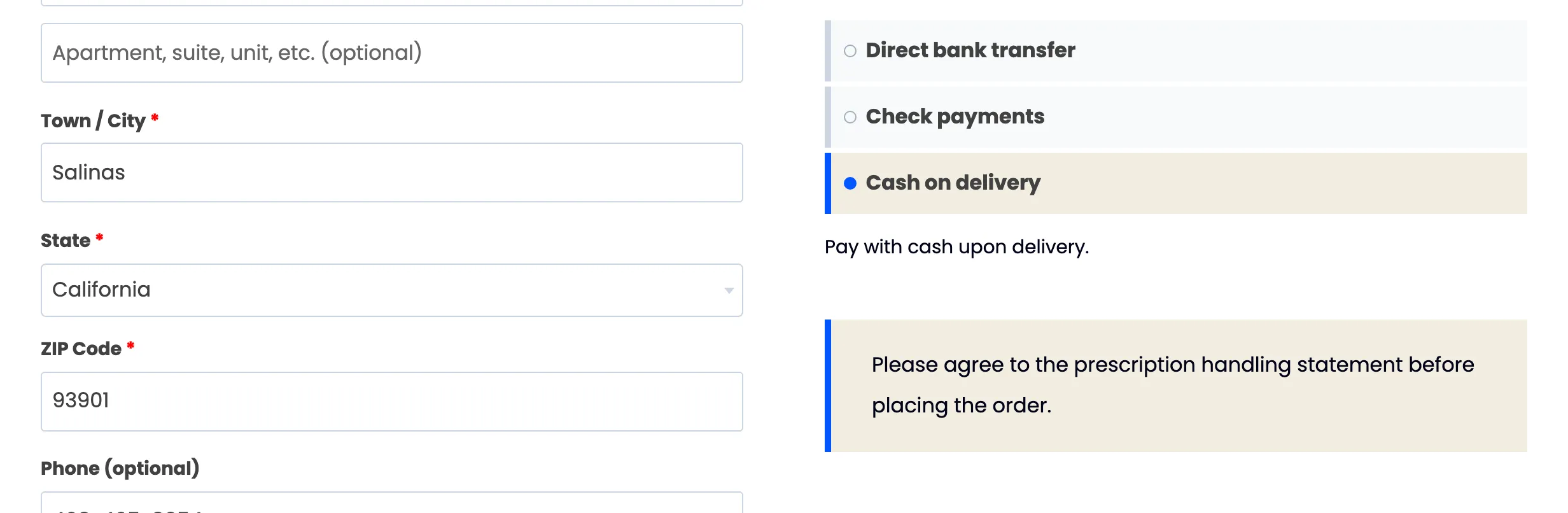
Consent is asked at checkout on every order that needs a prescription, including a reused prescription and an order placed with Attach later. It is not asked again on the order page.
Step 4: Find the proof on the order
Section titled “Step 4: Find the proof on the order”When the order is placed, three things are stored on it. The wording exactly as it read that day, the date and time, and the customer’s IP address. Changing Consent Text later never rewrites an old consent.
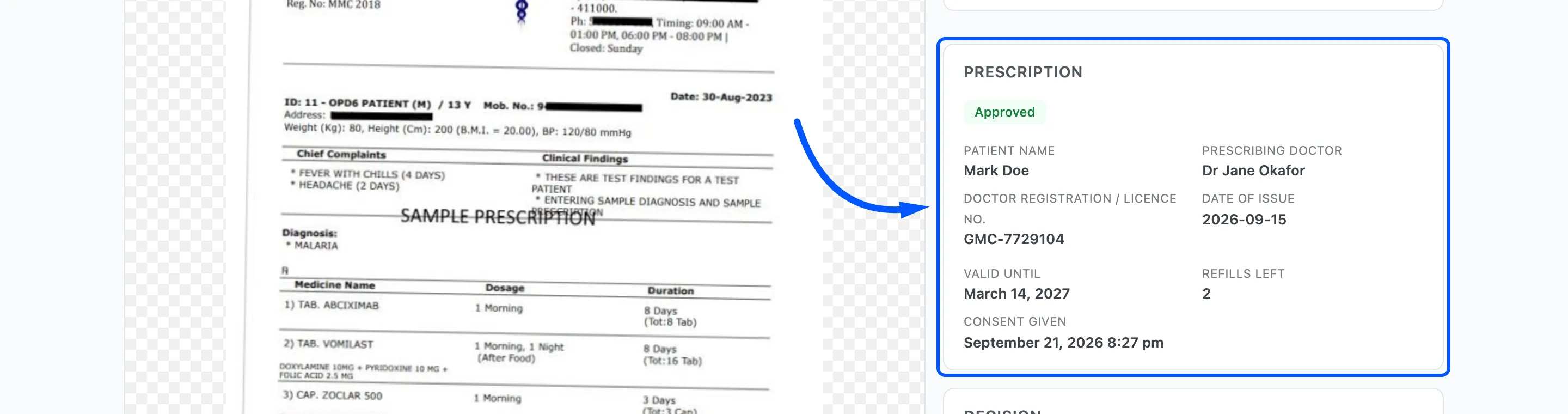
The review workspace shows Consent given with the date and time in the Prescription panel.