

General Settings
The General tab decides whether the plugin runs at all, and which products it applies to.
Go to DevDiggers Plugins → Prescriptions → Configuration → General.
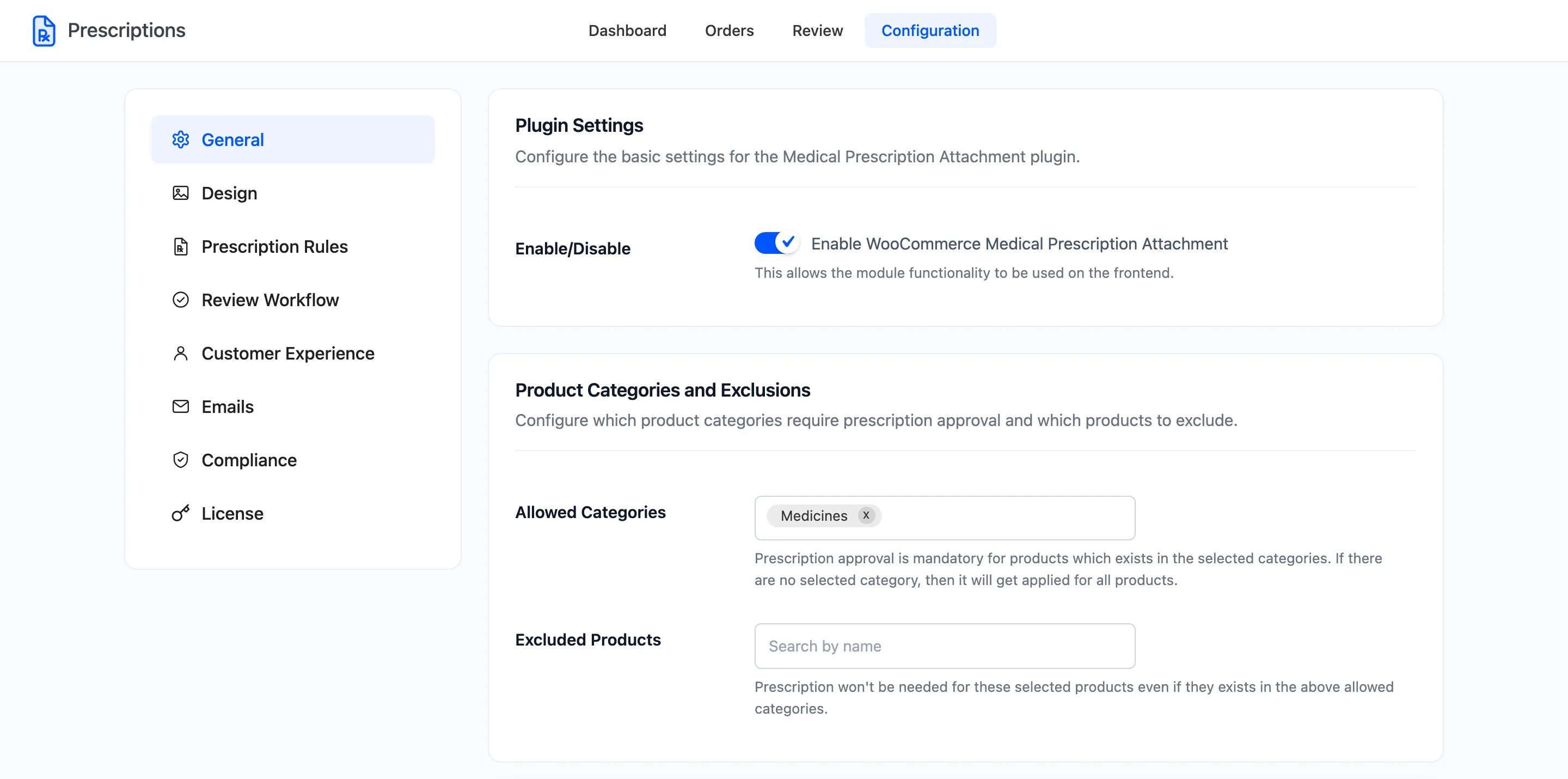
Every field on this tab is in the free version.
Plugin Settings
Section titled “Plugin Settings”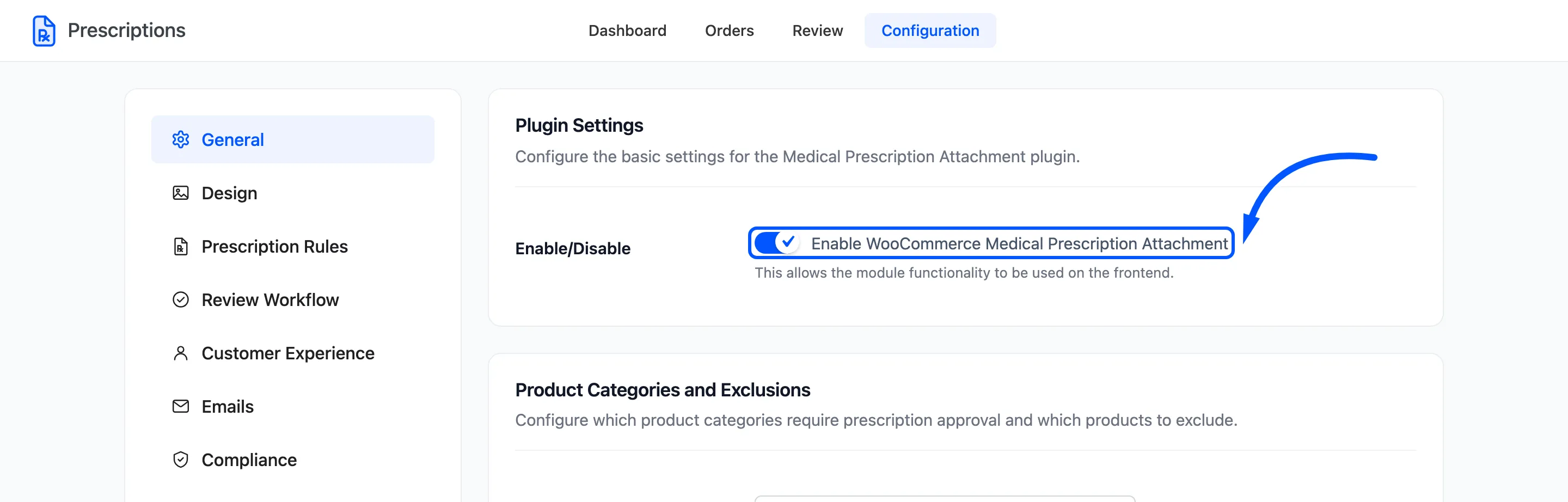
Enable/Disable holds one switch, Enable WooCommerce Medical Prescription Attachment. It ships off. With it off, nothing is asked for, shown or held on the storefront, and existing orders keep the prescription status they already have.
Product Categories and Exclusions
Section titled “Product Categories and Exclusions”Allowed Categories
Section titled “Allowed Categories”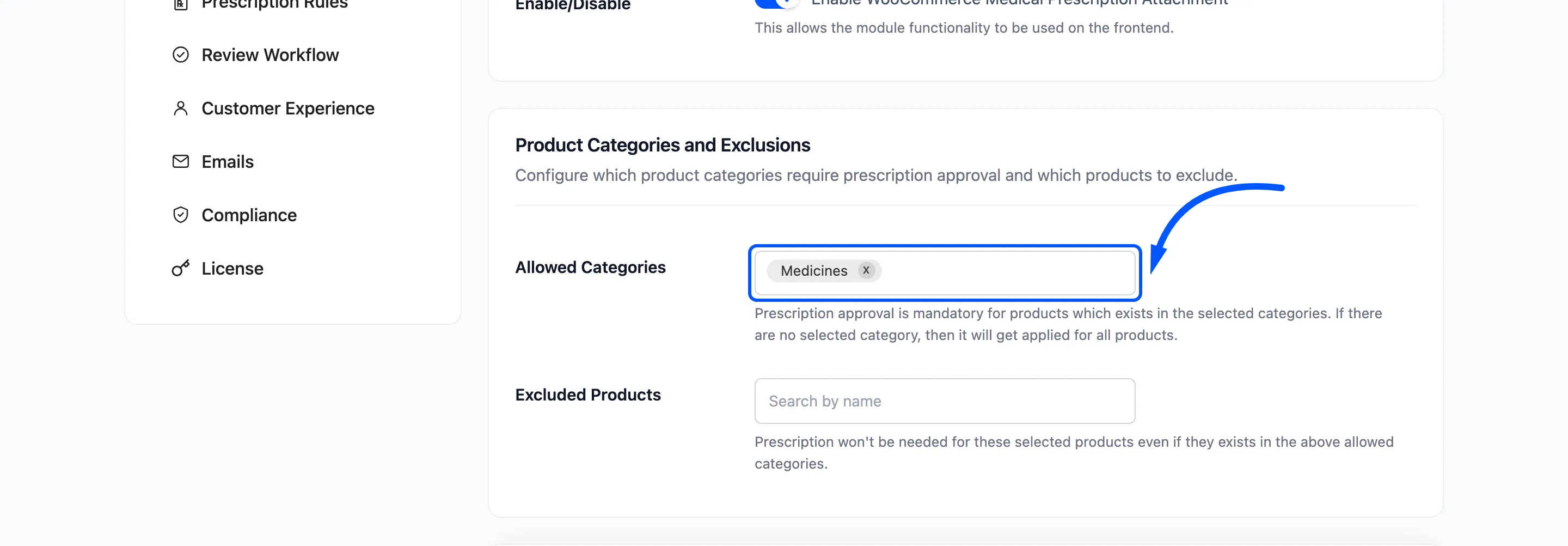
A product in any of these categories needs a prescription. Pick as many as you like.
Leaving the field empty does not switch the check off. It applies it to every product in the store. That is the right setting for a pharmacy that sells nothing else, and a surprise for a store that also sells shampoo.
A variation takes its parent product’s categories.
Excluded Products
Section titled “Excluded Products”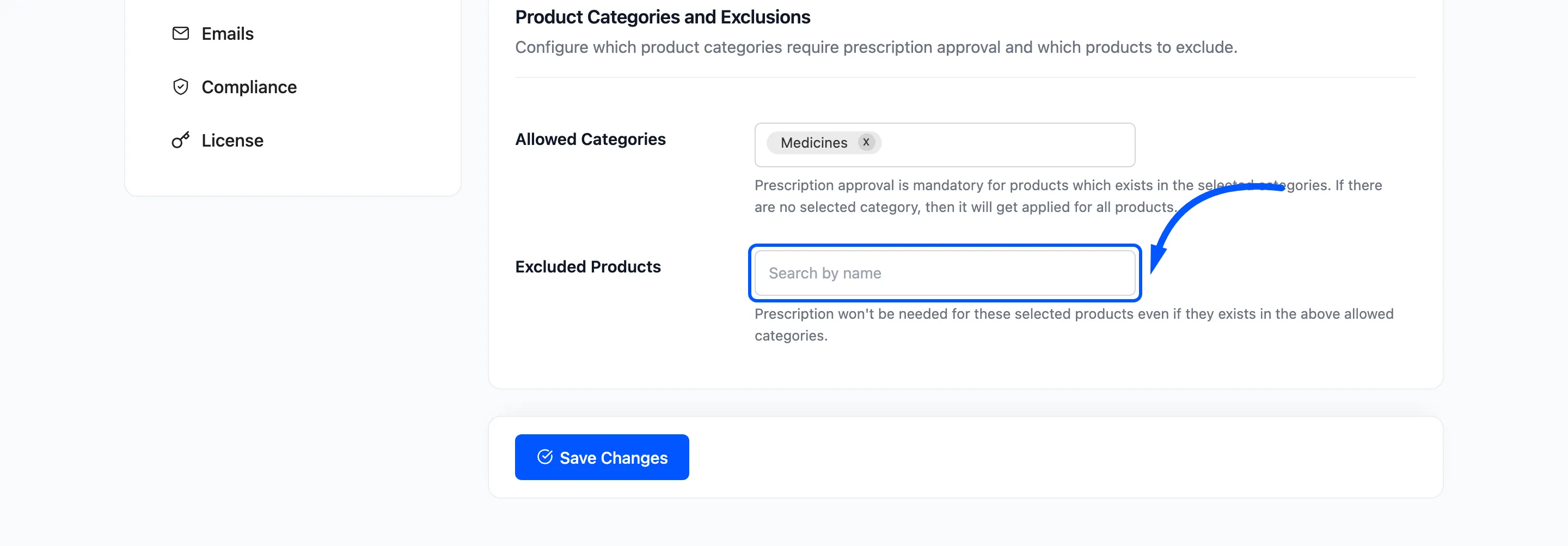
Products that never need a prescription, even when they sit in an allowed category. Use it for the over-the-counter items in a prescription category.
The product’s own rule wins
Section titled “The product’s own rule wins”Each product also has a Requires prescription setting on its edit screen:
- Use category rules: The default. The two fields above decide.
- Always require a prescription: It needs one, whatever its category.
- Never require a prescription: It never needs one, whatever its category.
A product set to Always or Never ignores both fields on this tab. See Product Prescription Settings.
Where to go next
Section titled “Where to go next”- Design Settings for the badge and where the upload box appears.
- How to Require a Prescription for Specific Products